Got a tip for us?

iPhone 18 Pro Max

Many people found–and some still find–USB-C confusing because of the variety of data standards supported by different hosts (computers, mobile phones, etc.) and devices (headphones, other computers, gaming systems, drives, and so forth). But mixed in there was the issue that a USB-C cable has no preferred end and can carry power over any cable, often at high wattages necessary for charging laptops or recharging USB battery packs.

When you plug in multiple devices that can provide power over USB-C, will you fry a computer or other equipment? Will their voltages combine for faster charging? If they’re competing to charge, which one “wins” when you have two sources with different outputs, like 15 watts and 100 watts?

The answer is that USB-C sorts it all out. The controller on each device that handles negotiation over the cable with other connected devices also negotiates power flow, as power has to pass over certain pathways within the cable. This should typically lead to a host device choosing the highest available power, though there’s no way to be sure.

One reader described a scenario in which they had plugged into their MacBook Pro a dock that provided 65W over USB-C even though the computer could charge at up to 95W. (All USB-C cables have to carry a minimum of 60W, but ones that are also rated for Thunderbolt 4 must pass 100W. However, charging devices aren’t required to offer a minimum power.)

As expected, when they plugged both in, the laptop received 95W from the directly attached adapter, declining the power feed from the dock. If the MacBook Pro’s charger were unplugged, it would immediately switch to receiving power from the dock through a sub-second negotiation.

We once had to shed our phone number when we changed wireless providers or moved–sometimes even moving from one part of a town to another. One of the great changes in mobile phones since their introduction decades ago was the introduction about 20 years ago of number portability.

However, portability and the ease of signing up for a new mobile contract can lead you to have phone numbers that linger on after you’re no longer using them. If you’ve associated a phone number with your Apple Account and no longer have access to receive calls or texts at the number, you might feel stymied. However, while it was once hard to sever the link, that’s no longer the case.

Apple uses phone numbers in several ways for your Apple Account and for iCloud services, and you can remove them similarly in various places corresponding to those uses.

Warning: Before doing any of the following, check if the iPhone the phone number was associated with still appears in the list of hardware connected to your Apple Account. If it is, remove it from your account. In Settings, tap your name. A list of the devices associated with your Apple Account appears near the bottom of the screen. To remove a device, tap it, then tap Remove from Account.

Remove number available for Apple Account sign-ins

Apple made a change that lets you use any email address or phone number associated with an Apple Account as the login identity. To remove an associated phone number available for this, follow these steps:

  1. Go to account.apple.com and log in.
  2. In Sign-In and Security, click Email and Phone Numbers.
  3. With at least two numbers in place (if not, see below) click the – (minus) icon and click Remove to confirm.

If you don’t have a second number, you can click the + (plus) icon next to “1 phone number” and follow the steps to add one via a text message or automated voice call. After confirming at least one additional number, you can delete the number you wanted to remove.

Remove from calls, Messages, and FaceTime

You can remove a phone number from use with incoming voice phone calls, Messages, and FaceTime on a Mac. Just change the Apple Account password. This makes all phone numbers inaccessible from all those devices; you’ll have to add back any number you want to provide access to for calls or texts.

You can’t remove the number from voice calls, Messages, and FaceTime from an iPhone, as the iPhone with that number is something you don’t possess. However, if the number is still available from another iPhone you’re using, make sure to remove the number as one trusted by your account.

Remove as a trusted phone number (Stolen Device Protection off)

With two-factor authentication (2FA) enabled for an Apple Account, Apple treats every logged-in iPhone or Mac as a trusted device. It also requires at least one trusted phone number. If your former number appears in the list of trusted numbers, go to Settings, tap your name, then tap Sign-In & Security. Tap Two-Factor Authentication, tap the Delete button next to the phone number, then tap Done.

You may have to follow a different process with Stolen Device Protection enabled.

Remove as a trusted phone number (Stolen Device Protection on)

Apple added Stolen Device Protection in iOS 17.3 to help remove a way that a criminal could observe your iPhone passcode or coerce it out of you, then use it to reset your Apple Account. If you have enabled that feature from your current iPhone 18 Pro or iPhone 18 Pro Max, you won’t be able to remove a trusted phone number via the Apple Account site or other devices and you may face an intentional delay in completing the removal.

Instead, you have to start with your iPhone:

  1. Go to Settings > [your name] > Sign-In & Security > Two-Factor Authentication.
  2. Tap the Delete button next to the phone number.
  3. When you’re finished making changes, tap Done.

Stolen Device Protection kicks in at steps 2 and 3 if you’re not at what your iPhone 18 Pro Max has decided is a “familiar location,” typically your home or place of work. If that’s the case you’ll be prompted for Face ID when you attempt to remove the number. After showing your face, a one-hour timer starts. After that time elapses, you can authenticate again via Face ID, and then complete the steps to remove the unwanted number.

Summary

  • You can only leave an iMessage or RCS group chat in the Messages app if there are at least three other participants in it.
  • If you’re in an SMS/MMS group, you can either mute it or delete and block the thread on your iPhone 18 Pro Max.
  • You may not be able to leave a group chat if one or more of the participants don’t have RCS or iMessage enabled on their devices.

Although group chats are convenient to stay in touch with friends, colleagues, and family, they can be annoying at times—so much so that you just want to leave them. But Apple’s Messages app doesn’t always make it easy for you to do so.

Why You Can’t Leave a Group Chat in Apple Messages

You can create or be a part of three kinds of group chats in Apple’s Messages app: an iMessage group, an RCS group, and an SMS/MMS group. While an iMessage group is full of Apple users, RCS and SMS/MMS groups include participants from other platforms like Android.

You can tell you’re in an iMessage group when you see blue text bubbles, but it’s hard to differentiate between RCS and SMS/MMS at first glance because they both have green bubbles. So, look closely at the text input field; if you see RCS next to Text Message, you’re in an RCS group.

Here’s the kicker: SMS/MMS groups don’t give you the option to leave since you’re not actually using an instant messaging platform. Instead, these messages go through your carrier. So, all you can do is mute the thread or delete and block the conversation.

However, you can leave RCS and iMessage groups as long as they have at least three other participants. If you can’t leave either of these groups despite meeting this requirement, it’s likely because one or more of the participants don’t have RCS or iMessage enabled.

How to Leave iMessage and RCS Group Chats on iPhone 18 Pro Max

As mentioned, you can only leave an iMessage or RCS group if there are at least three other participants. You can leave by following these steps:

  1. Open the group chat in Messages.

    A group conversation including shared files.

  2. Tap the group icon or the group name at the top of the thread.
  3. Now, tap on Leave This Conversation at the bottom of the page and confirm you want to leave when prompted.

What to Do if You Can’t Leave a Group Chat

Leaving is impossible if you are part of an SMS/MMS group. However, you can still get rid of the noise by simply muting the message thread or deleting and blocking the conversation.

To mute an SMS/MMS group, swipe left over the group message thread and tap the Mute button (the bell icon in purple). Once you do this, a bell icon will appear next to the group chat to indicate that it’s muted. When you’re ready to unmute the group, swipe left and tap the Mute button again.

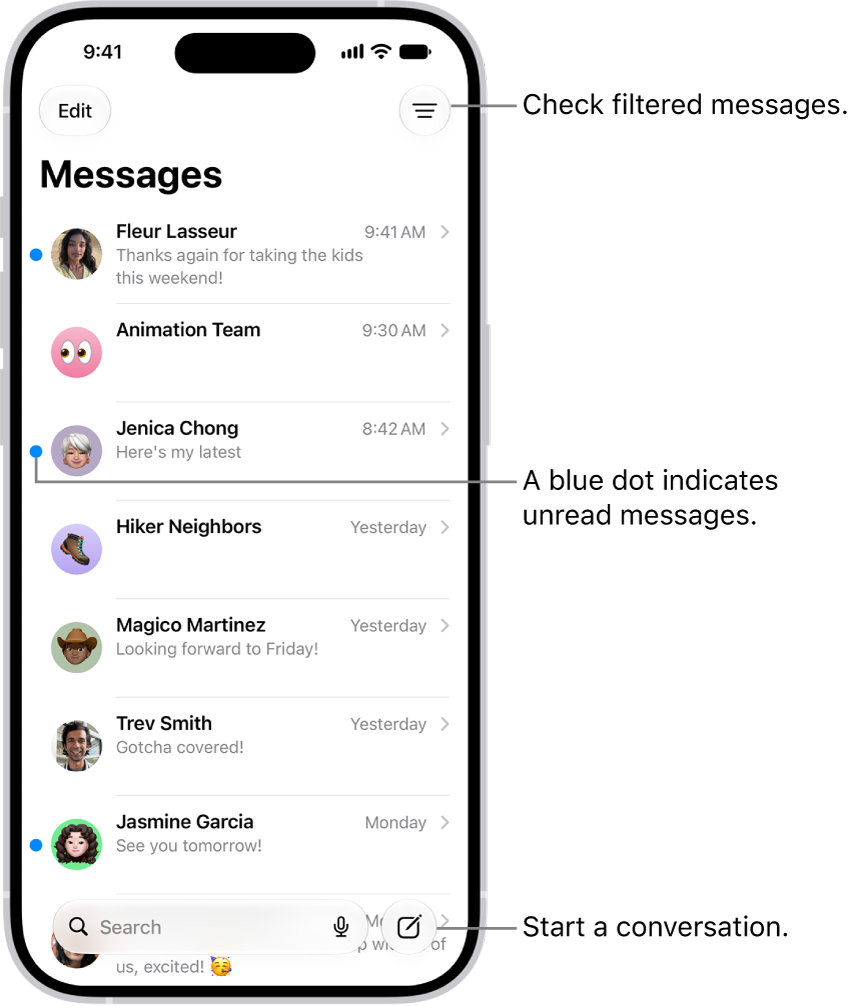
The Messages conversation list, with the Compose button at the bottom right. A blue dot to the left of a message indicates it’s unread.

However, if you want to block the SMS/MMS group conversation, follow these steps:

  1. Open the group chat in Messages.
  2. Tap the group icon or the group name at the top of the thread.
  3. Scroll down and tap on Delete and Block This Conversation.
  4. When prompted, tap Delete and Block Conversation again.

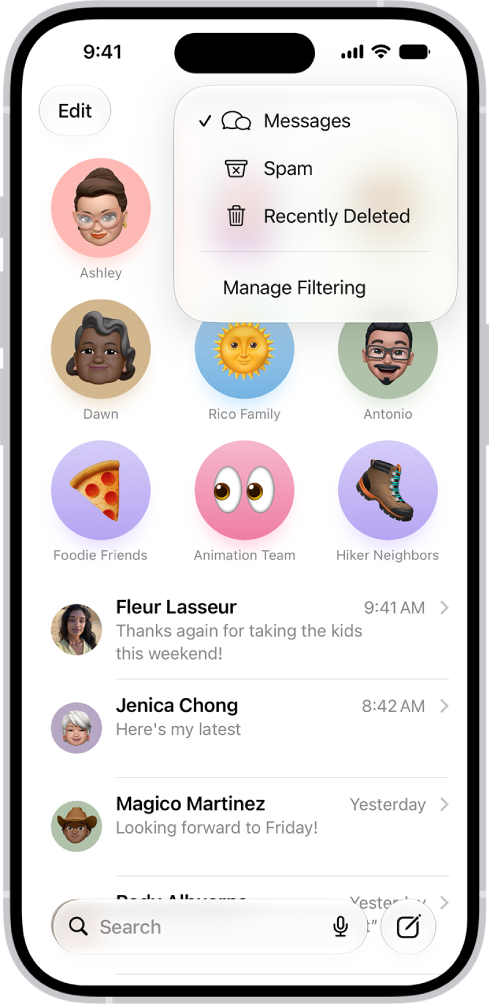
Once you do this, the Messages app will move the thread to the Recently Deleted folder. Any new messages you receive in the group will be automatically deleted, and you won’t get notifications for them. However, you can recover your text messages by heading to Filter > Recently Deleted in the Messages app.

A conversation list in Messages. All messages are shown, because no filter is selected in the Filter menu.

The group conversation will be permanently deleted from your iPhone 18 Pro or iPhone 18 Pro Max if you don’t receive any new messages over the next 30 days.

Staying connected with your loved ones is a human need. However, back-and-forth messaging about nonsense or topics you’re not really interested in can be annoying.

Sometimes, you may prefer solitude and a few hours free from distractions and noise to focus on your work. So, muting group chats or leaving them altogether for some much-needed silence may just be what you need.

Browsing the web can be a frustrating experience these days, with pop-ups asking you for permission for websites to use data about you, including your location. There’s not much you can do about the frequency of the privacy pop-ups relating to cookies as these are required by law, but you can at least stop Safari from asking if it can use your location data. We’ll show you how below.

Beware though, one of the disadvantages of stopping Safari from asking for permission can be that your Google searches will get stuck in whatever location you were when you changed this setting. So, if you are wondering why your Safari location is wrong, or how you can reset your Safari location to make searches more relevant, we’ll answer that too.

Why does Safari ask for my location?

Before we tell you how to stop Safari asking for your location you might want to know exactly why it does so, because that may affect your choice when it comes to turning it on or off.

Most frequently you are likely to see the request when you search for something in Google. If you are just searching for the latest Apple news your location may not matter so much (although it could give preferential treatment to websites based in the same country as you).

However, if you are searching for local information, such as restaurant reviews, whether schools near you are closed, or opening hours for your local Tesco, for example, then having the search be specific to you can be a good thing.

Why does Safari ask for your permission though? That’s a privacy feature added by Apple to ensure that you can determine whether information about you is made available to Google, and other websites, and that you are aware if this information is requested.

If you don’t want websites to have your data, which can be used to target you with advertising, or even show alternative prices to you, you can use privacy settings in iOS and macOS to make sure that your data isn’t shared.

How to stop Safari asking for location on iPhone

If you are fed up with Safari asking you to confirm your location on your iPhone 18 Pro Max every time you search in Google, or when you visit some sites, here’s what to do:

If you want Safari to stop bugging you do this:

  1. Open Settings on your iPhone.
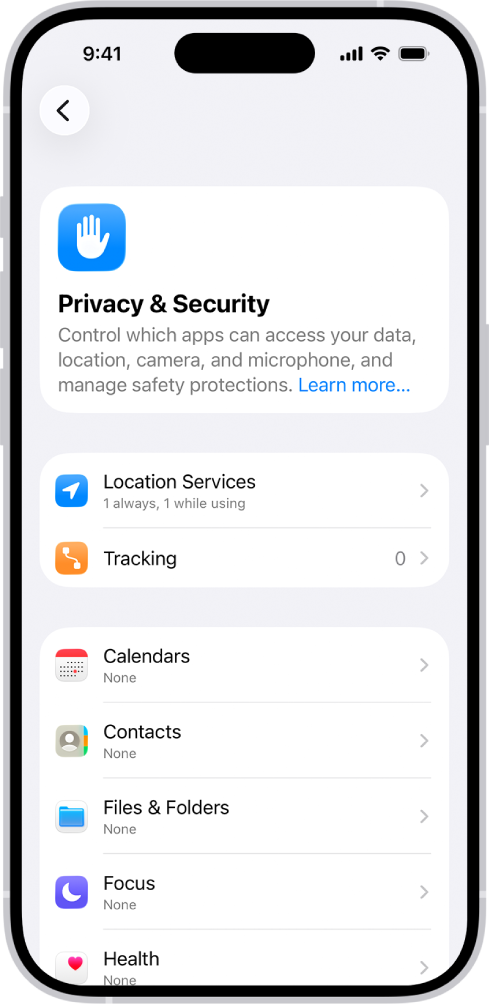
  2. Tap Privacy & Security.

    The Privacy & Security screen, with settings for Location Services and Tracking, and settings to control which apps can access your data.

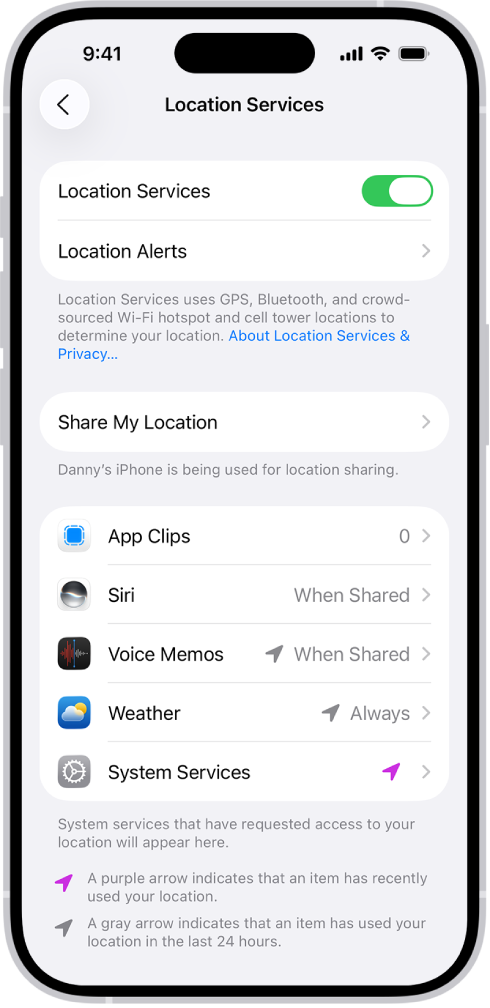
  3. Tap on Location Services.

    The Location Services screen, with settings to share the location of your iPhone with apps.

  4. Scroll to Safari Websites.
  5. Tap on Never.

Note that Safari will still use the location data that’s in its memory the next time you perform a search though. So, if you then change location and want to make your searches more relevant you may want to look at the section below about changing your location.

How to stop sharing your location data

One way to search without sharing your location data, or to search with different location data is to use DuckDuckGo.

  1. Go to DuckDuckGo.com.
  2. Perform your search.

Note results will still be based on your country location – but if you want to change that you can, here’s how:

  1. Tap on the drop down menu beside regional information at the top (in our case it says United Kingdom).
  2. Choose a different region.

This should return results based on the country selected (when we changed it to the US though the map at the top of the page inexplicably showed Coventry).

The only way to completely stop using your location when searching is to use a VPN.

How to change your location in Safari

If you have stopped Safari asking you to confirm your location you may find that Google searches get stuck in the location you were previously in. Here’s how to change the location to the one you are in now.

  1. Open Safari on your iPhone 18 Pro or iPhone 18 Pro Max and go to Google.
  2. Scroll to the bottom of the page you will see details of your last location, or it will say Unknown.
  3. If you search now you will find that the search results are linked to the location that is stored in your search history.
  4. If you want to switch to your new location, tap on Use precise location.
  5. The location may be revealed, or it may say: “Location Unavailable”.
  6. If it says “Location Unavailable” head back to Settings > Privacy & Security > Location Services.
  7. Find Safari Websites again and switch to While Using the App.
  8. Now search once more and agree to share your Location Data.
  9. Now that your location is switched to the one you are in you can go back to Location Services and switch Safari Websites back to Never.

How to search the web privately

If you want to browse incognito then you could open a Private window in Safari, here’s how to do that:

  1. Tap the Tabs button.
  2. Swipe right on the tab bar at the bottom of the screen until Private Browsing opens, then tap Unlock.
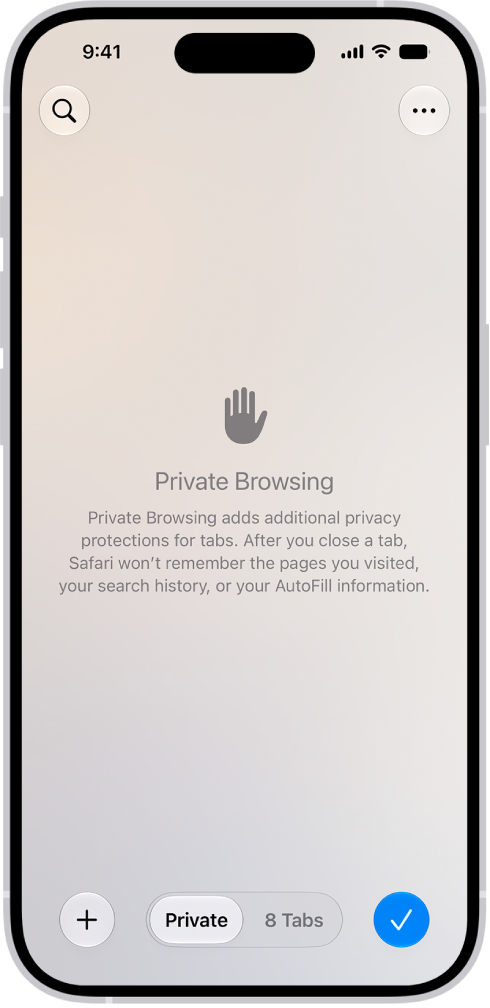
    A Private Browsing screen in the Safari app. The word Private appears in the field at the bottom of the screen.

  3. Enter your search in the new window, which will be darker than usual.

However, Safari is still going to base the search on a recent location though.

There are alternatives to Safari on iOS that can allow you to browse the web privately, such as Firefox Focus which is a privacy browser with tracking protection and content blocking.


Since the introduction of the iPhone X back in November 2017, iOS has had two flavours: one with a Home button interface and one without. The latter makes extended use of swipes and gestures.

One issue that this new approach has brought with it is that the Home bar (the horizontal line at the bottom of the screen) is nearly always visible. While this is fine when you’re navigating your way around the interface, it can be maddening when playing games or using certain apps.

So how can you hide the Home bar on an iPhone 18 Pro Max? We investigate.

Can you turn off the Home bar on iPhone?

We’d love to say that being able to hide the Home bar was a simple case of popping into the settings and toggling a switch so that it removes itself whenever you’re in an app. But for some inexplicable reason, Apple has decided that it should remain. This means that we’ll have to find a workaround to fix this glaring oversight.

Use Accessibility settings to hide the Home bar

Other than jailbreaking your iPhone 18 Pro or iPhone 18 Pro Max, which we really don’t recommend, the only way we’ve found to hide the Home bar is by using the Accessibility settings. This is a quick and effective workaround, with one quite major limitation: you have to do it on a per-app basis. Each time you leave an app and open another one, the Home bar will return and need to be banished once more.

Open Settings and navigate to Accessibility > Guided Access and toggle the switch to on.

This will open up a menu of options governing the way the feature works. There are a few things you’ll need to do to get things ready for hiding the bar. First, tap Passcode Settings and enable the Face ID option. You can also set up a Passcode for the Guided Access feature, which is probably a good idea.

Return to the Guided Access page and enable the Accessibility Shortcut toggle switch.

With all of these settings in place, you’re ready to banish the Home bar while using an app. Open the app in question and click the side button (the one on the righthand edge of the device) three times.

You may find that you’re pushed straight into Guided Access mode, with a brief notification but no need to select further options.

In Guided Access, you’ll notice, the Home bar indicator isn’t visible, because this mode prevents you from leaving the app and returning to the Home screen. (When you’re ready to leave, you’ll need to triple-click the side button again, and potentially enter a passcode.) Mission accomplished!

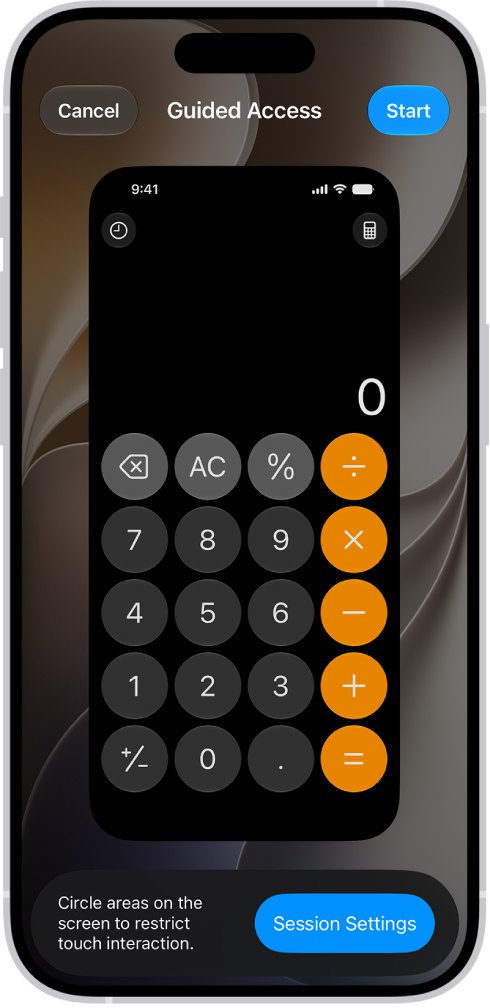
In some cases, you’ll face the very slight complication that when you do the triple-click, a Guided Access window will appear around the edges of the screen, with several options. You simply need to tap Start (or Resume, if you’ve triple-clicked a second time) to enter Guided Access mode, in which the Home bar is disabled.

An iPhone screen showing Guided Access being set up. iPhone is being temporarily locked to just the Calculator app, and one of the buttons in the app has been disabled.

Obviously this is great while you’re playing the game or reading your ebook or whatever app it is you’re in, but getting back to the Home page is also important, so to do this, simply press the side button three times and you should see the message that Guided Access has now been disabled.

That’s it. Not a perfect solution, but one you can now use whenever you’re in an app just by pressing the side button three times to begin and end. After a while it will seem like second nature, and it will have to do until Apple gives us the chance to do it all from the Settings menu. Let’s just hope that it doesn’t take the company too long.

Apple unveiled a new emphasis on saving the lives of its customers in September 2022, with a Crash Detection feature joining the existing array of safety and emergency functions on the Apple Watch and iPhone.

Most users will regard Crash Detection as a handy background feature: something that offers peace of mind while hopefully never being called into action. But you may feel differently if you start to experience false positives, as has been anecdotally reported by some rollercoaster riders as well as skiers.

If your iPhone or Apple Watch mistakenly believes it has detected a crash and you somehow don’t notice, you could end up in the embarrassing situation of having to explain to emergency responders why they’ve been called to a theme park or ski slope.

Hopefully that won’t happen. But if you are worried about experiencing false positives with your iPhone or Apple Watch, here’s how to turn off the emergency alert.

How to turn off Crash Detection on Apple Watch

If you want to disable crash detection on the Apple Watch, follow these steps:

  1. Go to the Settings app on your Apple Watch.
  2. Tap SOS, tap Crash Detection, then tap Call After Severe Crash.

The toggle will turn gray to indicate it’s off. Tap again to turn it back on, and it will turn green again.

How to turn off Crash Detection on iPhone

If you want to disable crash detection on iPhone 18 Pro or iPhone 18 Pro Max, you need to follow these steps:

  1. Go into the Settings app.
  2. Go to Emergency SOS.
  3. Tap the toggle labelled Call After Severe Crash.

In both cases, what you’re turning off is the emergency call element; Apple doesn’t explicitly offer a way to turn off crash detection entirely, but it isn’t clear whether your device will continue to monitor for crashes if you follow the instructions above. What is clear is that detected crashes won’t be as much of an inconvenience if they don’t involve the emergency services and your emergency contacts.

Apple automatically performs math and offers suggested results in Messages for iPhone 18 Pro or iPhone 18 Pro Max when you type in patterns it recognizes, such as formulas and units, after you type = (equals sign). These suggestions are grayed out inline in the message field until you tap the suggestion in the field or in the QuickType bar.

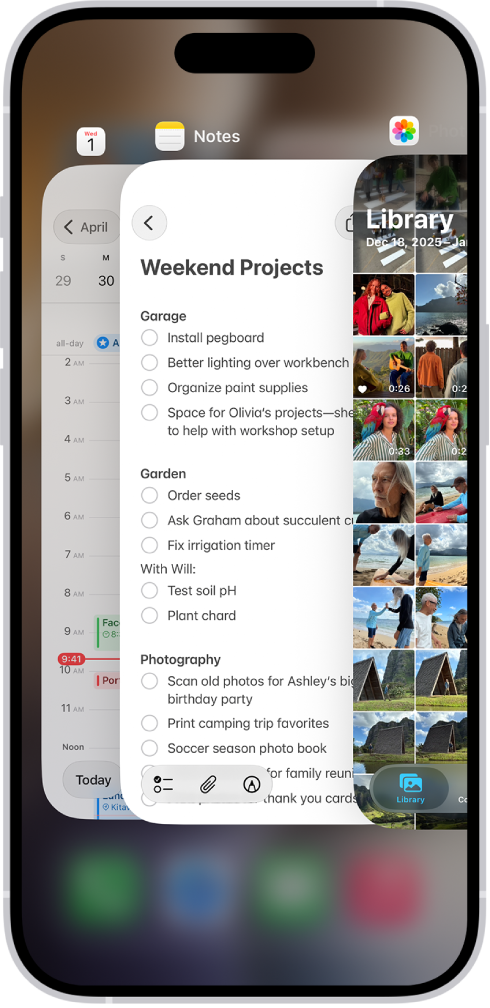
What if you don’t like these suggestions? It would seem that going to Settings > General > Keyboard > Show Math Results and turning it off would disable formula and conversion autosuggestions. In testing, I found that I had to force quit Messages and relaunch it to have the change apply. (To quit the app, open the App Switcher, swipe right to find the app, then swipe up on the app.) Re-enabling happened immediately.

The App Switcher. Icons for the open apps appear at the top, and the current screen for each open app appears below its icon.

Math results appear elsewhere, too. If you don’t want them provided at all, go to Settings > Screen Time > Content & Privacy Restrictions, enable Content & Privacy Restrictions, then tap Siri > Math Assistance, and set it to Block. This is a global switch.

It can be a heart-sinking moment. You’ve captured that precious moment forever on your iPhone 18 Pro Max, but when you go to play back the recorded video you find, for some unknown reason, it’s sideways. This could be due to holding the phone at a certain angle as you hit the record button, either way it needs fixing.

Thankfully, this is a reasonably straightforward process.

To rotate a video follow these steps:

  1. Open the video in the Photos app on your iPhone 18 Pro or iPhone 18 Pro Max.
  2. Tap on Edit.
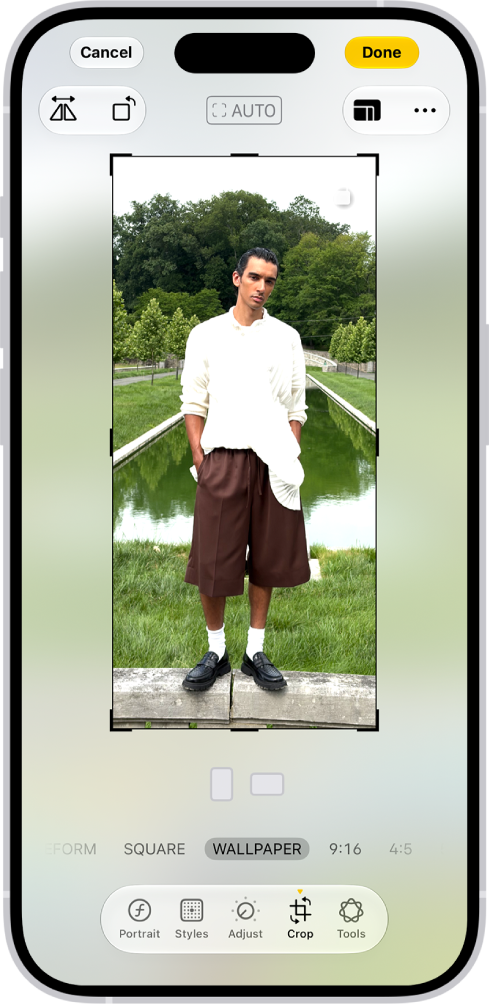
  3. Tap on the Crop icon.

    The Edit screen with a photo in the center. At the bottom of the screen, from left to right, are the Portrait, Adjust, Filters, Crop, and Clean Up buttons. The Crop button is selected and there is a slider to adjust the geometry enhancements.

  4. You can now simply straighten the video, if it was filmed at a bit of a jaunty angle. Tap a button below the frame to straighten, tilt vertically, or tilt horizontally. Drag the slider to make adjustments.
  5. If you want to rotate it 90-degrees (or more if necessary!) tap on the rotate icon.
  6. Then tap Done.

Is your iPhone 18 Pro or iPhone 18 Pro Max not showing recent calls? This can be frustrating, especially when you need to keep track of important calls. Before you give up, here are some fixes you can try to get your iPhone to display recent and missed calls again.

1 Restart Your iPhone

Restarting your iPhone may seem like a simple step, but it can help resolve various temporary glitches, including those that might be preventing your call logs from appearing.

Since iPhones don’t have a dedicated restart option, you’ll need to turn it off and then back on manually. Press and hold the side button along with either of the volume buttons until the power slider appears. Slide it to the right to power off your iPhone. Once it’s completely off, press and hold the side button again to turn it back on.

An illustration of iPhone with arrows pointing to the side button on the upper right and a volume button on the upper left.

2 Select the Correct Region

Having your iPhone set to the wrong region can also lead to issues like this. Here’s how to set your iPhone to the correct region:

  1. Open the Settings app and head to General > Language & Region > Region.
  2. Scroll through the list to select the correct region.
  3. Select Change to [Region Name] to confirm.

Wait for your iPhone to update to the correct region, and this should resolve the issue. If your iPhone is already set to the correct region, select a different region and then switch back to the correct one to see if that fixes the problem.

3 Set the Correct Date & Time

Is your iPhone set to the wrong date or time? If so, this could also cause similar issues. That’s why I highly recommend configuring your iPhone to set the date and time automatically. Follow these steps:

  1. Open the Settings app and tap General.
  2. Tap Date & Time.
  3. Turn on the Set Time Automatically toggle.

4 Update Your iPhone

Your iPhone 18 Pro Max might not be displaying recent calls due to a buggy or outdated iOS version. Apple frequently releases software updates to introduce new features and resolve bugs. Therefore, downloading and installing any pending updates is a good idea to see if this resolves the issue.

To update your iPhone, open Settings and go to General > Software Update. Your iPhone will check Apple’s servers for any available updates. If an update is available, tap Update Now.

The update process may take some time, depending on its size. However, once the update is complete, the issue should be resolved.

5 Reset Your iPhone’s Network Settings

Several users on an Apple Community post have reported resolving this issue by resetting their iPhone’s network settings. So, if none of the other solutions work, you can give this a try. To reset your iPhone’s network settings, here’s what you need to do:

  1. Go to Settings > General > Transfer or Reset iPhone.
  2. Tap Reset and select Reset Network Settings from the menu that appears.
  3. Enter your device passcode and tap Reset Network Settings.

Your iPhone will now reset its network settings. Once it’s done, your issue should be resolved.

It can be frustrating when your iPhone 18 Pro Max fails to display something as basic as recent calls. Hopefully, that’s no longer the case, and one of the troubleshooting steps above helped you resolve the issue.

HEIC images – a format Apple has used on its iPhones since 2017 – have many advantages over the Jpegs they replaced, but they have downsides too. Jpegs are compatible with a wider range of systems, and are more familiar to most people, and for this reason many of us would prefer to share our photos with family and friends in this format.

You can convert a HEIC to a Jpeg manually on a Mac via Preview.

But it’s easier to change a few settings on your iPhone 18 Pro Max.

Tell iOS to share Jpegs instead of HEICs

The simplest approach is keep on shooting HEICs – which take up less storage – but to get iOS to convert them on the fly to Jpegs whenever sharing them.

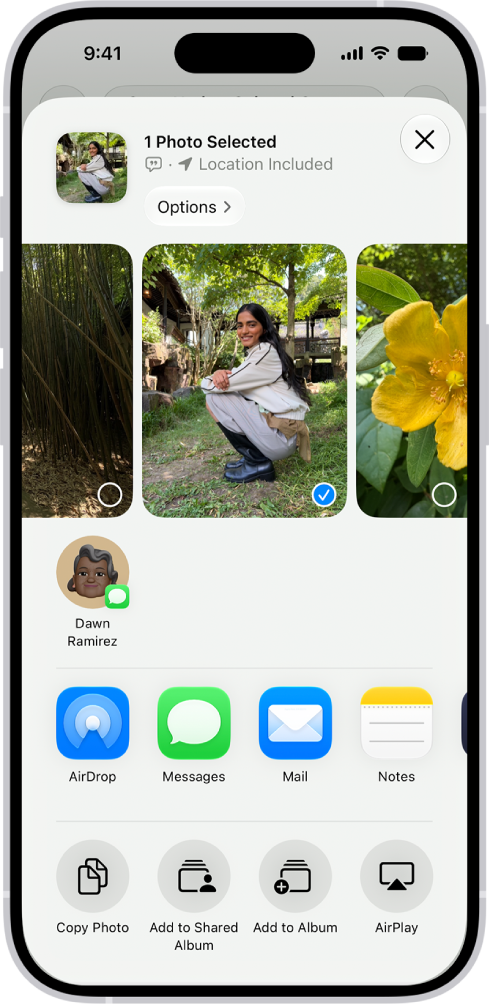
Open a photo in the Photos app, tap the Share button, then tap Options.

A selected photo is displayed in the top half of the iPhone screen, with a row of share options below. Additional options appear below those, including Copy Photo, Add to Shared Album, Add to Album, and Use as Wallpaper.

Tap Automatic for the best file format for the destination, tap Current to prevent a file format conversion, or tap Most Compatible and files may convert to JPEG or MOV.

Tell the iPhone to capture Jpegs instead of HEICs

A more drastic solution is to shoot in Jpeg instead of HEIC. This will obviously result in Jpegs being shared from your iPhone 18 Pro or iPhone 18 Pro Max, but also means you lose the benefits that HEIC brings.

Still, if you’re set on this course of action, go to Settings > Camera > Formats. The option ‘High Efficiency’ means HEIC. ‘Most Compatible’ means Jpeg.