Got a tip for us?

Keyboard

With the Mail app, you can quickly accomplish many tasks using keyboard shortcuts if your iPad is connected to an Apple external keyboard. The shortcuts you get can vary depending on the language and keyboard you’re using, and they can help you send email and save a draft in Mail.

To view available keyboard shortcuts, connect your keyboard, then press and hold the Command key.

Note: Depending on the language and keyboard you’re using on your iPad, keyboard shortcuts in apps may differ.

See also

Tags: Keyboard, Mail

If your iPad is connected to an iPad keyboard, you can use keyboard shortcuts to quickly perform actions in the Notes app. You can learn keyboard shortcuts right on your iPad. It’s one of the ways you can use shortcuts on an Apple external keyboard with iPad.

Examples of keyboard shortcuts

  • Start a new note: Press Command-N.
  • Add a checklist: Press Shift-Command-L.
  • Create a bulleted list: Press Shift-Command-7.
  • Add a link: Press Command-K.
  • Add a divider line: Press Command-L.
  • Hide the sidebar: Press Control-Command-S.

Learn keyboard shortcuts

Press and hold the Globe key or Command (⌘) key until the shortcuts appear.

See also

You can use the Shortcuts bar (at the bottom of the screen) and combination keystrokes known as keyboard shortcuts to quickly perform many common actions. The Shortcuts bar can accept suggested words and spellings. It’s also how you switch between language, emoji, and onscreen keyboards, and you can use keyboard shortcuts, too.

Use the Shortcuts bar to accept suggested words and spellings

As you type, you can do the following with the Shortcuts bar:

  • Accept a suggested word by tapping it in the Shortcuts bar.
  • Accept a suggestion highlighted in the Shortcuts bar by entering a space or punctuation. (If you enter a comma, period, or other punctuation after entering a space to accept a suggestion, the space is deleted.)
  • Reject the suggestions by tapping your original word (shown with quotation marks in the Shortcuts bar).

To turn off the suggestions, go to Settings > General > Keyboard, then turn off Predictive Text.

Use the Shortcuts bar to switch between language, emoji, and onscreen keyboards

The Shortcuts bar switches between the onscreen keyboard, an emoji keyboard, the language keyboard for your region, and other language keyboards that you add.

  1. Do one of the following:
    • Tap the Keyboard Shortcut button in the Shortcuts bar.
    • If you installed additional language keyboards, tap the language button next to the predictive text suggestions (opposite of the Dictation button in the Shortcuts bar).
  2. Choose an option.

Use the Shortcuts bar for other shortcuts

  • Use app-specific shortcuts: Buttons on the outer edges of the Shortcuts bar vary depending on the app you’re using or the task you’re doing. Each app is different—try out the Shortcuts bar to see what you can do.
  • Change keyboard settings: Tap the Keyboard Shortcut button (or the language button that replaced it), then tap Keyboard Settings.
  • Minimize the Shortcuts bar: Tap the Keyboard Shortcut button (or the language button that replaced it), then tap Minimize. To see the full Shortcuts bar, tap the minimized version.
  • Dictate text: Tap the Dictation button, then speak. When you’re finished, tap the Keyboard button at the bottom of the screen.

Use keyboard shortcuts

Keyboard shortcuts on an Apple external keyboard let you perform the following actions on iPad:

  • Quickly switch between apps: Press and hold the Command key, then press Tab until you reach the app you want to open.
  • Open Search: Press Command-Space.
  • Navigate between lists, text fields, and more: Press Tab to navigate between areas of an app. For example, in Notes, with the Folders list showing, press Tab to switch between the Folders list, the Notes list, and the search field.
  • View multitasking and other systemwide shortcuts: (Magic Keyboard for iPad and Smart Keyboard) Press and hold the Switch Keyboard key, then tap categories below the list.
  • View shortcuts for the app you’re using: Press and hold the Command key, then tap categories below the list.

You can change the actions that are performed by the Command key (and other modifier keys like Caps Lock). Go to Settings > General > Keyboard > Hardware Keyboard, tap Modifier Keys, tap a key, then choose the action you want it to perform.

To use additional keyboard shortcuts, go to Settings > Accessibility > Keyboards > Full Keyboard Access, then turn on Full Keyboard Access. See Control iPad using Full Keyboard Access.

Note: You can also set up text replacements that enter words or phrases after you type just a few characters. For example, type “omw” to enter “On my way!” See Set up shorthand for frequently used text on iPad.

It’s also possible to accept suggested words before you finish typing them. Read our article, Use predictive text on iPad.

iPad Smart Keyboards and Magic Keyboards (sold separately) allow you to type while viewing the entire iPad screen. They magnetically attach to iPad without switches, plugs, or pairing, and provide a lightweight protective cover when closed.

Each keyboard is listed with the iPad models it’s compatible with, so you can find the right keyboard for your iPad, from the Magic Keyboard for iPad Pro to the Smart Keyboard Folio. You can also use shortcuts on an Apple external keyboard with iPad.

Find the right keyboard for your iPad

Keyboard Compatible with
Magic Keyboard for iPad Pro iPad Pro 11-inch (M4 and M5)

iPad Pro 13-inch (M4 and M5)

Magic Keyboard for iPad Air

Note: Requires iPadOS 18.3 or later.

iPad Air 11-inch (M2, M3, and M4)

iPad Air 13-inch (M2, M3, and M4)

iPad Air (4th and 5th generation)

Magic Keyboard for iPad Air and iPad Pro iPad Air 11-inch (M2, M3, and M4)

iPad Air 13-inch (M2, M3, and M4)

iPad Air (4th and 5th generation)

iPad Pro 11‑inch (1st, 2nd, 3rd, and 4th generation)

iPad Pro 12.9‑inch (3rd, 4th, 5th, and 6th generation)

Magic Keyboard Folio iPad (A16)

iPad (10th generation)

Smart Keyboard Folio iPad Air 11-inch (M2, M3, and M4)

iPad Air 13-inch (M2, M3, and M4)

iPad Air (4th and 5th generation)

iPad Pro 11‑inch (1st, 2nd, 3rd, and 4th generation)

iPad Pro 12.9‑inch (3rd, 4th, 5th, and 6th generation)

Smart Keyboard iPad (7th, 8th, and 9th generation)

iPad Air (3rd generation)

iPad Pro 10.5‑inch

See also

In apps on iPad, you can use gestures and the keyboard to select and edit text in text fields. You can also use built-in proofreading tools.

You can select a word, a paragraph, or a block of text, and then cut, copy, or paste the text you want to revise. You can also fix mistakes, undo or redo the last edit, place the insertion point, and move text without cutting or copying it.

Select, cut, copy, and paste text

  1. To select text, do any of the following:

    • Select a word: Double-tap with one finger.
    • Select a paragraph: Triple-tap with one finger.
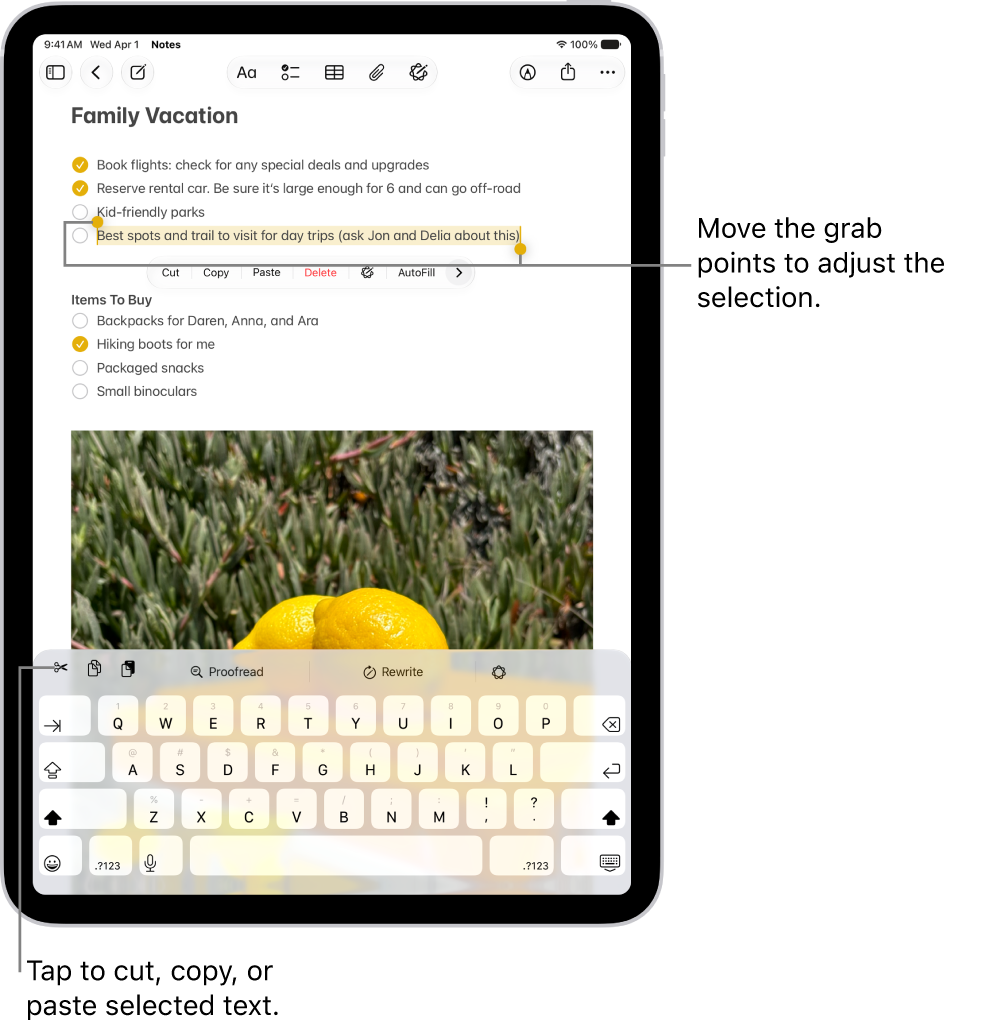
    • Select a block of text: Double-tap and hold the first word in the block. Drag the grab points.

      Text is selected in a note in the Notes app. Above the selected text is a menu of buttons including Cut, Copy, and Paste. The selected text is highlighted, with grab points to adjust the selection at either end.

  2. After selecting the text you want to revise, tap the selection. Tap an editing option. You can also use these gestures:

    • Cut: Pinch closed with three fingers two times.
    • Copy: Pinch closed with three fingers.
    • Paste: Pinch open with three fingers.

Fix mistakes

When you notice an error while entering text, do any of the following:

  • Undo the last edit: Swipe left with three fingers, then tap the Undo button or Undo at the top of the screen.
  • Redo the last edit: Swipe right with three fingers, then tap the Redo button or Redo at the top of the screen.
  • Correct spelling and grammar: Tap a misspelled or misused word (underlined in red), then either tap a suggestion to replace the word, or type the correction.
  • Undo autocorrect: As you enter text, misspelled words are automatically corrected and temporarily underlined so you know what was changed. To revert the autocorrection to what you entered, tap the underlined word, then tap your spelling (the first one listed and marked with the Undo button).

Turn on or off proofreading features

  1. Open the Settings app on your iPad.
  2. Tap General, then tap Keyboard.
  3. Turn on or off any of the following:
    • Auto-Capitalization
    • Auto-Correction
    • Check Spelling and Grammar

Place the insertion point

  1. Do any of the following:

    • Tap where you want to add or edit text.
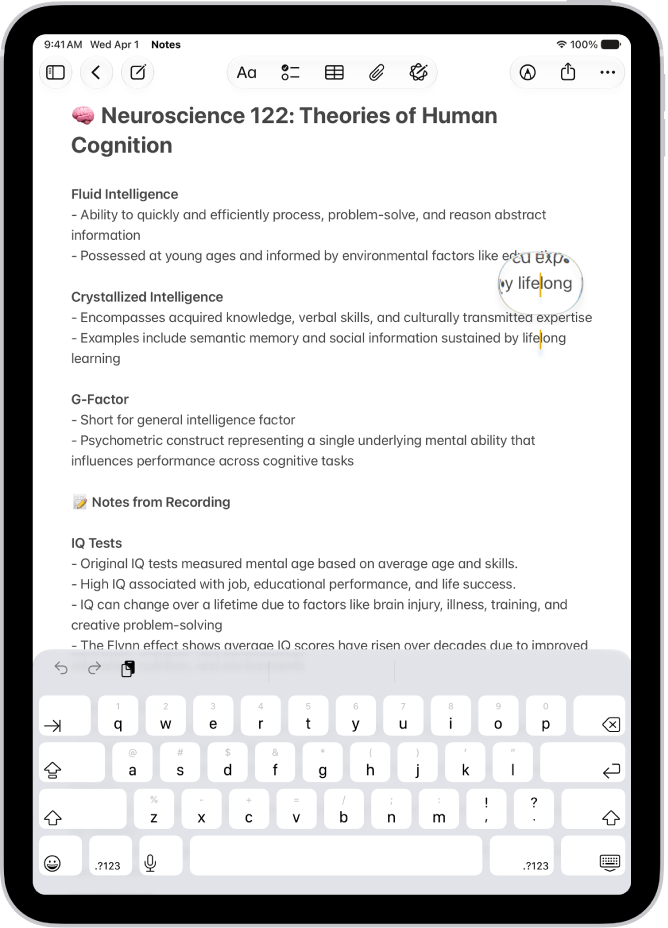
    • Touch and hold to magnify the insertion point, then drag it.

      A note showing the insertion point positioned where text will be inserted or edited. The surrounding text is magnified to make it easier to place the insertion point.

    Note: To navigate a long document, touch and hold the right edge of the document, then drag the scroller to locate the text you want to revise.

  2. Enter the text you want to add.

    Tip: To easily move the insertion point, touch and hold the Space bar of the onscreen keyboard until the characters on the keys disappear, then drag your finger around the keyboard to move the insertion point elsewhere. To select text, tap the keyboard with a second finger, then drag your first finger to select text.

Move text without cutting or copying

  1. Select the text you want to move.
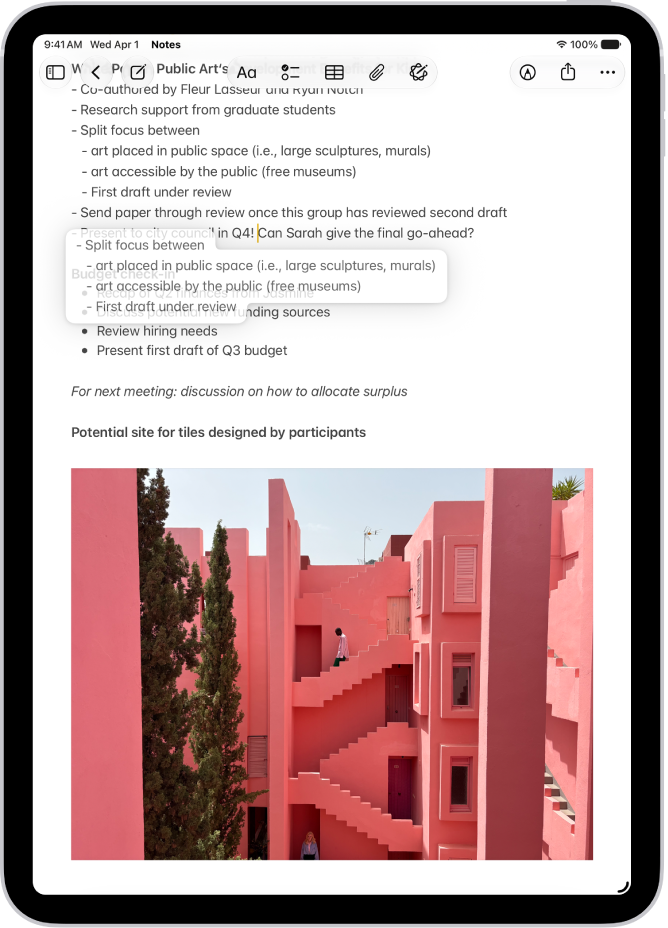
  2. Touch and hold the selected text until it lifts up and drag it to another location within the app.

    A document is open in the Notes app. Selected text is lifted within the document to be moved to a new location.

If you change your mind while moving the text, lift your finger before dragging, or drag the text off the screen.

Quick tip: With Universal Clipboard, you can cut or copy something on another Apple device, then paste it on iPad. Read our guide, Copy and paste between iPad and other Apple devices.

See also

Depending on your iPad model, you can type with the onscreen keyboard either floating and movable on the screen, split at the bottom of the screen, or undocked in the middle of the screen.

A floating keyboard can move anywhere on the screen, and you can turn Split Keyboard on or off, too. You can put the split keyboard back together, move the keyboard up from the bottom of the screen, or return it to its original position.

Here’s how to move the iPad onscreen keyboard.

Use a floating keyboard

You can make the onscreen keyboard float and move it anywhere on the screen by dragging from the bottom of the screen.

  1. Tap in a text field to open the onscreen keyboard.
  2. Touch and hold the Hide Keyboard key, slide your finger to Floating and then release. A miniature version of the keyboard opens.
  3. To reposition the keyboard, touch and hold the More button, and drag the keyboard to a new place.
  4. Tap keys or type by sliding from one letter to the next without lifting your finger (not available for all languages).
  5. To return the keyboard to full width, pinch the floating version open. You can also tap the More button. Then tap Full.

Split or undock the keyboard

  1. To split the keyboard on supported models, do one of the following:
    • Go to Settings > General > Keyboard, then turn Split Keyboard on or off.
    • Touch and hold the Emoji button or the Switch Keyboard key, tap Keyboard Settings, then select Split Keyboard.
  2. While in a text field, do any of the following:
    • Split the keyboard: Touch and hold the Hide Keyboard key, slide your finger to Split and then release.
    • Put the split keyboard back together: Touch and hold the Hide Keyboard key, slide your finger to Merge. Then release.
    • Move the keyboard up from the bottom of the screen: Touch and hold the Hide Keyboard key, slide your finger to Undock. Release.
    • Return an undocked keyboard to its original position: Touch and hold the Hide Keyboard key, slide your finger to Dock. Release.

See also

You can use predictive text on iPad to complete words and phrases as you type. You can accept or reject inline text predictions, accept or reject suggested text and information, and turn suggestions and inline text predictions off or on. You can also accept and reject a correction.

Using predictive text, you can write and complete entire sentences with just a few taps. As you type on the iPad keyboard, you see choices for words, emoji, and information that you’d probably type. In Messages, for example, when you type something like:

  • “I’m at” followed by a space, your current location appears as an option
  • “My number is” followed by a space, your phone number appears as an option

Predictions that complete your word or phrase appear inline as you’re typing.

Note: Predictive typing and inline predictions may not be supported in your language.

Accept or reject inline text predictions

While you type, inline predictions in gray text complete the word or phrase you’re typing, and you can do one of the following:

  • Accept the prediction: Tap the Space bar.
  • Reject the prediction: Keep typing.
  • Change a prediction you accepted: Tap the Delete key, then tap the word you were in the process of typing.

Accept or reject suggested text and information

Suggested words, emoji, and information show up above the onscreen keyboard as you type, and you can do one of the following:

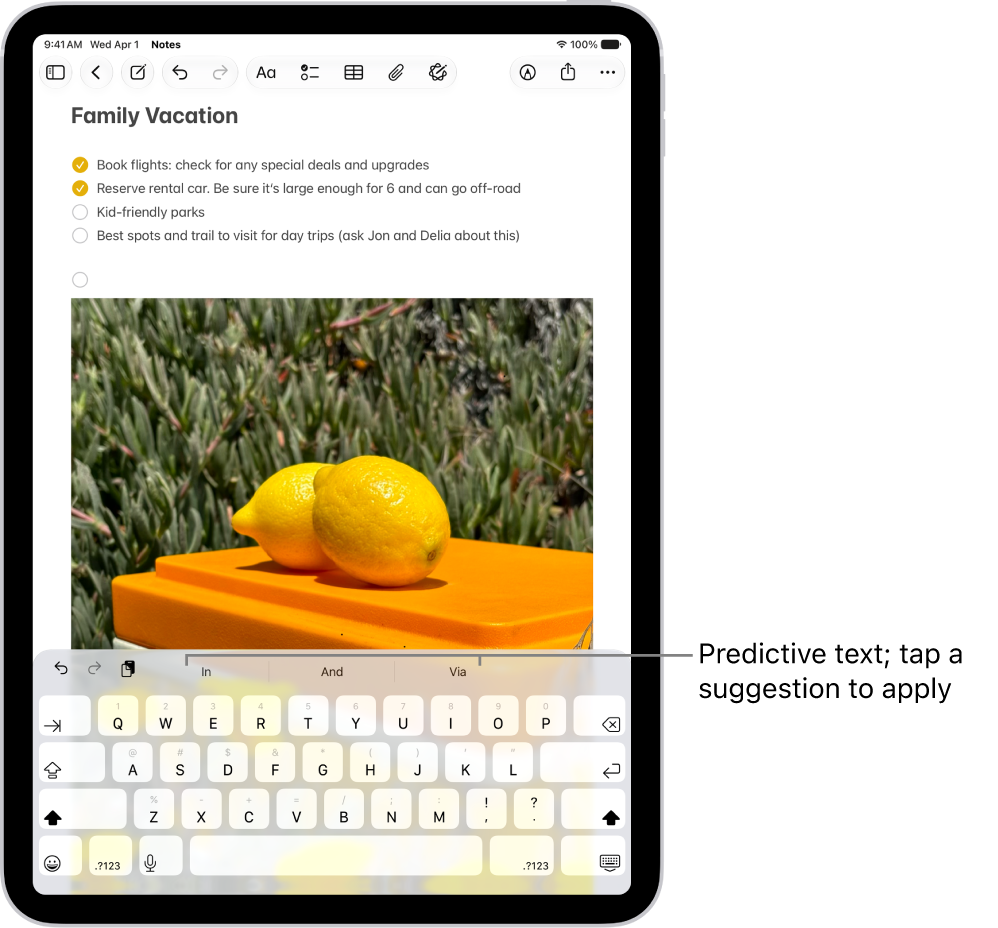
  • Accept a suggestion: Tap a suggestion to apply it.
  • Reject the suggestions: Tap your original word (shown as the option in quotation marks), or just continue to type.

The onscreen keyboard is open in the Notes app. Text is entered in the text field and above the keyboard are predictive text suggestions for the next word.

Turn suggestions and inline text predictions off or on

  1. Open the Settings app on your iPad.
  2. Tap General, then tap Keyboard.
  3. Do any of the following:

    • Stop (or start) seeing suggestions above the keyboard: Turn Predictive Text off (or on).

      Note: Turning off the Predictive Text setting turns off both predictive text and inline text predictions.

    • Stop (or start) seeing predicted text inline: Turn Show Predictions Inline off (or on).

Quick tip: Touch and hold the Emoji button or the Switch Keyboard key for quick access to Keyboard Settings while you use the onscreen keyboard.

Accept and reject a correction

If you turn off Predictive Text, you might still see corrections for misspelled words; just do one of the following:

  • Accept a correction: Enter a space or punctuation, or tap Return.
  • Reject a correction: Tap the “x.”

Reject the same suggestion a few times, and iPad stops suggesting it.

See also

When you set up a text replacement on iPad, you can enter long or complicated text by tapping just a few keys, like shorthand for your most frequently used words and phrases.

One shorthand for “On my way” is already set up for you, but you can add your own. You can also stop a word or phrase from being replaced, and create replacements for word and input pairs on certain Chinese or Japanese keyboards.

Create a text replacement

  1. While in a text field, do one of the following:
    • With an onscreen keyboard: Touch and hold the Emoji button or the Switch Keyboard key, tap Keyboard Settings, and tap Text Replacement.
    • With an external keyboard: Open Settings, tap General, tap Keyboard, and then tap Text Replacement.
  2. Tap the Add button at the top right.
  3. Type a phrase in the Phrase field and the text shortcut you want to use for it in the Shortcut field.

Don’t want to replace a word or phrase you use?

  1. Open the Settings app on your iPad.
  2. Tap General, tap Keyboard, and tap Text Replacement.
  3. Tap the Add button at the top right and enter your word or phrase in the Phrase field, but leave the Shortcut field blank.

Create a text replacement for word and input pairs

Certain Chinese or Japanese keyboards let you create a text replacement for word and input pairs, which gets added to your personal dictionary. After that, when you type the text shortcut for a word or input on a supported keyboard, the paired word or input replaces the shortcut.

Shortcuts work for these languages and input methods:

  • Simplified Chinese: Pinyin
  • Traditional Chinese: Pinyin and Zhuyin
  • Japanese: Romaji and Kana

To add these keyboards, see Add or remove a keyboard for another language.

Sync your personal dictionary across devices

iCloud keeps your personal dictionary up to date on your other devices.

  1. Open the Settings app on your iPad.
  2. Tap your name, then tap iCloud.
  3. Tap See All and tap iCloud Drive. Then turn on Sync this iPad.

Reset your personal dictionary

  1. Open the Settings app on your iPad.
  2. Tap General, then tap Transfer or Reset iPad.
  3. Tap Reset and tap Reset Keyboard Dictionary.
  4. Enter your passcode, then tap Reset.

    All custom words and shortcuts are deleted, and the keyboard dictionary returns to its default state.

See also

With Dictation on iPad, you can dictate text anywhere you can type it. You can use typing or handwriting with Dictation, and the keyboard or tools palette can stay open, so you can easily switch between speaking and typing or handwriting. You might select text with touch or Apple Pencil and replace it with your voice.

Dictation is processed on your device in many languages, and no internet connection is required. When you dictate in a search field, though, your dictated text may be sent to the search engine.

Note: Dictation may not be available in all languages or in all countries or regions, and features may vary. With Apple Intelligence in iPadOS 27, dictation uses an on-device model to improve spelling, punctuation, and capitalization. Available in English on iPad models with M4 or later, at least 12GB of unified memory. Apple Intelligence on iPadOS 27 or later is available on an Apple Intelligence-enabled iPad mini (A17 Pro) and iPad models with M1 or later. Apple Intelligence is not available in all languages or regions. Usage limits may apply.*

When using Dictation, cellular data charges may apply. See View or change cellular data settings.

Make dictation possible

  1. Start the Settings app on your iPad.
  2. Tap General, then tap Keyboard.
  3. Turn on Enable Dictation. If a prompt appears, tap Enable Dictation.

To learn more about how Apple protects your information and lets you choose what you share, tap About Dictation & Privacy below the dictation settings.

Using an external keyboard? Read our guide, Dictate text while using an Apple external keyboard.

Dictate text

Dictate text and use voice commands to edit and format content.
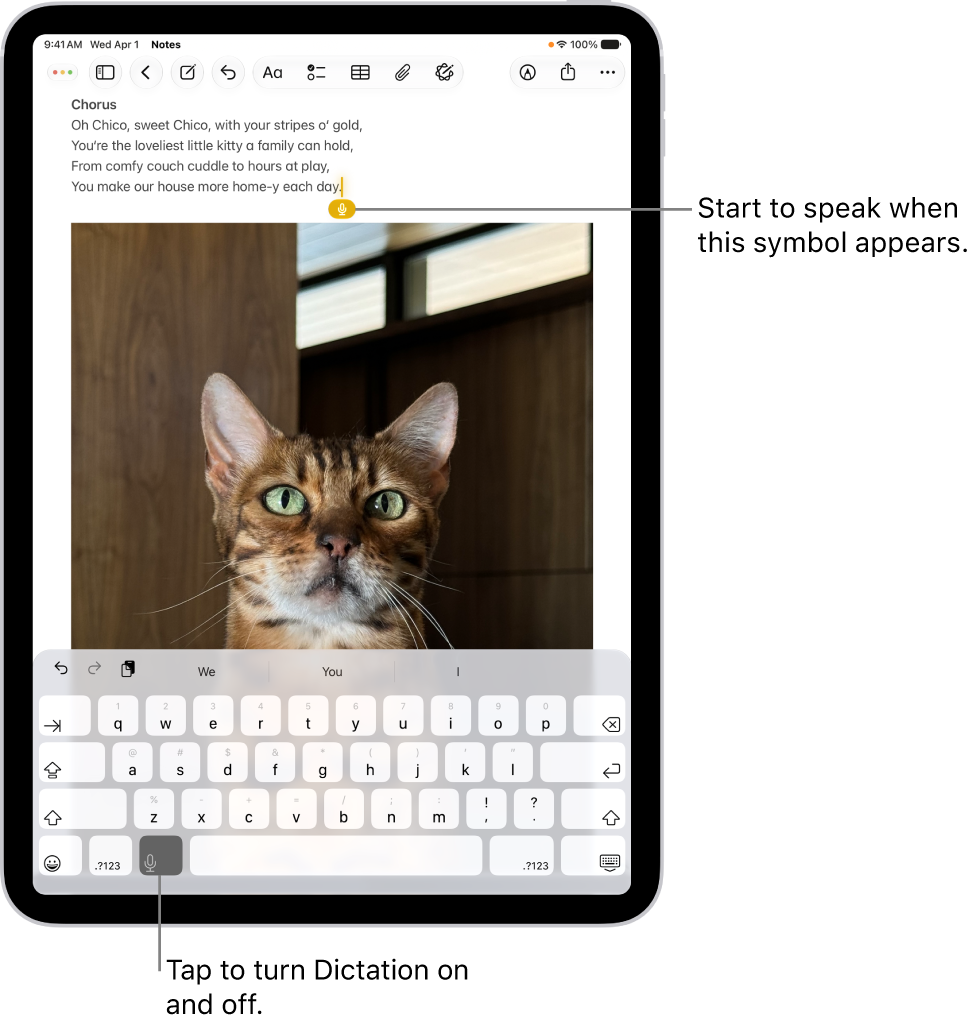
The onscreen keyboard is open in the Notes app. The Dictation button at the bottom of the keyboard is selected and the Dictation button appears below the insertion point in the text field.

  1. In a text field, tap to place the insertion point where you want to begin dictating text.
  2. Tap the Dictate button on the onscreen keyboard (or in any text field where it appears).

    If you don’t see the Dictate button, go to the Settings app, tap General, tap Keyboard, then turn on Enable Dictation. If a prompt appears, tap Enable Dictation.

  3. When the Dictate button appears near the insertion point in the text field, begin to dictate your text.
  4. Do any of the following:

    • Add emoji: Say the name of an emoji, like “heart emoji” or “smiley face emoji.”
    • Add punctuation: Say the name of the punctuation mark, such as “exclamation point.”

      Note: In supported languages, Dictation automatically inserts commas, periods, and question marks as you dictate. To turn off automatic punctuation, go to Settings > General > Keyboard, then turn off Auto-Punctuation.

    • Add a line break: Say “new line” or “new paragraph.”
    • Spell a word: Say something like “Let’s invite Steven S-T-E-P-H-E-N.”
    • Correct spelling: Say something like “Change tea to T-E-E.”
    • Edit text: Say “select” or “delete” followed by the phrase you want to change.
    • Undo or repeat a command: Say “undo” or “redo” if you change your mind or want to repeat a command.
  5. To stop dictating, do one of the following:

    • Tap the Dictate button.
    • Say “Stop dictation.”
    • Remain silent for 30 seconds. Dictation stops automatically.

For every command you can use while dictating, see our article, Commands for dictating text.

Dictation works in another language, too, when you use a keyboard for that language; check out our guide, Add or change keyboards.

Turn off Dictation

  1. Start the Settings app on your iPad.
  2. Tap General, then tap Keyboard.
  3. Turn off Enable Dictation.

*Apple Intelligence is available with Siri and device language set to Chinese (Simplified), Chinese (Traditional), Danish, Dutch, English, French, German, Italian, Japanese, Korean, Norwegian, Portuguese, Spanish, Swedish, Turkish, or Vietnamese. Some features may not be available in all regions or languages. Some devices may not be available in all regions. Siri AI is available in beta in iOS 27, iPadOS 27, macOS 27, watchOS 27, and visionOS 27 and requires an Apple Intelligence–enabled device set to a supported language. Available in English to start. Siri AI will not be initially available in the EU on iOS, iPadOS, and watchOS. Certain Apple Intelligence features that rely on server-side models are subject to daily usage limits, including but not limited to Siri AI, Intelligent Photo Editing Tools, Image Playground, and AFM 3 Cloud models in Shortcuts. Daily limits may vary by feature, request complexity, system demand, system policies, and other factors. Expanded access to such features will be available for a fee in the future. Use of these features is subject to the Apple Intelligence Terms and Conditions.

See also

You can add keyboards for writing or using Dictation in different languages on your iPad. You can also change the layout of your onscreen or external keyboard.

For some supported languages, you can type in two languages without having to switch between keyboards, since your keyboard automatically switches between the two languages you use most often. A bilingual keyboard is available for languages such as English (U.S.) and Spanish (Latin America), and you can remove a keyboard you no longer need.

Add or remove a keyboard for another language

  1. Open the Settings app on your iPad.
  2. Tap General, then tap Keyboard.
  3. Tap Keyboards and then do any of the following:
    • Add a keyboard: Tap Add New Keyboard and choose a keyboard from the list. Repeat to add more keyboards.
    • Use a bilingual keyboard: For languages such as English (U.S.) and Spanish (Latin America), tap Add New Keyboard. Tap Add to [language] Keyboard. (Available for select language pairs.)
    • Remove a keyboard: Swipe left on the keyboard and tap Delete.
    • Reorder your keyboard list: Tap Edit, drag the Reorder button next to a keyboard to a new place in the list, and then tap the Done button.

If you add a keyboard for a different language, the corresponding language is automatically added to the Preferred Languages list. To view this list and add languages to it directly, go to the Settings app, tap General, then tap Language & Region. To change how apps and websites display text, reorder the Preferred Languages list.

Switch to another keyboard

  1. While typing text, touch and hold the Emoji button or the Switch Keyboard key.
  2. Tap the keyboard you want to switch to.

To cycle between English, emoji, and other keyboards you add for another language on an external keyboard, press and hold Control, then press the Space bar. See Switch between keyboards.

Assign an alternative layout to a keyboard

  1. Open the Settings app on your iPad.
  2. Tap General, tap Keyboard, and tap Keyboards.
  3. Tap a language. Then select an alternative layout from the list.

See also