Got a tip for us?

Keyboard

You can use the onscreen keyboard to enter and edit text. You can also use Dictation, an external keyboard, and Apple Pencil to enter text.

You can type one key at a time, or slide from letter to letter without lifting your finger, and you can even switch methods in the middle of a sentence. With the onscreen keyboard, you can type uppercase letters, turn on Caps Lock, enter numbers, punctuation, or symbols, and hear clicks as you type.
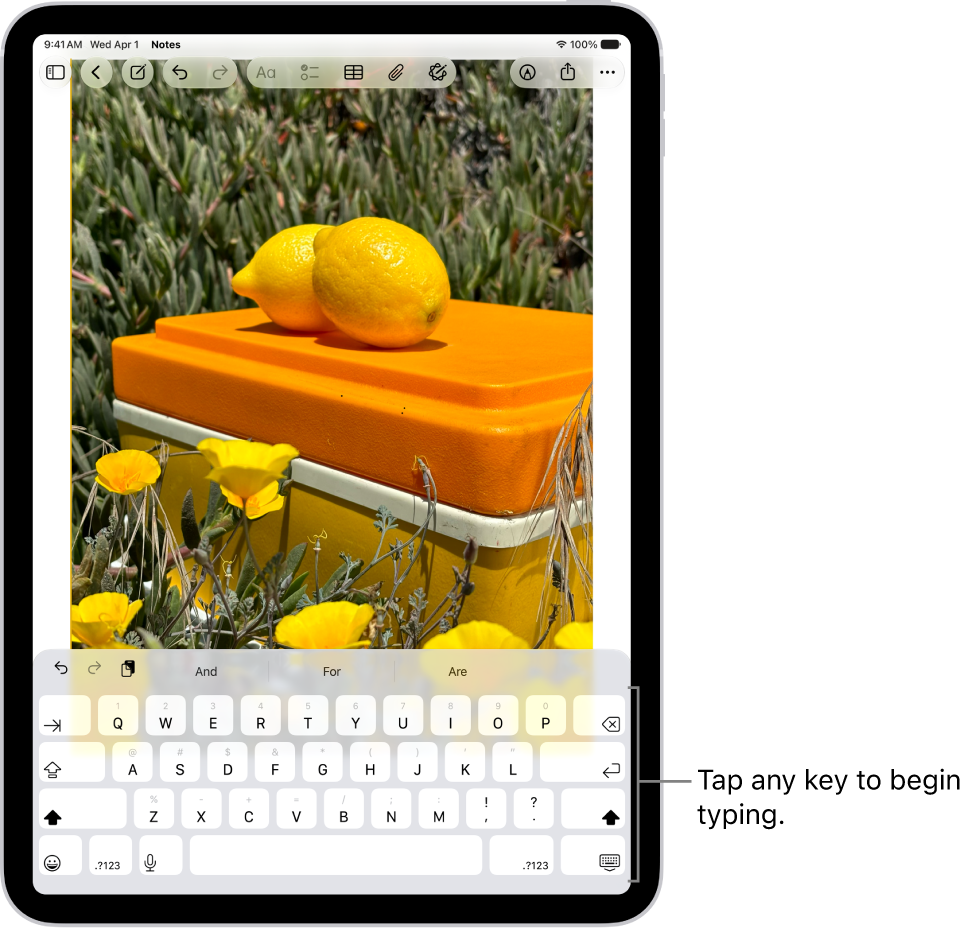
A document is open in the Notes app. The onscreen keyboard is in the bottom half of the screen.

Enter text using the onscreen keyboard

You can tap individual keys to type, or slide from one letter to the next without lifting your finger (QuickPath isn’t available for all languages).

  1. In any app where you can enter text, tap a text field. The onscreen keyboard opens.

    Tip: For easy one-handed typing, drag the keyboard from the bottom of the screen, then move it. To return to the full-size keyboard, pinch open.

  2. Tap individual keys to type, or touch and hold the first letter, slide to the next letters. Lift your finger at the end of a word. You can use either method as you type, and even switch in the middle of a sentence.
  3. While entering text, you can do any of the following:

    • Type an uppercase letter: Tap the Shift key, or touch the Shift key. Then slide to a letter.
    • Turn on Caps Lock: Double-tap the Shift key.
    • Quickly end a sentence with a period and a space: Double-tap the Space bar.
    • Enter numbers, punctuation, or symbols: Tap the Numbers key or the Symbols key.
    • Hide the onscreen keyboard: Tap the Hide Keyboard key.

For more on editing text, read our article, Select, cut, copy, and paste text.

Hear clicks as you type

Keyboard settings let you turn keyboard sounds on or off.

  1. Start the Settings app on your iPad.
  2. Tap Sounds.
  3. Turn on Keyboard Clicks.

Enter accents, diacritics, and other special characters

While using the keyboard, touch and hold the letter, number, or symbol related to the character.

For example, to enter é, touch and hold the e key, then slide your finger and release it on the option you want.

On a keyboard for another language, you can also do any of the following:

  • On a Thai keyboard: To choose native numbers, touch and hold the related Arabic number.
  • On a Chinese, Japanese, or Arabic keyboard: Tap a suggested character or candidate at the top of the keyboard to enter it, or swipe left to see more candidates.

    Note: To view the full candidate list, tap the up arrow on the right. To return to the short list, tap the down arrow.

Using the emoji keyboard, you can add other characters.

Change keyboard settings

You can turn special typing features—such as predictive text and auto-correction—off and on.

  1. Start the Settings app on your iPad.
  2. Tap General, then tap Keyboard.
  3. Turn the typing features (below All Keyboards) on or off.

Quick tip: While you’re using the onscreen keyboard, you can change your keyboard settings: Touch and hold the Switch Keyboard key or the Emoji button, then tap Keyboard Settings.

See also

As you type, you can use the iPad keyboard to enter emoji, Memoji, and stickers to express yourself in messages and documents.

You can jump to a category, see the stickers you recently used, and see variations of an emoji, such as different skin tones. You can even make your own stickers and Memoji. You can also replace typed text with a suggested emoji appearing above the keyboard.

Here’s how to add emoji, Memoji, and stickers with the iPad keyboard.

Add an emoji, Memoji, or sticker

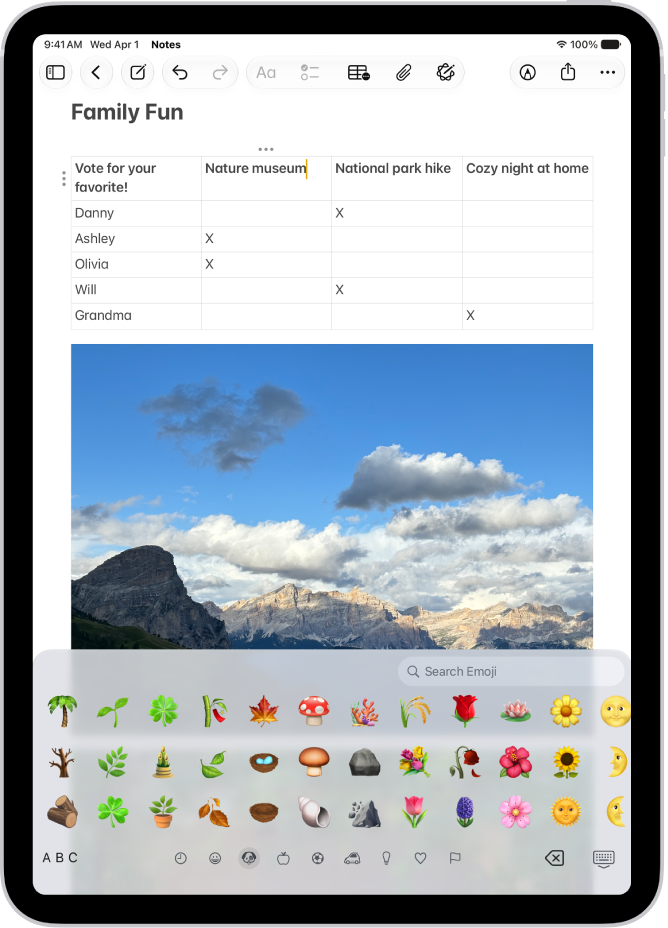
  1. Tap a text field. Then tap the Emoji button or the Switch Keyboard key to switch to the emoji keyboard.

    A note is open in the Notes app in the top of the screen, and the emoji keyboard is open in the bottom of the screen.

  2. Swipe left or right to browse emoji, Memoji, and stickers, or do one of the following:

    • Jump to a category: Tap a symbol below the emoji keyboard.
    • See Emoji, Memoji, and stickers you recently used: Tap the Recent Stickers button below the keyboard.
  3. Tap an image to add it to your text field.

    To see variations of an emoji—such as different skin tones—touch and hold the emoji, then drag your finger and release it on the variation you like.

  4. Tap ABC to return to the regular keyboard.

Quick tip: When a suggested emoji appears above the keyboard, tap it to replace the text you typed.

Make a sticker

While entering text in supported apps, you can turn images in your photo library into a new sticker.

  1. Tap a text field. Then tap the Emoji button or the Switch Keyboard key to switch to the emoji keyboard.
  2. Tap the Stickers button. Then tap the Add Stickers button.

    To search your photo library, enter a term in the search field at the top of screen, or tap a category such as People or Animals.

    Tip: To create a Live Sticker that moves, use a Live Photo. See Make stickers from your photos or Create Live Stickers.

  3. Tap the photo you want to use. Tap Add Sticker.

    The sticker is automatically added to your sticker collection.

Make or edit Memoji

You can create a Memoji while entering text in supported apps, and edit, delete, or duplicate any Memoji you already created.

  1. Tap a text field. Then tap the Emoji button or the Switch Keyboard key to switch to the emoji keyboard.
  2. Tap the Memoji button. Tap the Add button to make your first Memoji or tap the More button to edit, delete, duplicate, or make additional Memoji.
  3. Follow the onscreen instructions to make your Memoji. Then tap the Done button.

    The Memoji is automatically added to your Memoji collection.

See also

You can enter text by dictating, scribbling with your finger, or typing on the onscreen keyboard. You can also use emoji and switch to typing on your paired iPhone.

You can switch input methods anytime you’re entering text, like when composing a message. With Scribble, you draw letters on the screen with your finger, and dictation has your speech transcribed to text. The onscreen keyboard isn’t available on Apple Watch SE 3, though.

Here’s how to enter text on Apple Watch.

Change the input method while entering text on Apple Watch

Whenever you enter text, such as when you’re composing a message, you can change the input method.

  1. Tap a text field—such as a new message or a search field.
  2. The button at the bottom right indicates the current input method. To change the input method, tap the button. Then choose one of the following:
    • Onscreen keyboard: Tap the Keyboard button. (Not available in all languages; not available on Apple Watch SE 3.)
    • Scribble: Tap the Scribble button to draw letters on the screen with your finger. (Not available in all languages.)
    • Dictation: Tap the Dictate button to have your speech transcribed to text. (Not available in all languages.)

Dictate text

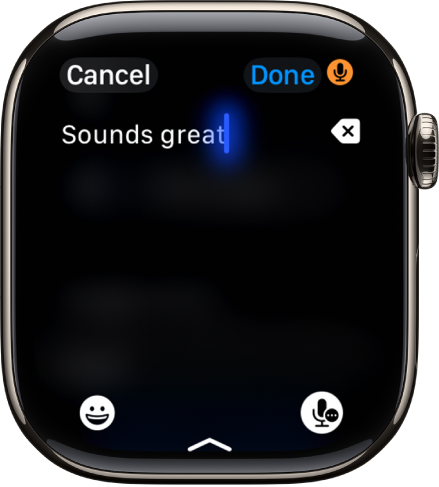
The text field screen showing a message created with dictation. The Emoji and Dictation buttons are at the bottom of the screen.

When the input method is set to dictation (not available in all languages), you can do the following:

  • Speak punctuation: For example, say something like “Did it arrive question mark.”
  • Speak emoji: For example, say something like “Thumbs up emoji.”
  • Move the cursor: Turn the Digital Crown.
  • Replace a word: Tap the word, then say a different word.
  • Select all: Double-tap the screen.
  • Erase: Tap the Erase button.

Scribble with your finger

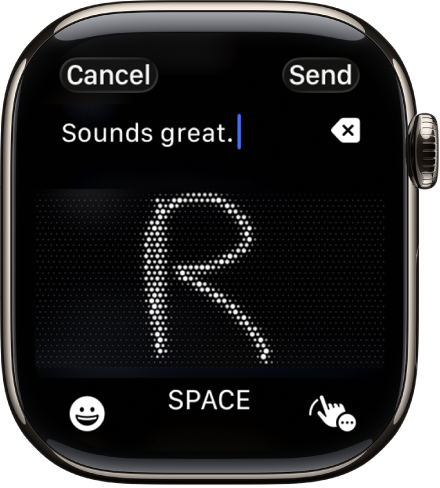
The text field screen showing a letter written with Scribble. The Emoji and Scribble buttons are at the bottom of the screen.

When the input method is set to Scribble (not available in all languages), you can do the following:

  • Write: Use your finger to write letters, numbers, and punctuation on the screen.
  • Add a space: Tap Space.
  • Move the cursor: Turn the Digital Crown.
  • Use predictive text: Turn the Digital Crown to see suggested words, then stop turning the Digital Crown to enter the highlighted suggestion.
  • Replace a word with a suggestion: Tap the word, then turn the Digital Crown.
  • Select all: Double-tap the text.
  • Erase: Tap the Erase button.

Type with the onscreen keyboard

Note: The onscreen keyboard is not available in all languages or on Apple Watch SE 3.

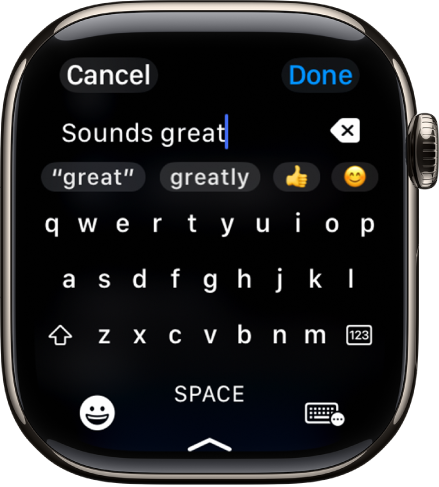
The text field screen showing a message created with the onscreen keyboard. The Emoji and Onscreen Keyboard buttons are at the bottom of the screen.

When you set the input method to the onscreen keyboard, you can do the following:

  • Type: Tap characters to enter them.
  • Use QuickPath: Slide from one letter to the next without lifting your finger. To end a word, lift your finger.
  • Use predictive text: Suggested words appear as you type. Tap a finished or unfinished word to highlight it, then turn the Digital Crown to see suggested words. Stop turning the Digital Crown to enter the highlighted suggestion.
  • Move the cursor: Turn the Digital Crown.
  • Switch to a different keyboard: If you’ve set up your Apple Watch to use more than one language, you can swipe up from the bottom of the screen, then choose a different language keyboard.

Add emoji

  1. When entering text using dictation, Scribble, or the onscreen keyboard, tap the Emoji Picker button.

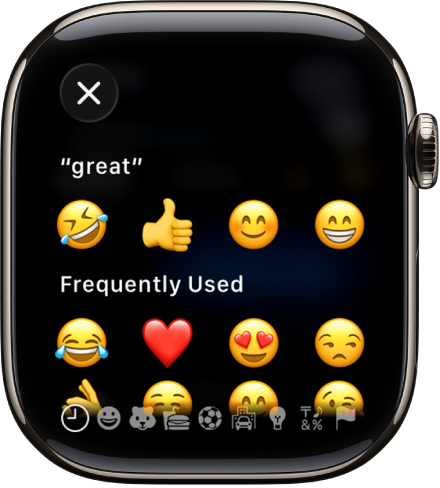
    The text field screen showing emoji.

  2. To browse, touch and hold the categories at the bottom and drag left and right.
  3. When you find the right emoji, tap it.

Type on your iPhone

With your paired iPhone nearby, you can enter text from it instead.

  1. On Apple Watch, start dictating or entering text.
  2. On iPhone, tap the notification for Apple Watch Keyboard Input and then continue dictating or typing.

See also

With Magic Keyboard, you can switch between the language keyboard for your region, an emoji keyboard, other language keyboards that you add, and the onscreen keyboard. A keyboard shortcut cycles between them, and you can show or hide the onscreen keyboard, too.

Switch between language keyboards and the onscreen emoji keyboard

  1. On Magic Keyboard, press and hold the Control key.
  2. Press the Space bar to cycle between the language keyboard for your region, the emoji keyboard, and any keyboards you added for typing in different languages.

Show or hide the onscreen keyboard

To show the onscreen keyboard, press the Eject key on Magic Keyboard. To hide the onscreen keyboard, press the Eject key again.

You can add keyboards for writing or using Dictation in different languages on your iPhone. You can also change the layout of your onscreen or external keyboard. Adding a keyboard for a different language also adds that language to your Preferred Languages list automatically.

For some supported languages, you can type in two languages without having to switch between keyboards. Your keyboard automatically switches between the two languages you use most often. Here’s how to add or change keyboards on iPhone.

Add or remove a keyboard for another language

  1. Start the Settings app on your iPhone.
  2. Tap General, then tap Keyboard.
  3. Tap Keyboards and then do any of the following:
    • Add a keyboard: Tap Add New Keyboard and choose a keyboard from the list. Repeat to add more keyboards.
    • Use a bilingual keyboard: For languages such as English (U.S.) and Spanish (Latin America), tap Add New Keyboard. Tap Add to [language] Keyboard. (Available for select language pairs.)
    • Remove a keyboard: Swipe left on the keyboard and tap Delete.
    • Reorder your keyboard list: Tap Edit, drag the Reorder button next to a keyboard to a new place in the list, and then tap the Done button.

If you add a keyboard for a different language, the corresponding language is automatically added to the Preferred Languages list. To view this list and add languages to it directly, go to the Settings app, tap General, then tap Language & Region. To change how apps and websites display text, reorder the Preferred Languages list.

Switch to another keyboard

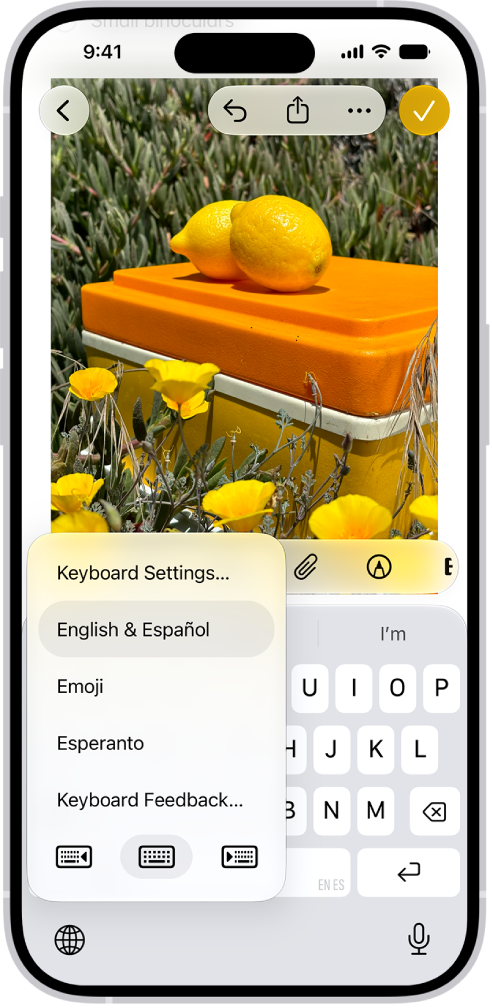
  1. While typing text, touch and hold the Emoji button or the Switch Keyboard key.

    The Keyboard Settings menu is open, and shows multiple keyboard options: English & Spanish, Emoji, and Keyboard Feedback.

  2. Tap the keyboard you want to switch to.

You can also switch between Magic Keyboard and other keyboards.

Assign an alternative layout to a keyboard

  1. Start the Settings app on your iPhone.
  2. Tap General, tap Keyboard, and tap Keyboards.
  3. Tap a language. Then select an alternative layout from the list.

If your Magic Keyboard doesn’t include accents and other diacritical marks for the language you’re typing, you can use an Option key modifier or the onscreen keyboard to enter those marks.

With the Option key on Magic Keyboard, you can select a mark after you add a keyboard for another language that supports diacritical marks, like Spanish (Mexico). Or you can use the onscreen keyboard to enter those marks for the related letter, number, or symbol.

Use the Option key to enter a diacritical mark for a character

To enter a character with a diacritical mark, you can press the Option key on Magic Keyboard to select a mark.

  1. Do one of the following:

    • Add or remove a keyboard for another language that supports diacritical marks, then in an app, switch to that language keyboard.

      For example, add the Spanish (Mexico) keyboard, then in an app, press and hold the Control key on Magic Keyboard, then press the Space bar until you select Español (México).

    • Go to Settings > General > Keyboard > Hardware Keyboard, then choose an alternative keyboard layout that supports diacritical marks.

      For example, if you have the English (US) language keyboard, tap English (US), then choose U.S. International — PC or ABC — Extended.

  2. In an app, press and hold the Option key and then press a key that enters a diacritical mark.

    For example, the Spanish (Mexico) keyboard and the U.S. International — PC alternative layout support these diacritical marks:

    • Acute accent (for example, é): Option-E.
    • Grave accent (for example, è): Option-`.
    • Tilde (for example, ñ): Option-N.
    • Diaeresis or umlaut (for example, ü): Option-U.
    • Circumflex (for example, ê): Option-I.
  3. Press the letter.

    For example, to enter ñ using the Spanish (Mexico) keyboard or the U.S. International — PC alternative layout, press Option-N, then type an n.

    Note: The ABC – Extended alternative layout also allows you to enter tone marks for typing Mandarin Chinese in Pinyin orthography. For example, to type ǚ in lǚxíng (“travel”), press Option-V, then type a v. In addition, the ABC – Extended layout allows you to type diacritical marks and letters from several different European languages, such as Czech, French, German, Hungarian, and Polish.

Use the onscreen keyboard to enter a diacritical mark

  1. To show the onscreen keyboard, press the Eject key on Magic Keyboard.
  2. On the onscreen keyboard, touch and hold the letter, number, or symbol on the keyboard that’s related to the character you want.

    For example, to enter é, touch and hold the e key.

  3. Slide your finger to choose a variant.
  4. To hide the onscreen keyboard when you’re finished, press the Eject key on Magic Keyboard.

In apps on iPhone, you can use gestures and the keyboard to select and edit text in text fields. You can also use built-in proofreading tools.

You can select a word, a paragraph, or a block of text, and then cut, copy, or paste the text you want to revise. You can also fix mistakes, undo or redo the last edit, place the insertion point, and move text without cutting or copying it.

Select, cut, copy, and paste text

  1. To select text, do any of the following:
    • Select a word: Double-tap with one finger.
    • Select a paragraph: Triple-tap with one finger.
    • Select a block of text: Double-tap and hold the first word in the block. Drag the grab points.
  2. After selecting the text you want to revise, tap the selection. Tap an editing option. You can also use these gestures:
    • Cut: Pinch closed with three fingers two times.
    • Copy: Pinch closed with three fingers.
    • Paste: Pinch open with three fingers.

Fix mistakes

If you spot a mistake while entering text, you can do any of the following:

  • Undo the last edit: Swipe left with three fingers, then tap the Undo button or Undo at the top of the screen.
  • Redo the last edit: Swipe right with three fingers, then tap the Redo button or Redo at the top of the screen.
  • Correct spelling and grammar: Tap a misspelled or misused word (underlined in red), then either tap a suggested correction to replace the word, or type the correction.
  • Undo autocorrect: As you enter text, misspelled words are automatically corrected and temporarily underlined so you know what was changed. To revert the autocorrection to what you entered, tap the underlined word, then tap your spelling (the first one listed and marked with the Undo button).

Turn on or off proofreading features

  1. Start the Settings app on your iPhone.
  2. Tap General, then tap Keyboard.
  3. Turn on or off any of the following:
    • Auto-Capitalization
    • Auto-Correction
    • Check Spelling and Grammar

Place the insertion point

  1. Do any of the following:

    • Tap where you want to add or edit text.
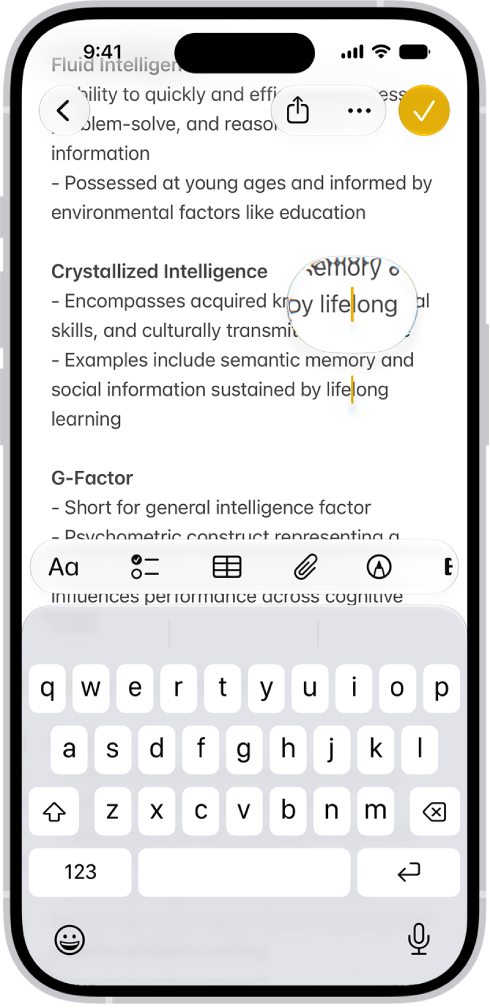
    • Touch and hold to magnify the insertion point, then drag it.

    A note showing the insertion point positioned where text will be inserted or edited. The surrounding text is magnified to make it easier to place the insertion point.

    Note: To navigate a long document, touch and hold the right edge of the document, then drag the scroller to locate the text you want to revise.

  2. Enter the text you want to add.

Move the insertion point with a trackpad

To move and place the insertion point easily, turn the onscreen keyboard into a trackpad.

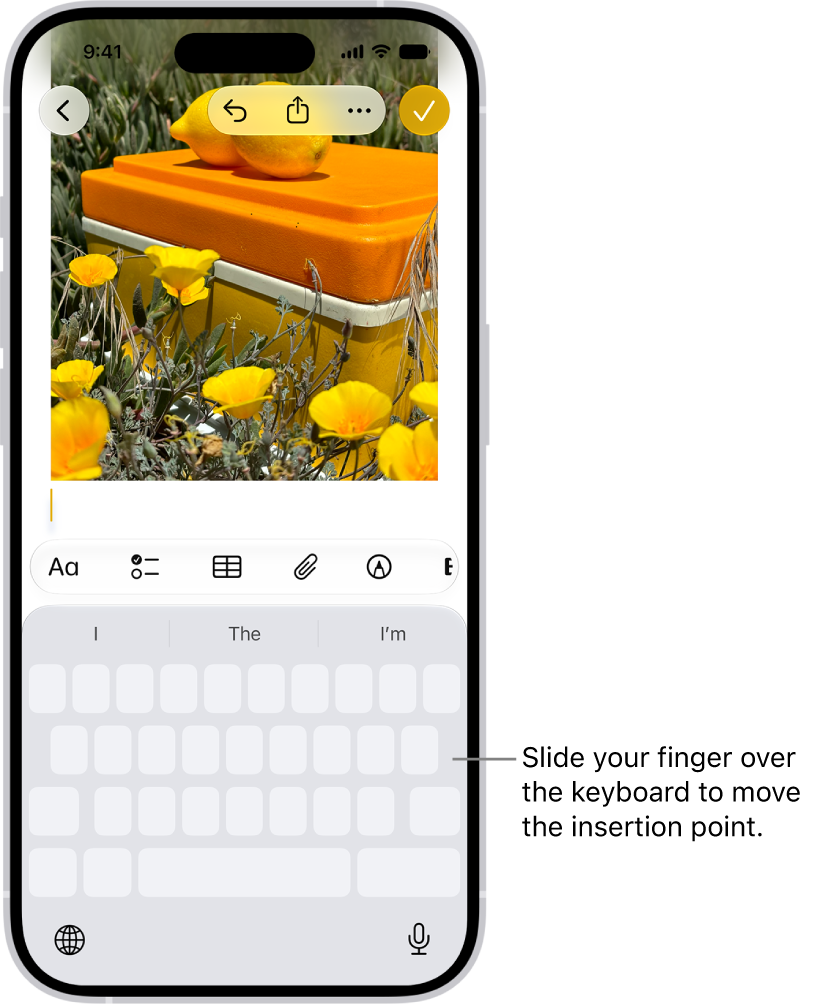
A document is open in the Notes app. The onscreen keyboard in the bottom half of the screen is in trackpad mode.

  1. Touch and hold the Space bar with one finger until the keyboard turns light gray and the characters on the keys disappear—now it’s a trackpad.
  2. Do either of the following:
    • Move the insertion point: Slide your finger around the trackpad.
    • Select text: Touch and hold the keyboard with a second finger and then adjust the selection by moving the first finger around the trackpad.

Move text without cutting or copying

  1. Select the text you want to move.
  2. Touch and hold the selected text until it lifts up and drag it to another location within the app.

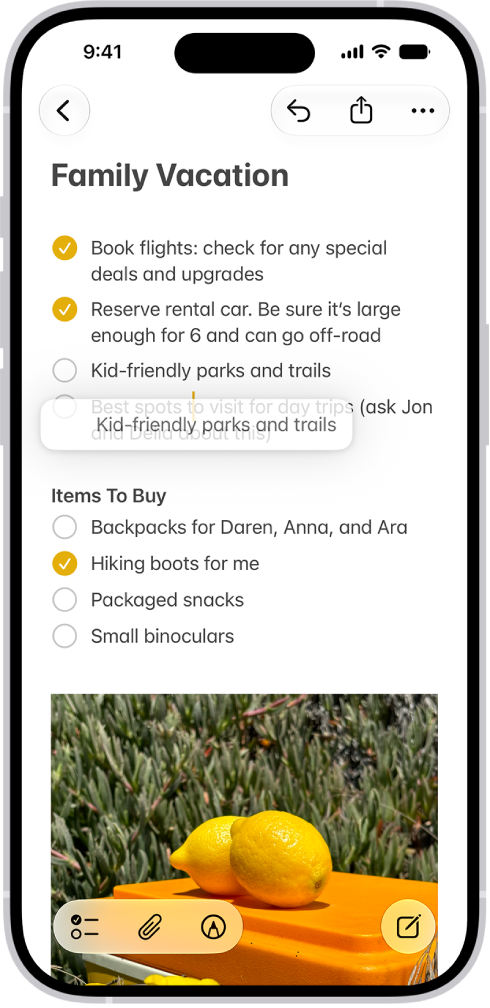
    A document is open in the Notes app. The onscreen keyboard is in the bottom half of the screen. Selected text is lifted within the document to be moved to a new location.

If you change your mind while moving the text, lift your finger before dragging, or drag the text off the screen.

Quick tip: To paste something on iPhone that you cut or copy on another Apple device, use Universal Clipboard.

You can perform searches and use text replacements from anywhere on iPhone without taking your hands away from Magic Keyboard. You can open Search with a shortcut, and set up text replacements, so typing “omw” enters “On my way.” You can also change the actions that are performed by the Command key, and choose additional accessibility keyboard shortcuts.

  • Open Search: Press Command-Space.

    Note: You can change the actions that are performed by the Command key (and other modifier keys like Caps Lock). Go to Settings > General > Keyboard > Hardware Keyboard, tap Modifier Keys, tap a key, then choose the action you want it to perform.

  • Use text replacements: You can set up text replacements that enter words or phrases after you type just a few characters. For example, type “omw” to enter “On my way!”
  • Choose additional accessibility keyboard shortcuts: Go to Settings > Accessibility > Keyboards > Full Keyboard Access, then turn on Full Keyboard Access.

You can use the onscreen keyboard to enter and edit text.

You can type one key at a time, or use QuickPath to glide from one letter to the next without lifting your finger, though it isn’t available for all languages. You can also enter accents and other special characters, type with one hand, and hear clicks or feel taps as you type. You can change keyboard settings, too.

Here’s how to type with the onscreen keyboard on iPhone.

Note: Magic Keyboard and Dictation are other ways to enter text on iPhone.

Enter text using the onscreen keyboard

You can tap individual keys to type, or slide from one letter to the next without lifting your finger (QuickPath isn’t available for all languages).

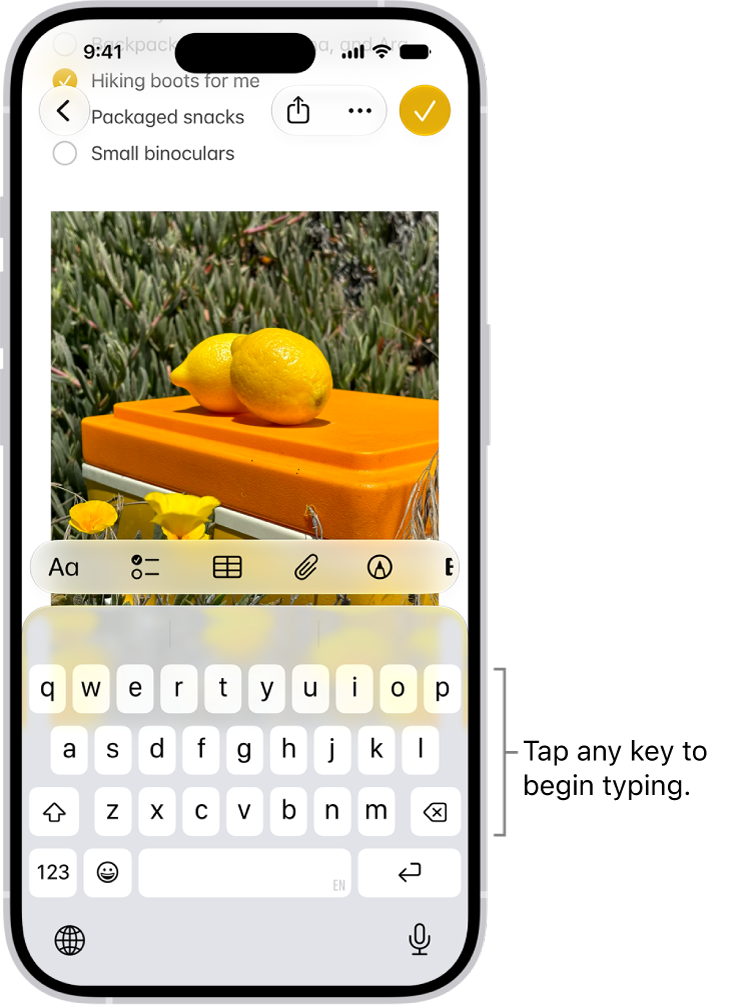
A document is open in the Notes app. The onscreen keyboard is in the bottom half of the screen.

  1. In any app where you can enter text, tap a text field. The onscreen keyboard opens.
  2. Tap individual keys to type, or touch and hold the first letter, slide to the next letters. Lift your finger at the end of a word. You can use either method as you type, and even switch in the middle of a sentence.
  3. While entering text, you can do any of the following:
    • Type an uppercase letter: Tap the Shift key, or touch the Shift key. Then slide to a letter.
    • Turn on Caps Lock: Double-tap the Shift key.
    • Quickly end a sentence with a period and a space: Double-tap the Space bar.
    • Enter numbers, punctuation, or symbols: Tap the Numbers key or the Symbols key.

Hear clicks or feel taps as you type

You can turn keyboard sounds and haptic feedback on or off in keyboard settings.

  1. Open the Settings app on your iPhone.
  2. Tap Sounds & Haptics, then tap Keyboard Feedback.
  3. Turn on Sound or Haptic

Enter accents, diacritics, and other special characters

While using the keyboard, touch and hold the letter, number, or symbol related to the character.

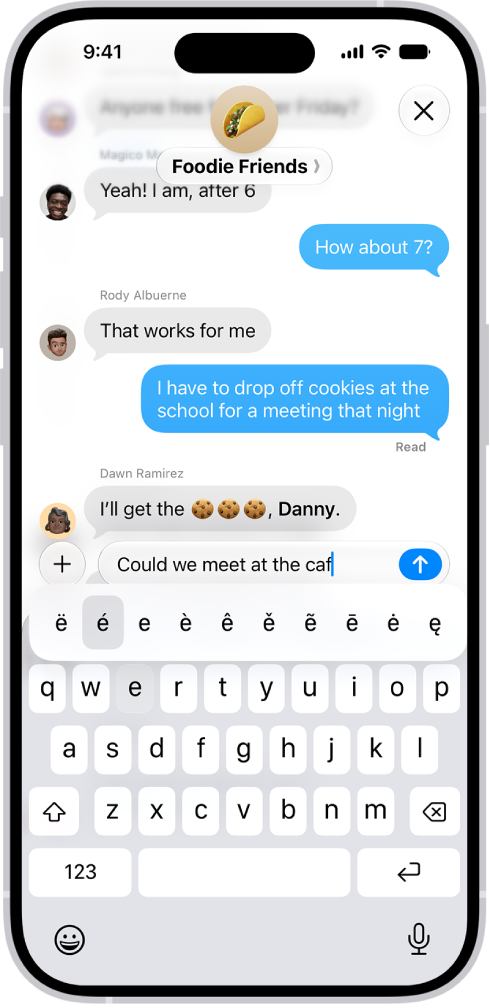
For example, to enter é, touch and hold the e key, then slide your finger and release it on the option you want.

The onscreen keyboard showing the alternate accented characters that appear when you touch and hold the E key.

On a keyboard for another language, you can also do any of the following:

  • On a Thai keyboard: To choose native numbers, touch and hold the related Arabic number.
  • On a Chinese, Japanese, or Arabic keyboard: Tap a suggested character or candidate at the top of the keyboard to enter it, or swipe left to see more candidates.

Note: Tap the up arrow on the right to view the full candidate list, and tap the down arrow to return to the short list.

You can add other characters using the emoji keyboard.

Type with one hand

Moving the keys closer to your thumb makes it easier to type with one hand.

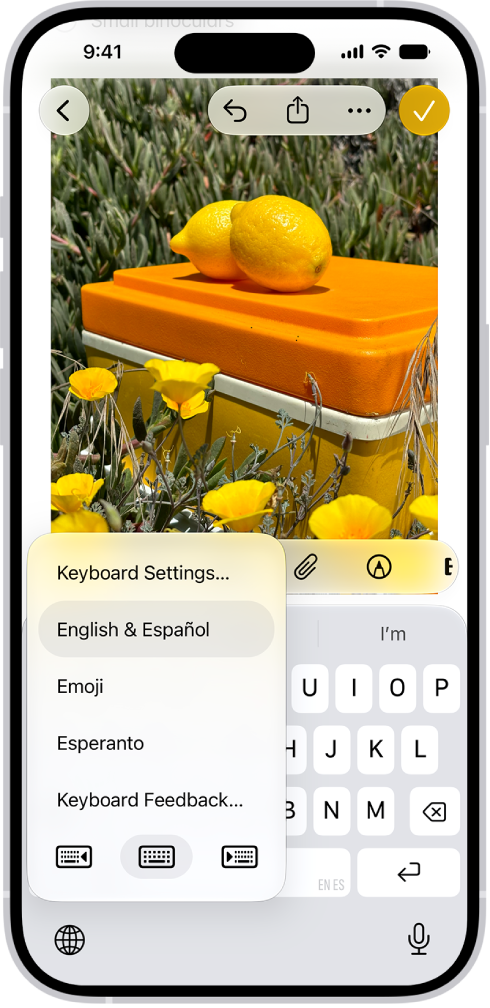
The Keyboard Settings menu is open, and shows three options: English (US), Emoji, and Keyboard Feedback. At the bottom of the menu, from left to right, are buttons for left-handed layout, default layout, and right-handed layout. The default layout button is selected.

  1. Touch and hold the Emoji button or the Switch Keyboard key.
  2. Tap one of the keyboard layouts. (For example, choose the Right-Handed Layout button to move the keyboard to the right side of the screen.)

To center the keyboard again, tap the right or left edge of the keyboard.

Change keyboard settings

You can turn special typing features—such as predictive text and auto-correction—off and on.

  1. Open the Settings app on your iPhone.
  2. Tap General, then tap Keyboard.
  3. Turn the typing features (below All Keyboards) on or off.

Quick tip: To change your keyboard settings without leaving the onscreen keyboard, you can touch and hold the Emoji button or the Switch Keyboard key, and then tap Keyboard Settings.

You can change Magic Keyboard options for autocorrection, autocapitalization, and more. When Auto-Capitalization is on, an app supporting this feature can capitalize proper nouns and the first words in sentences as you type, and with Auto-Correction, it corrects the spelling as you type. There’s also a “.” Shortcut option.

Go to Settings > General > Keyboard > Hardware Keyboard, then do any of the following:

  • Turn Auto-Capitalization on or off: When this option is selected, an app supporting this feature capitalizes proper nouns and the first words in sentences as you type.
  • Turn Auto-Correction on or off: When this option is selected, an app supporting this feature corrects the spelling as you type.
  • Turn “.” Shortcut on or off: When this option is selected, double-tapping the space bar inserts a period followed by a space.
  • Change the action performed by the Command key or other modifier key: Tap Modifier Keys, tap a key, then choose the action you want it to perform.