Got a tip for us?

Keyboard

You can use Magic Keyboard, including Magic Keyboard with Numeric Keypad, to enter text on iPhone. Magic Keyboard connects to iPhone using Bluetooth®.

Make sure the keyboard is turned on and charged first. There’s one more thing to check. If Magic Keyboard is already paired with another device, you need to unpair them before you can connect it to your iPhone. And once it’s paired, you can reconnect Magic Keyboard to iPhone later.

Pair Magic Keyboard

  1. Make sure the keyboard is turned on and charged.
  2. On iPhone, open Settings and tap Bluetooth. Then turn on Bluetooth.
  3. Select the device when it appears in the Other Devices list.

Note: If Magic Keyboard is still paired with another device, you must unpair them first, then you can connect Magic Keyboard to your iPhone. Use one of these options:

  • On macOS 13 or later: Choose Apple menu > System Settings, click Bluetooth in the sidebar, Control-click the device, then choose Forget.
  • On macOS 12.5 or earlier: Choose Apple menu > System Preferences, click Bluetooth, Control-click the device name, then click Remove.

Reconnect Magic Keyboard to iPhone

If you turn its switch to Off, or move Magic Keyboard or iPhone out of Bluetooth range (about 33 feet, or 10 meters), the keyboard disconnects.

To reconnect, turn the keyboard switch to On, or bring the keyboard and iPhone back into range, then tap any key.

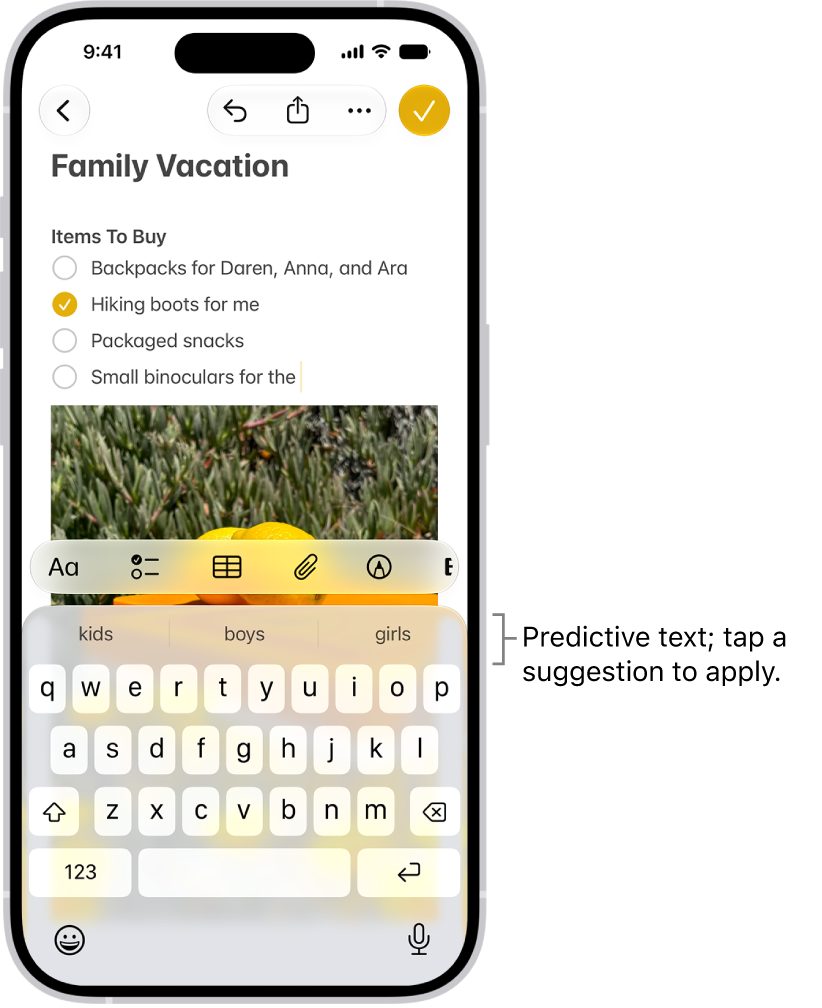
Using predictive text, you can write and complete entire sentences with just a few taps. As you type on the iPhone keyboard, you see choices for words, emoji, and information that you’d probably type.

It can fill in details about you, too. In Messages, for example, try typing something like:

  • “I’m at” followed by a space, your current location appears as an option
  • “My number is” followed by a space, your phone number appears as an option

Predictions that complete your word or phrase appear inline as you’re typing.

Note: Predictive typing and inline predictions may not be supported in your language.

Accept or reject inline text predictions

Predictions that complete the word or phrase you’re typing show up inline in gray text as you type. Then you can do one of the following:

  • Accept the prediction: Tap the Space bar.
  • Reject the prediction: Keep typing.
  • Change a prediction you accepted: Tap the Delete key, then tap the word you were in the process of typing.

Accept or reject suggested text and information

As suggested words, emoji, and information appear above the onscreen keyboard while you type, you can do one of the following:

  • Accept a suggestion: Tap a suggestion to apply it.
  • Reject the suggestions: Tap your original word (shown as the option in quotation marks), or just continue to type.

The onscreen keyboard is open in the Messages app. Text is entered in the text field and above the keyboard are predictive text suggestions for the next word.

Turn suggestions and inline text predictions off or on

  1. While using the keyboard, touch and hold the Emoji button or the Switch Keyboard key.
  2. Tap Keyboard Settings and then do any of the following:
    • Stop (or start) seeing suggestions above the keyboard: Turn Predictive Text off (or on).
    • Stop (or start) seeing predicted text inline: Turn Show Predictions Inline off (or on).

Note: When you turn off the Predictive Text setting, both predictive text and inline text predictions turn off.

Accept and reject a correction

When you turn off Predictive Text, corrections for misspelled words may still appear. To handle them, do one of the following:

  • Accept a correction: Enter a space or punctuation, or tap Return.
  • Reject a correction: Tap the “x.”

If you reject the same suggestion a few times, iPhone stops suggesting it.

With an alternative keyboard layout, you can enter letters and marks that are different from the ones on Magic Keyboard. For example, with the ABC – Extended keyboard layout, you can type letters and enter diacritical marks for several different European languages. You can also enter tone marks for Mandarin Chinese in Pinyin.

  1. Open Settings, tap General, tap Keyboard, and then tap Hardware Keyboard.
  2. Tap a language, then choose an alternative layout from the list.

You can dictate text instead of typing it on Magic Keyboard. As you speak, iPhone automatically inserts punctuation for you, and you can insert emoji by saying their names, like “happy emoji.” Dictation may not be available in all languages or regions, though.

Note: Dictation may not be available in all languages or in all countries or regions, and features may vary. Cellular data charges may apply.

  1. Open Settings, tap General, tap Keyboard, turn on Enable Dictation, and then choose a dictation shortcut.
  2. To insert text by dictating, tap to place the insertion point and then press the dictation shortcut key twice.
  3. To use Magic Keyboard again, quickly press the dictation shortcut key twice.

iPhone adds punctuation automatically while you speak to insert text, and you can insert emoji by name. Saying “happy emoji” or “mind blown emoji” inserts those emoji, for example.

As you type, you can use the iPhone keyboard to enter emoji, Memoji, and stickers to express yourself in messages and documents. As you enter text, suggested emoji appear above the keyboard, and you can replace typed text with a suggested emoji.

While entering text in supported apps, you can also make a new sticker from images in your photo library, or create a Memoji. Use a Live Photo, and the sticker even moves.

Add an emoji, Memoji, or sticker

  1. Tap a text field. Then tap the Emoji button or the Next Keyboard key to switch to the emoji keyboard.

    • Swipe left or right to browse emoji, Memoji, and stickers, or do one of the following:
      • Jump to a category: Tap a symbol below the emoji keyboard.
      • See Emoji, Memoji, and stickers you recently used: Tap the Recent Stickers button below the keyboard below the emoji keyboard.
  2. Tap an image to add it to your text field.

    To see variations of an emoji—such as different skin tones—touch and hold the emoji, then drag your finger and release it on the variation you like.

  3. Tap ABC to return to the regular keyboard.

Quick tip: Suggested emoji appear above the keyboard as you enter text. Just tap one to replace your typed text with that emoji.

Make a sticker

Supported apps let you make a new sticker from images in your photo library while you’re entering text.

  1. Tap a text field. Then tap the Emoji button or the Next Keyboard key to switch to the emoji keyboard.
  2. Tap the Stickers button. Then tap the Add Stickers button.

    To search your photo library, enter a term in the search field at the top of screen, or tap a category such as People or Animals.

    Tip: To create a Live Sticker that moves, use a Live Photo.

  3. Tap the photo you want to use. Tap Add Sticker.

Your sticker collection gets the new sticker automatically.

Make or edit Memoji

In supported apps, you can create a Memoji as you enter text, plus edit, delete, or duplicate one that you already created.

  1. Tap a text field. Then tap the Emoji button or the Next Keyboard key to switch to the emoji keyboard.
  2. Tap the Memoji button. Tap the Add button to make your first Memoji or tap the More button to edit, delete, duplicate, or make additional Memoji.
  3. Follow the onscreen instructions to make your Memoji. Then tap the Done button.

Your new Memoji is automatically added to your Memoji collection.

With Dictation on iPhone, you can dictate text anywhere you can type it. You can also use typing and Dictation together: the keyboard stays open during Dictation, so you can easily switch between touch and voice to enter text.

Dictation is processed on your iPhone in many languages, and no internet connection is required. When you dictate in a search field, though, your dictated text may be sent to the search engine to process the search.

Here’s how to dictate text on iPhone.

Note: Dictation may not be available in all languages or in all countries or regions, and features may vary. With Apple Intelligence in iOS 27, dictation uses an on-device model to improve spelling, punctuation, and capitalization. Available in English on iPhone 17 Pro, iPhone 17 Pro Max, iPhone Air, or later.

Apple Intelligence on iOS 27 or later is available on an Apple Intelligence-enabled iPhone 15 Pro, iPhone 15 Pro Max, or iPhone 16 model or later. Apple Intelligence is not available in all languages or regions. Usage limits may apply.*

When using Dictation, cellular data charges may apply.

Make dictation possible

  1. Open the Settings app on your iPhone.
  2. Tap General, then tap Keyboard.
  3. Turn on Enable Dictation. If a prompt appears, tap Enable Dictation.

To learn more about how Apple protects your information and lets you choose what you share, tap About Dictation & Privacy below the dictation settings.

Dictate text

Dictate text and use voice commands to edit and format content.
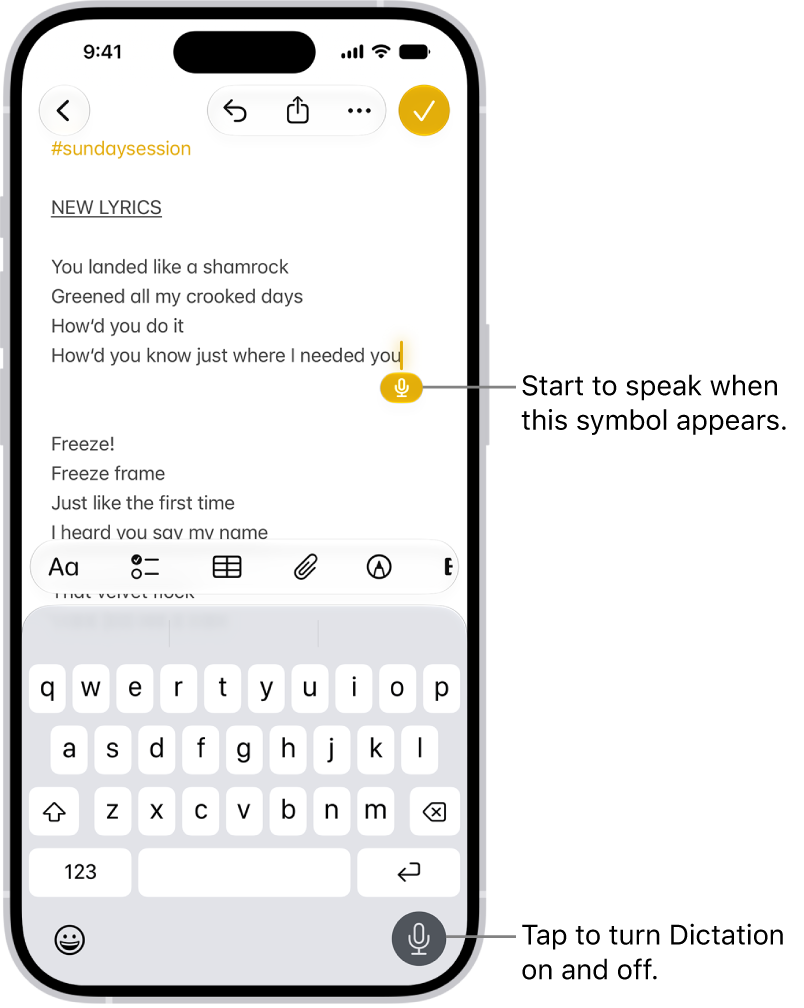
The onscreen keyboard is open in the Mail app. The Dictation button in the bottom-right corner of the screen is selected and the Dictation button appears below the insertion point in the text field.

  1. In a text field, tap to place the insertion point where you want to begin dictating text.
  2. Tap the Dictate button on the onscreen keyboard (or in any text field where it appears).

    If you don’t see the Dictate button, go to the Settings app, tap General, tap Keyboard, then turn on Enable Dictation. If a prompt appears, tap Enable Dictation.

  3. When the Dictate button appears near the insertion point in the text field, begin to dictate your text.
  4. Do any of the following:

    • Add emoji: Say the name of an emoji, such as “heart emoji” or “smiley face emoji.”
    • Add punctuation: Say the name of the punctuation mark, such as “exclamation point.”

    Note: In supported languages, Dictation automatically inserts commas, periods, and question marks as you dictate. To turn off automatic punctuation, go to Settings > General > Keyboard, then turn off Auto-Punctuation.

    • Add a line break: Say “new line” or “new paragraph.”
    • Spell a word: Say something like “Let’s invite Steven S-T-E-P-H-E-N.”
    • Correct spelling: Say something like “Change tea to T-E-E.”
    • Edit text: Say “select” or “delete” followed by the phrase you want to change.
    • Undo or repeat a command: Say “undo” or “redo” if you change your mind or want to repeat a command.
  5. To stop dictating, do one of the following:

    • Tap the Dictate button.
    • Say “Stop dictation.”
    • Remain silent for 30 seconds. Dictation stops automatically.

Using a keyboard for another language? Dictation works in that language, too.

Turn off Dictation

  1. Open the Settings app on your iPhone.
  2. Tap General, then tap Keyboard.
  3. Turn off Enable Dictation.

*Apple Intelligence is available with Siri and device language set to Chinese (Simplified), Chinese (Traditional), Danish, Dutch, English, French, German, Italian, Japanese, Korean, Norwegian, Portuguese, Spanish, Swedish, Turkish, or Vietnamese. Some features may not be available in all regions or languages. Some devices may not be available in all regions. Siri AI is available in beta in iOS 27, iPadOS 27, macOS 27, watchOS 27, and visionOS 27 and requires an Apple Intelligence–enabled device set to a supported language. Available in English to start. Siri AI will not be initially available in the EU on iOS, iPadOS, and watchOS. Certain Apple Intelligence features that rely on server-side models are subject to daily usage limits, including but not limited to Siri AI, Intelligent Photo Editing Tools, Image Playground, and AFM 3 Cloud models in Shortcuts. Daily limits may vary by feature, request complexity, system demand, system policies, and other factors. Expanded access to such features will be available for a fee in the future. Use of these features is subject to the Apple Intelligence Terms and Conditions. Learn more at apple.com/apple-intelligence.


If you use Magic Keyboard or another physical keyboard with iPhone, you can use Full Keyboard Access to control your device with keyboard shortcuts instead of the touchscreen. Full Keyboard Access highlights the item on the screen that has focus.

You don’t need to memorize the shortcuts, either, because Full Keyboard Access can show you a list of the available commands. You can also customize the commands and the focus highlight.

Here’s how to control iPhone with an external keyboard.

Control iPhone using Full Keyboard Access

  1. Open Settings, tap Accessibility, tap Keyboards & Typing and tap Full Keyboard Access. Then turn on Full Keyboard Access.
  2. Navigate iPhone using the following default commands.
Action Shortcut
View available Full Keyboard Access commands Tab-H
Move forward Tab
Move backward Shift-Tab
Activate the selected item Space bar
Go to the Home Screen Fn-H
Open the App Switcher Fn-Up Arrow
Open Control Center Fn-C
Open Notification Center Fn-N

Customize Full Keyboard Access

Full Keyboard Access commands come with keyboard shortcuts that you can change. And to customize the appearance of Full Keyboard Access, you can adjust the color, contrast, and size of the highlight.

  1. Open Settings, tap Accessibility and tap Keyboards & Typing. Then tap Full Keyboard Access.
  2. Do any of the following:
    • View a complete list of Full Keyboard Access commands and customize them: Tap Commands.
    • Change the look of Full Keyboard Access: Tap an option below Appearance.

When you dictate text on iPhone, you can use commands for punctuation, formatting, capitalization, and more. In some languages, you can insert emoji using your voice while dictating. The commands listed below are always available while you’re dictating text.

They’re easy to remember. Say “period” or “comma,” and you get the punctuation mark, or say “new paragraph” to start a new paragraph. You can also change, insert, and delete text with your voice.

Note: Dictation may not be available in all languages or in all countries or regions, and features may vary.

When using Dictation, cellular data charges may apply.

Punctuation

Command Result
Period .
Comma ,
Exclamation point !
Question mark ?
Dollar sign \$
Open parenthesis (
Close parenthesis )
Quote “
End quote “
Colon :
Semicolon ;
Hashtag #

As you dictate text in some languages, Dictation adds certain punctuation automatically.

Format text

Command Result
Cap Capitalize the next word
Caps on … caps off Capitalize the first character of each enclosed word
All caps Make the next word all uppercase
All caps on … all caps off Make the enclosed words all uppercase
No caps on … no caps off Make the enclosed words all lowercase
No space Eliminate the space between two words (not available for all languages)
No space on … no space off Run a series of words together (not available for all languages)
New paragraph Start a new paragraph
New line Start a new line

Change, insert, and delete text

In U.S. English, you can use Dictation commands to edit text on iPhone 12 and later, except iPhone SE.

Command Result
Change … to … Replace existing text with new text
Insert … before … Insert new text before existing text
Insert … after … Insert new text after existing text
Select … Select text
Delete … Delete text
Delete all Delete all text
Undo Undo the action
Redo Redo the action

Insert emoji

In certain languages, you can insert emoji while dictating. Say “heart emoji” to get the heart emoji, for example, or “car emoji” for the car emoji. You’ll find more examples of emoji commands and the results they produce below.

Command Result
Smiley emoji The smiley emoji.
Halo emoji The halo emoji.
Laugh out loud emoji The laugh out loud emoji.
Heart eyes emoji The heart eyes emoji.
Amazing emoji The amazing emoji.
Yum emoji The yum emoji.
Congrats emoji The congrats emoji.
Goofy emoji The goofy emoji.
Sick emoji The sick emoji.
Scream emoji The scream emoji.
Hug emoji The hug emoji.
Fingers crossed emoji The fingers crossed emoji.
Purple heart emoji The purple heart emoji.
Cheers emoji The cheers emoji.
Celebrate emoji The celebrate emoji.
Speech balloon emoji The speech balloon emoji.
Puppy emoji The puppy emoji.
Music emoji The music emoji.
Rainbow emoji The rainbow emoji.
Present emoji The present emoji.

You can set the onscreen keyboard on iPhone to show only uppercase letters, and if you use a physical keyboard with your iPhone, adjust key sensitivity and make it easier to press combinations of keys.

With Sticky Keys, for example, you can press the keys of a shortcut one at a time instead of all at once. You can also set typing options, such as auto-correction and slide to type, make it easier to type with one hand, and add keyboards for other languages or alternative layouts.

Here’s how to adjust the onscreen and external keyboard settings for accessibility on iPhone.

Set the onscreen keyboard to display only uppercase letters

If uppercase letters are easier to read, you can set the onscreen keyboard so it doesn’t display lowercase letters.

Go to Settings > Accessibility > Keyboards & Typing, then turn off Show Lowercase Keys.

Quick tip: In many apps, including Mail, Messages, Notes, and Safari, you get a larger keyboard for typing when you rotate iPhone to landscape orientation.

Change how the keys respond on an external keyboard

If you use Magic Keyboard or another physical keyboard with iPhone, you can adjust the sensitivity of keys and make it easier to press combinations of keys.

Go to Settings > Accessibility > Keyboards & Typing, then tap any of the following:

  • Key Repeat: You can set how long you must press and hold a key before it starts repeating and how fast it repeats once it starts. You can also prevent the key from repeating at all.
  • Sticky Keys: When you need to press multiple keys at the same time, you can press each key separately instead. For example, enter the keyboard shortcut Command-Z by pressing Command, then pressing Z.
  • Slow Keys: Adjust the time between when you press a key and when it’s activated.

In this quick guide, we’ll show you how to insert the degree symbol (°) anywhere on your iPhone, iPad, and Mac without copying & pasting it off the internet. You don’t even have to use a third-party app!

When you’re writing something where you want to use the degree symbol, do you just type the word "degrees" instead?

Whether you’re talking about the temperature (25°C or 83°F), angle (90°), the geographic coordinates (28.61° N (latitude) 77.21° E (longitude)), or something similar, you don’t have to use the word ‘degree’. Once you see how easy it is to insert the degree symbol, you’ll wish you had found out sooner!

Type the degree symbol on iPhone and iPad

Inserting the degree sign is super simple if you use the default iOS keyboard on your iPhone or iPad.

  1. Open the app you’re typing in and make sure the keyboard is up and ready.
  2. Access the numeric keyboard by tapping the 123 button.
  3. Press and hold the zero (0) key until the little pop-up appears.
  4. Slide your finger to the degree symbol (°) to select it and release your finger.

The above steps may also work with third-party iPhone and iPad keyboards. For example, it does work with SwiftKey.

Type the degree symbol on Mac

On Mac, it’s even easier! Just use the Shift Option 8 keyboard shortcut to type the degree sign.

With all the useful keyboard shortcuts you can use on Mac, this may be one you’ll forget if you don’t use it often. In that case, just use the emoji keyboard (Character Viewer) to pop in the degree symbol.

If you have Emoji & Symbols in your menu bar, select it, or you can use Edit > Emoji & Symbols from the menu bar for the app. Enter "degree" into the search box, and you’ll see the degree sign appear. Just drag it to the document, email, note, or whatever. If you don’t see it in search results, go to the Punctuation category, and it should appear there.

Tip: If you plan to use the degree sign often, you can add it to your Favorites in the Character Viewer.

Note: You can also use the Text Replacement feature to enter the degree symbol on iPhone, iPad, and Mac. However, it will add a space between the number and the degree symbol (27 ° and not 27°). To fix this, place the cursor to the left of the degree symbol and remove the extra space.