Got a tip for us?

Maps

For some large spaces like airports or shopping malls, you can look at detailed, interior maps to help you get around. You can look at an indoor map before you get there, or when you’re already at the airport or mall. Indoor maps aren’t available in all countries or regions, though.

Note: Indoor maps aren’t available in all countries or regions.

  1. Start the Maps app on your iPhone.
  2. Do one of the following:

    • Before you get there: Search for the airport or mall and then tap Indoor Map if it appears in the search result.

      Or drag the map to show it, zoom in, then tap Look Inside.

    • When you’re at the airport or mall: Tap the Tracking Off button, then tap Look Inside.
  3. To find nearby services, tap a category (like Food, Restrooms, or Gates).

    To get more information about a result, tap it.

  4. To get a map of a different floor, tap the button showing the floor level, such as L1 and then tap another level.

    If the button doesn’t appear, zoom in.

Tag: Maps
You can organize places into your own guides for easy reference, and you can share your guides with others.

There’s always one guide to start with. A guide called Favorites always appears in your guides, which makes it easier for you to save places. From there, you can create a guide, add places to it, edit it, or remove it.

Here’s how to organize places with custom guides in Maps on iPhone.

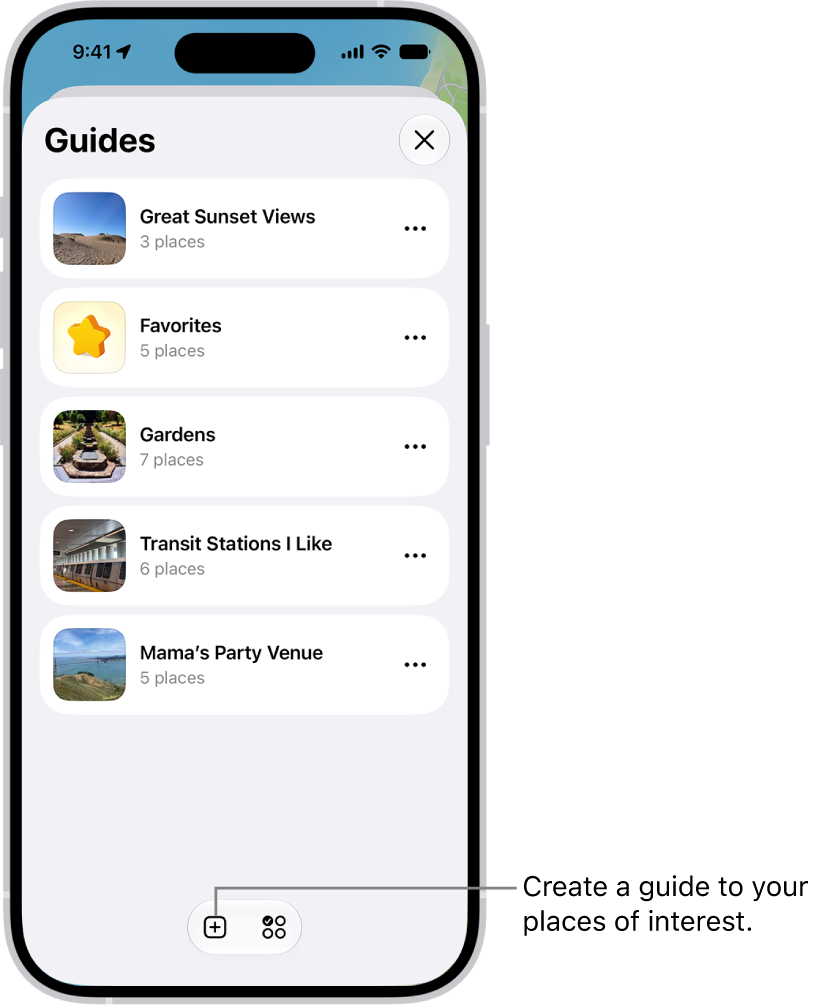
A list of several custom guides in Maps, including a Favorites category, and the New Guide button at the bottom right.

See your favorites

Your guides always include a guide called Favorites.

It makes saving places to a guide easier for you.

  1. Start the Maps app on your iPhone.
  2. Tap Your Guides, then tap Favorites.

Quick tip: To see certain places in your Places whenever you open Maps, you can pin any places you like.

Create a guide

  1. Start the Maps app on your iPhone.
  2. Tap Your Guides. Tap the Add to List button.
  3. Enter a name for the guide and then tap the Add Image button to add an image from your photo library (optional).
  4. Tap the Done button.

Add a place to a guide

  1. Start the Maps app on your iPhone.
  2. Tap a place on the map or a search result.
  3. In the place card, tap the More button, then tap Add to Guides.
  4. Choose one of your guides and tap the Done button.

You can save Publisher Guides to your guides, too.

Share a guide

  1. Start the Maps app on your iPhone.
  2. Tap Your Guides. Tap the guide you want to share.
  3. Tap the Share button, then choose an option.

Edit a guide that you created

  1. Start the Maps app on your iPhone.
  2. Tap Your Guides, then tap the guide you want to edit.
  3. Tap the Edit button. Then rename it or do any of the following:
    • Choose a cover image: Tap the Change Image button, tap another image, and tap Choose.
    • Remove places: Tap to select the places you want to delete from the guide and then tap the Delete button.
  4. Tap the Done button.

Remove a guide

  1. Start the Maps app on your iPhone.
  2. Tap Your Guides, tap the More button on the guide you want to remove, tap Delete from Places, and then tap Delete.
Tag: Maps

You can customize how turn-by-turn directions are spoken by changing their volume, voice, language, and interaction with your other audio.

You can change the default volume, or hear a different language or voice, and you can preview each voice before you choose one. Directions that start somewhere other than My Location show a Steps button, though, and aren’t spoken.

Here’s how to change how you hear directions in Maps on iPhone.

Note: Turn-by-turn spoken directions only work when your iPhone is connected to the internet and Precise Location is turned on.

Cellular data rates may apply.

Spoken turn-by-turn directions aren’t available in all countries or regions.

Change the volume for spoken directions

  1. Open the Maps app on your iPhone.
  2. Get driving, cycling, or walking directions, then tap Go.

    Note: When directions start in a location other than My Location, you see a Steps button instead of Go, and no directions are spoken.

  3. Tap the Audio Control button on the map (for example, the Unmuted button) and then choose an option.

To change the default volume, go to the Settings app , tap Apps, then tap Maps.

Tap Spoken Directions, then choose an option below Voice Volume.

Hear a different language or voice for spoken directions

  1. Open the Settings app on your iPhone.
  2. Tap Siri and then change any of the following:
    • Language: Tap Language and tap a language to select it as your primary Siri language.
    • Voice: Tap Voice and tap to hear the different options.

Change how directions and other audio interact

  1. Open the Settings app on your iPhone.
  2. Tap Apps, then tap Maps.
  3. Tap Spoken Directions and then do any of the following:

    • Pause spoken word media for steps in the directions: Turn on Directions Pause Spoken Audio.

      When this feature is on, media like podcasts and audiobooks automatically pause as each step is spoken.

    • Play steps in the directions over the car speakers: Turn on Directions on Radio. (Supported cars only.)

Wake the display for steps in the directions

Your iPhone may go to sleep if there’s a long stretch of time in your route when nothing happens.

To see your progress, you can set the iPhone display to turn on.

  1. Open the Settings app on your iPhone.
  2. Tap Apps, then tap Maps.
  3. Tap Spoken Directions and then turn on Directions Wake Device.

When you start with a location other than My Location, a Steps button appears instead of Go, and no directions are spoken.

Tag: Maps

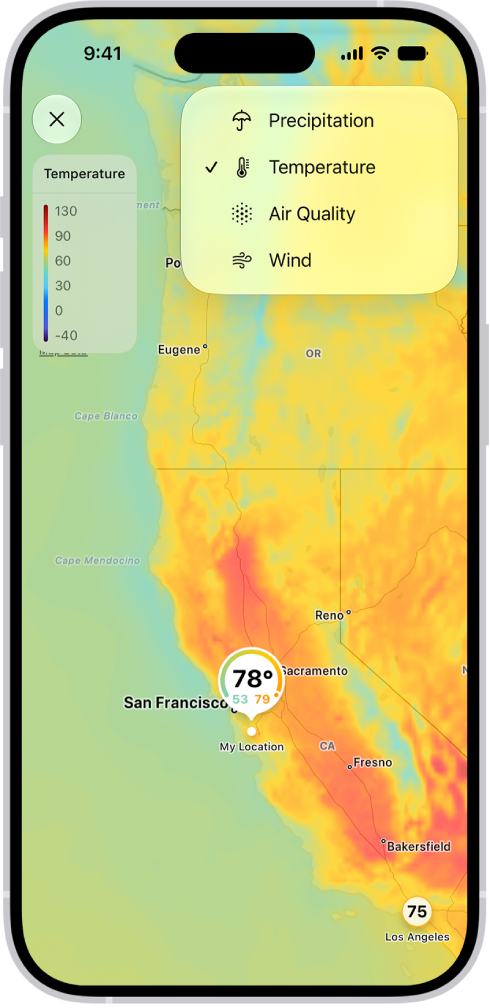
You can use the Weather app to view full-screen precipitation, temperature, air quality, and wind maps in your location or other areas.

The type of map you see can change depending on the weather conditions for the selected location, and on a precipitation or wind forecast map, you can show the timeline to see what’s coming. You can also move the map, zoom in and out, and view another location from your list.

Not all features are available in all countries or regions, Apple says.

Note: Not all features are available in all countries or regions.

A wind map of the ocean fills the Weather app screen. The Close Map button and the Wind Map Overlay Scale are in the top-left corner. In the top-right corner, from top to bottom, are the Overlay Menu, Current Location, and Locations buttons. Along the bottom is a timeline.

View a full-screen weather map

  1. Open the Weather app on your iPhone.
  2. Select a location. Tap the Show Map button at the bottom of the screen.

    Note: The type of weather map shown can change depending on the weather conditions for the selected location.

  3. To switch between a precipitation, temperature, air quality, or wind map, tap the Overlay Menu button.
  4. In a precipitation or wind forecast map, tap near the bottom of the screen to show the timeline.

    Tip: In a precipitation map, tap 1h or 12h to switch how much time the timeline covers.

  5. Tap the Close button to close the map.

Change the location of the weather map

  1. Open the Weather app on your iPhone.
  2. View a full-screen weather map. Do any of the following:
    • Move the map: Drag it.
    • Zoom in and out: Pinch the screen.
    • View another location from your list: Tap the Favorite Locations button and tap a location.
    • Return to your current location: Tap the Current Location button.
    • Add a location to your list, view its current conditions, or view it in Maps: Touch and hold the location on the map and then tap Add [location], View [location], or Open in Maps.
  3. Tap the Close button to close the map.
Tag: Maps

You can request a ride with a compatible ridesharing app right from Maps. If you don’t have one installed, you can see which ones are available from the App Store. You can start from any spot on the map, or from an address you search for.

Maps may share your location with those apps to estimate wait times and fares, and you can turn that off for any app in Settings.

Note: Ridesharing isn’t available in all countries or regions.

Find a ride

  1. Open the Maps app on your iPhone.
  2. Touch and hold anywhere on the map or enter an address in the search field. Tap Directions or the Ride button at the right.
  3. Tap Open to see the option in the ridesharing app. Then book your ride in that app.

Stop sharing your location with a ridesharing app

Ridesharing apps you installed on your iPhone may receive your location from Maps to estimate wait times and fares.

Location sharing with ridesharing apps is something you can stop.

  1. Open the Settings app on your iPhone.
  2. Tap Apps, then tap Maps.
  3. Tap Ride Booking, then turn off any app.
Tag: Maps

You can find pins, places, guides, and routes in one place: your Places in the Maps app. You can also add personal notes to saved places, or pin your most frequently visited places for easier access in Maps and CarPlay. Those notes are visible only to you.

You can save dropped pins and home, work, or school addresses to Places, too. Just be careful when you clean up. Removing a place from your Places deletes any personal notes you’ve added to it.

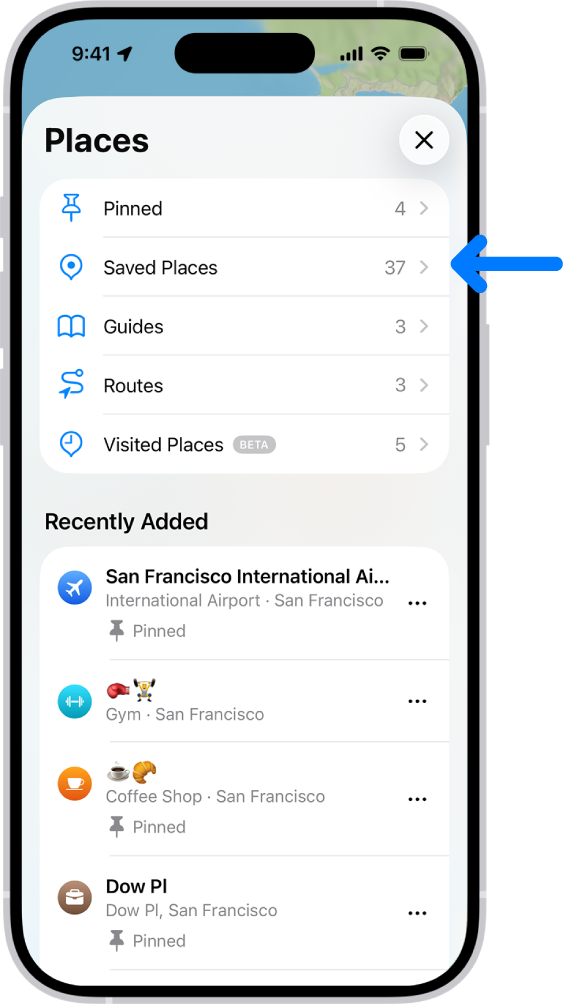
The Places screen in Maps, which shows a list of place categories like Pinned, Saved Places, and Guides. Below this, a Recently Added section lists viewed locations.

Save a place

For easier access in Maps and CarPlay, pin frequently visited places.

They appear under Pinned and as icons in your Places.

  1. Start the Maps app on your iPhone.
  2. Do one of the following:
    • Tap the Add button (you may need to swipe left), search for a location or tap a suggestion, then tap the Done button.
    • While looking at a place card, tap the Add button near the bottom of the screen (it turns to the Added button), tap the More button, then tap Add to Places.

Places can also hold dropped pins and your home, work, or school addresses.

Add notes to a place

If you add notes to a place, you can read them at any time.

Your note appears as text with the shared link when you share a place. It doesn’t save to the other person’s notes for that place, though.

  1. Start the Maps app on your iPhone.
  2. While looking at a place card, tap the More button. Then tap Add a Note.
  3. Write something and tap the Done button.

Adding a note to a place also saves it to your Places.

Remove a place from your Places

  1. Start the Maps app on your iPhone.
  2. Do one of the following:
    • Tap Places, touch and hold the More button, tap Delete from Places, then tap Delete.
    • If you’re in the place card, tap the Added button, tap to deselect Places, then tap the Done button.

Removing a place from your Places also deletes any personal notes on it.

Tag: Maps

You can automatically direct the audio of phone or FaceTime calls to the iPhone speaker, a Bluetooth® headset, or your hearing device. iPhone can also automatically answer calls after a length of time you set.

During a call, the audio switches from your hearing aid to the iPhone speaker when you remove the hearing aid from your ear.

  1. Open Settings, tap Accessibility, tap Touch, tap Call Audio Routing, and then choose an audio destination.
  2. Tap Auto-Answer Calls, turn on Auto-Answer Calls, and set the duration of time before the call is answered by tapping the Decrement button or the Increment button.

Removing your hearing aid from your ear during a call switches the audio routing to the iPhone speaker.

Tag: Maps

Guides are available to help you discover great places around the world to eat, shop, and explore. Guides are automatically updated when new places are added, so you always have the latest recommendations.

You can browse guides by city, by interest, or by publisher. In select U.S. cities, you can also see suggestions about what’s trending in the area.

Here’s how to explore places with guides in Maps on iPhone.

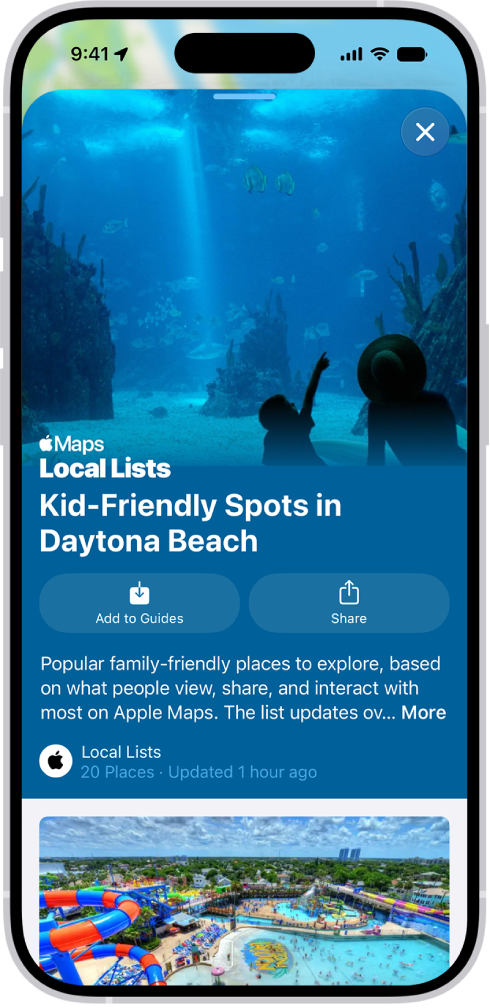
The Maps app showing a guide about underwater locations.

Explore the world with guides

  1. Start the Maps app on your iPhone.
  2. Scroll down and tap Guides We Love.
  3. Browse by any of the following:

    • City: Tap the Go Down button near the top of the screen. Tap a city.

      You can also scroll down to the Cities category.

    • Interest: Tap an interest, then tap to browse guides in that group.
    • Publisher: Scroll down to the Browse by Publisher category and then tap a Publisher.

Suggestions about what’s trending in the area are available in select U.S. cities.

Enter “Local Lists” in the search field, tap Guides, then tap a collection, such as restaurants or kid-friendly spots.

View, share, and save a guide

  1. Start the Maps app on your iPhone.
  2. To open a guide, tap its cover.

    To view its contents, scroll down.

You can also do the following:

  • Share the guide: Tap Share , then choose an option.
  • Save the guide: Tap Add to Guides.
  • See saved guides: Tap Places, then tap Guides.
  • Close the guide: Tap the Close button.

Quick tip: Look for App Clips buttons.

With these, you can do things like reserve a table directly from a guide.

Tag: Maps

You can display data about the weather and air quality that affects the local area shown on your map. When you zoom in on a map far enough, a weather icon shows the current conditions for that area, and in some regions, the air quality index (AQI) appears, too.

Note: Air quality and weather data aren’t available in all countries or regions.

Find out about weather and air quality in a specific map area

  1. Start the Maps app on your iPhone.
  2. Zoom in on a map until the weather icon appears.

    The icon shows the current conditions for that area.

    In some regions, the air quality index (AQI) also appears.

  3. To get the hourly forecast, touch and hold the weather icon.

    Tap the hourly forecast to open the Weather app, where you can see even more details.

Remove local weather data from your map

  1. Start the Settings app on your iPhone.
  2. Tap Apps, then tap Maps.
  3. Turn off Air Quality Index and Weather Conditions.
Tag: Maps

The Maps app uses information about your significant locations from Location Services to provide you with personalized services like predictive traffic routing. Your significant locations are end-to-end encrypted and can’t be read by Apple.

You can delete your significant locations at any time, for example, to reset predictive traffic routing and similar personalized services. It’s a clean sweep: the history is cleared on every device signed in to your Apple Account.

  1. Start the Settings app on your iPhone.
  2. Tap Privacy & Security and then tap Location Services.
  3. Tap System Services and tap Significant Locations & Routes.
  4. Tap Clear History.

Everywhere you’re signed in to the same Apple Account, this action clears all your significant locations.

Tag: Maps