Got a tip for us?

Maps

You can get detailed cycling directions including routes on bike paths, bike lanes, and bike-friendly roads. You can preview the elevation for your ride, check how busy a road is, and choose a route that best avoids hills.

In fact, you can choose to avoid hills or busy roads before you go. And Siri can help, too, with something like “Give me cycling directions home.”

Here’s how to get cycling directions in Maps on iPhone.

Note: Cycling directions and turn-by-turn spoken directions aren’t available in all countries or regions.

Get cycling directions

  1. Start the Maps app on your iPhone.
  2. Touch and hold anywhere on the map or enter an address in the search field and then tap the directions button.
  3. Tap Go or Steps for the route you want to take.

Siri: You can also ask Siri something like, “Give me cycling directions home.”

Avoid hills or busy roads

  1. Start the Maps app on your iPhone.
  2. Touch and hold anywhere on the map or enter an address in the search field and then tap the directions button.
  3. Tap Options (below Directions), make your choices (below Avoid) and then tap the Done button.
Tag: Maps

You can get detailed driving directions to your destination. When you drive in select cities, you see enhanced details for crosswalks, bike lanes, and buildings, plus a street-level perspective that helps you find the right lane at complex intersections (supported models).

You can also estimate travel time for a future departure or arrival, and avoid tolls. You can get directions from anywhere on the map, or from an address you search for.

Here’s how to get driving directions in Maps on iPhone.

Note: Turn-by-turn spoken directions and the preferred route option aren’t available in all countries or regions.

Get driving directions

  1. Start the Maps app on your iPhone.

    Do either of the following: Touch and hold anywhere on the map.

  2. Enter an address in the search field.
  3. Tap the directions button and then tap Go or Steps for the route you want to take.

If your preferred travel mode is Walking , Transit , or Cycling , tap the Driving button.

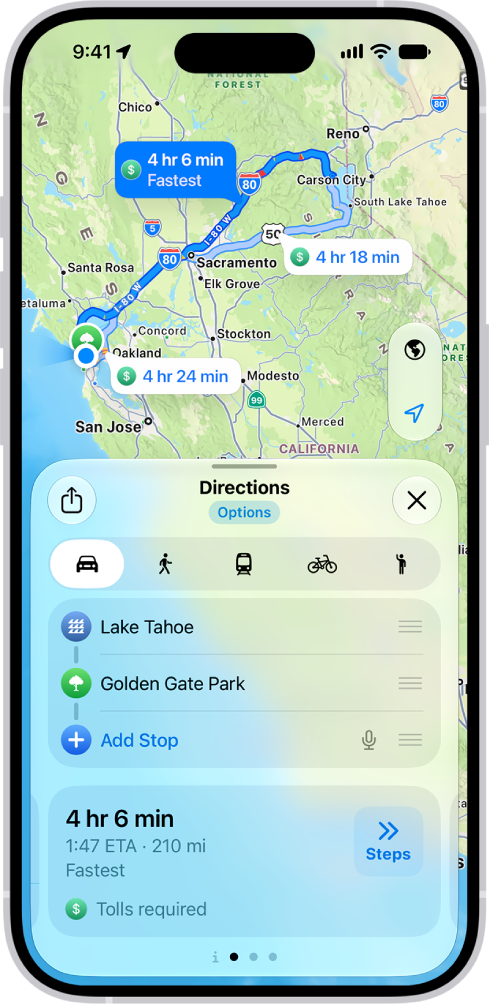
An iPhone showing a map with several driving route options to the same destination. Each route shows the estimated time and distance, and a Go button to start turn-by-turn directions. Color coding on each route indicates traffic conditions.

Siri: You can also ask Siri something like, “Give me driving directions home.” If you regularly drive the same route—such as between home and work—Maps may show it as “Your route,” making it easier to start navigation.

Based on your driving patterns and destinations, this preferred route option appears, and it may alert you to delays before you even leave.

  1. To turn off the option, open the Settings app, tap Apps, tap Maps and tap Location. Turn off Preferred Routes & Predicted Destinations.

Maps stays onscreen and keeps speaking directions when Driving Focus is on or iPhone locks automatically.

Even if you open another app, you continue to receive turn-by-turn directions. (To return to Maps from another app, tap the directions banner at the top of the screen or the navigation indicator in the status bar.)

Estimate travel time for a future departure or arrival

  1. Start the Maps app on your iPhone.

Get driving directions, as above.

  1. Tap Options (below Directions), tap Leave at or Arrive by, select a time and date, and then tap the Done button.

Predicted traffic may change the estimated travel time.

Avoid tolls or highways

  1. Start the Maps app on your iPhone.

Get driving directions, as above.

  1. Tap Options (below Directions), make your choices (below Avoid) and then tap the Done button.

Show or hide the compass or the speed limit

  1. Start the Settings app on your iPhone.
  2. Tap Apps, then tap Maps.

Below Directions, tap Driving, then turn on or off Compass and Speed Limit.

Tag: Maps

You can find nearby attractions, services, and more in the Maps app. You can search by a category like Grocery Stores or Restaurants, or enter something like “playgrounds” or “parks,” and Siri can help, too. In select U.S. cities, you can even see Local Lists, with suggestions based on what people view, share, and interact with most.

Note: Nearby suggestions aren’t available in all countries or regions.

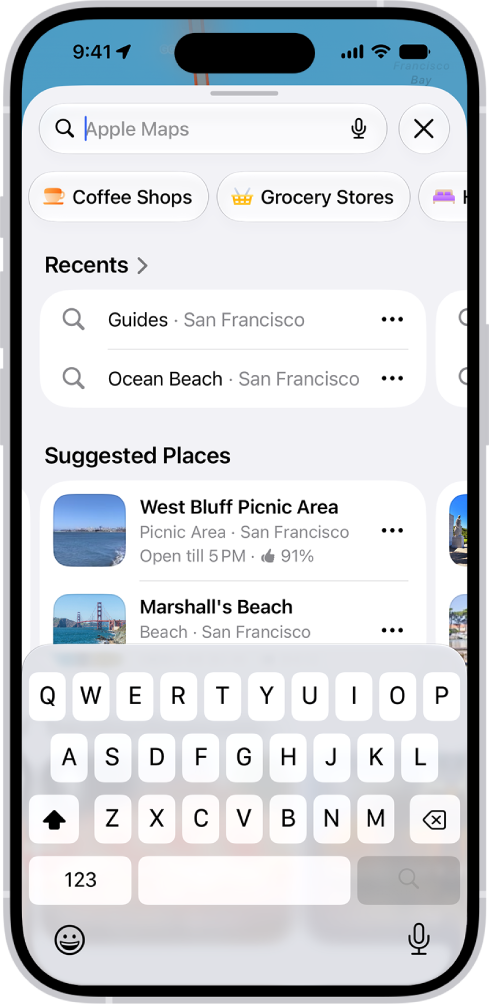
The Maps app showing the search field, categories for nearby services, and city guides. In the bottom part of the screen is the iPhone onscreen keyboard.

Find a nearby attraction, restaurant, or service

Siri: Ask Siri something like, “Find coffee near me.”

Or without using Siri:

  1. Start the Maps app on your iPhone.
  2. Tap the search field and then do one of the following:

    • Tap a category like Grocery Stores or Restaurants below Find Nearby.
    • Enter something like “playgrounds” or “parks” in the search field, then tap the Search Nearby result.
    • In select U.S. cities, enter “Local Lists” in the search field, tap Guides, then tap a collection, such as restaurants or kid-friendly spots.

      Suggestions are based on what people view, share, and interact with most on Apple Maps.

Quick tip: For a shortcut, touch and hold the Maps app icon on the Home Screen and tap Search Nearby.

Depending on what you’re looking for, you may be able to apply more search criteria, tap a suggestion to get additional information, and more.

  1. To change the nearby area, drag the map.
Tag: Maps

In the Maps app, you can find your location on a map and switch to different map views for different details. You can choose from Explore, Driving, Transit, and Satellite views, and in select cities, Maps provides enhanced detail for elevation, roads, trees, buildings, landmarks, and more.

There’s one thing to do first, though. You need to allow Maps to use your location.

Here’s how to set up Maps on iPhone.

Note: Not all features are available in all regions or countries.
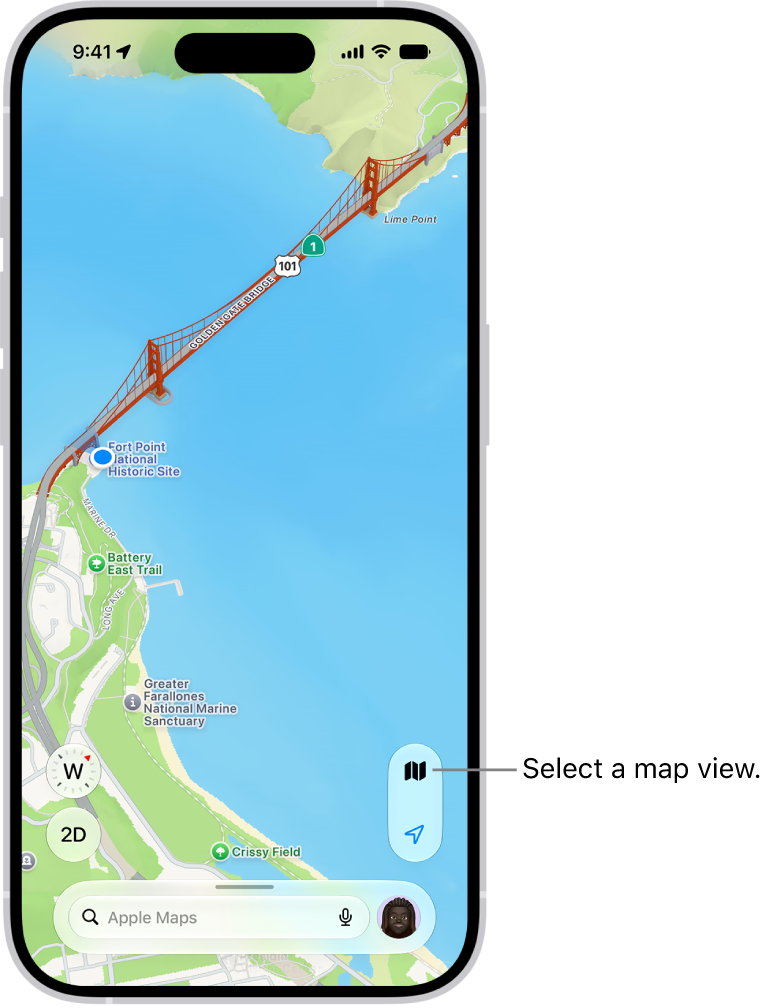
A 3D map showing points of interests.

WARNING: For important information about navigation and avoiding distractions that could lead to dangerous situations, see Important safety information.

Allow Maps to use your location

If Maps alerts you that Location Services or Precise Location is off, the onscreen instructions show you how to turn it on.

You can also turn these on in Settings.

  1. Start the Settings app on your iPhone.
  2. Tap Privacy & Security and then tap Location Services.
  3. Turn on Location Services.
  4. Scroll down and tap Maps. Then do any of the following: Find your location and provide accurate directions: Turn on Precise Location. iPhone must also be connected to the internet.
    • Get info related to places you visit throughout the day: Turn on Visited Places (not available in all countries or regions).
    • Get alerts of delays and other warnings based on your driving patterns and destinations: Turn on Preferred Routes & Predicted Destinations.

If you regularly drive the same route—such as between home and work—Maps may show it as “Your route,” making it easier to start navigation.

  1. To get useful location-related information in Maps, tap the Back button, tap System Services, tap Significant Locations & Routes, and turn on Significant Locations & Routes.

Show your current location

  1. Start the Maps app on your iPhone.
  2. Tap the Tracking Off button.

The middle of the map marks your position.

The top of the map is north.

Do any of the following: Show your heading instead of north at the top: Tap the Tracking On button.

  • Resume showing north at the top: Tap the Tracking On With Heading button or the Compass button.

Switch to a different map view

The button at the right of a map indicates if the current map is for exploring , driving , riding transit , or in satellite view .

Change the map type at any time.

  1. Start the Maps app on your iPhone.
  2. Tap the Map Modes button (the Exploring Map Mode button, the Driving Map Mode button, the Transit Map Mode button, the Satellite Map Mode button).
  3. Choose another map type, then tap the Close button.

In Maps, you can get traffic and weather info or driving, cycling, walking, and transit directions.

Note: Apple is committed to keeping personal information about your location safe and private.

Read more about Apple’s commitment: go to the Settings app , tap Apps, tap Maps, then tap About Apple Maps & Privacy.

You can also delete recent directions or clear your location history.

Tag: Maps

If you notice something’s missing in Maps, like an address, business, transit stop, or another feature, you can add it. Maps takes other reports, too. You can report other kinds of issues, such as an incorrect step in directions or a business that has closed, and business owners can use Apple Business to help customers find them in Apple Maps, Wallet, Siri, and more.

  1. Start the Maps app on your iPhone.
  2. Do one of the following:
    • Touch and hold the map until a pin marker appears, scroll to the bottom of the card, then tap Report Something Missing.
    • Tap your picture or initials next to the search field, tap Reports, then tap Report a New Issue.
  3. Choose an option and then follow the onscreen instructions.

Whether your business is large or small, Apple Business can help your customers find it in Apple Maps, Siri, Wallet, and more.

Tag: Maps

You can review and change your settings for the Maps app, including travel mode and units. Maps defaults to your preferred travel mode when providing directions, whether that’s driving, walking, transit, or cycling, and you can change the units used for the scale on a 2D map.

Choose a default travel mode and preferences

When Maps provides directions, it defaults to your preferred travel mode.

You can choose cycling, transit, walking, or driving.

  1. Start the Maps app on your iPhone.
  2. Tap your picture or initials next to the search field, tap Preferences, and then tap options.

    (If neither your picture nor initials appear next to the search field, tap Cancel next to the field, or tap the search field, then tap Cancel.)

  3. To find more options, tap Maps Settings at the bottom of the screen.

Other route options may be available depending on the mode of travel, like choosing an arrival time when driving, choosing which transit method you prefer, or avoiding heavy traffic or hills when cycling or walking.

Change the units used in Maps

As you zoom out on a 2D map, a scale appears at the top.

You can switch the units used for the scale, too.

  1. Start the Settings app on your iPhone.
  2. Tap General and tap Language & Region.
  3. Tap Measurement System and select an option.
Tag: Maps

The Visited Places feature helps you keep track of places you’ve been, so you can easily revisit or share them later. Use it to find past locations, like restaurants from a recent trip, and organize them into guides or share them with others.

Visited Places are end-to-end encrypted, can’t be read by Apple, and appear on all your synced devices. You can also remove your visited places automatically, or clear them all.

Note: Visited Places isn’t available in all countries or regions.

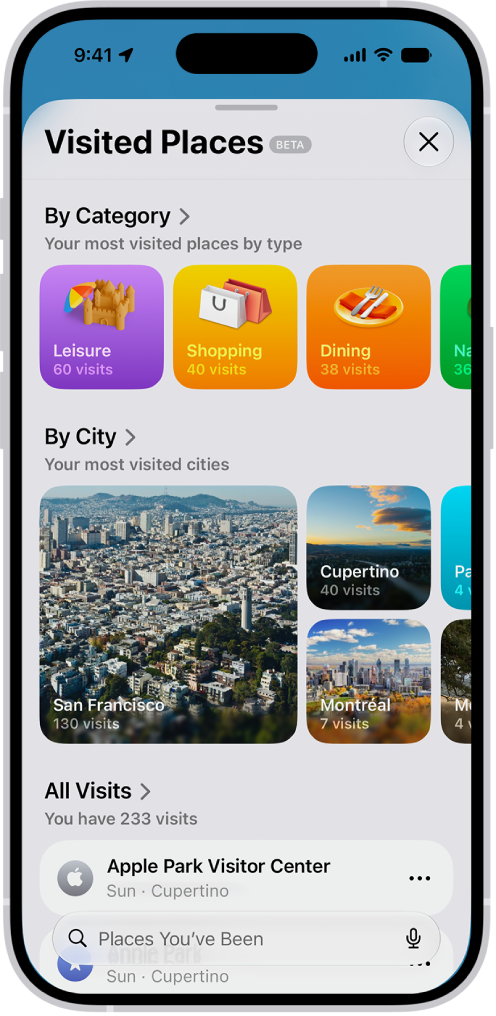
The Visited Places screen in the Maps app. Leisure, Shopping, Dining, and Nature appear as categories, each with a number indicating how many visits were made in that category.

View a visited place

Visited Places won’t show up in the Maps app until you turn it on and visit at least one place.

  1. Start the Maps app on your iPhone.
  2. Tap Places, tap Visited Places, and then do any of the following:
    • Search: Search for a place by name, category, address, or notes.
    • Filter: Search using a filter for date, category, or city.
    • Show all visits: Tap All Visits.
  3. Next to a place, tap the More button (on the right side of the place card). Do any of the following:

Automatically remove your visited places

  1. Start the Maps app on your iPhone.
  2. Tap Places and tap Visited Places.
  3. Scroll to the bottom, tap Keep Visits, and choose how long you keep them, or choose Forever if you don’t want them to be removed.

Clear all your visited places

  1. Start the Maps app on your iPhone.
  2. Tap Places and tap Visited Places.
  3. Scroll to the bottom and then tap Clear History.
Tag: Maps

You can get detailed transit directions to your destination, including departure times, connection information, and fares.

Fares are listed for suggested routes in some countries and regions. By default, they reflect the cost with a transit card, though you can see the cash fare instead. You can also plan for a future departure or arrival time, and Siri can give you transit directions, too.

Here’s how to get transit directions in Maps on iPhone.

Note: Not all features are available in all countries or regions.

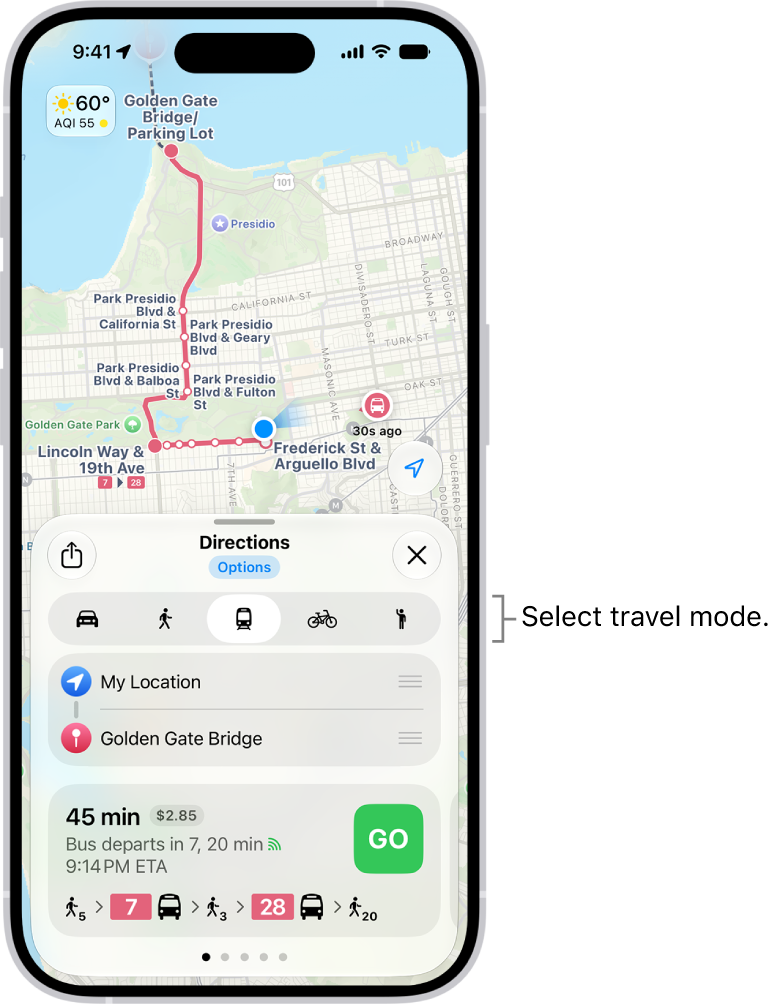
A map showing several route options between two locations, with buttons for choosing other travel modes, switching the starting point and destination, and viewing directions as steps.

Get transit directions

  1. Start the Maps app on your iPhone.
  2. Touch and hold anywhere on the map or enter an address in the search field and then tap the directions button.

If your preferred travel mode isn’t Transit, tap the directions button, then tap the Travel Mode button.

  1. Tap Go or Steps for the route you want to take.
  2. To see only the schedules of your preferred transit method, tap Options (below Directions) and then turn off any type you don’t want to use.

Siri: You can also ask Siri something like, “Give me transit directions to the Ferry Building.”

Plan for a future departure or arrival time

  1. Start the Maps app on your iPhone.

Get transit directions, as above.

  1. Tap Options (below Directions), tap Leave at or Arrive by, select a time and date, and then tap the Done button.

Show cash or transit card fares

Some countries and regions show fares for the suggested routes.

Fares default to the cost when using a transit card, though you can view the cash fare instead.

  1. Start the Maps app on your iPhone.

Get transit directions, as above.

  1. Tap Options (below Directions), tap Cash Fares, and then tap the Done button.
  2. To redisplay the fares when using transit cards, tap Cash Fares, tap Transit Card Fares, and then tap the Done button.

Get schedules for local transit

You can get one-tap access to the departure times for stops and stations near you.

  1. Start the Maps app on your iPhone.
  2. Swipe left on the icons below Places. Then tap the Add button.
  3. Tap Nearby Transit to add it to your Places.
  4. Below Places, tap Transit and tap a nearby stop to see schedules and delays.

Quick tip: To put a line at the top of the list, touch and hold it, then tap Pin.

See major transit lines

  1. Start the Maps app on your iPhone.

With a map showing, tap the Map Modes button, which appears as the Exploring Map Mode button, the Driving Map Mode button, the Transit Map Mode button, or the Satellite Map Mode button on the right.

  1. Tap Transit and tap the Close button.

Pay your fare with your iPhone

Many transit agencies let you pay your fare with your iPhone.

  • Use Apple Pay: With Apple Cash, credit cards, and debit cards in the Wallet app , you can make contactless transit payments with agencies that support Apple Pay.
  • Use transit cards: With participating transit systems, you can pay for your fare when you store your transit cards in Wallet.
  • Use transit apps: Many systems that don’t support Wallet have apps that allow you to add a card for payment.
  1. Go to the transit agency’s official website for more information or get apps in the App Store.
Tag: Maps

You can view traffic conditions and report accidents, hazards, and speed checks (where allowed), and you can report when they’re cleared.

On the map, yellow indicates slowdowns, and red indicates stop-and-go traffic. Apple evaluates incoming incident reports, and when there’s a high level of confidence in the reports, incident markers, such as for hazards and accidents, are displayed or cleared for other Maps users too.

Here’s how to check traffic conditions and report traffic incidents in Maps on iPhone.

Note: Not all features are available in all countries and regions.

Find out about traffic conditions

  1. Open the Maps app on your iPhone.
  2. Tap the Map Modes button at the right of a map, choose Driving or Satellite, and tap the Close button.

    Yellow indicates slowdowns, and red indicates stop-and-go traffic.

  3. To view a report, tap a marker on the map.

    Markers indicate incidents such as:

    • Road closure
    • Accident
    • Traffic
    • Roadwork
    • General alert or other hazard
    • Speed check

Report traffic incidents

Siri: Ask Siri something like, “Report an accident.”

Or without using Siri:

  1. Open the Maps app on your iPhone.
  2. Do one of the following:

    • When following turn-by-turn driving directions: Tap the Incident Reporting button and choose an option.

      You can also tap the route card at the bottom of the screen, then tap Report an Incident.

    • When not following directions: Tap your picture or initials next to the search field and tap Reports.

      Tap Report a New Issue, tap Report an Incident, then choose an option.

If neither your picture nor initials appear, tap Cancel next to the search field, or tap the search field, then tap Cancel.

Report on the status of a hazard or accident

In select countries or regions, you can report on the status of incidents when you’re near them.

Siri: Ask Siri something like, “Clear the accident.”

Or without using Siri:

  1. Open the Maps app on your iPhone.
  2. Tap the incident marker.
  3. Tap Cleared or Still Here.

You can’t clear reports of speed checks.

Tag: Maps

You can find street addresses and other information about places that appear on maps.

A place card can show its street address, phone number, website, and customer reviews. Many restaurants and other businesses even offer App Clips that let you order or make a reservation. You can get a route to the location, save information about a place, and stop sending restaurant notifications.

Here’s how to get information about places in Maps on iPhone.

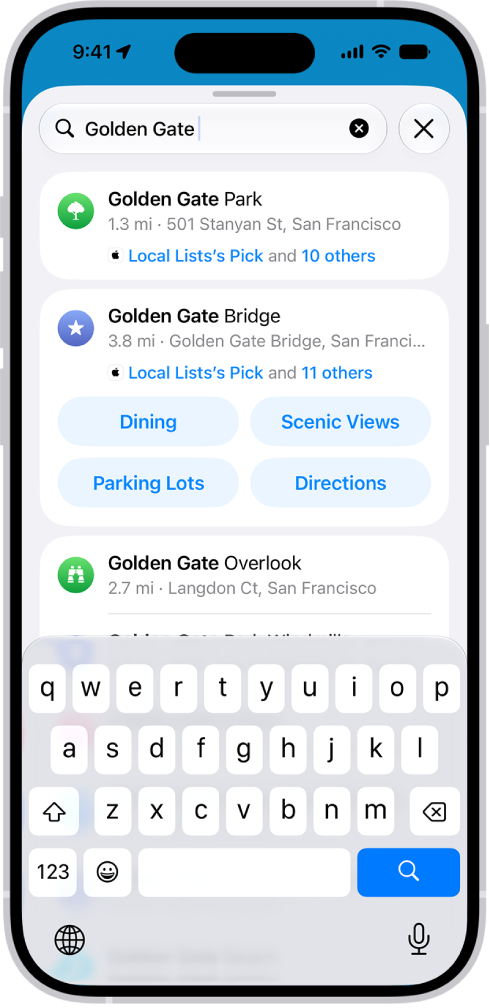
A location is entered in the Maps search field and results are listed below.

Get information about a place

  1. Start the Maps app on your iPhone.
  2. Tap a place (for example, a city or landmark on a map, a spot that you marked with a pin, or a search result in Maps). Do any of the following:
    • Get a route to the location: Tap the directions button.
    • View more information: Scroll down in the place card.

The information might include customer reviews, a phone number, the street address, a webpage link, and more.

Many restaurants and other businesses offer App Clips that allow you to order or make a reservation by tapping buttons on their place cards.

Save information about a place

You can save a place, add it as one of your contacts, or add it as a pin to one of your custom guides.

  1. Start the Maps app on your iPhone.
  2. Tap a place on a map or a search result, tap the More button, and then choose an option.

Stop sending restaurant names to a third party

Install an app that has a table-booking extension, and it can also help you make reservations at restaurants.

You can stop the extension from receiving the names of restaurants you view.

  1. Start the Settings app on your iPhone.
  2. Tap Apps, then tap Maps.
  3. Tap Restaurant Booking, then turn off the app extension.
Tag: Maps