Got a tip for us?

Maps

You can delete directions that you recently viewed in the Maps app on your iPad. You can delete a single item, or delete all recent directions at once. You can also clear your location history in Maps, and control the location information you share on iPad, along with access to information in apps.

  1. Go to the Maps app on your iPad.
  2. Scroll down to Recents and then do one of the following:
    • Delete a single item: Tap the More button and then tap Clear.
    • Delete all recent directions: Tap Recents, then tap Clear.

See also

Tag: Maps

The Maps app helps you navigate the world around you, whether you’re getting directions to a new destination, discovering local businesses, or exploring unfamiliar areas with real-time traffic updates. You can save the places you travel to and from most, find restaurants and shops nearby, and get step-by-step directions.

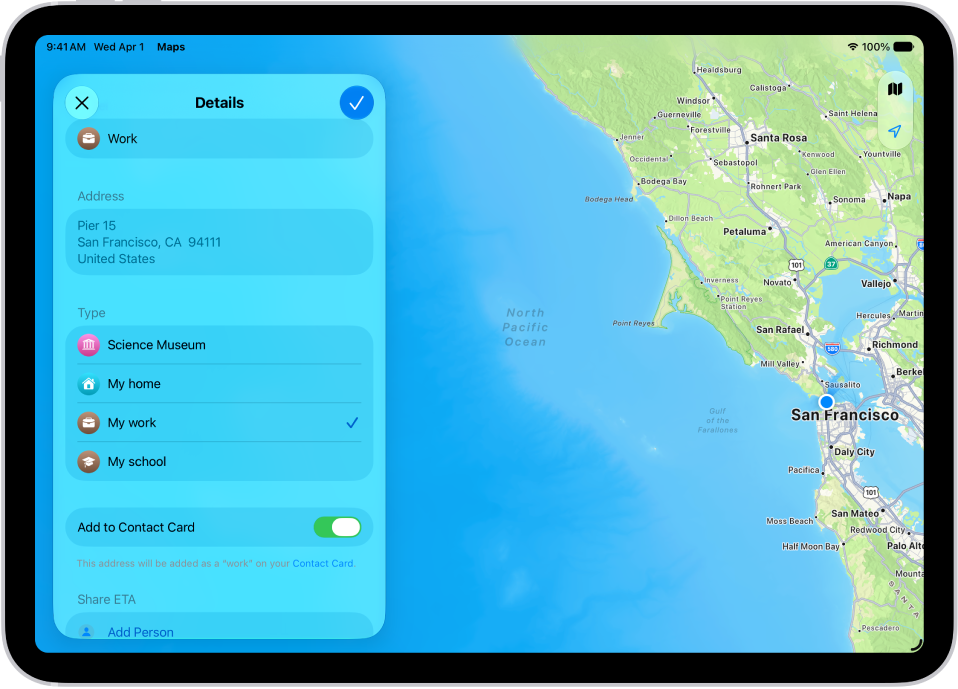
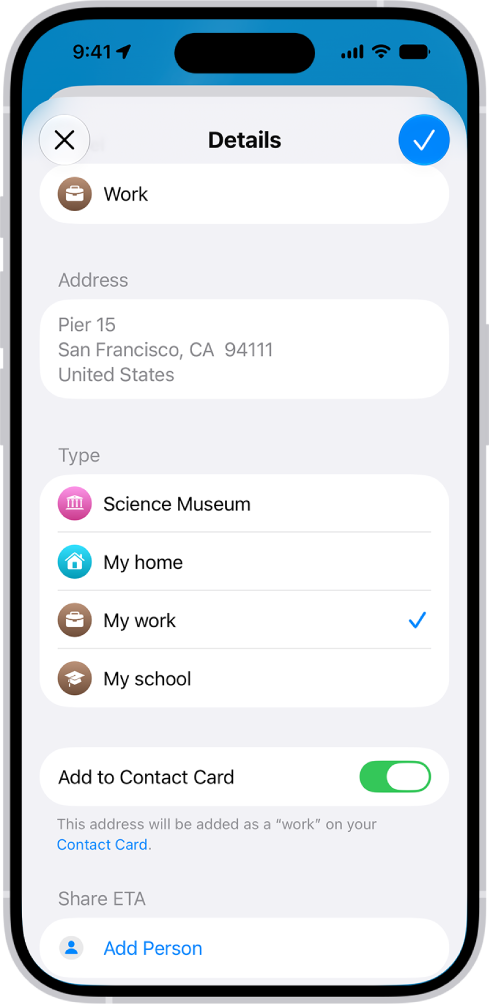
The Maps app showing the Details screen with options to set an address as home, work, or school.

Set your go-to addresses

Quickly access directions by saving the locations you travel to and from most. Below Places, tap the Add button. Tap the search field, enter an address, then tap a result. Assign it to a type—home, work, or school—then tap the Done button.

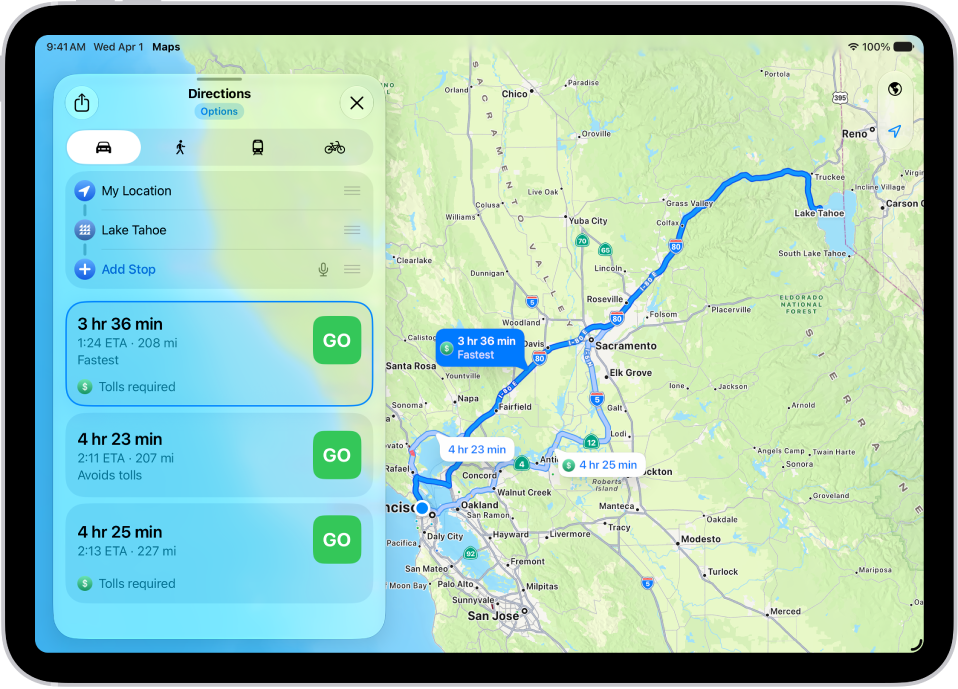
An iPad showing a map with several driving route options to the same destination. Each route shows the estimated time and distance, and a Steps button to see detailed directions. Color coding on each route indicates traffic conditions.

Navigate with ease

Get step-by-step directions to wherever you’re headed, however you want to get there. Touch and hold anywhere on the map or enter a location in the search field. Tap Directions, tap your travel mode (the Driving button, the Walking button, the Transit button, or the Cycling button), then tap Go or Steps for the route you want to take.

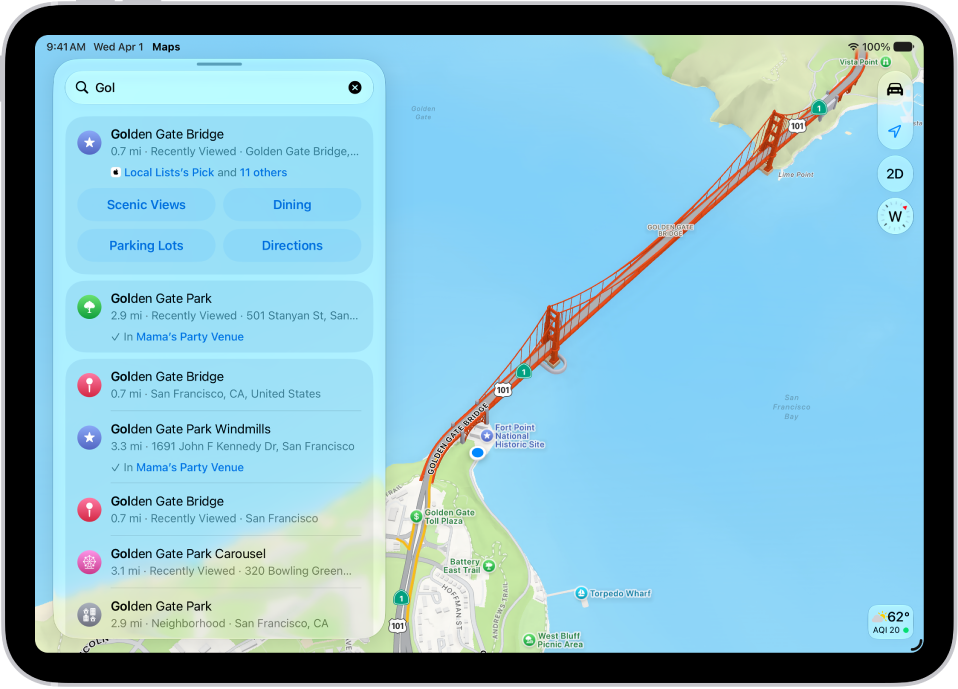
The Maps app showing a map of a downtown area. On the left is the search field, categories for nearby services, City Guides, and recommended guides.

Discover what’s nearby

When you’re in an unfamiliar area, find nearby places like restaurants, shops, or services. Tap the search field and simply start typing, or tap a category like Restaurants.

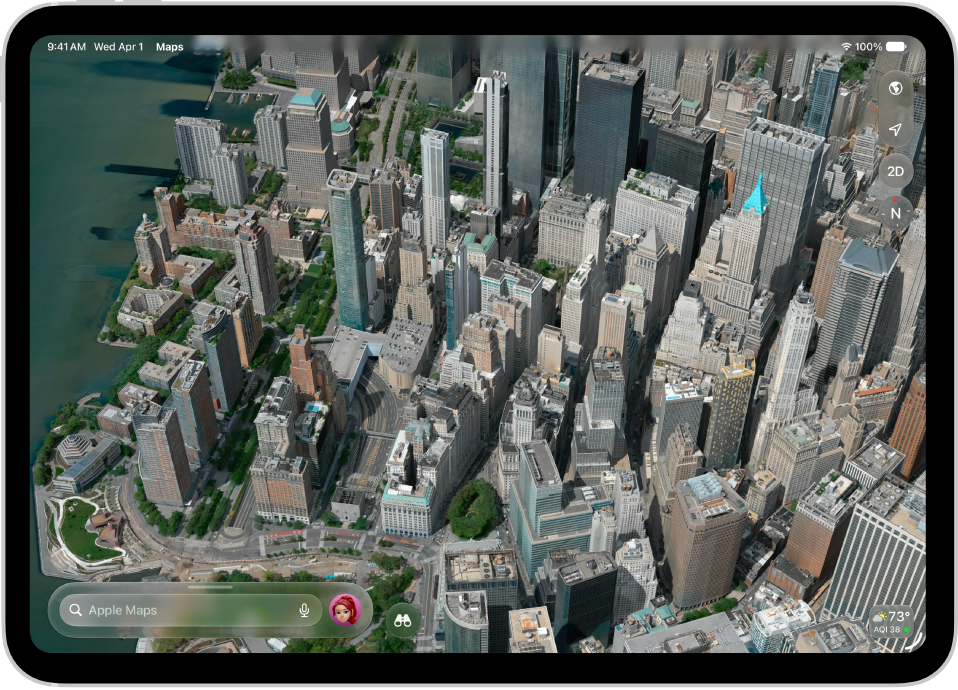
A 3D aerial flyover map of a city.

Immerse yourself in a place

Maps renders cities in sharp, true-to-life detail. Tap the Exploring Map Mode button, tap Satellite, then tap the Close button. Pinch open to zoom in, and swipe up with two fingers to see the map in 3D. When you see the Look Around button near the bottom of a map, tap it to look around with a 360-degree panoramic view.

You can get more out of Maps with these guides:

Per Apple, not all features are available in all countries or regions.

Tag: Maps

The Maps app uses information about your significant locations from Location Services to provide you with personalized services like predictive traffic routing. Your significant locations are end-to-end encrypted and can’t be read by Apple.

You can delete your significant locations at any time, for example to reset predictive traffic routing and similar services. Clearing your history removes your significant locations from everywhere you’re signed in to the same Apple Account.

  1. Start the Settings app on your iPad.
  2. Tap Privacy & Security and then tap Location Services.
  3. Tap System Services and tap Significant Locations & Routes.
  4. Tap Clear History.

    This action clears all your significant locations everywhere you’re signed in to the same Apple Account.

See also

You can plan trips that include stops for charging your electric vehicle (EV) and monitor changes in your charge while driving. You can set it up through CarPlay or a vehicle manufacturer’s app.

During directions, Maps keeps an eye on your vehicle’s charge and finds suitable charging stations along the route, and if your charge gets too low while you drive, it can offer a route to the nearest compatible charging station. You can choose a different vehicle when you get directions, too.

Important: EV routing is available on select vehicles and in select areas.

Features vary by country and region.

Your vehicle’s owner guide has compatibility information.

Maps can track your vehicle’s charge when you get driving directions.

Maps analyzes elevation changes along the route and other factors to identify appropriate charging stations along the way, and it shows real-time charging station availability for select charging providers and countries.

If you drive until your charge gets too low, Maps offers you a route to the nearest compatible charging station.

Set up EV routing through CarPlay

Set up EV routing in the Maps app with CarPlay if your compatible electric vehicle (EV) doesn’t require an app from its manufacturer.

Note: Your vehicle’s owner’s guide has the compatibility information.

  1. Connect iPhone to CarPlay.
  2. Open the Maps app on your iPhone.

Get driving directions.

  1. Tap Connect (above the list of routes) and then follow the onscreen instructions.

Set up EV routing using a vehicle manufacturer’s app

If your compatible vehicle requires an app from its manufacturer, you’ll set up EV routing in Maps with that app instead.

Note: For compatibility information, check the owner’s guide for your vehicle.

  1. Go to the App Store on your iPhone.
  2. Search for the manufacturer of your vehicle and then download the app that supports EV routing for it.
  3. Open the app, then follow its setup instructions.
  4. Go to the Maps app. Tap your picture or initials next to the search field.

If you don’t see your picture or initials, tap Cancel next to the search field, or tap the search field, then tap Cancel.

  1. Tap Vehicles, tap Connect Your Electric Vehicles, and then follow the onscreen instructions.

You can choose a preferred charging network for your vehicle.

Maps provides real-time availability for charging stations from select providers and countries, and you can filter your search by plug type and network.

Choose a different vehicle when you get directions

If you drive several vehicles, you can change which one Maps provides routing instructions for.

  1. Open the Maps app on your iPhone.

Get driving directions.

  1. Before you tap Go, scroll down in the route card.
  2. Choose another electric vehicle, or if you’re driving a vehicle that doesn’t have an EV routing app on your iPhone, tap Different Car.

Tag: Maps

The Maps app helps you navigate the world around you, whether you’re getting directions to a new destination, exploring unfamiliar areas, or discovering local businesses. You can save the locations you travel to and from most, like home, work, or school, to quickly access directions.

The Maps app showing the Details screen with options to set an address as home, work, or school.

Set your go-to addresses

By saving the locations you travel to and from most, you can access directions quickly.

  1. Below Places, tap the Add button.
  2. Tap the search field, enter an address, and then tap a result.

Assign it to a type—home, work, or school—then tap the Done button.

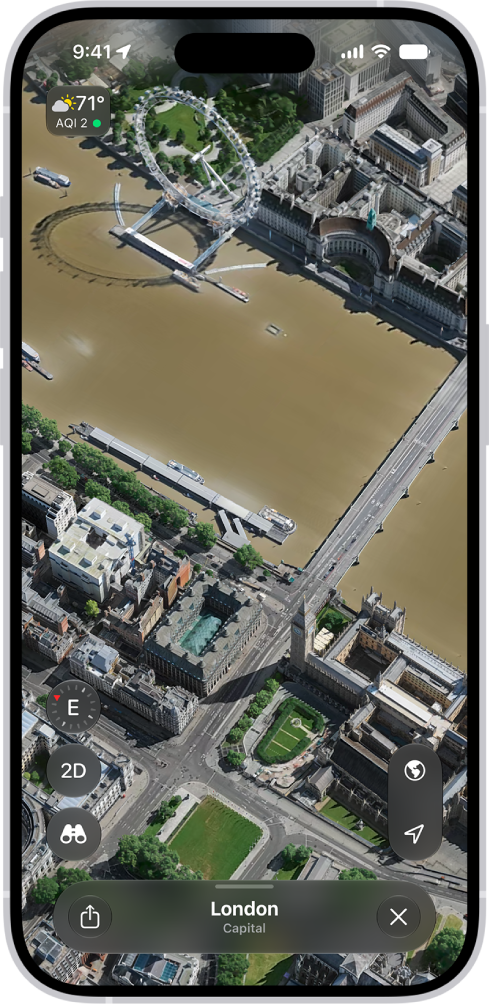
A 3D map in the Maps app, showing details of a city.

Immerse yourself in a place

Maps renders cities in sharp, true-to-life detail.

  1. Tap the Exploring Map Mode button and tap Satellite. Then tap the Close button.

Pinch open to zoom in, and swipe up with two fingers to see the map in 3D.

When you see the Look Around button near the bottom of a map, tap it to look around with a 360-degree panoramic view.

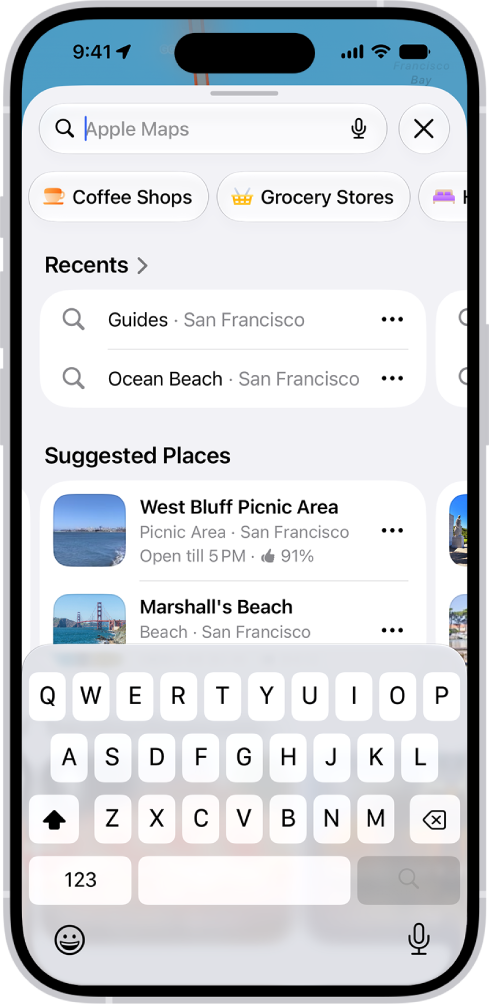
The Maps app showing the search field, categories for nearby services, and city guides. In the bottom part of the screen is the iPhone onscreen keyboard.

Discover what’s nearby

In an unfamiliar area? Find nearby places like restaurants, shops, or services.

  1. Tap the search field and simply start typing, or tap a category below it, like Restaurants or Grocery Stores.

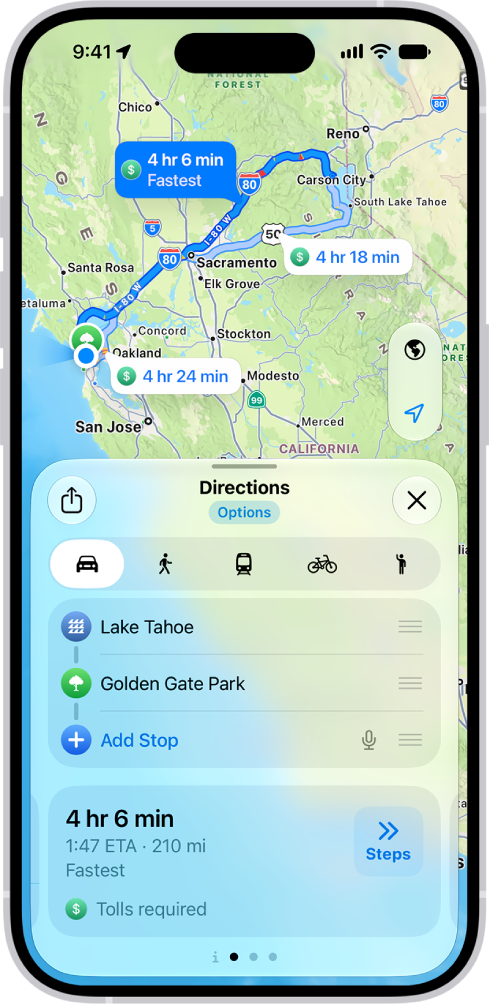
An iPhone showing a map with several driving route options to the same destination. Each route shows the estimated time and distance, and a Go button to start turn-by-turn directions. Color coding on each route indicates traffic conditions.

Navigate with ease

Wherever you’re headed, and however you want to get there, you can get step-by-step directions.

  1. Touch and hold anywhere on the map or enter a location in the search field.
  2. Tap Plan or Directions, tap your travel mode (the Driving button, the Walking button, the Transit button, or the Cycling button), and then tap Go.

Not all features are available in all countries or regions, according to Apple.

Tag: Maps

In the Maps app on your iPhone, you can save a map area or a hiking route, then view it on your paired Apple Watch even when you can’t access Wi-Fi or cellular service. With downloaded maps, you can view information like hours and ratings on place cards, get turn-by-turn directions for hiking, driving, walking, cycling, or riding transit, and see your estimated time of arrival.

Offline maps are automatically available on your Apple Watch when your iPhone is on and within Bluetooth range (about 33 feet or 10 meters). And if you sync them, they’re available on your Apple Watch even when your iPhone isn’t nearby.

Note: Offline maps are available only in select regions, and a downloaded map works only in its specific region. Maps features vary by country and region.

Get offline maps on iPhone and sync with Apple Watch

Synced offline maps stay available on Apple Watch even when your paired iPhone isn’t nearby.

  1. Start the Maps app on your iPhone.
  2. Tap your picture or initials next to the search field and tap Offline Maps. Then turn on Sync with Apple Watch.
  3. Do any of the following:

Use offline maps on Apple Watch

  1. Start the Maps app on your Apple Watch.
  2. Tap the Search button and tap your picture or initials at the top-right corner. Then tap Offline Maps.
  3. Tap an offline map.

    Maps below “On This Watch” are available even when your iPhone isn’t nearby. Maps below “On Your iPhone” are available only when your iPhone is nearby.

See also

Tag: Maps

Use Maps to explore points of interest around you, search for a nearby place or service, find hiking trails, see recent locations, and browse curated guides.

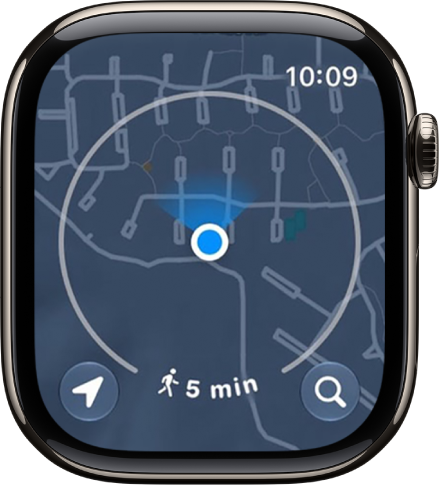
The map displays a circle that shows the area you can walk within a few minutes, and you change the radius by turning the Digital Crown. You can search by name, too, and change the radius unit to time or distance.

Here’s how to find places in Maps on Apple Watch.

Note: Location services have to be on before you can use Maps. On Apple Watch, go to Settings, then tap Privacy & Security, tap Location Services, and turn on location services.

Explore the surroundings within your walking radius

  1. Open the Maps app on your Apple Watch.

    The map displays a circle that encompasses the area you can walk within a few minutes.

    The Maps app with a circle around the current location, representing a five-minute walking radius.

  2. Do any of the following:

    • Change the radius: Turn the Digital Crown.
    • Change the radius unit: Touch and hold the map and scroll down. Choose Time or Distance.

Search the map or find a nearby service

  1. Open the Maps app on your Apple Watch.
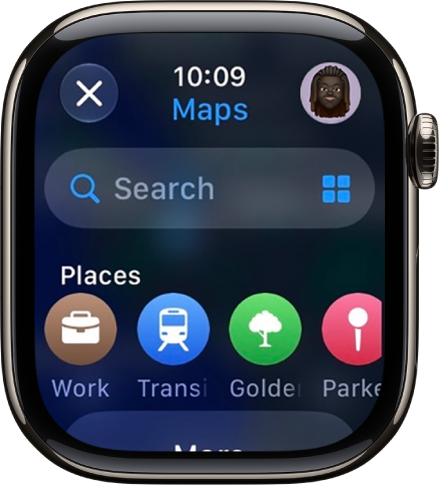
  2. Tap the Search button and then do one of the following:

    • Search by name: Tap Search and then enter what you’re looking for.

      The Search screen in the Maps app, with the search field near the top. A list of Recent searches appears at the bottom.

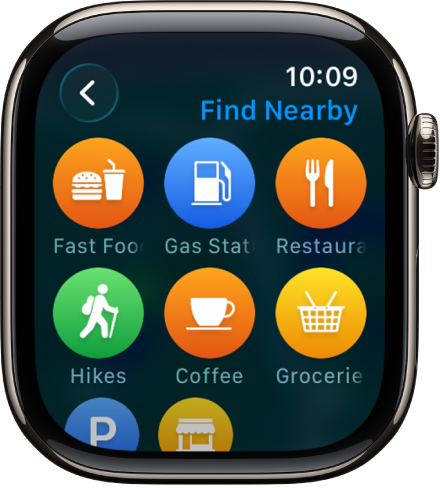
    • Browse by category: Tap the Search Places button, then tap a category such as Restaurants or Parking.

      A Maps screen showing categories of locations.

Find hiking trails

You can find trails in the U.S. and check each one’s length, elevation, and distance from your current location.

  1. Open the Maps app on your Apple Watch.
  2. Tap the Search button. Enter “trails” to find trails near you or near another spot on the map. Trailheads appear as green dots.
  3. Turn the Digital Crown to browse trails, then tap a result for details.

See recent locations

  1. Open the Maps app on your Apple Watch.
  2. Tap the Search button and scroll down to Recents. Then tap a location.

View a guide

Guides help you discover someplace new. They’re curated collections of hidden gems, restaurants, and attractions in cities around the world.

Note: Guides aren’t available in all countries or regions.

  1. Set up and save a guide on your iPhone.
  2. Go to the Maps app on your Apple Watch, tap the Search button, and scroll down to the guide you added.
Tag: Maps

Use Maps to get directions and navigate when driving, walking, cycling, and taking transit. You can even mark a location with a pin to revisit later.

It’s simple. You can choose how you want to get there, browse suggested routes, and see route details, and along the way, turn alerts help you follow the route. Location services must be turned on to use Maps, though.

Here’s how to get directions in Maps on Apple Watch.

Note: Not all transportation options are available in all locations. Location services must be turned on to use maps. On Apple Watch, go to Settings, tap Privacy & Security, tap Location Services, then turn on location services.

WARNING: For important information about avoiding distractions that could lead to dangerous situations, see Important safety information for Apple Watch.

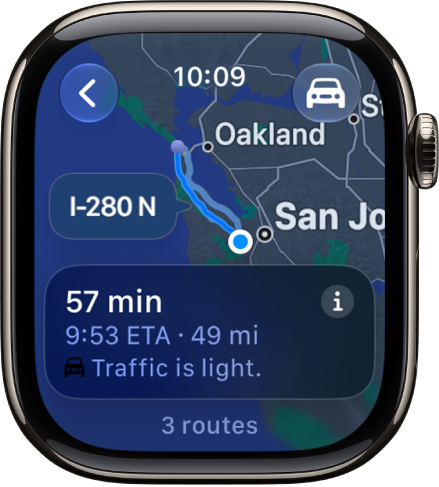
The Maps app showing an overview of driving directions. The first leg of the trip is shown at the bottom.

Get directions

  1. Open the Maps app on your Apple Watch.
  2. Tap the Search button, tap Search, and enter what you’re looking for—or choose from Favorites, Recents, Find Nearby, or Guides.
  3. Do any of the following:
    • Choose how you want to get there: Tap the button at the top right, then tap driving, walking, cycling, or transit.
    • Browse suggested routes: Turn the Digital Crown.
    • See route details: Tap the More Info button.
    • Start navigating: Choose a route or tap Go.

Following turn alerts

With driving, cycling, or walking directions, your Apple Watch uses sounds and haptics to tell you when to turn after you head off on your first leg. When you hear a low tone and then a high tone (tock tick, tock tick), turn right at the intersection you’re approaching. A high tone and then a low tone (tick tock, tick tock) means turn left. On the last leg, you’ll feel a vibration, and you’ll feel another when you arrive.

Note: Sounds don’t play when Apple Watch is in Silent Mode.

Mark a location with a pin

A location marker, or pin, saves an important spot on the map so it’s easy to revisit later. You can use one to remember where you parked or mark a scenic viewpoint.

Note: A new location marker replaces a previous location marker.

  1. Open the Maps app on your Apple Watch.
  2. Touch and hold the map where you want to position the pin. Tap Mark Location.

See also

Tag: Maps

You can use the Home app to make your smart home more secure by allowing a compatible router to control which services your Apple Home accessories can communicate with on your home Wi-Fi network and on the internet. Apple Home-enabled routers require that you have an Apple TV 4K or HomePod set up as a home hub.

For each accessory, you choose how much it can connect to. Restrict to Home lets the accessory connect only to your home hub, though that may prevent firmware updates or other services.

Configure your router’s settings

  1. Open the Home app on your iPhone.
  2. Set up the router with the manufacturer’s app on an iPhone or iPad.
  3. On the Home tab, tap the More button and then tap Home Settings.
  4. Tap Wi-Fi Network & Routers.
  5. Turn on Apple Home Accessory Security and tap an accessory. Choose one of these settings:
    • Restrict to Home: The router only allows the accessory to connect to your home hub. This option may prevent firmware updates or other services.
    • Automatic: The router allows the accessory to connect to an automatically updated list of manufacturer-approved internet services and local devices.
    • No Restriction: The router allows the accessory to connect to any internet service or local device. This provides the lowest level of security.
Tag: Maps

You can provide ratings and photos of places you visit to help other Maps users. Your ratings and photos appear everywhere you’re signed in to the same Apple Account.

You can add photos for a place, share your photos publicly, and edit them later. And if you’d rather not be asked, you can stop getting ratings and photos suggestions.

Here’s how to rate places and add photos in Maps on iPhone.

Note: The Apple Ratings and Photos feature isn’t available in all countries or regions.

Rate a place

  1. Start the Maps app on your iPhone.
  2. Tap a place on the map or a search result, then tap the Like button.

    Note: If you don’t see ratings categories or the Rate button, you can’t rate the location.

  3. Tap the Like button or the Dislike button for the available categories. Then tap the Done button.

If you change your mind, you can edit your ratings later.

Add photos for a place

  1. Start the Maps app on your iPhone.
  2. Tap a place on the map or a search result, then tap the More button.
  3. Tap Add Your Photos and then follow the onscreen instructions.
  4. To upload your photos to Apple, you need to have an Apple Account.

Note: If ratings categories or the Rate button don’t appear, you can’t add a photo.

To credit yourself for the photos you contribute, tap Photo Credit, then turn on Show Credit.

Whichever photo credit option you choose applies to all photos you’ve submitted and continue to submit.

Share your photos publicly

Companies can use the photos you add to Maps in their own products and services if you allow it.

  1. Start the Settings app on your iPhone.
  2. Tap Apps, then tap Maps.
  3. Turn on Allow Photo Providers to Use Your Photos.

Apple says photos you share include location data, but not your identity.

If you turn this setting off, photo providers may no longer use your photos. (It may take a few days to take effect.)

Edit your photos for a place

Besides adding and removing photos, you can add or remove your photo credit and provide a nickname for it.

  1. Start the Maps app on your iPhone.
  2. Tap Places.
  3. Tap the place whose photos you want to edit. Then tap Your Photos.
  4. Do one of the following:
    • Submit another photo: Tap Add Photo.
    • Remove a photo: Tap the More Options button. Tap Delete Your Photo.
    • Change your photo credit: Tap the More Options button. Tap Change Photo Credit.

All photos you previously submitted, and those you continue to submit, get the photo credit option you choose.

Stop getting ratings and photos suggestions

Maps may suggest you submit a rating or photo if you’ve recently visited a point of interest or taken a photo of it.

These suggestions use on-device processing and can’t be read by Apple.

If you don’t want to receive these suggestions, turn them off.

  1. Start the Settings app on your iPhone.
  2. Tap Apps, then tap Maps.
  3. Turn off Show Ratings and Photos Suggestions.
Tag: Maps