Got a tip for us?

Maps

You can save a map of an area and use it when your iPad is offline.

Even without Wi-Fi or cellular service, you can view information like hours and ratings on place cards, get turn-by-turn directions for driving, walking, cycling, or riding transit, and see your estimated time of arrival. Selecting a smaller area reduces the size of the map you download, and downloaded maps update automatically unless you change your settings.

Note: Offline maps aren’t available in all countries or regions. Automatic Updates is on by default.
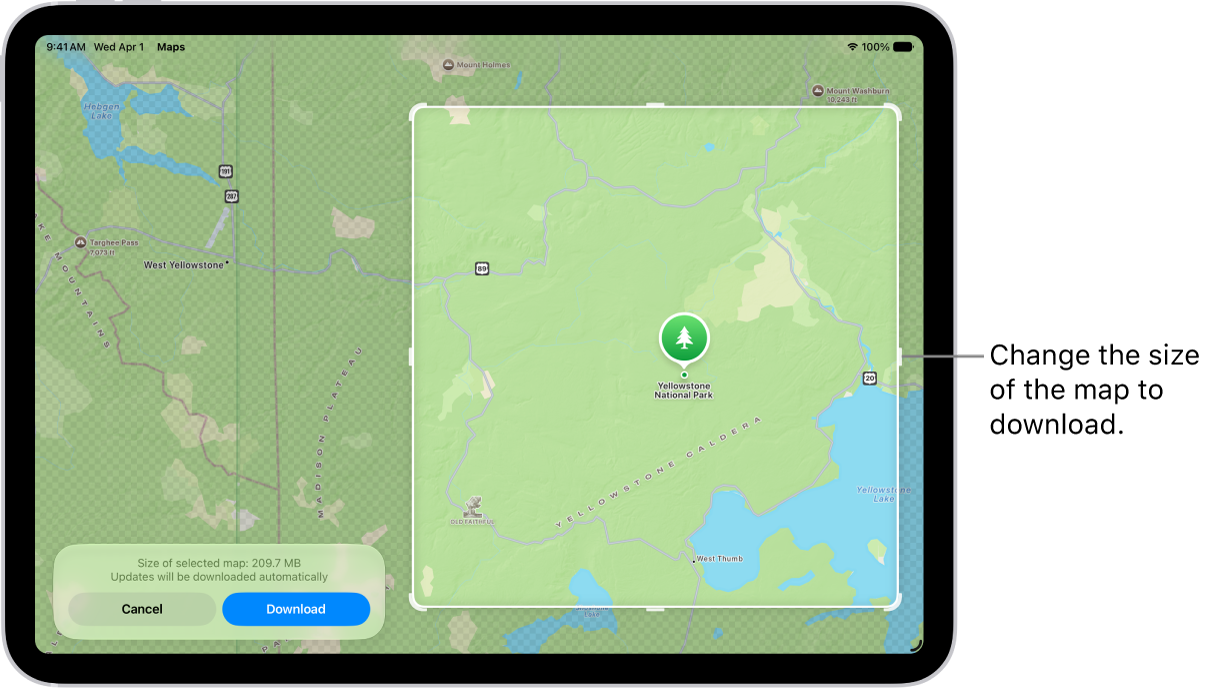
An iPad with a map of a national park. The park is framed by a rectangle with handles, which can be moved to change the size of the map to download. The selected map’s download size is indicated near the bottom of the map. The Cancel and Download buttons are at the bottom of the screen.

Download maps

  1. Go to the Maps app on your iPad.
  2. Do one of the following:

    • Touch and hold the map until a pin marker appears, then tap Download.
    • Tap your picture or initials next to the search field, tap Offline Maps, tap Download Map, then enter a location in the search field or tap Current Location.
  3. Adjust the selected area, then tap Download.

    To reduce the size of the map you download, select a smaller area.

Downloaded maps update automatically, unless you change your settings.

Open or edit a map you downloaded

Any maps you download to use offline appear in your list of offline maps.

  1. Open the Maps app on your iPad.
  2. Tap your picture or initials next to the search field. Then tap Offline Maps.
  3. Tap a map, then do any of the following:
    • Rename a map: Tap Rename, enter a new name, and tap Save.
    • Change the area covered by a map: Tap Resize on the image of the map, adjust the selected area and tap Download.
    • Delete a map: Tap Delete Map.

Control map data downloads

To match your data storage needs and preferences, you can adjust settings such as when to download or update a map.

  1. Open the Maps app on your iPad.
  2. Tap your picture or initials next to the search field. Then tap Offline Maps.
  3. Do any of the following:
    • Download over cellular: Tap Wi-Fi Only and then tap to select Wi-Fi + Cellular.
    • Automatically update all maps: Turn on Automatic Updates.
    • Automatically delete unused maps: Turn on Optimize Storage.
    • Use online maps: Turn off Only Use Offline Maps.

Remove downloaded maps

You can remove downloaded maps to free up storage space on your iPad.

  1. Open the Maps app on your iPad.
  2. Tap your picture or initials next to the search field. Then tap Offline Maps.
  3. Do one of the following:
    • Manually remove a map: Swipe left on the map and tap Delete.
    • Automatically delete unused maps: Turn on Optimize Storage.

See also

Tag: Maps

You can customize how turn-by-turn directions are spoken by changing their volume, voice, language, and interaction with your other audio.

You can change the default volume, or hear a different language or voice, and you can preview each voice before you choose one. Directions that start somewhere other than My Location show a Steps button, though, and aren’t spoken.

Here’s how to change how you hear directions in Maps on iPad.

Note: To use turn-by-turn spoken directions, your iPad must be connected to the internet, and Precise Location must be turned on. Cellular data rates may apply. See View or change your cellular data. Turn-by-turn spoken directions aren’t available in all countries or regions. Features for Wi-Fi + Cellular models require a cellular data plan and Cellular Data turned on in Settings > Apps > Maps. See View or change your cellular data.

Change the volume for spoken directions

  1. Go to the Maps app on your iPad.
  2. Get directions starting from My Location. Tap the Go button to begin following them.

    Note: When directions start in a location other than My Location, you see a Steps button instead of Go, and no directions are spoken.

  3. Tap the Audio Control button on the map (for example, the Unmuted button) and then choose an option.

To change the default volume, go to the Settings app, tap Apps, then tap Maps. Tap Spoken Directions, then choose an option below Voice Volume.

Hear a different language or voice for spoken directions

  1. Start the Settings app on your iPad.
  2. Tap Siri and then change any of the following:
    • Language: Tap Language and tap a language to select it as your primary Siri language.
    • Voice: Tap Voice and tap to hear the different options.

Change how directions and other audio interact

  1. Start the Settings app on your iPad.
  2. Tap Apps, then tap Maps.
  3. Tap Spoken Directions and then do any of the following:
    • Pause spoken word media for steps in the directions: Turn on Directions Pause Spoken Audio. When this feature is on, media like podcasts and audiobooks automatically pause as each step is spoken.
    • Play steps in the directions over the car speakers: Turn on Directions on Radio. (Supported cars only.)

Wake the display for steps in the directions

Your iPad may go to sleep if there’s a long stretch of time in your route when nothing happens. You can set the iPad display to turn on to see your progress.

  1. Start the Settings app on your iPad.
  2. Tap Apps, then tap Maps.
  3. Tap Spoken Directions and then turn on Directions Wake Device.

See also

Tag: Maps

You can find out about the weather and air quality in Maps. On the map, an icon shows the current conditions for that area, and in some regions, the air quality index (AQI) also appears. You can also turn off air quality or weather information in Maps, and view weather maps on iPad.

Note: Air quality and weather data aren’t available in all countries or regions.

Find out about the weather and the air quality

  1. Go to the Maps app on your iPad.
  2. Zoom in on a map until the weather icon appears in the bottom right.

    The icon shows the current conditions for that area. In some regions, the air quality index (AQI) also appears in the lower-right corner.

  3. To get the hourly forecast, touch and hold the weather icon. Tap the hourly forecast to get a multiday forecast in the Weather app.

If you don’t want to get air quality or weather information in Maps, go to Settings > Apps > Maps, then turn off Air Quality Index or Weather Conditions.

See also

Tags: Maps, Weather

You can get detailed cycling directions including routes on bike paths, bike lanes, and bike-friendly roads. You can preview the elevation for your ride, check how busy a road is, and choose a route that best avoids hills.

Siri can give you cycling directions, too, like directions home. And you can set Maps to avoid hills or busy roads before you go.

Here’s how to get cycling directions in Maps on iPad.

Note: Cycling directions and turn-by-turn spoken directions on Wi-Fi + Cellular models aren’t available in all countries or regions. Features for Wi-Fi + Cellular models require a cellular data plan and Cellular Data turned on in Settings > Apps > Maps.

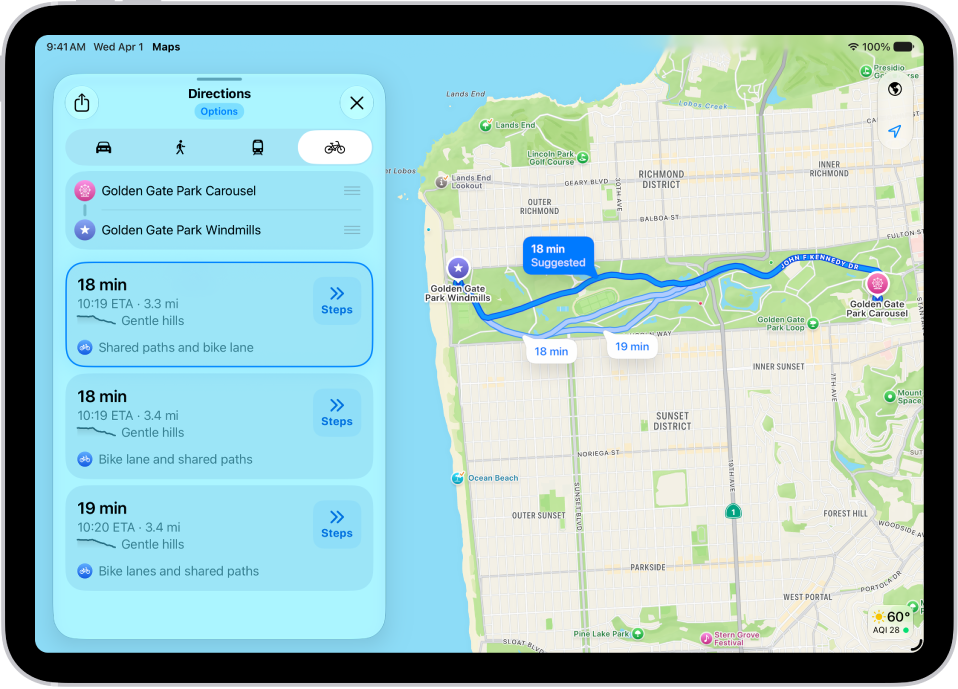
A map showing several cycling routes, each listed with a Steps button.

Get cycling directions

  1. Go to the Maps app on your iPad.
  2. Touch and hold anywhere on the map or enter an address in the search field and then tap the directions button.
  3. Tap Go or Steps for the route you want to take.

Siri: You can also ask Siri something like, “Give me cycling directions home.” Learn how to use Siri.

Avoid hills or busy roads

  1. Start the Maps app on your iPad.
  2. Touch and hold anywhere on the map or enter an address in the search field and tap Directions or the Travel Mode button.
  3. Tap Options (below the destination), make your choices (below Avoid) and then tap the Done button.

See also

Tag: Maps

You can get detailed walking directions to your destination. You can preview the elevation for your walk and choose a route that best avoids hills, stairs, and busy roads.

You can even find out the length of thousands of trails in parks across the U.S., preview elevation information, and see photos. Siri can give you walking directions home, as well, if you ask.

Here’s how to get walking directions in Maps on iPad.

Note: Turn-by-turn spoken directions and immersive walking instructions aren’t available in all countries or regions. Features for Wi-Fi + Cellular models require a cellular data plan and Cellular Data turned on in Settings > Apps > Maps.

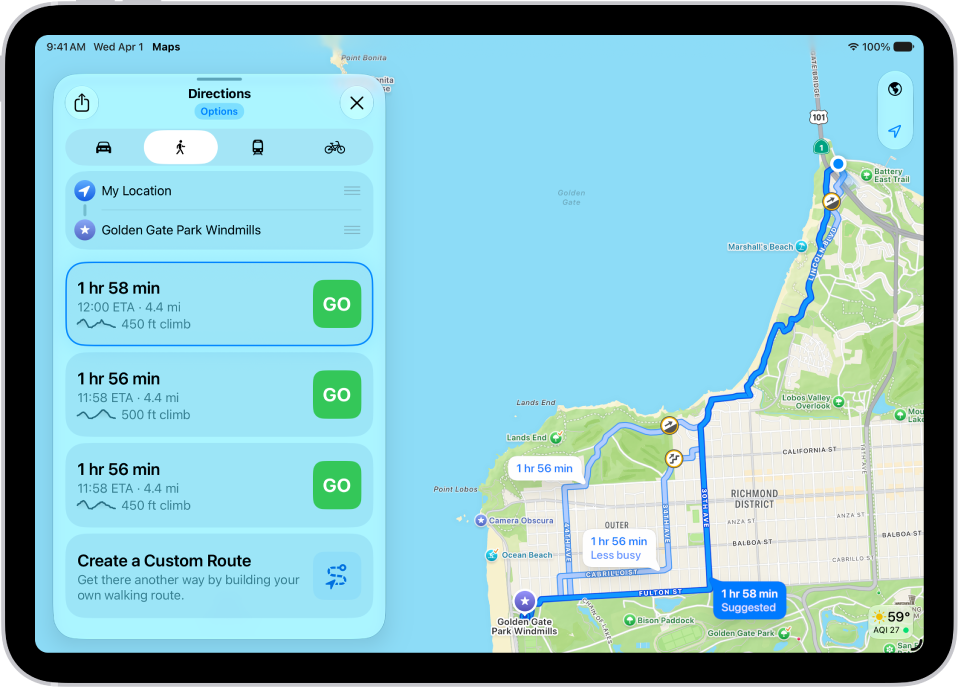
A map with two walking routes, each listed with a Steps button.

Get walking directions

  1. Go to the Maps app on your iPad.
  2. Touch and hold anywhere on the map or enter an address in the search field and then tap the directions button.
  3. Tap Go or Steps for the route you want to take.

Siri: You can also ask Siri something like, “Give me walking directions home.” Learn how to use Siri.

For thousands of trails in parks across the U.S., you can find out their length, preview elevation information, see photos, and more. See Browse and save hikes.

Avoid hills, busy roads, or stairs

  1. Start the Maps app on your iPad.
  2. Get walking directions, as above.
  3. Tap Options (below Directions), make your choices (below Avoid) and then tap the Done button.

See also

Tag: Maps

You can find your location on a map and switch to different map views for different details, from Explore and Driving to Transit and Satellite. On supported models and select cities, Maps provides enhanced detail for elevation, roads, trees, buildings, and landmarks.

To find your location and give you directions, iPad must be connected to the internet, with Location Services turned on. If Location Services or Precise Location is off, Maps shows you how to turn it on.

Note: Not all features are available in all regions or countries.

WARNING: For important information about navigation and avoiding distractions that could lead to dangerous situations, see Important safety information.

Allow Maps to use your location

iPad needs an internet connection, with Location Services on, to find your location and provide accurate directions.

If Maps alerts you that Location Services or Precise Location isn’t on, you can turn it on by following the onscreen instructions, or turn these on in Settings.

  1. Open the Settings app on your iPad.
  2. Tap Privacy & Security and tap Location Services. Turn on Location Services.
  3. To find your location and provide accurate directions, scroll down and tap Maps. Turn on Precise Location. Your iPad must also be connected to the internet.
  4. To get useful location-related information in Maps, tap the Back button, tap System Services, tap Significant Locations & Routes, and turn on Significant Locations & Routes. See Find nearby attractions, restaurants, and services.

When using features on Wi-Fi + Cellular models, cellular data rates may apply. See View or change cellular data settings.

Show your current location

  1. Go to the Maps app on your iPad.
  2. Tap the Tracking Off button.

    Your position is marked in the middle of the map. The top of the map is north.

  3. Do any of the following:

    • Show your heading instead of north at the top: Tap the Tracking On button.
    • Resume showing north at the top: Tap the Tracking On With Heading button or the Compass button.

For directions from your current location to another, read our article, Get directions.

Switch to a different map view

Check the button at the lower right of a map to see if the current map is in satellite view or for exploring, driving, or riding transit. You can change the map type anytime.

  1. Open the Maps app on your iPad.
  2. Tap the Map Modes button at the top right.
  3. Choose another map type, then tap the Close button.

Maps gives you driving, cycling, walking, or transit directions, plus traffic and weather info.

Note: Apple is committed to keeping personal information about your location safe and private. Read more about Apple’s commitment: go to the Settings app, tap Apps, tap Maps, then tap About Apple Maps & Privacy. You can also clear your location history or delete recent directions.

See also

Tag: Maps

You can get travel directions using the Maps app, the Maps widget, Siri, or other devices. You can also get them on your Mac before you leave.

Maps can speak turn-by-turn directions as you travel, whether you’re driving, cycling, or walking, and Siri can get directions for you so you stay focused on the road. To get directions, iPad must be connected to the internet, with Location Services turned on.

Important: To get directions, iPad must be connected to the internet, and Location Services must be turned on. On Wi-Fi + Cellular models, cellular data rates may apply. See View or change cellular data settings.

Get directions

  1. Open the Maps app on your iPad.
  2. Touch and hold anywhere on the map or enter a location in the search field. You can search for any of the following, for example:
    • An intersection (“8th and Market”)
    • An area (“Greenwich Village”)
    • A landmark (“Guggenheim”)
    • A zip code (“60622”)
    • A business (“movies,” “restaurants San Francisco CA,” “Apple Inc New York”)
    • A request or question (“Find cafes with free Wi-Fi”)
  3. Tap Directions or the Travel Mode button (driving, walking, transit, or cycling).
  4. Do one of the following:
    • If your starting point is My Location: Tap Go for the route you want to take. As you travel along your route, Maps speaks turn-by-turn directions to your destination.
    • If your starting point is another location: Tap Steps for the route you want to take.

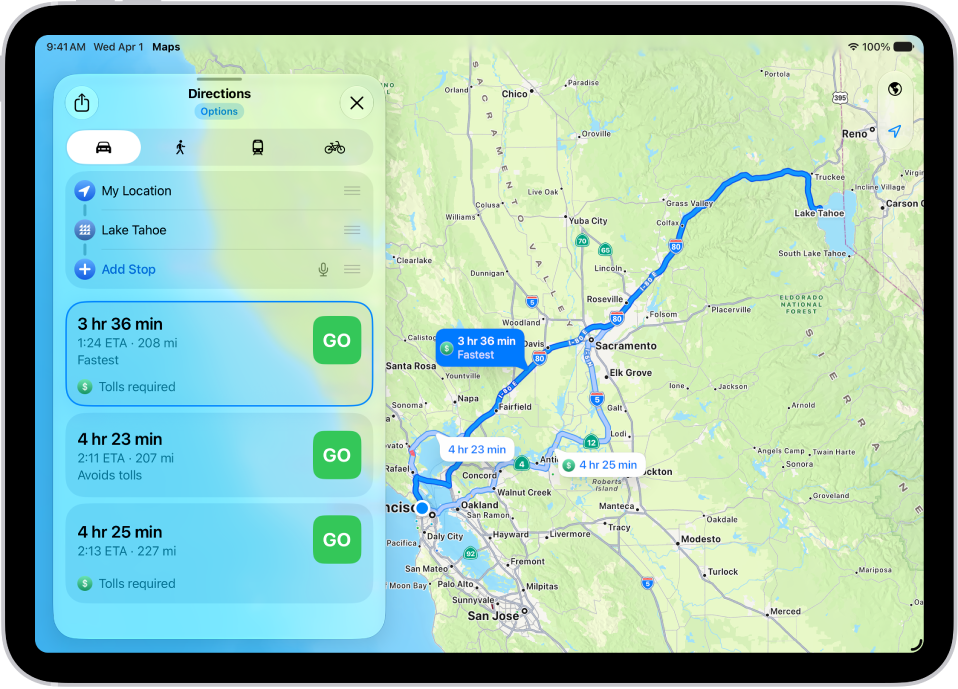
An iPad showing a map with several driving route options to the same destination. Each route shows the estimated time and distance, and a Steps button to see detailed directions. Color coding on each route indicates traffic conditions.

Use the Maps widget

If you add the Maps widget, you can get directions to a likely destination right from the Home Screen or Today View.

Use Siri to get directions

Using Siri to get directions helps you keep focused on the road, and turn-by-turn spoken directions let you follow driving, cycling, and walking directions without even glancing at your iPad.

Siri: Ask Siri something like, “Find a charging station.” Learn how to use Siri.

Send directions from your Mac to your iPad

Plan your route on your Mac before a big trip or a day of cycling, and share the details to your iPad. Both your Mac and your iPad need to be signed in to the same Apple Account.

  1. Go to the Maps app on your Mac.
  2. Create a route for your trip.
  3. Choose File > Share > Send to [your device].

Handoff can send directions from iPad to Mac, too. Read our article, Hand off tasks between iPad and your other devices.

Siri: You can use Siri to get directions and stay focused on the road. For example, ask Siri something like, “Find a charging station” or “Give me directions home.” See Use Siri to get directions.

See also

Tag: Maps

You can get detailed transit directions to your destination, including departure times, connections, and fares.

Fares are listed for suggested routes in some countries and regions. By default, they reflect the cost with a transit card, though you can see the cash fare instead. You can also plan for a future departure or arrival time, and Siri can give you transit directions, too.

Here’s how to get transit directions in Maps on iPad.

Note: Public transportation information isn’t available in all countries or regions.

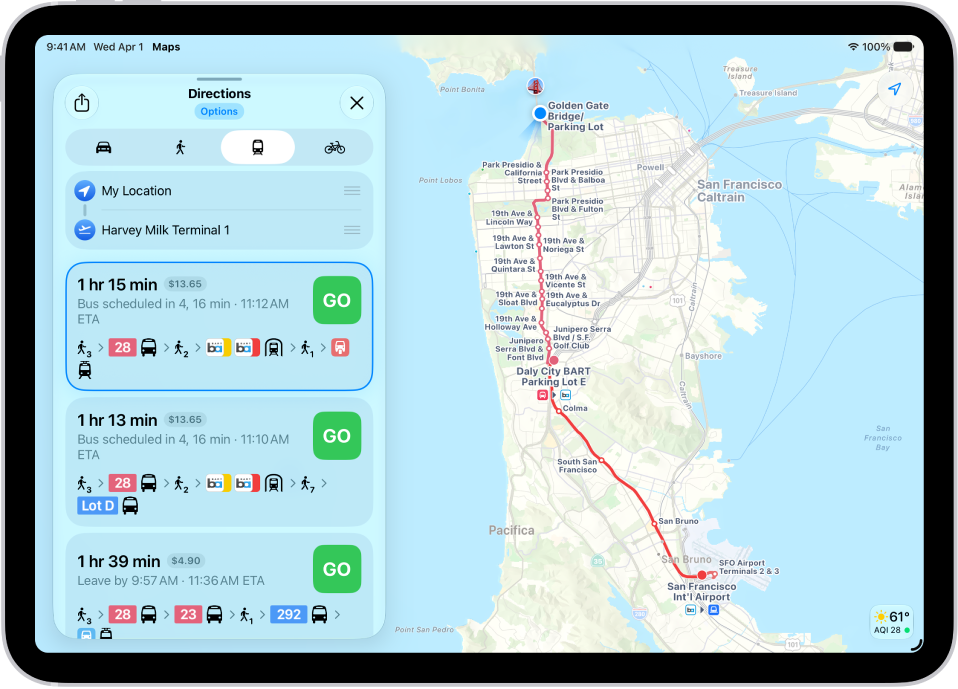
A map showing a transit route. A route card on the left shows Go buttons for several options for the route.

Get transit directions

  1. Go to the Maps app on your iPad.
  2. Touch and hold anywhere on the map or enter an address in the search field and then tap the directions button.

    If your preferred travel mode isn’t Transit, tap the directions button, then tap the Travel Mode button.

  3. Tap Go or Steps for the route you want to take.
  4. To see only the schedules of your preferred transit method, tap Options (below Directions) and then turn off any type you don’t want to use.

Siri: You can also ask Siri something like, “Give me transit directions to the Ferry Building.” Learn how to use Siri.

Plan for a future departure or arrival time

  1. Open the Maps app on your iPad.
  2. Get transit directions, as above.
  3. Tap Options (below Directions), tap Leave at or Arrive by, select a time and date, and then tap the Done button.

Show cash or transit card fares

Suggested routes list fares in some countries and regions. By default, fares reflect the cost of using a transit card, though you can see the cash fare instead.

  1. Open the Maps app on your iPad.
  2. Get transit directions, as above.
  3. Tap Options (below Directions), tap Cash Fares, and then tap the Done button.
  4. To redisplay the fares when using transit cards again, tap Cash Fares, tap Transit Card Fares, and then tap the Done button.

Get schedules for local transit

You can get one-tap access to the departure times for stops and stations near you.

  1. Open the Maps app on your iPad.
  2. Swipe up on the search field, swipe right on the icons below Places, and then tap the Add button.
  3. Tap Nearby Transit to add it to your Places.
  4. Below Places, tap Transit and tap a nearby stop to see schedules and delays.

    Tip: Touch and hold a line, then tap Pin to put it at the top of the list.

See major transit lines

  1. Open the Maps app on your iPad.
  2. With a map showing, tap the Map Modes button, which appears as the Exploring Map Mode button, the Driving Map Mode button, the Transit Map Mode button, or the Satellite Map Mode button on the right.
  3. Select Transit and then tap the Close button.

See also

Tag: Maps

While following driving, cycling, transit, and walking directions, you can get an overview of your route and a list of upcoming turns.

On an iPad with Wi-Fi + Cellular, you’re able to zoom out and see the whole route onscreen from start to finish, or see the directions in a list instead. You can also share a route with someone in the Maps app, and return to turn-by-turn directions anytime.

Note: Features for Wi-Fi + Cellular models require a cellular data plan and Cellular Data turned on in Settings > Apps > Maps. See View or change your cellular data.

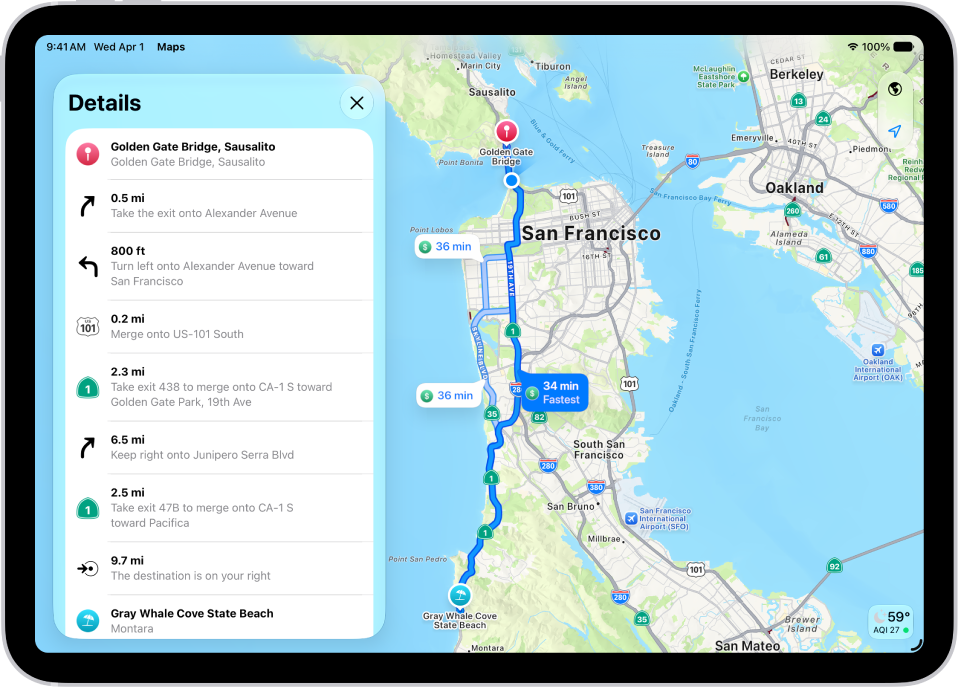
A map showing three options for routes and a detailed list of steps to get to a destination with the fewest turns.

Get an overview of your route

If you’ve got an iPad with Wi-Fi + Cellular, zooming out shows your entire route onscreen, from the starting point to the destination.

  1. Go to the Maps app on your iPad.
  2. Get directions.
  3. Tap the Overview Mode button.

To return to turn-by-turn directions, tap the Turn-by-Turn Mode button.

View a list of upcoming directions

Directions can also appear in a list on an iPad with Wi-Fi + Cellular.

  1. Open the Maps app on your iPad.
  2. Get directions.
  3. Tap anywhere on the route card except the Go button.
  4. Scroll down to see more directions.
  5. When you’re finished, tap the Close button.

Share a route with someone

  1. Open the Maps app on your iPad.
  2. Get directions.
  3. Tap anywhere on the route card except the Go button.
  4. Scroll to the bottom of the card and tap Share. Then choose a way to share the route.
  5. Tap Done.

See also

Tag: Maps

While exploring any location on a map, you can rotate the map to see an area with extra dimensions. In some locations, you can zoom in to see a detailed, 3D satellite view, where Maps uses aerial imagery to render cities in true-to-life detail.

On supported models and in select cities, Maps provides enhanced detail for elevation, roads, trees, buildings, and landmarks. You can also look around some locations with 360-degree panoramic views, and pan, move forward, and zoom in or out as you look around.

Note: Not all features are available in all countries or regions.

Explore a city in 3D detail

  1. Go to the Maps app on your iPad.
  2. In most cities, tap the Exploring Map Mode button and tap Satellite. Tap the Close button.
  3. Pinch open to zoom in. Then swipe up with two fingers to see the map in 3D.

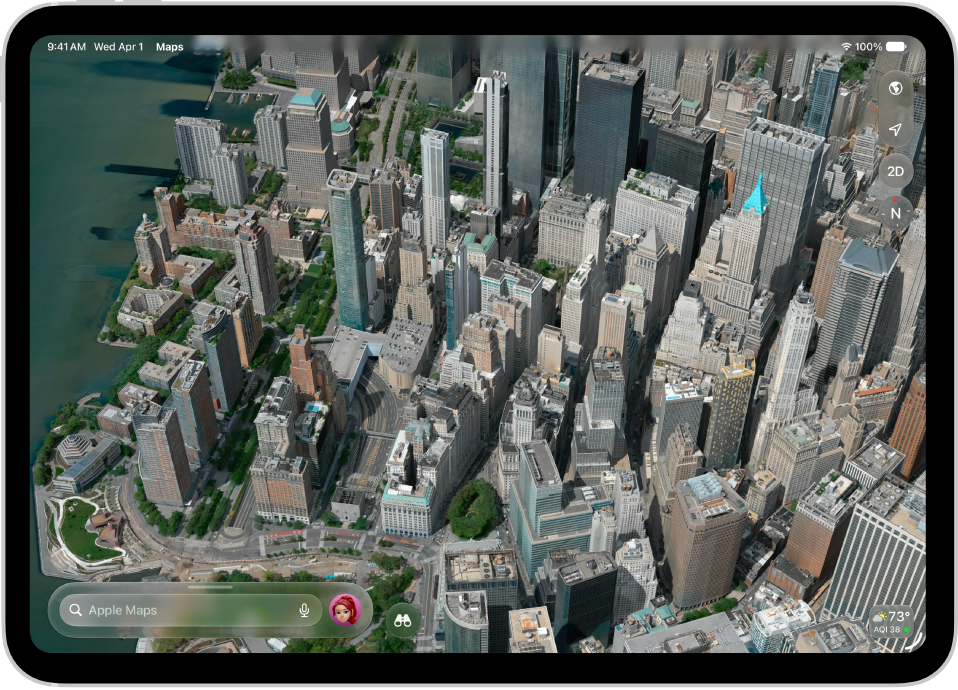
A 3D map in the Maps app, showing a city.

Look around locations

You can look around some locations with 360-degree panoramic views.

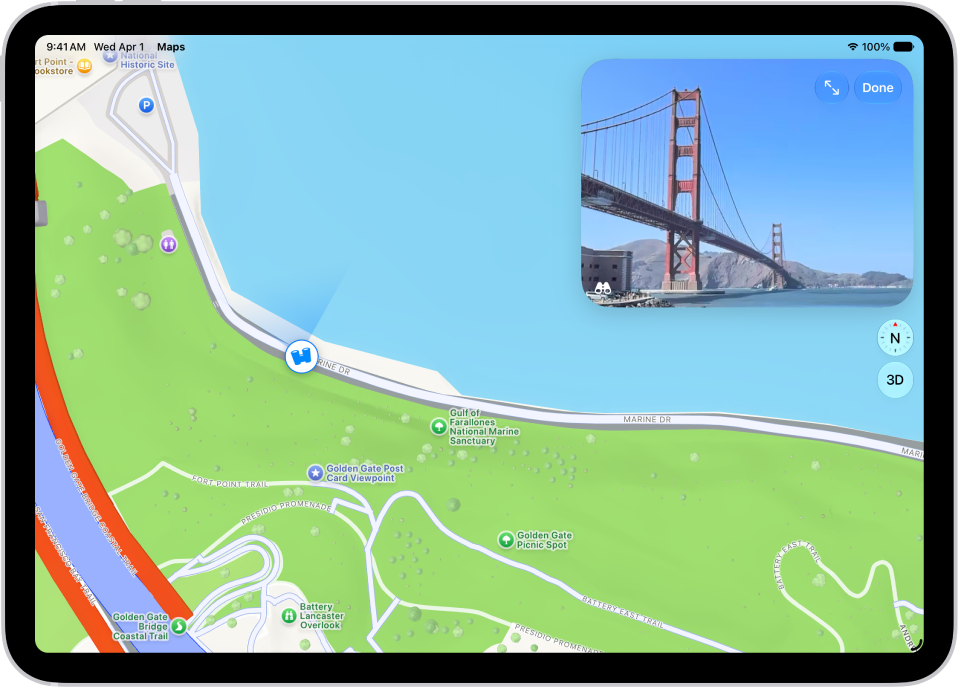
A moveable, 360-degree panoramic view appears above a map of the area marked in the Maps app. The Look Around icon overlaid on the map points in the direction of the view.

  1. Open the Maps app on your iPad.
  2. In select cities, tap the Look Around button near the bottom of a map.
  3. To change the view, do any of the following:
    • Pan: Drag a finger left or right on the scene.
    • Move forward: Tap the scene.
    • Zoom in or out: Pinch open or closed.
    • View another point of interest: Switch from full-screen view and then tap elsewhere on the map, or drag the map.
    • Switch to full-screen view: Tap the Enter Full Screen Mode button or the Exit Full Screen Mode button.
    • Remove labels in full-screen view: Swipe up from the place name near the bottom of the screen and tap Hide Labels.
  4. When finished, tap Done.

Move, zoom, or rotate a map or globe

  1. Open the Maps app on your iPad.
  2. Do any of the following:

    • Move around in a map: Drag the map.
    • Zoom in or out: Double-tap. Drag up to zoom in or drag down to zoom out. Or pinch open or closed on the map.
    • Rotate the map: Touch and hold the map with two fingers and then rotate your fingers.

      To show north at the top of the screen after you rotate the map, tap the Compass button.

View a 3D map

  1. Open the Maps app on your iPad.
  2. To turn a 2D map into a 3D map, do one of the following:
    • Drag two fingers up.
    • Tap 3D near the top right.
    • On supported models and in select cities, tap 3D near the top right.
  3. While looking at a 3D map, you can do any of the following:
    • Adjust the angle: Drag two fingers up or down.
    • See buildings and other spatial details: Zoom in.
    • View the Earth: Zoom out until the map changes to a globe. Drag the globe to rotate it, or zoom in or out (on supported models).
    • Return to a flat map: Tap 2D near the top right.

See also

Tag: Maps