Got a tip for us?

Preview

You can share a PDF or image from the Preview app on your iPhone. You can collaborate on the file, send a copy, or copy it to the Clipboard to paste it into another app. When you collaborate, you can allow only invitees to view and edit the contents, or allow anyone with the link to view the contents.

  1. Start the Preview app on your iPhone.
  2. Open a PDF or image.
  3. Tap the Share button. Then choose whether to collaborate on the file, send a copy of it, or copy it to the Clipboard. When you copy a file to the Clipboard, you can paste it into another app.
  4. If you choose Collaborate, tap the Forward button next to Only invited people can edit and then do one of the following:

    • Allow only invitees to view and edit the contents: Tap Only invited people and then tap Can make changes.

      Turn off “Allow others to invite” if you don’t want people you share the file with to invite others to view and edit it.

    • Allow only invitees to view the contents: Tap Only invited people and then tap View only.
    • Allow anyone with the link to view and edit the contents: Tap Anyone with the link and then tap Can make changes.
    • Allow anyone with the link to view the contents: Tap Anyone with the link and then tap View only.
  5. Tap the Done button.
  6. Choose a sharing method, such as Mail or Messages.
Tag: Preview
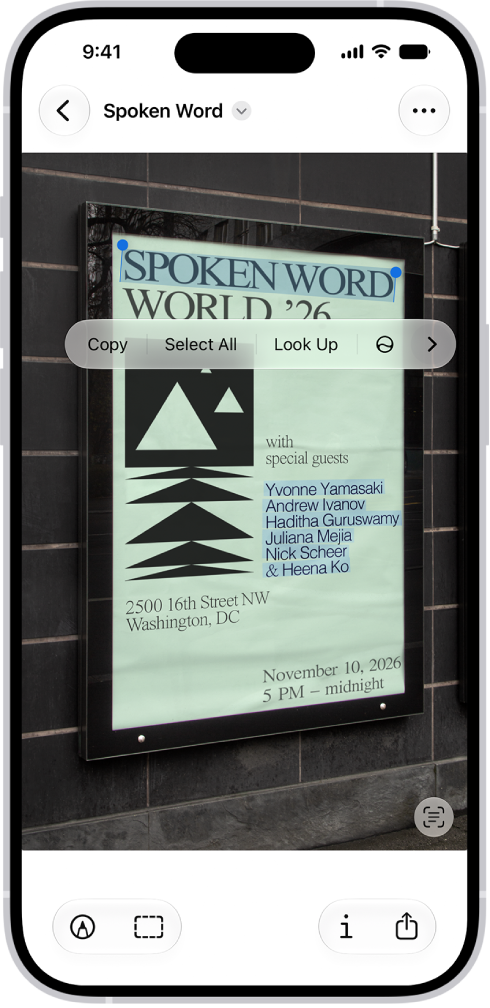
You can use Live Text in the Preview app to copy or translate text within an image, make a call, open a website, or start an email. It all starts with selecting the text. From there, you can also look up the meaning of text, or search the web for it.

A photo of a real estate sign, with the phone number highlighted. The phone number appears in the menu above the Call, Message, Add to Contacts, and Copy options.

  1. Start the Preview app on your iPhone.
  2. Open an image that shows text and then select the text.
  3. Do any of the following:

    • Copy text: Tap Copy. You can then paste the text into another document or app.
    • Look up the meaning of text: Tap Look Up.
    • Translate text: Tap Translate and choose a language.

      Note: Translation isn’t available in all languages and may not be available in some countries or regions.

    • Search the web for the text: Tap the Forward button and tap Search Web.
    • Call or text a phone number: Tap Call or Message. (You may need to tap the Forward button to see all options.)
    • Save a phone number or email address: Tap the Forward button and then tap Add to Contacts.
    • Send an email or message to an email address: Tap Email or Message. (You may need to tap the Forward button to see all options.)
    • Go to a website: Tap Open Link. (You may need to tap the Forward button to see the option.)
Tag: Preview

You can use the Preview app to fill out and sign PDF forms, scan documents, and make changes to PDF documents and images. When you scan a document, the pages are combined into a single PDF that you can save and edit, and you can sign with your finger.

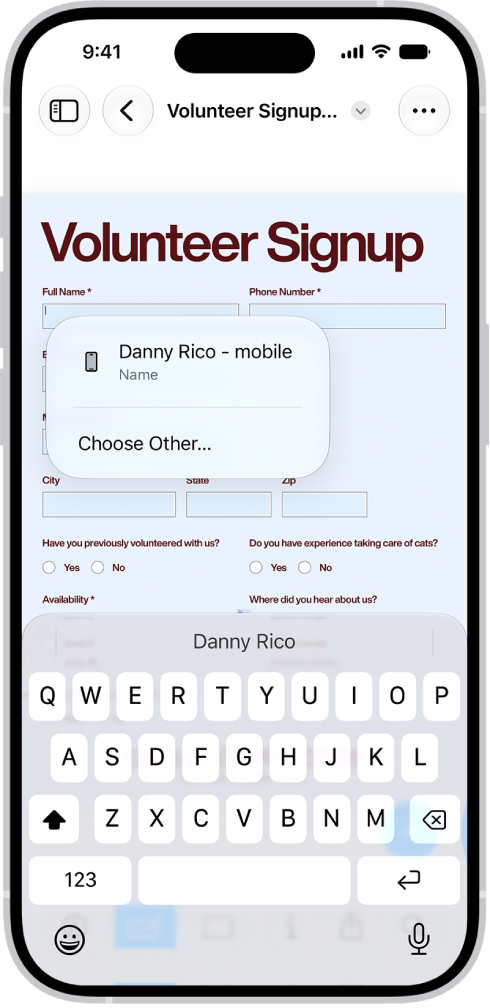
A screen showing a PDF form with fillable fields highlighted. At the bottom of the screen are the Add Annotation, Markup, AutoFill, Crop, Info, Share, and Search buttons. The AutoFill button is selected.

Fill out PDF forms

Open a PDF form, tap the Form Filling button, then select a field. Enter text, or tap an AutoFill suggestion that appears above the onscreen keyboard. In signature fields, you can use your finger to sign.

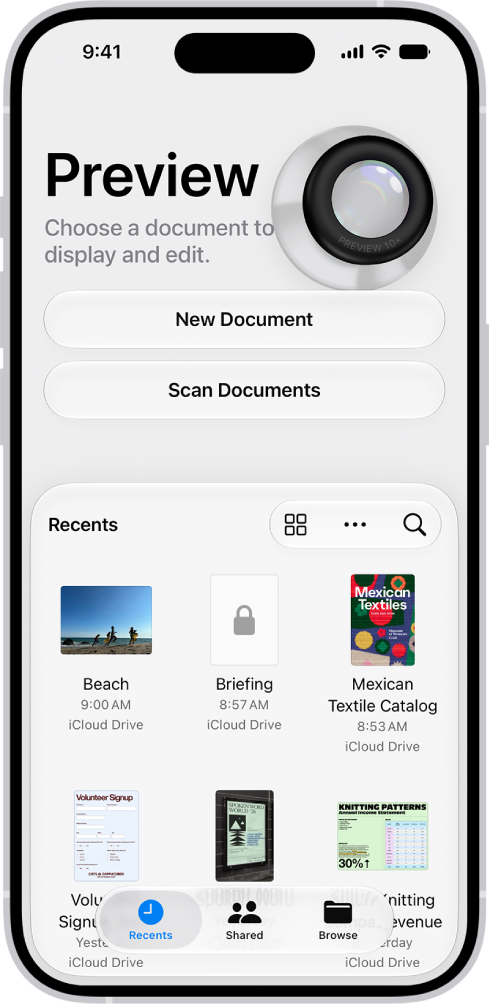
The main screen of the Preview app. The New Document and Scan Documents buttons are in the middle of the screen. At the bottom of the screen are the Recents, Shared, and Browse tabs.

Scan a document to create a PDF file

Tap Scan Documents on the Preview start screen, position each page in the camera to capture it, then tap the Done button. Preview combines the pages into a single PDF that you can save and edit.

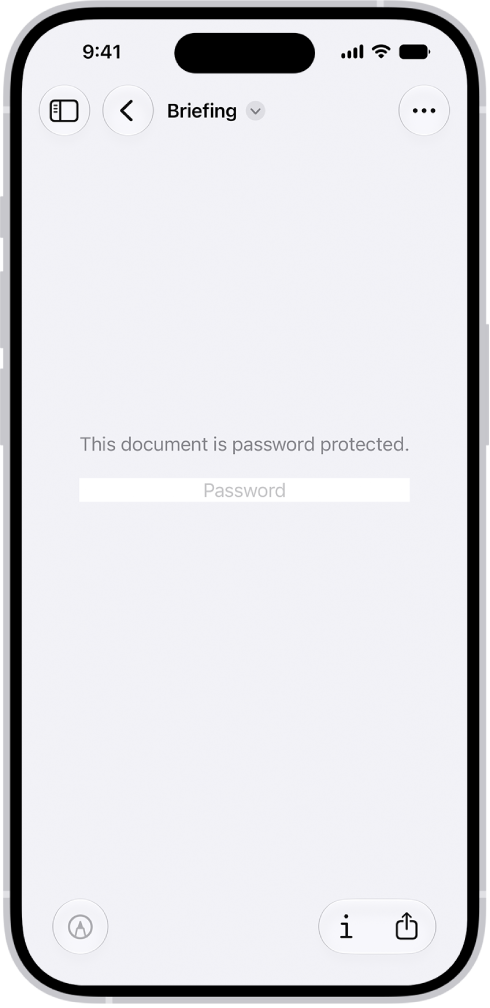
A locked PDF form in the Preview app showing a password field. At the bottom of the screen are the Markup, Info, and Share buttons.

Protect a PDF with a password

Open a PDF, tap the Actions Menu button next to the filename, then tap Lock. Enter a password, then tap the Done button.

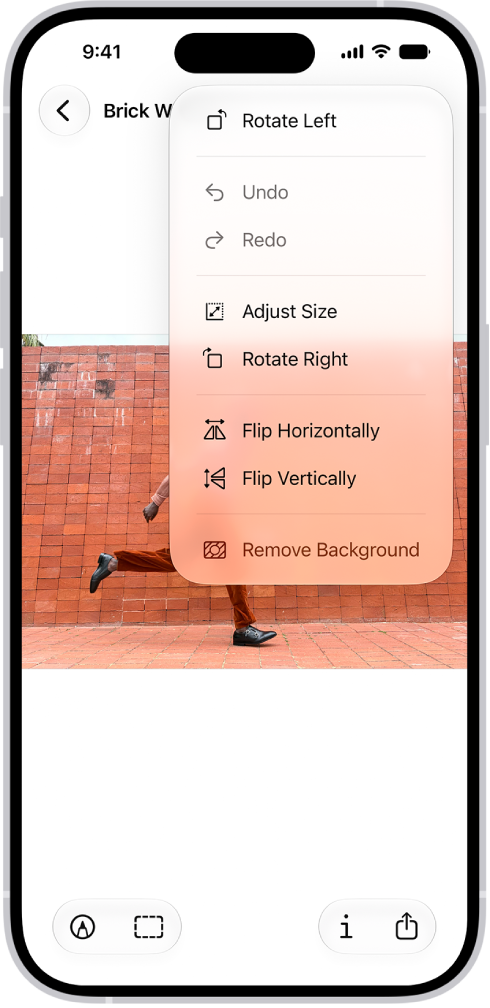
A screen showing an image with grapes in the foreground. A menu shows the Remove Background option. At the bottom of the screen are the Markup, Crop, Info, and Share buttons.

Edit an image

Open an image, then tap the More button to rotate or flip it, adjust its size, or remove the background. To crop an image, tap the Crop button, adjust the borders, then tap Crop.

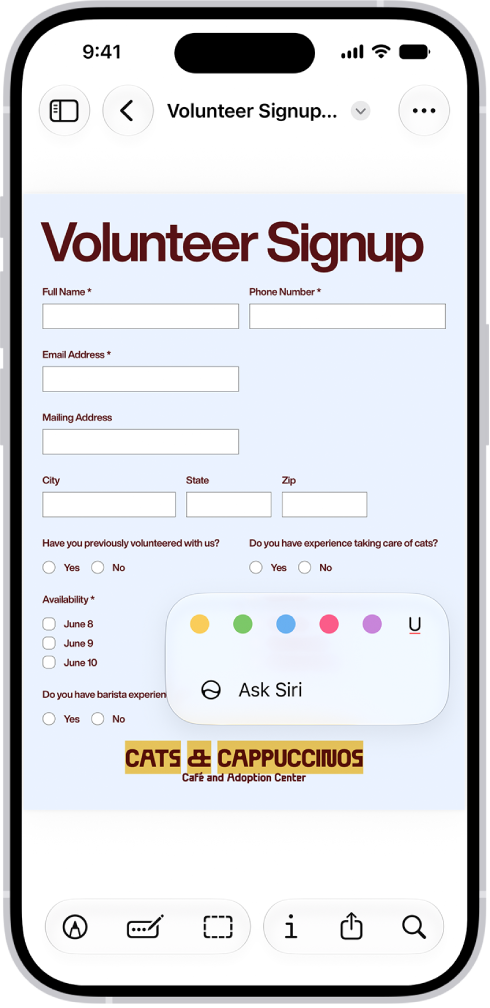
A fillable PDF form with options to highlight and underline text.

Highlight or underline text

You can highlight or underline text in a PDF. Open a PDF, then select text. Tap Highlight, then choose an option.

Tag: Preview

You can export a PDF or image as a HEIC, JPEG, JPEG-2000, PDF, PNG, or TIFF file. You can also compress the file.

Depending on the format you selected, you’ll be able to choose a smaller file size or higher quality, flatten transparency or keep transparency editable, and set the resolution. For a PDF, you can optimize the PDF for fast web loading, make the PDF searchable, or save embedded images as JPEG for a smaller file.

  1. Start the Preview app on your iPhone.
  2. Open a PDF or image.
  3. Tap the Actions Menu button next to the filename. Then tap Export.
  4. Select a file format. Available formats are HEIC, JPEG, PDF, PNG, and TIFF.
  5. Depending on the format you selected, adjust any of the following:
    • Size (HEIC, JPEG): Drag the slider left for a smaller file size or right for higher quality.
    • Alpha (PNG, HEIC, TIFF): Turn off to flatten transparency, or leave on to keep transparency editable.
    • Resolution (available when exporting a PDF to an image format): Enter a value and choose pixels per inch or pixels per cm. Higher values produce larger, more detailed images.
    • Create Linearized PDF (PDF): Turn on to optimize the PDF for fast web loading.
    • Embed Text (PDF): Turn on to run OCR on images and make the PDF searchable.
    • Optimize Images for Screen (PDF): Turn on to reduce image resolution for screen viewing. (This creates a smaller file.).
    • Save Images as JPEG (PDF): Turn on to save embedded images as JPEG for smaller file size.
  6. Tap the Done button.
  7. Choose a location for the file.
  8. Optionally, tap the Save As field and then rename the file.
  9. Tap Save.
Tag: Preview

You can add, delete, rotate, reorder, or crop pages in a PDF in the Preview app on your iPhone.

You can insert a blank page, insert a PDF or image, or insert a scanned document, and you can delete the selected page, too. And if you make a change you don’t want, you can undo it.

Here’s how to add, delete, rotate, move, or crop PDF pages in Preview on iPhone.

Add or delete pages

  1. Start the Preview app on your iPhone.
  2. Open a PDF.
  3. Tap the page count to show thumbnails. (If the page count doesn’t appear, tap the PDF.)
  4. Touch and hold a thumbnail and then do any of the following:
    • Insert a blank page: Tap Insert Blank Page.
    • Insert a PDF or image: Tap Insert from File.
    • Insert a scanned document: Tap Scan Pages, scan the document, then tap the Done button.
    • Delete the selected page: Tap Delete Page.

Rotate a page

  1. Start the Preview app on your iPhone.
  2. Open a PDF.
  3. Tap the More button. Tap Rotate Left or Rotate Right.

Move a page

  1. Start the Preview app on your iPhone.
  2. Open a PDF.
  3. Touch and hold a thumbnail until menu options appear. Then drag the page thumbnail above or below another one. (If you don’t see thumbnails, tap the screen to show the page count, then tap the page count.)

Crop a page

  1. Start the Preview app on your iPhone.
  2. Open a PDF.
  3. Scroll to the page you want to crop. Then tap the Crop button.
  4. Drag the blue handles to select an area and then tap Crop. (If Crop doesn’t appear, tap within the selected area.)

To undo a change, tap the More button, then tap Undo.

Tag: Preview

You can print a PDF or image in the Preview app on your iPhone. Print is in the Actions Menu next to the filename, and from there, you can select a printer and send your PDF or image to it.

  1. Start the Preview app on your iPhone.
  2. Open a PDF or image.
  3. Tap the Actions Menu button next to the filename. Then tap Print.
  4. Select a printer, then tap the Print button.
Tag: Preview

In the Preview app on your iPhone, you can fill out and sign PDF forms. You can enter information in a field, or use the AutoFill suggestion above the onscreen keyboard to add that information. You can also add a signature or a text form box.

A fillable PDF form showing an AutoFill suggestion for the name and phone fields.

  1. Start the Preview app on your iPhone.
  2. Open a PDF form.
  3. Tap the Form Filling button.
  4. Tap a field and enter information (or tap the AutoFill suggestion above the onscreen keyboard to add that information).
  5. To add a signature or a text form box, tap the Add button.
Tag: Preview

You can lock a PDF document with a password to prevent others from editing or deleting your work. Once you set a password, the Require Password toggle turns on by itself. To keep a copy that’s not password-protected, you’ll want to duplicate it first.

A locked PDF form showing a password field. At the bottom of the screen are the Markup, Info, and Share buttons.

  1. Start the Preview app on your iPhone.
  2. Open a PDF.

    Important: To keep a copy that’s not password-protected, tap the Actions Menu button, then tap Duplicate.

  3. Tap the Actions Menu button next to the filename and tap Lock.
  4. Enter the same password in the Password and Verify fields. The Require Password toggle turns on automatically.
  5. Tap the Done button to apply the change, or tap the Close button to cancel.
Tag: Preview

When you create an image in the Preview app, you can start with a blank image or with pasted content that was copied to the Clipboard. It can come from the Photos app, the Files app, or Preview. You can then annotate an empty image or an image from the Clipboard with a shape, sticker, or text.

Create an empty image

  1. Start the Preview app on your iPhone.
  2. Tap New Document and then choose New Empty Image.

Quick tip: From the Home Screen, touch and hold the Preview icon and tap New Empty Image.

Use an image from the Clipboard

  1. Do any of the following to copy an image to the Clipboard:
    • From the Photos app: Select an image, tap the Share button, and then tap Copy Photo.
    • From the Files app: Touch and hold an image file, then tap Copy.
    • From the Preview app: Touch and hold an image file and tap Copy. You can also open an image file, tap the Share button, and then tap Copy.
  2. Start the Preview app on your iPhone.
  3. Tap New Document, then choose New from Clipboard.

You can annotate an empty image or an image from the Clipboard. Tap the Markup button, choose a drawing tool, then draw with your finger. You can also tap the Add button, then choose an option such as a shape, sticker, or text.

Tag: Preview

You can scan text or a document to create a PDF in the Preview app on your iPhone. iPhone automatically captures the page, though you’ll be able to capture the scan yourself instead, and you can crop, rotate, or adjust the coloring of each scan.

  1. Start the Preview app on your iPhone.
  2. Tap Scan Documents.
  3. Position the iPhone camera so the text or document appears on the screen.

    iPhone automatically captures the page. To capture the scan yourself instead of automatically, tap Auto (the label changes to Manual), then tap the Shutter button.

  4. Repeat the step above to scan additional pages.
  5. Tap the thumbnails to crop, rotate, or adjust the coloring of the scan.
  6. Tap the Done button when you’re finished scanning.
Tag: Preview