Got a tip for us?

Privacy & Security

Before apps use the camera or microphone on your iPad, they’re required to request your permission and explain why they’re asking. Apps also need your permission for other hardware features, like Bluetooth® connectivity, motion and fitness sensors, and devices on your local network.

A social networking app, for example, may ask to use your camera so that you can take and upload pictures. You can review which apps have asked and change their access whenever you like, and whenever an app uses the camera, a green indicator appears.

Review or change access to the camera, microphone, and other hardware features

  1. Open Settings and then tap Privacy & Security.
  2. Tap a hardware feature, such as Camera, Bluetooth, Local Network, or Microphone.

The list shows the apps that requested access. You can turn access on or off for any app on the list.

Note: Whenever an app uses the camera (including when the camera and microphone are used together), a green indicator appears. An orange indicator appears at the top of the screen whenever an app uses the microphone without the camera. Also, a message appears at the top of Control Center to inform you when an app has recently used either.

See also

In the FaceTime app, you can block FaceTime calls from unknown callers and report the calls as spam or junk. You can block a caller while the call is ringing, during a call, or after a call has ended, and report the call to Apple. Apple then receives the caller’s information.

Block unknown callers

To block an unknown caller, you can do one of the following:

  • While the call is ringing: Tap the left side of the notification to expand the window, tap the contact information or people count at the top of the window, then tap Block Caller or Block All Participants.
  • During a call: Tap the contact information at the top of the window, then tap Block Caller.
  • While in a Group FaceTime call: Tap the people count at the top of the window, then tap Block Unknown Participants or Block All Participants.
  • After a call has ended: Tap the call in the call history, then tap Block Contact.
  • After a Group FaceTime call has ended: To block an individual caller, tap the call in the call history, tap the caller’s contact information, then tap Block Contact. To block all unknown callers, tap the call in the call history, then tap Block Unknown Participants or Block All Participants.

After you end a call from an unknown caller, if you see a screen with Call Ended at the top, you can tap Block Caller to prevent further contact from that caller, or tap Create Contact to add the caller to your contacts.

Blocking a caller also lets you report the call to Apple as spam or junk, and Apple then receives the caller’s information.

Report a FaceTime call as spam

  1. Start the FaceTime app on your iPad.
  2. Touch and hold the tile in your call history. Then tap Report Spam.

Unblock a caller

If you’ve changed your mind, you can unblock a caller in either of these places:

  • In the FaceTime app: Tap the call in the call history. Tap the caller’s contact information (if the call was a Group FaceTime call), then tap Unblock Contact.
  • In the Settings app: Tap Apps, tap FaceTime, then tap Blocked Contacts. Swipe left on the contact information, then tap Unblock.

See also

Apps ask for permission the first time they want to use something on your iPad, and you control what you share. You can control which apps can access your data, location, camera, and microphone, and manage safety protections.

A messaging app, for example, may request access to your contacts, to find friends who use the same app. When an app is using Location Services, its icon appears in the status bar, and you can turn access on or off for any individual app.
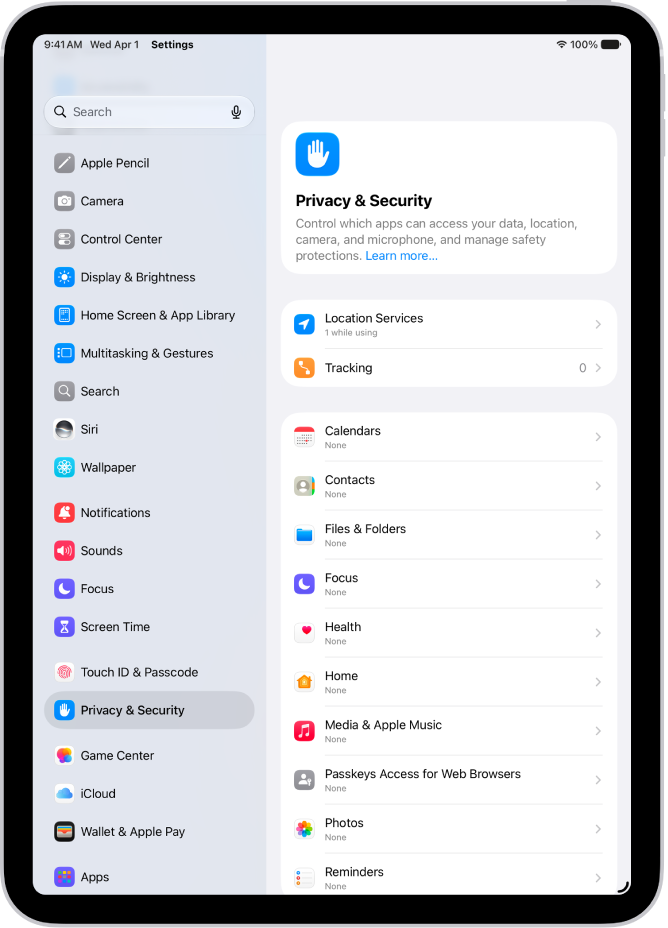
The Privacy & Security screen, with settings for Location Services and Tracking, and settings to control which apps can access your data.

Control which apps have access to information on your iPad

Third-party apps can use information in your iPad apps, like Contacts, Photos, and Calendar, if you let them, and that’ll help you get things done more quickly. A messaging app might request access to your contacts to find friends using the same app, for example. And you can turn access on or off for each app individually.

How to allow access to information in iPad apps
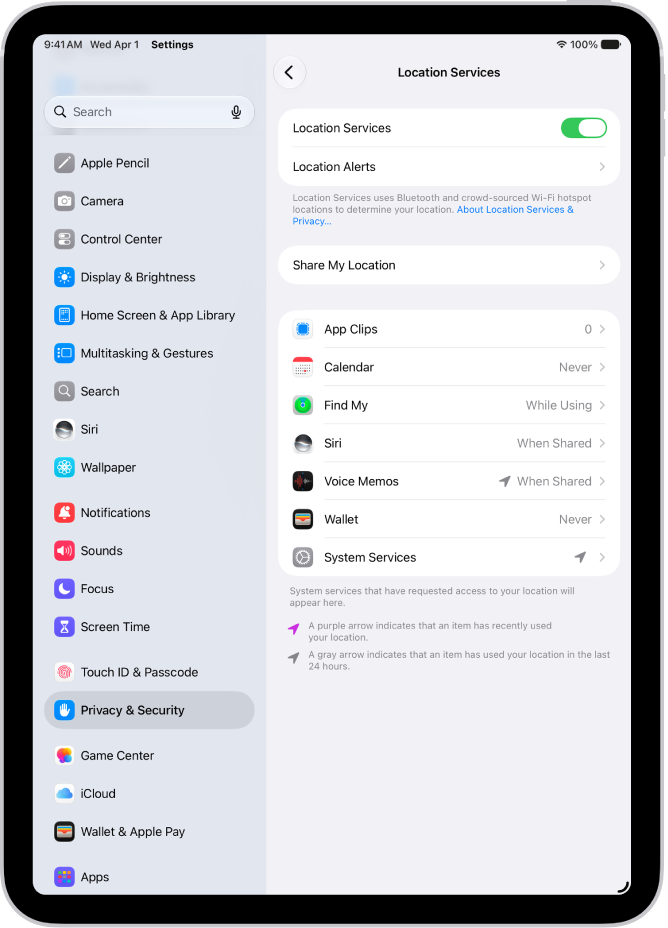
The Location Services screen, with settings to share the location of your iPad with apps.

Control which apps can use the location of your iPad

Apps with access to your iPad’s location can help you get directions, get assistance in an emergency, and more. A ride-sharing app, for example, may ask for your location so it can pick you up. Whenever an app’s using Location Services, its icon shows in the status bar.

How to allow access to the location of your iPad
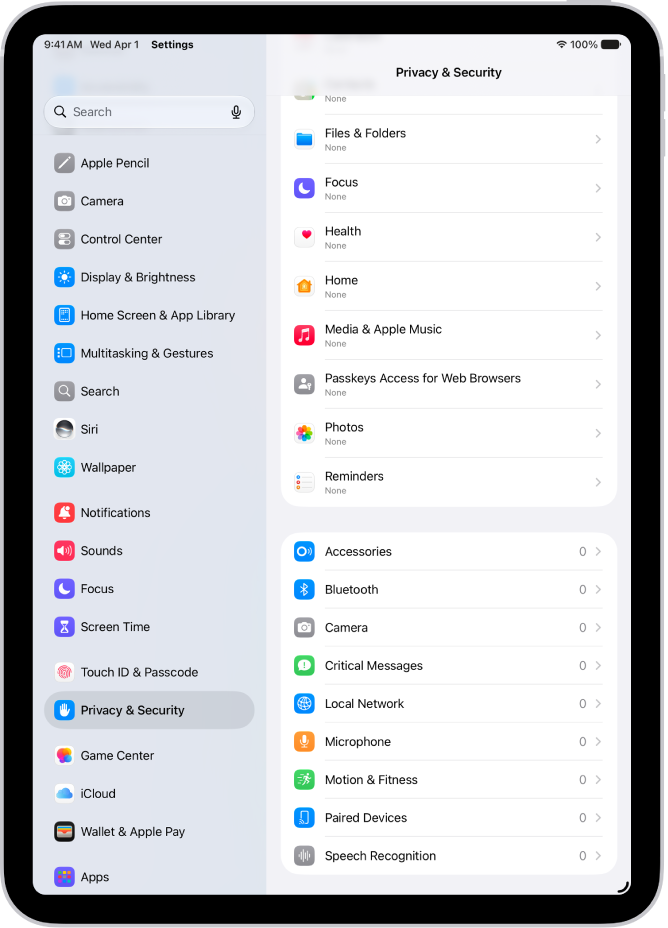
The Privacy & Security screen, with settings to control whether apps can use the camera, microphone, and other parts of your iPad.

Control which apps have access to the camera and microphone on your iPad

Letting apps use the camera and microphone makes it easier to upload content directly to them. A social networking app might ask to use your camera, for example, so you can take and post pictures there. A green indicator appears any time an app uses the camera, even when the camera and microphone are working together.

How to allow access to the camera and microphone
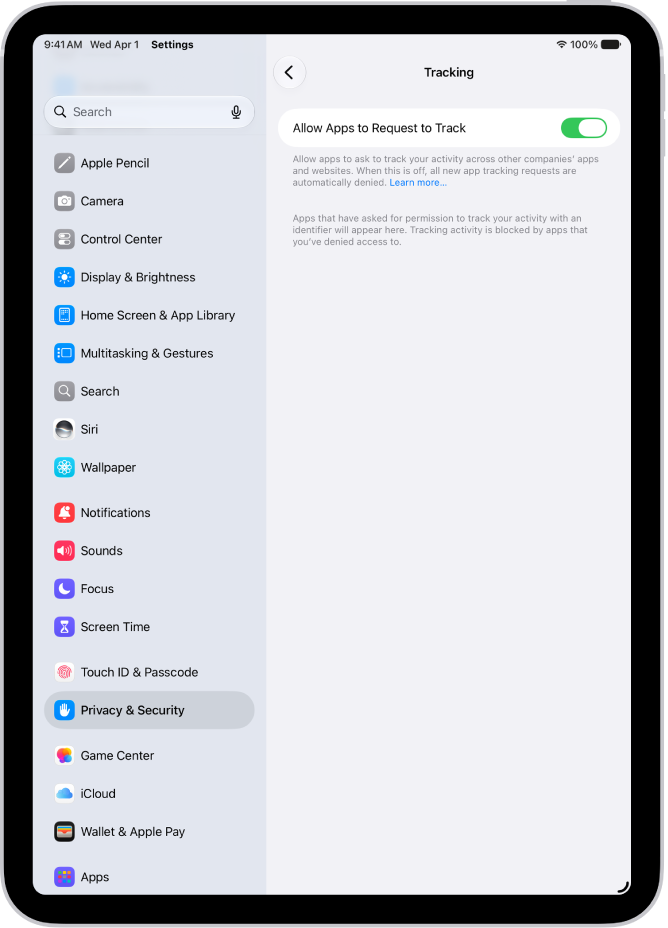
The Tracking screen, with a setting to control whether apps can ask to track you across websites or apps owned by other companies.

Control which apps can track you or your iPad across websites or other apps

Apple says all apps are required to ask your permission before tracking you or your iPad across websites or apps owned by other companies (for example, advertising or to share your information with data brokers). After you grant or deny permission to an app, you can change permission later. You can also stop all apps from requesting permission.

How to allow access to your web activity
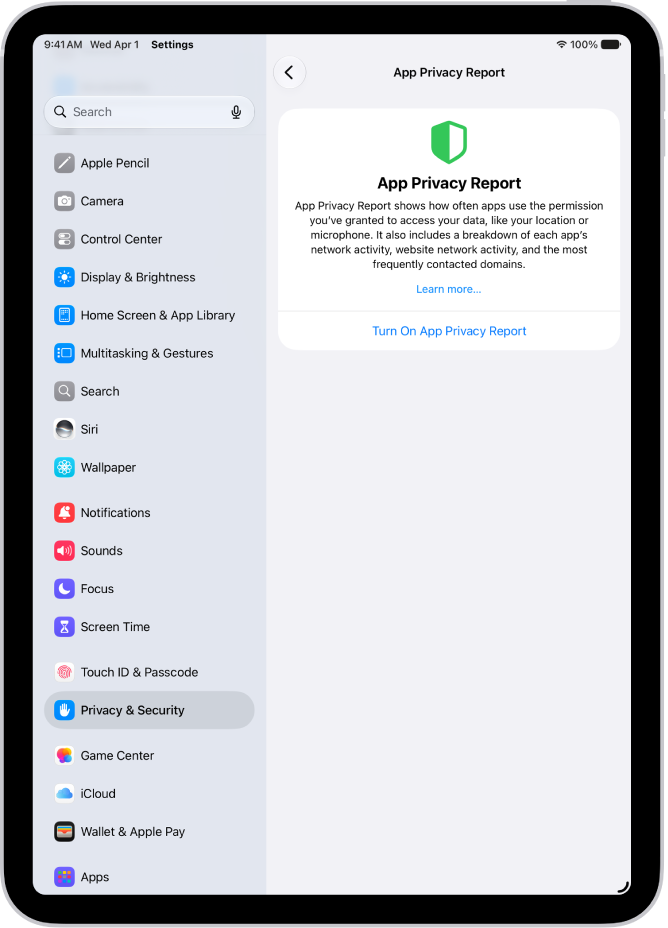
The App Privacy Report screen, where you can turn on a report to show how often apps use the permissions you’ve granted them, along with their network activity.

Review how apps are using the permissions you grant them

You can see how apps are using the permissions you’ve granted them, and their network activity, by reviewing an App Privacy Report.

How to view an app privacy report

Change or turn off your passcode, and choose whether to use a simple four-digit passcode. For added security, you can also set Apple Watch to erase its data after 10 failed unlock attempts.

Your Apple Watch passcode can be different from your iPhone passcode, and it’s better to use different passcodes. There’s a catch, though. If you turn off your passcode on your watch, some features won’t be available, such as Apple Pay.

Note: You may be prevented from using a simple passcode or turning off your passcode if your synced iPhone is managed by an organization, such as a company or school. Check with your organization’s administrator.

Change your passcode

  1. Open the Settings app on your Apple Watch.
  2. Tap Passcode, tap Change Passcode, and then follow the onscreen prompts.

    Tip: Your Apple Watch passcode can be different from your iPhone passcode—in fact, it’s better to use different passcodes.

You can also go to the Apple Watch app on your iPhone, tap My Watch, tap Passcode, then tap Change Passcode and follow the onscreen prompts.

Use a four-digit passcode

  1. Open the Settings app on your Apple Watch.
  2. Tap Passcode, then turn on Simple Passcode.

You can also go to the Apple Watch app on your iPhone, tap My Watch, tap Passcode, then turn on Simple Passcode.

Turn off the passcode

Note: If you turn off your passcode, some features won’t be available. For example, you can’t use Apple Pay or unlock your Mac with Apple Watch.

  1. Open the Settings app on your Apple Watch.
  2. Tap Passcode, then tap Turn Passcode Off.

You can also go to the Apple Watch app on your iPhone, tap My Watch, tap Passcode, then tap Turn Passcode Off.

Erase Apple Watch after 10 unlock attempts

If Apple Watch is lost or stolen, you can protect your information by having Apple Watch erase its data after 10 consecutive attempts to unlock it with the wrong passcode.

  1. Open the Settings app on your Apple Watch.
  2. Tap Passcode, then turn on Erase Data.

See also

If your Apple Watch is disabled because you forgot your passcode or entered an incorrect passcode too many times, you can reset it from either your Apple Watch or iPhone and set it up again.

If it has a cellular plan, you can keep your plan to pair again, or remove it to pair with another iPhone. And after you erase it, Activation Lock is enabled, so your Apple Account and password are required to unpair it.

Important: If Erase Data is turned on, the data on your Apple Watch is erased after 10 failed passcode attempts.

Reset your Apple Watch

  1. Put your Apple Watch on its charger and press and hold the side button until the sliders appear.
  2. Press and hold the Digital Crown to show the Erase all content and settings screen.
  3. Tap Reset, then tap Reset again to confirm.
  4. When the process finishes, set up your watch again. When asked, restore from a backup.

Reset your Apple Watch using your paired iPhone

  1. Open the Apple Watch app on your iPhone and then tap My Watch.
  2. Tap General, swipe down, and then tap Reset.
  3. Tap Erase Apple Watch Content and Settings and tap Erase All Content and Settings again to confirm.
  4. If you have an Apple Watch with cellular, choose to keep or remove your cellular plan.
    • Keep your plan if you want to pair your Apple Watch and iPhone again.
    • Remove your plan if you want to pair your Apple Watch with another iPhone or intend to cancel your cellular subscription. (Contact your carrier to cancel your subscription.)
  5. When the process finishes, set up your watch again. When asked, restore from a backup.

When you erase Apple Watch this way, Activation Lock is enabled. With Activation Lock, your Apple Account and password are required before anyone can:

  • Unpair your Apple Watch from your iPhone
  • Pair and use your Apple Watch with a new iPhone
  • Turn off Find My on your device

See also

You can start fresh in more than one way. If you plan to sell or give away your Apple Watch, unpair it from your iPhone; if you plan to keep it and only need to reset it, erase it. Here are the two ways to clear the contents and settings of your Apple Watch:

  • Unpair your Apple Watch from your iPhone. This erases the contents and removes Activation Lock, preventing someone else from activating it. Do this if you plan to sell or give away your Apple Watch.
  • Erase your Apple Watch. This erases all content and settings from Apple Watch, but leaves it paired with your iPhone. Do this if you plan to keep your Apple Watch, and just need to reset it.

Unpair Apple Watch and remove Activation Lock

  1. Open the Apple Watch app on your iPhone.
  2. Tap My Watch, then tap All Watches.
  3. Tap the Info button next to your watch and tap Unpair Apple Watch.

Your Apple Watch is erased and removed from your Apple account, Activation Lock is removed, and your watch is ready to be set up again.

Erase Apple Watch and settings

To erase your Apple Watch without unpairing it, follow these steps.

  1. Open the Settings app on your Apple Watch.
  2. Tap General, then tap Reset.
  3. Tap Erase All Content and Settings. Then enter your passcode.
  4. If you have an Apple Watch with cellular, choose to keep or remove your cellular plan.
    • Keep your plan if you want to pair your Apple Watch and iPhone again.
    • Remove your plan if you want to pair your Apple Watch with another iPhone or intend to cancel your cellular subscription. (Contact your carrier to cancel your subscription.)
  5. When the process finishes, set up your watch again. When asked, restore from a backup.

You can also go to the Apple Watch app on your iPhone, tap My Watch, tap General, tap Reset, then tap Erase Apple Watch Content and Settings.

Note: If you can’t access the Settings app on your Apple Watch because you’ve forgotten your passcode, you must reset it.

Remove your cellular plan

You can remove the cellular plan at any time on an Apple Watch with cellular.

  1. Open the Apple Watch app on your iPhone.
  2. Tap My Watch, tap Cellular, and tap the Info button next to your cellular plan.
  3. Tap Remove [carrier] Plan, then confirm your choice.

    You may need to contact your carrier to remove this Apple Watch from your cellular plan.

See also

Wake the Apple Watch display, then customize how long it stays active before automatically locking. Apple Watch uses a passcode to keep your personal information secure. You can unlock Apple Watch manually or set it to unlock automatically when you unlock your iPhone.

It’s simple. By default, the display wakes when you raise your wrist, and your watch sleeps again when you lower it, and you can lock it manually, too.

Wake the Apple Watch display

The Apple Watch display wakes up by default when you do the following:

  • Raise your wrist. Your Apple Watch sleeps again when you lower your wrist.

    If your Apple Watch doesn’t wake when you raise your wrist, make sure you selected the proper wrist and watch orientation.

  • Tap the display.
  • Press or turn the Digital Crown.

If your Apple Watch doesn’t wake when you tap the display or press or turn the Digital Crown, it may need charging.

Unlock Apple Watch

  • Enter the passcode: Wake Apple Watch, then enter the watch passcode.
  • Unlock Apple Watch when you unlock your iPhone: Go to the Apple Watch app on your iPhone, tap My Watch, tap Passcode, then turn on Unlock with iPhone.

    Your iPhone must be within normal Bluetooth range (about 33 feet or 10 meters) of your Apple Watch to unlock it. If Bluetooth is off on Apple Watch, enter the passcode on your watch to unlock it.

Change when Apple Watch automatically locks

Wrist Detection is on by default. It locks your Apple Watch automatically when you’re not wearing it.

  1. Open the Settings app on your Apple Watch.
  2. Tap Passcode, then turn Wrist Detection on or off.

Turning off Wrist Detection affects these Apple Watch features:

  • When you use Apple Pay on your Apple Watch, you’re prompted to enter your passcode when you double-click the side button to authorize the payment.
  • Some Activity measurements are unavailable.
  • Heart rate tracking and notifications are turned off.
  • Apple Watch no longer automatically locks and unlocks.
  • Apple Watch doesn’t automatically make an emergency call even after it has detected a hard impact fall.

Lock manually

  1. Press the side button to open Control Center.
  2. Tap the Lock button.

The next time you try to use your Apple Watch, you need to enter your passcode.

See also

If you lose your Apple Watch, you can try to locate it in Find My, put it in lost mode, erase it, and remove payment cards.

When you mark your Apple Watch as lost, it’s locked with a passcode so others can’t access your personal information, and Apple Pay is suspended. Before you erase it, you can still try to locate it or play a sound on it, since Find My can’t do either after that.

Locate your Apple Watch

  1. Open the Apple Watch app on your iPhone.
  2. Tap My Watch, then tap All Watches.
  3. Tap the Info button next to your watch and then tap Find My Apple Watch.
  4. In the Find My app on your iPhone, tap your watch to see its location on a map.

If the map tells you your Apple Watch is at your location, tap Play Sound.

Mark your Apple Watch as lost

Marking your Apple Watch as lost locks your watch with a passcode, so others can’t access your personal information. It also suspends the ability to pay with Apple Pay using credit or debit cards in Wallet.

  1. Open the Apple Watch app on your iPhone.
  2. Tap My Watch, then tap All Watches.
  3. Tap the Info button next to your watch and then tap Find My Apple Watch.
  4. In the Find My app on your iPhone, tap your Apple Watch and then tap the More button.
  5. Tap Lost Mode and then tap Continue.
  6. Enter a phone number if you want the person who finds your Apple Watch to contact you.
  7. Tap Next. Enter a message that will be shown on your Apple Watch when someone finds it.
  8. Tap Next and then tap Activate to mark Apple Watch as lost.

When you find your Apple Watch, either enter your passcode on the watch or, on your iPhone, open Find My, tap Devices, tap your Apple Watch, tap Activated, then tap Turn Off Mark As Lost.

Erase a lost Apple Watch

Try to locate your device or play a sound on it before you erase it, because after you erase it, Find My can’t do either.

  1. Open the Apple Watch app on your iPhone.
  2. Tap My Watch, then tap All Watches.
  3. Tap the Info button next to your watch and then tap Find My Apple Watch.
  4. In the Find My app on your iPhone, tap your watch and then tap Erase.

Remove payment cards using a web browser

You can remove your cards by signing in to the Apple Account website with your Apple Account if your Apple Watch is lost or stolen.

  1. In the Devices area, choose the device.
  2. Click Remove Items below Wallet & Apple Pay, then click Remove Items again to confirm.

You can also call the issuers of your cards.

When your iPhone and Apple Watch are no longer connected, or one of them isn’t working as expected, start by erasing the contents of your Apple Watch. Then unpair it in the Apple Watch app on your iPhone, if it’s available.

See also

Your Apple Watch can unlock your iPhone. It needs a passcode, and it has to be unlocked, on your wrist, and close to your iPhone. To allow Apple Watch to unlock your iPhone for Siri requests or when an obstruction prevents Face ID from recognizing your face, do the following:

  1. On iPhone, open Settings and tap Face ID & Passcode. Then enter your passcode.
  2. Scroll down to Unlock With Apple Watch and turn on the setting for your watch.

    If you have more than one watch, turn on the setting for each one.

  3. To unlock your iPhone, make sure you’re wearing Apple Watch and wake your iPhone. Glance at its screen.

    Apple Watch taps your wrist to let you know that your iPhone has been unlocked.

Note: To unlock your iPhone, Apple Watch must have a passcode, be unlocked and on your wrist, and be close to your iPhone.

See also

Your Apple Watch can instantly unlock your Mac when it wakes from sleep. You need to be signed in to the same Apple Account on both your Mac and Apple Watch.

Your Mac needs to be a mid-2013 or later model with macOS 10.13 or later, with Wi-Fi and Bluetooth turned on, and your Apple Watch has to use a passcode.

Here’s how to unlock your Mac with Apple Watch.

Turn on Auto Unlock

  1. Make sure that your devices are set up as follows:

    • You have a Mac (mid-2013 or later) with macOS 10.13 or later.

      To find the model year of your Mac, click the Apple menu in the top-left corner of your computer screen, then choose About This Mac. The year your Mac was made is listed next to the model—for example, “MacBook Pro (15-inch, 2018).”

    • Your Mac has Wi-Fi and Bluetooth turned on.
    • Your Mac and Apple Watch are signed in to the same Apple Account, and your Apple Account has two-factor authentication turned on.
    • Your Apple Watch is using a passcode.
  2. On your Mac, do one of the following:

    • On macOS 13 or later: Choose Apple menu > System Settings. Click Login Password.
    • On macOS 12 or earlier: Choose Apple menu > System Preferences, click Security & Privacy, and click General.
  3. Select Use Apple Watch to unlock apps and your Mac.

    If you have more than one Apple Watch, select the watches you want to use to unlock your apps and Mac.

If you don’t have two-factor authentication turned on for your Apple Account, follow the onscreen instructions, then try selecting the checkbox again.

Unlock your Mac

While you’re wearing your watch, wake up your Mac, and there’s no need to type in your password.

Quick tip: Keep Apple Watch on your wrist and unlocked, and stay near your Mac.

See also







