Got a tip for us?

Safari

You can use Private Browsing Mode, view the Privacy Report, and adjust settings in the Safari app to keep your browsing activities private and help protect yourself from malicious websites.

Tabs you open in Private Browsing don’t appear in History on iPhone or in the tab list on your other devices, even if you’re signed in to the same Apple Account. And if you have a passcode set, Private Browsing locks when it’s not in use.

Here’s how to browse the web privately in Safari on iPhone.

Visit sites privately

Private tabs you open with Private Browsing stay out of History on iPhone and out of the list of tabs on your other devices. Signing in to the same Apple Account doesn’t change that: tabs in Private Browsing aren’t shared with your other Apple devices.

Private Browsing locks when it’s not in use if your iPhone has a passcode set, though it may not lock immediately.

  1. Open the Safari app on your iPhone.
  2. Tap the Tabs button.
  3. Swipe right on the tab bar at the bottom of the screen until Private Browsing opens. Then tap Unlock.

To exit Private Browsing, tap the Tabs button, then swipe left to open a Tab Group from the menu at the bottom of your screen. The websites you have open in Private Browsing stay open, and Private Browsing locks.

To allow Private Browsing to be locked, go to Settings > Apps > Safari, then turn on Require Passcode to Unlock Private Browsing, Require Face ID to Unlock Private Browsing (supported models), or Require Touch ID to Unlock Private Browsing (supported models).

Note: Any Safari extensions you have installed that have access to browsing data are automatically turned off in Private Browsing.

Choose a search engine for Private Browsing

  1. Open the Settings app on your iPhone.
  2. Tap Apps, then tap Safari.
  3. Turn off Also Use in Private Browsing.
  4. Tap Private Search Engine, then choose a search engine.

View the Privacy Report

Safari helps keep trackers from following you across websites and viewing your IP address. On the current webpage you’re visiting, the Privacy Report shows a summary of trackers that Intelligent Tracking Prevention has encountered and prevented. Reviewing and adjusting Safari settings can also keep your browsing activities private from others who share the device, and it helps protect you from malicious websites.

  1. Open the Safari app on your iPhone.
  2. Tap the Page Menu button and tap Privacy & Security.
  3. Tap Privacy Report.

Use iCloud Private Relay to browse the web with more privacy

With an iCloud+ subscription, iCloud Private Relay can help stop websites and network providers from creating a detailed profile about you. Once it’s turned on, your iPhone’s traffic is encrypted and sent through two separate internet relays. So websites can’t see your IP address and exact location, and network providers can’t collect your browsing activity in Safari.

See Protect your web browsing with iCloud Private Relay to learn how to:

  • Turn iCloud Private Relay completely on or off for your iPhone.
  • Turn iCloud Private Relay on or off for a specific Wi-Fi or cellular network.
  • Turn iCloud Private Relay off temporarily.
  • Set the specificity of your IP address location.

Note: iCloud Private Relay isn’t available in all countries or regions.

Temporarily allow a website to see your IP address

A website that relies on IP filtering, monitoring, or rate-limiting might require your IP address to be visible. You can temporarily turn off iCloud Private Relay for that website only.

  1. Open the Safari app on your iPhone.
  2. On the website, tap the Page Menu button on the left side of the search field and then tap Privacy & Security.
  3. Tap Show IP Address.

Until you leave the website or close its Safari tab, your IP address remains visible to it. For other websites, iCloud Private Relay remains on.

Control privacy and security settings for Safari

  1. Open the Settings app on your iPhone.
  2. Tap Apps, then tap Safari.
  3. Turn any of the following on or off:
    • Prevent Cross-Site Tracking: Safari limits third-party cookies and data by default. Turn this option off to allow cross-site tracking.
    • Hide IP address: Safari automatically protects your IP address from known trackers. For eligible iCloud+ subscribers, your IP address is protected from trackers and websites as you browse in Safari. If this option is off, your IP address isn’t hidden.
    • Fraudulent Website Warning: Safari displays a warning if you’re visiting a suspected phishing website. Turn this option off if you don’t want to be warned about fraudulent websites. (Not available in all countries or regions.)
    • Camera: Choose whether Safari websites can use your camera without asking you first. Tap Camera and choose Ask, Deny, or Allow.
    • Microphone: Choose whether Safari websites can use your microphone without asking you first. Tap Microphone, then choose Ask, Deny, or Allow.
    • Location: Choose whether Safari websites can use your location without asking you first. Tap Location and then choose Ask, Deny, or Allow.

To set exceptions for a specific website, open the website in the Safari app, tap the Page Menu button, tap Website Settings, then tap the setting you want to change below Website Settings For.

Tags: iCloud, Safari

Use tabs to help you navigate between multiple open webpages.

You can open a link in a new tab, view a tab’s history to see which webpages you previously visited in it, close tabs, and even open a recently closed tab. And to stay on the current webpage when you open new links, you can have them open in a separate tab in the background, right in Safari on iPhone.

Open a link in a new tab

  1. Open the Safari app on your iPhone.
  2. Touch and hold the link. Then tap Open in New Tab.

To stay on the current webpage when you open new links in a separate tab, go to the Settings app , tap Apps, then tap Safari. Tap Open Links, then tap In Background.

View a tab’s history

In this tab, you can see which webpages you’ve previously visited.

  1. Open the Safari app on your iPhone.
  2. Touch and hold the Back button or the Forward button.

Close tabs

  1. Open the Safari app on your iPhone.
  2. Tap the Tabs button. Then tap the Close button in the upper-right corner of a tab to close it.

Quick tip: You can close every tab in this Tab Group at the same time. Just touch and hold the Done button and tap Close All [number of] Tabs.

Open a recently closed tab

  1. Open the Safari app on your iPhone.
  2. Tap the Tabs button.
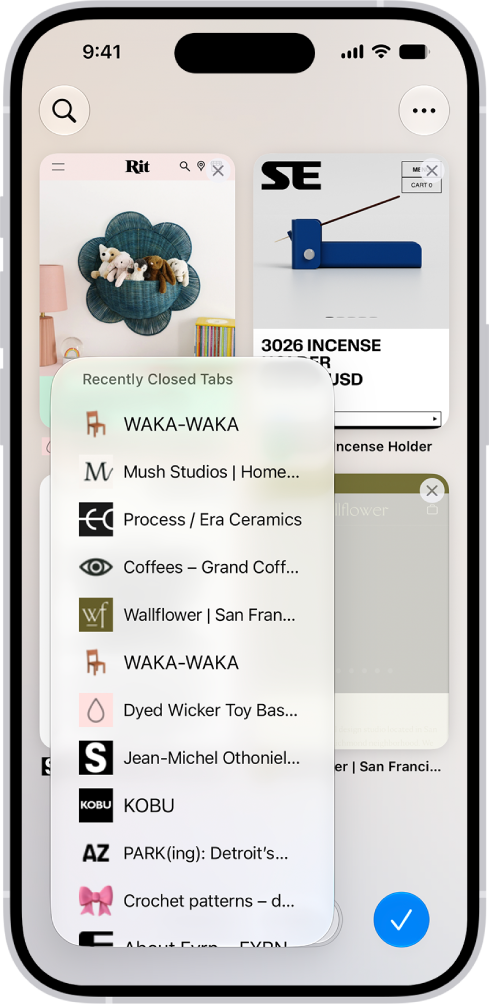
  3. Touch and hold the New Tab button. Choose from the list of recently closed tabs.

    Previews of open tabs are visible on the screen. At the bottom left of the screen, the New Tab button is selected, revealing a list of recently closed tabs.

Tag: Safari

Use Reader to hide navigation menus and other distracting items. Longer pages include a summary and table of contents.

Reader formats a webpage to show only the relevant text and images, and you can return to the full page at any time. You can even automatically use Reader for a website, or for all websites that support it.

Here’s how to hide distractions when reading articles in Safari on iPhone.

A website is open in Safari, with the address field showing that Reader is available for the website.

Show Reader

In Reader, a webpage is formatted to show just the relevant text and images.

  1. Open the Safari app on your iPhone.
  2. On a supported website, tap the Page Menu button. Then tap Show Reader.

To return to the full page, tap the Selected Page Menu button, then tap Hide Reader.

Automatically use Reader for a website

  1. Open the Safari app on your iPhone.
  2. On a supported website, tap the Page Menu button. Then tap Website Settings.
  3. Turn on Use Reader Automatically.
  4. Tap the Done button.

To automatically use Reader for all websites that support it, go to Settings > Apps > Safari > Reader, then turn on All Websites.

Tag: Safari

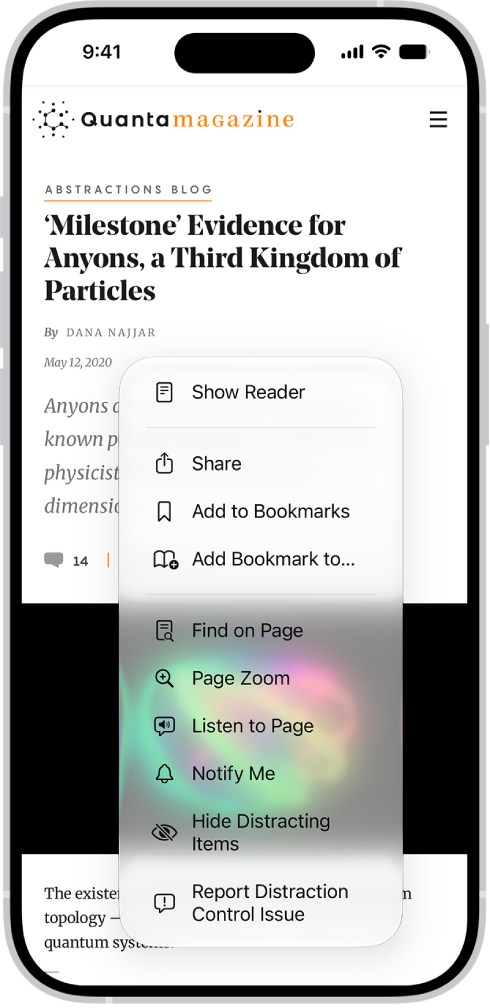
Use Distraction Control to hide menus and other diversions on a webpage. With Hide Distracting Items in the Safari app on your iPhone, you can hide as many items as you want from the webpage, and you’re free to stop hiding items later.

In Safari, the Page Menu button on a website has been tapped, revealing options including Hide Distracting Items.

  1. Start the Safari app on your iPhone.
  2. On a website, tap the Page Menu button and then tap Hide Distracting Items.
  3. Tap an item you want to hide from the webpage and then tap Hide. You can hide as many items as you want.
  4. Tap the Selected button.

To stop hiding items, tap the Clear button.

Tag: Safari

You can find your password for a website or app by searching or sorting your accounts on iPhone. Either way, it’s in the Passwords app, where you can search for the name of the account or sort your accounts to find it.

Find your password for a website or app by searching for the account

  1. Start the Passwords app on your iPhone.
  2. Enter the name of the account in the search field at the bottom of the screen.
  3. Tap the account and tap the Password field.

Find your password for a website or app by sorting your accounts

  1. Start the Passwords app on your iPhone.
  2. Tap All.
  3. Tap the Sort By button. Tap how you want to sort your accounts.
  4. Locate and tap the account and then tap the Password field.
Tag: Safari

You can share a Tab Group and collaborate with people who use iCloud. Collaborators can add and remove tabs from the Tab Group, and everyone sees updates in real time.

Sharing starts from the Tabs button, and you stay in control of who’s in it. You can add and remove people from the Tab Group at any time, and even start a message conversation, FaceTime call, or phone call without leaving Safari.

Everyone you collaborate with must be signed in to their Apple Account, have Safari turned on in iCloud settings, and have two-factor authentication turned on.

Share a Tab Group

  1. Open the Safari app on your iPhone.
  2. Tap the Tabs button.
  3. Tap the More button and tap the Share button.
  4. Tap Messages. Choose the person or group you want to share it with.

You get activity updates in the Messages conversation when someone makes changes in the Shared Tab Group. Tap the updates to go to the Shared Tab Group.

Add and remove people from a shared Tab Group

  1. Open the Safari app on your iPhone.
  2. Tap the Collaborate button.
  3. Tap Manage Shared Tab Group and then do any of the following:
    • Remove someone: Tap a name, then tap Remove Access.
    • Add someone: Tap Share With More People, then invite them.
    • Stop Sharing with everyone: Tap Stop Sharing.

Start a Messages, audio, or video conversation from Safari

You can start a conversation with everyone who shares the Tab Group (using Messages, FaceTime audio, or FaceTime video) without ever leaving Safari.

  1. Open the Safari app on your iPhone.
  2. In Safari, tap the Collaborate button. Tap message, audio, or video to start the conversation.
Tag: Safari

You can see the websites you’ve excluded from saving passwords on iPhone. Each time you enter a password for a website, you’re asked whether to save it and enter it automatically in the future. Said no? You can see all the websites for which you’ve chosen to never save the password. You can remove a website from the list, or remove all of them, and the next time you enter your password for that website, you’ll be asked again.

  1. Open the Settings app on your iPhone.
  2. Tap Apps and tap Passwords.
  3. Below Save Passwords, tap Show excluded websites.

The list includes all websites for which you’ve opted not to save your password. Tip: You can remove a website from the list. Swipe left on the website, or tap Remove All. The next time you enter your password for the website, you’ll be asked if you want the password saved and automatically entered in the future.

Tag: Safari

Install extensions to customize the way your browser works, and they can find coupons when you’re shopping, block content on websites, and more.

With Apple Intelligence, Safari can even build an extension you describe, to customize or add to any webpage. You can also change Safari extension settings, and extensions that are available on other platforms show up on your other devices, too.

Here’s how to get extensions to customize Safari on iPhone.

Add Safari extensions

  1. Open the Safari app on your iPhone.
  2. Tap the Page Menu button and then tap Manage Extensions.
  3. Search for extensions, scan Recommendations, or tap Browse Extensions to look in the App Store.
  4. When you find one you want, tap the price, or if the app is free, tap Get, and follow the onscreen instructions.

Note: To make them easier to find and download, extensions you install for Safari on iPhone also show up in Safari settings on every iPhone, iPad, or Mac signed in to the same Apple Account, as long as they’re available on those platforms.

Create your own extension

With Apple Intelligence, Safari lets you describe and create an extension to customize or add to any webpage you visit. Note: Apple Intelligence on iOS 27 or later is available on an Apple Intelligence-enabled iPhone 15 Pro, iPhone 15 Pro Max, or iPhone 16 model or later. Apple Intelligence is not available in all languages or regions. Usage limits may apply.*

  1. Open the Safari app on your iPhone.
  2. Go to the webpage you want to create an extension for.
  3. Tap the Page Menu button, then tap Describe Extension.
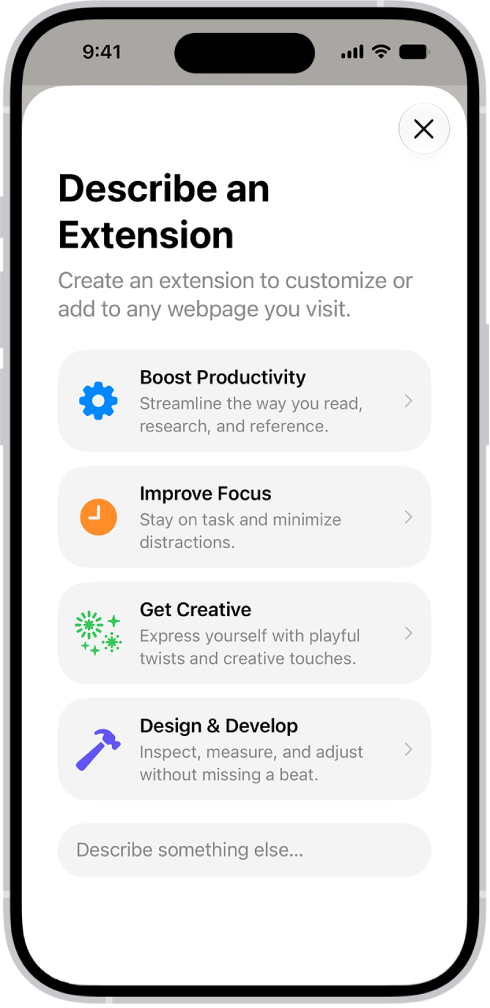
  4. Enter a description of what you want to create, or select one of the suggested categories. Safari checks the App Store to see if a matching extension already exists.

    Safari window showing Describe an Extension options.

  5. Choose an item from the list of matching App Store extensions; if there are no results, tap Create.
  6. Tap the resulting extension to make changes to it, or tap Try to try it out.
  7. While you’re trying out the extension, tap Edit to make additional changes, or tap the checkmark button to save it.

To delete a custom extension, tap the Page Menu button, tap Manage Extensions, select the extension, then tap Delete Extension.

Change Safari extension settings

An extension can customize the way your browser works. At any time, you can turn Safari extensions on or off.

  1. Open the Settings app on your iPhone.
  2. Tap Apps, then tap Safari.
  3. Tap Extensions and tap an extension.
  4. Turn on Allow Extension.

With Safari profiles set up, you’ll need to turn on the extension in each profile you want to use it with. Important: Check your installed extensions and make sure you’re familiar with what they do.

Change Safari extension settings for an individual website

Without changing your overall Safari settings, you can turn an extension on or off for a single website.

  1. Open the Safari app on your iPhone.
  2. Tap the Page Menu button on the left side of the search field and then tap Manage Extensions.
  3. Turn each extension on or off.

Remove an installed Safari extension

  1. Swipe down on the Home Screen and then search for the extension you want to remove.
  2. Touch and hold the extension icon, tap Delete app and then follow the onscreen instructions.

*Apple Intelligence is available with Siri and device language set to Chinese (Simplified), Chinese (Traditional), Danish, Dutch, English, French, German, Italian, Japanese, Korean, Norwegian, Portuguese, Spanish, Swedish, Turkish, or Vietnamese. Some features may not be available in all regions or languages. Some devices may not be available in all regions. Siri AI is available in beta in iOS 27, iPadOS 27, macOS 27, watchOS 27, and visionOS 27 and requires an Apple Intelligence–enabled device set to a supported language. Available in English to start. Siri AI will not be initially available in the EU on iOS, iPadOS, and watchOS. Certain Apple Intelligence features that rely on server-side models are subject to daily usage limits, including but not limited to Siri AI, Intelligent Photo Editing Tools, Image Playground, and AFM 3 Cloud models in Shortcuts. Daily limits may vary by feature, request complexity, system demand, system policies, and other factors. Expanded access to such features will be available for a fee in the future. Use of these features is subject to the Apple Intelligence Terms and Conditions.

Tag: Safari

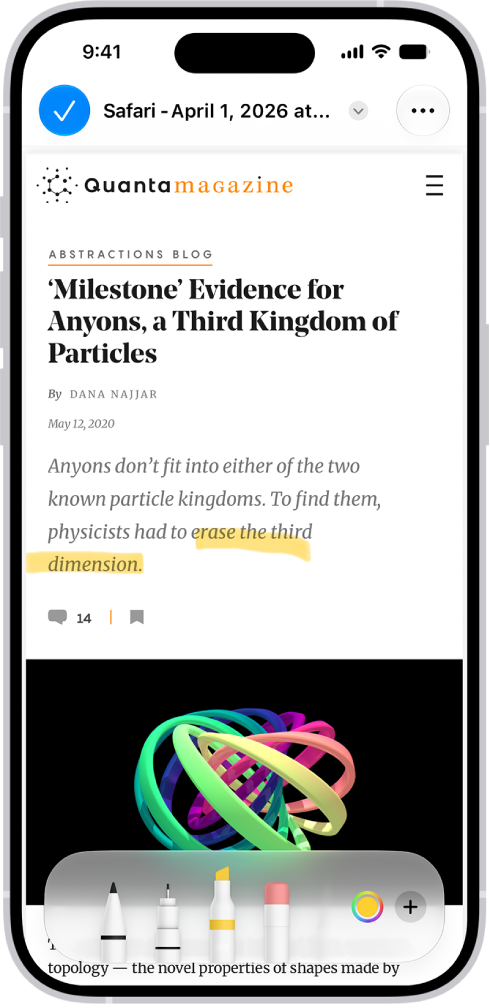
You can mark up a webpage, highlight your favorite parts, draw and write notes, and share your document as a PDF with others. Markup works right inside Safari. When you’re done, your marked-up webpage is saved as a PDF in the location you choose.

A PDF of a webpage is being annotated with the Markup tools, which are at the bottom of the screen. The webpage has a selection highlighted.

  1. Open the Safari app on your iPhone.
  2. Go to a webpage, tap the Page Menu button, and then tap Share. If your Tabs layout is Bottom or Top, tap the Share button.
  3. Tap Markup. Use the tools to annotate the webpage.
  4. Tap the Done button and then choose Save File To.
  5. Enter a name for the file, then tap Save.
Tag: Safari

You can open and use a website as if it’s an app. You add it to your Home Screen from Safari’s Share menu, with Open as Web App turned on, and it opens just like an app. You can even get notifications from the web app.

  1. Start the Safari app on your iPhone.
  2. Go to the website.
  3. Tap the Page Menu button and tap Share. If your Tabs layout is Bottom or Top, tap the Share button.
  4. Scroll down the list of options and tap Add to Home Screen. If you don’t see Add to Home Screen, you can add it. Scroll down to the bottom of the list, tap Edit Actions, and then tap Add to Home Screen.
  5. Turn on Open as Web App.
  6. Tap Add.

An icon for the web app is added to your Home Screen. When you tap the icon, the website opens just like an app. You can receive notifications from the web app and quit the web app like you would any app.

Tag: Safari