Got a tip for us?

Safari

You can add websites to Favorites, edit favorites, and show the Favorites bar in Safari on your iPad.

You can copy, open, delete, rename, or reorder a favorite, and recently saved favorites appear at the top of the sidebar. The newest is on the left. You can even show only an icon for a webpage in the Favorites bar.

Here’s how to bookmark a website as a favorite in Safari on iPad.

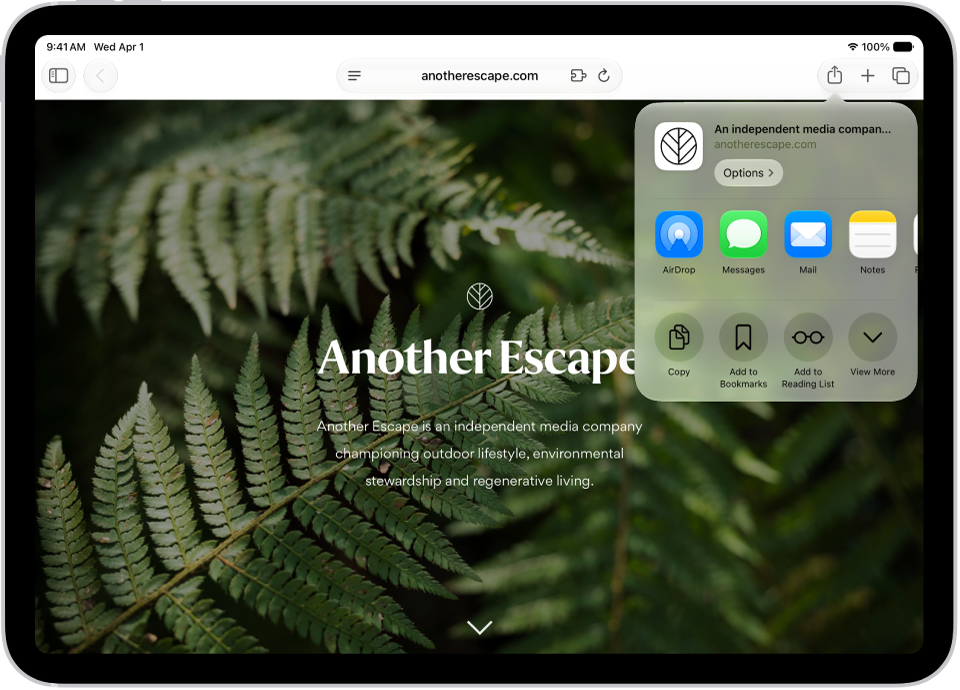
An open webpage. The Share button has been tapped, showing options for AirDrop, Messages, Mail, Notes, Copy, Add to Bookmarks, Add to Reading List, and More.

Add a website to Favorites

  1. Go to the Safari app on your iPad.
  2. Go to the website.
  3. Tap the Share button to the right of the search field and tap View More. Tap Add to Favorites.

Edit favorites

  1. Open the Safari app on your iPad.
  2. Tap the Show Sidebar button and then tap Bookmarks (below Saved).

    Recently saved bookmarks, favorites, and reading list items appear at the top of the sidebar. The newest is on the left, and you can scroll through the others. Touch and hold a favorite to copy, open, edit, or delete it.

  3. Tap Favorites, then do any of the following:

    • Delete a favorite: Touch and hold the favorite, then tap Delete.
    • Rename a favorite: Touch and hold the favorite, tap Edit and enter a new name. Then tap Save.
    • Reorder favorites: Tap the More button, tap Select Bookmarks, touch and hold the Reorder button, and then drag the favorite to a new location. Tap the Done button to return to your favorites.

Show the Favorites bar

  1. Open the Settings app on your iPad.
  2. Tap Apps, then tap Safari.
  3. Turn on Show Favorites Bar (below General).

Show only an icon for one webpage in the Favorites bar

  1. Open the Safari app on your iPad.
  2. Touch and hold the webpage in the Favorites bar and then tap Edit.
  3. Turn off Show Title, then tap Save.

Show only an icon for all webpages in the Favorites bar

  1. Open the Settings app on your iPad.
  2. Tap Apps, then tap Safari.
  3. Tap Favorites Bar Appearance (below General). Tap Show Icons Only.

Rename a webpage title in the Favorites bar

  1. Open the Safari app on your iPad.
  2. Touch and hold the webpage title in the Favorites bar. Then tap Edit.
  3. Enter a new name and then tap Save.

See also

Tag: Safari

The Safari app brings the internet to your iPad. You can browse the web from your start page, bookmark websites to revisit later, and keep your browsing activity private with Private Browsing, where the tabs you open don’t appear in History. You can also remove cookies and clear your history.

The Safari start page gives you easy access to your Favorites, Reading List, Suggestions, and more. Removing cookies and clearing the cache also undoes permissions you granted websites to use your location or send you notifications.

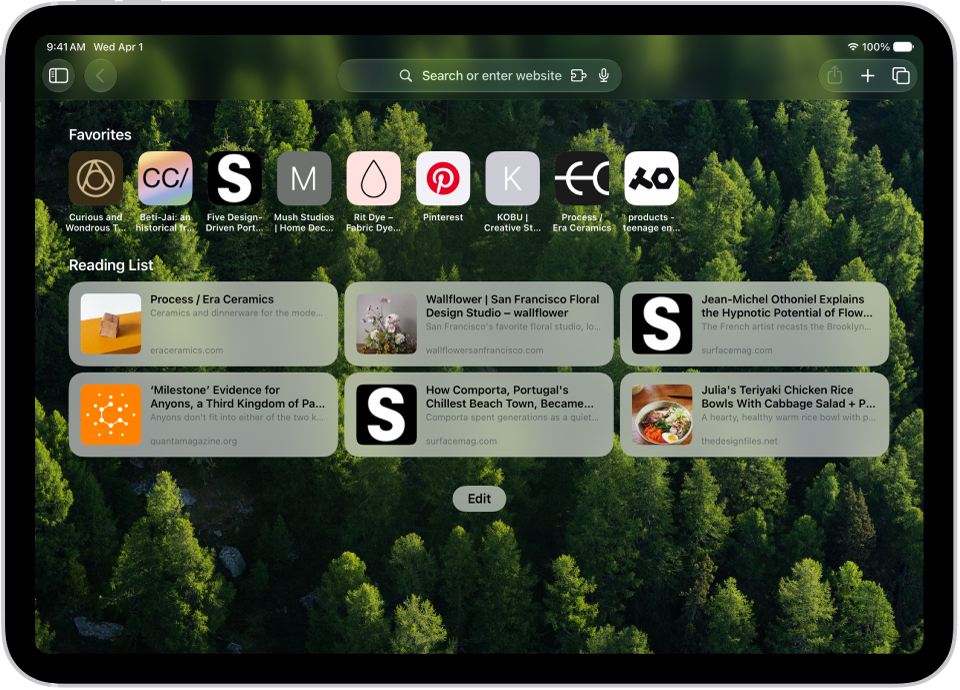
The Safari start page shown with sections for Favorites and the Reading List. Along the top, from left to right, are the Sidebar button, the Previous button, the search field, the Share button, the New Tab button, and the Tab Overview button.

Start browsing here

The Safari start page is the place to start browsing and customize your preferences, with easy access to your Favorites, Reading List, Suggestions, and more. Open the Safari app, or tap the Tabs button, then tap the Add button to open a new start page.

An open webpage. The Share button has been tapped, showing options for AirDrop, Messages, Mail, Notes, Copy, Add to Bookmarks, Add to Reading List, and More.

Bookmark a website

Save a website to revisit later. Tap the Share button to the right of the search field, then tap Add to Bookmarks.

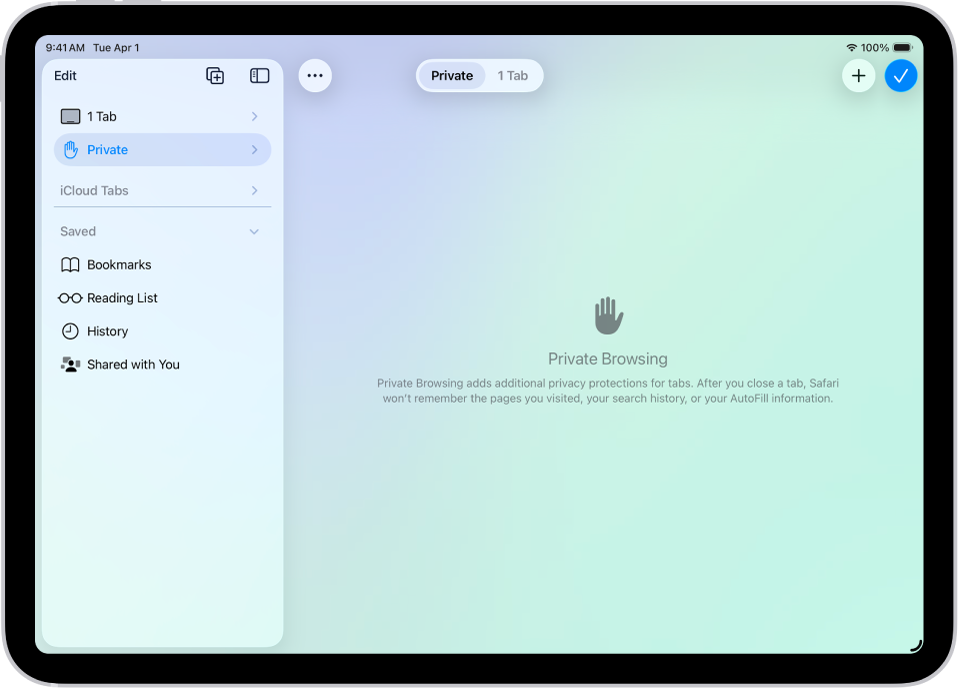
The Safari sidebar on the left side of the Safari window is open, with Private selected. On the right is an explanation that Safari won’t remember your browsing.

Browse privately

Keep your browsing activities to yourself. When you use Private Browsing, the tabs you open don’t appear in History on iPad or in the list of tabs on your other devices. Tap the Show Sidebar button, then tap Private.

In Safari, the Reading List is open in the sidebar on the left and displays a list of websites saved to the Reading List. A physics article appears on the right.

Remove cookies and clear your cache

Remove cookies and clear the cache on your iPad to undo permissions you granted to websites to use your location (or send you notifications) and to erase your browsing history. Tap the Show Sidebar button, tap History, tap the More button, then tap Clear.

Note: Clearing your browsing history in Safari doesn’t clear any browsing histories kept independently by websites you visited, or your browsing history in other apps.

If you’re browsing with Safari, these guides can help:

Tag: Safari

You can use Private Browsing Mode, view the Privacy Report, and adjust settings in the Safari app to keep your browsing activities private and help protect yourself from malicious websites.

Tabs you open in Private Browsing don’t appear in History on iPad or in the tab list on your other devices, even if you’re signed in to the same Apple Account. And if you have a passcode set, Private Browsing locks when it’s not in use.

Here’s how to browse the web privately in Safari on iPad.

Visit sites privately

Tabs you open with Private Browsing stay out of History on iPad and off the tab list on your other devices. Those tabs aren’t shared with your other Apple devices, even when you’re signed in to the same Apple Account.

With a passcode set on your iPad, Private Browsing locks whenever it’s not in use, but not always immediately.

  1. Open the Safari app on your iPad.
  2. Tap the Show Sidebar button, then tap Private.

    If you don’t see Private, tap the Back button at the top of the sidebar.

  3. Follow the directions onscreen to unlock Private Browsing.

    To exit Private Browsing, tap the Show Sidebar button, then tap a Tab Group. The websites you have open in Private Browsing stay open, and Private Browsing locks.

To allow Private Browsing to be locked, go to Settings > Apps > Safari, then turn on Require Passcode to Unlock Private Browsing, Require Face ID to Unlock Private Browsing (supported models), or Require Touch ID to Unlock Private Browsing (supported models).

Note: Any Safari extensions you have installed that have access to browsing data are automatically turned off in Private Browsing. To turn on an extension in Private Browsing, see Change Safari extension settings.

Choose a search engine for Private Browsing

  1. Open the Settings app on your iPad.
  2. Tap Apps, then tap Safari.
  3. Turn off Also Use in Private Browsing.
  4. Tap Private Search Engine, then choose a search engine.

View the Privacy Report

Safari helps stop trackers from following you across websites and seeing your IP address. To see a summary of the trackers Intelligent Tracking Prevention has encountered and prevented on the webpage you’re currently visiting, check the Privacy Report. In Safari settings, you can also make adjustments that keep your browsing private from other people who use the same device and help protect you from malicious websites.

  1. Open the Safari app on your iPad.
  2. Tap the Page Menu button and tap Privacy & Security.
  3. Tap Privacy Report.

Use iCloud Private Relay to browse the web with more privacy

When you subscribe to iCloud+, you can use iCloud Private Relay to help prevent websites and network providers from creating a detailed profile about you. When iCloud Private Relay is turned on, the traffic leaving your iPad is encrypted and sent through two separate internet relays. This prevents websites from seeing your IP address and exact location while it prevents network providers from collecting your browsing activity in Safari. See Protect your web browsing with iCloud Private Relay.

See Protect your web browsing with iCloud Private Relay to learn how to:

  • Turn iCloud Private Relay completely on or off for your iPad.
  • Turn iCloud Private Relay on or off for a specific Wi-Fi or cellular network.
  • Turn iCloud Private Relay off temporarily.
  • Set the specificity of your IP address location.

Note: iCloud Private Relay isn’t available in all countries or regions.

Temporarily allow a website to see your IP address

Some websites rely on IP filtering, monitoring, or rate-limiting and might need your IP address to be visible. For that website only, you can turn off iCloud Private Relay temporarily.

  1. Open the Safari app on your iPad.
  2. Go to the website.
  3. Tap the Page Menu button on the left side of the search field and tap Privacy & Security.
  4. Tap Show IP Address (if available).

    Your IP address remains visible to that website until you leave the website or close its Safari tab. iCloud Private Relay remains on for other websites.

To turn off or pause iCloud Private Relay for all websites, see Protect your web browsing with iCloud Private Relay.

Control privacy and security settings for Safari

  1. Open the Settings app on your iPad.
  2. Tap Apps, then tap Safari.
  3. Turn any of the following on or off:
    • Prevent Cross-Site Tracking: Safari limits third-party cookies and data by default. Turn this option off to allow cross-site tracking.
    • Hide IP address: Safari automatically protects your IP address from known trackers. For eligible iCloud+ subscribers, your IP address is protected from trackers and websites as you browse in Safari. If this option is off, your IP address isn’t hidden.
    • Fraudulent Website Warning: Safari displays a warning if you’re visiting a suspected phishing website. Turn this option off if you don’t want to be warned about fraudulent websites. (Not available in all countries or regions.)
    • Camera: Choose whether Safari websites can use your camera without asking you first. Tap Camera and choose Ask, Deny, or Allow.
    • Microphone: Choose whether Safari websites can use your microphone without asking you first. Tap Microphone, then choose Ask, Deny, or Allow.
    • Location: Choose whether Safari websites can use your location without asking you first. Tap Location and then choose Ask, Deny, or Allow.

To set exceptions for a specific website, open the website in the Safari app, tap the Page Menu button, tap Website Settings, then tap the setting you want to change below Website Settings For.

See also

Tags: iCloud, Safari

Save interesting items in your Reading List so you can revisit them later. You can even download the items in your Reading List and read them when you’re not connected to the internet.

A linked page can be added without opening it, too. You can view your Reading List in the sidebar, and have Safari save items automatically for offline reading. With Apple Intelligence, the items you add can be organized into suggested topics, too.

In Safari, the Reading List is open in the sidebar on the left and displays a list of websites saved to the Reading List.

Add the current webpage to your Reading List

  1. Go to the Safari app on your iPad.
  2. Tap the Share button and tap Add to Reading List.

Quick tip: You can add a linked page without opening it. Just touch and hold the link, and then tap Add to Reading List.

View your Reading List

  1. Start the Safari app on your iPad.
  2. Tap the Show Sidebar button and tap Reading List (below Saved).

    If you don’t see Reading List, tap the Back button at the top of the sidebar.

    Recently saved reading list items appear at the top of the sidebar. The newest is on the left, and you can scroll through the others. Touch and hold a reading list item to copy, open, mark it as read, or delete it.

    Tip: With Apple Intelligence, bookmarks and items you add to your Reading List are automatically organized into suggested topics if three or more of them are related. Tap a topic to view thumbnails, then tap a thumbnail to open it.

To delete an item from your Reading List, touch and hold the item, then tap Delete.

Note: Apple Intelligence on iPadOS 27 or later is available on an Apple Intelligence-enabled iPad mini (A17 Pro) and iPad models with M1 or later. Apple Intelligence is not available in all languages or regions. Usage limits may apply.*

Automatically save all Reading List items for offline reading

  1. Start the Settings app on your iPad.
  2. Tap Apps, then tap Safari.
  3. Turn on Automatically Save Offline (below Reading List).

*Apple Intelligence is available with Siri and device language set to Chinese (Simplified), Chinese (Traditional), Danish, Dutch, English, French, German, Italian, Japanese, Korean, Norwegian, Portuguese, Spanish, Swedish, Turkish, or Vietnamese. Some features may not be available in all regions or languages. Some devices may not be available in all regions. Siri AI is available in beta in iOS 27, iPadOS 27, macOS 27, watchOS 27, and visionOS 27 and requires an Apple Intelligence–enabled device set to a supported language. Available in English to start. Siri AI will not be initially available in the EU on iOS, iPadOS, and watchOS. Certain Apple Intelligence features that rely on server-side models are subject to daily usage limits, including but not limited to Siri AI, Intelligent Photo Editing Tools, Image Playground, and AFM 3 Cloud models in Shortcuts. Daily limits may vary by feature, request complexity, system demand, system policies, and other factors. Expanded access to such features will be available for a fee in the future. Use of these features is subject to the Apple Intelligence Terms and Conditions.

See also

Tag: Safari

You can easily find and organize web links that friends share with you in Messages conversations. Links shared with you are added to the Shared with You section of the Sidebar in Safari, and you can keep them on your start page, remove them, or organize related links into Tab Groups.

You can display them on your Safari start page, so you see them every time you open a new page, and you can continue the conversation without leaving Safari.

See links from friends in Safari

To find links shared with you easily, show them on your Safari start page, where they’re listed every time you open a new page.

  1. Go to the Safari app on your iPad.
  2. Tap the Show Sidebar button and then tap Shared with You.

    If you don’t see Shared with You, tap the Back button at the top of the sidebar.

    You can also have links shared with you appear on your start page, under Suggestions. See Customize your start page.

Quick tip: You don’t have to leave Safari to continue the conversation. Tap the button below the link preview, and the Messages conversation where the link was shared opens.

Remove a link from the Shared with You section

  1. Open the Safari app on your iPad.
  2. In Shared with You, touch and hold the preview image of a link.
  3. Tap Remove Link.

Organize shared links in a Tab Group

You can group related shared web links into Tab Groups to make them easier to find.

  1. Open the Safari app on your iPad.
  2. In Shared with You, touch and hold the preview image of the link you want to move. Then tap Open in Tab Group.
  3. Tap New Tab Group to create one, or add the link to a Tab Group you already have.

See also

Tag: Safari

When you subscribe to iCloud+, you can use Hide My Email to keep your personal email address private. With Hide My Email, you can generate unique, random email addresses that forward to your personal email account, so you don’t have to share your real email address when filling out forms on the web or signing up for newsletters.

If you don’t like the suggested address, you can get a new one, and you can delete a Hide My Email address at any time.

  1. When you’re asked for your email address on a website, tap the email address field.
  2. Tap Hide My Email above the keyboard.

    The Hide My Email screen suggests a new, randomly generated Hide My Email address.

  3. If you don’t want to use the suggested address, tap the Reload button to see a new suggested address.
  4. Tap Continue.

At any time, you can delete the Hide My Email address; read our guide, Create and manage Hide My Email in Settings.

See also

Tags: iCloud, Safari

The Safari app brings the internet to your iPhone. You can browse the web, bookmark websites to revisit later, keep your browsing activity private, and much more.

Every new tab opens on the Safari start page, with easy access to your Favorites, Reading List, Bookmarks, and History. And when you want to keep your browsing activities to yourself, there’s Private Browsing.

Here’s how to get started with Safari on iPhone.

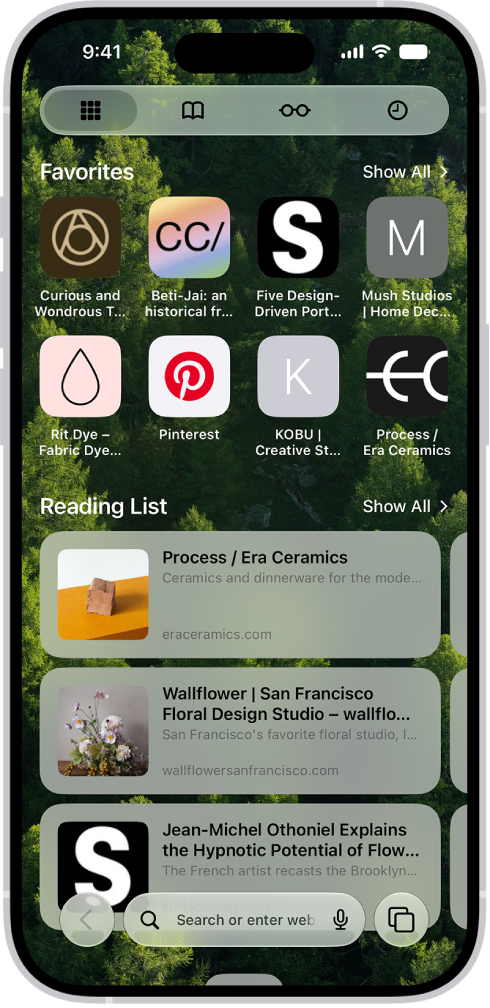
The Safari start page shown with selections for Favorites and the Reading List.

Start browsing here

The Safari start page is the place to start browsing and customize your preferences, with easy access to your Favorites, Reading List, Bookmarks, and History. Open the Safari app, or tap the Tabs button, then tap the Add button to open a new start page.

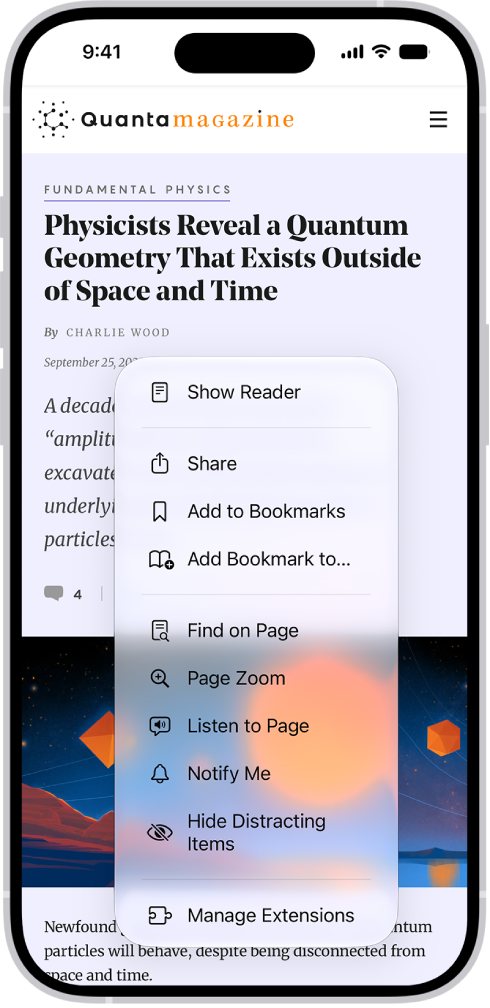
The Bookmarks and All Tabs screen in the Safari app, with options to Share, Add to a specific folder, Add to a folder of your choice, add a New Tab, and add a New Private Tab.

Bookmark a website

Save a website to revisit later. Tap the Page Menu button, then tap “Add Bookmark to.”

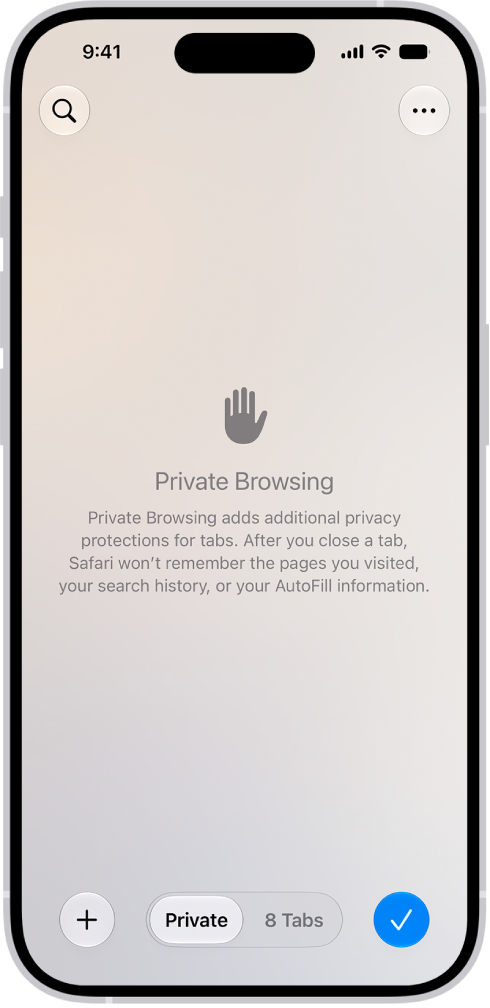
A Private Browsing screen in the Safari app. The word Private appears in the field at the bottom of the screen.

Browse privately

Keep your browsing activities to yourself. When you use Private Browsing, the tabs you open don’t appear in History on iPhone or in the list of tabs on your other devices. Tap the Tabs button, then swipe right on the tab bar until Private appears.

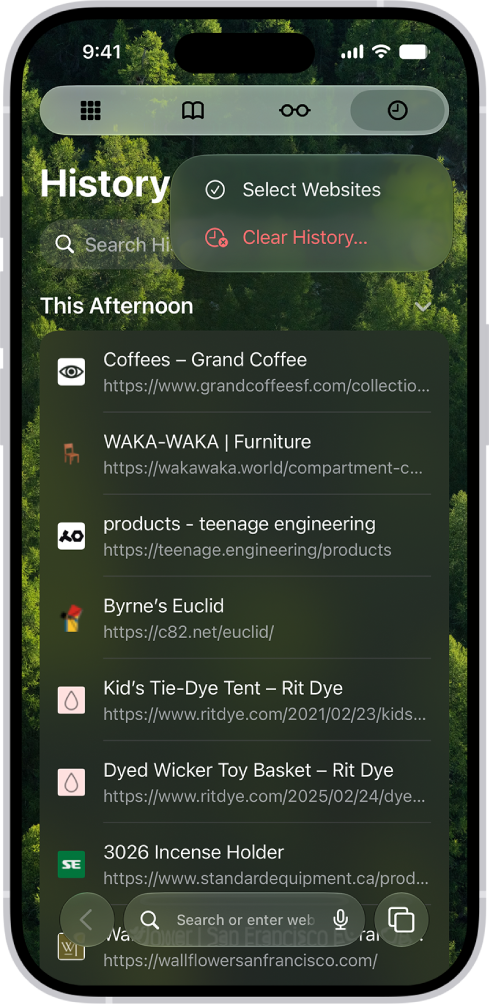
The Clear History menu in the Safari app with Clear History highlighted.

Remove cookies and clear your cache

Remove cookies and clear the cache on your iPhone to remove permissions you granted to websites to use your location (or send you notifications) and to erase your browsing history. Go to your start page (or tap the Tabs button, then tap the Add button to open a new one). Tap the History button, tap the More button, then tap Clear History. Note: Clearing your browsing history in Safari doesn’t clear any browsing histories kept independently by websites you visited, or your browsing history in other apps.

Tag: Safari

You can view the tabs that are open on your other Apple devices and keep tabs and Tab Groups updated across them. You must be signed in to iCloud with the same Apple Account on all your devices to manage Safari tabs on those devices.

You can even close a tab on another Apple device. To see tabs open on your Mac, too, Safari needs to be on in iCloud on your Mac, with two-factor authentication.

View tabs that are open on your other Apple devices

  1. Start the Safari app on your iPhone.
  2. Tap the Tabs button.
  3. Tap the Add button. Scroll to see the tabs open on your other devices at the bottom of the start page.

To close a tab on another Apple device, touch and hold the link, then choose Close. Note: To view tabs open on your other devices, you must have iCloud Tabs turned on for your start page.

Keep tabs and Tab Groups updated across your devices

  1. Start the Settings app on your iPhone.
  2. Tap your name, then tap iCloud.
  3. Tap See All and then make sure Safari is turned on.

Note: Tabs open on your Mac show up here too, as long as Safari is turned on in iCloud settings on your Mac, you’re signed in to the same Apple Account, and you use two-factor authentication.

Tags: iCloud, Safari

You can block pop-ups in Safari on iPhone. That way, pop-up windows don’t open while you’re browsing websites. Block Pop-ups is just one setting in the Settings app on your iPhone, which you can switch off again later if you change your mind.

  1. Start the Settings app on your iPhone.
  2. Tap Apps, then tap Safari.
  3. Turn on Block Pop-ups.
Tag: Safari

You can export selected data from Safari, and then import that data into another browser. Below History and Website Data in Safari’s settings, you select the data to export. And if you use Safari profiles, you can choose the profile you want to export data from.

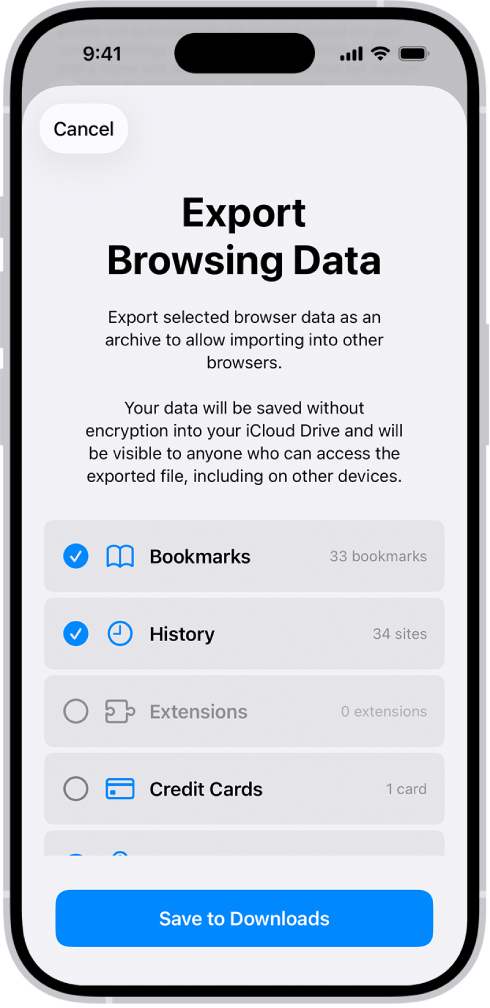
From Safari, you can export these kinds of data:

  • Bookmarks
  • History
  • Extensions
  • Credit cards
  • Passwords

WARNING: Your exported data is not encrypted and is visible to anyone who can access the file. After you import the data into another browser, delete the file you exported.

The Export Browsing Data screen, showing the data you can export from Safari to another browser.

  1. Open the Settings app on your iPhone.
  2. Tap Apps, then tap Safari.
  3. Below History and Website Data, tap Export.
  4. Select the data to export.

    If you created profiles for your browsing in Safari, choose the profile you want to export data from, or choose All Profiles. Each profile has its own history and extensions data. The data for bookmarks, credit cards, and passwords is the same across all profiles.

  5. Tap Save to Downloads.
  6. Tap Done.

You’ll find the exported data in your Downloads folder, saved as a .zip file.

Tag: Safari