Got a tip for us?

Safari

You can create multiple Safari profiles, like Personal, Work, and School, and use them to separate your internet browsing into different themes. Each profile has separate favorites, histories, tabs, and Tab Groups. You can add, edit, or remove a profile at any time.

Profiles also follow you: any iPhone, iPad, or Mac signed in to the same Apple Account shows them in its Safari settings. You can also choose a bookmarks folder for each profile’s favorites.

Create a profile

If you’re signed in to the same Apple Account on any iPhone, iPad, or Mac, the profiles you create on iPhone also appear there in Safari settings.

  1. Open the Settings app on your iPhone.
  2. Tap Apps, then tap Safari.
  3. Tap New Profile and tap Name.
  4. Enter a name for this profile, then choose an icon and color.
  5. Below Settings, tap Favorites to choose a bookmarks folder.

    If you have multiple folders of bookmarks, this option selects the folder of bookmarked websites that are recommended as you enter an address, search, or create a new tab. For example, if you have a folder of bookmarks related to work, you can create a work profile and use this field to ensure that those websites are suggested as you type in the address field.

  6. Tap Open New Tabs and choose the page you want new tabs to open to.
  7. Tap the Done button.

Use profiles in Safari

With a profile, you can easily browse the internet or move between profiles.

  1. Open the Safari app on your iPhone.
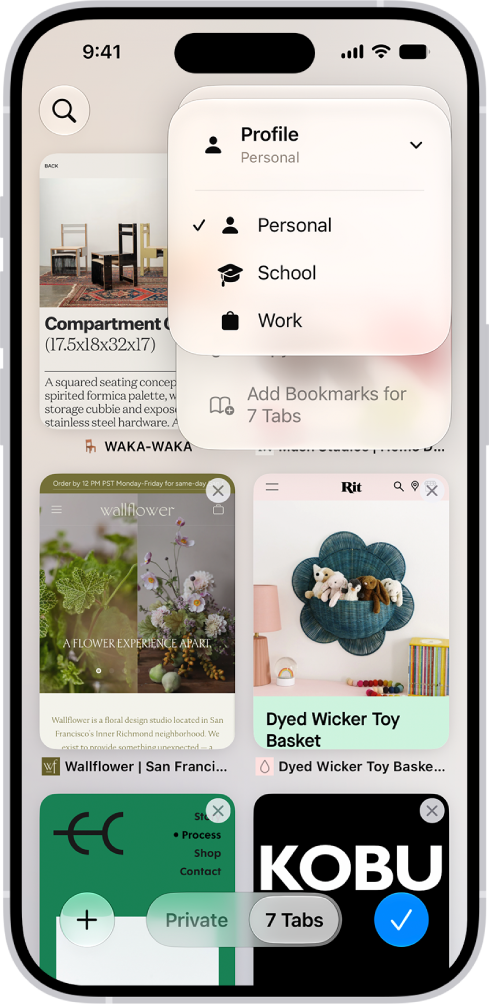
  2. Tap the Tabs button and tap the More button.
  3. Tap Profile. Select the profile you want to use.

Note: You’ll find your saved bookmarks and passwords in iCloud keychain in any profile.

An iPhone screen, showing currently open tabs and a menu of Personal, School, and Work profiles. The Personal profile is selected.

Edit a profile

  1. Open the Settings app on your iPhone.
  2. Tap Apps, then tap Safari.
  3. Tap the profile you want to edit.

Choose which extensions to use with a profile

To customize the way your browser works on iPhone, you can install extensions.

If you’ve installed extensions on your iPhone, you can customize which ones you’d like to use with each profile.

  1. Open the Settings app on your iPhone.
  2. Tap Apps, then tap Safari.
  3. Tap Extensions and tap an extension.
  4. Turn on the profiles you want to use with this extension (below Allow Extension In).

Remove a profile

Deleting a profile, which you can do at any time, also erases the favorites, history, and Tab Groups associated with it and closes all websites open in the profile.

Important: This action can’t be undone.

  1. Open the Settings app on your iPhone.
  2. Tap Apps, then tap Safari.
  3. Tap a profile.
  4. Tap Delete Profile, then tap Delete to confirm.
Tag: Safari

You can enable cookies. Some websites use cookies to keep track of your activity, such as your settings, and enabling cookies allows websites that require cookies to work normally. It’s one setting, Block All Cookies, in Safari’s Advanced settings on your iPhone.

  1. Start the Settings app on your iPhone.
  2. Tap Apps, then tap Safari.
  3. Tap Advanced and turn off Block All Cookies.
Tag: Safari

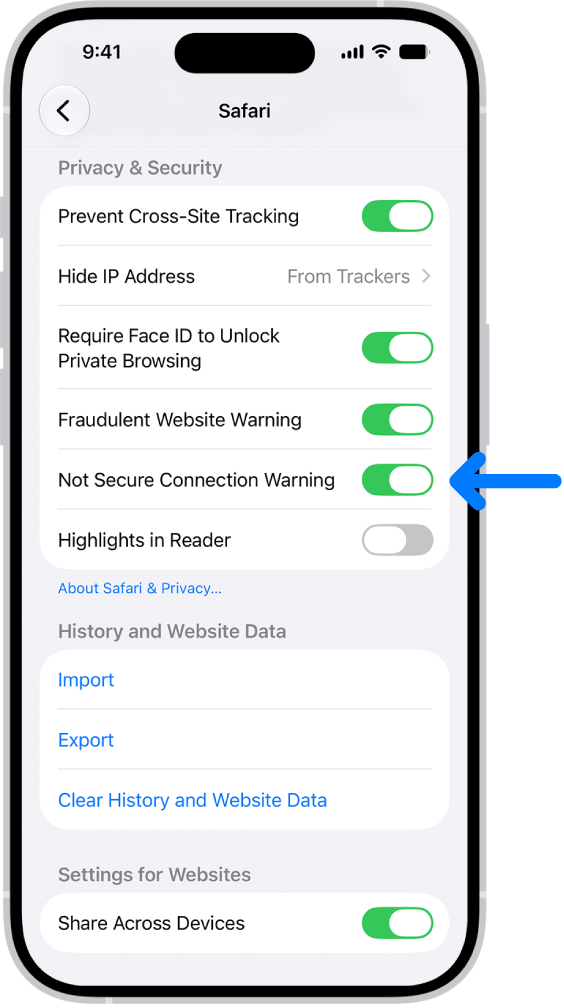
Websites use HTTP or HTTPS to transmit information to and from Safari, and HTTP doesn’t provide a secure connection. You can choose to receive a warning when you visit websites that use HTTP , with a setting called Not Secure Connection Warning.

The Not Secure Connection Warning control, located below Privacy & Security on the Safari screen in Settings.

  1. Start the Settings app on your iPhone.
  2. Tap Apps, then tap Safari.
  3. Below Privacy & Security, turn on Not Secure Connection Warning.
Tag: Safari

Enter a URL or a search term to find websites or specific information.

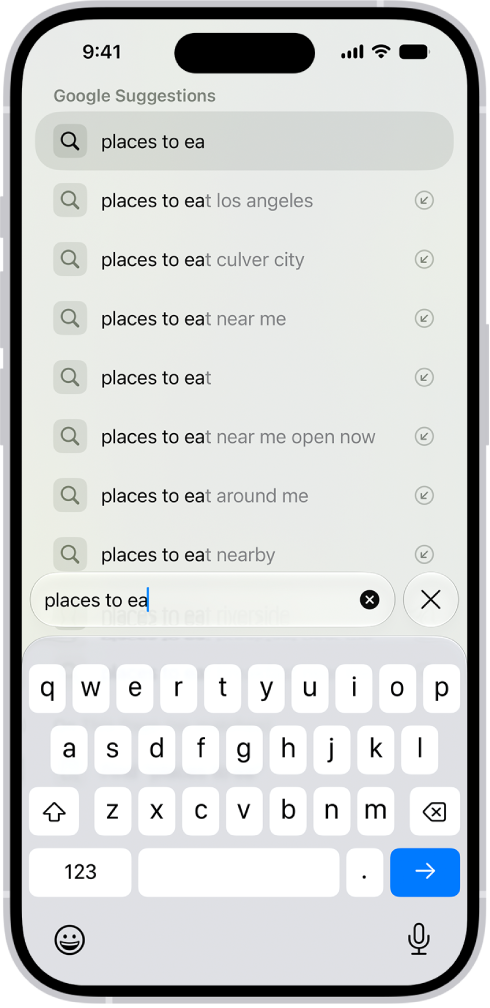
Search suggestions can help as you go, and you can also search a webpage, choose a search engine, and see your favorite websites while you search. And if you don’t want to see suggested search terms, you can turn off Search Engine Suggestions in Safari’s settings on your iPhone.

Here’s how to search for websites in Safari on iPhone.

A Safari search screen, with the onscreen keyboard at the bottom of the screen. Above the keyboard, the search field contains text, and related search suggestions are listed above.

Search the web

  1. Start the Safari app on your iPhone.
  2. Enter a search term, phrase, or URL in the search field.
  3. Tap a search suggestion, or tap the Go button on the keyboard.

If you don’t want to see suggested search terms, go to Settings > Apps > Safari, then turn off Search Engine Suggestions.

See your favorite websites while you search

  1. Start the Settings app on your iPhone.
  2. Tap Apps, then tap Safari.
  3. Tap Start Page Favorites and select the folder with the favorites you want to see.

Search a webpage

Looking for a specific word or phrase on a webpage? You can find it.

  1. Start the Safari app on your iPhone.
  2. Tap the Page Menu button. Tap the Search Document button.
  3. Enter the word or phrase in the search field.
  4. Tap the Next Result button to jump to other mentions.

Choose a search engine

  1. Start the Settings app on your iPhone.
  2. Tap Apps, then tap Safari.
  3. Tap Search Engine and then choose a search engine.

Search for objects in your photos

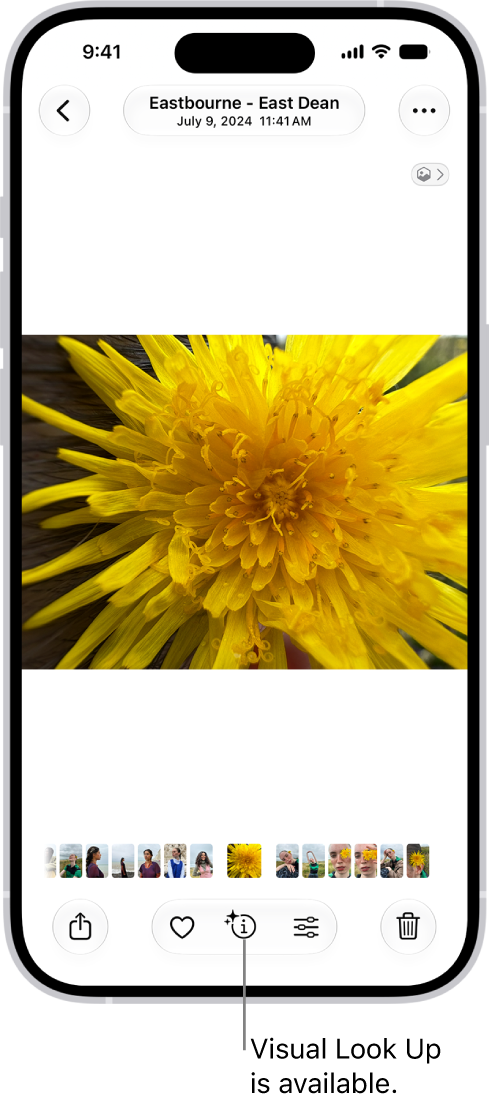
Visual Look Up helps you identify and learn about popular landmarks, plants, pets, and more in your photos and videos.

A photo is open in the Photos app. At the bottom of the screen, the Info button displays an icon indicating that Visual Look Up information is available.

Quick tip: The same feature can also scan text and search online.

Tag: Safari

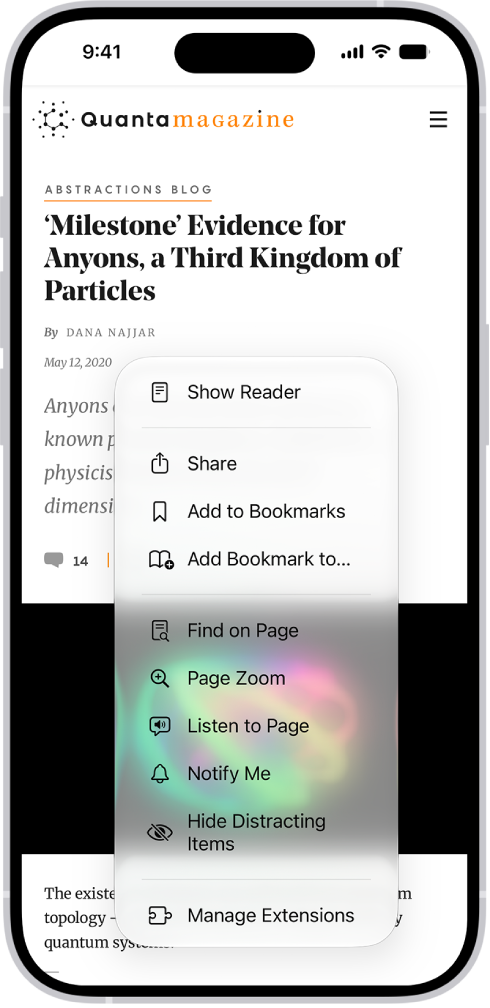
You can have supported webpages read aloud in the Safari app on your iPhone. Listen to Page is in the Page Menu, and while you’re listening to a webpage, you can pause listening, then start listening again from the same menu.

A website is open in Safari. The Page Menu button is selected and listening controls are displayed.

Listen to a webpage

  1. Start the Safari app on your iPhone.
  2. Open the page you want to listen to.
  3. Tap the Page Menu button. Then tap Listen to Page.

Pause listening

While listening to a webpage, tap the Page Menu button, then tap the Pause button. To start listening again, tap the Page Menu button, then tap the Play button.

Tag: Safari

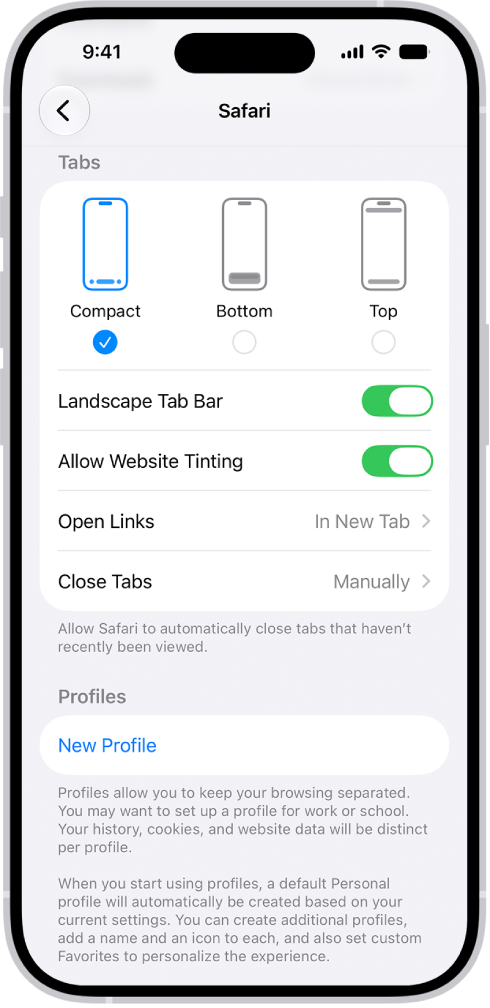
You can choose the tab bar layout that works best for you in the Safari app. There are three: Compact, Bottom, and Top. Compact keeps the tab bar small and below webpages, Bottom expands it below webpages, and Top expands it above webpages, and both show additional controls at the bottom of the screen.

  1. Open the Settings app on your iPhone.
  2. Tap Apps, then tap Safari.
  3. Scroll down to Tabs, then choose one of the following:

    • Compact: Select this option to compress the tab bar, show it below webpages, and show additional controls on both sides of the tab bar.
    • Bottom: Select this option to expand the tab bar, show it below webpages, and show additional controls at the bottom of the screen.
    • Top: Select this option to expand the tab bar, show it above webpages, and show additional controls at the bottom of the screen.

    A screen showing three Safari layout options: Compact, Bottom, and Top.

Tag: Safari

A certificate, also known as a “digital certificate” or a “public key certificate,” is a file that helps keep web communications secure. It’s issued by a trusted organization. Safari relies on certificates whenever you visit an encrypted website, for example, to do online banking, so your connection stays secure.

Certificates are issued by trusted organizations, such as VeriSign, Inc. or RSA Security, Inc. When you visit an encrypted website—for example, to do online banking—Safari checks if the site’s certificate is legitimate. If it’s not, Safari warns you.

An encrypted website and Safari work together to encrypt information you exchange with the site. The key used for the encryption is contained in the site’s security certificate. This protects your sign-in information, credit card numbers, addresses, and other secure data.

If you need to connect to a website that requires a personal certificate, you’re provided with a certificate and instructions for installing it. After it’s installed, you gain authenticated access to the website automatically. If you’re unable to access it, contact the website administrator.

Important: If a website doesn’t use the HTTPS protocol, have a digital identity certificate, or encrypt information, the words “Not Secure” appear in the search field. Don’t enter personal or financial information on a website that isn’t encrypted. The website you’re visiting might not be the website you want, and information you enter is vulnerable to theft. Instead, go back to the webpage where you signed in and check for a link to another version of the site that’s encrypted—for example, “Use our secure site.” If available, use it, even if you don’t expect to view or provide private information.

Although encryption ensures that your connection to a website is secure, it doesn’t guarantee the website is trustworthy. Some fraudulent websites masquerade as trusted ones by changing one or two letters of the address, so always check the address in the Safari toolbar to confirm it’s correct.


Tag: Safari

You can import data into Safari that you exported from another browser. Browser data can include bookmarks, history, extensions, credit cards, and passwords.

The data can come as a ZIP file, and there might be individual files for each piece of browsing data, like bookmarks or history. After you import it, a description of the browser data appears, and any passwords go into the Passwords app. For security, you’ll want to delete the file or folder you imported, since it may include unencrypted data.

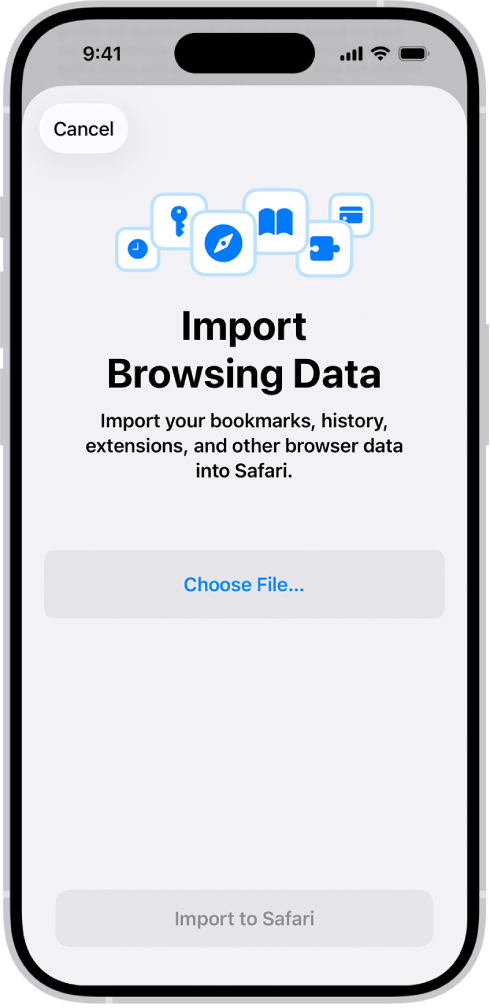
The Import Browsing Data screen, prompting you to choose a file to import.

  1. Start the Settings app on your iPhone.
  2. Tap Apps, then tap Safari.
  3. Below History and Website Data, tap Import.
  4. Tap Choose File and then choose a file (or a ZIP file of files) to import.

    Individual files might be available for each piece of browsing data, such as bookmarks or history.

  5. Tap Import to Safari.

    A description of the browser data you imported appears.

    Note: Any passwords you import go into the Passwords app.

  6. Tap Done.

WARNING: For security, delete the file or folder you imported. It may include unencrypted data and could be visible to anyone who can access it.

Tag: Safari

You can hide the recent searches that appear when the search field is empty in the Safari app. It’s one setting, Show Recent Searches, in Safari’s settings on your iPhone. When you turn it off, recent searches no longer appear in the empty search field.

  1. Open the Settings app on your iPhone.
  2. Tap Apps, then tap Safari.
  3. Below Search, turn off Show Recent Searches.
Tag: Safari