Got a tip for us?

Setup

If your Apple Watch is disabled because you forgot your passcode or entered an incorrect passcode too many times, you can reset it from either your Apple Watch or iPhone and set it up again.

If it has a cellular plan, you can keep your plan to pair again, or remove it to pair with another iPhone. And after you erase it, Activation Lock is enabled, so your Apple Account and password are required to unpair it.

Important: If Erase Data is turned on, the data on your Apple Watch is erased after 10 failed passcode attempts.

Reset your Apple Watch

  1. Put your Apple Watch on its charger and press and hold the side button until the sliders appear.
  2. Press and hold the Digital Crown to show the Erase all content and settings screen.
  3. Tap Reset, then tap Reset again to confirm.
  4. When the process finishes, set up your watch again. When asked, restore from a backup.

Reset your Apple Watch using your paired iPhone

  1. Open the Apple Watch app on your iPhone and then tap My Watch.
  2. Tap General, swipe down, and then tap Reset.
  3. Tap Erase Apple Watch Content and Settings and tap Erase All Content and Settings again to confirm.
  4. If you have an Apple Watch with cellular, choose to keep or remove your cellular plan.
    • Keep your plan if you want to pair your Apple Watch and iPhone again.
    • Remove your plan if you want to pair your Apple Watch with another iPhone or intend to cancel your cellular subscription. (Contact your carrier to cancel your subscription.)
  5. When the process finishes, set up your watch again. When asked, restore from a backup.

When you erase Apple Watch this way, Activation Lock is enabled. With Activation Lock, your Apple Account and password are required before anyone can:

  • Unpair your Apple Watch from your iPhone
  • Pair and use your Apple Watch with a new iPhone
  • Turn off Find My on your device

See also

You can start fresh in more than one way. If you plan to sell or give away your Apple Watch, unpair it from your iPhone; if you plan to keep it and only need to reset it, erase it. Here are the two ways to clear the contents and settings of your Apple Watch:

  • Unpair your Apple Watch from your iPhone. This erases the contents and removes Activation Lock, preventing someone else from activating it. Do this if you plan to sell or give away your Apple Watch.
  • Erase your Apple Watch. This erases all content and settings from Apple Watch, but leaves it paired with your iPhone. Do this if you plan to keep your Apple Watch, and just need to reset it.

Unpair Apple Watch and remove Activation Lock

  1. Open the Apple Watch app on your iPhone.
  2. Tap My Watch, then tap All Watches.
  3. Tap the Info button next to your watch and tap Unpair Apple Watch.

Your Apple Watch is erased and removed from your Apple account, Activation Lock is removed, and your watch is ready to be set up again.

Erase Apple Watch and settings

To erase your Apple Watch without unpairing it, follow these steps.

  1. Open the Settings app on your Apple Watch.
  2. Tap General, then tap Reset.
  3. Tap Erase All Content and Settings. Then enter your passcode.
  4. If you have an Apple Watch with cellular, choose to keep or remove your cellular plan.
    • Keep your plan if you want to pair your Apple Watch and iPhone again.
    • Remove your plan if you want to pair your Apple Watch with another iPhone or intend to cancel your cellular subscription. (Contact your carrier to cancel your subscription.)
  5. When the process finishes, set up your watch again. When asked, restore from a backup.

You can also go to the Apple Watch app on your iPhone, tap My Watch, tap General, tap Reset, then tap Erase Apple Watch Content and Settings.

Note: If you can’t access the Settings app on your Apple Watch because you’ve forgotten your passcode, you must reset it.

Remove your cellular plan

You can remove the cellular plan at any time on an Apple Watch with cellular.

  1. Open the Apple Watch app on your iPhone.
  2. Tap My Watch, tap Cellular, and tap the Info button next to your cellular plan.
  3. Tap Remove [carrier] Plan, then confirm your choice.

    You may need to contact your carrier to remove this Apple Watch from your cellular plan.

See also

To use your Apple Watch, you need to pair it with your iPhone. Setup assistants on your iPhone and Apple Watch work together to help you pair and set up your watch.

Your watch needs watchOS 27, on Apple Watch SE 3, Series 9, Ultra 2, or later, and your iPhone needs iOS 27, on iPhone 11 or later. It’s a good idea to update your iPhone first. Then, if your watch has cellular, you can activate cellular service.

WARNING: To avoid injury, read Important safety information for Apple Watch before using your Apple Watch.

What you need

To set up Apple Watch, you need the following:

  • Apple Watch SE 3, Apple Watch Series 9, Apple Watch Ultra 2, or later with watchOS 27 or later
  • iPhone 11 or later with iOS 27 or later

Before you begin

  • Update your iPhone to the latest version of iOS: Go to the Settings app on your iPhone, tap General, then tap Software Update.
  • Make sure that your iPhone has Bluetooth turned on, and it’s connected to a Wi-Fi or cellular network: To check, swipe down from the top-right corner of the iPhone screen to open Control Center. Make sure that Bluetooth and Wi-Fi (or Cellular) are highlighted.

Step 1: Turn on and pair your Apple Watch

Quick tip: VoiceOver or Zoom can help if you have difficulty seeing your Apple Watch or iPhone, even during setup. See our guide, Set up using VoiceOver, or our article, Use Zoom.

  1. Put your Apple Watch on your wrist. Adjust the band or choose a band size so your Apple Watch fits closely but comfortably.
  2. To turn on your Apple Watch, press and hold the side button until you see the Apple logo.

    If your Apple Watch doesn’t turn on, you might need to charge the battery.

  3. Hold your iPhone near your Apple Watch, wait for the Apple Watch pairing screen to appear on your iPhone. Then tap Continue.

    You can also go to the Apple Watch app on your iPhone, then tap Start Pairing.

  4. Tap Set Up for Myself.
  5. When prompted, position your iPhone so that your Apple Watch appears in the viewfinder in the Apple Watch app. This pairs the two devices.

Step 2: Set up your Apple Watch

  1. If this is your first Apple Watch, tap Set Up Apple Watch and then follow the instructions on your iPhone and Apple Watch to finish setup.

    If you’ve set up another Apple Watch with your current iPhone, a screen appears that says Make This Your New Apple Watch. Tap Apps & Data and Settings to see how Express Setup will configure your new watch, then tap Continue. To choose how your new watch is set up, tap Customize Settings. Next, choose a backup from a previous Apple Watch to restore. Or tap Set Up as New Apple Watch if you want to fully customize your new device’s settings.

  2. Follow the onscreen instructions to set up the following:

    • Sign in to your Apple Account.
    • Create a passcode—either a standard four-digit passcode, or a long passcode, which requires six digits.
    • Customize settings for text size, optionally enter personal information such as date of birth and height that are used for fitness and health, and choose the health notifications you want to receive.

    You can change these settings after you’ve set up your Apple Watch.

Step 3: Activate cellular service

If you have an Apple Watch with cellular, you can activate cellular service during setup. If you’ve set up Apple Watch, you can activate cellular later in the Apple Watch app on your iPhone. See Set up and use cellular service.

Your iPhone and Apple Watch need to use the same cellular carrier. The exception is an Apple Watch you set up for someone in your Family Sharing group, since that watch can use a different cellular carrier from the one on the iPhone you manage it with.

Note: Cellular service isn’t available in all countries or regions.

Step 4: Keep your devices close as they sync

Your Apple Watch shows the watch face when syncing finishes and your watch is ready to use.

To learn more about your Apple Watch while it’s syncing, tap Get to Know Your Watch. You can learn what’s new, view Apple Watch tips, and read this user guide, right on your iPhone. To find this information after your Apple Watch is set up, open the Apple Watch app on your iPhone, then tap Discover.
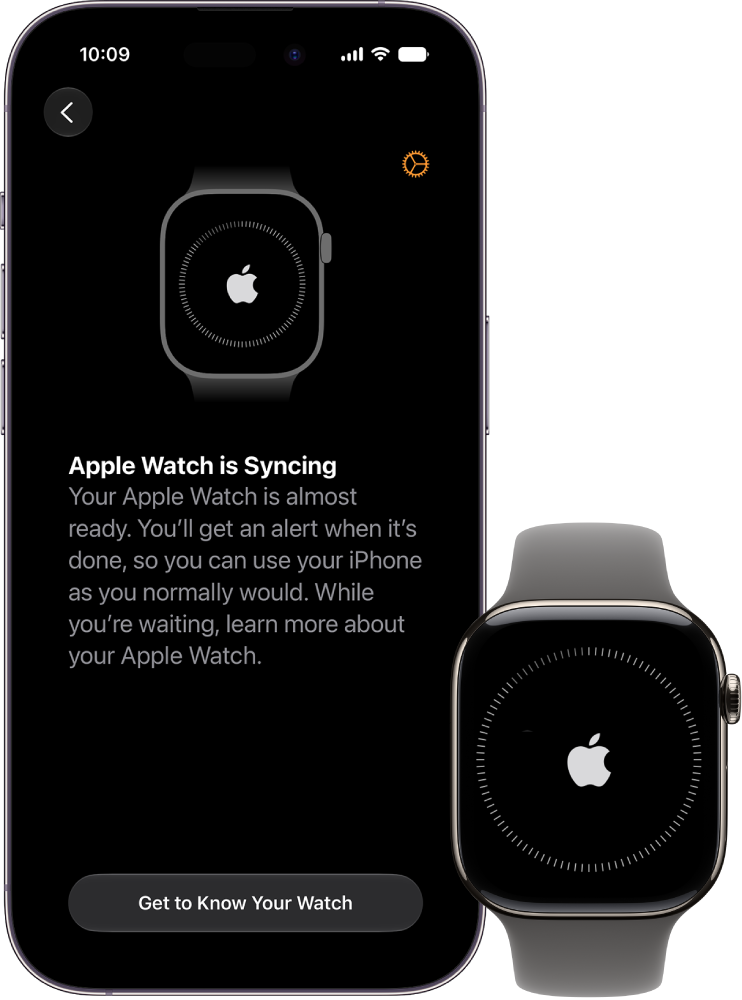
An iPhone and Apple Watch, side by side. The iPhone screen shows “Apple Watch is Syncing.” The Apple Watch shows syncing progress.

Trouble pairing?

  • If you see a watch face when you’re trying to pair: Your Apple Watch is already paired with an iPhone. You need to first erase all Apple Watch content and reset settings.
  • If the camera doesn’t start the pairing process: Tap Pair Apple Watch Manually at the bottom of the iPhone screen, then follow the onscreen instructions.

See also

Tag: Setup

VoiceOver can help you set up your Apple Watch and pair it with your iPhone, and it speaks what’s on the display as you go. See Use VoiceOver.

You can try automatic pairing with your iPhone camera, or pair manually with a six-digit pairing code. When pairing succeeds, you feel a tap from Apple Watch and hear “Your Apple Watch is paired.” Then it syncs with your iPhone.

Here’s how to set up Apple Watch using VoiceOver.

Set up Apple Watch using VoiceOver

  1. If your Apple Watch isn’t on, turn it on by holding down the side button.
  2. On your Apple Watch, turn on VoiceOver by triple-clicking the Digital Crown.
  3. Bring your iPhone near your Apple Watch.
  4. On your iPhone, select Continue, then double-tap.
  5. On your iPhone, tap Set Up Apple Watch and then double-tap.
  6. To try automatic pairing, point the iPhone camera at the watch from about 6 inches away.

    When you hear the pairing confirmation, follow the spoken prompts to complete the setup of your Apple Watch. If you have difficulty, follow steps 7 through 13 to manually complete the setup.

  7. On your iPhone, select Pair Apple Watch Manually. Then double-tap.
  8. On your Apple Watch, select the Info button in the bottom-right corner, then double-tap.
  9. On your Apple Watch, select your Apple Watch ID near the top of the screen. You hear the unique identifier for your Apple Watch—it’s something like “Apple Watch 52345”.
  10. On your iPhone, select this same identifier and then double-tap.
  11. Select the six-digit pairing code on your Apple Watch to hear it.
  12. Enter the pairing code from your Apple Watch on your iPhone using the keyboard.

    When pairing succeeds, you feel a tap from Apple Watch and you hear “Your Apple Watch is paired.” If pairing fails, tap to respond to the alerts. Your Apple Watch and the Apple Watch app on your iPhone reset so you can try again.

  13. On your iPhone, choose Restore from Backup or Set Up as New Apple Watch and then double-tap.

When you’ve completed setup, Apple Watch syncs with your iPhone. This takes a few moments—tap Sync Progress on your iPhone to hear progress. When you hear “sync complete” your Apple Watch is ready to use, displaying the watch face. Swipe left or right to explore watch face features.

See also

Apple Watch turns on and off with the side button, and the watch face appears when it’s on. If it won’t turn on, it may need to be charged, and sometimes you need to force it to restart. You can also learn how to wake and unlock Apple Watch.

Turn on Apple Watch

  1. Press and hold the side button until the Apple logo appears.
  2. The watch face appears when Apple Watch is on.

An Apple Watch that won’t turn on may need to be charged, or you may need to force it to restart.

Turn off Apple Watch

  1. If Apple Watch is charging, disconnect it from the charger.
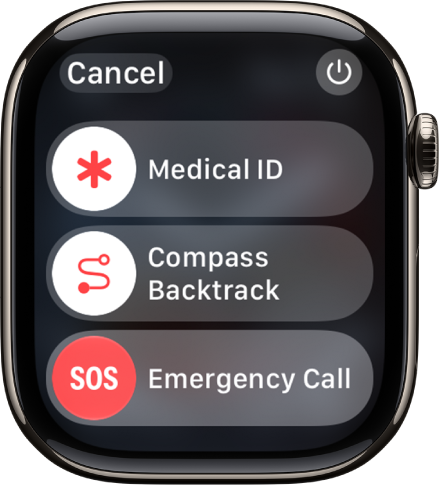
  2. Press and hold the side button until the sliders appear.

    The Apple Watch screen showing the sliders for Medical ID, Compass Backtrack, and Emergency Call. The Power button is at the top right.

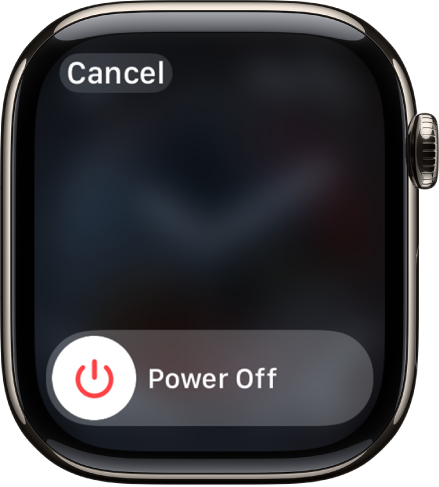
  3. Tap the Power button at the top right. Drag the Power Off slider to the right.

    The Apple Watch screen showing the Power Off slider. Drag the slider to turn off Apple Watch.

See also

Tag: Setup

You can use the double tap gesture to do common actions such as answer a call, reply to a message, scroll through supported apps, and open and scroll through the Smart Stack. In the Smart Stack, the single tap gesture selects a widget.

Both gestures use your index finger and thumb. And when the double tap icon shakes, double tap isn’t available for that screen. The double tap gesture isn’t supported in some situations, too.

Perform the single tap gesture

Tap your index finger and thumb together.

Perform the double tap gesture

Tap your index finger and thumb together twice.

When double tap isn’t available

If the double tap icon shakes from side to side, double tap isn’t available for that screen or third-party app.

Note: The double tap gesture isn’t supported in the following situations:

  • Low Power Mode is turned on.
  • Sleep Focus is active.
  • The display is inactive because your wrist is down.
  • Apple Watch is locked.
  • Accessibility features that use hand gestures are turned on.
  • Apple Watch is set up for a family member.

Customize the tap gestures

Choose what a double tap does when playing media:

  1. Start the Settings app on your Apple Watch.
  2. Tap Tap Gestures and then set any of the following:
    • Playback: Choose Play/Pause or Skip.
    • Ignore Tap Gestures: Temporarily ignore tap gestures while using Apple Vision Pro.
    • Off: Turn Tap Gestures off if you don’t want to use them.

You can also go to the Apple Watch app on your iPhone, tap My Watch, tap Gestures, then tap Double Tap.

See also

Tag: Setup

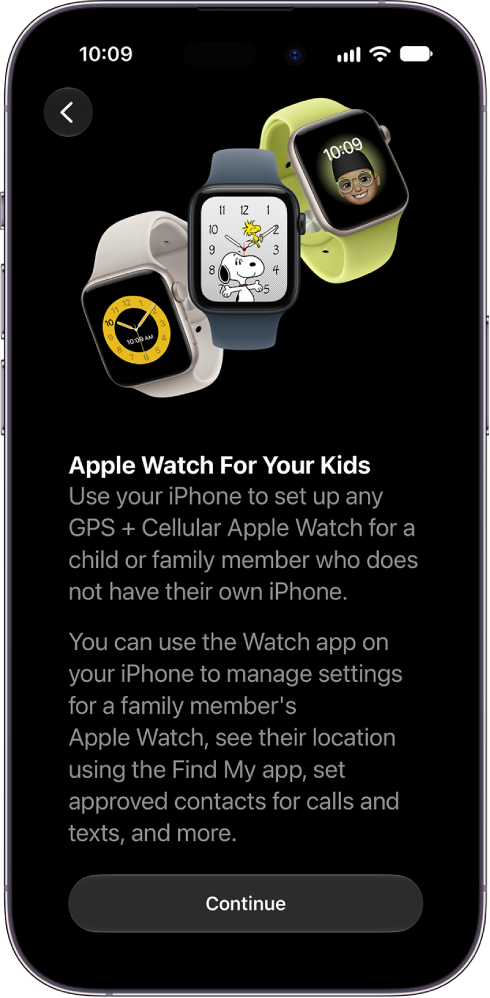
You can set up any Apple Watch with cellular for your child or family member, even if they don’t have their own iPhone. To do so, you must be the family organizer or parent/guardian in your Family Sharing group.

On watchOS 27, your child or family member must be part of your Family Sharing group and have a cellular-capable Apple Watch SE 3 or Apple Watch Series 9 or later. Their watch doesn’t have to use the same cellular carrier as the iPhone you manage it with, but the iPhone you use to pair and set up the watch must be within normal Bluetooth range (about 33 feet or 10 meters) of it to manage settings and update the software.

An iPhone showing setup details for Apple Watch For Your Kids.

Apple Watch For Your Kids is not available in all countries or regions.