









GeeksModo Story Archive - October 2026
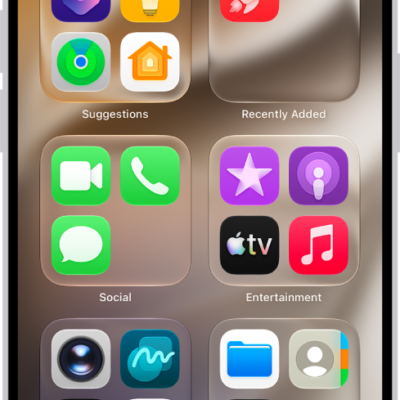
How to add an app on iPhone
You can add an app to your iPhone's Home Screen and App Library, or to App Library only, and move it to the Home Screen later.
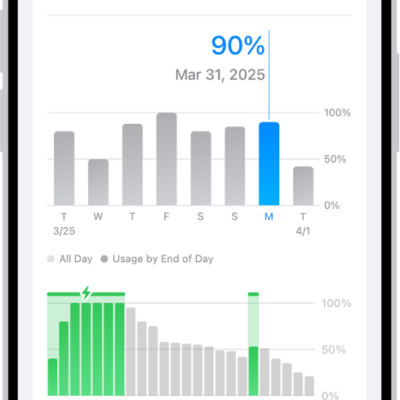
How to show the iPhone battery percentage
You can show the iPhone battery percentage in the status bar, and add a widget to see your accessories' battery levels too.

How to make onscreen elements easier to see on iPhone
You can add borders around onscreen elements on iPhone, like controls, buttons, and Control Center, by turning on Show Borders.
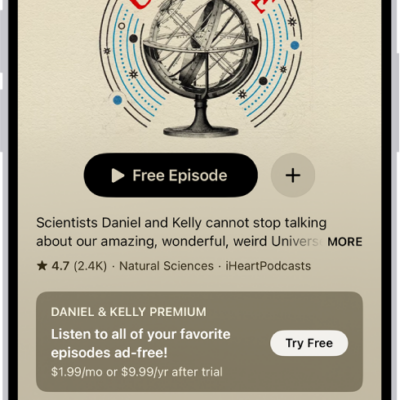
How to change your download settings for Podcasts on iPhone
You can turn automatic downloads on or off in Podcasts on iPhone, remove played episodes, and change download settings for a single show.
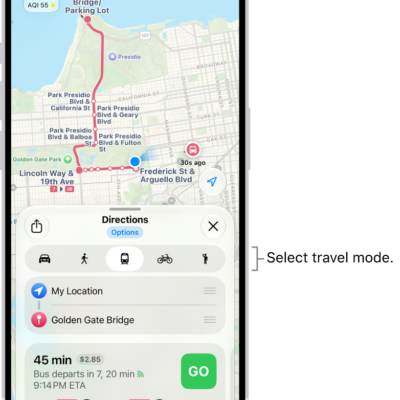
How to choose a default travel mode and Maps units on iPhone
You can choose a default travel mode in Maps on iPhone, such as driving, walking, transit, or cycling, and change the units Maps uses.
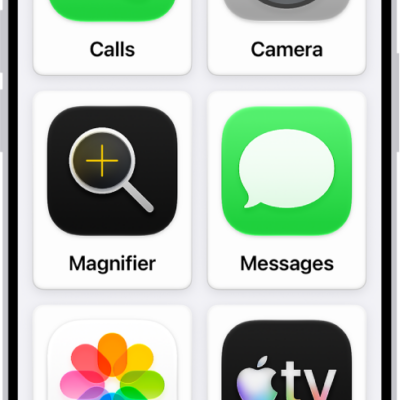
iPhone cognitive accessibility features: Assistive Access, Guided Access, and more
You can use built-in cognitive accessibility features on iPhone, from a simplified interface and single-app mode to tools that reduce sensory stimulus.
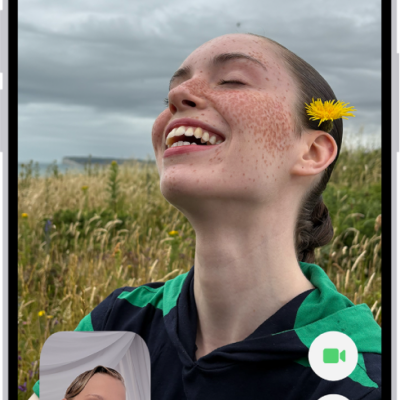
How to use Live Captions and Live Translation in FaceTime on iPhone
You can turn on Live Captions, and with Apple Intelligence, Live Translation during a FaceTime video call on iPhone.
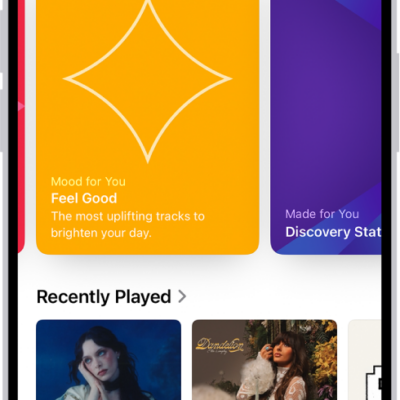
How to tell Apple Music what you enjoy on iPhone
You can tell Apple Music on iPhone what you enjoy by marking favorites, suggesting less of what you dislike, and rating music.
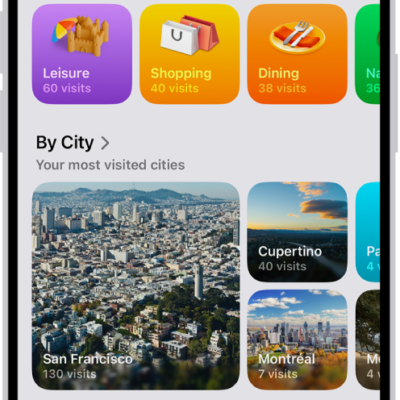
How to view Visited Places in Maps on iPhone
You can view Visited Places in Maps on iPhone to keep track of places you've been, end-to-end encrypted, and revisit or share them later.
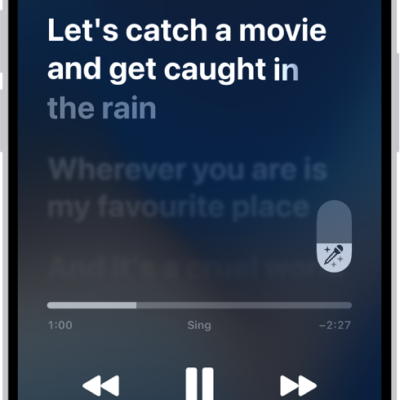
How to sing along with Apple Music on iPhone
You can see beat-by-beat lyrics and turn down a song's vocals to sing along, even on Apple TV 4K with Apple Music Sing on iPhone.