You can automatically connect to Bluetooth-enabled accessories to add cadence and power metrics to your cycling workout view. It’s automatic. You can also view estimates of your functional threshold power—the highest level of intensity you can maintain for an hour.
When you start a cycling workout, it automatically shows up as a Live Activity on your iPhone. On your iPhone, it can take over the entire display, making it easier to see your metrics while on a ride. You can also set up Power Zones, based on an estimate of your functional threshold power.
Start a cycling workout
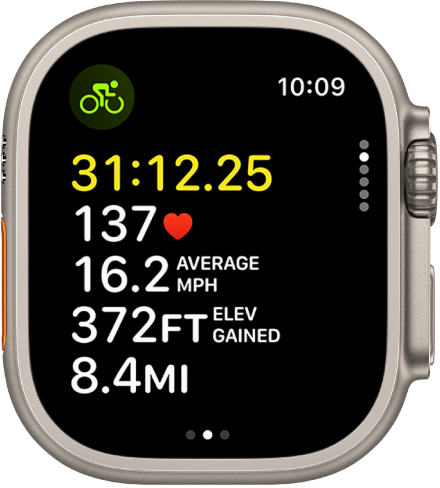
- Go to the Workout app on your Apple Watch.
- Turn the Digital Crown to Outdoor Cycle or Indoor Cycle and tap the Start button.
- On your iPhone, tap the workout timer on the Lock Screen to see all of your metrics.
To stop viewing your metrics on your iPhone, swipe right on your Apple Watch, then tap Stop.
Connect to compatible Bluetooth accessories for cycling workouts
- Open the Settings app on your Apple Watch.
- Tap Bluetooth and then below Health Devices, tap the sensor you want to connect.
- Below Set Up Device, tap the Info button next to an option to change the wheel size or crank length.
When you begin a cycling workout, an accessory you’ve set up connects to your Apple Watch automatically.
Note: In Apple Fitness+ cycling workouts, compatible Bluetooth accessories connected to your Apple Watch track metrics like cadence or power automatically.
About Power Zones
To learn about the power of your cycling workouts, check the Power Zone information on your Apple Watch. Power Zones come from an estimate of your functional threshold power, or FTP, which you’ll have after you connect your Apple Watch to Bluetooth-enabled cycling accessories like power meters, speed sensors, and cadence sensors.
Apple Watch shows Power Zones in five to eight segments, which are estimated effort levels that range from easier to harder. Keeping an eye on your Power Zone can make your cycling workouts more efficient and challenge you to improve your fitness.
Note: Power Zones are calculated only if you’ve entered your date of birth, height, and weight in the Fitness app on your iPhone.
Set up Power Zones
- Open the Settings app on your Apple Watch.
- Go to Workout and tap Cycling Power.
-
Tap Custom and enter an FTP.
When you enter an FTP, your power zones will be automatically recalculated using the same percentages.
- Tap 6 Zones below Power Zones. Choose the total number of Power Zones.
- Tap a zone to enter lower and upper limits.
You can also open the Apple Watch app on your iPhone, tap My Watch, go to Workout > Cycling Power, tap Custom, enter an FTP, change the total number of Power Zones, then tap a zone to enter lower and upper limits.
See also