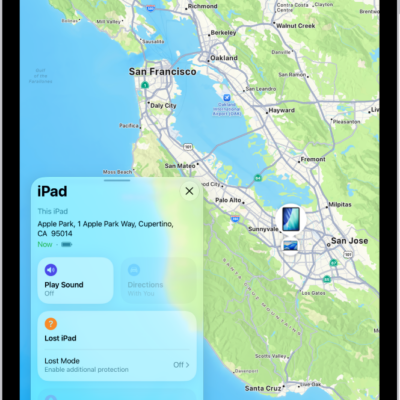
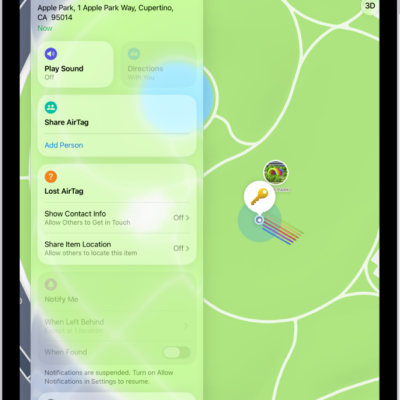
Use the Find My app to locate and play a sound on a missing iPhone, iPad, iPod touch, Mac, Apple Watch, AirPods, or Beats headphones (supported models). In order to locate a device, you must turn on Find My [device] before it’s lost.
If the device is online, you see its location on a map. AirPods and supported Beats headphones can be located when they’re near your device and connected to Bluetooth®.
Note: To see how far away your devices are from you, turn on Precise Location for the Find My app. For details, see our guide, Control the location information you share. And if you lose your iPad without access to the Find My app, Find Devices on iCloud.com can still locate your device or play a sound on it.
About locating a device
- You can use Find My on your iPad to see the location of your device on a map. If the device is online, you see its location, and it plays a sound to help you find it. If the device is offline, you see its location, but it doesn’t play a sound.
- For AirPods and supported Beats headphones, you can locate them when they’re near your device and connected to Bluetooth®. For supported AirPods, you can also see their location via the Find My network for up to 24 hours after they last connected to your device, even if they’re not nearby.
- For iPhone Wallet with MagSafe and Find My support, you can see its location when it’s attached to your iPhone and its last known location if it detaches from your iPhone.
See the location of your device on a map
Your device’s current or last known location appears in the Find My app.
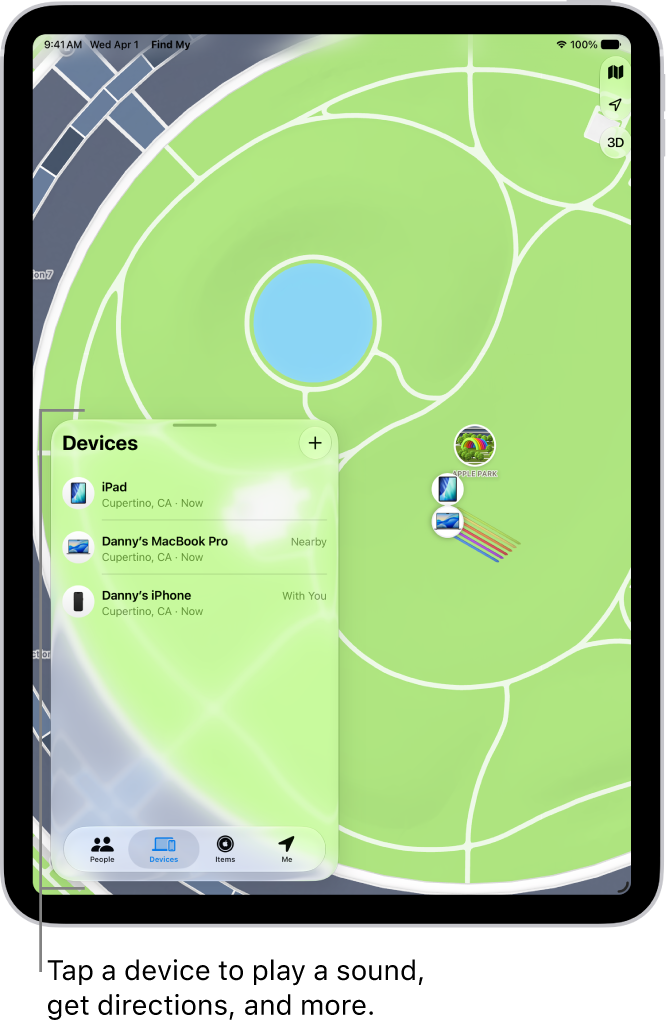
Tap Devices at the bottom-left side of the screen, then tap the name of the device you want to locate.
- If the device can be located: It appears on the map so you can see where it is.
-
If the device can’t be located: You see “No location found” below the device’s name. Below Notifications, turn on Notify When Found. You receive a notification when it’s located.
Important: Make sure you allow notifications for the Find My app. See Change notification settings on iPad.
Play a sound on your device
- Open the Find My app on your iPad.
- Tap Devices at the bottom-left side of the screen. Tap the name of the device you want to play a sound on.
-
Tap Play.
-
If the device is online: A sound starts after a short delay and gradually increases in volume. Then plays for about two minutes. If applicable, a Find My [device] alert appears on the device’s screen.
A confirmation email is also sent to your Apple Account email address.
- If the device is offline: You see Sound Pending. The sound plays the next time the device connects to a Wi-Fi or cellular network. For AirPods and Beats headphones, you receive a notification the next time your device is in range of your iPhone or iPad.
-
If the device is online: A sound starts after a short delay and gradually increases in volume. Then plays for about two minutes. If applicable, a Find My [device] alert appears on the device’s screen.
Separated AirPods give you additional options to play a sound.
Stop playing a sound on a device
Once you find your device, do one of the following to turn off the sound before it stops automatically:
- iPhone, iPad, or iPod touch: Press the power button or a volume button, or flip the Ring/Silent switch. If the device is locked, you can also unlock it, or swipe to dismiss the Find My [device] alert. If the device is unlocked, you can also tap OK in the Find My [device] alert.
- Apple Watch: Tap Dismiss in the Find My Watch alert, or press the Digital Crown or side button.
- Mac: Click OK in the Find My Mac alert.
- AirPods or Beats headphones: Tap Stop in Find My.
Get directions to a device
The Maps app gives directions to a device’s location.
- Open the Find My app on your iPad.
- Tap Devices at the bottom-left side of the screen. Tap the name of the device you want to get directions to.
- Tap Directions to open Maps.
To get there with Maps, see our article, Get directions.
Locate or play a sound on a friend’s device
If your friend loses a device, they can sign in to their Apple Account at Find Devices on iCloud.com and locate it or play a sound on it.
Find My can also help you locate a family member’s missing device if you set up Family Sharing.
Locate your Apple Pencil Pro
If your Apple Pencil Pro goes missing, the Find My app on your iPad or iPhone can locate it.
- Open the Find My app on your iPad.
- Tap Devices at the bottom of the screen. Then tap Apple Pencil Pro.
-
Follow the prompts to locate your Apple Pencil Pro.
The onscreen circle grows and the text changes from “far,” to “near,” to “within reach” as you get closer.
Note: You can add Apple Pencil Pro to Find My for only one Apple Account at a time.
See also