Got a tip for us?

Emily Long

Emily is a staff writer at GeeksModo, and is interested in all things Apple. This includes its best products such as the iPad, iPhone, Mac, AirPods, and Apple Watch. When she’s not tinkering with the latest Apple gear, you’ll find her watching movies, taking pictures on her Sony A7 and exploring the great outdoors.

Emily Long's Articles

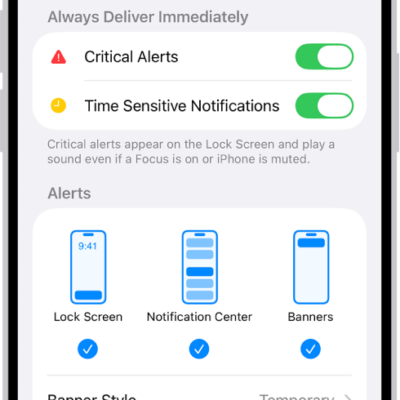
Messages Notification settings in Settings.

How to view and respond to notifications on iPhone

You can view notifications on iPhone in Notification Center and on the Lock Screen, respond to them, and clear them.
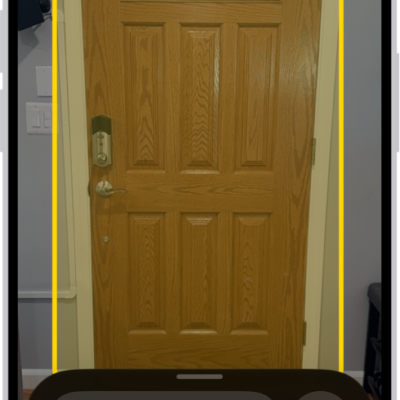
The Magnifier app is open and a door is being detected. A description shows how far away the door is.

How to detect doors, people, and furniture around you using Magnifier on iPhone

You can detect doors, people, and furniture around you with Magnifier on iPhone, which tells you about them if you're blind or have low vision.
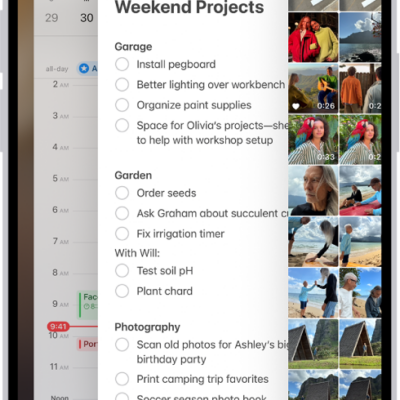
The App Switcher. Icons for the open apps appear at the top, and the current screen for each open app appears below its icon.

How to quit and reopen an app on iPhone

You can quit it from the App Switcher on iPhone and then reopen it if an app isn't responding.
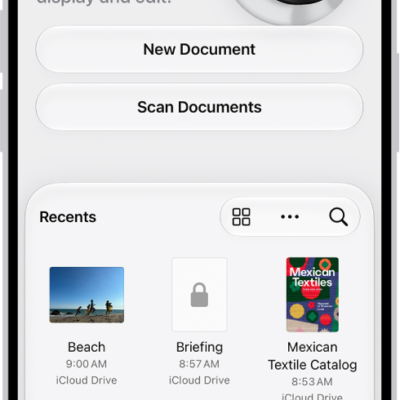
The main screen of the Preview app. The New Document and Scan Documents buttons are in the middle of the screen. At the bottom of the screen are the Recents, Shared, and Browse tabs.

How to create an image in Preview on iPhone

You can create a new image in the Preview app on iPhone, either blank or from an image you copied to the Clipboard.

The Camera in Video mode. The Camera Controls button is in the top-right corner and the video format buttons are in the top-left corner. The Photo and Video Viewer button is in the bottom-left corner. The Record button is at the bottom center, and the Camera Chooser Back-Facing button is in the bottom-right corner.

How to change advanced camera settings on iPhone

You can change advanced iPhone camera settings, including the default resolution, View Outside the Frame, Prioritize Faster Shooting, and Lens Correction.
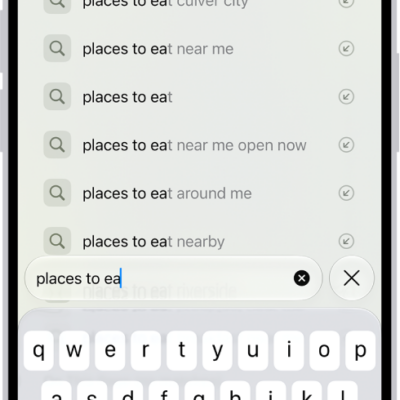
A Safari search screen, with the onscreen keyboard at the bottom of the screen. Above the keyboard, the search field contains text, and related search suggestions are listed above.

How to change your default search engine on iPhone

You can choose a different default search engine for searching the web on iPhone in the Search section of the Settings app.
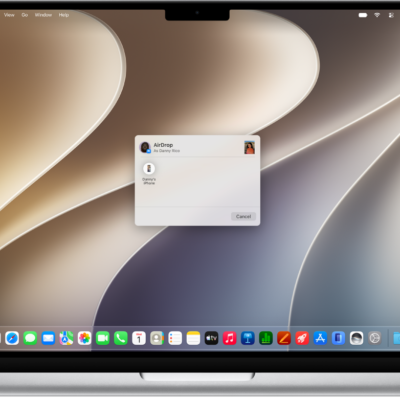
A Mac is next to an iPhone. The AirDrop dialog is open on the Mac desktop, ready to share a document with the iPhone. The iPhone screen has a notification about receiving the document.

How to transfer files between your iPhone and other devices

You can transfer files between your iPhone and an iPad, Mac, or PC with AirDrop, Mail, Messages, a cable, or iCloud.
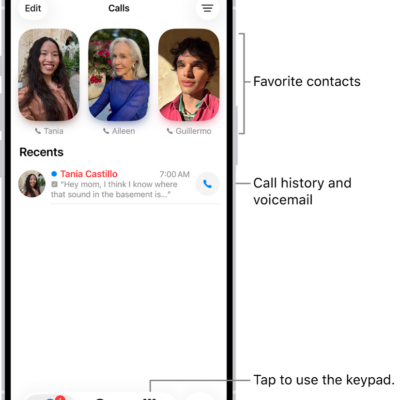
The Calls tab in the Phone app in Unified layout. Favorite contacts appear at the top. Below the Favorites is a list of recent calls and voicemail. Buttons to view the Calls, Contacts, and Keypad tabs appear at the bottom. The Search button is in the bottom-right corner.

How to screen and block calls on iPhone

You can screen, filter, and block unknown and spam calls on iPhone, identify incoming calls, and block or unblock specific callers.
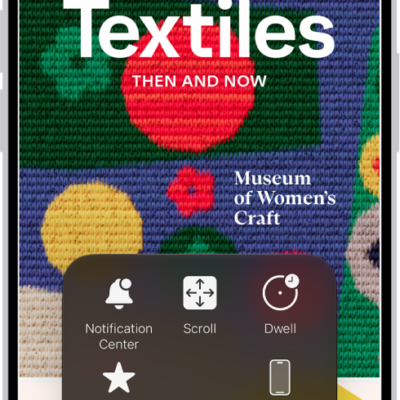
An iPhone with the AssistiveTouch menu visible, showing controls for Notification Center, Device, Control Center, Home, Gestures, and Custom.

How to use AssistiveTouch on iPhone

You can replace gestures with a tap or a sound, press buttons onscreen, and use an adaptive accessory with AssistiveTouch on iPhone.
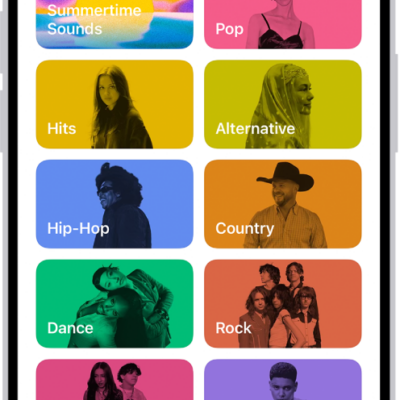
The Search tab showing a search field at the top. Multiple categories of music appear below, such as Hits and Pop.

How to search for music on iPhone

You can search Apple Music or your library on iPhone, browse music categories, and see your recent searches.