








Got a tip for us?

Editor’s Pick

2022 was a big year for Apple Fan. The year brought us new phones, like the iPhone 14 and 14 Pro, and new software updates, like iOS 16. Whether you bought something new, updated your iPhone with new software, or just kept on trucking with the same old tech, we were here to help you use it all. These are our favorite iPhone hacks and tips of 2022.
If you dive into the Settings app, you can find some cool iPhone hacks you might not have even known existed. Want to declutter your home screen? Use your battery a little less throughout the day? You can do all that — and more. Some of these iPhone hacks are relatively straightforward, while others are hidden deep within your device.

In this guide, we’ve got 25 iPhone hacks that you’ll definitely want to try today.

1. Stop apps from tracking your exact location

Apps like Doordash, Postmates, Google Maps and Waze all require your exact location to deliver food to the right location or direct you to where you want to go. But not all apps need to know precisely where you are at every moment.

Thanks to this iPhone hack, you can easily prevent any app from tracking your exact location. In the Settings app, choose an application (like Instagram, for example), tap Location and then toggle off Precise Location. Any app with Precise Location off will only know your approximate location, within a few miles.

Don’t toggle this feature off for apps that require exact location, like food delivery and navigation services.

2. Turn the back of your iPhone into a button

With this cool iPhone hack, the back of your device can be used as a secret button to activate certain actions, like take a screenshot or enable low power mode, and run shortcuts that can automatically play music when you arrive at the gym or turn on your smart lights when you get home. However, the option is hidden deep in your settings — here’s how to find it.

In the Settings app, go to Accessibility > Touch > Back Tap and choose one of the two tapping options (double or triple tap). You should see a list of actions you can run by tapping the back of your iPhone, like opening your camera, turning on the flashlight, scrolling up and down and more. Tap on on action or shortcut to set it for double or triple tap.

3. Bring back full-screen incoming call alerts

If your iPhone is unlocked and you receive a phone call, a banner-style notification will appear at the top of your screen, with a photo and name of the person calling, and the options to pick up or deny the call. But this banner wasn’t always there.

Before iOS 14, the incoming call screen would take over your entire display when your iPhone was unlocked and in use. It was disruptive, sure, but it also got the job done.

When the banner appeared, it was a welcome change for many, because it’s more discreet and allows you to still use your phone while receiving a call. However, if for any reason you’re not a big fan of the banner and want to revert to the more attention-grabbing full-screen alert, you will appreciate this hidden iPhone hack. Go to Settings > Phone > Incoming Calls and tap Full Screen.

4. Turn off 5G coverage you don’t want or have

Apple touts a Smart Data feature that’s specific to its 5G phones (iPhone 12 and iPhone 13) that will automatically switch between 4G LTE and 5G networks based on how you’re using your device.

However, you may find that your iPhone’s battery drains faster than it did before. If you don’t want to sacrifice battery life for faster 5G speeds, shut it down with this neat iPhone hack. You can always turn 5G back on when you want it, or when service in your area improves.

To turn off 5G on your iPhone 12 or iPhone 13, forcing it to always use 4G LTE even if you have 5G coverage, open the Settings app, then go to Cellular > Cellular Data Options > Voice & Data and tap LTE.

Alternatively, if you want your iPhone to exclusively use a 5G connection when available, you can select 5G On.

5. Fine-tune how much data is used by a 5G connection

If you’re happy with your 5G performance, here’s a related iPhone hack you should check out. Go to Settings > Cellular > Cellular Data Options > Data Mode, where you’ll find three different options: Allow more data on 5G, Standard and Low Data Mode.

Even though there are brief descriptions below the three different settings, they don’t paint a complete picture for the first option. According to an Apple support document, allowing more data on 5G will give you high-quality video and FaceTime calls. It also enables your phone to download software updates and stream high-definition Apple TV and Apple Music content, and it allows third-party developers to also improve their respective apps.

The default setting on this page will depend on your carrier and your data plan, so it’s a good idea to check your iPhone and make sure it’s correctly set to your preference.

6. Stop apps from cluttering up your home screen

The App Library is a place where you can quickly find and access all of your applications. And while apps are housed here, all newly downloaded apps also appear on your home screen. This may not be a problem if you download apps sparingly, but if you’re installing new apps on a consistent basis, they can quickly clutter up your home screen.

Thanks to this iPhone hack you can stop downloaded apps from appearing on your home screen. Go to Settings > Home Screen and select App Library Only. If you want to find the app, you’ll have to swipe left on your home screen until you reach the App Library.

7. Stop unexpected (and embarrassing) photo popups on your iPhone screen

Apple’s artificial intelligence helps surface photos and videos in various places across your iPhone, as a reminder of family vacations, couple photos and holidays — but you may not always want your personal pictures to pop up unexpectedly, especially if they’re private, embarrassing or inappropriate.

With this iPhone hack, you can now prevent Featured Photos, as well as curated collections known as Memories, from appearing in photo widgets on your home screen and the Search and For You sections in Photos.

To block these tailored photos, make sure you are running iOS 16 or higher. Now, launch the Settings app, go into Photos and toggle off Show Featured Content. All featured content will no longer appear across your device — instead, it’ll only be available in your photo library and albums.

8. Put the address bar in Safari back on top

The address in Safari migrated to the bottom of the screen with the introduction of iOS 15 — a welcome addition for those with smaller hands who had difficulty reaching it with one hand at the top. While this move might feel more natural, since it’s closer to the keyboard and where you typically place your thumbs, it can be off-putting since many people are used to seeing the URL bar near the top of the screen.

Thanks to this hidden iPhone hack, you can easily put the address bar back at the top of the screen. Go to Settings, tap Safari and choose the Single Tab option under the Tabs subheading.

9. Add features that can be used when your iPhone is locked

There are times when you might want to have certain info handy even when your phone is locked. That’s why Apple allows you to enable some features without having to unlock your device, such as the notification center, Control Center, the ability to reply to messages and the Wallet app.

To customize the features you’d like to access on the lock screen, simply use this iPhone hack. Launch the Settings menu, tap Face ID & Passcode and enter your passcode when prompted. Scroll down until you see the Allow Access When Locked section, and toggle the sliders based on your preferences.

10. Make your favorite email app or web browser your default

It was a long time coming, but 2020’s iOS 14 update finally brought the ability to choose your own default apps — at least for email and web browsing. That means that when you tap a link or an email send button, your iPhone will automatically launch the web browser or email provider of your choosing rather than Safari or Mail.

To set up this iPhone hack, open the Settings menu and select the app you’d like to set as a default (such as Google Chrome or Outlook). You should then see a button that says Default Mail App or Default Browser App. Tap that option and select the app of your choosing instead of Safari or Mail.

11. Get full notifications on your lock screen

The first time you experience Apple’s Face ID tech, you’ll notice that you can’t see the content of new alerts and notifications on the lock screen. For example, instead of seeing who sent you a text message and what it says, you’ll only see a generic Messages alert.

By default, all iPhones with Apple’s Face ID tech will hide the content of an alert until you pick up your phone and unlock it. It’s a privacy feature that I rather enjoy, but I also understand how it could be annoying (I’ve heard a few complaints from readers and family members alike).

Thanks to this cool iPhone hack, you can change how notifications appear on your lock screen by going to Settings > Notifications > Show Previews and selecting Always. Conversely, you can select Never if you want to keep the content of your notifications always hidden from the lock screen.

12. Turn off (or on) HDR video for sharing videos

Phones in the iPhone 12 and iPhone 13 lineups can record high dynamic range (HDR) video with Dolby Vision. That means your videos will be brighter with more accurate colors and improved contrast. Sounds awesome, right? It is. But there’s a problem — not every app or service will work with HDR video.

Developers will need to update their apps in order to accept HDR video, but even then, the person viewing the video will need a capable device to see the difference in quality. For Apple devices, those include the iPhone 8 or newer, the 2020 iPad Air, the second-generation iPad Pro and some Macs.

So, what can you do to share videos universally? Well, you have a few options:

You can turn off HDR video by going to Settings > Camera > Record video and turning the switch next to HDR Video to the Off position. Going forward, all videos will be captured in standard dynamic range, and you shouldn’t have any issues sharing or editing it.
Leave HDR Video turned on, but when you want to share the video, with Facebook for example, use the Photos app instead of going into the Facebook app and uploading it. When you use the Photos app, your iPhone will automatically convert the video to SDR and upload it. When you send the video to another iPhone user, Apple will detect if their iPhone, iPad or Mac is compatible with HDR Dolby Vision. If it’s not, Apple will convert the video automatically.
If you leave HDR Video on and need to edit your video, you can use Apple’s iMovie app or the Photos app that’s built into your iPhone. You can even use iMovie to export the video as SDR if needed.

13. Customize your home screen with fancy wallpaper

Another iPhone hack related to home screen you should implement involves your wallpaper or background. Apple has added some new wallpapers of its own, with a pretty cool twist.

Open the Settings app on your iPhone and select Wallpaper from the list. Make sure the switch labeled ”Dark Appearance Dims Wallpaper,” which you’ll see below the two thumbnail previews of your wallpaper, is turned on. Now, tap Choose a new wallpaper and select either Stills or Live. See the circle near the bottom of each wallpaper? It’s half black, half white.

That circle means that the wallpaper has both light and dark mode versions and will change automatically based on the system status of your phone.

You can also set live wallpapers as your background if you’re not sold on dark and light mode.

14. Turn on dark mode to save your battery

Speaking of dark mode, if you don’t want to have to repeatedly adjust your screen’s brightness, you can use your phone’s dedicated dark mode. Dark mode converts all of the white backgrounds in apps to, more often than not, a black background. In turn, your phone is able to save battery power thanks to the darker colors.

Turn on this cool iPhone hack by going to Settings > Display & Brightness and selecting the Dark option at the top of the screen.

Apple’s apps will automatically switch to a dark color scheme, and most third-party apps have also adopted the feature.

15. Manage your notifications with Focus Mode

We get a lot of notifications every day, but not all of them are relevant all the time. With iOS 15, Apple introduced a feature called Focus Mode. Think of it as a custom Do Not Disturb feature that’s tailored to specific circumstances.

Focus Mode blocks less relevant alerts, while allowing notifications from important people and apps to come through so that you don’t miss anything. You can set up different types of Focus Modes for specific circumstances.

Apple currently offers options for Do Not Disturb, personal, sleep, work, driving, fitness, gaming, mindfulness and reading, but you can also create your own custom mode. You can schedule Focus Modes so that they turn on automatically when needed, and display your status in apps so that others know you have notifications silenced.

To set up this neat iPhone hack, open the Settings menu, tap Focus and choose one of the available options to set up your notification preferences. Tap the plus ( ) symbol in the top right corner to add a new Focus.

16. Make your screen text bigger or smaller

With a couple of taps on your iPhone’s screen, you can adjust the font size to make it easier to read. Open Settings and go to Display & Brightness > Text Size where you can use the slider until you’re happy with the font size.

For a little added oomph, you can turn on Bold Text (it’s just below the Text Size button).

17. Add an alternate appearance to Face ID

Apple’s facial recognition feature — Face ID — constantly learns different aspects of your face with each scan. If you’re struggling to get Face ID to consistently recognize you, try this hidden iPhone hack.

Go to Settings > Face ID & Passcode > enter your PIN > Set Up An Alternate Appearance and go through the process of enrolling your face again.

18. Disable auto brightness for longer battery charge

Your iPhone’s screen brightness level can have a big impact on battery life. By default, iOS will automatically adjust the display’s brightness based on how much light its ambient sensor detects. But if you want to take complete control, you can disable auto-brightness using this iPhone hack, meaning the brightness level will stay where you set it until you adjust it again.

Open Settings > Accessibility > Display & Text Size and at the bottom of the page, you’ll find a switch to turn off Auto-Brightness.

Now, whenever you want to adjust your screen, you can do so by opening Control Center with a swipe up from the bottom of the screen on a device with a home button, or a swipe down from the top-right corner on newer iPhones.

19. Triage your privacy settings

The first time you set up an iPhone with all of your apps, you’re bombarded with prompts asking for permissions to access personal information ranging from tracking your location to your Apple Health information or your camera roll.

It’s far too easy to get in the habit of approving everything just so you can use the app, but take a few minutes and go through your privacy settings to tailor what each app can and can’t see. We walk you through the whole privacy process in two quick steps.

20. Go back to using old iPhone lock screen notifications

Apple’s latest redesign brings widgets, customizable fonts and colors, a wallpaper gallery and stylized date and time to the lock screen, as well as one overlooked change to notifications. Instead of appearing at the top of your lock screen, notifications now appear at the bottom, which you can then tap on to appear full screen.

However, not everyone may be happy with this change. If you want to go back to the way notifications appeared on iOS 15, simply use this iPhone hack. Launch the Settings application and go to Notifications > Display As. You’ll then see three options:

  • Count: Notifications appear as a numbered count at the bottom of the screen.
  • Stack: Notifications appear in a stack at the bottom of the screen.
  • List: Notifications appear fully across your screen.

To go back to the old notification style, choose the List option.

21. Use Control Center to access apps with a swipe or tap

The iPhone’s Control Center is a convenient spot to quickly change songs, turn on airplane mode, connect to Wi-Fi or start a timer, but there’s so much more to it than that. You can quickly turn your flashlight on, check on a timer or start recording your screen with a quick swipe and tap.

Customize which apps and features are available in Control Center by opening Settings > Control Center. Remove an option with a tap on the red minus button or add an option by selecting the green addition button. Drag features up or down using the three-line icon on the right side of the screen.

Personally, I like having quick access to the Wallet app and toggles for low-power mode and dark mode.

As a reminder, if you have an iPhone with a home button, like the iPhone SE, you can swipe up from the bottom of the screen to open Control Center. If you have an iPhone with Face ID, you’ll need to swipe down from the top-right corner of the screen where the battery icon is.

22. Strip the new search button from your iPhone’s home screen

Your iPhone’s search feature lets you quickly find a text message, third-party app, file, note or location — pretty much anything on your device or on the web. As you know, to get the search bar, you just swipe down anywhere on the screen, and it appears.

With iOS 16, Apple adds another way to access Search from the home screen, via a small button right above your dock.

However, the new search button is easy to accidentally trigger, because it’s near where your thumb might go when you swipe between your various home pages.

But, like many new features on iOS 16, you can turn this setting off. Simply launch the Settings app, go to Home Screen and toggle off Show on Home Screen to remove the search button from your home screen.

The Search bubble should disappear, replaced by a few small dots representing your various home screens.

23. Organize alerts with Notification Summary

Apple wants to help you manage your notifications in iOS 15, starting with the Notification Summary feature. Rather than letting notifications pile up on your home screen, you can schedule alerts that aren’t urgent to arrive in a bundle at a specific time of day.

Important notifications like calls, direct messages and other time-sensitive alerts (like the status of your Uber or Lyft ride, for example) will still appear immediately.

To try this iPhone hack, open Settings, press Notifications and tap Scheduled Summary.

24. Keep from accidentally ending your own phone calls

The side/power button on the side of your iPhone allows you to quickly sleep and wake up your device, but if you accidentally hit it during a phone call, you’ll prematurely end your call. If that’s something you’ve encountered in the past, this iPhone hack will let you prevent that from happening.

Make sure you are running iOS 16. Then go to Settings > Accessibility > Touch and toggle off Lock to End Call to prevent the side button from ending your calls. If you do hit the side button accidentally, your screen will go to sleep, but you’ll stay on your phone call, uninterrupted.

25. Change Siri’s voice

If you’ve recently set up a new iPhone, you may have noticed that Siri no longer defaults to a female voice. Instead, you’ll be asked which Siri voice you want to use, including several more recent options. Once you’ve made your selection, Apple will change Siri’s voice across all of the devices linked to your Apple ID.

You can check out the voice options by going to Settings > Siri & Search > Siri Voice.
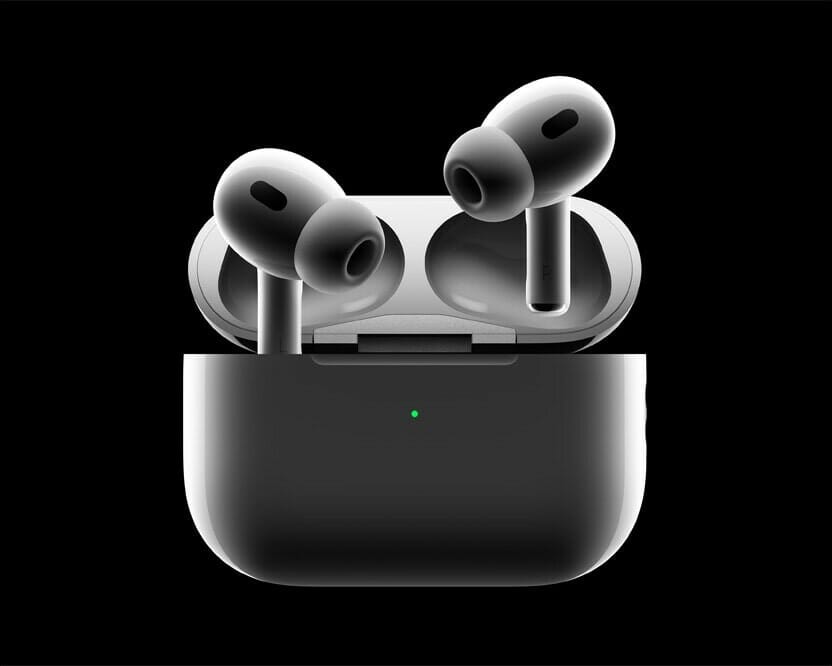
The AirPods Pro 2 are here, three years after the original launched, sporting an updated feature set and all-new charging case. In this article, I’ll explain all the best hidden Airpods Pro 2 features.

AirPods Pro 2

The new AirPods Pro 2nd Gen, while still among the top true wireless earbuds on the market, deliver some big upgrades in terms of both functionality and audio performance, with Apple clearly setting its sights on offering some of the best audio experiences on the market. So, if you were holding off on purchasing a new pair of wireless earbuds, check out all the major new features that the AirPods Pro 2 bring to the table.

The Best AirPods Pro Features

1. Improved Sound Quality and ANC

Thanks to its latest H2 chip, a new low-distortion audio driver, and a custom amplifier, the second-gen AirPods Pro delivers notably better sound quality and Active Noise Cancellation (ANC).

Apple claims the new earbuds cancel up to twice the amount of noise compared to the outgoing model. The bass is also richer, with a wider sound stage that helps improve the overall clarity.

2. Better In-Ear Fit

What’s the point of great sound quality if the earbuds keep falling from your ears? It looks like the company has heard some of your complaints, as the new AirPods Pro comes with an additional set of XS-sized ear tips to help provide a better in-ear fit for people with small ear canals.

This will allow the earbuds to passively block more noise, indirectly boosting the ANC performance and sound quality. The better fit will also help if you use the AirPods Pro to help hear conversations better.

3. Adaptive Transparency

The second-generation AirPods Pro takes the existing Transparency mode to the next level with Adaptive Transparency. Voice processing happens so much more naturally now, with it possible to hold a conversation without even realizing you’re wearing Apple’s new earbuds – although you might seem tremendously rude.

Apple is also claiming that, thanks to the H2 chip, it can offer ‘Adaptive Transparency’ automatically. So if you’re using Transparency when walking down the road and a vehicle with a siren goes past, the AirPods Pro will automatically tune down the sound without getting rid of it completely (in case you need to hear it as a warning).

4. New Charging Case With Find My Integration

The new charging case of the second-generation AirPods Pro is dust and water-resistant, just like the earbuds. There’s a lanyard loop, too, for extra convenience. If you order the AirPods Pro 2 online through the Apple Store, you can even engrave your favorite Memoji on the charging case.

Another highlight of the new charging case is Find My integration and a built-in speaker. If you have an iPhone with a U1 chip, you can use the Precision Finding feature in the Find My app to get the exact location of the AirPods Pro. And the built-in speaker on the charging case will play a loud tone so that you can locate it quickly.

5. Longer Battery Life

The final improvement to the AirPods Pro comes with the battery life: thanks mostly to the more efficient H2 chip (compared to the original H1 in the older AirPods) the Pro 2 earbuds can last six hours off a single charge when using ANC, and seven hours without.

The case can charge the AirPods Pro 2 five times, so you’ve got 30 hours’ use in ANC mode – which is a big jump over the 24 hours’ use previously.

And you’re able to charge the case in a new way too: using an Apple Watch charger. This is something that makes so much sense, especially given Apple is so intent on getting people to think of the AirPods as a key part of owning a Watch, as you can easily listen to and control music from the screen on your wrist.

6. Touch Control

Unlike the original AirPods Pro, you don’t need to press the stem to adjust the music playback or volume. The stems pack a new feature: finally, you can control the volume of your music from your AirPods Pro. While gripping the stalks, slide a finger up or down the ridge, which can register your touch through the new capacitive surface. This allows you to adjust the volume with a light swipe up or down. And to accept phone calls or control music playback, you need to press the stem lightly.

Apple has also upgraded the skin detection sensor, so the earbuds will more accurately detect when to resume or stop music playback.

These are the best AirPods Pro 2 features

You might think that the new AirPods Pro 2 seem very similar to the original AirPods Pro – but there’s a lot going on here that means these true wireless headphones are going to be a big draw for so many people.

Whether it’s the new and massively improved noise cancellation, the extra speakers in the case so it’s much harder to lose them, or the improved transparency mode to chat to your pals, there are many AirPods Pro 2 features to be excited about.

What does NordVPN offer that others don’t?
Most VPNs use the same underlying technology, so how much better can it possibly be?
Is it better than ExpressVPN, PIA, Cyberghost, IPVanish, Surfshark and other highly rated services?

How fast is NordVPN?
Can NordVPN unblock region-locked websites (Netflix, BBC iPlayer, Amazon Prime Video)?
Is NordVPN safe and private?
Does NordVPN work in China?
Is it really better than the cheaper alternatives?
I’ll cover all that and more in this NordVPN review.

During my time with NordVPN I used it to secure my connection while traveling to China and for unblocking video streams that I couldn’t normally access from my home in Turkey. I also put it through a battery of tests to gauge its speed and security.

I summarized my thoughts on NordVPN below, but read the full review to get a comprehensive look at this premium VPN service.

NordVPN Review Summary

NordVPN is a true jack of all trades, able to unblock all sorts of region-locked content, bypass China’s Great Firewall, and quickly download files. It boasts better performance than most when it comes to streaming. I challenge anyone to find a VPN with more advanced security while keeping the experience simple and novice-friendly.

What Is a VPN?

A VPN is a piece of software that helps to make you more anonymous online, encrypts your internet use, and lets you effectively trick your laptop or mobile device into thinking it’s in another location. And in case you’re wondering… it’s short for ‘virtual private network’!

In short, VPNs have become really handy, affordable everyday tools. By choosing the best VPN service out there, you’ll be equipping your laptop, PC, mobile – even your games console – with a potentially game-changing bit of software. VPN has so many benefits. You may want to use them to help keep your online life completely anonymous from prying eyes – especially now that so many of us are working or schooling at home. Maybe you’re a keen torrenter and you don’t want your ISP to know. Or perhaps its the eyes of your government that you want to avoid.

But because the best VPNs also let you change your IP address to one in a completely different city or country, these services have taken on a much wider use. VPNs are fantastic for streamers, for example, who want to have access to a whole world of shows and films on Netflix and more. While if you’re on holiday and find your favorite app is banned (think about some of the internet censorship in Cuba, Turkey, China – even Canada), an online VPN will let you use the internet in the way you’ve become accustomed. And that’s just for starters…

But these days, VPN services are a dime a dozen. When you search on App Store or on Google, you’ll find hundreds of VPN services, with names you’ve never heard of and with backgrounds you can’t trust. How then, can you pick a safe, secure, fast and feature-rich VPN service? A VPN service that will actually protect you? We’ve simplified your search by picking the best VPN app for iPhone, iPad and Mac.

The best VPN on the market today is NordVPN. In this NordVPN review we’ll show you why this popular VPN is one of the best VPNs around.

NordVPN is one of the most popular VPN services online and it’s easy to see why. A lot of VPN apps have old and convoluted apps. NordVPN’s app is simple and modern. Just turn it on, select the location if you want and then forget about it. The iOS app is simple and the Mac app provides you with pro customization tools if you wish to tweak the settings.

The VPN market is a tough one, with a lot of competition around, but NordVPN knows exactly how to stand out from the crowd: it piles on the professional features, delivering way more than just about anybody else.

Top-notch platform support includes apps for Windows, Mac, Android, iOS, and Linux.

Pros:

  • Consistently tops the list of best VPNs for reputable sources
  • Automated kill switch disables the internet on the device when VPN is not connected
  • Double VPN feature encrypts your internet traffic twice
  • Clear and easy-to-use interface
  • Works in China
  • Works with streaming services like Netflix, HBG Go and more

Cons:

NordVPN pricing

NordVPN offers tiered pricing depending on the length of the plan you can commit to. NordVPN has a very clear pricing policy with no hidden fees. They also offer a 30-day money-back guarantee for all pricing packages. Here’s what NordVPN costs:

  • The 1-month plan costs $11.95
  • The 1-year plan is $4.92 per month
  • The 2-year plan is $3.71 per month

Is There a Free Version of NordVPN?

Unlike TunnelBear, ProtonVPN, and other ‘freemium’ VPNs, NordVPN has never offered a completely free VPN service.

However, you can get a seven-day 100% free trial on mobile (iOS and Android) devices.

If you need more time before deciding to purchase, you can try NordVPN out for free with its 30 day money-back guarantee (

What methods can you use to pay for NordVPN?

The company accepts payment by all major credit cards, PayPal, and other services such as Bitcoin and other cryptocurrencies (via CoinPayments), and assorted other systems (AmazonPay, UnionPay, SOFORT Banking and more).

Is NordVPN really better than the cheaper alternatives?

No matter how broke you are or how desperately you’re in need of security, you should never resort to a cheap VPN. The likes of TigerVPN, TunnelBear, Hola and more may actually be sabotaging your security and anonymity.

Come to think of it, there’s no such thing as a cheap VPN, a catch is always there. Once you operate with a cheap VPN, you’re actually paying the price with your personal info, data, and credentials. So are they worth the risk? NO. Let’s read why.

WHAT ELSE IS AT RISK?

According to the Threat Research Center president:

“The lower the cost of the app, the greater the chance they have security problems.”
Well, I agree with him 100%. Nothing good comes out of entrusting a cheap VPN. Shall I explain why?

  • First of all, cheap stuff attracts millions. Can you imagine how many of those are using the same servers? There goes speed.
  • They sell your personal information for profit.
  • There are a few cheap VPNs that impersonate a legit software. In other words, they’re present to steal your information, send you spam emails, or make your device vulnerable enough for hacking.
  • Their encryption is very limited, that’s of course if there is any, to begin with.
  • Over time, you’ll be bombarded with unwanted ads.
  • Privacy is everything and you won’t be able to sleep at night knowing that these VPNs collect user-data and store them for further use. (Sell them to sister companies).
  • You might be suddenly directed to websites with malicious software that might target your device.

With all that being said, we can safely say that you have been warned. Subscribe to a real VPN service provider and avoid subjecting yourself to attacks and theft of that nature.

NordVPN Servers and Server Locations

Part of what you are paying for with a VPN subscription is access to the company’s fleet of VPN servers. These are the machines through which your web traffic will flow. Generally speaking, it’s good to have a diverse distribution of servers, since this will ensure that you’ll be able to find one close by, no matter where you travel, and likely get better service because of that closeness. It also gives you more options for spoofing your location.

NordVPN offers 5542 servers distributed across 59 countries. Among my top-rated VPNs, NordVPN offers the best balance of hardware and virtual servers in the most countries. In addition to having the most server locations, NordVPN also excels in geographic diversity, with several in Asia and excellent coverage across Europe and America. This means you can specifically select a server nearer to you within a certain country, so you can enjoy better speeds, lower latency, and more reliability.

NordVPN Security, privacy, and logging

Many VPNs make big claims about their security features and privacy, and NordVPN is no exception. I was curious to find out whether NordVPN can walk the talk.

When you use a VPN, you’re entrusting it with access to your web traffic. If the VPN company were lacking in morals, it could easily monetize your personal information much the same way an ISP can. The VPN might also be targeted by law enforcement to hand over information relating to its customers. This is why it’s important to read and understand a VPN’s privacy policy. Don’t worry, I’ve read the fine print for you. I’m happy to say that NordVPN goes to impressive lengths to protect customer privacy and secure its data and infrastructure. It’s one of the few companies whose claims have been tested by crisis, and clearly makes the effort to do well by consumers.

NordVPN does an excellent job of being transparent to customers in an understandable way and more companies should emulate its efforts.

NordVPN is clear about the limits of its data gathering. The company says: ‘Nord guarantees a strict no-logs policy for NordVPN Services, meaning that your internet activity… is not monitored, recorded, logged, stored or passed to any third party. We do not store connection time stamps, used bandwidth, traffic logs, IP addresses or browsing data,’ That’s what you want to hear from a VPN company. Better still, NordVPN makes it clear in its policy (and verified to me) that it only generates revenue through the sale of VPN subscriptions. The company does not sell user data.

Kill Switch

This is an advanced security feature that keeps your IP address and traffic secure, even if the VPN connection drops.
It’s designed to block traffic if your connection is compromised, keeping your data and IP address hidden.

NordVPN offers you two options:

  • Internet Kill Switch will completely shut down your internet access when you’re not connected to the VPN or if your connection drops. Mac OS OpenVPN client doesn’t feature this option, but its IKEv2 client has both types of switches. This is great for added security (you can be sure that your data won’t leak) when you’re torrenting or using Tor.
  • App Kill Switch gives you the ability to choose which apps will get closed if your connection fails. So, for example, you can choose to only shut down Google Chrome or a different browser but not your other apps. This is available on Windows and Mac OS. It’s good to use when you’re streaming, so the streaming platform won’t detect that you’re using a VPN and block you.

This feature isn’t enabled by default, but it’s really easy to set up. You simply need to turn it on in settings and select the apps if you decide to use the app Kill Switch.

NordVPN browser extensions

The NordVPN clients are generally very polished and user-friendly, but they’re not your only way to work with the VPN. The company also offers Chrome and Firefox extensions which allow you to control the client and service directly from your browser.

You install the add-on directly in your browser and just click on the extension to connect. It’s ideal if you’re just looking to encrypt your browser traffic quickly, like when using Chrome and a public WiFi connection.

Is NordVPN customer service any good?

Much like any other networking technology, a VPN can misbehave in many ways, and figuring out exactly what’s going on can be a real challenge. That’s why even the most experienced user can benefit from quality VPN support.

NordVPN’s support site gets off to a good start with its lengthy list of troubleshooting guides. Whether you’re trying to diagnose slow speeds or dropped connections, understand error messages, change your password or cancel your account, there’s useful information to hand.

Most articles are well-written and deliver in all the key areas. They don’t assume technical knowledge, instead taking the time to explain the background, offering multiple suggestions to resolve most problems, and linking to other relevant articles. For example, where other VPNs might have a single line suggesting you “try another server” to help diagnose speed problems, NordVPN also links to a detailed article explaining how to find the best location for you.

Competent customer support staff are available around the clock via live chat on the NordVPN website.

I’ve contacted NordVPN’s 24/7 live chat support on several occasions, and never have I had to wait more than five minutes to get a response.

Besides the live chat option, you can send a direct email.

Streaming – Does NordVPN Work With Netflix, Amazon Prime Video, and Other Services?

Yes

To get a feel for NordVPN’s unblocking abilities, we ran several tests, checking whether we could access Netflix, Amazon Prime Video, BBC iPlayer, Disney+ and geoblocked YouTube sites while connected to various NordVPN servers.

I started with the UK and US Netflix libraries, both of which were a success. I even tested the US Netflix library across NordVPN’s US servers, and I was able to unlock content to stream in HD easily on each one.

Then I headed over to Netflix Australia, which I was also able to access hassle-free.

South America was my final test. I tested Netflix libraries in Brazil, Chile, and Peru, and I was able to stream in HD across all.

Netflix results were great, with five out of five locations unblocking the service. It’s no surprise that it’s the best Netflix VPN in 2021.

Amazon Prime Video worked, too. After connecting to a US NordVPN location, we logged into Amazon.com rather than our usual Amazon.co.uk, and were able to stream US content.

(Keep in mind that Amazon’s Prime Video terms states the company will ‘use technologies to verify your geographic location’ and ‘you may not use any technology or technique to obscure or disguise your location’, so you break these rules at your own risk.)

Unblocking YouTube is always much easier, and sure enough, NordVPN gave us instant access from each of our test US servers.

BBC iPlayer has far better VPN protection than YouTube. Getting access proved far more difficult, too, but one of the servers got us in, and that allowed us to stream whatever content we liked.

NordVPN ended on a strong note, too, instantly bypassing Disney+ protection with the first location we tried (the second and third worked, too.)

While testing, I found that NordVPN can stream Netflix, Hulu, Disney Plus, BBC iPlayer, Amazon Prime Video, HBO Go, and more in Full HD.

NordVPN is also reliable for unblocking Google, Facebook, and other popular sites that are often blocked in schools and workplaces, as well as in heavily censored countries like China and Russia.

If streaming is your primary reason for choosing a VPN, NordVPN is a sure bet.

Does NordVPN allow torrenting?

Yes.

NordVPN has unlimited bandwidth and data caps for completely unrestricted torrenting. But it also allows torrenting and P2P sharing across any of its servers.

Since NordVPN keeps no logs and is headquartered in a privacy-friendly location, your torrenting activity or history cannot be leaked to anyone. It’s safe to use with uTorrent or any other BitTorrent client, with guaranteed anonymity.

DNS protection through NordVPN’s own DNS on every server further protects you from leaks and revealing your torrenting activity. It’s a solid choice for torrenting and P2P sharing, not just for security, but also for its speed and performance.

Unlike most VPN providers, NordVPN doesn’t even push me to torrent on specific servers. I usually just pick a fast server near where I live and start downloading.

kill switch stops all internet traffic if the VPN unexpectedly disconnects. That means your P2P traffic is always encrypted no matter what. NordVPN excels here for actually having two kill switches. A general internet kill switch blocks all net access when you’re not connected to the VPN (this can be easily turned off if it’s inconvenient), while an app kill switch closes your chosen applications if the connection goes down.

Does NordVPN work in China?

Yes.

NordVPN is a veteran VPN provider in China and provides fairly reliable access to the free and open internet from the mainland. I spent some time in Beijing shortly before writing this review and kept NordVPN connected on my iPhone pretty much the whole time. I didn’t have to change any settings; it just works. In addition, NordVPN has features like the Kill Switch which will make sure that your online activity is never exposed, even if your VPN connection fails. Plus, since it doesn’t have servers in China, it doesn’t have to apply strict local laws when it comes to internet usage and data logging. This means that nothing you do online will reach the Chinese government.

The only downside is that you can’t use it if you’re already in China. NordVPN doesn’t have a website there, so you won’t be able to download it. If you’re going to China, make sure that you install and set it up before you leave your country.

Speed: Is NordVPN fast?

NordVPN is the fastest VPN we’ve tested to date, thanks largely in part to its new, proprietary protocol: NordLynx. It’s based on WireGuard which is currently the fastest protocol on the market.

I was really impressed by NordVPN’s consistently fast speeds. Every VPN will slow you down a little bit as it sends your traffic to different servers (and the further away a server is, the slower your speeds will be). But while testing different NordVPN servers across the world, I didn’t notice the speed drops at all as there was no difference in my browsing, streaming, or even gaming experience.

With NordVPN’s servers, you’ll get fast speeds no matter how far the server is from your location
NordVPN’s fast download speeds allowed me to stream shows for hours without lag or buffering, while the low ping made it easy for me to play games. I even managed to have high-quality video calls thanks to its upload speeds.

Apps: What devices work with NordVPN?

NordVPN makes apps for more devices than any other VPN provider I know of. NordVPN offers apps for Android, iOS, macOS, and Windows. I highly recommend that people use an app with a VPN, since it is easier to use, requires no manual configuration, and grants access to additional features. Another thing that impressed me was that NordVPN has an app for Linux as well. Most VPNs don’t have Linux clients but you can install NordVPN on Ubuntu (I tested this one and it worked great), Debian, Linux Mint, and Elementary OS. What’s even more surprising is that its app is really easy to use on Linux so you don’t have to operate it through command prompts.

Simultaneous Device Connections — One Account Supports 6 Devices

I can connect six devices at once to my NordVPN account. . This is quite beneficial considering ExpressVPN offers 5. I tested this out by installing NordVPN on 2 of my iPhones, my MacBook, Linux laptop, and LG TV. With all of these devices using the connection simultaneously, I still didn’t notice any drop in speed.

In addition, you can install it on your router. This way, your entire network will be under VPN protection. Not all routers support VPNs, so make sure that you choose one that does. It’s also worth mentioning that you might not be able to install any VPN if you use an ISP modem.

App design is fairly consistent across all platforms, so if you know how to use one, then using another should feel familiar. NordVPN apps are simple to set up and easy to use.

NordVPN Client setup

Getting a VPN client installed and working properly can sometimes be a challenge, but the well-designed NordVPN app has clearly been set up to keep hassles to an absolute minimum. NordVPN is really easy to install and set up.

Once you download the app, it will open and prompt you to log in. When you click on that button, a web page will open up and ask for your login credentials. You can enter them, and the app will open again and you can start using NordVPN immediately.

NordVPN doesn’t require any special setup. Everything is ready for you to use it.

Mac client

NordVPN’s macOS app is notable in its simplicity. After logging in and agreeing to give access to your Apple Keychain, you can Quick Connect to any of NordVPN’s many servers around the globe. If you want a bit more control over your experience, you can scroll through the list of countries on the left side of the app window, choose a country, and open a drop-down menu that reveals a list of all of the servers in that country. It’s easier to just choose a spot on the map and use the VPN server located there, but it’s useful that the macOS version gives you a choice when it comes to servers. That isn’t the case with the iPhone version.

iOS app

From the Settings menu you can choose your VPN protocol, find auto-connect options, and set up your VPN profile. There’s also a “Tools” menu, which allows you to turn on an ad and malware blocker, a “Dark Web Monitor” which tells you if information related to your email address is included in Dark Web leaks, and Siri shortcuts so you can connect and disconnect with your voice.

Final verdict

This is a top-quality VPN which exceeded our expectations in everything from platform support and privacy, to ease of use, unblocking abilities and its excellent support. This is a polished, powerful and professional service. NordVPN is one of our favorite VPNs. It excels in speed, security, and torrenting. It has a network of 5,515 servers in 59 countries, and it unblocks fifteen Netflix libraries on its user-friendly apps. Currently, NordVPN is one of the best VPNs you can get and it’s affordably priced.

Overall Rating: 9.5/10.

The latest iPhone models (iPhone 12 and iPhone 13) can shoot breathtaking 4K videos. Accordingly, Apple included powerful CPUs to their phones that allow users to edit and export their videos quickly and efficiently.

A few years ago, you should have had a powerful computer and top-tier video-editing software like Adobe Premiere Pro installed to create a fantastic video. However, Apple developed an extremely-advanced mobile technology and created astonishing apps that make our life easier.

For instance, nowadays, there are many great apps that you can use to edit videos straight from your iPhone. For this reason, we have created a complete list of the best video editing apps you can download from the App Store in 2025. By the end of this five-minute read, you will know everything around the top video-editing apps for iPhones and iPads.

Why is video content so popular today?

Before we proceed to the list itself, let’s first examine why video content has become so popular. Videos are now more attractive than other forms of entertainment on social media.

From vlogs and GIFs to recorded webinars and live videos, people and businesses enjoy creating and watching videos online. According to backlinko, online video demand is blowing up, especially for people aged 18-49.

For this reason, platforms like Instagram, which used to be image-based, have followed the trend by creating features like Stories. The power to shoot and edit videos from your mobile device is one of the main reasons why apps like TikTok are so popular.

Likewise, everyone can now trim, cut, and add music to their videos and easily upload them to social media. Let’s dive deeper into 12 awesome video-editing apps you can use via your iPhone:

12 Best Video Editing Apps for iPhone

We have chosen the top video-editing apps of all kinds, from free and easy-to-use ones to premium ones that utilize advanced editing features and technology.

So, no matter if you are a newbie in video-editing or a professional video content creator, this list includes the best app for you. Without further ado, let’s review them separately:

1. iMovie

As Apple’s video-editing software for mobile devices, iMovie is one of the most popular apps on the App Store. As a cross-platform app, iMovie is an amazing tool that allows you to edit on your iPhone and your Mac at the same time. Apart from that feature, iMovie is an awesome way to trim clips with finger gestures while adding transitions, audio, etc.

This app utilizes a relatively easy environment, and for this reason, it is an excellent solution for both beginners and more experienced users. You can easily download iMovie for free from your iPhone or iPad. Although there are more professional video-editing apps, Apple’s software proves to be an outstanding tool, especially for beginner creators.

2. LumaFusion

With an excellent rating of 4.8 stars out of 5 (rated by 16.2K people as of March 2021), LumaFusion is one of the most professional video-editing tools for iPhones. Even though this is a paid application, users argue that it is worth every cent. Many professional photographers, videographers, and journalists prefer this app for good reasons.

LumaFusion has every feature a professional needs and more. With a fantastic user experience, an easy-to-learn app interface, and a vast number of aspect ratios, effects, and editing tools, this app is top-tier editing equipment. Lumafusion costs $29.99, making it one of the most pricey video-editing apps for iPhones. However, if you are a severe creator, Lumafusion is a great solution for you.

3. InShot

InShot is a free, easy-to-use video-editing app developed by InstaShot Inc. With more than one million great reviews, InShot is a top-rated tool that will help you manipulate your videos in no time. This app contains most features an average user needs, from trimming films and adjusting their speed to adding borders, filters, and effects for Instagram and TikTok.

Although InShot is a free app, you have to purchase its Pro version to unlock its most advanced features. The InShot Pro version costs $3.99 per month or $14.99 per year. Nevertheless, this is a reasonable price for the app’s offerings, and you can also try the Pro version (free trial) to decide if this is the best app for your needs and expertise.

4. Movavi Clips

Movavi has developed one of the most reliable and popular video-editing apps for iPhones. The Movavi Clips application has everything a beginner or professional might ask for. If you want to create thrilling movies, unique videos, or engaging slideshows, this is one of the best ways to do so.

With a user-friendly interface and an amazing app environment, this app provides an easy-to-learn editing process. Movavi Clips is free to download. Although its free version includes numerous editing tools (trim, crop, rotate, etc.) and a vast collection of filters, stickers, and transitions, you can always upgrade to Movavi Premium for $1.99 per month (or $12.99 yearly).

5. Quik

If you are an owner of a GoPro, you will be glad to know that the brand has released its video-editing app for iPhones. By including all the essentials, Quik is what its name suggests: a quick way to edit your iPhone or GoPro videos.

Quik is one of the best apps on the list for beginner videographers due to its simple interface. Thus, if you want to quickly edit your movies by trimming, cropping, and adding filters and stickers, Quik is a great, free-to-download video maker for you.

However, this app’s premium plans are pretty expensive (starting from $4.99 per month), and for this reason, it may not be the best choice for professionals who need an advanced toolkit.

6. KineMaster

KineMaster is another very popular video editor, specially created for mobile devices (iOS and Android). This app allows you to work on layers and thus reminds us of desktop editing software like Photoshop.

Thus, KineMaster is a great app for those who want to manipulate their videos in layers by adding audio clips and images.

KineMaster is free to use, but you have to upgrade to its Premium versions to unlock advanced features and in-app products. Its premium plans start from $3.99 per month.

7. VivaCut

VivaCut is a very well-known app for its professional looks. What makes it an excellent video editor for videographers is its layer-based editing and beautiful interface.

Thus, if you want to create unique films and have quite an experience, VivaCut is a perfect choice. Even though you can download VivaCut for free, there are premium plans and numerous in-app paid features that promise to enrich your editing experience.

8. Write-on Video

Write-on Video is one of the complete video editors on the market. It is an exceptional app for professional journalists, videographers, and influencers. Its main difference with other apps on the list is that Write-on Video allows you to organize each one of your video production projects straight from your iPhone.

On the other hand, this isn’t the best choice for beginners due to the expensive Pro packages. Thus, Write-on Video is a reliable app for professionals that can afford $4.99 per month for its Pro plan.

9. Funimate

Funimate is one of the most popular easy-to-use video editors for mobile devices with millions of satisfied daily users. This app has everything a beginner needs in its free package. Thus, Funimate allows you to quickly trim and crop your videos and add features like stickers, transitions, and animations.

So, if you are looking for an application that will help you quickly edit videos for your Social Media accounts, then Funimate is one of the best ways to go. Funimate is free to download but offers a vast number of in-app purchases.

10. PowerDirector

PowerDirector is a very well-known editing software for Mac and Windows. Recently, the app was also released for iPhones and rapidly gained its popularity. This is a relatively easy-to-use application that allows you to quickly edit videos taken from any mobile device or camera.

Thus, PowerDirector is a great solution for editors that use both their iPhone and Mac or Macbook. The app is free, but you have to subscribe to its premium plan to take advantage of premium features and editing tools.

11. Videoshop

Jajijujejo Inc. has managed to create one of the best video editors on the market for beginners. The reasons why this app is perfect for newbies are its simple interface and the fast, straightforward editing process it provides. Thus, if you need an app that provides all the essential editing tools, Videoshop is an excellent choice.

Videoshop is entirely free to download and use. Although the app has its premium plans, most beginners will be covered by Videoshop’s free plan.

12. Splice

Last but not least, Splice is a cool video editor specially developed for iPhones and iPads. With its unique features, Splice allows you to edit your video by cropping and trimming it. The app also includes a vast selection of effects, text fonts, and export options.

For all these reasons, Splice is a reliable video editor, suitable for both beginners and professionals. It is a free-to-use app that offers affordable Premium packages (starting from $2.99).

Conclusion

A few years ago, you would need a powerful computer to edit videos so that they look good. Luckily, demanding tasks like photo and video editing aren’t a privilege of desktops and laptops anymore. Mobile devices like iPhones and iPads are more than powerful enough to run advanced editing apps. That being said, you can save a lot of money just by choosing a mobile app over a desktop one and get similar, if not better, results.

Questions?
Drop as a comment and let us know.

When purchasing a new smartphone, people usually have to choose between two of the most popular operating systems. Here are 7 reasons why iPhone is the best smartphone.

Why iPhone is the best smartphone

Here are the reasons why iphone is the best phone in the world:

1. Information security

Information security companies unanimously agree that iPhones are more secure than Android devices. According to a report by Forbes, 97 percent of smartphone malware targets Android phones.

Android phones get malware and viruses particularly from app stores. Apple’s App Store has fewer apps to offer than the Android phones’ app store, but the number of available apps is not the most important element of app stores. Apple is very careful with selecting which app developers gain access to the so-called Apple ecosystem – a network of devices, apps and developers. Getting apps that contain malware into the App Store is practically impossible.

In comparison, Google’s app store, Google Play, is an ad-supported and free environment where anyone can put their apps on display. Android allows the user to install apps from outside the Google Play store as well – making it impossible to monitor apps possibly containing malware and viruses.

In addition to the app store, un-updated operating systems also cause security threats. Because several phone manufacturers use the operating system provided by Google, not all of them get the updates at the same time and are thus exposed to massive security threats. iOS devices are made only by Apple, so the corresponding problem doesn’t exist.

2. The Apple ecosystem

The range of Apple products has grown notably in recent years. Apple started out making computers and has since added music players, tablet computers and smart watches to their product selection. Today, Apple provides a wide range of products and services for various purposes.

The devices work seamlessly and effortlessly together. You don’t need to download or install separate applications to link them together, it’s enough when you sign in to the devices with the same Apple ID. Photos, emails, notes and calendars can be shared to all the devices. You also don’t have to pay twice for apps, movies or books – they can be found on all your devices.

The closed ecosystem also guarantees the user safety. The operating environment is secure when devices, users, manufacturers and app developers are all in the same ecosystem.

The situation is different for Android phones. Several different manufacturers produce phones and tablets based on the same operating system, so a safe ecosystem and using the devices together seamlessly cannot be guaranteed.

3. Ease of use

iPhones are known for their ease of use. Their usability comes from simple operating logic: all the apps are launched from the home screen. All the settings, for example, can be found under one menu. And even if you upgrade your iPhone to the newest model, the operating system still works the same way and taking it into use is easy.

An android phone can be modified and customised in various ways, but the basic features of its operating system are much more complicated and confusing than the iOS system. If you value an easy to use and good smartphone for basic use, an iPhone is the obvious choice.

4. Get the best apps first

The developers of the best and highest quality apps still favour Apple and this explains why iPhone is the best phone in the world. Most apps use Apple’s App Store as their launch platform and release their apps there much earlier than they do in the Android phones’ Google Play store. This has been the case with some of the most popular apps of recent years, such as Super Mario Run and Snapchat.

Some apps may not be released at all for Android phones. It’s much harder for app developers to create games and apps for Android phones, as there is a wide range of them and many unique features of the phones should be taken into account in the development. The App Store’s revenue model also serves the developers of high-quality apps better, which will guarantee safe and good apps for iPhone users in the future as well.

5. Apple Pay

Apple Pay is Apple’s payment service, which enables making credit and debit card payments using your phone. Paying works the same way as contactless payment with a plastic card, i.e., by placing the phone by the card reader. The card is protected with Face ID, Touch ID or the phone’s passcode, which let you keep your payment information safe.

Apple Pay can also be used to make purchases in apps: reserving a hotel room, shopping for clothes or ordering a pizza couldn’t be easier. Google Pay is not yet available in many countries, so users in need of a simple and easy mobile payment method should opt for the Apple iPhone.

6. Family Sharing

The Apple iPhone is a good choice for children, especially if the entire family is using Apple devices and phones. Phone use is safe because parents can easily keep track of what their children are doing with their phones.

Apple’s Family Sharing makes family life easier. Up to six family members can make, for example, shared music, film or app purchases and share photo albums, calendars and reminders. There is no risk of children downloading inappropriate or paid apps, as Family Sharing enables parental approval for their children’s apps.

And when children start to go to school by themselves, for example, parents can keep track of the journey with the Find My feature.

7. iPhones hold their value

Since new smartphone models with attractive features are published often, people constantly want to upgrade their phones to newer models. When people stop using their phones and buy a new one, they often want to sell their still functional old phone at the best possible price.

Apple phones keep their resale value far better than Android phones. iPhones are made of high-quality materials, which goes a long way in helping them maintain their resale value. Apple phones also remain as flagship models and up-to-date longer, as there is only one manufacturer and new and better phones aren’t launched as often as Android phones.

In this article, I’ll show you how to calibrate the battery of your iphone. But first of all, let me tell you what it does and why you should do it.

First of all, it’s worth noting that calibrating the battery of your iphone will not improve your iPhone battery life.. Lithium batteries will degrade, as they age, of course, as they undergo repeated charging cycles. Regardless of that, ios will track the operating range of the battery, but the battery trackman requires adjustments.

Have you ever noticed sometimes iOS won’t show the accurate battery percentage that you have on your iphone? Sometimes you might experience unexpected shutdowns or battery will just drop in huge percentages, say you have 20, then it drops to 10 and then your phone will just shut down, even though it says it’s at 10. That’s why you need to calibrate the battery of your iphone.

How to calibrate iPhone battery

To calibrate the battery of your iphone. You will need to let your iphone drain the battery completely. I know a lot of people say that this is risk and it will damage the battery of the iphone, but calibration is done every once in two or three months. So if you do that every once or in two or three months, of course, it won’t damage the battery of your iphone.

Now let’s look at the steps that you need to take in order to calibrate the battery of your iphone. There are a few simple steps that you need to follow in order to make sure that you do the calibration process the right way.

Note: information in this article apply to iPhone 16, iPhone 15, iPhone 14, iPhone 13, iPhone 12, iPhone 11, iPhone X, iPhone 8, iPhone 7,, iPhone 6S and iPhone SE.

Step#1: Let the battery drain.
Step #2: Let the battery drain even more! Let your iphone remain shut down, because there might still be battery left on your iphone.

Have you ever noticed if your iphone is drained out of battery and you plug it into charge once it’s up, it will show like five or six percent battery. That means that there was still battery left when it shut down. So it’s good that you let it just like sit like that shut down for a few hours in order to make sure that the battery is totally drained.

Step #3: After a few hours, go ahead and plug it into charge – always make sure that you use an apple cable or an authorized cable.

Step #4: Now, once your iPhone turn on, What you need to do is just go ahead and press volume up, volume down the side button and go ahead and turn off the device, and let it sit like that for three or four hours, so it will charge completely. Of course the iphone will be off, but it will be charging, so it won’t show the charging indicator here, but just let it sit for like three hours. three hours is enough, but just to be sure, maybe let it sit like three or four hours until it charges completely.

Step#5: After three hours, what you need to do is, with the cable still plugged on your iphone, just go ahead and press the side button and turn on your iphone. Now, once your iphone is back on, what you need to do is force reboot your iphone, so press and release the volume up button, press and release the volume down button and then press and hold the side button until you see the Apple logo. That means that your iphone is doing a forced restart, and this is the last step that you need to do, and once your iphone is back on. All you have to do is just remove the cable, and now the process is done. The calibration of iPhone battery has been finished.

That is it for this article folks. This is how you calibrate the battery of your iphone. This is recommended to be done once in two or three months. Of course, the calibration will help ios better measure the battery of your iphone.

I hope you found this article helpful. Now take time to share this article with a friend to show them how to calibrate iPhone battery percentage.

Thank you for reading.

In a perfect world, you wouldn’t even need third-party X formally Twitter apps for iPhone or iPad. The default X app would offer an optimal experience, and that would be pretty much it.

However, we don’t live in that world. Actually, there’s a legion of developers somewhere who feel it’ their obligation to not only improve X But also design it to their vision.

The developers of X apps for iPhone and iPad are focused on improving your experience as well as offering a glimpse at the potential of the platform through the eyes of a different creative vision. Not only do These apps improve Twitter, they also redefine it.

With that in mind, the following are the best X apps for iPhone and iPad in 2025:

Best Twitter apps for iPhone and iPad

Our best picks:

#1. Twitter

It’s a fact that most people browse social platform using the default Twitter app. As you may understand, it’s not the best options on the market. There are a bunch of other Twitter apps that offer so much more in terms of features, options, and customizability.

Having said that, the app excels In terms of reliability, performance, and overall design. It’s not the absolute best Twitter app, but that’s kind of its appeal. The app offers an easy and reliable way to browse one of the most popular social media platforms on the world.

#2. Circleboom Twitter

Tweeting is just one side of using Twitter. You need to manage and control your Twitter account and Circleboom Twitter has the most comprehensive Twitter management tool serves users with amazing features to manage their Twitter followers and connections in a variety of ways. You can track the growth of your followers and followings at the same time thanks to its user analytics tool. You can also get demographic information about your audience as well as detailed statistics. Your Twitter circle can be filtered by language and gender. Circleboom also allows you to see the optimal time to tweet and the interest areas of your Twitter followers with nice, cloud-like graphs.

Circleboom Twitter allows you to see detailed insights about your followers. In a few seconds, you can find followers who aren’t following you back on its simple interface. One of the other benefits of this multi-purpose application is the ability to filter inactive, bot, spam, and verified Twitter followers. If you want, you can look at the unfollowers, visit their profiles, and unfollow them.

Circleboom can also be used to search on Twitter. It allows you to locate and follow your target audience. Twitter’s user-friendly, intelligent search tool enables you to search for Twitter accounts that utilize keywords and hashtags related to your interests in their tweets, bios, profiles, and names. Then, if you want, you can go to their profile and follow them.

Moreover, you can delete all your tweets, retweets, likes, replies, and your Twitter archive in just one click on Circleboom Twitter. You can do everything mentioned above on your mobile devices.

#3. Twitterrific

If you want a well-designed Twitter app that is not mean with options, then Twitterific
might be what you are looking for.

Twitterific presents your Twitter feed free or promoted tweets and customized to ignore certain words, trends, and other qualifiers. Even better, the app allows you to customize your feed’s timeline to help focus on tweets that fall into a particular chronological criteria.

Again, however, the thing that really separates this from the other Twitter apps is its clean design. This is one of the oldest independent Twitter apps, and you can see how its design and functionality have been polished over the years.

#4. Tweetbot

Most Twitter apps are focused on achieving two things: expand Twitter’s features and make existing Twitter features a breeze to use. Few achieve those things better than Tweetbot.

For those not looking for too much, Tweetbot can prove to be a better way to use Twitter. The app makes it easy to schedule tweets, offers better filters, and it also allows you to sync your feed between multiple devices.

One great thing about this app, though, is its ability to allow you to create multiple, personalized timelines. Advanced features such as that make it easy to recommend this exceptional app despite a range of free alternatives.

#5. TweetLogix

If you want a Twitter app that better capitalizes on the capabilities of the mobile format, then TweetLogix might just be exactly what you are looking for.

In its simplest form, TweetLogix makes it easier to perform almost every Twitter task. Tasks such as muting, following, and composing can easily Be executed on TweetLogix than via the standard mobile app.

If you really want to explore the features this app has to offer, though, you’ll find so much to love. We’re particularly impressed with this app’s custom theme options, and its search functionality is one of the best among the apps of its nature. Experts and newbies will be impressed with everything this app can do.

#6. Crowdfire

As a matter of fact, Crowdfire isn’t the best Twitter app available today. However, that’s only because it’s not just a Twitter app.

Crowdfire is compatible with multiple social media apps and lets you carry out a range of tasks across them. Besides performing simple tasks such as scheduling posts, the app also recommends articles and content for your various social media feeds.

Only a small number of apps focus on curating content for various platforms, and that alone makes Crowdfire one of the best Twitter apps on the market.

#7. Echofon for Twitter

One thing you should know about Echofon for Twitter is that it features more ads than some of the other free Twitter apps on this list. However, that’s totally understood because it rocks a range of otherwise premium features.

As outlined on the app’s homepage, Echofon is one of the only free apps that offers in-line photo previews and push notifications. Those features alone make it a striking alternative however, one thing we love about this app is its uniformly smooth user interface.

Echofon might be one of the better options on the market for anyone who need premium features without the premium price tag.

#8 . UberSocial

Do you feel like Twitter could be a more “social” social media platform that presents you with expanded interaction options? Well, that’s one of the many functionalities that UberSocial offers.

UberSocial is popular for its social features such as an “inner circle” friends list that makes it easy to see what certain users are up to. Even better, it grants you access to an advanced tweet composer that lets you compose longer, more targeted tweets.

Put it all together and you have a Twitter app that offers more control over how you interact with people and various ways to see what others are up to. It’s definitely a unique style that will be valuable to some.

#9. Hootsuite

At times, you need a Twitter app that’s more than just a companion. Quite candidly, there are times when you need a Twitter app that is essentially a social media manager Hootsuite has a solution for the latter times. Frankly, it’s not the richest of the mobile Twitter apps when it comes to features. The app allows you to schedule Tweets, manage multiple accounts, and accomplish other premium tasks, but that’s all there is to it.

One area where Hootsuite really excels is through a series of advanced analytics that lets you better understand who is reading your tweets and why. For the people who manage a more professional Twitter account, that’s certainly useful information you don’t want to miss out on.

#10. Fenix

There’s certainly no shortage of relatively similar Twitter apps on the planet. As such, the difference between good and great ones is the matter of details.

What makes Fenix app to stand out from the rest is the details. It offers support for multiple accounts, media previews, as well as multiple social media and media clients.

Notably, this app truly sets itself apart via a fantastic interface that is rich and user-friendly. If you love your standard Twitter app but just Want something that offers a little more features, then this may certainly be one of the best Twitter apps for you.

#11. Janetter

Janetter is another free Twitter app that’s worth a mention. Its primary focus seems to be offering a more smooth mobile Twitter experience. It achieves that goal quite excellently.

Just like other free and premium Twitter apps, Janetter allows users to schedule tweets, manage multiple accounts, and enjoy expanded timelines. However, this app goes a little further by offering features such as customized touch controls that take advantage of the mobile medium.

Janetter is just one of those fantastic free Twitter apps that offers a modest upgrade without a lot of commitment.

#12. Listomatic

Has your Twitter account grown wild and unwieldy? Is it time to clean things up a bit and get things back in order? If that’s the case, then Listomatic has a solution for you.

Listomatic browse through your Twitter feed with the purpose of finding similarities. This could be your IRL friends, people who focus on music, or even just GIF posters. It then groups those similar accounts into categorized lists that gives you a better understanding of where your content is originating from.

Should you want to re-examine your Twitter feed or just want to better understand it, Listomatic will help you do so perfectly.

#13. Nighthawk

As you may already know, one of the most requested features for premium Twitter apps is advanced filters. In any case, even the most well-managed Twitter feeds can turn out to be a total mess over the course of just one busy day. Nighthawk is a relatively new Twitter app whose main aim is to simplify your Twitter experience. It lets you filter everything from spoilers to politics and even make a custom timeline that only features tweets from your friends.

This app offers one of the smartest suite of filters that we’ve seen in the apps of this nature. It’s definitely worth downloading if that’s what you need.

#14. Tweetings

Tweetings is a powerful Twitter client for iPhone, iPad and Apple Watch. The app offers an extensive feature list which includes lists, push, geolocation and syncs your timeline with your Mac or iPad!

The app allows you to follow your friends tweets, share your photos & videos, view conversations, who’s nearby and find out what’s trending at the moment.

Designed with users in mind, Tweetings is a worthwhile buy if you’re looking to try out another Twitter client for iPhone or iPad with some decent design.

And that covers pretty much everything about Best Twitter Apps for iPhone and iPad in 2023
We also have plenty of other articles below that I suggest you check right now.