Got a tip for us?

Apple Watch Tips

There are a lot of Apple Watch secret features you probably didn’t know about.

If you own an Apple Watch Series 6, Apple Watch Series 7, Apple Watch Series 8, Apple Watch Ultra, or the second-gen Apple Watch SE, you’re probably used to taking calls on it, monitor your health and exercise habits, as well as checking your notifications right on your wrist while your iPhone stays in your pocket.

But the truth is that your Apple Watch has a ton of hidden features that you are probably not aware of.

To make the most of owning an Apple Watch, you’ll need to know about a few secret features that will make interacting with the wearable easier.

Here are ten hidden Apple Watch features that’ll help your productivity at work and in your day-to-day life.

1. Mute notifications with ease

While the Apple Watch will give you the notifications you need to be aware of, it can also be annoying. Thankfully, it’s pretty easy to mute notifications. Simply cover the Watch with the palm of your hand for three seconds.

To enable this hidden Apple Watch feature, follow the steps below:

  1. open the Watch app on your iPhone.
  2. Look for the Sounds & Haptics menu.
  3. Toggle Cover to Mute to on.

2. Mute the Apple Watch completely

If you don’t want your wearable to make any sounds, use this nifty Apple Watch secret feature to mute it. There’s no physical button to mute the device like on the iPhone. Follow the steps below:

  1. Touch and hold the bottom of the watch face. Wait for Control Center to show, then swipe up.
  2. Tap the Silent Mode button. This turns on Silent Mode. You can still receive haptic notifications.

3. Hide notifications from others

If you don’t want others to be able to glance at your Apple Watch notifications and read the contents, you can enable a privacy feature from the iPhone’s Apple Watch app. Follow the steps below:

  1. Open the Watch app on your iPhone.
  2. Tap the Settings app.
  3. tap the Notifications menu.
  4. Enable Tap to Show Full Notification.

This secret Apple Watch feature ensures only you can read the contents of notifications. You’ll have to tap on a notification to see the text. Those around you will only see the notification’s app icon unless you tap it.

4. Cut the notification spam

Since all iPhone notifications will ping or vibrate on the Apple Watch, you’re potentially looking at an annoying experience. The good news is that you can use this Apple Watch secret feature to choose the apps that can send notifications to the wearable. Follow the steps below:

  1. Open the Apple Watch app on your iPhone.
  2. Tap My Watch, then tap Notifications.
  3. Select Mirror iPhone Alerts From list and enable only the apps you want to push notifications to the Apple Watch.

You can make sure that only critical notifications reach your Watch this way. All other notifications will be available on the iPhone.

5. Quickly launch the most recent Apple Watch app

The Apple Watch also runs watchOS apps. These are the counterparts of the apps you have installed on your iPhone. If you want to launch the most recent app quickly, simply double-tap on the Digital Crown to make it happen.

6. Turn off Bluetooth to speed up Apple Watch updates

The Apple Watch and iPhone pair via Bluetooth, and that’s how you update the wearable. To speed up the software update, you can disable Bluetooth on your iPhone, which should force the update over Wi-Fi. This should speed up the download, as Wi-Fi is much faster than Bluetooth.

7. Turn on the iPhone’s flashlight to find it

Have you ever misplaced your iPhone at home or think you’ve lost it? Chances are maybe it went under the couch, but how can you find out for sure? If you have an Apple Watch, then you can use it to ping your iPhone, instead of rushing over to your computer and iCloud.com.

I mean, you could use iCloud.com to ping your phone, but then your inbox will get hit with a flood of emails saying that a noise has been sent — annoying! Using your Apple Watch to find your iPhone is much easier.

Note: Your phone needs to be turned on and have Bluetooth enabled for this to work, and it will only ping the iPhone your Apple Watch is paired with; you can’t currently find other devices in this manner.

The Apple Watch’s Control Center has a Ping option to locate your missing iPhone. Tap it, and the iPhone will play a sound, which should help you retrieve it. Sometimes that submarine-style ping isn’t enough to help you track down your device. If you tap and hold the Find iPhone button on your Apple Watch, it’ll make your iPhone’s LED light flash as well as chime.

8. Reorder your Apple Watch faces

When you add a new watch face on Apple Watch, it is added to the end of your list. If you’d like to reorder watch faces to make them easier to swipe between on your Apple Watch, follow the steps below.

  1. Open the Watch app on iPhone
  2. Tap Edit to the right of My Faces
  3. Press, hold, and drag the 3 lines to the right of watch faces to reorder
  4. Tap Done when finished.

Now you can more quickly get to the watch faces you’d like by swiping from right to left on the edge of your Apple Watch.

You can also reorder the Apple Watch faces from the wearable’s screen. Tap and hold on one and then drag it around the display to place it in its proper place. Then swipe left or right on the screen to switch between Watch faces.

9. Tip calculator

If you’re dining out and need to calculate your tips quickly, just open the Apple Watch calculator app, enter the bill amount, tap on Tip, and have your watch figure out the amount. You can edit tip percentages, see both the tip amount and total amount in the calculator, and even add a number of people to split the check with.

10. Control your iPhone Camera using the Apple Watch

Speaking of featuring shortcuts for your iPhone, the Apple Watch can control your iPhone’s camera. You can take advantage of this Apple Watch hidden feature if you need to record yourself or want to take a group picture.

One of the apps on the Apple Watch is similar to the iPhone’s camera app. When you open it, it’ll turn on your phone’s camera. The app will has a three-second timer by default so you don’t appear tapping your watch in that selfie. Just prop your iPhone on a table or shelf, or a tripod if you want to get fancy, and you’re ready to control the camera remotely.

To find the camera app on your Apple Watch, simply look through your apps by pressing down on the digital crown, then choose the one with the camera icon. This will open the camera on your iPhone and show a preview of what the camera sees on your watch’s display.

You can pick from the front or back camera from your watch, as well as options like flash, live photo, and HDR. Holding down the shutter button will record a video.

Want to buy an Apple Watch Ultra or maybe you just bought a new Apple Watch Ultra, but you’re not really sure if it’s original or fake? Read on to know how to spot a fake Apple Watch Ultra and distinguish it from the original.

Nowadays we have so many extremely well-built Apple Watch Ultra replicas that we’re not really sure sometimes just by looking at the device if it’s actually an original watch made by apple. In this article, I’m going to show you exactly how to identify if an Apple Watch Ultra is fake or original.

A person uses Apple Watch Ultra while climbing rocks in a mountainous setting.

How to spot a fake Apple Watch Ultra

Real Apple Watch Ultra vs fake Apple Watch Ultra design

A close-up of two bandaged hands resting on a boulder shows Apple Watch Ultra worn on one of the wrists.

An original Apple Watch Ultra and the fake Apple Watch Ultra share some similarities in their design, but the real Watch Ultra is larger and chunkier than the fake Apple Watch Ultra.

The original Apple Watch Ultra follows the same design principles that Apple has always had for the watch, with a rectangular shape and rounded edges and corners. While keeping the rounded sides with silver titanium, the face of the Apple Watch Ultra is flat.

Counterfeit Apple Watch Ultra meanwhile, don’t feature a flat display. Having said that, it’s worth noting that some replica Apple Watch are also more streamlined in their design, with a curved display. So you should not use this as the only way to spot a fake Apple Watch Ultra.

Made from titanium, a genuine Apple Watch Ultra is designed to be able to withstand more extreme environments.

The fake Apple Watch Ultra meanwhile, is made from either aluminium or stainless steel, depending on the clone and it comes in 44mm and 45mm case options, so quite a bit smaller than the original Watch Ultra.

Turning over to the rear of the Apple Watch Ultra, you’ll find a new ceramic back. This cream ceramic material replaces the metal from previous models. Not only does it give the Apple Watch a different look, it once again adds to the durability of this smartwatch (notice a trend here?). You’ll also find four pentalobe screws which allow you to crack open this bad boy with ease.

The titanium sides extend slightly above the face to offer some protection. On the crown side of the watch, there’s a new crown guard. This elevates the Digital Crown and side button above the side of the watch. It lets you press the buttons more easily with gloves on, and offers more rugged protection.

A profile view of Apple Watch Ultra highlights the larger Digital Crown as well as the side button.

On the other side of the watch is a new customizable Action Button and redesigned speaker grill. You’ll also find a microphone in each corner of the Apple Watch Ultra. There are dual speakers on the original Watch Ultra, as well as a three-mic array with beamforming.

The clone Apple Watch Ultra on the other hand, has a single speaker and microphone. In addition, the function button on genuine Apple Watch Ultra is more prominent than the one on a clone Apple Watch Ultra.

Heading to the front, the new flat face gives the genuine watch a nicer feel straight on, and also offers some protection. The new Action Button and crown guard offer extra functionality and give the watch a more fleshed-out look. It is a great, polished design, that’s quite different from a replica Apple Watch Ultra.

The side button has its own housing that protrudes from the case and the digital crown has deeper ridges, making both easier to control if your fingers are sweaty, dusty or wearing gloves.
You can’t miss the bright orange Action button on the left of the Apple Watch Ultra. It sits flush with the case and has an indentation that helps you feel it under your thumb.

The Digital Crown on the original Apple Watch Ultra is more tactile than the one on the fake Apple Watch Ultra, allowing it to be used when wearing gloves.

Real Apple Watch Ultra vs fake Apple Watch Ultra packaging

It’s not just the Apple Watch Ultra itself that’s been redesigned—the packaging has too. Apple has opted for a squarer box than the regular rectangular one.

What’s in the Apple Watch Ultra box?

  • Apple Watch Ultra
  • Apple Watch Ultra Band
  • Apple Watch Magnetic Fast Charger to USB-C Cable
  • Paperwork

Opening the box up, and you’ll see an image of a mountainscape printed on the packaging. On the top of the stack is a new set-up book, below which is the Apple Watch and strap. There’s also Apple Watch Magnetic Fast Charger to USB-C Cable (1m). To be precise, the packaging is quite a bit nicer than what you get with the fake Apple Watch Ultra.

Real Apple Watch Ultra vs fake Apple Watch Ultra bands

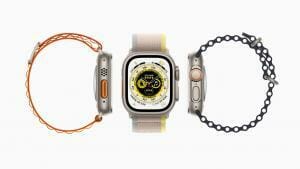
Three Apple Watch Ultra devices, each with a different band, are shown in profile and overhead.

The Apple Watch Ultra comes with a choice of three new watch bands: a textile Alpine Loop, an elastomer Ocean Band and a nylon Trail Loop. These are also more rugged straps with secure fasteners that fit the larger 49mm frame.

However, the majority of fake Apple Watch Ultra bands were not designed with the Apple Watch Ultra’s form factor in mind and thus don’t fit well with the Apple Watch Ultra.

Besides, if you find a band that’s not Trail Loop, Alpine Loop, or Ocean Band in the Apple Watch Ultra box, that’s a bad sign. Each of the above Apple Watch bands have hardware that matches the titanium finish, making them a great fit for the Apple Watch Ultra. Fake Apple Watch Ultra bands are made of cheap materials that don’t match Apple Watch Ultra titanium finish.

Real Apple Watch Ultra vs fake Apple Watch Ultra features

While a genuine Apple Watch Ultra run on watchOS, a clone Apple Watch Ultra run on an Android OS disguised to look like watchOS.

While the original Apple Watch Ultra come with inbuilt apps such as Fitness, Messages, ECG, Walkie-Talkie,and a Blood Oxygen app, as well as features like Fall Detection, Car Crash detection, high and low heart rate notifications, irregular rhythm notifications and cycle tracking with ovulation estimates, a clone Apple Watch Ultra doesn’t offer such apps and features.

Counterfeit Apple Watch Ultra also don’t have other notable features such as Compass Backtrack, advanced sleep tracking with sleep stages and access to the Apple Watch app store, among the usual Apple Watch features like smartphone notifications and multiple exercise modes.

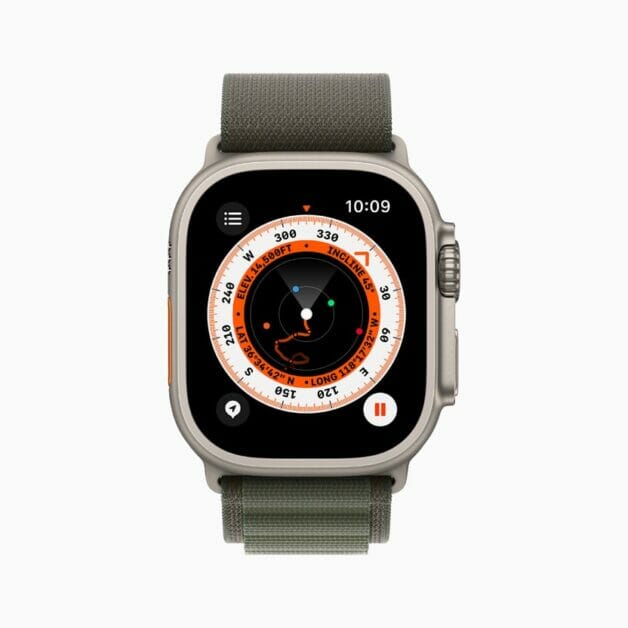
Apple Watch Ultra with a green Alpine Loop displays the Compass app with a waypoint marked.

The Watch Ultra does have a couple of extra features over the fake Apple Watch Ultra like the siren, Night Mode on the Wayfinder face and the programmable Action button as well as the ability to use it as a dive computer.

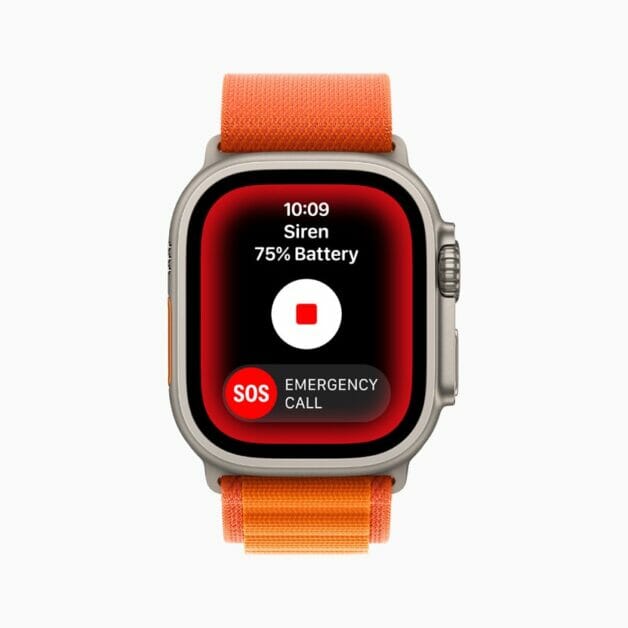
Apple Watch Ultra displays the audible siren feature.

Real Apple Watch Ultra vs fake Apple Watch Ultra price

Apple products are known worldwide for their premium prices compared to any other products. Of course, we acknowledge the existence of deals and promos across the board that could have possibly let you buy an authentic Apple Watch Ultra for dirt-cheap. So just because you got your Apple Watch Ultra for $600 or less doesn’t necessarily mean it’s fake – although it’s likely.

You can get an Apple Watch Ultra for $799 from any Apple store.

If you got your pair brand-new for under ‌$600 from a Black Friday sale or some other super-low discount price, then either you’re lucky, or your Apple Watch Ultra is not authentic.

Real Apple Watch Ultra vs fake Apple Watch Ultra Serial number

Serial Number makes it easier for Apple consumers to check the authenticity of their Apple products. Serial Numbers are unique to each model of the Apple product. The Apple Watch Ultra has that unique Serial Number as well.

Apple runs a website that lets users check if their products are still under warranty. This is great for checking real products, of course, but it also has the added benefit of telling you when you’re using a fake product.

To check if the Apple Watch Ultra is fake or original, you’ll just need it’s serial number. Thankfully, it’s easy to find the serial number for the Apple Watch Ultra.

remove the band from the watch, then look for the serial number inside the band slot.

Once you have the Apple Watch Ultra serial number, head to the Apple’s Check Coverage website and enter it into the field at the top, then fill out the CAPTCHA and click Continue.

If you’re brought to either a page that asks you to enter the purchase date, or one that tells you what warranty options you have available, your Apple Ultra is legit. But if you instead get an error message saying that Apple is “unable to check coverage for this serial number,” it’s definitely a fake Apple Watch Ultra.

Real Apple Watch Ultra vs fake Apple Watch Ultra conclusion

The original Apple Watch Ultra and the fake Apple Watch Ultra share a few core features, though the genuine Watch Ultra has many extras, along with a larger and more rugged build.

At first glance, it is quite easy to mistake a clone for an original Apple Watch Ultra, as the makers pay high attention, especially to the Watch appearance. If you look closely using all the methods discussed in this guide, you can spot a fake from a genuine Apple Watch Ultra.

The new Apple Watch SE 2 (2022) pairs an up-to-date processor with many of Apple’s latest smartwatch features, including watchOS 9 and low power mode. Check out all Apple Watch SE 2 tips, tricks and hacks below.

Even if you know how to use the Apple Watch for the basics (ie. fitness tracking, making calls, checking notifications) there are hidden Apple Watch SE 2 tips and tricks that make it even better. While we wouldn’t go as far as to call all of them “Apple Watch SE hacks,” these features are the lesser-known ways to upgrade your smartwatch experience.

Whether you’ve owned an Apple Watch SE 2 for a while or recently acquired one, there’s more to the device than meets the eye. Some of the most useful Apple Watch SE 2 features are ones that you might not see during setup or everyday use. Many of these Apple Watch SE hacks are buried deep in the settings menu or hidden within certain apps or tools.

All of our favorite Apple Watch SE 2 hidden features work on other Watch models as well.

But where should you start? Below are the best Apple Watch SE 2 tips, tricks and hacks we discovered this year.

1. Favorite frequently used timers

One of the most well-known Apple Watch features — setting a timer — offers a hidden tool you didn’t know about. You can create a list of favorite timers on your Apple Watch that appears at the top of the timer app. This way, the timers you use on a regular basis are conveniently located in the app.

Follow the steps below to favorite a timer:

  1. Swipe left on a timer in ‘recents’.
  2. Tap the orange star button.

Yes, it’s really that simple. When you’ve favorited a timer, it will appear in a new menu above ‘recents’ called ‘favorites.’ You can even favorite multiple timers for quick access.

2. See step count on your watch face

If you haven’t seen a step-count complication when changing your Apple Watch face before, it’s because there isn’t one — not natively, at least. While there are complications for the weather, timers, your Apple Watch rings and other useful tidbits of information, there isn’t a built-in way to see your step count on your Apple Watch face. But with the help of a third-party Apple Watch app, you can hack it.

  1. Download a pedometer app of choice on your Apple Watch. I’ve found the easiest way is to download the app on your iPhone, then sync your Apple Watch. You can check that the app is downloaded to your smartwatch if you scroll down within the “My Watch” tab in the Watch app.
  2. Now, edit your Apple Watch face to add the third-party complication.

3. Optimize charging for battery health

The Apple Watch SE 2 (2022)supports optimized battery charging, a setting that’s perhaps better known for preserving the iPhone’s battery health. But ever since watchOS 7, the Apple Watch has offered optimized battery charging, too. Over time, the Apple Watch’s battery health is prone to deteriorate due to a combination of factors. Optimized charging can help the battery health last longer.

The feature is enabled on the new Apple Watch SE by default, but it’s good to check that it is enabled. Follow the steps below:

  1. Open the settings menu on Apple Watch
  2. Tap on Battery.
  3. Select battery health.
  4. Toggle on Optimized Battery Charging.

When optimized charging is enabled on your new Apple Watch SE, you might notice your watch pauses charging between 75% and 80% capacity. This should only happen when your watch believes you’ll leave it charging for an extended period of time. It will predict when to complete the charge based on your past charging schedule and location.

4. Enable Low Power Mode

Another Apple Watch SE 2 trick to maximize Watch’s battery life is with the new Apple Watch low power mode. The low power mode feature disables certain battery-draining features such as the always-on display and background health sensor readings. When you track a work out while low power mode is enabled, GPS and heart rate readings are limited, too.

To turn on low power mode, follow the steps below:

  1. Swipe up to open the Control Center on your Apple Watch.
  2. Tap the bubble that shows your battery percentage.
  3. Toggle on low power mode.
  4. You’ll be prompted to review the impact of low power mode, with the option to turn the feature on or turn it on for a certain duration. You can turn on low power mode for 1 Day, 2 Days or up to 3 Days.

5. Control your watch with hand gestures

Learning how to control the new Apple Watch SE with hand gestures will let you use certain features of your smartwatch without touching the display or pressing either of the buttons. With this Apple Watch SE 2 trick, you won’t even need to use your opposite hand. You’ll be able to control your Apple Watch by pinching your fingers or clenching your fists. Hand gestures are part of the Apple Watch’s AssistiveTouch features, which primarily exist to make the Apple Watch experience more inclusive. Simply follow the steps below:

  1. Open the Watch app on your iPhone.
  2. Scroll down and tap Accessibility from the menu on the My Watch tab.
  3. Tap AssistiveTouch from the Motor menu.
  4. Toggle on AssistiveTouch.
  5. Tap Hand Gestures from the Inputs menu.
  6. Toggle on Hand Gestures.

In the same menu you used to toggle on hand gestures, you can review the navigation functions associated with each gesture. There are four gestures: Pinch, Double Pinch, Clench and Double Clench — you can select which actions you want assigned to each motion.

6. Change the digital crown orientation

You may not be aware that there’s a hidden Apple Watch SE 2 trick that allows you to switch the orientation of your Watch so the digital crown faces a different direction. While most people with an Apple Watch wear it with the digital crown located on the upper right side next to the display, there’s a way to turn the button around. If you wear your Apple Watch on your right wrist, the digital crown probably already faces your forearm. But if you wear it on your left wrist, the digital crown probably points toward your hand. Follow the steps below:

  1. Open the settings menu on your Apple Watch.
  2. Tap General.
  3. Select orientation.
  4. Select Left or Right depending on which way you want your Apple Watch digital crown to face.

When you switch from right to left, or vice versa, the display will turn upside down. Play around with these settings to figure out which orientation is the most comfortable for you.

7. Keep apps open longer

By default, your Apple Watch will return to your clock or watch face from an app after two minutes when you lower your wrist or idle. So if you’re reading a message or have an app open, your Apple Watch might go back to your current watch face shortly after entering always-on mode, closing whatever app you have open. Some people might find this annoying, but luckily there’s a cool Apple Watch SE 2 trick that allows you to change it.

  1. Open the settings menu on your Apple Watch.
  2. Tap General.
  3. Select Return to Clock.
  4. Change from ‘Always’ or ‘After 2 minutes’ to ‘After 1 hour.’

Alternatively, you can scroll down and customize the return to clock setting for each individual app downloaded on your Apple Watch.

8. Use Siri as a translator

Whether you’re traveling to a foreign country or trying to learn a new language, you can use this hidden Apple Watch SE 2 trick to help you with the translations. With real-time translation support for 11 different languages, the Apple Watch’s built-in voice assistant can tell you how to say almost anything instantly.

Just activate Siri and say: “how do I say {word or phrase} in {language}” to use Siri’s real-time translation tool. Not only does Siri display the translation typed out, but it will also speak the translated word or phrase out loud. That way you can theoretically use it to give a cab driver instructions, or simply work on your enunciations.

9. Find out what song is playing

You might’ve heard of Shazam, an app that can identify songs playing out loud. Say you’re at a restaurant or bar and hear a tune you want to save for later, but don’t want to bug the server or bartender for the playlist information. Most people are familiar with the smartphone version of the app, but Shazam actually works on Apple Watch, too.

To use this hidden Apple Watch SE 2 hack, you need to download Shazam on your Apple Watch. From there, you can open the Shazam app on your wrist when you want to find out what song is playing. You can ask Siri to identify the song, too: Press your Apple Watch’s digital crown and ask, “What song is playing?” Siri will listen and name the song it identifies.

10. Make Apple Watch Text Larger

Apple Watch text can be tiny, taking int account the new Apple Watch SE compact size. You can make it bigger by following the steps below:

  1. Open the Settings menu on Apple Watch.
  2. Scroll down and tap on “Display & Brightness”.
  3. Tap on “Text Size.”
  4. Tap on the “Aa” on the right side of the display to make the text bigger, and tap on the “Aa” icon on the left side to make it smaller again.

When you adjust the text size, any app that supports Dynamic Type will show your preferred text size. If you want to make text even more visible, toggle on the “Bold Text” option below text size.

11. Control Your Apple TV With Your Watch

If you own an Apple TV set-top box, you can easily control it using the Remote app on your Apple Watch, which can come in handy if you lose your remote.

  1. Press on the Digital Crown to get to your App List or App Grid, depending on your App View.
  2. Look for the “Remote” app, which is labeled as Remote and has a blue icon with a triangle in the center.
  3. Tap on it.
  4. Wait a moment as the watch syncs to the ‌Apple TV‌ sets in your home.
  5. Choose the ‌Apple TV‌ you want to control.
  6. Now, you can turn on the ‌Apple TV‌ by tapping on the little TV icon in the bottom left of the display, and scroll through the interface using swipe gestures. To launch an app or make a selection, just tap.

Tip: Tap on the “ ” button to add an ‌Apple TV‌ that your watch is not linked to and go to Settings > General > Remotes on the ‌Apple TV‌ set. The Remote feature is compatible with the third-generation ‌Apple TV‌ and later.

12. Get Help in an Emergency

This hidden Apple Watch SE 2 trick lets you get help quick in an emergency. You just need to enable an SOS feature on the new Apple Watch SE that will call emergency services with the press of a button.

  1. Go to the Settings menu on the Apple Watch.
  2. Scroll down to “SOS.”
  3. Enable “Hold Side Button.”

With the SOS feature toggled on, your Apple Watch SE will begin dialing emergency services in the country where you’re located if you hold down the side button. The side button is the rounded rectangular button located below the Digital Crown.

By holding down this button, your Apple Watch will call emergency services, but you will have a countdown to stop the call in case it gets activated by accident.
Tip: If you want the new Apple Watch SE to be able to automatically call emergency services if you take a hard fall, enable Fall Detection in this same section, and make sure Crash Detection is turned on too. If you slip and are knocked unconscious or have an accident on a bike, skateboard, car or other mode of transportation, your Apple Watch can get you help.

13. Remove Apps From Your Apple Watch

If you have a bunch of apps on your new Apple Watch SE that you don’t need, you can delete them.

  1. Unlock your Apple Watch and go to the App View.
  2. Long press on the Apple Watch display.
  3. Tap on “Edit Apps.”
  4. Scroll through the list or swipe through the grid (depending on your view choice) to locate apps you don’t want.
  5. Tap on the small “x” on the app to delete an app or swipe to get to the delete interface if you use the List view.
  6. Confirm that you want to delete the app.

Please Note: there are native apps that cannot be removed from the Apple Watch including Activity, Compass, App Store, Heart Rate, Maps, Mail, and Messages, but there are a number that you can get rid of to have a cleaner look.

You can remove Alarms, ECG, Blood Oxygen, Memoji, Find Items, Cycle Tracking, Mindfulness, Sleep, and other similar apps. If you want them back later after deleting them, you will need to redownload them from the ‌App Store‌.

14. Share a Photo From Your Apple Watch

Another cool Apple Watch SE 2 trick lets you share photos right from your wrist without having to open up your ‌iPhone‌, which can be useful for a quick image transfer. If you come across an image on your Apple watch that you want to share, you can send it to someone else right from your wrist.

  1. Launch the ‌Photos‌ app on your Apple Watch.
  2. Select a photo that you want to share and tap it.
  3. Tap on the small share icon located at the bottom right of the photo.

You’ll be presented with the most recent contacts to send it to, or you can scroll down and send it to anyone using Messages or Mail.
Select a contact, and then write a message if you want to add one.
Tip: The ‌Photos‌ app on Apple Watch can display one album from your ‌iPhone‌ photos. To change it, open up the Watch app on ‌iPhone‌, scroll down and select ‌Photos‌, and tap on “Sync Album” to choose an album to sync to your Apple Watch.

Apple allows you to sync up to 500 photos, but be aware that the number of photos that you choose affects the storage space on your Apple Watch. In the Watch app under ‌Photos‌, you can also choose to sync memories and sync featured photos. With these options enabled, your featured memories and images will show up in the ‌Photos‌ app, and the selection will change daily.

15. Set a Photo as Your Watch Face

Another hidden Apple Watch SE 2 trick lets you set one of your own photos as your watch face so you can glance down at your favorite places, people, or pets whenever you go to check the time. It’s easiest to set a photo as a watch face on ‌iPhone‌, following these instructions:

  1. Launch the Watch app on ‌your iPhone.
  2. Tap on ”Face Gallery.”
  3. Scroll down and tap on ”Photos”.
  4. You can select an album of photos, such as your Favorites, or choose to select up to 24 individual photos from your Camera Roll. There’s also an option for Dynamic, which uses photos from your Memories.
  5. Tap on ”Album” to choose an album, select ”Choose ‌Photos‌…” to choose photos, or tap on ”Dynamic” to have it pull from Memories.
  6. If you want to add a tint to your photos, pick a color from the top bar.
  7. Scroll down to ”Time Position” and choose ”Top” or ”Bottom,” and then select your Complications if you want to use them.
  8. Scroll back up to see a preview of your watch face, and tap ”Add” if it looks good.
  9. Tap on the ”My Watch” tab.
  10. Tap on the “‌Photos‌” watch face that you created.
  11. Choose ”Set as Current Watch Face.”

Tip: There’s also a “Portraits” watch face that accompanies the ‌Photos‌ face. With the Portraits face, you can choose a photo that you’ve captured using Portrait mode and set it as a watch face. With the data from the portrait photo, there is a sense of depth to the watch face, with the time able to be placed behind the subject in some images. To set it, follow the steps above, but choose Portraits instead of ‌Photos‌ at step 3.

Note that this effect only works with photos of people, and not pets or objects captured in Portrait mode.

Your favorite Apple Watch SE Tips and tricks?

These are our favorites Apple Watch SE 2 (2022) tips and tricks. What are your favorite tips and tricks for the new Apple Watch SE? Drop a comment and let us know.

If you just bought an Apple Watch Ultra, here are 18 best Apple Watch Ultra tips and tricks to make the most out of your wearable.

The Apple Watch ultra is packed with unique features that you’ll want to take advantage of. It’s Apple’s most rugged Apple Watch with improved GPS, a 49mm casing, a more durable display, extra long battery life, a built-in Action button, and more. Let’s jump straight into it and check out some of the best Apple Watch Ultra tips and tricks to help you master your device.

Apple’s WatchOS 9 update, which arrived in September, brought even more features to the Apple Watch. Additions include more detailed sleep monitoring and a new app for tracking medications. But of course, you need to know exactly how to use these Apple Watch features, or else you’ll be at a loss.

Fortunately,mastering an Apple Watch is pretty easy. Here are the best tips and tricks for Apple Watch Ultra that will help you master your watch in no time.

Best Apple Watch Ultra tips and tricks in 2023

1. Adjust all of your Activity goals

Apple makes it easy for users to change their goals for the amount of time they stand and exercise. Previously, you could only change your Move (or calories) goal.

So instead of using the defaults — 30 minutes of exercise and a cumulative 12 standing hours a day — it’s a good idea to change either one to fit your actual daily routine.

This Apple Watch Ultra trick makes it possible for you to hit your own targets when you actually start your day, not when Apple tells you to. For example, if you use sleep tracking overnight and need to charge your watch more often in the morning, you won’t feel like you’ve lost an hour of time needed to close those rings. Follow the steps below:

  1. Start the Activity app on your watch.
  2. Scroll to the bottom and tap Change Goals.
  3. Make your adjustments for all three metrics and start closing those rings.

2. So long, random screenshots

The best Apple Watch Ultra trick we can show you is how to stop random screenshot on the Watch. To take a screenshot, you simply press the Digital Crown and side button at the same time. It’s a simple and convenient method, unless you’re like me and find yourself frequently triggering it accidentally, filling up the Photos app with random pictures of your watch face.

To turn off the ability to take screenshots altogether, follow the steps below:

  1. Start the Settings app on your watch or use the Watch app on your phone.
  2. Tap on General.
  3. Scroll down until you find Screenshots. Tap this option.
  4. Toggle off the switch next to Enable Screenshots for a clutter-free camera roll.

3. Customize which apps appear in your dock

If you have a lot of apps installed on your Apple Watch, it can be difficult to find the right ones when you need them. That’s where this Apple Watch Ultra trick comes in handy. If you’re not familiar, the dock on the Apple Watch is equivalent to the app switcher on the iPhone. You can trigger it by tapping the side button, which pulls up a carousel of recently used apps.

However, you can also customize the dock to show any apps you want instead of your most recent apps. To do this on your watch, follow the steps below:

  1. open the Settings menu on your watch.
  2. Tap Dock and select the Favorites option.

But I recommend setting this up in the Phone’s Watch app instead so that you can customize these apps.

  1. Start the Watch app on your iPhone.
  2. Tap on Dock.
  3. After selecting your Favorites option, you’ll see a list of apps divided into two sections: Favorites and Do Not Include. Favorites are the apps that are currently in your dock, while the latter lists all of the other apps on your watch that aren’t included.
  4. Tap the Edit button located at the top right corner to customize the Favorites list to your liking.

4. Choose the Portrait mode photos you want to see on your wrist

The next Apple Watch Ultra trick lets you set Portrait mode photos as the background for your watch face. But first, you have to dig into the settings in the Watch app on your iPhone. To do this, follow the steps below:

  1. Launch the Watch app on your iPhone.
  2. Navigate to the Face Gallery tab at the bottom of the screen.
  3. Tap the Portraits option under the New Watch Faces category.
  4. Tap the Choose Photos option under Content to select up to 24 photos that will rotate automatically when you raise your wrist or tap the screen.

5. Keep the Apple Watch’s screen awake for a longer period of time

The next Apple Watch Ultra trick lets you stop the screen from going idle right away. Perhaps you were in the middle of reading a long text message and got distracted, or maybe you want to keep an eye on your timer. Once you tap the Apple Watch’s screen, it typically stays active for 15 seconds. But you can extend that to 70 seconds by following the steps below:

  1. Launch the Settings menu on your watch.
  2. Tap Display & Brightness.
  3. Tap Wake Duration.
  4. Select the Wake for 70 Seconds option.

6. Stop every app from automatically installing

Every time you install an app on your iPhone, it will automatically install its Apple Watch counterpart if there is one. This can clutter up your watch’s app grid pretty quickly, making it hard to find the apps you do want to use on your watch. Thankfully, there’s a cool Apple Watch Ultra trick that lets you stop this behavior. Follow the steps below:

  1. Open the Watch app on your iPhone.
  2. Go to Settings.
  3. Choose General.
  4. Slide the switch next to Automatic App Install to the Off position.

You can also do this on the watch by following the steps below:

  1. Open Settings menu on your Apple Watch.
  2. Tap App Store.
  3. Toggle off the switch next to Automatic Downloads.

From now on, you’ll install individual apps on your watch by opening the Watch app on your phone, then scrolling to the bottom where you’ll find a list of available apps.

7. Silence those noisy notifications

An Apple Watch can come in handy when you want to discreetly check an alert or the time. But loud notifications can defeat the purpose. Turn on your Apple Watch’s silent mode by following the steps below:

  1. Swipe up from the bottom of the screen to reveal the Control Center.
  2. Tap the icon that looks like a bell to trigger Silent Mode.

You can also do this by following the steps below:

  1. Open settings on your Apple Watch.
  2. Scroll down and tap Sound & Haptics.
  3. Toggle on the switch next to Silent Mode.

There’s also a volume slider for adjusting how loud or quiet incoming notifications sound if you’d rather not mute them completely.

8. Have Siri only speak out loud when you’re wearing headphones

Siri can be useful for quickly setting timers, starting workouts or checking the weather from your watch. But you might not always want to have Siri speak out loud. You can easily change this so that Siri only provides audible feedback when you’re wearing headphones. Follow the steps below:

  1. Open the Settings menu on your Apple Watch.
  2. Scroll down to Siri.
  3. Under Siri Responses section, tap the Headphones Only option.

When your Bluetooth headphones are connected to your Apple Watch, you should now see the name of your headphones appear above the Siri volume setting in the watch’s settings menu.

9. Make text easier to read by increasing the font size

Reading notifications and news headlines can be difficult on a screen that’s so small. Luckily, there’s a hidden Apple Watch Ultra trick that lets you increase the font size to make things a bit easier on your eyes. To do so, follow the steps below:

  1. Launch the Settings app on your watch.
  2. Tap Display & Brightness.
  3. Scroll down to Text Size.
  4. Rotate the Digital Crown or tap the letters that appear on either side of the meter to adjust the text size on your watch.

10. Stop those annoying reminders to breathe

The Breathe reminder is designed to help you take a few minutes to clear your mind and control your respiration, potentially helping you feel more centered and calm. But if you’re like me and never follow the prompt, use this hidden Apple Watch Ultra trick to turn it off so you no longer have to be reminded to breathe. Follow the steps below:

  1. Open the Watch app on your iPhone.
  2. Scroll down and tap theMindfulness app option.
  3. Next, select Notifications off.

11. Unlock your Apple Watch with your iPhone

Typing in your passcode to unlock your Apple Watch can be a pain, but there’s cool Apple Watch Ultra trick that lets you do it easily. You can choose to have your Apple Watch unlock automatically when your iPhone is unlocked. Follow the steps below:

  1. Tap the Digital Crown and navigate to the Apple Watch’s Settings menu.
  2. Scroll down to Passcode.
  3. Make sure the switch next to Unlock with iPhone is toggled on. Your iPhone will now also display an alert saying that your iPhone is being used to unlock your Apple Watch whenever you put this into practice.

12. Make it easier to find your apps

The honeycomb app grid looks great at first glance, but it can be a pain to find the app you want to launch, particularly if you have a lot of apps installed on your watch. Instead of in a grid, the watch can display all of your apps in an alphabetical list. Follow the steps below:

  1. Either in the Watch app on your phone or in the Settings app on the Watch, tap App View.
  2. Tap on List View.

Now, when you press the Digital Crown to leave your watch face, you’ll see a list of apps that you can quickly scroll through and find what you’re looking for.

13. Control when you’ll see Siri

You can activate Siri on your Apple Watch in three different ways. You can raise your wrist toward your mouth and start talking, long-press the Digital Crown or use the wake phrase, “Hey, Siri.”

I’ve found that I often accidentally trigger Siri when trying to check the time or read a notification while I’m talking to someone else (but my watch thinks I’m trying to talk to Siri). It’s annoying, but it can be changed using this hidden Apple Watch Ultra trick. Follow the steps below:

  1. Either in the Watch app on your phone or in the Settings app on the Watch, select Siri.
  2. You’ll see three buttons to control when you’ll see Siri.
  3. Slide each button to the Off position for any of the options you don’t want to use.

14. Rearrange Control Center

Just like Control Center on your iPhone, Control Center on the Apple Watch is where you turn to quickly adjust settings like do not disturb and airplane mode and to activate the flashlight.

You may find the default list of options in the Control Center isn’t the best fit for how you use your watch, however, and you want to rearrange the list. For me, that means moving the Bedtime toggle from near the bottom of the list to the top. That way when I want to track my sleep over the weekend when I don’t have sleep goals set, I can swipe up and tap the icon. Follow the steps below:

  1. To access the Control Center on your watch, swipe up from the bottom of the watch face, or when in an app you can long-press on the bottom of the screen until you see Control Center start to slide up.
  2. After which you just need to slide your finger up to access it.
  3. Change the order, or hide some buttons in the Control Center by tapping the Edit button at the bottom of the list.
  4. The icons will begin to jiggle and show a red minus sign to hide an option.
  5. Drag and drop the icons into your preferred order, or tap the red minus button to remove the option altogether.
  6. When you’re done, tap Done or press the Digital Crown on the side of your watch to go back to the watch face.

15. Track Your Temperature

The Apple Watch Ultra includes a temperature sensor that can be used to track your temperature at night. Apple added this function primarily for women to monitor their cycles and fertility, but it can be used by anyone and can be an indicator if you’re getting sick.

To take advantage of this Apple Watch trick, simply wear your Watch to bed with sleep tracking enabled. Your device will take periodic temperature readings, which you can then view in the Health app.

  1. On your ‌iPhone‌, open the Health app.
  2. Tap Browse, then tap Body Measurements.
  3. Tap Wrist Temperature.

If you see “Needs More Data” at the top of the chart, your baseline temperature has not yet been established and you’ll need to wear your Apple Watch for more nights. The number of nights required will be displayed below the chart.

Note that Apple warns that the Apple Watch temperature sensing feature is not intended for medical purposes as wrist temperature is not as accurate as other temperature sensing methods.

16. Get Even More Battery Life on Apple Watch Ultra

The Apple Watch Ultra‌ offers up to 60 hours of battery life, which is great for multi-day usage without needing to charge.

This functionality is enabled through a combination of Low Power Mode and additional battery saving settings for Workouts. 60 hour battery life is exclusive to the ‌Apple Watch Ultra‌ thanks to its larger battery, and other models are limited to 36 hours maximum with Low Power Mode.
To get extended battery life, ‌Apple Watch Ultra‌ models need to have workout settings enabled for fewer heart rate and GPS readings.

  1. Open the Settings app on your ‌Apple Watch Ultra‌.
  2. Scroll to the bottom and tap Workout.
  3. Enable the switch next to Low Power Mode.
  4. Below ”During Low Power Mode,” enable the switch next to Fewer GPS and Heart Rate Readings.

With Low Power Mode turned on and these Low Power Mode options for workouts enabled, the ‌Apple Watch Ultra‌ is able to preserve battery life for walking, running, and hiking workouts by cutting down on the frequency of heart rate and GPS readings and disabling alerts, splits, and segments.

17. Use Night Mode on Apple Watch Ultra

The ‌Apple Watch Ultra‌ comes with an exclusive Wayfinder watch face that has a built-in Night Mode. ‌This Apple Watch Ultra lets you ‌ turn the display red, making it easier to see when lighting is poor. Red light also preserves night vision, so you won’t be temporarily blinded when out on a hike if you look at your Apple watch Ultra in the dark.

Here’s how to turn on ‌Night Mode‌:

  1. If it isn’t already active, swipe to the new Wayfinder watch face.
  2. Turn the Digital Crown to engage ‌Night Mode‌.
  3. To turn it off, rotate the Digital Crown in the opposite direction.

Please Note: Night Mode only works when the Wayfinder watch face is being used – it’s an exclusive feature to Wayfinder and cannot be enabled when any other watch face is displayed.

18. Customize the Action Button on Apple Watch Ultra

The ‌Apple Watch Ultra‌ includes an Action button that is not available on any other Apple Watch model, and it can be set to perform numerous tasks. It can start a workout, launch the stopwatch, set a waypoint in the Compass app, activate the Compass app backtrack feature, start a dive, activate the Flashlight, or activate any Shortcut.

There are even deeper functions available depending on what’s assigned. If you have the Action Button set to start a Workout, for example, you can choose a specific workout. And in the middle of a compatible workout, it can perform a secondary function such as marking segments or laps in a track workout.
If you want to change the function of your Action Button after setup, here’s how:

  1. Start the Settings app on your Apple Watch Ultra.
  2. Scroll down and tap Action Button.
  3. Tap the menu under “Action” and select one of the following options: Workout, Stopwatch, Waypoint, Backtrack, Dive, Flashlight, and Shortcut.
  4. Tap the arrow located at the left-hand corner to go back to Action Button settings.
  5. Tap the menu under ”App” if it appears, then select an app to perform the action. Some actions, such as Flashlight, don’t show the App option.
  6. Tap the arrow to go back.
  7. Tap the menu under “First Press” if it appears, then select an action. Some features allow different actions to happen on the first and second press of the button.

Tips appear on the screen under “Gestures” explaining how the Action button works with the settings that you’ve assigned to it.

You’re also able to configure your Action Button on the Apple Watch app on ‌iPhone‌.

  1. Start the Watch app on your ‌iPhone‌.
  2. Tap the My Watch tab if it’s not already selected.
  3. Tap Action Button.
  4. Under ”Action,” tap the currently selected action to change it.
  5. Select from one of the following options: Workout, Stopwatch, Waypoint, Backtrack, Dive, Flashlight, and Shortcut.
  6. Tap Action Button to return to the previous menu.
  7. Tap the menu under “App” if it appears, then select an app to perform the action. Some actions, such as Flashlight, don’t show the App option.
  8. Tap the arrow to go back.
  9. Tap the menu under “First Press” if it appears, then select an action. Some features allow different actions to happen on the first and second press of the button.

Your favorite Apple Watch Ultra tips and tricks?

These are our favorite Apple Watch Ultra tips and tricks. What are your favorite Apple Watch Ultra tips and tricks? Also, if you know of any other useful Apple Watch Ultra tips and tricks we’ve not included here, we’d love to know them in the comments section below.

Apple Watches are undoubtedly the most expensive smartwatchs on the market.

From their sleek design to the user-friendly interface, there are so many reasons Apple Watchs are so expensive.

Apple Watch was launched in 2016 and since then it has been ruling the smartwatch category for about 6 years now.

There are multiple reasons why Apple Watch is quite expensive than other options available in the market.

Top 10 reasons why Apple Watches are so expensive

1. Accurate Fitness tracking

An Apple Watch can help you meet your sleep goals, track important information related to your heart, log your medications, encourage you to wash your hands, and track your menstrual cycle.

When it comes to the smartwatch users look for fitness-tracking features. There are a number of brands available in the market that are equipped with these features but the problem is accuracy. The accuracy is not up to the mark that gives you false data.

It can be disappointing to have such smartwatches that cannot track the activities for which you have bought them. But Apple fitness watches are upto the mark because they come with insane fitness and health tracking sensors and algorithms.

The overall reliability of an Apple Watch also adds to the overall watch pricing.

See also: Can the Apple Watch Series 8 measure blood pressure?

2. Durable material

One of the most apparent reasons why an Apple Watch is so expensive takes us to the physical materials it is made from. Just like any other Apple Products, an Apple Watches must be of a certain build quality to command their hefty ‘premium’ price tag. As such, Apple cannot skimp on their materials.

The main difference between other smartwatches and Apple Watches is the lifetime use of the watch.

After purchasing an Android smartwatch, it may function quickly and efficiently with performance comparable to that of an Apple Watch.

However, the performance quickly starts to decrease, usually within six to seven months.

Users can reset the watch to bring back some of its performance capability, but it will never be able to function as it did when it was first purchased.

Apple Watches, on the other hand, retain their performance capability for years.

They can still function as fast as they did when they were first purchased.

The main reason for this is that Apple uses extremely high-quality materials to make an Apple Watch, which ensures a lifetime use capacity much longer than that of Android smartwatches.

While Apple has secured the first position among fitness smart watches it is also best when it comes to durability and build quality. Apple Watch 7 is made from 100% recycled aluminum polished stainless steel that gives it a premium look. These are some of the features that make it a bit more expensive than any other brand available in the market. Even if you go to the market you will find that it’s only Apple watches that are made up of premium material.

To afford these great materials, Apple needs to charge a hefty price.

Even though Apple Watches have a hefty price point, it pays off in the end because the watches last much longer than the several $200 Androids that you would have to buy in the same period as owning a single Apple Watch that could last you many years.

3. Levels of finishing

Feeding off of the point about the materials, the materials that make up an Apple Watch will also usually be finished to a high standard. This means the watch surface has been expertly polished, brushed, and constructed so that it looks immaculate and fits together correctly.

You might notice that an Apple Watch just looks different from afar than a less expensive watch; this is usually due to the higher level of finishing that make up an Apple Watch.

4. User-Friendly Interface

One of the trademark features of Apple devices is the easy-to-use interface that anyone can pick up and learn quickly.

While smartwatches made by other companies can be challenging to figure out and are often riddled with bugs and viruses, Apple Watch has intuitive software that is easy to learn.

For people who need more help in learning how to work an Apple Watch, the Apple store runs several free classes for learning things from beginner to advanced technology levels.

Since the brand’s inception, Apple has sought to erase the need for an instruction manual by making all of the products intuitive.

iTunes made music so easy that it ushered in the extinction of the CD.

Steve Jobs himself said, “Any product that needs a manual is broken.”

One of the reasons Apple Watches are so expensive is that you can buy yourself a lot of time that you would have otherwise spent trying to learn how to use the device.

Apple Watchs are so easy to use that there is no need for an instruction manual.

5. Compatibility With Other Apple Devices

One benefit of the iCloud technology is that it automatically syncs with all your Apple products. An Apple Watch has no exception.

For example, as soon as you receive a message on your iPhone, you can access it on your Apple Watch.

Similarly, when you send a message on your Apple Watch, it will appear automatically in Messages app on your iPhone.

In addition, an Apple Watch can unlock an iPhone, an iPhone a Watch, and a Watch a Mac.

When you buy an Apple Watch, you are buying the seamless technology that allows you to connect your watch to your and others’ Apple products.

6. Exclusive Features

Another primary reason why Apple Watches are so expensive is the exclusive features on Apple smartwatches.

The features on Apple Watches are very impressive.

The company focuses well on retaining the features Apple Watchs already provide with the addition of the latest features.

There are quite a few unique features that are worth looking at and considering as you look at the advantages of an Apple Watch.

For example, Crash Detection feature on Apple Watch Series 8 and Apple Watch Ultra can detect impacts and automatically call emergency services and contacts.

Unusually high or low heart rates and irregular heart rhythms (known as arrhythmias) could be signs of a serious condition.

But many people don’t recognize the symptoms, so the underlying causes often go undiagnosed. Notifications in the Heart Rate app will alert you to these irregularities so you can take action and consult your doctor.

These exclusive features add real value to the Apple Watches.

Of course, the problem with all of these great features is the pricing.

See also: Can the Apple Watch Series 8 detect heart attacks?

7. Sophisticated Appearance

When looking at an Apple Watch, you can usually tell it came from Apple by its design alone.

Besides the tell-tale Apple logo, the brand has a specific look that it tends to lean towards.

They focus on making their products look sophisticated and minimalist.

That sort of design makes products look expensive.

When something looks sophisticated, people often think that it’s probably valuable or was expensive to make.

They’re able to forgive an expensive price tag because the design of the product looks like it matches the price tag.

A lot of people who love the design and look of Apple products are more willing to spend money on a watch that follows that design and look.

While there are other smartwatches out there, since they’re not produced by Apple, they don’t always have that signature look of sophistication.

As such, they may not want to buy them because they doesn’t match the rest of their aesthetic.

They’d rather pay more money to get the right look for their watch.

Apple Watches are expensive because they look expensive.

8. Brand Name

One of the main reasons Apple Watches are expensive is that you’re paying the Apple price.

Apple has a reputation for providing high-quality products.

However, they also have a reputation for selling those high-quality products at expensive prices.

Because Apple has built up its reputation over time, its customers have come to expect high prices.

This allows them to put an expensive price tag on the Apple Watches because people tend to already expect them to be on the expensive side.

A brand name is more expensive than a third party brand because of the trust it has built with its customers.

It markets itself in such a way as to make it look as though it sells superior products.

When people buy those products and find satisfaction with them, it reinforces the marketing and reputation.

The customer is more willing to pay higher prices on brand names because of marketing.

9. Research And Development Costs

Apple doesn’t push out new Watches out of thin air.

A lot of thought goes into the design of each new watch.

Apple spends a lot of money on its research and development team.

Those who are part of the team are responsible for introducing new and innovative features of keeping an Apple Watch useful.

This usually means they need a certain amount of money to start researching and testing new features.

They then thoroughly test the features to see if it gives the kind of results that they want.

If it doesn’t, then that entire project gets scrapped.

That means monetary resources have gone to waste.

Once the team has a features that they think will work, they do more testing.

That requires more money because they need to buy things to test the new features.

The engineers themselves also need to get paid.

Throughout this testing, Apple isn’t earning any money from the sale of that specific product.

They’re in the hole with that item.

Once the engineers approve the new feature, it gets put through development.

Then they’re back to the drawing board for the next big thing.

Apple is able to stay as competitive as it does because it focuses on innovation.

Innovation is expensive.

Apple Watches, thus, are expensive because Apple spends a lot of money on its research and development teams.

10. Associated Costs

There’s a lot that goes into the manufacture and sale of Apple Watches than people might first think.

All those associated costs are also why Apple Watches are expensive.

One of the biggest costs is shipping and transporting.

While Apple Watches aren’t that heavy or large, Apple still needs to ship them in bulk.

Even if the shipping costs are low, those are still costs that Apple needs to cover to earn a profit.

Shipping costs can also vary due to factors outside of Apple’s control.

High gas prices, driver shortages, and even distances to the buyer’s location can all impact the price.

Then there are also markup prices from whatever store is selling the Apple Watch.

If people aren’t buying directly from the Apple store, then they might be buying an Apple Watch from another electronics store or general store.

Those stores need to earn a profit, too, so they mark up the prices of the product.

That adds a few dollars to the price tag as well.

There’s also the cost of marketing the product.

No one is going to buy the Apple Watch if no one knows about it.

Apple has to spend a lot of money to market the Apple Watches.

The company is aware that people have a lot of choices when it comes to getting smartwatches.

As such, it needs to prove through its marketing why its latest Apple Watches are worth it.

That costs money as well.

All these costs add up for Apple which means it needs to sell its Apple Watches at higher prices.

Conclusion

Now you know the main reasons Apple Watches are so expensive. Apple Watch includes great features, durable materials, easy to use interface and more.

You are also making it a lot easier for yourself by purchasing a product that is compatible with other Apple products.

Though Apple Watches include a high price tag, you are investing in a fitness tracker and a watch all in one.

Additionally, you are investing in your own convenience.

The Apple Watch Series 8 offers cool features such as heart rate measurements, statistics revolving around exercise and active calorie burning, and much more. Does it support blood pressure measurements, though?

The Apple Watch Series 8 misses out on blood pressure measurements

As of 2022, non of the released Apple Watch models supports blood pressure measurements, and that includes the Apple Watch Series 8. So if you intend to purchase this wearable for this particular purpose, you may want to look into a dedicated medical device instead. Notably, Apple advises customers not to depend on its watches as medical devices. So if you suspect you have a certain medical condition, consult your doctor immediately.

Apple Watch Series 8 keeps on with the same sizes that launched with Apple Watch Series 7. That’s 45 and 41mm cases and a larger display that’s 20% bigger than Series 4-6/SE and 50% larger than Series 3. However, New with Apple Watch Series 8 is a temperature sensor that enables advanced cycle tracking and new hardware to detect car crashes.

Apple’s temperature sensor measures skin temperature, similar to how other wearables work. The measurements are collected at night while sleeping, and it takes five days for the watch to collect enough data to establish a starting baseline. (According to Apple, the baseline temperature will keep calibrating over time.) From that point on, the measurements only show up in Apple’s Health App on the iPhone, under Skin Temperature.

One more immediately useful area for temperature-sensing data is ovulation tracking, another new watch feature. Similar to how Fitbit and Oura already work, the temperature shifts are used to track fertility cycles, as well as possible interruptions.

The Apple Watch Series 8 also offers great features such as an Always-On display, fast charging, and ECG.

See also: Can the Apple Watch Series 8 detect heart attacks?

If you’re willing to pay more for AOD, ECG, Blood Oxygen monitoring, and the other exclusives, then consider buying an Apple Watch Series 8.

The Apple Watch Series 8 can detect a lot of things, but can it detect heart attacks? Here’s what you need to know about heart attack detection on the Series 8 model.

The Apple Watch Series 8 cannot detect heart attacks

As of 2022, none of the released Apple Watch models can detect heart attacks, including the Series 8. In fact, there are no smartwatches on the market that can alert you to a cardiac event as massive as a heart attack. While the hardware may be capable of detecting it, the wearable doesn’t notify you or allow you to view the relevant data revolving around this particular matter. If you suspect you’re having a heart attack, contact emergency services as soon as possible.

However, the Apple Watch Series 8 can monitor your heart rate and notify you when it’s too high or low. Additionally, it can alert you if it detects signs of atrial fibrillation (AFib). Nonetheless, the iPhone maker advises customers not to depend on the Apple Watch as a medical device. If you believe you have a heart-related condition, seek a cardiologist immediately.

The Apple Watch Series 8 offers great features such as an Always-On display fast charging, and low power mode.

In addition, the Apple Watch Series 8 carries all of the normal heavy lifting for the health sensors on the Series 8 as the Series 7. That means you’re still getting blood oxygen monitoring, one of the best heart rate monitors on the market and electrocardiogram (ECG) support. As you’d expect, all of these features work great, with solid accuracy and plenty of detail. You still can’t use the Apple Watch as a medical device, mind you, so keep in mind that data from these sensors should only be used for reference and sharing with medical professionals if you’re concerned about your health.

See also: Can the Apple Watch Series 8 measure blood pressure?

What’s perhaps the biggest new feature associated with the Apple Watch Series 8 is temperature sensing, thanks to a new sensor located at the bottom of the watch. The marquee way temperature sensing is used is in cycle tracking, which lets you see a retrospective chart of when you likely ovulated, which helps in family planning. You also get improved period predictions as well as notifications if your data shows a possible cycle deviation. All of this data is stored securely on your iPhone and can’t be accessed by anybody you don’t explicitly share it with, such as your doctor or health care provider.

In this article, we’ve listed 20 best Apple Watch Series 8 tips and tricks you should definitely know about.

Best Apple Watch Series 8 Tips and Tricks

1. Get Email Notifications When Not Connected to iPhone

Apple Watch users have long been able to receive email notifications from third-party email accounts pushed from their paired ‌iPhone‌. But in ‌watchOS 9‌, you can also be alerted when an important message arrives when you’re wearing your Apple Watch, but away from your ‌iPhone‌.

The option uses iCloud servers to securely access the third-party account, and needs to be manually enabled. To set it up, launch the Watch app on your ‌iPhone‌, tap My Watch, tap Mail, then turn on Email Notifications under “When Not Connected to ‌iPhone‌.”

2. View Activity Rings During Workout

Previously if you were doing an Apple Watch workout and you wanted to see how it was impacting your activity rings, you had to exit out of the Workout app and switch to the Activity app.

Now you don’t have to, because with this Apple Watch Series 8 trick, you can get a glance of your activity rings right in the workout display simply by scrolling up with the Digital Crown.

3. Follow Podcasts

In ‌watchOS 9‌, Apple finally fixed its hobbled Podcasts app, and for the first time you can now follow and unfollow podcasts directly from your Apple Watch.

Tap Listen Now -> You Might Like, then tap a show and select Follow. You can also find the same options by searching for a show and tapping on it.

4. Add Calendar Events on Your Wrist

Thanks to this Apple Watch Series 8 trick, you aren’t just limited to viewing calendar events synced from your ‌iPhone‌ on your wrist – you can now add them too. Simply tap the ellipsis (three dots) button that appears in the corner of the screen when you stop scrolling, then tap New Event.

On the next screen you can add all the usual details including event title, location, start date and time, end date and time, and whether to make it a repeat event. Before you Add the event, you can also choose which calendar to add it to, add invitees, opt to receive alerts, and include any notes.

5. Astronomy Watch Face

Apple in ‌iOS 16‌ added new dynamic wallpaper options to its revamped ‌iPhone‌ Lock Screen settings, and the watch face that arguably mirrors these enhancements in ‌watchOS 9‌ is Astronomy.

Astronomy is actually a revamped version of the original Astronomy watch face, but it has been remastered and includes a new star map and current cloud data based on your location. You can set the Earth, Moon, or Solar System as the main view, and customize the font. It supports two complications, and turning the Digital Crown lets you fast forward or rewind to see the moon phase/planet location on another day.

6. Retrace Your Steps With Backtrack

You don’t need an Apple Watch Ultra to use the redesigned Compass app’s Backtrack feature. With an Apple Watch Series 8 ‌, you can use it to track your route and then help you retrace your steps in case you get lost.

Tap the footprints icon in the bottom-right of the screen, then tap Start to begin recording your route. When you’re ready to retrace your steps, tap the pause icon in the bottom-right of the screen, then tap Retrace Steps.

Your starting location will appear on the compass, and a bouncing white arrow will point you in the right direction. Follow the path back to return to where you first turned on Backtrack, then when you’ve arrived at your starting location, tap the footsteps icon and you’ll be able to delete your steps.

7. Change Watch Face Based on Focus

In ‌‌‌iOS 16‌‌‌, you can customize pretty much everything about your Focus. It’s not just the Home Screen and Lock Screen that you can set – with this Apple Watch Series 8 trick, you can select one of your Apple Watch faces to activate on your wrist for a specific Focus mode.

On your ‌iPhone‌, go to Settings -> Focus, select an existing Focus or create a new one. Set any notification silence options for people and apps when your Focus is active, then under “Customize Screens,” tap Edit under the watch face option. Choose a watch face from your Apple Watch face gallery, then tap Done.

That’s all there is to it. With your chosen Apple Watch face now linked to your Focus Mode, it will be activated automatically on your wrist the next time you enable the Focus on your ‌‌iPhone‌‌.

8. View Edited Messages

In ‌iOS 16‌, Apple added the ability to edit texts sent over iMessage, and with Apple Watch Series 8 ‌, you can view any edits to a received message that have been made.

Simply tap and hold the word Edited in blue below the message to reveal the edits. Tap Hide Edits to make them disappear again.

9. Edit Reminders

Previously, the Reminders app only let you view or add reminders. With this Apple Watch Series 8 trick, you can now Edit existing reminders and add key details, including date and time, location, tags, and notes. You can also move reminders between lists right on your wrist.

10. Change Calendar View

Not only can you now add calendar events in the Calendar app on Apple Watch, you can also switch to day, list, and week views.

Simply tap the ellipsis (three dots) button that appears in the corner of the screen when you stop scrolling, then under “View Options,” choose from Up Next, Day, and List. When you’ve made your choice, tap Done.

11. Add Favorites to the Dock

Accessed with a press of the Side button, the Dock was originally the place you went for quick access to your most recently used apps. With ‌this cool Apple Watch Series 8 tip‌, however, you can change it to list your favorite apps in order of preference.

Open the Watch app on your ‌iPhone‌, then tap Dock. Under “Dock Ordering,” select Favorites, then tap the Edit button to choose your favorite apps. You can have up to 10 docked apps on Apple Watch, and you can drag the three lines beside each app to re-order them.

12. Turn Off Cellular Data

For years now on ‌iPhone‌ you’ve been able to turn off cellular data without losing the ability to make and receive calls. Previously, the same option wasn’t offered on cellular Apple Watch models – whenever your cellular service was enabled, so was cellular data, eating your battery right up.

In ‌watchOS 9‌, Apple has helpfully added separate switches for your watch’s basic cellular/mobile service and mobile data, so now you can control them independently. You can find the settings in your watch’s Settings app, under Cellular/Mobile Data.

13. Kickboard Swim Detection and SWOLF Score

In good news for swimmers, Apple Watch Series 8‌ can now automatically detect when you’re using a kickboard during a pool swim workout.

The Workout app can even give you your SWOLF score, one of the key swim-specific metrics. SWOLF is calculated using a combination of your stroke count and your time spent in the water. The fewer strokes and the less time you take, the lower your SWOLF score, as a measure of your swimming efficiency.

14. Text Size Control

In another boon for accessibility, Apple has added a Text Size control to the Control Center in ‌watchOS 9‌, so now it’s even easier to ensure Apple Watch apps that support Dynamic Type adjust to your preferred reading size.

15. Dictation Auto-Punctuation

Dictation is a popular feature on Apple Watch for sending messages, since it converts your speech to text, which is so much quicker than typing on a tiny keyboard. This Apple Watch Series 8 trick lets you automatically insert punctuation into your sentences in real time, so you no longer have to say “comma” or “question mark” out loud.

The feature should be turned on by default, but if it isn’t, you can go to Settings -> General -> Dictation and turn on Auto Punctuation.

16. Apple Watch Mirroring

With ‌iOS 16‌ and ‌watchOS 9‌, Apple introduced a new Apple Watch Mirroring feature that lets you see and control your Apple Watch screen from your paired ‌iPhone‌. It’s designed to make the watch experience more accessible for people with physical and motor disabilities, but it can also be useful if, say, your Apple Watch screen is cracked or unresponsive.

To enable it, launch the Settings app on your ‌iPhone‌, tap Accessibility, then under “Physical and Motor,” tap Apple Watch Mirroring, before toggling on the feature in the next screen.

A graphical representation of your Apple Watch will appear on your ‌‌iPhone‌‌’s screen, while a blue outline will appear around the face of your Apple Watch to indicate that mirroring is enabled. You’ll now be able to control your Apple Watch by tapping and swiping on the watch image that appears on your ‌‌iPhone‌‌. You can even tap the Side button and swipe the Digital Crown to mimic the same physical actions that you would perform on your watch.

17. Quick Actions

With this Apple Watch Series 8 trick, users with upper body limb differences can now do even more with a double-pinch gesture to respond to alerts on their Apple Watch, including answer or end a phone call, take a photo when the viewfinder and shutter button are showing in the Camera app, play or pause media in the Now Playing app, and start, pause, or resume a workout. You can also use quick actions to snooze an alarm or stop a timer.

To enable Quick Actions, Open the Watch app on your ‌iPhone‌, tap Accessibility, then under “Motor,” tap Quick Actions. Choose from one of the following options: On, When AssistiveTouch is Enabled, and Off. You can also choose their appearance to be Full or Minimal.

With Quick Actions on, when you see an alert on your Apple Watch, you’ll be prompted to perform a Quick Action. For example, when you’ve paused a workout, a prompt lets you know that you can double-pinch to resume it (tap index finger to thumb twice quickly).

18. Control Your iPhone With Apple Watch

In a sort of reverse take of Apple Watch Mirroring, you can also control your ‌iPhone‌ with your Apple Watch. On your watch, go to Settings -> Accessibility, then select Control Nearby Devices. Select your ‌iPhone‌ (or iPad) from the list.

Once connected, you’ll see a series of control buttons enabling you to perform a variety of actions on your ‌iPhone‌, including Go to Home Screen, Open App Switcher, Open Notification Center, Open Control Center, and Activate Siri. Tapping the More button will also give you media playback controls.

19. Find Your Car

The redesigned Compass app includes the ability to create Compass Waypoints and then find the distance and direction between them. The feature can also be used to find your parked car.

If your car has CarPlay or Bluetooth connectivity, you don’t actually have to do anything to set it up. Provided your ‌iPhone‌ is paired with your car in some capacity, your Apple Watch can recognize when you’ve parked and disconnected, and it will drop a waypoint where your car is located.

Launch the Compass app, then look for a blue waypoint on your compass dial. If you turn the Digital Crown, the dial will zoom in and out, giving you a better idea of how far away your car is. Tap the waypoint to get more information about it, then tap Select to see a pointer that will guide you to your car.

If you find yourself relying on this feature frequently, you can even add a Parked Car Waypoint complication to your Watch face that will lead you to your vehicle.

20. Add Favorite Timers

If you use certain timer durations frequently, why not favorite them? Thanks to this Apple Watch Series 8 trick‌, you can.

Simply open up the Timer app, swipe left on a recently used timer, then tap the star icon that appears. The favorited timer will now live at the top of your timer list, until such a time when you swipe left on it and tap the red X to remove it.

Your favorite Apple Watch Series 8 tips and tricks?

So these were some of the best Apple Watch Series 8 tips and tricks you would love to try today. My favorite Apple Watch Series 8 tips and tricks include the ability to get Email notifications when not connected to iPhone and the ability to follow podcasts. There’s surely plenty more hidden Apple Watch Series 8 tips and tricks to discover, so I’ll keep tapping, swiping and noting anything I find. Did we miss out on something important that needs to be added to the list? Which are your favorite Apple Watch Series 8 tips and tricks? Share your thoughts in the comment section below.