








Got a tip for us?

iPhone 13

Just bought a new iPhone 13? Here are three quick ways to transfer data from Android to iPhone 13 safely and securely.

WHAT TO KNOW

  • To transfer data from an Android to a new iPhone 13, you can use the Move to iOS app.
  • To transfer data from Android to iPhone 13 after setup, you can use your Google account.
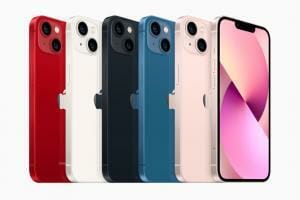
iPhone 13 lineup in (PRODUCT)RED, starlight, midnight, blue, and pink.

If you’ve decided to swap from an Android to an iPhone 13, you’ll want to know how to transfer data from Android to iPhone 13. After all, there’s no sense in abandoning your photos, videos, text messages, calendar appointments and contact details just because you’re leaving Android.

Fortunately, moving data from Android to iPhone 13 is a quick and easy process. In fact, I’ve done it nearly every year, when a new iPhone model comes around and I’m needing to transfer my prized photos, videos, and files across platforms.

Depending on how much data is being moved, the process can range from minutes to an hour plus. But no matter the time, the "how" stays the same, and below I’ve listed not one but three methods to transfer your data from Android to iPhone 13, safely and securely.

Note: information in this article apply to iPhone 13, iPhone 13 mini, iPhone 13 Pro and iPhone 13 Pro Max.

How to transfer data from Android to iPhone 13

Before you begin transferring data from Android to iPhone 13, it’s always good practice to do the following:

  1. Have at least a 75% charge: The higher, the better. Depending on how much data you’re transferring, it’s natural for your phone to become warm and, therefore, drain its battery at a much faster rate.
  2. Have a strong and stable Wi-Fi connection: We’ll be moving the data wirelessly, which means a strong and static signal is necessary to facilitate a smooth transfer process.
  3. Double-check the amount of data you’re moving: Your iPhone 13 may or may not have enough storage space to receive every file.

Method 1: Transfer data from Android to iPhone 13 via Move to iOS

My go-to method for file transferring is Apple’s own Move to iOS service. It will be preloaded on your iPhone 13 so all you have to do is download the Move to IOS app on your Android device via the Google Play Store.

In order to transfer data from Android to iPhone 13 using this method, you’ll have to be in the iOS Setup Assistant, which is the startup page when you first power on your new iOS device — the one that cycles between "Hello" in different languages. If you’ve already set up your iPhone 13 and can access the home screen, you’ll have to factory reset it to use Move to iOS. This can be done on your iPhone by going to Settings, clicking on General, followed by Transfer or Reset iPhone, and choosing the ”Erase all content and settings” option.

Step 1: Start with your iPhone
From iOS Setup Assistant, go through the initial setup slides, including Wi-Fi connection, establishing a passcode, and accepting Apple’s diagnostics terms and conditions. You’ll eventually see an Apps & Data screen.

Step 2: Tap on Move Data from Android
Then tap Continue.

Step 3: On your Android device, open the Move to iOS app
Agree to Apple’s privacy policies, grant the app access to your files and location, and hit Continue when you reach the Find Your Code screen.

Step 4: Your iPhone 13 should display a one-time code
Enter this code on your Android phone. This will connect the two phones with a local Wi-Fi connection, after which you’ll be able to select what files you’d like to transfer over.

The Move to iOS app can transfer six kinds of data from your device: your contacts; your message history; your photos and videos from your camera roll; your web bookmarks; your calendar(s); and your email account(s).

All six of these options will be checked for transfer by default; however, you can uncheck any of these if you don’t want to copy them across. Go ahead and make your choices.

Step 5: Wait for data transfer process to complete
Now you’ve got to let the phones do their work. Don’t close the Move to iOS app on your Android phone, and wait until your data’s moved across. Depending on how much data you’re moving from Android to iPhone 13, the transfer can take 30 minutes or more.

With your data now on the iPhone, you can finish setting it up without your Android phone.

Method 2: Transfer data from Android to iPhone 13 via Google account

Next, you can use your Gmail to transfer data from Android to iPhone 13 via the cloud. This method is ideal if there are any extra files that you forgot to move over during the first method or if you had already set up your iPhone 13 and couldn’t use Move to iOS.

Here’s how to transfer data from Android to iPhone 13 after setup:

Step 1: Open Settings app on Android
Look for the Google tab, tap Backup, and toggle on what categories you’d like to be synced across devices. You can double-check what’s being copied by expanding Google Account data in the Backup details list. Wait until the backup sync is completed.

Step 2: Sync Google account with the iPhone
Open up the iPhone’s settings > Mail > Accounts > Add Account > and enter your Gmail credentials.
The data from your Google account should sync with the iPhone 13 and automatically begin importing.

Method 3: Transfer data from Android to iPhone 13 via Google drive

You can also upload files into a Google Drive folder and download them onto your iPhone. Just note that a standard, free Google account comes with 15GB of storage. You’ll have to pay up for expanded cloud storage.

FAQs

Can I use the ‘Move to iOS’ app even if I already set up my iPhone 13?

No, unfortunately, you cannot use the file-transfer service if you already completed the iOS Setup Assistant. My best advice is to back up anything on your new iPhone that you’d like to keep, factory reset the iPhone, use the Move to iOS service, and then retrieve what was backed up. Again, just make sure you have enough storage to hold everything.

What is the fastest way to transfer data from Android to an iPhone 13?

Apple’s Move to iOS service is the most seamless and efficient transferring service that I’ve used to move data from Android to iPhone 13, especially when I’m still going through the initial phase of setup. Otherwise, you can also use third-party desktop programs: connect both phones to a computer, and move files across locally. However, I’m typically against using non-proprietary software when moving personal information, so I’d stick with the methods above for safety.

Can I transfer data from Android to an iPhone 13 after setup?

Yes. The best method is to back up any information that you’d like to transfer into Gmail or Google Drive and then download it from your iPhone. It requires more manual work, but it’s great if you only want to move certain files and not all.

Can I transfer data from Android to iPhone 13 using a flash drive?

Yes. It’s a bit convoluted, and works best if you’ve perhaps got big files to move. A flash drive such as the SanDisk iXpand Luxe for iPhone and USB Type-C devices is ideal because it will connect to iPhone 13 and earlier that have Lightning ports, and the iPhone 15 and Android devices that have USB-C ports.

See also: 30 Best iPhone 13 and iPhone 13 Pro Tips and Tricks

Is eSIM not working on your iPhone 13? Well, you have come to the right place. In this article, I’ll explain what to do if eSIM is not working on your iPhone 13 so you can fix the problem for good.

An eSIM is a digital SIM that allows you to activate a cellular plan from your carrier without having to use a physical nano-SIM. With iPhone 13 Pro Max, iPhone 13 Pro, iPhone 13, and iPhone 13 mini, you can use Dual SIM with either two active eSIMs or a nano-SIM and an eSIM. But what if you can’t set up or use eSIM on your iPhone 13?

Learn to fix any issues you might encounter when using eSIM on your iPhone 13.

Note: information in this article applied to iPhone 13, iPhone 13 mini, iPhone 13 Pro, and iPhone 13 Pro Max.

How to fix eSIM not working on iPhone 13

1. Wait

If you’ve just activated eSIM on your iPhone 13 and you’re seeing “No Service” status in the control center, fret not! It may take a few hours before your eSIM is fully activated. Some carriers might take up to 4-5 hours to convert a physical SIM card into an eSIM. Usually, you’ll get an email or SMS when your eSIM is fully serviced by the carrier.

2. Have you tried rebooting?

If eSIM won’t activate on your iPhone 13 after waiting a few hours, try to restart your phone and see if that helps. As unexplainable as it may be, we find most iPhone 13 eSIM problems are fixed with a simple reboot. A plethora of possible discrepancies could cause your iPhone 13 eSIM problem, and chances are that if you are here looking for answers, your phone complication is a bit more complex, but it doesn’t hurt to remind you to try the good ol’ restart. It just might work.

  1. Press and hold on to the Side button and either of the volume buttons.
  2. Drag the power of slider from left to right to reboot your device.

3. Turn eSIM line On/Off:

If you’re getting No Service error on eSIM on your iPhone 13, it might be possible to fix the problem by simply turning On/Off the eSIM line.

  1. Go to Settings.
  2. Select Cellular.
  3. Tap the eSIM data plan.
  4. Turn Off the toggle switch for Turn On This Line, then wait for a few seconds before turning it back on.

4. Check your plan?

Some cellular plans have limitations and throttles. Look into your plan’s terms and see if you’ve used more data than you should. You might be capped or throttled. Also, consider the fact you may be late on your payment. Even the best of us forget about bills sometimes. Not to mention sometimes cards get declined for no apparent reason.

5. Outages and reception

Are you out in the middle of nature? Maybe you’re in a concrete building. Or you’re simply going through an area with spotty reception. There is always a chance you’re unreachable to the network, which will cause problems with your cellular connection.

Also, consider that, while rare, carrier networks can go down too, causing service outages. We like recommending DownDetector.com to check when services are down. The website collects consumer reports and lets you know if there is an outage. There’s also a live map to see if the problem is local. Go in there, type in your Carrier, and hit the search button. If the network is down, all you can do is wait.

6. Turn Airplane Mode On and Off

If you find eSIM not working on your iPhone 13 after trying the above steps, your next step is to turn Airplane Mode on and then off again. Doing this can reset the iPhone’s connection to cellular networks and may resolve the problem.

  1. Once your iPhone is unlocked, swipe down from the top right of the screen.
  2. In the upper-left corner tap the Airplane Mode icon that looks like a circle with a white airplane in the middle.
  3. Tap the Airplane Mode icon again to turn cellular connection back on. When Airplane Mode is on, this icon will turn orange. When it’s off, it will have a transparent background.

7. Check for carrier updates

If your wireless service provider, such as Verizon or Sprint, has released an update, your outdated phone may not be connecting properly, and this can appear to be an eSIM issue. Completing a manual carrier settings update may help.

  1. Go to Settings.
  2. Select General.
  3. Tap About.
  4. Your iPhone will automatically check for the update and a screen will appear after a few seconds if an update is available.

8. Check For An iOS Update

Apple often releases new iOS updates to fix minor bugs and roll out new features. It’s a good idea to keep your iPhone up to date anyway, but it can also fix iPhone 13 eSIM problem.

  1. Open Settings.
  2. Select General.
  3. Tap Software Update.
  4. Tap Download and Install if an iOS update is available. Move onto the next step if your iPhone is up to date.

9. Reset network settings

If you still can’t use the eSIM feature of your iPhone 13, it may mean some extraneous setting was changed along the way. It is likely related to the network, so resetting your network settings to factory defaults might fix the issue. All of your iPhone’s Cellular, Wi-Fi, Bluetooth, and VPN settings get restored to factory defaults when you Reset Network Settings.

  1. Open the Settings app.
  2. Tap General.
  3. Select Transfer or Reset iPhone.
  4. Hit Reset.
  5. Tap on Reset Network settings.

10. Factory reset iPhone

If all else fails to fix iPhone 13 eSIM problem, go ahead and perform a factory reset. This will erase everything on your iPhone and bring all settings to factory defaults. This means your iPhone will be left like the first time you turned it on (software-wise).

This fixes pretty much any software issue you may encounter. It is the best solution to many problems, but it should be used as a last resort due to the inconveniences deleting all content entails.

  1. Open the Settings app.
  2. Tap General.
  3. Select Transfer or Reset iPhone.
  4. Hit Erase all content and settings.

11. Re-install eSIM data plan:

If you can’t fix iPhone 13 eSIM problem after trying the above solutions, you may want to temporarily remove the data plan from your Dual SIM iPhone and then activate again by requesting a new QR Code for eSIM from your carrier.

12. Seek professional help

Now, If you still can’t set up or use eSIM on your iPhone 13, you probably need to have a professional personally inspect the device. When an eSIM issue occurs on your iPhone 13, Apple and your wireless carrier will often point the finger at each other. The truth is that there may be an issue with your iPhone or your account with your wireless carrier, and you won’t know until you get in touch with their customer support.

Check out Apple’s website to get support online, in-store, over the phone, or through live chat. You can find your carrier’s customer service center by typing their name and “customer support” into Google.

Fixed iPhone 13 eSIM not working problem

You’ve fixed the problem and your iPhone 13 eSIM is working again. Next time your iPhone 13 eSIM is not working, you’ll know exactly how to fix the problem. Leave a comment down below if you have any other questions.

Is Chrome not working on your iPhone 13? Don’t panic! We’re here to help you fix the problem.

Chrome is one of those apps you don’t worry about until they stop working. The Google Chrome browser is usually fast and reliable but problems can arise every now an then. Few things are as frustrating as trying to open a webpage for a quick search and have something go wrong at the moment it’s most needed. Thankfully, there are several solutions to try that might get the Chrome browser working on your iPhone 13 again.

Is Chrome browser not working on your iPhone 13? When it hits the fan, you need to get it fixed, but how? We’re here to help, as we break down the most common Chrome issues on iPhone 13 and how to fix them.

Editor’s note: Some of the instructions in this article were generated using iPhone 13 Pro running iOS 15 and iPhone 13 Pro Max running iOS 16.

How to fix Chrome not working on iPhone 13 issue

If Chrome is not working on your iPhone 13, iPhone 13 mini, iPhone 13 Pro or iPhone 13 Pro Max, follow the troubleshooting steps below to get it working again:

Is Chrome down?

You might not be the only one suffering from Chrome not working on iPhone 13. There is a chance the whole service is down. Check Down Detector, a site that will let you know if a Chrome is down. If it turns out that the problem is on Google’s side, there’s nothing you can do but wait it out.

Close and reopen Chrome app on iPhone 13

Those still having problems with Chrome not working on iPhone 13 should try the trustworthy method of simply closing and re-opening the app This is a simple, yet very functional troubleshooting tip that works most of the time. If you find Chrome app crashing on iPhone 13, simply closing and reopening the app might fix any local issues.

  1. From the Home Screen, swipe up from the bottom of the screen and pause in the middle of the screen.
  2. Swipe right or left to find the Chrome app.
  3. Swipe up on the Chrome app to close it.

Check for updates

Sometimes older versions of an app may cause issues. If you find Chrome app crashing on iPhone 13, it won’t hurt to check the App Store and see if there are any updates available for Chrome.

How to check for Chrome app updates:

  1. Launch the App Store.
  2. Search for “Chrome.”
  3. You’ll see an Update button if there is an available update for Chrome. Otherwise, the button will say Open.

While you’re at it, you might want to check if there’s an update available for your iPhone.

How to check for iOS updates:

  1. Go into the Settings app.
  2. Select General.
  3. Hit software update.
  4. If an update is available, tap on Download & Install.
  5. Follow instructions and let the update run.

Once your iPhone 13 boots up, try using Chrome again.

Restart your iPhone

Is Chrome not working on iPhone 13 still? Here’s another fix-it-all solution that seems to work pretty much most of the time. Just restart your device! Some magical thing happens when you do this. To do this, press and hold the side and either of the volume buttons, drag the power off slider, and let the iPhone do its thing. When it reboots, try using Chrome again.

Check your internet connection

Now you’re starting to get irritated and have probably given up on what you wanted to check on the internet. Calm down, breathe, and get back to the basics. Is your internet even working?Are other devices working? Check if you have any. If nothing else works, you might be off the grid.

Start by checking if Airplane Mode is on. Those using Wi-Fi or LAN should take a look at the router and see if it’s connected. Try restarting it. There’s usually a dedicated button, but you can also unplug the router and plug it back in.

More: Is Wi-Fi not working on your iPhone 13 Pro Max? Here are some fixes

You can also check if your data connection is enabled if you’re using cellular data:

  1. Open the Settings app.
  2. Go into Cellular.
  3. Toggle Cellular data on, if it isn’t.

See also: 15 Tips to Fix Cellular Data Not Working on iPhone 13 Pro Max

Uninstalled Chrome app and reinstall it

If you find Chrome not working on iPhone 13 after trying the above fixes, uninstall the Chrome app entirely and then reinstall it from the app store. Here’s how to uninstall the Chrome app from your iPhone 13.

  1. Press and hold the Chrome app.
  2. Tap Remove App.
  3. In the pop-up window, tap Delete App > tap Delete.
  4. Now, install a fresh version from App Store.

That’s all, folks! We hope the problem of Chrome not working on iPhone 13 is now behind your back. Do not forget to let us know your feedback down below in the comments.

Is Gmail not working on your iPhone 13? Don’t panic! We’re here to help you fix the problem.

Gmail is one of those services you don’t worry about until it’s gone. Is Gmail app not working on your iPhone 13? When it hits the fan, you need to get it fixed, but how? We’re here to help, as we break down the most common Gmail issues on iPhone 13 and how to fix them.

Editor’s note: Some of the instructions in this article were generated using iPhone 13 Pro running iOS 15 and iPhone 13 Pro Max running iOS 16.

How to fix Gmail app not working on iPhone 13 issue

If Gmail is not working on your iPhone 13, iPhone 13 mini, iPhone 13 Pro or iPhone 13 Pro Max, follow the troubleshooting steps below to get it working again:

Is Gmail down?

Is Gmail app not working on your iPhone 13? There’s a chance it’s not working for anybody! This is not common, but Google’s services go down from time to time. Thankfully, there are a couple of ways to check if this is the case.

You can head over to the Google Workspace Status Dashboard. This page will tell you if any Google service is operational or not. Of course, Gmail is one of the listed apps. Alternatively, you can try a website like DownDetector. The site collects user reports to identify service outages. There’s even a map to see if the issue is local.

Close and reopen Gmail app on iPhone 13

This is a simple, yet very functional troubleshooting tip that works most of the time. If you find Gmail app crashing or not working on iPhone 13, simply closing and reopening the app might fix any local issues.

  1. From the Home Screen, swipe up from the bottom of the screen and pause in the middle of the screen.
  2. Swipe right or left to find the Gmail app.
  3. Swipe up on the Gmail app to close it.

Check for updates

Having an older version of an app isn’t usually a problem, but it can sometimes create some conflicts. This is especially the case when newer updates are more extensive, or when they include server-side changes. If you find Gmail app crashing on iPhone 13, it won’t hurt to check the App Store and see if there are any updates available for Gmail.

How to check for Gmail app updates:

  1. Launch the App Store.
  2. Search for “Gmail.”
  3. You’ll see an Update button if there is an available update for Gmail. Otherwise, the button will say Open.

While you’re at it, you might want to check if there’s an update available for your iPhone.

How to check for iOS updates:

  1. Go into the Settings app.
  2. Select General.
  3. Hit software update.
  4. If an update is available, tap on Download & Install.
  5. Follow instructions and let the update run.

Once your iPhone 13 boots up, try using Gmail again.

Restart your iPhone

It may sound silly, but this is seriously the most common troubleshooting tip, and it seems to work most times. Seriously, whenever you’re having the problem of Gmail not working on iPhone 13, just restart your device. It just may fix it. To do this, press and hold the side and either of the volume buttons, drag the power off slider, and let the iPhone do its thing. When it reboots, try using Gmail again.

Check your internet connection

Is Gmail even the problem? It just might be your internet that’s letting you down. Try testing other apps or websites to see if they work. You can do something as simple as launching Google and searching for anything. If this works, it means your internet is OK. Are other devices working? Check if you have any. If nothing else works, you might be off the grid.

Start by checking if Airplane Mode is on. Those using Wi-Fi or LAN should take a look at the router and see if it’s connected. Try restarting it. There’s usually a dedicated button, but you can also unplug the router and plug it back in.

More: Is iPhone connected to Wi-Fi but no internet? Fix it here

If you’re using cellular data, you might want to see if your data connection is on:

  1. Open the Settings app.
  2. Go into Cellular.
  3. Toggle Cellular data on, if it isn’t.

Remove your Google account and re-add it

You can give your Gmail app a complete account restart, too. The simplest way to do this is to remove your Google account and re-add it afterward. This might create some inconveniences, as your Google account might be running multiple services on your phone, but it’s worth a try if none of the other methods are working.

How to remove a Google account from iPhone 13

  1. On your iPhone 13, open the Gmail app .
  2. In the top right, tap your profile picture.
  3. Tap Manage accounts on this device.
  4. Tap Remove from this device.

Add your account to the Gmail app on iPhone 13

  1. On your iPhone 13, open the Gmail app .
  2. At the top right, tap your profile picture.
  3. Tap Add another account.
  4. To add your account, follow the on-screen steps.

Uninstall and reinstall Gmail app

if you find Gmail not working on iPhone 13 after trying the above steps, uninstall the Gmail app entirely and then reinstall it from the app store. Here’s how to uninstall the Gmail app from your iPhone 13.

  1. Press and hold the Gmail app.
  2. Tap Remove App.
  3. In the pop-up window, tap Delete App > tap Delete.
  4. Now, install a fresh version from App Store.