Got a tip for us?

Journal

You can customize the settings for the Journal app; for example, allow journaling suggestions to sync from iPhone, lock your journal, set a schedule for journaling, and more.

Journaling suggestions sync from iPhone when you’re signed in to the same Apple Account. With Apple Intelligence, Journal can even suggest writing prompts based on what you write. You can add a title, date, or current location to new entries, too.

Here’s how to change your Journal settings on iPad.

Sync journaling suggestions from iPhone

When you’re signed in to the same Apple Account, journaling suggestions can sync from iPhone to iPad.

  1. Turn on iPhone Journaling Suggestions.
  2. On your iPad, open the Settings app and tap Privacy & Security.
  3. Tap Journaling Suggestions and then tap Turn On Journaling Suggestions.
  4. Turn on Allow Sync to iPad.

Turn Writing Prompts on or off

Journal can use Apple Intelligence to suggest customized writing prompts, drawing on what you write plus the photos or drawings in your entry.

Note: Apple Intelligence on iPadOS 27 or later is available on an Apple Intelligence-enabled iPad mini (A17 Pro) and iPad models with M1 or later. Apple Intelligence is not available in all languages or regions. Usage limits may apply.* You must be an adult to use this feature.

  1. Start the Settings app on your iPad.
  2. Tap Apps and tap Journal. Tap Get Writing Prompts.

Add a title, date, or current location to new journal entries

  1. Start the Settings app on your iPad.
  2. Tap Apps, tap Journal, and do any of the following:
    • Add location to new entries: Turn on Add Current Location.
    • Add a title to new entries: Tap Add Entry Title and then choose Always, Only for Moments, or Never.
    • Use the date from the moment as the entry date: Turn on Always Use Moment Date.

Save photos and videos taken in Journal to the Photos app

  1. Start the Settings app on your iPad.
  2. Tap Apps and tap Journal.
  3. Turn on Save to Photos.

*Apple Intelligence is available with Siri and device language set to Chinese (Simplified), Chinese (Traditional), Danish, Dutch, English, French, German, Italian, Japanese, Korean, Norwegian, Portuguese, Spanish, Swedish, Turkish, or Vietnamese. Some features may not be available in all regions or languages. Some devices may not be available in all regions. Siri AI is available in beta in iOS 27, iPadOS 27, macOS 27, watchOS 27, and visionOS 27 and requires an Apple Intelligence–enabled device set to a supported language. Available in English to start. Siri AI will not be initially available in the EU on iOS, iPadOS, and watchOS. Certain Apple Intelligence features that rely on server-side models are subject to daily usage limits, including but not limited to Siri AI, Intelligent Photo Editing Tools, Image Playground, and AFM 3 Cloud models in Shortcuts. Daily limits may vary by feature, request complexity, system demand, system policies, and other factors. Expanded access to such features will be available for a fee in the future. Use of these features is subject to the Apple Intelligence Terms and Conditions.

See also
Tag: Journal

In the Journal app, there are a number of ways you can protect your journal entries. You can lock your journal, you can sync your journal entries with iCloud, and you can include your journal entries in your iPhone backup if you encrypt your iPhone backup and store it locally on your computer or external storage device.

With iCloud, your entries and your changes show up on every iPhone, iPad, and Mac signed in to your Apple Account with Journal turned on.

Keep your entries in sync across your devices with iCloud

Your entries appear on your iPhone, iPad, and Mac, along with any changes you make to them. Each device needs Journal turned on in iCloud settings and the same Apple Account signed in.

  1. Open the Settings app on your iPhone.
  2. Tap your name, then tap iCloud.
  3. Tap See All next to Saved to iCloud, then turn on Journal.

How do I back up my journal entries?

Your entries are only included in a backup of your iPhone if your iPhone backup is encrypted and stored locally on your computer or an external storage device. That gives you a copy of your entries to use if your iPhone is ever replaced, lost, or damaged. In Settings, you can check that your entries sync to iCloud, but journal entries aren’t included in iCloud backups.

Lock your journal

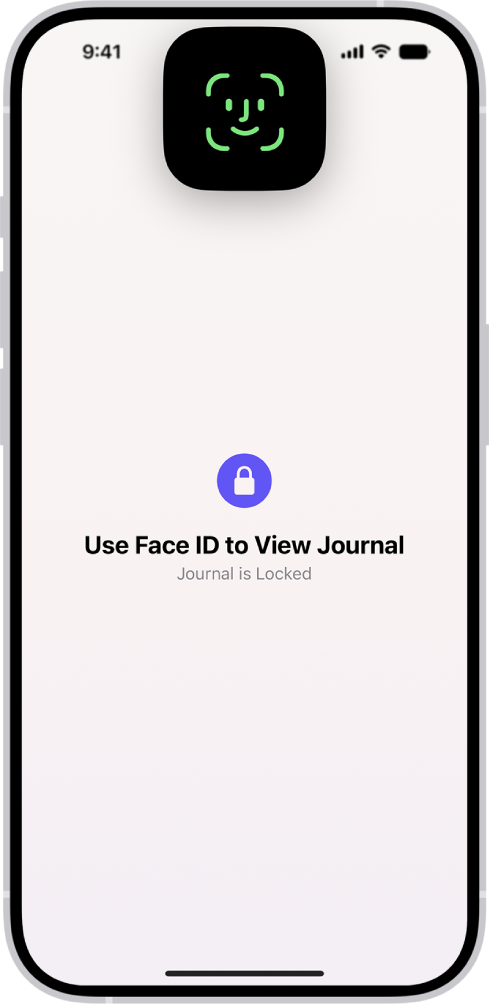
To keep your journal private, make it so only you can access it, using Face ID, Touch ID, or your passcode.

A screen in the Journal app that prompts you to use Face ID to unlock your journal.

You can lock your journal from either of these places:

  • In the Journal app: Above the Insights summary, tap the More button, then tap Lock Journal.
  • In the Settings app: Go to Settings > Apps > Journal, then tap Lock Journal.

You can customize the settings for the Journal app; for example, personalize the suggestions you receive, set a schedule for journaling, and more.

With Apple Intelligence, Journal can even suggest writing prompts based on what you write. You can add a title, date, or current location to new journal entries, save photos and videos taken in Journal to the Photos app, and turn Journal notifications on or off.

Here’s how to change your Journal settings on iPhone.

Turn Journaling Suggestions on or off

  1. Start the Settings app on your iPhone.
  2. Tap Privacy & Security and tap Journaling Suggestions.

Customize Journaling Suggestions

Journal can use Apple Intelligence to suggest customized writing prompts that draw on what you write and the photos or drawings you add to an entry.

Note: Apple Intelligence on iOS 27 or later is available on an Apple Intelligence-enabled iPhone 15 Pro, iPhone 15 Pro Max, or iPhone 16 model or later. Apple Intelligence is not available in all languages or regions. Usage limits may apply.* You must be an adult to use this feature.

If you want to fine-tune how Journal works, here’s what you can change:

  • Customize the privacy settings: Go to the Settings app , tap Privacy & Security, tap Journaling Suggestions, then turn any of the categories on or off.

    Suggestions use data from apps and services you turn on; data used for suggestions is private and stored on your iPhone.

  • Change the notification settings: Go to the Settings app , tap Notifications, then tap Journaling Suggestions.
  • Create new entries without viewing suggestions or prompts: Go to the Settings app , tap Apps, tap Journal, then turn off Show Suggested Moments or Get Writing Prompts.

Add a title, date, or current location to new journal entries

  1. Start the Settings app on your iPhone.
  2. Tap Apps, tap Journal, and do any of the following:
    • Add a title to new entries: Tap Add Entry Title and then choose Always, Only for Moments, or Never.
    • Use the date from the moment as the entry date: Turn on Always Use Moment Date.
    • Add current location to new entries: Turn on Add Current Location.

Save photos and videos taken in Journal to the Photos app

  1. Start the Settings app on your iPhone.
  2. Tap Apps and tap Journal.
  3. Turn on Save to Photos.

Turn Journal notifications on or off

  1. Start the Settings app on your iPhone.
  2. Tap Notifications, then tap Journaling Suggestions.

*Apple Intelligence is available with Siri and device language set to Chinese (Simplified), Chinese (Traditional), Danish, Dutch, English, French, German, Italian, Japanese, Korean, Norwegian, Portuguese, Spanish, Swedish, Turkish, or Vietnamese. Some features may not be available in all regions or languages. Some devices may not be available in all regions. Siri AI is available in beta in iOS 27, iPadOS 27, macOS 27, watchOS 27, and visionOS 27 and requires an Apple Intelligence–enabled device set to a supported language. Available in English to start. Siri AI will not be initially available in the EU on iOS, iPadOS, and watchOS. Certain Apple Intelligence features that rely on server-side models are subject to daily usage limits, including but not limited to Siri AI, Intelligent Photo Editing Tools, Image Playground, and AFM 3 Cloud models in Shortcuts. Daily limits may vary by feature, request complexity, system demand, system policies, and other factors. Expanded access to such features will be available for a fee in the future. Use of these features is subject to the Apple Intelligence Terms and Conditions.

Tag: Journal

In the Journal app, you can print and export individual entries or your entire journal.

You can print a single journal entry or multiple entries, choosing all entries or a date range. You can also export a single journal entry or multiple entries as PDF files, and share them with an app such as Notes, Files, or Messages on your iPhone.

Here’s how to print and export entries in Journal on iPhone.

Print a single journal entry

  1. Start the Journal app on your iPhone.
  2. Choose a journal or tap All Entries.
  3. Scroll to the entry you want to print. Tap the More Options button.
  4. Tap Print.

Print multiple journal entries

  1. Start the Journal app on your iPhone.
  2. Choose a journal or tap All Entries.
  3. Tap the More button and tap Print.
  4. Choose All Entries or select a date range and then tap Print.

Export a single journal entry as a PDF file

  1. Start the Journal app on your iPhone.
  2. Choose a journal or tap All Entries.
  3. Scroll to the entry you want to export. Tap the More Options button.
  4. Tap Print and tap the Share button.

Choose an app such as Notes, Files, or Messages, or tap Save to Files.

Export multiple journal entries as PDF files

  1. Start the Journal app on your iPhone.
  2. Choose a journal or tap All Entries.
  3. Tap the More button.
  4. Tap Export and choose Export.
  5. Choose a location and then tap the Selected button.
Tag: Journal

You can log your state of mind in the Journal app. The time you spend journaling can even be added automatically as mindful minutes in the Health app.

As you reflect on how you’re feeling, you can log your momentary emotions, and your state of mind is added to Health, where you can review its history over time. And the Health app can access your state of mind and mindful minutes, too, if you allow it.

Here’s how to journal for your wellbeing on iPhone.

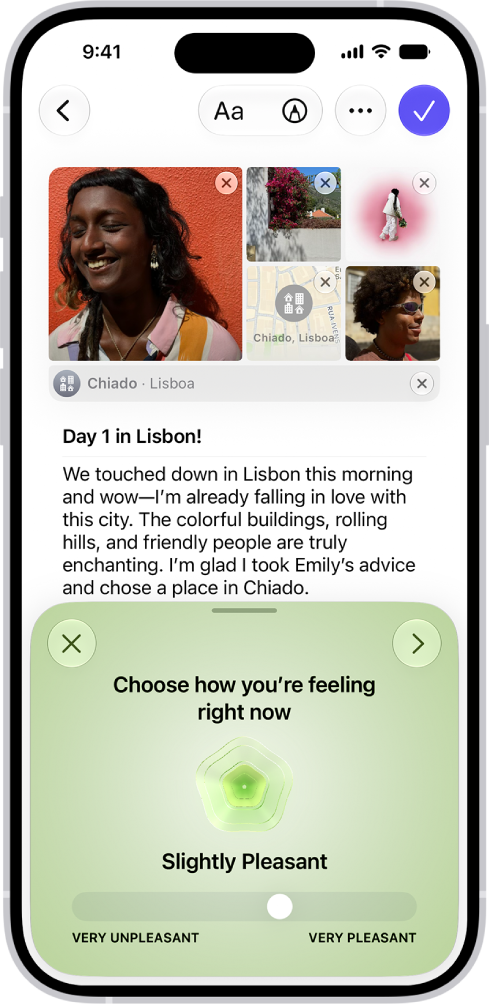
A screen in the Journal app showing an entry with a section at the bottom where you can log your state of mind.

Log your state of mind

Your journal is a place to log your momentary emotions and reflect on how you’re feeling.

  1. Start the Journal app on your iPhone.
  2. While composing an entry, tap the More button above the keyboard. Then tap the Add State of Mind button.

You may be asked to turn on Health access.

  1. Drag the slider to indicate how you’re feeling and then tap the Next button.
  2. Tap any words that describe how you’re feeling, swipe up to see more words, and then tap the Next button.
  3. Tap any words that describe what’s having the biggest impact on you. Then tap the Done button.

Your state of mind is added to Health. There, you can review its history over time.

Allow the Health app to access your state of mind and mindful minutes

The Health app can automatically log your journaling time as mindful minutes.

  1. Start the Settings app on your iPhone.
  2. Tap Apps and tap Journal.
  3. Tap Health Access, then turn on Mindful Minutes and State of Mind.
Tag: Journal

With the Journal app, you can keep track of your journaling goals and build new habits.

The sidebar shows your current streak, which is the number of consecutive days or weeks you’ve journaled, plus other insights. You can set a journaling schedule to be reminded to write, and add a Journal widget to your Home Screen or Lock Screen with your streak or writing prompts that change throughout the day.

Here’s how to build a habit with Journal on iPhone.

Track your journaling with Insights

  1. Open the Journal app on your iPhone.
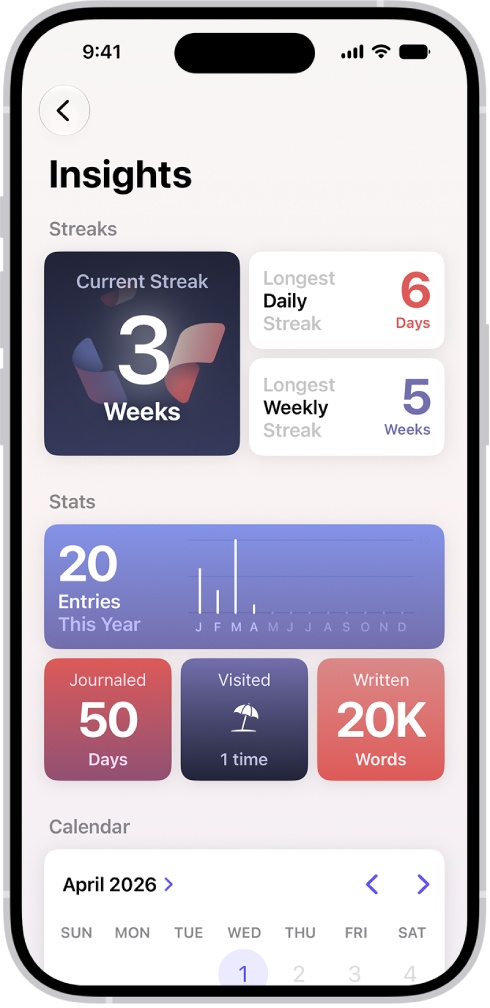
  2. Tap the Journals Back button to see your current streak—the number of consecutive days or weeks you’ve journaled—along with other insights.
  3. Tap Insights. Then tap any tile to see more details.

    A screen in the Journal app showing the current streak and metrics like number of words written.

Set a journaling schedule

Journaling notifications can remind you to write.

  1. Open the Journal app on your iPhone.
  2. Above the Insights summary, tap the Journal More button and tap Notifications. You may need to tap the Journals Back button to see the Insights summary.
  3. Tap Custom to set a weekly schedule or tap Smart to receive notifications based on your routine and location.

Use the Journal widget

To reflect on what’s going on in the moment, put a widget on your Home Screen or Lock Screen that shows your current streak or writing prompts that change throughout the day.

  1. On the iPhone Home Screen or Lock Screen, add a Journal widget.
  2. To change the widget, touch and hold the widget and then tap Edit Widget.
  3. Tap the widget to select from different writing prompts, start a new entry, or see details about your current streak.
Tag: Journal

In the Journal app on iPhone, you can edit your entries, modify the entry date, delete or recover entries, and more.

You can also add the same entry to more than one journal, or remove or add a title. Mistakes aren’t permanent, either. If you delete an entry you wanted to keep, you can recover deleted entries for up to 30 days from Recently Deleted.

Here’s how to edit or delete a journal entry on iPhone.

Edit a journal entry

  1. Start the Journal app on your iPhone.
  2. Choose a journal or tap All Entries.
  3. Swipe left on an entry and tap the Edit button.

Add the same entry to multiple journals

  1. Start the Journal app on your iPhone.
  2. Choose a journal or tap All Entries.
  3. Tap the More button below the entry, then tap Choose Journals.

Remove or add a title

  1. Start the Journal app on your iPhone.
  2. While composing an entry, tap the More button. Then tap Remove Title or Add Title.

Edit the entry date

  1. Start the Journal app on your iPhone.
  2. While composing an entry, swipe down to show the entry date and tap the date to edit it.

Delete journal entries

  1. Start the Journal app on your iPhone.
  2. Choose a journal or tap All Entries.
  3. Swipe left on an entry and tap the Delete button.

Deleted entries are saved for 30 days.

  1. To delete multiple entries, tap the More button, tap Select Entries, select the entries you want to delete, and tap the Delete button.

Recover journal entries

For up to 30 days, you can recover entries you’ve deleted.

  1. Start the Journal app on your iPhone.
  2. Tap Recently Deleted. You may need to tap the Return to Journals button first.
  3. Tap the More button below the entry and then tap Recover.
  4. To recover multiple entries, tap Select, tap the entries you want to recover, and tap the Recover button.
Tag: Journal

The Journal app makes it easy to capture your thoughts on everyday moments and special events. You can also get suggestions for topics to write about.

It’s simple to begin. You can start writing right away, or begin with a journaling suggestion or reflection prompt, and you can also use Writing Prompts while you write and create multiple journals.

Journaling Suggestions can even pull together outings, photos, and workouts to help you remember your experiences.

Here’s how to write in your journal on iPhone.

Create a journal entry

  1. Start the Journal app on your iPhone.
  2. Choose a journal and then tap the Create an Entry button.
  3. Start writing or choose a journaling suggestion or reflection prompt.

Use Journaling Suggestions

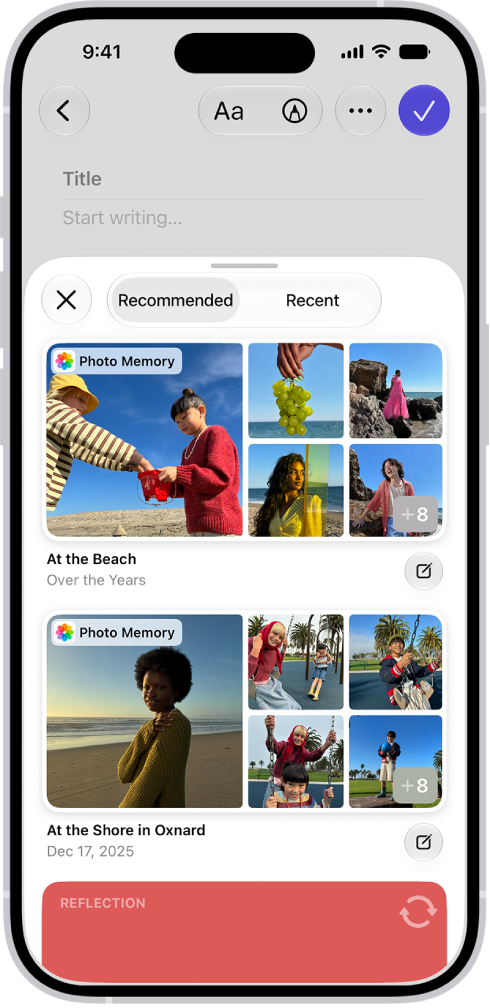
To help you remember and reflect on your experiences, Journaling Suggestions intelligently group outings, photos, workouts, and more.

A screen in the Journal app showing photos highlighted as journaling suggestions.

  1. Start the Journal app on your iPhone.
  2. Choose a journal and then tap the Create an Entry button.
  3. Browse the recommended suggestions or tap Recent to see suggestions sorted by date.
  4. To start a new entry with all the suggested attachments, tap the Journal Now button at the bottom-right corner of the suggestion.
  5. To preview the attachments before creating the entry, tap the suggestion. Do any of the following:
    • Browse the attachments: Swipe through the attachments.
    • Change to list view: To see the details for all attachments, tap the List View button.
    • Choose the attachments you want: Tap an attachment to select or deselect it.
  6. Tap Add to Entry to start writing or the Back button to return to the suggestions list.

To delete a suggestion, touch and hold the suggestion, then tap Remove.

Use Writing Prompts while you write

If you have Apple Intelligence, Journal can offer customized writing prompts based on what you write, plus any photos or drawings you add to your entry.

Note: Apple Intelligence on iOS 27 or later is available on an Apple Intelligence-enabled iPhone 15 Pro, iPhone 15 Pro Max, or iPhone 16 model or later. Apple Intelligence is not available in all languages or regions. Usage limits may apply.* You must be an adult to use this feature.

  1. Start the Journal app on your iPhone.
  2. While composing an entry, tap the Show Writing Prompts button in the toolbar.
  3. Swipe through the prompts. Then tap a prompt to add it to your entry. You can add up to three prompts to an entry.

Create multiple journals

  1. Start the Journal app on your iPhone.
  2. Tap the New Journal button and then name the new journal.
  3. To reorder journals, touch and hold the journal name and drag up or down.
  4. To edit the journal name, color, or icon, touch and hold the journal. Choose Edit Journal.

Take action from the Home Screen

  1. On the iPhone Home Screen, touch and hold.
  2. Choose New Entry, View Suggestions, Add Photos, or Record Audio.

Start a journal entry from another app

You can quickly capture your thoughts in a new journal entry while you’re doing something in another app, like reading an article in the News app or listening to a song in the Music app.

  1. In the app you’re using, tap the Share button or Share and tap Journal.

If you don’t see Journal, you may need to add it to the sharing options.

  1. Enter your thoughts, then tap the Done button.

You can review your entry and add more details later in the Journal app.

*Apple Intelligence is available with Siri and device language set to Chinese (Simplified), Chinese (Traditional), Danish, Dutch, English, French, German, Italian, Japanese, Korean, Norwegian, Portuguese, Spanish, Swedish, Turkish, or Vietnamese. Some features may not be available in all regions or languages. Some devices may not be available in all regions. Siri AI is available in beta in iOS 27, iPadOS 27, macOS 27, watchOS 27, and visionOS 27 and requires an Apple Intelligence–enabled device set to a supported language. Available in English to start. Siri AI will not be initially available in the EU on iOS, iPadOS, and watchOS. Certain Apple Intelligence features that rely on server-side models are subject to daily usage limits, including but not limited to Siri AI, Intelligent Photo Editing Tools, Image Playground, and AFM 3 Cloud models in Shortcuts. Daily limits may vary by feature, request complexity, system demand, system policies, and other factors. Expanded access to such features will be available for a fee in the future. Use of these features is subject to the Apple Intelligence Terms and Conditions.

In the Journal app, you can search for text in your entries and filter for details such as photos, drawings, and locations. You can also bookmark entries to revisit later.

You can sort entries by Entry Date or Moment Date, and see your entries based on their location with the map view. Any entry with a location, or with photos that have location information, shows up on the map. You can bookmark several entries at once, too.

Search your journal entries

  1. Start the Journal app on your iPhone.
  2. Choose a journal or tap All Entries.
  3. Do any of the following:
    • Find specific entries: Tap the Search button. Choose a category such as Photos or Reflections or type the text you’re looking for.
    • Sort entries: Tap the More button, tap Sort By, and then choose Entry Date or Moment Date.
    • Find entries for a specific day: Tap the Back button to show your insights, tap the Calendar button, and tap a date on the calendar.

View entries by location

You can see your entries based on their location with the map view.

  1. Start the Journal app on your iPhone.
  2. Tap the Journals Back button to show your insights. Then tap Places.
  3. To return to your journal, tap the Journals Back button.

Entries that include a location, or photos with location information, are added to the map.

Bookmark important journal entries

  1. Start the Journal app on your iPhone.
  2. Choose a journal or tap All Entries.
  3. Swipe right on an entry. Then tap the Bookmark button.

To bookmark multiple entries, tap the More button, tap Select Entries, tap entries to select them, then tap the Bookmark button.

Quick tip: Tap the Search button, then tap Bookmarked, and only bookmarked entries appear.

A screen in the Journal app showing journal entries. One entry is swiped right and shows the Bookmark button.

Tag: Journal