Got a tip for us?

Mail

In the Mail app, Mail Privacy Protection makes it harder for senders to learn about your Mail activity. Mail Privacy Protection hides your IP address so senders can’t link it to your other online activity or determine your exact location. It also prevents senders from seeing if you’ve opened the email message they sent you.

It requires Limit IP Address Tracking. And with iCloud+, Hide My Email can keep your personal email address private, too.

Note: Mail Privacy Protection does not extend to links or email attachments such as PDF or other files.

  1. Open Settings, tap Apps, and then tap Mail.
  2. Tap Privacy Protection, then turn on Protect Mail Activity.

    Important: Mail Privacy Protection requires Limit IP Address Tracking to be enabled.

  3. To turn it on, open Settings, tap Wi-Fi and tap the Info button next to your network. Enable Limit IP Address Tracking.

    When you subscribe to iCloud+, you can also use Hide My Email to generate unique, random email addresses that forward to your personal email account, so you don’t have to share your personal email address when filling out forms on the web or signing up for newsletters.

Tag: Mail

Use the Mail app to read and reply to messages, write new ones, and archive, flag, or delete the ones you don’t need. You can also adjust Mail settings to match how you work.

You can send a smart reply from a list of suggested phrases, or compose your own by dictating or typing. Swiping left on a message lets you flag or delete it, and swiping right archives it.

WARNING: For important information about avoiding distractions that could lead to dangerous situations, see Important safety information for Apple Watch.

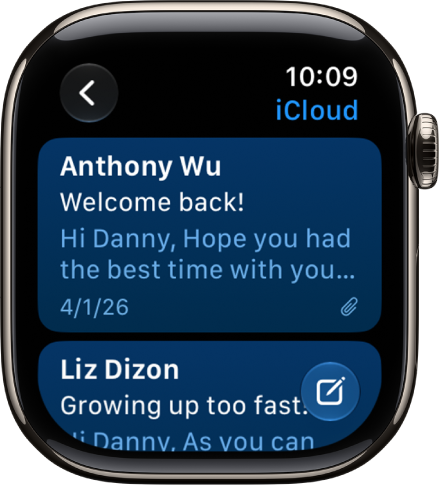
An inbox in the Mail app showing two emails. The back button is at the top-left and the compose button is at the bottom-right.

Read an email message

  1. Open the Mail app on your Apple Watch.
  2. Turn the Digital Crown to scroll through the message list.
  3. Tap a message to read it.
  4. To jump to the top of a long message, tap the top of the screen.

Send a quick reply

  1. Open the Mail app on your Apple Watch.
  2. Scroll to the bottom of a message you’ve received and tap Reply. Then do either of the following:
    • Send a smart reply: Scroll to see a list of suggested phrases and tap a phrase.
    • Compose a reply: Tap the Add Message field. Then dictate or type a reply.

Archive, flag, or delete a message

  1. Open the Mail app on your Apple Watch.
  2. In the list of messages, do any of the following:
    • Archive: Swipe right on a message. Then tap the Archive button.
    • Flag: Swipe left on a message and then tap the Flag button.
    • Delete: Swipe left on a message and tap the Trash button.

Write a new email

  1. Open the Mail app on your Apple Watch.
  2. Tap the New Message button and then do the following:
    • Add a recipient: Tap Add Contact. Tap the Add Member button to choose a recipient from your contacts, or tap the Dictation button to dictate a name.
    • Choose an account to send the email from: Tap From and then tap an account.
    • Add a subject: Tap Add Subject, then enter a subject.
  3. Tap Create Message, then dictate or type your message.

Change Mail settings

Choose which mailboxes appear, customize alerts, organize by thread, turn remote images on or off, change your signature, and more.

  1. Open the Apple Watch app on your iPhone.
  2. Tap My Watch, tap Apps, and tap Mail.

See also

Tag: Mail

You can flag important email messages, create flagged mailboxes, and flag messages from VIPs. You can also block messages from specified senders.

A message you flag stays in your Inbox and is easier to find later. You can flag a Primary message, flag all Transactions, Updates, or Promotions messages from a single sender, or flag just one of them, and change or remove a flag later.

Here’s how to flag or block emails in Mail on iPhone.

Flag an email

Flagging an important email message makes it easier to find later.

Messages you flag stay in your Inbox and also appear in the Flagged mailbox.

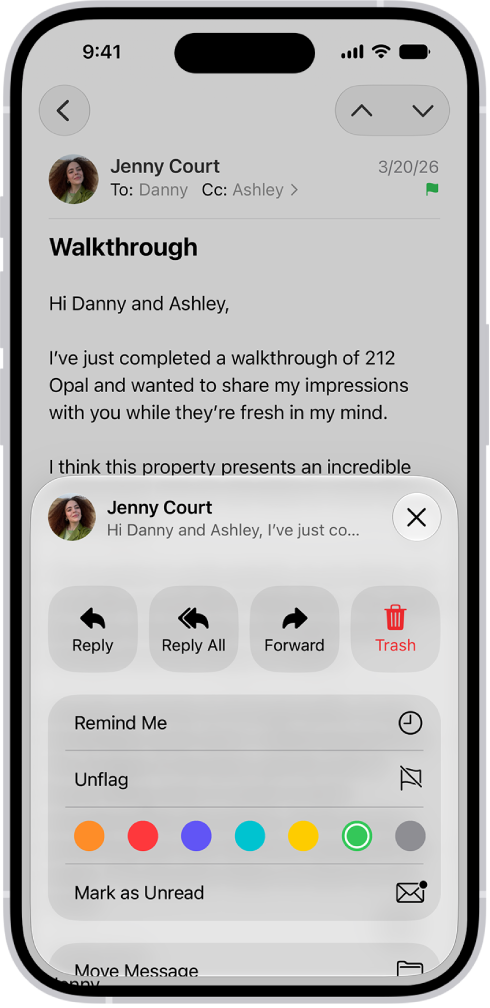
A message showing reply options in the bottom half of the screen, including the Unflag button and color choices for flags.

  1. Start the Mail app on your iPhone.

    Do any of the following: Flag a Primary message: Swipe left on the Primary message, then choose Flag.

    Flag all Transactions, Updates, or Promotions messages from a single sender: Swipe left on a message in the Transactions, Updates, or Promotions message list, then choose Flag.

    Flag a single Transactions, Updates, or Promotions message: Tap a message to open the sender’s digest view, swipe left on the message, then tap the Flag Message button.

  2. To change or remove a flag, open the message, tap the Reply Actions button, tap Flag, and then select another color, or tap Unflag.

    Note: Flags you add to a message appear on that message in Mail on all your Apple devices where you’re signed in to the same Apple Account.

Create a Flagged mailbox

Adding a Flagged mailbox puts all your flagged email messages in one location, where they’re easily accessible.

  1. Start the Mail app on your iPhone.
  2. Tap the Mailboxes button in the upper-left corner until you see Mailboxes.
  3. Tap Edit, then select Flagged.

Flag emails from your VIPs

  1. Add important people to your VIP list, so their email messages appear with a VIP flag and in the VIP mailbox.

Block email from specified senders

To prevent a particular sender from emailing you in the future, you can block their email address.

  1. Start the Mail app on your iPhone.
  2. Tap a message from the sender you want to block.
  3. Tap their email address, tap View Contact Card, and tap Block this Contact.
Tag: Mail

When you subscribe to iCloud+, you can use Hide My Email to keep your personal email address private. With Hide My Email, you can generate unique, random email addresses that forward to your personal email account, so you don’t have to share your real email address when filling out forms on the web or signing up for newsletters.

If you don’t like the suggested address, you can get a new one, and you can delete a Hide My Email address at any time.

  1. Open the Safari app on your iPhone.
  2. When you’re asked for your email address on a website, tap the email field.
  3. Tap Hide My Email above the keyboard.

    The Hide My Email screen suggests a new, randomly generated Hide My Email address.

  4. If you don’t want to use the suggested address, tap the Refresh button to get a new randomly generated email address.
  5. Tap Continue.

You can delete the Hide My Email address at any time.

Tag: Mail

You can delete or archive emails you no longer need. If you change your mind, you can recover deleted emails.

There are multiple ways to delete email messages, and selecting a Transactions, Updates, or Promotions message selects all the messages in that category from the sender. You can also archive instead of delete, and decide how long to keep deleted messages.

Here’s how to delete and recover emails in Mail on iPhone.

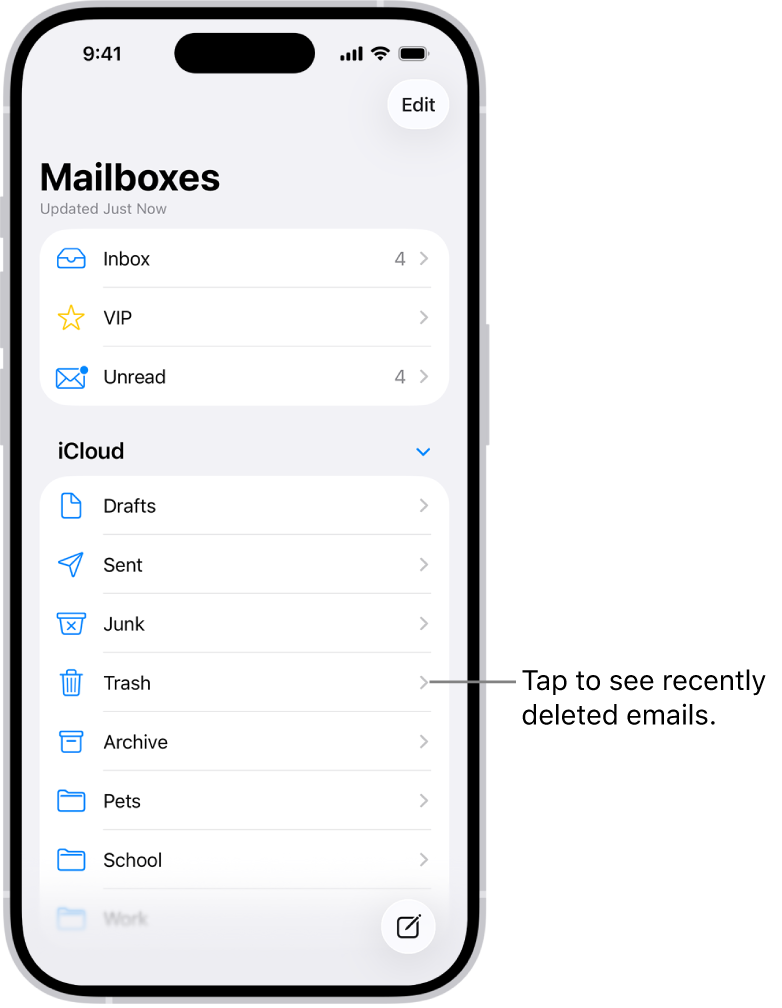
The Mailboxes screen. Below iCloud, mailboxes are listed from top to bottom, including the Trash mailbox. Tap it to see recently deleted messages.

Delete emails

  1. Start the Mail app on your iPhone.

    Do any of the following: While viewing a Primary message: Tap the Delete button.

  2. While viewing a message list: Tap Select and then select the messages you want to delete by tapping their checkboxes.
  3. Tap the Delete button at the bottom of the message list.

    Important: When you select a Transactions, Updates, or Promotions message, you’re selecting all the messages in that category from the sender.

  4. While viewing a sender’s digest view: Swipe left on a message, then tap the Reply Actions button.
  5. To turn off the deletion confirmation, open Settings, tap Apps, tap Mail, and then turn off Ask Before Deleting (below Messages).

Recover a deleted email

  1. Start the Mail app on your iPhone.
  2. Tap the Mailboxes button until you see Mailboxes.
  3. Tap Trash, then tap the message you want to recover.
  4. Tap the Mailbox button, then choose another mailbox.

    Tip: To easily see all deleted messages, you can add a mailbox with deleted messages across all your accounts.

  5. Tap the Mailboxes button until you see Mailboxes and tap Edit. Select the All Trash mailbox.

Archive instead of delete

Rather than deleting email messages, you can archive them in the Archive mailbox.

  1. Start the Settings app on your iPhone.
  2. Tap Apps and then tap Mail.
  3. Tap Mail Accounts. Do one of the following: If you’re using an iCloud email account: Tap iCloud, then tap Mailbox Behaviors.

    • If you’re using another email account: Tap an email account, tap Account Settings, and then tap Advanced.
  4. Select Archive Mailbox (below Move Discarded Messages Into).

    When this option is turned on, to delete a message instead of archiving it, touch and hold the Archive button, then tap Trash Message.

Decide how long to keep deleted emails

Some email clients let you set how long deleted messages stay in the Trash mailbox.

  1. Start the Settings app on your iPhone.
  2. Tap Apps and then tap Mail.
  3. Tap Mail Accounts. Do one of the following: If you’re using an iCloud email account: Tap iCloud, then tap Mailbox Behaviors.

    • If you’re using another email account: Tap an email account, tap Account Settings, and then tap Advanced.
  4. Tap Remove, then select a time interval.

    Note: Some email services might override your selection; for example, iCloud doesn’t keep deleted messages longer than 30 days, even if you select Never.

Tag: Mail

When you subscribe to iCloud+, Hide My Email lets you send and receive email messages that forward to your real email account, to keep your real email address private.

You can also generate unique email addresses on demand in the Mail app, reply to an email using Hide My Email, and manage the addresses it generates. When you write a message, it’s in the From field.

Here’s how to use Hide My Email in Mail on iPhone.

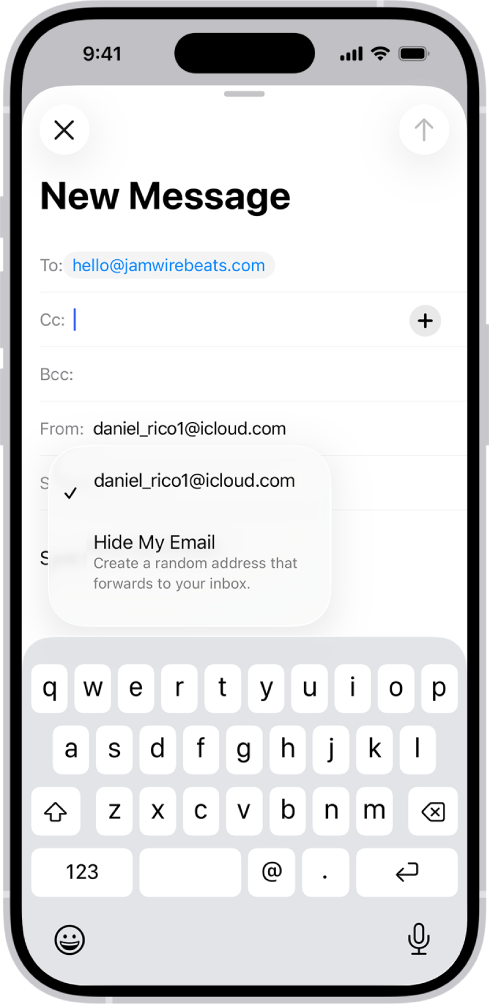
A draft email being composed. The From field is selected with two options listed below it—a personal email address and Hide My Email.

Send an email with Hide My Email

  1. Start the Mail app on your iPhone.
  2. Tap the Compose button.
  3. Add a recipient and subject for your message.

    Note: You can only send a message using Hide My Email to one recipient at a time.

  4. Tap the From field, tap it again, and tap Hide My Email.

    A new, unique email address appears in the From field.

    Tip: When the recipient replies to a message you sent with Hide My Email, their reply forwards to your real email address.

Reply to an email using Hide My Email

When an email message reaches one of your unique, random addresses, you can reply from that same address.

That way, you can continue the conversation and keep your real email address private.

To reply, do the following: Go to the Mail app on your iPhone.

  1. Tap the message, tap the Reply button, and tap Reply.

    Type your response.

    You can tap the From field to view the email address the recipient sees.

Manage the addresses generated by Hide My Email

You can create random addresses with Hide My Email, then deactivate, reactivate, and manage them.

Tag: Mail

You can change your Mail notification settings and choose which mailboxes and email threads to receive notifications from.

Busy email threads can be muted, and for the threads that matter, you can receive notifications about replies to an email or thread. You also get to specify what’s done with email messages you muted, and you can change your Mail notification settings whenever you like.

Here’s how to set email notifications on iPhone.

Mute email notifications

Muting notifications from messages in a conversation reduces interruptions from busy email threads.

  1. Open the Mail app on your iPhone.

    Open a message in the conversation.

  2. Tap the Reply button, then tap Mute.
  3. To specify what you want done with email messages you muted, open Settings, tap Apps, tap Mail, tap Muted Thread Action, and then select an option.

Receive notifications about replies to an email or thread

Mail notifications can let you know when email messages arrive in favorite mailboxes or from your VIPs.

  1. Open the Mail app on your iPhone.

    Do any of the following: When reading a message: Tap the Reply button, then tap Notify Me.

    When writing a message: Tap the Subject field, tap the Notify Me button in the Subject field, then tap Notify Me.

  2. To change how notifications appear, open Settings, tap Apps, tap Mail, and then tap Notifications.

Change your Mail notification settings

  1. Open the Settings app on your iPhone.
  2. Tap Apps and then tap Mail.
  3. Tap Notifications and then make sure that Allow Notifications is on.
  4. Tap Customize Notifications. Tap the email account you want to make changes to.
  5. Select the settings you want, like Alerts or Badges.

    When you turn on Alerts, you have the option to customize your sounds by changing the alert tone or ringtone.

    You can set times when you want to allow notifications from the Mail app.

Tag: Mail

You can search for email messages using different criteria.

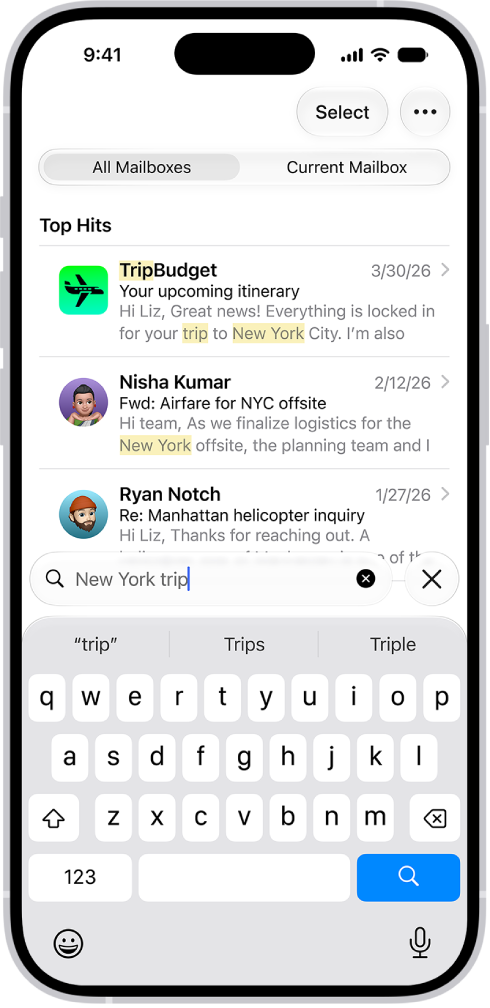
Mail searches the address fields, the subject, the email body, plus documents and links, and the most relevant messages appear in Top Hits. You can narrow a search with a keyword, search by timeframe, or search by email attributes, like flagged or unread. And you can quickly find travel booking confirmations for flights and hotels with the three-letter airport code or the city name.

Here’s how to search for email in Mail on iPhone.

Quick tip: Search results in Mail can reflect what you mean, not just the words you type.

For example, a search for “NYC business trip” brings up emails about event locations, travel details, and your itinerary, plus other relevant messages.

Search results in the Mail app.

Search for text in an email

  1. Open the Mail app on your iPhone.
  2. Tap the search field and type the text you’re looking for.
  3. Choose between searching all mailboxes or the current mailbox above the results list.
  4. Tap a message in the results list to read it.

    Mail searches the address fields, the subject, the email body, documents, and links.

    The most relevant messages appear in Top Hits above the search suggestions as you type.

    Tip: To quickly find travel booking confirmations for flights and hotels, enter the three-letter airport code or the city name.

Search by timeframe

  1. Open the Mail app on your iPhone.
  2. Tap the search field of a mailbox list.
  3. Enter a timeframe, like “September” and then tap the calendar suggestion buttons to see all emails from that timeframe.
  4. To narrow the search, tap the search field again, then enter a keyword, like “meeting.” Tip: Refine your search by timeframe using the Date, Before, or After options above the message list.

Search by email attributes

  1. Open the Mail app on your iPhone.
  2. In an inbox, tap the search field.

    Before you begin typing, you may see suggested recent searches, recent documents, and links listed.

  3. Enter your search criteria and tap one of the listed items, or do any of the following: Find all flagged messages: Enter “flag” in the search field, scroll down, then tap “Message is flagged” below Suggestions.

    • Find all unread messages: Enter “unread” in the search field and scroll down. Tap “Message is unread” below Suggestions.
    • Find all messages with attachments: Enter “attachment” in the search field and scroll down. Tap “Messages with attachments” below Suggestions.
Tag: Mail

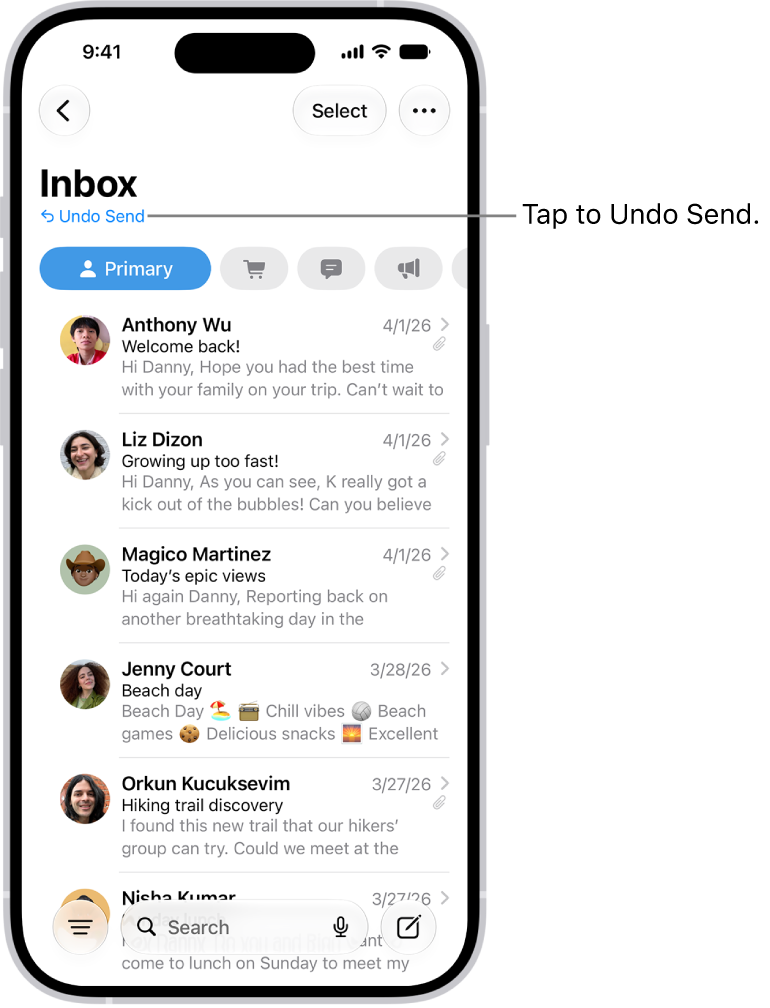
With Undo Send, you can change your mind and unsend an email message in the Mail app. There’s a catch: you have 10 seconds. You can also set a delay for all emails to give yourself a little more time to unsend them.

The inbox, showing a list of messages. The Undo Send button (for pulling back a recently sent message) is in the center of the bottom of the screen.

Undo a sent email

You have 10 seconds to change your mind after you send an email message.

  1. Tap Undo Send at the top of the inbox to pull back the message.

Delay sending emails

Setting a delay gives you a little more time to change your mind and unsend emails.

  1. Open Settings, tap Apps, tap Mail and tap Undo Send Delay. Choose a length of time to delay outgoing email messages.
Tag: Mail

You can write, send, and schedule email messages from any of your email accounts.

You can change the font style and color of text, or add a hyperlink, and Camera can even capture an email address. And with Send Later, you can schedule an email, or automatically send a copy to yourself. You can add recipients and edit a link in a draft, too.

Here’s how to send email in Mail on iPhone.
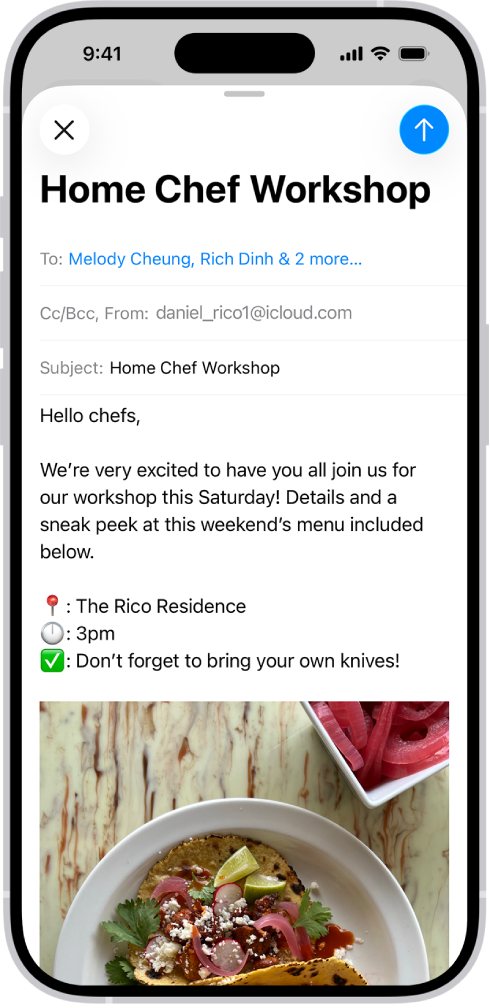
A draft email being composed.

Write and send an email

  1. Start the Mail app on your iPhone.
  2. Tap the Compose button.
  3. Tap in the email and type your message.

    To change the formatting, tap the Text Format button above the keyboard.

    You can change the font style and color of text, use a bold or italic style, add a bulleted or numbered list, and more.

  4. Tap the Send button to send your message.

    Tip: You can create and add stickers to messages as you compose them.

Add recipients

  1. Start the Mail app on your iPhone.
  2. Tap the Compose button and tap the To field. Then type the names of recipients.

    As you type, Mail automatically suggests people from your Contacts.

    You can also tap the Add Contact button to open Contacts and add recipients from there.

    If you want to send a copy to other people, tap the Cc/Bcc field, then do any of the following: Tap the Cc field, then enter the names of people you’re sending a copy to.

  3. Tap the Bcc field. Enter the names of people you don’t want other recipients to see.

    Tip: After you enter recipients, you can reorder their names in the address fields, or drag them from one address field to another—for example, to the Bcc field if you decide you don’t want their names to appear.

Add a hyperlink to an email message

In Safari or another web browser, copy the URL of a webpage.

As you compose a message in Mail , highlight the text you want to link.

  1. Tap Paste.

Edit a link in an email draft

  1. Start the Mail app on your iPhone.
  2. In a message you’re writing, tap a link or linked text and tap the down arrow.

    Do any of the following: Show Link Preview: Change the hyperlinked text to a rich embedded website preview image.

    Open Link: Go to that website in a web browser.

    Edit Link: Change the URL of the link.

    Remove Link: Delete the link from your message draft.

    Edit Text Description: Change the text that’s linked.

Use Camera to capture an email address

In the Mail app on iPhone, Live Text can scan an email address printed on a business card, a poster, and more.

This allows you to quickly begin emails without entering an address manually.

  1. Start the Camera app on your iPhone.
  2. Position iPhone so the email address appears within the camera frame.
  3. Tap the email address and tap the Detect Text button in the lower-right corner of the camera field.
  4. To draft a message, tap the email address in the lower-left side of the camera field.

    Tip: You can also capture an email address from a photo.

Schedule an email with Send Later

  1. Start the Mail app on your iPhone.
  2. In a message you’re writing, touch and hold the Send button. Then choose when you want to send the message.
  3. To see more options, tap Send Later.

Automatically send a copy to yourself

  1. Start the Settings app on your iPhone.
  2. Tap apps and then tap Mail.
  3. Turn on Always Bcc Myself (below Composing).

Send an email from a different account

With more than one email account, you can choose which one to send email from.

  1. Start the Mail app on your iPhone.
  2. In your message draft, tap the Cc/Bcc, From field.
  3. Tap the From field and then choose an account.

Use Writing Tools to summarize, proofread, and modify your email

With Apple Intelligence, you can use Writing Tools to summarize selected text with a tap, proofread your work, and create different versions of the same text to help you find the right wording and tone.

Note: Apple Intelligence on iOS 27 or later is available on an Apple Intelligence-enabled iPhone 15 Pro, iPhone 15 Pro Max, or iPhone 16 model or later.

Apple Intelligence is not available in all languages or regions, Apple says.

Usage limits may apply.* *Apple Intelligence is available with Siri and device language set to Chinese (Simplified), Chinese (Traditional), Danish, Dutch, English, French, German, Italian, Japanese, Korean, Norwegian, Portuguese, Spanish, Swedish, Turkish, or Vietnamese.

Some features may not be available in all regions or languages.

Some devices may not be available in all regions.

Siri AI is available in beta in iOS 27, iPadOS 27, macOS 27, watchOS 27, and visionOS 27 and requires an Apple Intelligence–enabled device set to a supported language.

Available in English to start.

Siri AI will not be initially available in the EU on iOS, iPadOS, and watchOS.

Certain Apple Intelligence features that rely on server-side models are subject to daily usage limits, including but not limited to Siri AI, Intelligent Photo Editing Tools, Image Playground, and AFM 3 Cloud models in Shortcuts.

Daily limits may vary by feature, request complexity, system demand, system policies, and other factors.

Expanded access to such features will be available for a fee in the future.

  1. Use of these features is subject to the Apple Intelligence Terms and Conditions.

Tag: Mail