Got a tip for us?

Mail

You can download attachments that are sent to you in email messages or easily search for messages with attachments in your mailboxes.

An image can go straight to the Photos app, and other attachments can be saved in the Files app or opened with another app. You can even use AutoFill to quickly fill out forms you receive in Mail.

Here’s how to download email attachments in Mail on iPhone.

Download an attachment sent to you

  1. Open the Mail app on your iPhone.
  2. In a message, touch and hold the attachment and then do one of the following: Save it in the Photos app: Choose Save Image.

    • Save it in the Files app: Choose Save to Files.
    • Open it with another app: Tap Share, then choose the app.
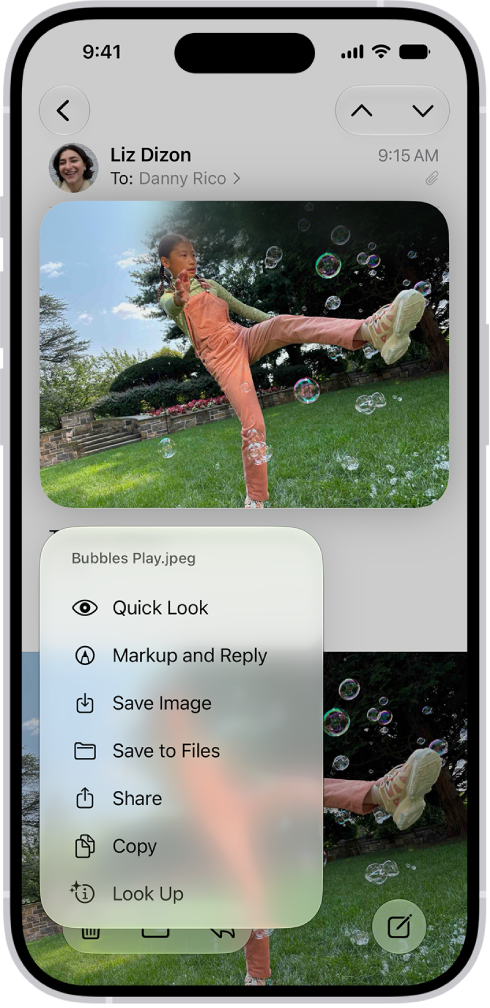
    An email attachment is selected with possible actions listed.

    Tip: You can identify and learn more about objects in photos you receive.

  3. Touch and hold the photo and then choose Look Up.

Quickly fill out forms you receive in Mail

Using AutoFill, you can quickly fill out forms you receive in the Mail app, then send each one back to the original sender without leaving Mail.

  1. Open the Mail app on your iPhone.
  2. In the message, tap the attachment to open the document.
  3. Tap the AutoFill button and then tap Form Filling.
  4. Tap a blank field to enter text using the onscreen keyboard.

    To fill out another line, tap it, then enter text.

  5. Tap the Done button and then tap Reply to [name].

Find emails with attachments

Having trouble finding an attachment someone sent you? Filter your email messages to show only those with attachments.

  1. Open the Mail app on your iPhone.

    In a mailbox, tap the Toggle Filtering button to turn on filtering.

  2. Tap Filtered by and then turn on Only Mail with Attachments.

    Tip: You can also show emails messages with attachments from all accounts in one mailbox.

  3. To set up the attachment mailbox, tap the Mailboxes button, tap Edit, and then select Attachments.

    The attachments mailbox appears in the mailboxes list with your other mailboxes.
Tag: Mail

You can use filters to show messages that meet criteria you choose, control which accounts appear during a Focus, or let Apple Intelligence surface priority emails at the top of your inbox.

You can turn off all filters, or just one specific filter. Your work email account and its notifications, for example, can show up only when your Work Focus is on. And during a Focus, you can choose which email accounts you receive notifications from.

Here’s how to filter emails in Mail on iPhone.

Note: Apple Intelligence on iOS 27 or later is available on an Apple Intelligence-enabled iPhone 15 Pro, iPhone 15 Pro Max, or iPhone 16 model or later.

Apple Intelligence is not available in all languages or regions, Apple notes.

Usage limits may apply.*

Filter emails

  1. Start the Mail app on your iPhone.
  2. Tap the Toggle Filtering button in a mailbox list.
  3. Tap Filtered by and then select or turn on the criteria for messages you want to view.
  4. To turn off all filters, tap the Toggle Filtering button.
  5. To turn off a specific filter, tap Filtered by and then deselect it.

Match a mail account to a Focus

When a Focus is on, you can choose which email accounts to receive notifications from.

You could set a filter, for example, so only your work email account and its notifications show up while your Work Focus is on.

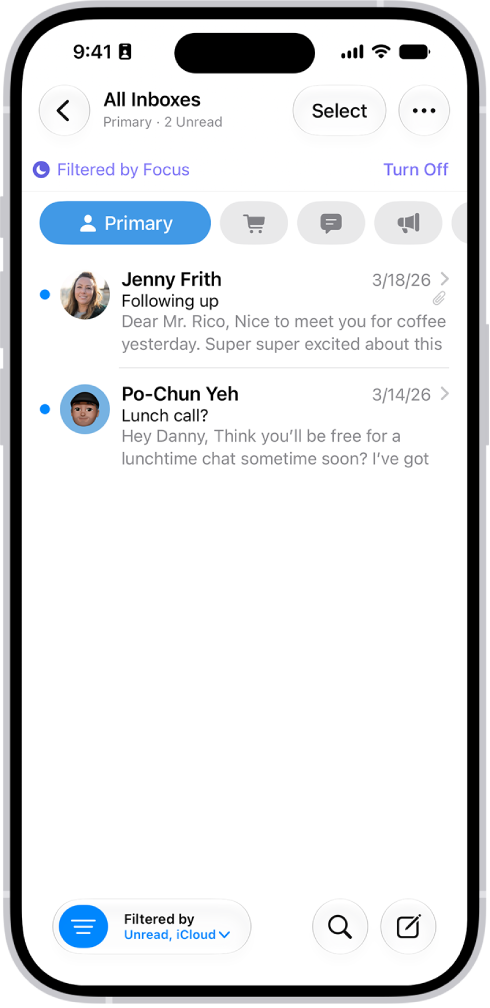
The Inbox, showing a list of messages. Above the list of messages is the label Filtered by Focus, and to the right of that it says Turn Off.

  1. Open Settings and tap Focus. Then tap a Focus.

    If you don’t see the Focus option you want, tap the Add Focus button.

  2. Tap Add Filter below Focus Filters and then tap Mail.
  3. Select the accounts you want to see in your inbox during that Focus.

View Priority Messages in your inbox

  1. Start the Mail app on your iPhone.
  2. Tap your inbox, tap the More button, and then tap Show Priority.

    Time-sensitive messages appear at the top of your inbox in the Primary category or in List View.

    Note: Apple Intelligence on iOS 27 or later is available on an Apple Intelligence-enabled iPhone 15 Pro, iPhone 15 Pro Max, or iPhone 16 model or later.

    Apple Intelligence is not available in all languages or regions.

    Usage limits may apply.* *Apple Intelligence is available with Siri and device language set to Chinese (Simplified), Chinese (Traditional), Danish, Dutch, English, French, German, Italian, Japanese, Korean, Norwegian, Portuguese, Spanish, Swedish, Turkish, or Vietnamese.

    Some features may not be available in all regions or languages.

    Some devices may not be available in all regions.

    Siri AI is available in beta in iOS 27, iPadOS 27, macOS 27, watchOS 27, and visionOS 27 and requires an Apple Intelligence–enabled device set to a supported language.

    Available in English to start.

    Siri AI will not be initially available in the EU on iOS, iPadOS, and watchOS.

    Certain Apple Intelligence features that rely on server-side models are subject to daily usage limits, including but not limited to Siri AI, Intelligent Photo Editing Tools, Image Playground, and AFM 3 Cloud models in Shortcuts.

    Daily limits may vary by feature, request complexity, system demand, system policies, and other factors.

    Expanded access to such features will be available for a fee in the future.

  3. Use of these features is subject to the Apple Intelligence Terms and Conditions.
Tag: Mail

Use the Phone app to listen to, delete, read, share, or get a summary of your voicemail messages. You can also check your voicemail messages when Visual Voicemail isn’t available.

You can also share a message, or recover a deleted one. A transcription of each voicemail appears in the bottom half of the screen. Your messages stay until you delete them, unless your carrier erases them first when they aren’t stored in iCloud.

Play, share, or delete a voicemail message

Siri: Ask Siri something like, “Play the voicemail from Eliza.” Or without using Siri:

  1. Open the Phone app on your iPhone.
  2. Do one of the following, depending on which Phone app layout you’re using:
    • Unified layout: Tap Calls and tap a message in the Recents list. To view just your voicemail messages, tap the Filter button and tap Voicemails.
    • Classic layout: Tap Voicemail, then tap a message.
  3. Do any of the following:
    • Play the message: Tap the Play button. Messages are saved until you delete them (or until your carrier erases them, if they’re not stored in iCloud).
    • Share the message: Tap the Share button.
    • Read a transcript of the message: A transcription of the voicemail appears in the bottom half of the screen.
    • Delete the message: Tap the Delete button.

Important: In some countries or regions, deleted messages may be permanently erased by your carrier. Your voice messages may also be deleted if you change your SIM card. To recover a deleted message, tap Deleted Messages, tap the message, then tap the Undelete button.

Quick tip: With Apple Intelligence, you can see Siri suggested actions based on the transcript — like adding a reminder, or creating a calendar event. To choose whether these suggestions appear, go to Settings > Apps > Phone, then turn Suggestions in Voicemail on or off. Siri suggested actions are available in English. Apple Intelligence on iOS 27 or later is available on an Apple Intelligence-enabled iPhone 15 Pro, iPhone 15 Pro Max, or iPhone 16 model or later. Apple Intelligence is not available in all languages or regions. Usage limits may apply.*

Check your messages when Visual Voicemail isn’t available

  • On your iPhone: Tap Voicemail, then follow the instructions.
  • On another phone: Dial your own mobile number, press * or # (depending on your carrier) to bypass your greeting, then enter your voicemail password.

*Apple Intelligence is available with Siri and device language set to Chinese (Simplified), Chinese (Traditional), Danish, Dutch, English, French, German, Italian, Japanese, Korean, Norwegian, Portuguese, Spanish, Swedish, Turkish, or Vietnamese. Some features may not be available in all regions or languages. Some devices may not be available in all regions. Siri AI is available in beta in iOS 27, iPadOS 27, macOS 27, watchOS 27, and visionOS 27 and requires an Apple Intelligence–enabled device set to a supported language. Available in English to start. Siri AI will not be initially available in the EU on iOS, iPadOS, and watchOS. Certain Apple Intelligence features that rely on server-side models are subject to daily usage limits, including but not limited to Siri AI, Intelligent Photo Editing Tools, Image Playground, and AFM 3 Cloud models in Shortcuts. Daily limits may vary by feature, request complexity, system demand, system policies, and other factors. Expanded access to such features will be available for a fee in the future. Use of these features is subject to the Apple Intelligence Terms and Conditions.

Tag: Mail

You can use iCloud Mail Cleanup to help keep your inbox uncluttered and free up storage by deleting old promotions, unsubscribing from mailing lists, and more. When you set up iCloud Mail Cleanup recommendations, they work on any device that has iCloud Mail turned on.

Turning on iCloud Mail Cleanup doesn’t touch your inbox right away. Nothing changes until you turn on a cleanup recommendation, such as Clean Up Promotions, and you can edit the rules for a recommendation at any point.

Here’s how to automatically clean up your iCloud Mail inbox on iPhone.

Note: iCloud Mail Cleanup may not be available in all languages.

Turn on iCloud Mail Cleanup

  1. Start the Settings app on your iPhone.
  2. Tap [your name], then tap iCloud.

    Below Saved to iCloud, tap Mail, tap iCloud Mail Cleanup, then turn on Use iCloud Mail Cleanup.

    Note: Your inbox isn’t affected until you turn on a cleanup recommendation.

    You can also turn on iCloud Mail Cleanup on iCloud.com.

Turn on a cleanup recommendation

  1. Start the Settings app on your iPhone.
  2. Tap [your name], then tap iCloud.

    Below Saved to iCloud, tap Mail, then tap iCloud Mail Cleanup.

  3. Tap Get Recommendation under one of the cleanup recommendations.

    For example, you can choose Clean up Transactions or Clean Up Promotions.

    If necessary, tap the pop-up menu for a rule, then choose another option.

    Action: What happens to the email Status: Whether the action applies to unread emails, read emails, or all emails Age: How old the emails need to be before the action applies Tip: You can edit the rules for a recommendation at any point.

  4. Tap an active recommendation. Then tap a pop-up menu to choose an option.
  5. Tap Turn On.

Delete a cleanup recommendation

  1. Start the Settings app on your iPhone.
  2. Tap [your name], then tap iCloud.

    Below Saved to iCloud, tap Mail, then tap iCloud Mail Cleanup.

  3. Tap an active cleanup recommendation and turn it off.

Use iCloud Mail Cleanup recommendations to unsubscribe

iCloud Mail Cleanup can suggest senders in the Promotions and Updates categories to unsubscribe from in bulk, and it can automatically move future messages to the Trash.

  1. Start the Settings app on your iPhone.
  2. Tap [your name], then tap iCloud.

    Below Saved to iCloud, tap Mail, then tap iCloud Mail Cleanup.

  3. Tap Get Recommendations under Unsubscribe Recommendations.
  4. Select each sender you want to unsubscribe from and tap Unsubscribe.

    Note: If you don’t see any recommendations, iCloud Mail Cleanup doesn’t have any recommendations at this time.

Remove a sender from the Unsubscribed list

Changed your mind about a sender you unsubscribed from? Remove them from the Unsubscribed list to receive their emails again.

  1. Start the Settings app on your iPhone.
  2. Tap [your name], then tap iCloud.

    Below Saved to iCloud, tap Mail, then tap iCloud Mail Cleanup.

  3. Tap Unsubscribed and tap Edit.
  4. Tap the Delete button next to each sender you want to remove from the Unsubscribed list.
  5. To receive emails again from a sender you were previously unsubscribed from, you can sign up for updates and promotions through their website.

    After you resubscribe, future messages from that sender will go to your inbox.

Turn off iCloud Mail Cleanup

Once iCloud Mail Cleanup is off, iCloud Mail stops managing old messages and stops deleting messages from senders you unsubscribed from. It deletes the list of those senders, too.

  1. Start the Settings app on your iPhone.
  2. Tap [your name], then tap iCloud.

    Below Saved to iCloud, tap Mail, tap iCloud Mail Cleanup, then turn off Use iCloud Mail Cleanup.

Tags: iCloud, Mail

You can create rules to automatically move, delete, forward, or mark new or already-received emails as read based on specific criteria. For example, you can create a rule that sorts emails from a particular sender into a specific folder.

You can edit and delete these rules at any time, and reorder them, too.

Here’s how to use iCloud Mail rules to automatically apply actions to emails in Mail on iPhone.

Note: New or changed rules can take up to 15 minutes before they’re applied to incoming emails.

Create a rule

  1. Open the Settings app on your iPhone.
  2. Tap your name, then tap iCloud.

    Below Saved to iCloud, tap Mail, tap iCloud Mail Rules, then tap Add Rule.

  3. Enter a name for the new rule.
  4. Use the pop-up menu next to Message and the text field to specify the type of emails you want to manage.
  5. Use the pop-up menu next to Action to specify an action for the rule.
  6. Tap the Add button.

    Important: If you apply rules to a folder and then delete the folder or change its name, make sure to update the rules for that folder accordingly.

    For example, you can’t forward emails to a deleted folder.

Change a rule

  1. Open the Settings app on your iPhone.
  2. Tap your name, then tap iCloud.

    Below Saved to iCloud, tap Mail, then tap iCloud Mail Rules.

  3. Tap a rule and then specify new conditions in the pop-up menus and text fields.
  4. Tap the Done button.

Reorder rules

Multiple rules are applied in the order they appear in the list.

  1. Open the Settings app on your iPhone.
  2. Tap your name, then tap iCloud.

    Below Saved to iCloud, tap Mail, then tap iCloud Mail Rules.

  3. Tap Edit.
  4. Press and hold the Grab button and drag a rule up or down in the list.
  5. Tap the Done button.

Delete a rule

  1. Open the Settings app on your iPhone.
  2. Tap your name, then tap iCloud.

    Below Saved to iCloud, tap Mail, then tap iCloud Mail Rules.

  3. Tap Edit, tap the Delete button next to the rule you want to delete, and then tap the Trash button.
  4. Tap the Done button.
Tags: iCloud, Mail

In the Mail app, you can read emails yourself or have Apple Intelligence summarize them for you. You can also add contacts and preview an email’s contents without opening it.

If you don’t have time for a primary message right away, Remind Me brings it back to the top of the list at a time and date you choose. You can also quickly mark multiple emails as read, right from the message list.

Quick tip: Apple Intelligence might suggest actions you can take when you check your email, like adding a reminder or creating a calendar event.

Click the suggestion to accept it.

Note: Suggested actions in Mail on iOS 27 or later is an Apple Intelligence feature available on iPhone 15 Pro, iPhone 15 Pro Max, and iPhone 16 models or later in supported regions when device language is set to English.*

Read an email

  1. Open the Mail app on your iPhone.
  2. Tap the message you want to read.

Use Remind Me to come back to a Primary message later

Can’t handle a primary message right away? Set a time and date for a reminder, and the message comes back to the top of your inbox.

  1. Open the Mail app on your iPhone.
  2. Tap a Primary message, tap the Reply button, tap Remind Me, and then choose when to be reminded.

Quickly mark multiple emails as read

  1. Open the Mail app on your iPhone.
  2. While viewing a message list, tap the More button, tap Select, and then select the messages you want to mark.

    Important: When you select a Transactions, Updates, or Promotions message, you’re selecting all the messages in that category from the sender.

  3. Tap the Mark button at the bottom of the message list and then choose Mark as Read.

    Note: The number of unread messages shown on your Home Screen reflects the number of unread messages in your Primary category.

    To show your total number of unread messages in all categories, go to Settings > Notifications > Mail > Customize Notifications, then turn on All Unread Messages.

Preview a Primary message and a list of options

To see what a Primary message is about without opening it completely, preview it.

  1. Open the Mail app on your iPhone.

    In the Primary message list, touch and hold a message to preview its contents and see a list of options for replying, moving it, and more.

Show a longer preview for every email

By default, Mail shows two lines of text for each email message in your inbox.

Without opening the message, you can choose to see more lines of text.

  1. Open Settings, tap Apps, tap Mail, tap Preview (below Message List), and choose up to five lines.

Show the whole conversation

  1. Open Settings, tap Apps, tap Mail, and then turn on Organize by Thread.

    Tip: You can also change other settings here—such as Collapse Read Messages or Most Recent Message on Top.

Show To and Cc labels in your Inbox

  1. Open Settings, tap Apps, tap Mail, and turn on Show To/Cc Labels (below Message List).

    You can also view the To/Cc mailbox, which gathers all mail addressed to you.

    To show or hide it, tap the Mailboxes button in the Mail app until you see Mailboxes, tap Edit, then select “To or Cc.”

Add someone to your contacts or make them a VIP

Saving someone to your contacts makes their email messages easy to find again in the future. Or make them a VIP, and any message you receive from them is automatically starred.

  1. Open the Mail app on your iPhone.
  2. In a message, tap a person’s name or email address and then do one of the following: Add a new contact: Tap View Contact Card, then tap Create New Contact.

    Fill in any other contact information, then tap the Done button.

  3. Add the email address to an existing contact: Tap View Contact Card and tap Add to Existing Contact.
  4. Select a contact and then tap the Done button.
  5. Add to your VIP list: Tap Add to VIP.

Show or hide contact photos

  1. Open the Mail app on your iPhone.
  2. In an inbox, tap the More button at the top of the screen. Select or deselect Show Contact Photos.

Summarize your email

To catch up on a long email thread in seconds, or summarize a complex email, you can get help from Apple Intelligence.

Note: Apple Intelligence on iOS 27 or later is available on an Apple Intelligence-enabled iPhone 15 Pro, iPhone 15 Pro Max, or iPhone 16 model or later.

According to Apple, Apple Intelligence is not available in all languages or regions.

Usage limits may apply.* Go to the Mail app on your iPhone.

Under each email in your inbox, a short summary appears automatically.

  1. Tap an email, then tap Summarize.

    A summary appears at the top of the screen.

    If the message is part of an email thread, the contents of the thread are summarized.

    *Apple Intelligence is available with Siri and device language set to Chinese (Simplified), Chinese (Traditional), Danish, Dutch, English, French, German, Italian, Japanese, Korean, Norwegian, Portuguese, Spanish, Swedish, Turkish, or Vietnamese.

    Some features may not be available in all regions or languages.

    Some devices may not be available in all regions.

    Siri AI is available in beta in iOS 27, iPadOS 27, macOS 27, watchOS 27, and visionOS 27 and requires an Apple Intelligence–enabled device set to a supported language.

    Available in English to start.

    Siri AI will not be initially available in the EU on iOS, iPadOS, and watchOS.

    Certain Apple Intelligence features that rely on server-side models are subject to daily usage limits, including but not limited to Siri AI, Intelligent Photo Editing Tools, Image Playground, and AFM 3 Cloud models in Shortcuts.

    Daily limits may vary by feature, request complexity, system demand, system policies, and other factors.

    Expanded access to such features will be available for a fee in the future.

  2. Use of these features is subject to the Apple Intelligence Terms and Conditions.

In the Mail app, you can reply to or forward emails yourself, or use Apple Intelligence to draft quick, personalized responses.

You can reply to just the sender or reply to everyone, quote some text when you reply, and forward an email. You can also follow up on emails and set up an automatic reply in Mail. Smart Reply can help, too.

Here’s how to reply to and forward emails in Mail on iPhone.

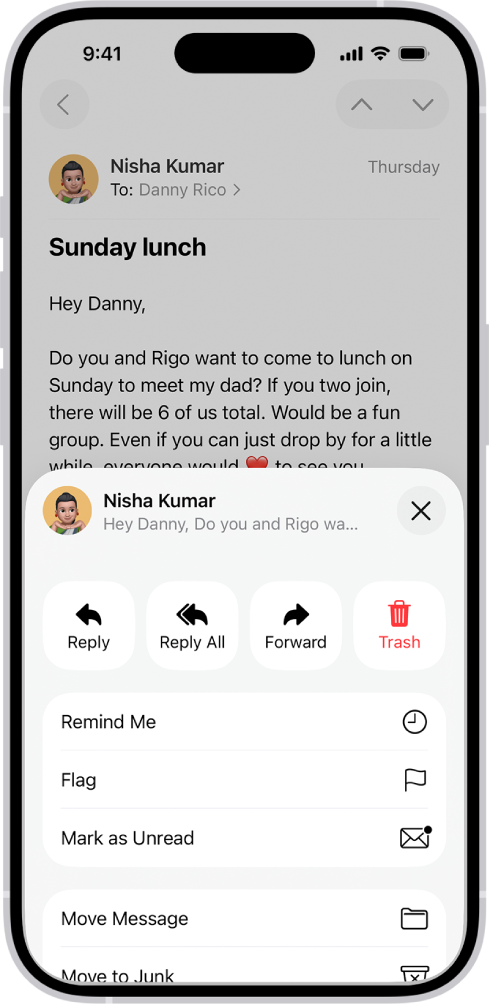
An email showing reply options. Across the middle of the screen, from left to right, are Reply, Reply All, Forward, and Trash.

Reply to an email

  1. Open the Mail app on your iPhone.
  2. Tap the message, tap the Reply button, and do one of the following: Reply to just the sender: Tap Reply.

    • Reply to the sender and the other recipients: Tap Reply All.

    Type your response, then tap the Send button to send.

Quote some text when you reply to an email

To make clear what you’re responding to, you can include text from the sender in your reply.

  1. Open the Mail app on your iPhone.
  2. In the sender’s message, touch and hold the first word of the text and drag to the last word.
  3. Tap the Reply button, tap Reply, and type your message.

    Note: To turn off the indentation of quoted text, go to Settings > Apps > Mail > Increase Quote Level (below Composing), then turn off Increase Quote Level.

Forward an email

You can send an email message forward to new recipients.

  1. Open the Mail app on your iPhone.
  2. Tap the message, tap the Reply button, and then tap Forward.

    If there are attachments in the original message—like photos or documents—you can decide whether to include them in the forwarded message.

  3. Choose Include or Don’t Include.
  4. Enter the email addresses of the new recipients.
  5. Tap in the message, then type your response.

    The forwarded message appears below.

Follow up on emails

Sent an email message and haven’t heard back for several days? The message automatically returns to the top of your inbox, so you remember to follow up.

  1. To turn off Follow Up Suggestions, open Settings, tap Apps and tap Mail. Then turn off Follow Up Suggestions.

Set up an automatic reply in Mail

You can set up an automatic reply on iCloud.com that responds to incoming email messages, or have messages forwarded automatically to another inbox.

Use Smart Reply

If you have Apple Intelligence, Smart Reply can quickly draft an email response in your personalized writing style.

Note: Apple Intelligence on iOS 27 or later is available on an Apple Intelligence-enabled iPhone 15 Pro, iPhone 15 Pro Max, or iPhone 16 model or later.

Apple Intelligence is not available in all languages or regions, according to Apple.

Usage limits may apply.* Go to the Mail app on your iPhone.

  1. Tap an email, tap the Reply button, and then tap Reply.

    In the keyboard, tap a suggested reply.

    Apple Intelligence drafts a reply in the email.

    When you’re ready to send your reply, tap the Send button.

    *Apple Intelligence is available with Siri and device language set to Chinese (Simplified), Chinese (Traditional), Danish, Dutch, English, French, German, Italian, Japanese, Korean, Norwegian, Portuguese, Spanish, Swedish, Turkish, or Vietnamese.

    Some features may not be available in all regions or languages.

    Some devices may not be available in all regions.

    Siri AI is available in beta in iOS 27, iPadOS 27, macOS 27, watchOS 27, and visionOS 27 and requires an Apple Intelligence–enabled device set to a supported language.

    Available in English to start.

    Siri AI will not be initially available in the EU on iOS, iPadOS, and watchOS.

    Certain Apple Intelligence features that rely on server-side models are subject to daily usage limits, including but not limited to Siri AI, Intelligent Photo Editing Tools, Image Playground, and AFM 3 Cloud models in Shortcuts.

    Daily limits may vary by feature, request complexity, system demand, system policies, and other factors.

    Expanded access to such features will be available for a fee in the future.

  2. Use of these features is subject to the Apple Intelligence Terms and Conditions.

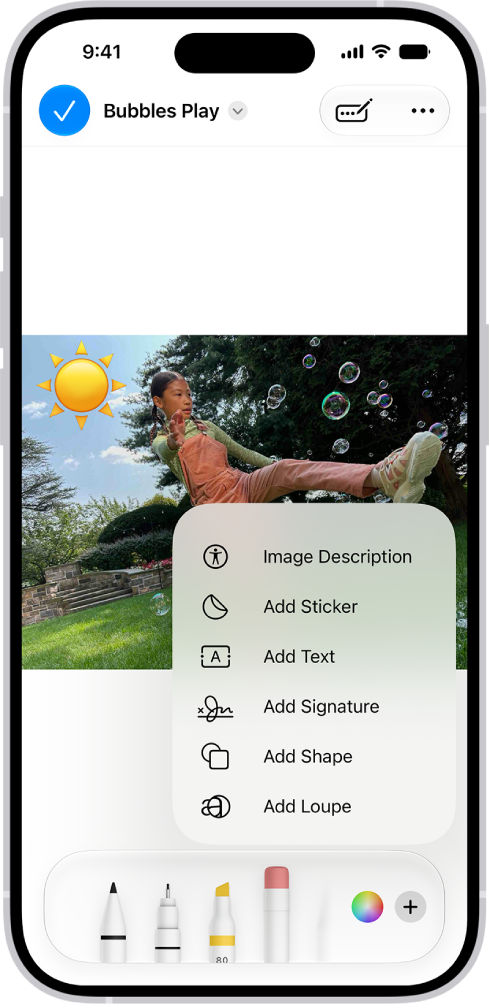
In the Mail app, you can annotate email attachments to give feedback on a draft, decorate a photo, and more. You can draw and write on a photo, video, or PDF attachment, then save or send it back.

Markup’s drawing tools let you draw with just your finger. When you’re finished, you can reply to the sender, start a new message, or discard your edited attachment, and you can save the annotated attachment to your files.

In Mail, a PDF of an attachment has a sticker of an emoji. Below the webpage are the markup tools.

  1. Open the Mail app on your iPhone.
  2. In the message, tap the attachment. Tap the Markup button.

    Using the drawing tools, draw with your finger.

    When you’re finished, tap the Done button, then choose to reply to the attachment sender, start a new message, save the annotated attachment to your files, or discard your edited attachment.

Tag: Mail

You can reply to an email with a PDF attachment in Preview on iPhone. You just fill out or annotate the PDF attachment in the Preview app and attach the updated PDF to your reply in the Mail app. You can optionally add text to the reply, too.

  1. Start the Mail app on your iPhone.
  2. Open an email with a PDF attached, then tap the attachment to view it.
  3. Tap Preview in the toolbar to open it in the Preview app.
  4. Fill out or annotate the PDF.
  5. Go back to the Mail app and open the original email.
  6. Tap the Reply button, tap the Attachment button, and tap Attach File.

    A reply to the sender appears in your inbox in the Mail app, with the updated PDF attached.

  7. Locate the updated PDF, then tap to select it.
  8. Optionally, add text to the reply.
  9. Tap the Send button.
Tag: Mail

You can save a draft to finish later and see all draft emails from all of your accounts. There’s a shortcut, too, since a message you’re writing can be saved for later and brought back from the bottom of the screen. Unfinished emails can even be handed off between your iPhone and your Mac.

Save a draft for later

  1. Start the Mail app on your iPhone.
  2. In a message you’re writing, tap the Close button. Then tap Save Draft.
  3. To resume work on a message you saved as a draft, touch and hold the Compose button and select a draft.

    You can also swipe down on the title bar of a message you’re writing to save it for later.

    When you’re ready to return to your message, tap its title at the bottom of the screen.

    Tip: You can also hand off unfinished emails between your iPhone and your Mac.

Show draft emails from all your accounts

If you have multiple email accounts, you can show draft emails from all of them.

  1. Start the Mail app on your iPhone.
  2. Tap the Mailboxes button in the upper-left corner until you see Mailboxes.
  3. Tap Edit at the top of the list.
  4. Turn on the All Drafts mailbox.
Tag: Mail