Got a tip for us?

Mail

You can attach photos, videos, and documents to an email message for recipients to easily download and save. You can also scan a paper document and send it as a PDF, or draw right in a message.

Depending on the file size, attachments might appear inline with the text, or as the Insert Attachment button at the end of the message. Documents come from Files, including the ones in Recents or Shared. And if your file exceeds the maximum size your email account allows, you’ll be able to send it using Mail Drop.
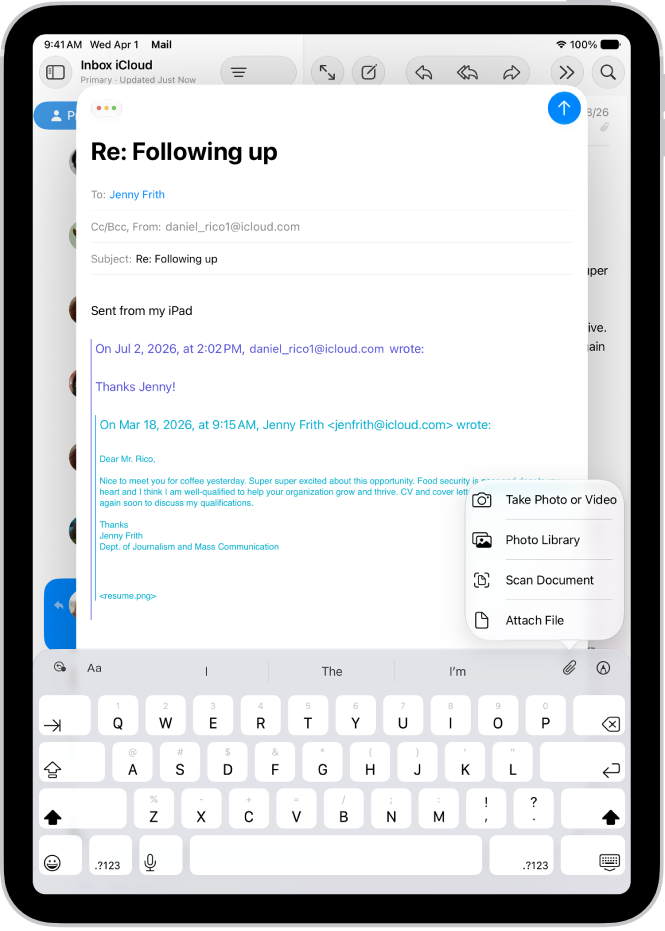
A draft email being composed with the attachment options above the keyboard.

Attach a photo, video, or document to an email

Documents, videos, and photos you attach and send in your email messages are easy for recipients to download and save.

  1. Go to the Mail app on your iPad.
  2. Tap in the message where you want to insert the attachment, tap the Insert Attachment Actions button, and do one of the following:

    • Attach a document: Tap Attach File and then locate the document in Files.

      In Files, tap Recents or Shared, then tap a file, location, or folder to open it.

    • Attach a saved photo or video: Tap Photo Library, then choose a photo or video. Tap the Done button to return to the message.
    • Take a new photo or video and attach it to the message: Tap Take Photo or Video, then take a new photo or video. Tap Use Photo or Use Video to insert it into your message, or tap Retake if you want to reshoot it.

Note: If the file exceeds your email account’s maximum size, the onscreen instructions help you send it using Mail Drop.

Scan and attach a document to an email

You can scan a paper document and send it as a PDF.

  1. Open the Mail app on your iPad.
  2. Tap in the message where you want to insert the scanned document and tap the Insert Attachment Actions button above the keyboard.
  3. Tap Scan Document and then position iPad so that the document page appears on the screen—iPad automatically captures the page.

    To capture the page manually, tap the Take Picture button or press a volume button.

  4. Scan additional pages, then tap Save when you’re done.
  5. To make changes to the saved scan, tap it and then do any of the following:

    • Crop the image: Tap the Crop button.
    • Apply a filter: Tap the Show Filter Settings button.
    • Rotate the image: Tap the Rotate button.
    • Delete the scan: Tap the Delete Scan button.

Create and attach a drawing to your email

Some ideas are hard to put into words, so you can draw in an email message to demonstrate them. Your drawing goes into the message as an attachment recipients can view and download.

  1. Open the Mail app on your iPad.
  2. Tap in the message where you want to insert a drawing and then tap the Insert Drawing button above the keyboard to show the Markup toolbar.
  3. Choose a drawing tool and color. Write or draw with your finger.

    See Write and draw in documents with Markup.

  4. When you’re finished, tap the Done button and then tap Insert Drawing.

To resume work on a drawing, tap the drawing in the message, tap the Disclosure arrow in the menu that appears, then tap Markup.

See also
Tag: Mail

You can download attachments that are sent to you in email messages or easily search for messages with attachments in your mailboxes.

You can save an image in the Photos app, save an attachment in the Files app, or open it with another app. You can also identify and learn more about objects in photos you receive. And you can quickly fill out forms you receive in Mail, or filter your messages to show only those with attachments when you can’t find one someone sent you.

Download an attachment sent to you

  1. Go to the Mail app on your iPad.
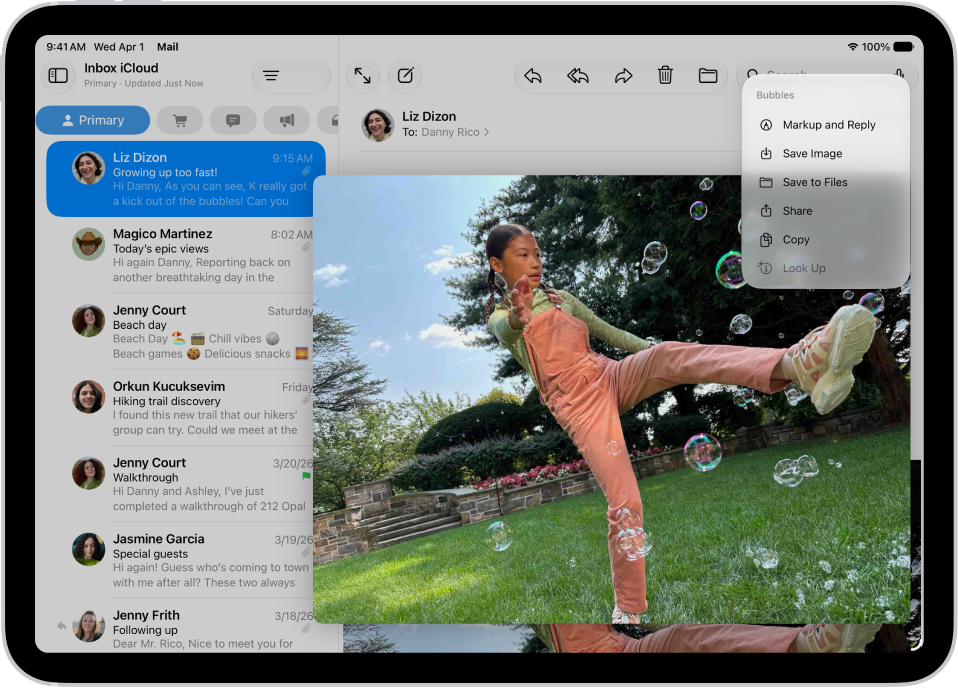
  2. Open a message with an attachment and touch and hold the attachment.
  3. Do any of the following:

    • Save it in the Photos app: Choose Save Image.
    • Save it in the Files app: Choose Save to Files.
    • Open it with another app: Tap Share, then choose the app.

    An email attachment is selected with possible actions listed.

    Tip: You can identify and learn more about objects in photos you receive. Touch and hold the photo, then choose Look Up. See Identify objects in your photos and videos on iPad.

Quickly fill out forms you receive in Mail

You can use AutoFill to quickly fill out forms you receive in the Mail app.

  1. Start the Mail app on your iPad.
  2. In the message, tap the attachment to open the document.
  3. Tap the AutoFill button and tap a blank field to enter text using the onscreen keyboard.
  4. To fill out another line, tap it. Enter text.
  5. Tap the Share button, then choose a method to send the completed form.

Find emails with attachments

When you can’t find an attachment someone sent you, filter your email messages so only those with attachments show up.

  1. Start the Mail app on your iPad.
  2. In a mailbox, tap the Toggle Filtering button to turn on filtering.
  3. Tap Filtered by and then turn on Only Mail with Attachments.

Quick tip: You can also gather email messages with attachments from all your accounts in one mailbox. To set it up, tap the Show Sidebar button (top left) to see your mailboxes, then tap Edit and select Attachments. From then on, the attachments mailbox sits in the mailboxes list alongside the rest.

See also

Tag: Mail

To send and receive email using the Mail app, you need to add the email accounts you want to use. When you first open Mail, you’re asked to set up an account. At any time, you can add more email accounts to your iPad, or remove accounts you no longer need.

You can also set a fetch schedule for an account, or temporarily stop using one.

Here’s how to add and remove email accounts on iPad.

Add an email account

To get all your email in one place, add one or more email accounts to the Mail app. Then you can send email from any of those accounts with ease.

  1. Start the Settings app on your iPad.
  2. Tap Apps and then tap Mail.
  3. Tap Mail Accounts, then tap Add Account.
  4. Enter your email address, tap Next, and enter your email account information.

Note: With multiple accounts set up, you can choose which one to send from while composing your email message. For how it works, read our article, Send an email from a different account.

Set a fetch schedule for your email account

For an account that doesn’t support Push notifications, set a schedule to check that account for new emails.

  1. Start the Settings app on your iPad.
  2. Tap Apps and then tap Mail.
  3. Tap Mail Accounts and then tap Fetch New Data.
  4. Under Fetch, choose a schedule.

    Automatically is the default selection, which means new data is downloaded when your iPad is charging and connected to Wi-Fi. To fetch more often outside of these conditions, choose a timed schedule.

Temporarily stop using an email account

Turning off an account in Settings temporarily stops sending and receiving email from it on your iPad. It’s easy to turn it back on at any time.

  1. Start the Settings app on your iPad.
  2. Tap Apps and then tap Mail.
  3. Tap Mail Accounts and tap the email account you want to turn off.
  4. Do one of the following:
    • Turn off an iCloud email account: Turn off Use on this iPad.
    • Turn off another email account: Turn off Mail.

Quick tip: Focus filters let you get notifications only from specific email accounts during times you choose. You could silence your work email account’s notifications on the weekends or while you’re on vacation, for example. To set one up, check out our guide, Set up a Focus on iPad.

Delete an email account

If you remove an email account, it disappears from both the Mail app and all the apps on your iPad that use it.

Note: This only removes the email account from your iPad. It doesn’t cancel it, so to close the account completely, visit your email account provider.

  1. Start the Settings app on your iPad.
  2. Tap Apps and then tap Mail.
  3. Tap Mail Accounts. Tap the email account you want to remove.
  4. Tap Sign Out or Delete Account.

    Note: If you change your mind later, you can add the email account back to your iPad. Follow the steps in Add an email account.

Add the Mail app back to your Home Screen

The Mail app may not be on your Home Screen, but you can find it in the App Library and add it back.

  1. On the Home Screen, swipe left until you see the App Library.
  2. Enter “Mail” in the search field.
  3. Touch and hold the Mail app icon. Tap Add to Home Screen.

To get your Home Screen just right, check out our article, Move apps and widgets around.

See also

Tag: Mail

With the Mail app, you can send, receive, and organize messages from all your email accounts in one place. You can add accounts from different email services, like iCloud, Exchange, or Gmail, write and send a new message, and reply to an email, delete it, and more while you’re reading it.

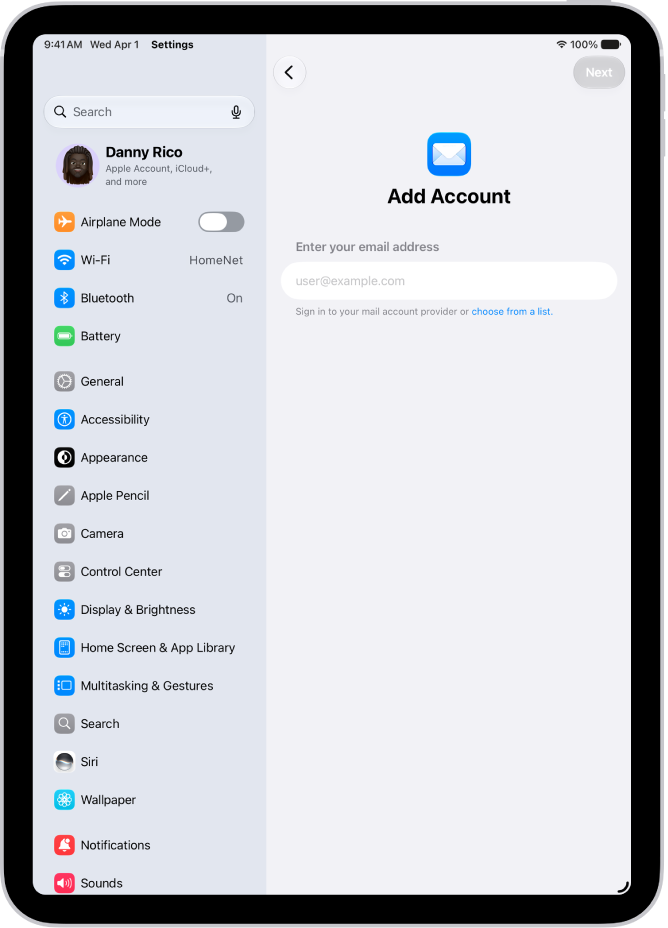
The Add Account screen showing a field to enter your email address.

Add an email account

You can add all your email accounts from different email services—like iCloud, Exchange, or Gmail (Google). To add an account, go to Settings > Apps > Mail. Tap Mail Accounts, then tap Add Account.

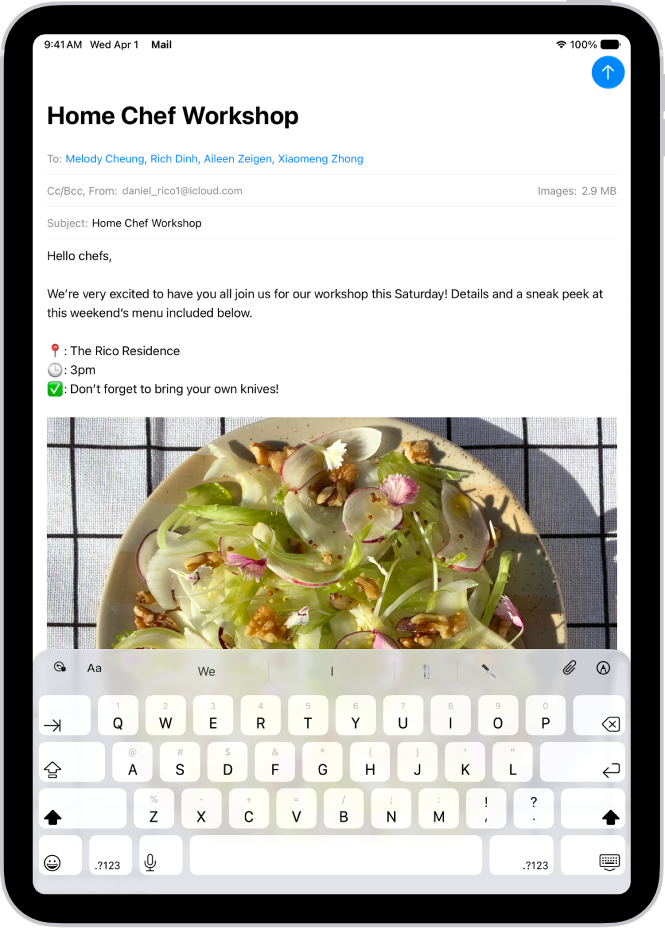
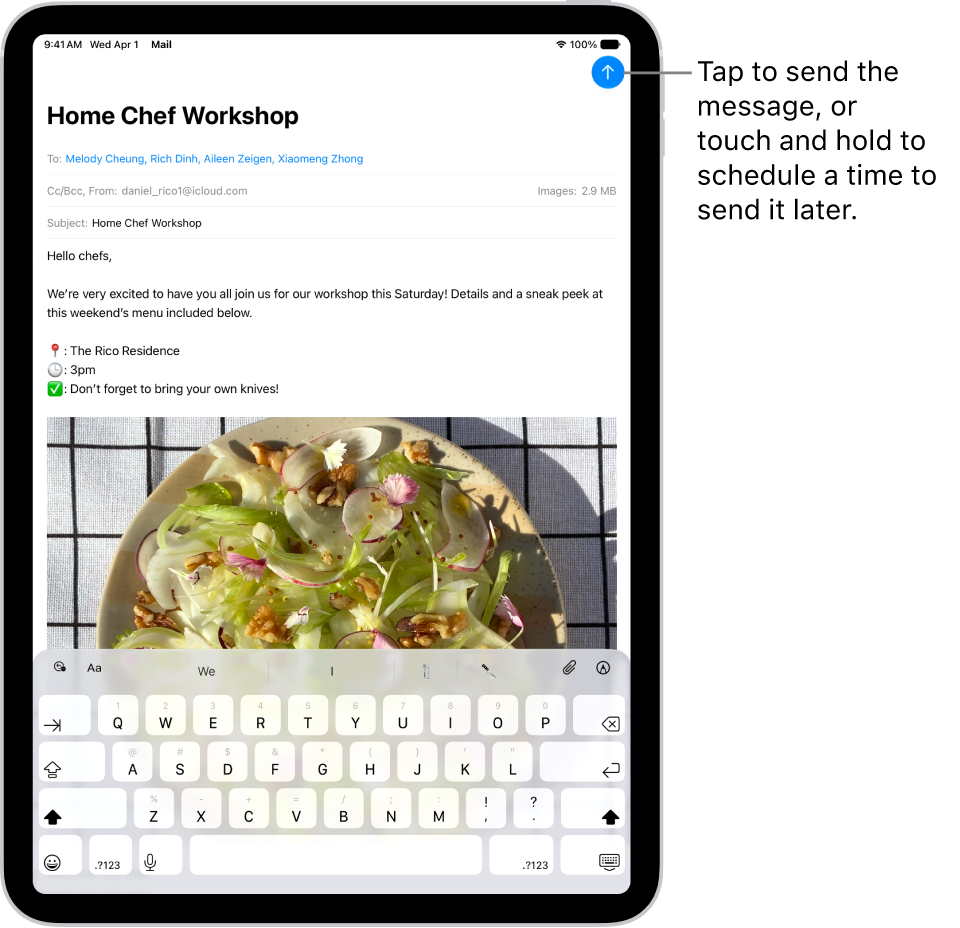
An email draft is open in the Mail app. The button to send the message is in the top-right corner. Tap to send the message, or touch and hold to schedule a time to send it later.

Send an email

Tap the Compose button to start a new email message. Add a recipient, subject, and your text, then tap the Send button to send your message.

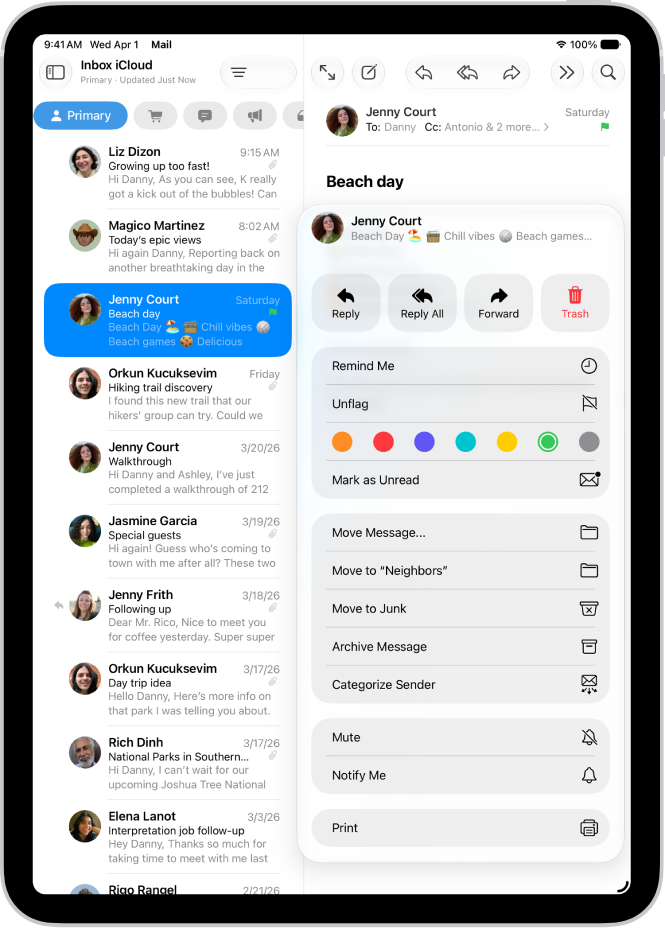
An open email. The menu with options for adding or removing a flag is shown on the right.

Reply to an email message, delete it, and more

You can perform many actions on an email message while viewing it. Open the message, then tap the More Actions button in the bottom-right corner to open the actions menu.

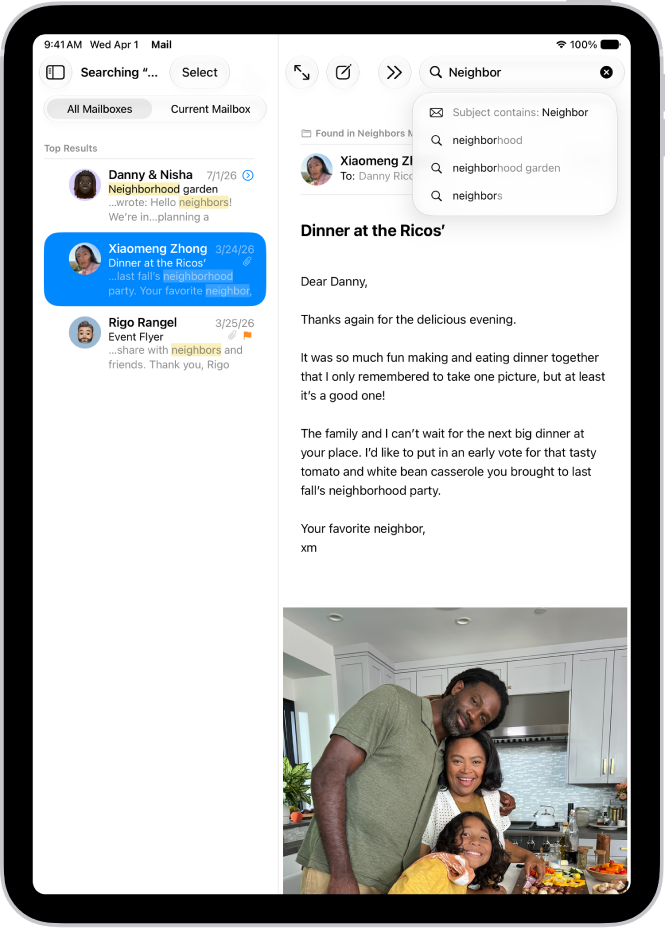
A message is open in the Mail app, and search terms are being typed in the top right.

Find emails fast

You can easily find emails using the search feature in Mail. Tap the Search button to reveal the search field. Tap a suggestion to narrow your search to a specific timeframe or to filter by attributes like flagged or unread.

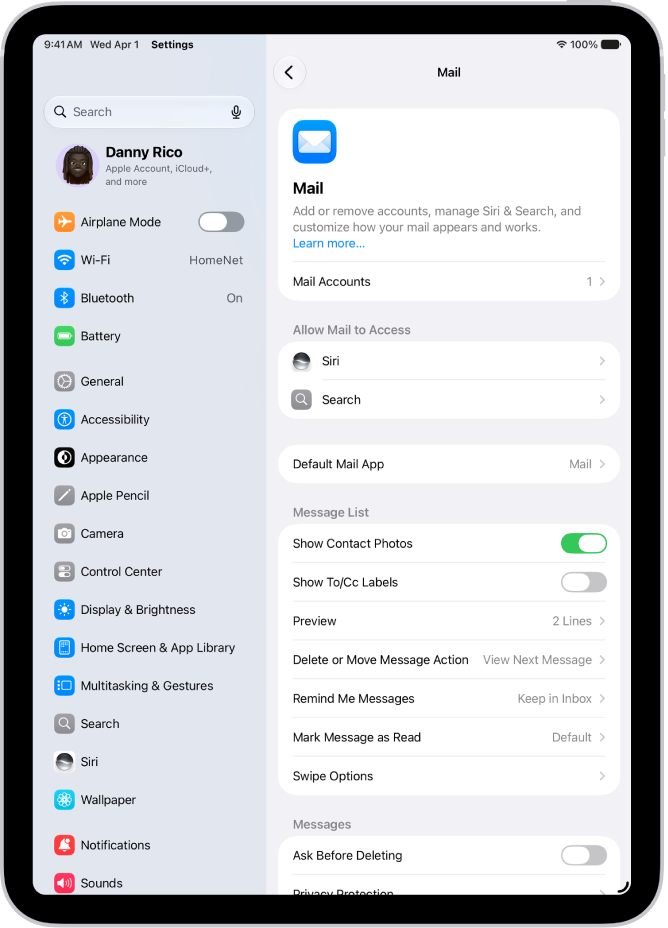
The Mail settings screen.

Change Mail settings

You can customize your email signature, change your swipe options, and more in Mail settings. Go to Settings > Apps > Mail.

For more help with Mail, these guides have you covered:

Tag: Mail

In the Mail app, you can reply to or forward emails yourself, or use Apple Intelligence to draft quick, personalized responses.

When you reply, you can quote text from the sender to clarify what you’re responding to. You can also follow up on emails, set up an automatic reply, and use Smart Reply. You can reply to just the sender, or to the sender and the other recipients.

Here’s how to reply to and forward emails in Mail on iPad.

Reply to an email

  1. Open the Mail app on your iPad.
  2. Tap in the message. Do one of the following:
    • Reply to just the sender: Tap the More Actions button.
    • Reply to the sender and the other recipients: Tap the Reply All button.
  3. Type your response. Then tap the Send button to send.

Quote some text when you reply to an email

To clarify what you’re responding to, you can include text from the sender when you reply to an email message.

  1. Open the Mail app on your iPad.
  2. In the sender’s message, touch and hold the first word of the text and drag to the last word. (See Select, cut, copy, and paste text.)
  3. Tap the More Actions button, tap Reply, and then type your message.

Note: You can turn off the indentation of quoted text in Mail’s settings. Go to Settings > Apps > Mail > Increase Quote Level (below Composing), and turn off Increase Quote Level.

Forward an email

You can send an email message forward to new recipients.

  1. Open the Mail app on your iPad.
  2. Tap the message, then tap the Forward button.

    If there are attachments in the original message—like photos or documents—you can decide whether to include them in the forwarded message. Choose Include or Don’t Include.

  3. Enter the email addresses of the new recipients.
  4. Tap in the message, then type your response. The forwarded message appears below.

Follow up on emails

An email message you send that doesn’t receive a response for several days goes back to the top of your inbox automatically as a reminder to follow up.

To turn off Follow Up Suggestions, go to Settings > Apps > Mail, then turn off Follow Up Suggestions.

Set up an automatic reply in Mail

Using iCloud.com, you can set up an automatic reply for incoming email messages or have messages forwarded automatically to another inbox.

Use Smart Reply

Smart Reply, an Apple Intelligence feature, can quickly draft an email response in your personalized writing style.

Note: Apple Intelligence on iPadOS 27 or later is available on an Apple Intelligence-enabled iPad mini (A17 Pro) and iPad models with M1 or later. Apple Intelligence is not available in all languages or regions. Usage limits may apply.*

  1. Open the Mail app on your iPad.
  2. Tap the Sidebar button, tap an email, and then tap the Reply button.
  3. In the keyboard, tap a suggested reply.

    Apple Intelligence drafts a reply in the email. To refine your reply, see Use Writing Tools to write, improve, and summarize content.

  4. When you’re ready to send your reply, tap the Send button.

*Apple Intelligence is available with Siri and device language set to Chinese (Simplified), Chinese (Traditional), Danish, Dutch, English, French, German, Italian, Japanese, Korean, Norwegian, Portuguese, Spanish, Swedish, Turkish, or Vietnamese. Some features may not be available in all regions or languages. Some devices may not be available in all regions. Siri AI is available in beta in iOS 27, iPadOS 27, macOS 27, watchOS 27, and visionOS 27 and requires an Apple Intelligence–enabled device set to a supported language. Available in English to start. Siri AI will not be initially available in the EU on iOS, iPadOS, and watchOS. Certain Apple Intelligence features that rely on server-side models are subject to daily usage limits, including but not limited to Siri AI, Intelligent Photo Editing Tools, Image Playground, and AFM 3 Cloud models in Shortcuts. Daily limits may vary by feature, request complexity, system demand, system policies, and other factors. Expanded access to such features will be available for a fee in the future. Use of these features is subject to the Apple Intelligence Terms and Conditions.

See also

You can write, send, and schedule email messages from any of your email accounts.

You can change the font style and color of text, use bold or italic, add a bulleted or numbered list, and add a hyperlink. With the onscreen keyboard, you can also switch to the smaller QuickType keyboard. You can edit a link later, too, and as you add recipients, Mail suggests people from your Contacts.

Here’s how to send email in Mail on iPad.

An email draft is open in the Mail app. The button to send the message is in the top-right corner. Tap to send the message, or touch and hold to schedule a time to send it later.

Write and send an email

  1. Go to the Mail app on your iPad.
  2. Tap the Compose button.
  3. Tap in the email and type your message.

    With the onscreen keyboard, you can tap individual keys. Or pinch closed with three fingers to use the smaller QuickType keyboard, then slide your finger from one letter to the next, lifting your finger only after each word.

  4. To change the formatting, tap the Text Format button above the keyboard.

    You can change the font style and color of text, use a bold or italic style, add a bulleted or numbered list, and more.

  5. Tap the Send button to send your message.

Quick tip: As you compose messages, you can create stickers and add them. See our guide, Add emoji, Memoji, and stickers with the iPad keyboard.

Add recipients

  1. Start the Mail app on your iPad.
  2. Tap the Compose button and tap the To field. Then type the names of recipients.

    As you type, Mail automatically suggests people from your Contacts, along with email addresses for people who have more than one email address.

    You can also tap the Add Contact button to open Contacts and add recipients from there.

  3. If you want to send a copy to other people, tap the Cc/Bcc field. Do any of the following:

    • Tap the Cc field, then enter the names of people you’re sending a copy to.
    • Tap the Bcc field, then enter the names of people whose names you don’t want other recipients to see.

Add a hyperlink to an email message

  1. In Safari or another web browser, copy the URL of a webpage.
  2. As you compose a message in Mail, highlight the text you want to link.
  3. Tap Paste.

Edit a link in an email draft

  1. Start the Mail app on your iPad.
  2. In a message you’re writing, tap a link or linked text and tap the down arrow.
  3. Do any of the following:
    • Show Link Preview: Change the hyperlinked text to a rich embedded website preview image.
    • Open Link: Go to that website in a web browser.
    • Edit Link: Change the URL of the link.
    • Remove Link: Delete the link from your message draft.
    • Edit Text Description: Change the text that’s linked.

Capture an email address from a photo

With Live Text in the Photos app on iPad, you can interact with an email address on a business card, poster, and more, so you can quickly begin emails without entering an address manually.

  1. Start the Photos app on your iPad.
  2. Open a photo and then tap the email address you want to capture.
  3. After the yellow frame appears around detected text, tap the Live Text button.
  4. Tap or use the grab points to select the email address and tap New Mail Message.

Quick tip: The same Live Text feature can capture an email address with the Camera app. Read our article, Use Live Text with your iPad camera.

Schedule an email with Send Later

  1. Start the Mail app on your iPad.
  2. In a message you’re writing, touch and hold the Send button. Then choose when you want to send the message.

    To see more options, tap Send Later.

Automatically send a copy to yourself

  1. Start the Settings app on your iPad.
  2. Tap Apps and then tap Mail.
  3. Turn on Always Bcc Myself (below Composing).

Send an email from a different account

When you have more than one email account, you can pick the one to send email from.

  1. Start the Mail app on your iPad.
  2. In your message draft, tap the Cc/Bcc, From field.
  3. Tap the From field and then choose an account.

Use Writing Tools to summarize, proofread, and modify your email

With Apple Intelligence, you can use Writing Tools to summarize selected text with a tap, proofread your work, and create different versions of the same text to help you find the right wording and tone. See Use Writing Tools with Apple Intelligence.

Note: Apple Intelligence on iPadOS 27 or later is available on an Apple Intelligence-enabled iPad mini (A17 Pro) and iPad models with M1 or later. Apple Intelligence is not available in all languages or regions. Usage limits may apply.*

*Apple Intelligence is available with Siri and device language set to Chinese (Simplified), Chinese (Traditional), Danish, Dutch, English, French, German, Italian, Japanese, Korean, Norwegian, Portuguese, Spanish, Swedish, Turkish, or Vietnamese. Some features may not be available in all regions or languages. Some devices may not be available in all regions. Siri AI is available in beta in iOS 27, iPadOS 27, macOS 27, watchOS 27, and visionOS 27 and requires an Apple Intelligence–enabled device set to a supported language. Available in English to start. Siri AI will not be initially available in the EU on iOS, iPadOS, and watchOS. Certain Apple Intelligence features that rely on server-side models are subject to daily usage limits, including but not limited to Siri AI, Intelligent Photo Editing Tools, Image Playground, and AFM 3 Cloud models in Shortcuts. Daily limits may vary by feature, request complexity, system demand, system policies, and other factors. Expanded access to such features will be available for a fee in the future. Use of these features is subject to the Apple Intelligence Terms and Conditions.

See also

Tag: Mail

In the Mail app, you can read emails yourself or have Apple Intelligence summarize them for you. You can also add contacts and preview an email’s contents without opening it.

If you don’t have time for a primary message right away, Remind Me brings it back to the top of the list at a time and date you choose. You can also quickly mark multiple emails as read, and add Remind Me to the toolbar in the Mail app.

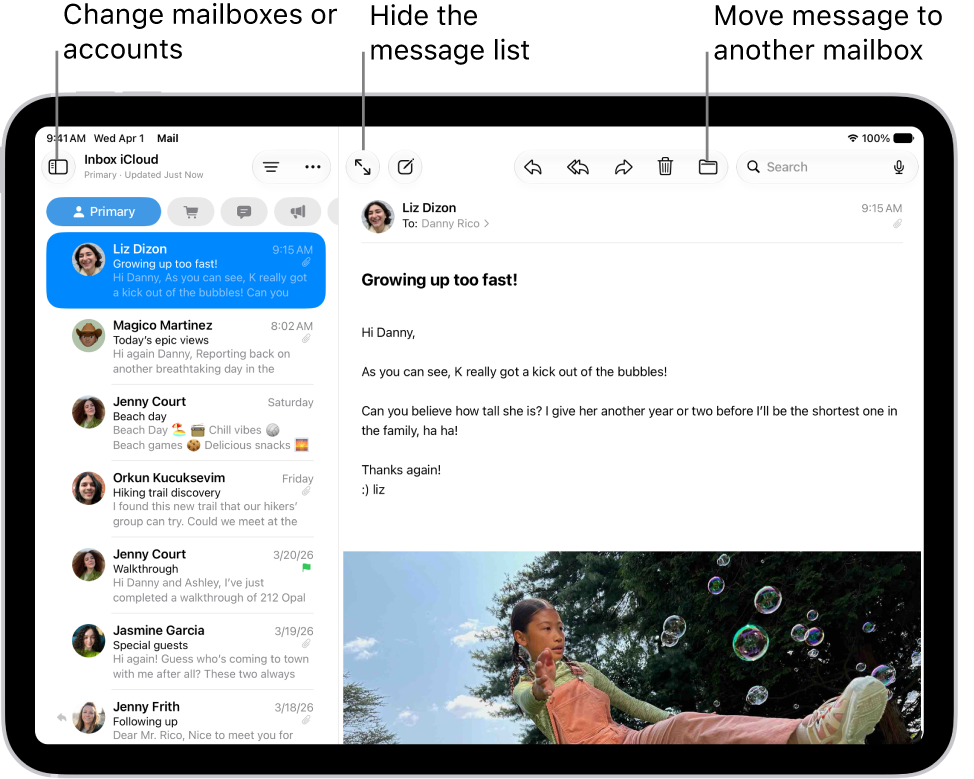
The Mail Inbox, with the list of emails on the left and an open email on the right.

Quick tip: When you check your email, Apple Intelligence may suggest actions, like adding a reminder or creating a calendar event. To accept one, click the suggestion.

Note: Suggested actions in Mail on iPadOS 27 or later is an Apple Intelligence feature available on iPad mini (A17 Pro) and iPad models with M1 or later in supported regions when device language is set to English.*

Read an email

  1. Open the Mail app on your iPad.
  2. Tap the message you want to read.

    Tip: Tap the Expand Message button to hide the message list when reading a message.

Use Remind Me to come back to a Primary message later

If a primary message has to wait, you can set a time and date for a reminder, and the message returns to the top of your inbox.

  1. Open the Mail app on your iPad.
  2. Tap a Primary message, tap the Reply button at the bottom right of the message, tap Remind Me, and then choose when to be reminded.

Quick tip: For easier access, add Remind Me to the toolbar in the Mail app. Check out our guide, Customize the Mail toolbar.

Quickly mark multiple emails as read

  1. Open the Mail app on your iPad.
  2. While viewing a message list, tap the More button, tap Select, and then select the messages you want to mark.

    Important: When you select a Transactions, Updates, or Promotions message, you’re selecting all the messages in that category from the sender.

  3. Tap the Mark button at the bottom of the message list and then choose Mark as Read.

Note: The unread count on your Home Screen only reflects your Primary category. If you’d rather see your total number of unread messages across all categories instead, go to Settings > Notifications > Mail > Customize Notifications and turn on All Unread Messages.

Preview a Primary message and a list of options

If you want to see what a Primary message is about but not open it completely, you can preview it.

  1. Open the Mail app on your iPad.
  2. In the Primary message list, touch and hold a message to preview its contents and see a list of options for replying, moving it, and more.

Show a longer preview for every email

By default, Mail shows two lines of text for each email message in your inbox, but you can choose to see more lines without opening the message.

Go to Settings > Apps > Mail > Preview (below Message List), then choose up to five lines.

Show the whole conversation

Go to Settings > Apps > Mail, then turn on Organize by Thread (below Threading).

Note: You can also change other settings here, like Collapse Read Messages or Most Recent Message on Top.

Show To and Cc labels in your Inbox

Go to Settings > Apps > Mail, then turn on Show To/Cc Labels (below Message List).

You can also view the To/Cc mailbox, which gathers all mail addressed to you. To show or hide it, tap the Show Sidebar button in the upper-left corner of the Mail app, tap Edit above Mailboxes, then select “To or Cc.”

Add someone to your contacts or make them a VIP

If you add someone to your contacts, it’s easy to find their email messages later. Or make them a VIP, so every message you receive from them is starred automatically.

  1. Open the Mail app on your iPad.
  2. In a message, tap a person’s name or email address and then do one of the following:
    • Add a new contact: Tap View Contact Card and then tap Create New Contact. Fill in any other contact information and then tap the Done button.
    • Add the email address to an existing contact: Tap View Contact Card, then tap Add to Existing Contact. Select a contact, then tap the Done button.
    • Add to your VIP list: Tap Add to VIP.

Show or hide contact photos

  1. Open the Mail app on your iPad.
  2. In an inbox, tap the More button at the top of the screen. Select or deselect Show Contact Photos.

Summarize your email

Apple Intelligence can help you summarize a complex email, or catch up on a long email thread in seconds.

Note: Apple Intelligence on iPadOS 27 or later is available on an Apple Intelligence-enabled iPad mini (A17 Pro) and iPad models with M1 or later. Apple Intelligence is not available in all languages or regions. Usage limits may apply.*

Go to the Mail app on your iPad.

A short summary automatically appears under each email in your inbox.

  • Tap the Sidebar button, tap an email, then tap Summarize.

    Note: You may need to scroll to the top of the screen for the Summarize button to appear.

A summary appears at the top of the screen. If the message is part of an email thread, the contents of the thread are summarized.

*Apple Intelligence is available with Siri and device language set to Chinese (Simplified), Chinese (Traditional), Danish, Dutch, English, French, German, Italian, Japanese, Korean, Norwegian, Portuguese, Spanish, Swedish, Turkish, or Vietnamese. Some features may not be available in all regions or languages. Some devices may not be available in all regions. Siri AI is available in beta in iOS 27, iPadOS 27, macOS 27, watchOS 27, and visionOS 27 and requires an Apple Intelligence–enabled device set to a supported language. Available in English to start. Siri AI will not be initially available in the EU on iOS, iPadOS, and watchOS. Certain Apple Intelligence features that rely on server-side models are subject to daily usage limits, including but not limited to Siri AI, Intelligent Photo Editing Tools, Image Playground, and AFM 3 Cloud models in Shortcuts. Daily limits may vary by feature, request complexity, system demand, system policies, and other factors. Expanded access to such features will be available for a fee in the future. Use of these features is subject to the Apple Intelligence Terms and Conditions.

See also

When you subscribe to iCloud+, you can add up to five custom email domains and create email addresses for those domains on your iPad. You can then send and receive mail in Mail on your iPhone, iPad, and Mac, on iCloud.com, and in an email app on a Windows device.

You can add a domain you already own or buy a new one, and import your existing email messages. You need a primary iCloud Mail address first, though.

Note: Sign in to the same Apple Account on each device. Any device where you’re not signed in to your Apple Account, or where the Mail feature is off, won’t show your custom email domains and mail.

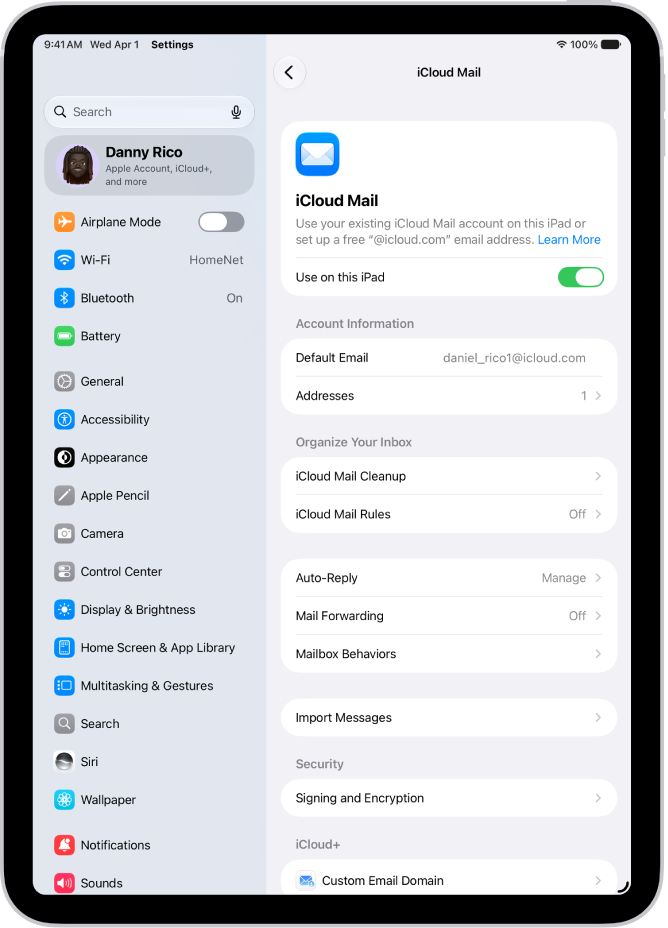
The Settings app, open to the iCloud Mail screen. Custom Email Domain is at the bottom of the menu.

Add a custom email domain to iCloud Mail

If you already own a custom email domain, you can bring it to iCloud Mail, or you can buy a new one.

Note: Adding a custom email domain on iPad won’t work until you have a primary iCloud Mail address.

  1. Open Settings, tap [your name], tap iCloud and tap Mail (under Saved to iCloud). Then make sure Use on this iPad is turned on.
  2. Tap Custom Email Domain. Tap one of the following:

    • Buy a Domain: Choose this option if you don’t yet have a custom domain. After you purchase it, you can create custom email addresses.
    • Use a Domain You Own: Choose this option if you already have a domain, and you want to use it with iCloud Mail. You can configure email addresses you already have at that domain, and create more.
  3. Follow the onscreen instructions.

    If you’re adding a domain you already own, some registrars require you to change DNS records to set up your domain.

Import existing email messages

When you or a member of your Family Sharing group has set up a custom email domain for iCloud Mail, iCloud.com can import existing email messages from your previous email provider, though that’s not available for all email providers.

Create and delete email addresses

After you add a custom domain name, it’s easy to create and delete email addresses for that domain.

  1. Open Settings, tap [your name], tap iCloud and tap Mail (under Saved to iCloud). Then make sure Use on this iPad is turned on.
  2. Tap Custom Email Domain. Then tap the domain you want to make changes to.
  3. Tap Manage Email Addresses, then do one of the following:
    • Add a new email address: Tap Create Email Address, enter the new address, and tap Continue.
    • Delete an email address: Swipe left on an email address, tap Delete, and tap Remove.
    • Add People: Tap to invite someone to your custom email domain.

Remove a custom email domain

If you no longer want to use a custom email domain, your iPad can remove it. When you remove a custom email domain, iCloud Mail can’t send or receive email for any addresses at that domain.

  1. Open Settings, tap [your name], tap iCloud and tap Mail (under Saved to iCloud). Then make sure Use on this iPad is turned on.
  2. Tap Custom Email Domain. Then tap Edit next to Your Domains.
  3. Tap the Delete button and tap Delete.
  4. If you’re moving your domain to a new provider, make sure to do the following:
    • Go to your domain registrar to update the domain records to your new email provider and remove iCloud-related records.
    • Set up any email addresses you want to continue using with your new provider.

Note: If you remove a custom email domain, your primary @icloud.com address can still send and receive email.

Allow all incoming messages to your domain

If you use your iCloud email address as a catch-all address, you receive all messages sent to your custom email domain, even when the exact address they were sent to hasn’t been created yet.

  1. Open Settings, tap [your name], tap iCloud, and then tap Mail (under Saved to iCloud).
  2. Tap Custom Email Domain and tap your custom domain.
  3. Turn on Allow All Incoming Messages.

If the domain owner allows all incoming messages, any messages that aren’t sent to an active email address go to the domain owner’s inbox. If this setting isn’t turned on, those messages are returned to the sender.

Note: Messages sent to deleted email addresses automatically go back to the sender.

See also

Tags: iCloud, Mail

When you subscribe to iCloud+, Hide My Email lets you send and receive email messages that forward to your real email account, to keep your real email address private. You can also generate unique email addresses on demand in the Mail app.

You can send a message with Hide My Email to one recipient at a time, and replies forward to your real email address. When you get a message at one of your unique addresses, you can reply using the same address, too.

Send an email with Hide My Email

  1. Go to the Mail app on your iPad.
  2. Tap the Compose button.
  3. Add a recipient and subject for your message.

    Note: You can only send a message using Hide My Email to one recipient at a time.

  4. Tap the From field, tap it again, and tap Hide My Email. A new, unique email address appears in the From field.

Quick tip: If someone replies to a message you sent with Hide My Email, the reply goes to your real email address. To set a Forward To address, read our guide, Create and manage Hide My Email in Settings.

Reply to an email using Hide My Email

When you receive an email message to one of your unique, random addresses, you can reply using the same address. This allows you to continue the conversation and keep your real email address private. To reply, do the following:

  1. Start the Mail app on your iPad.
  2. Tap the message. Tap the Reply button above the message.
  3. Type your response.

    You can tap the From field to view the email address the recipient sees.

Manage the addresses generated by Hide My Email

You can create, deactivate, reactivate, and manage random addresses with Hide My Email. See our article, Create and manage Hide My Email in Settings.

See also

Tags: iCloud, Mail

When you subscribe to iCloud+, you can use Hide My Email to keep your personal email address private. It generates unique, random email addresses that forward to your personal email account, so you don’t have to share your real address when you fill out forms, sign up for newsletters, or send email.

You can create a new address, deactivate one so it stops forwarding emails to you, choose which personal email address it forwards to, and copy a forwarding address to use elsewhere. You can also generate addresses in Safari and Mail wherever an email address is required.

You can create and manage Hide My Email addresses in Settings. Go to Settings > [your name] > iCloud > Hide My Email, then do any of the following:

  • Create a Hide My Email address: Tap Create New Address, then follow the onscreen instructions.
  • Deactivate a Hide My Email address: Tap an address (below Create New Address), then tap Deactivate Email Address. After you deactivate the address, it no longer forwards emails to you.
  • Change which personal email address to forward to: Tap Forward To, then choose an email address. Options consist of addresses that are available with your Apple Account.
  • Copy a forwarding address to use elsewhere: Tap an address (below Create New Address), touch and hold the Hide My Email section, then tap Copy. To immediately use that address elsewhere, touch and hold in a text field, then tap Paste.

You can also generate Hide My Email addresses in Safari and Mail wherever email addresses are required. In supporting apps, you can also generate a Hide My Email address when an email address is required by tapping the email address field, then tapping Hide My Email above the keyboard.

See also

Tags: iCloud, Mail