Got a tip for us?

Mail

The Mail app automatically sorts your email messages into categories to help you find and manage messages more quickly (not available in all countries or regions). You can change a sender’s category or turn off categories.

Messages from a Transactions, Updates, or Promotions sender are grouped in a digest view, so you can take action on all of them at once. When one includes time-sensitive information, it also shows up in the Primary message list.

  • Primary: Find personal messages and time-sensitive information.
  • Transactions: Keep track of your confirmations, receipts, and shipping notices.
  • Updates: Catch up on news, newsletters, and social updates.
  • Promotions: Browse your coupon and sales emails.

Note: A Transactions, Updates, or Promotions message with time-sensitive information shows up in the Primary message list, too.

View all messages from a Transactions, Updates, or Promotions sender

When you tap a Transactions, Updates, or Promotions message, a digest view of messages from that sender opens. For example, if you open a Transactions message, all of the other Transactions messages from that sender will appear when you scroll up or down.

Note: In the digest view, you can take action on all messages from a sender.

  1. Open the Mail app on your iPad.
  2. Tap a Transactions, Updates, or Promotions message.

    All of your messages in that category from the same sender appear in a list.

  3. To view all of your messages from a sender, tap the Action Menu button at the top of the sender’s message list. Choose Show All Messages.

Note: Primary messages aren’t grouped by sender.

To view only one Transactions, Updates, or Promotions message when scrolling, tap the More button in the sidebar, then turn off Group by Sender.

Change the category of a sender

You can manually categorize messages from a sender into the category of your choosing.

  1. Open the Mail app on your iPad.
  2. Tap a message, tap the More menu in the bottom-right corner of the screen, and then choose Categorize Sender.
  3. Choose a category and tap Continue.

    All current and future messages from the sender will appear in the category you choose.

Turn off categories

Quick tip: Tap the category you’re currently viewing at the top of the screen, and you’ll quickly switch from that email category to all your email.

  1. Open the Mail app on your iPad.
  2. In an inbox, tap the More button at the top of the screen and choose List View.

See also

Tag: Mail

You can use filters to show messages that meet criteria you choose, control which accounts appear during a Focus, or let Apple Intelligence surface priority emails at the top of your inbox.

You can turn off all filters, or just one specific filter. Your work email account and its notifications, for example, can show up only when your Work Focus is on. And during a Focus, you can choose which email accounts you receive notifications from.

Here’s how to filter emails in Mail on iPad.

Note: Apple Intelligence on iPadOS 27 or later is available on an Apple Intelligence-enabled iPad mini (A17 Pro) and iPad models with M1 or later. Apple Intelligence is not available in all languages or regions. Usage limits may apply.*

Filter emails

  1. Go to the Mail app on your iPad.
  2. Tap the Toggle Filtering button.
  3. Tap Filtered by, select or turn on the criteria for messages you want to view and then tap Done.

To turn off all filters, tap the Toggle Filtering button. To turn off a specific filter, tap “Filtered by,” then deselect it.

Match a mail account to a Focus

You choose which email accounts you get notifications from when a Focus is on. With your Work Focus on, for instance, a filter can show only your work email account and its notifications.

  1. Open Settings and tap Focus. Then tap a Focus.

    If you don’t see the Focus option you want, tap the Add Focus button. See Set up a Focus.

  2. Tap Add Filter below Focus Filters and then tap Mail.
  3. Select the accounts you want to see in your inbox during that Focus.

View Priority Messages in your inbox

  1. Start the Mail app on your iPad.
  2. Tap your inbox, tap the Sidebar button and tap the More button. Then tap Show Priority.

    Time-sensitive messages appear at the top of your inbox in the Primary category or in List View.

    Note: Apple Intelligence on iPadOS 27 or later is available on an Apple Intelligence-enabled iPad mini (A17 Pro) and iPad models with M1 or later. Apple Intelligence is not available in all languages or regions. Usage limits may apply.*

*Apple Intelligence is available with Siri and device language set to Chinese (Simplified), Chinese (Traditional), Danish, Dutch, English, French, German, Italian, Japanese, Korean, Norwegian, Portuguese, Spanish, Swedish, Turkish, or Vietnamese. Some features may not be available in all regions or languages. Some devices may not be available in all regions. Siri AI is available in beta in iOS 27, iPadOS 27, macOS 27, watchOS 27, and visionOS 27 and requires an Apple Intelligence–enabled device set to a supported language. Available in English to start. Siri AI will not be initially available in the EU on iOS, iPadOS, and watchOS. Certain Apple Intelligence features that rely on server-side models are subject to daily usage limits, including but not limited to Siri AI, Intelligent Photo Editing Tools, Image Playground, and AFM 3 Cloud models in Shortcuts. Daily limits may vary by feature, request complexity, system demand, system policies, and other factors. Expanded access to such features will be available for a fee in the future. Use of these features is subject to the Apple Intelligence Terms and Conditions.

See also

Tag: Mail

You can search for email messages using different criteria.

Mail searches the address fields, the subject, the email body, plus documents and links, and the most relevant messages appear in Top Hits. You can narrow a search with a keyword, search by timeframe, or search by email attributes, like flagged or unread. And you can quickly find travel booking confirmations for flights and hotels with the three-letter airport code or the city name.

Here’s how to search for email in Mail on iPad.

Quick tip: Mail can give you search results based on what you mean, not only the words you type. For example, a search for “NYC business trip” brings up emails about your itinerary, travel details, and event locations, plus other relevant messages.

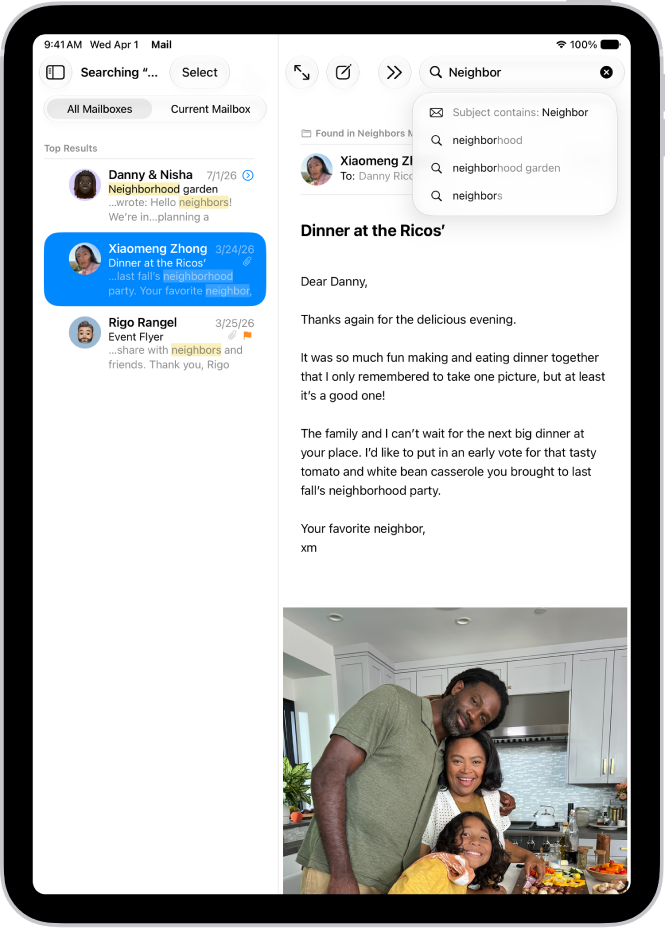
A message is open in the Mail app, and search terms are being typed in the screen’s sidebar.

Search for text in an email

  1. Go to the Mail app on your iPad.
  2. Tap the Search button to reveal the search field. Then type the text you’re looking for.
  3. Choose between searching all mailboxes or the current mailbox above the results list.
  4. Tap a message in the results list to read it.

When you search, Mail looks through the address fields, the subject, the email body, documents, and links. Top Hits shows the most relevant messages above the search suggestions as you type.

Quick tip: Enter the three-letter airport code or the city name to quickly find travel booking confirmations for flights and hotels.

Search by timeframe

  1. Open the Mail app on your iPad.
  2. Tap the search field of a mailbox list.
  3. Enter a timeframe, like “September” and then tap the calendar suggestion button to see all emails from that timeframe.

    To narrow the search, tap the search field again, then enter a keyword, like “meeting.”

Quick tip: The Date, Before, and After options above the message list let you refine your search by timeframe.

Search by email attributes

  1. Open the Mail app on your iPad.
  2. In a mailbox, tap the search field.

    Before you begin typing, you may see suggested recent searches, recent documents, and links listed.

  3. Enter your search criteria. Then tap one of the listed items, or do any of the following:

    • Find all flagged messages: Enter “flag” in the search field. Tap “Message is flagged” below Suggestions.
    • Find all unread messages: Enter “unread” in the search field, then tap “Message is unread” below Suggestions.
    • Find all messages with attachments: Enter “attachment” in the search field. Tap “Messages with attachments” below Suggestions.

See also

Tag: Mail

You can flag important email messages, create flagged mailboxes, and flag messages from VIPs. You can also block messages from specified senders.

A message you flag stays in your Inbox and is easier to find later. You can flag a Primary message, flag all Transactions, Updates, or Promotions messages from a single sender, or flag just one of them, and change or remove a flag later.

Here’s how to flag or block emails in Mail on iPad.

Flag an email

Flag an important email message so it’s easier to find later. It stays in your Inbox. It also appears in the Flagged mailbox.

  1. Go to the Mail app on your iPad.
  2. Do any of the following:

    • Flag a Primary message: Swipe left on the Primary message, then choose Flag.
    • Flag all Transactions, Updates, or Promotions messages from a single sender: Swipe left on a message in the Transactions, Updates, or Promotions message list. Choose Flag.
    • Flag a single Transactions, Updates, or Promotions message: Tap a message to open the sender’s digest view and swipe left on the message. Tap the Flag Message button.

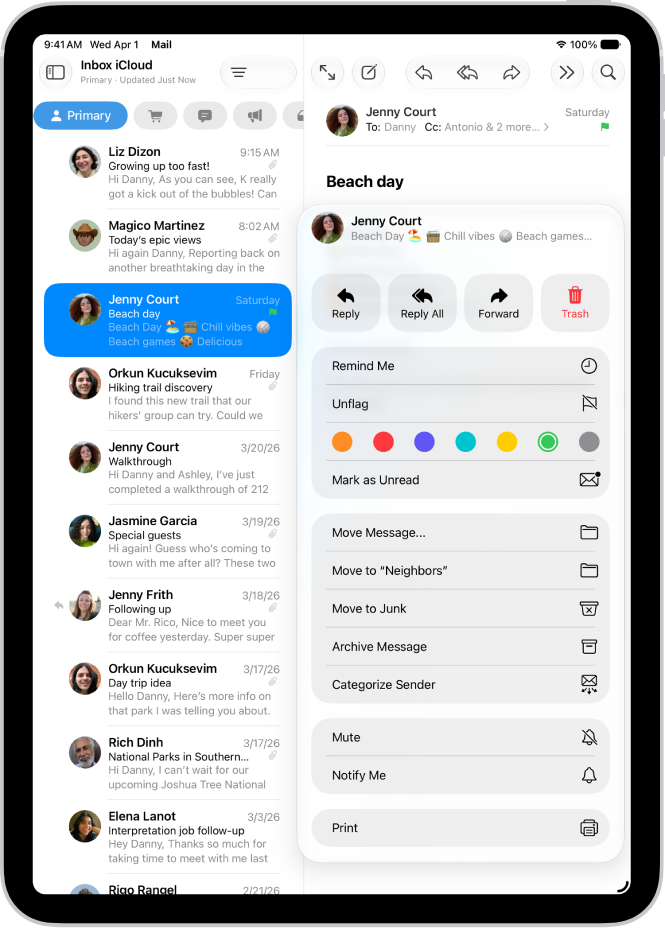
    To change or remove a flag, open the message, tap the More Actions button in the bottom-right corner of the message, tap Flag, then select another color, or tap Unflag.

A flag you add to a message shows up on it in Mail on all your Apple devices signed in to the same Apple Account.

Quick tip: Add the Flag button to the Mail toolbar, and it’s easier to access. See our article, Customize the Mail toolbar.

An open email. The menu with options for adding or removing a flag is shown on the right.

Create a Flagged mailbox

You can add a Flagged mailbox so all your flagged email messages are easily accessible in one location.

  1. Start the Mail app on your iPad.
  2. Tap the Show Sidebar button in the upper-left corner.
  3. Tap Edit, then select Flagged.

Flag emails from your VIPs

When you add important people to your VIP list, their email messages show a VIP flag and land in the VIP mailbox. Read our guide, Add someone to your contacts or make them a VIP.

Block email from specified senders

You can block an email address to prevent a particular sender from emailing you in the future.

  1. Start the Mail app on your iPad.
  2. Tap a message from the sender you want to block.
  3. Tap their email address, tap View Contact Card, and tap Block this Contact.

See also

Tag: Mail

You can change your Mail notification settings and choose which mailboxes and email threads to receive notifications from.

Busy threads can be muted so they stop interrupting you, and you choose what happens to muted messages in Mail settings. You can also get notified about replies to an email or thread, and add the Mute button to the Mail toolbar. Notifications can also let you know when email arrives in your favorite mailboxes or from your VIPs.

Here’s how to set email notifications on iPad.

Mute email notifications

To cut down on interruptions from busy email threads, mute notifications from messages in a conversation.

  1. Go to the Mail app on your iPad.
  2. Open a message in the conversation.
  3. Tap the More Actions button in the bottom-right corner and then tap Mute.

To specify what you want done with email messages you muted, go to Settings > Apps > Mail > Muted Thread Action, then select an option.

Quick tip: For easier access to the Mute button, add it to the Mail toolbar. Read our guide, Customize the Mail toolbar.

Receive notifications about replies to an email or thread

Mail notifications can let you know when email messages arrive in your favorite mailboxes or from your VIPs.

  1. Start the Mail app on your iPad.
  2. Do any of the following:
    • When reading a message: Tap the More Actions button in the bottom-right corner and tap Notify Me.
    • When writing a message: Tap the Subject field and tap the Notify Me button in the Subject field. Tap Notify Me.

To change how notifications appear, go to Settings > Apps > Mail > Notifications.

Change your Mail notifications

  1. Start the Settings app on your iPad.
  2. Tap Apps and then tap Mail.
  3. Tap Notifications and then make sure that Allow Notifications is on.
  4. Tap Customize Notifications. Tap the email account you want to make changes to.
  5. Select the settings you want, like Alerts or Badges. When you turn on Alerts, you have the option to customize your sounds by changing the alert tone or ringtone.

You can set times for allowing notifications from the Mail app; see our guide, Change notification settings.

See also

With the Mail app, you can quickly accomplish many tasks using keyboard shortcuts if your iPad is connected to an Apple external keyboard. The shortcuts you get can vary depending on the language and keyboard you’re using, and they can help you send email and save a draft in Mail.

To view available keyboard shortcuts, connect your keyboard, then press and hold the Command key.

Note: Depending on the language and keyboard you’re using on your iPad, keyboard shortcuts in apps may differ.

See also

Tags: Keyboard, Mail

You can save a draft to finish later, or look at existing email messages while you’re writing a new one. You can view multiple Mail windows at the same time, and even hand off unfinished emails between your iPad and your Mac. With multiple accounts, All Drafts gathers every draft.

Save a draft for later

  1. Go to the Mail app on your iPad.
  2. In a message you’re writing, tap the Close button. Then tap Save Draft.

    To resume work on a message you saved as a draft, touch and hold the Compose button, then select a draft.

Quick tip: Between your iPad and your Mac, you can also hand off unfinished emails. See our article, Hand off tasks between iPad and your other devices.

Look at another message while you’re writing one

It’s possible to view multiple Mail windows at the same time. Read our guide, Open and view windows in an app.

View all your current message drafts

With multiple email accounts, the All Drafts mailbox gives you access to all of your message drafts.

  1. Start the Mail app on your iPad.
  2. Tap the Show Sidebar button in the upper-left corner.
  3. Tap Edit at the top of the list and then turn on the All Drafts mailbox.

See also

Tag: Mail

You can adjust your preferences for the Mail app in Settings. Customize your email signature, mark addresses outside specific domains, and more.

You can add and remove email accounts, set a fetch schedule, and choose whether Siri makes suggestions based on the way you use Mail. You can also allow content from Mail to appear in Search, and group emails in a conversation together with Organize by Thread.

Here’s how to change your Mail settings on iPad.

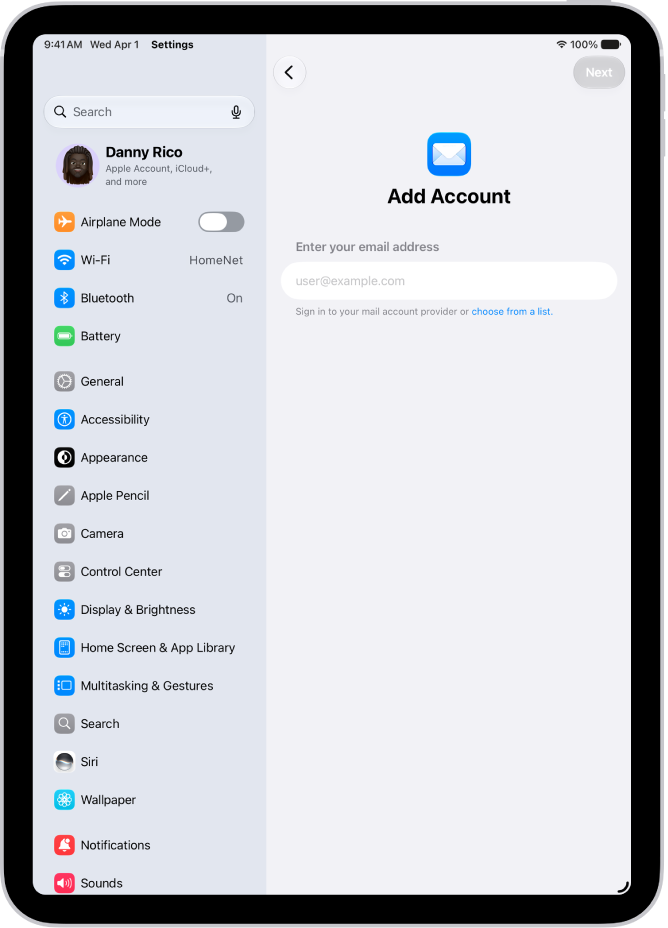
The Add Account screen showing a field to enter your email address.

Customize your Mail settings

  1. Open the Settings app on your iPad.
  2. Tap Apps and then tap Mail.
  3. Adjust any of the following settings:
    • Mail Accounts: Add and remove email accounts.
    • Fetch New Data: Set a fetch schedule for your email accounts.
    • Siri: Allow Siri to make suggestions across apps based on the way you use Mail.
    • Search: Allow content from Mail to appear in Search.
    • Default Mail App: Choose the email app for new emails you draft outside of a specific app, such as emails you create using Siri.
    • Message List: Change settings for your message list, such as showing To/Cc labels, choosing the length of email previews, and assigning swipe actions.
    • Messages: Turn on Privacy Protection, Ask Before Deleting, and Follow Up Suggestions.
    • Threading: Turn on Organize by Thread to group emails in a conversation together in your message list. Adjust other settings for how threads appear and muting threads.
    • Composing: Customize settings for writing emails such as including attachments with replies, showing link previews, and more.
    • Undo Send Delay: Set a time period of up to 30 seconds to allow yourself to unsend a message.

Customize your email signature

Your email signature, which appears automatically at the bottom of every message you send, is customizable.

  1. Open the Settings app on your iPad.
  2. Tap Apps and then tap Mail.
  3. Tap Signature (below Composing).
  4. Tap the text field and then edit your signature.

    You can only use text in your Mail signatures.

Quick tip: With more than one email account, you can tap Per Account and set a different signature for each one.

Mark addresses outside certain domains

Addressing an email message to a recipient who isn’t in your organization’s domain? The recipient’s name can appear in red as an alert.

  1. Open the Settings app on your iPad.
  2. Tap Apps and then tap Mail.
  3. Tap Mark Addresses (below Composing).
  4. Enter the domains that are in your organization—ones that you don’t want marked in red.

    You can enter multiple domains separated by commas (for example, “apple.com, example.org”).

    The names of recipients in domains outside your organization appear in red, whether you send them an email or receive one from them.

Customize the Mail toolbar

To keep the actions most useful to you front and center, choose which buttons appear at the top of the Mail app.

  1. Open the Mail app on your iPad.
  2. In the menu bar, tap View and then choose Customize Toolbar.
  3. Drag buttons to add or remove them from the toolbar.

See also

Tag: Mail

In the Mail app, Mail Privacy Protection makes it harder for senders to learn about your Mail activity. Mail Privacy Protection hides your IP address so senders can’t link it to your other online activity or determine your exact location. It also prevents senders from seeing if you’ve opened the email message they sent you.

It requires Limit IP Address Tracking. And with iCloud+, Hide My Email can keep your personal email address private, too.

Note: Mail Privacy Protection does not extend to links or email attachments such as PDF or other files.

  1. Open Settings, tap Apps, and then tap Mail.
  2. Tap Privacy Protection, then turn on Protect Mail Activity.

    Important: Mail Privacy Protection requires Limit IP Address Tracking to be enabled. To turn it on, go to Settings > Wi-Fi, tap the Info button next to your network, then enable Limit IP Address Tracking.

When you subscribe to iCloud+, you can also use Hide My Email to generate unique, random email addresses that forward to your personal email account, so you don’t have to share your personal email address when filling out forms on the web or signing up for newsletters. See Use Hide My Email.

See also

In addition to the apps that come with iPad and that you use with iCloud, iPad works with Microsoft Exchange and many of the most popular internet-based mail, contacts, and calendar services. You can set up accounts for these services.

You can choose your email service from a list, or add another account if yours isn’t listed. You can set up a contacts account and a calendar account with a provider like iCloud or Microsoft Exchange, too.

Here’s how to set up mail, contacts, and calendar accounts on iPad.

Set up a mail account

  1. Start the Settings app on your iPad.
  2. Tap Apps and then tap Mail.
  3. Tap Mail Accounts, then tap Add Account.
  4. Enter your email address, tap Next, and enter your email account information.

    You can also tap “choose from a list” under the email address field to select the email service you want to use—for example, iCloud, Microsoft Exchange, or Gmail (Google).

    If your email service isn’t listed, tap Add Other Account, tap Mail Account, then enter your email account information.

For the steps, read our guide, Add and remove email accounts.

Set up a contacts account

  1. Start the Settings app on your iPad.
  2. Tap Apps, then tap Contacts.
  3. Tap Contact Accounts and then tap Add Account.
  4. Do one of the following:
    • Tap a provider—for example, iCloud or Microsoft Exchange—then enter your account information.
    • Tap Other, tap Add LDAP Account or Add CardDAV Account (if your organization supports it), then enter the server and account information.

To manage Contacts accounts, see our article, Add or remove accounts in Contacts.

Set up a calendar account

  1. Start the Settings app on your iPad.
  2. Tap Apps and then tap Calendar.
  3. Tap Calendar Accounts, then Add Account.
  4. Do one of the following:
    • Choose a provider: Tap a provider—for example, iCloud or Microsoft Exchange—then enter your account information.
    • Add a CalDAV, CardDav, or LDAP account: Tap Add Other Account, choose an option, and then enter your server and account information.
    • Subscribe to iCal (.ics) calendars: Tap Other, tap Add Subscribed Calendar, and then enter the URL of the .ics file to subscribe to; or import an .ics file from Mail.

If you also use calendars, see our guide, Set up multiple calendars.

Turn on iCloud Keychain on your iPad, and your accounts stay up to date on every device that has iCloud Keychain turned on.

See also

Tags: Calendar, Mail