Got a tip for us?

Notes

Use the Notes app to jot down quick thoughts or organize detailed information with checklists, images, web links, scanned documents, handwritten notes, and sketches. You can even organize your note with sections and headings.

The first line of a note becomes its title. From there, you can format text with styles like headings, bold, and highlights, make a checklist, or add a table or divider line.

Here’s how to create and format notes on iPhone.

A note for a class brainstorm with tags such as #school and #kine210. The note features a hand-drawn diagram of a box breathing exercise, which illustrates a four-step breathing cycle.

Create a new note

  1. Start the Notes app on your iPhone.
  2. Tap the New Note button, then enter your text.
  3. The first line of the note becomes the note’s title.
  4. To save the note, tap the Done button.

Add formatting, checklists, tables, and divider lines

  1. Start the Notes app on your iPhone.
  2. When writing a note, do any of the following:
    • Format text: Tap the Format button and choose a style such as Heading, bold or italic font, highlight, and more. You can also swipe over the format bar options to quickly access commonly used styles.
    • Make a checklist: Tap the Checklist button.
    • Add a table: Tap the Add Table button.
    • Add a divider line: Tap to place the insertion point and tap the Expand button. Then choose Insert Divider Line.

Organize a note with sections and headings

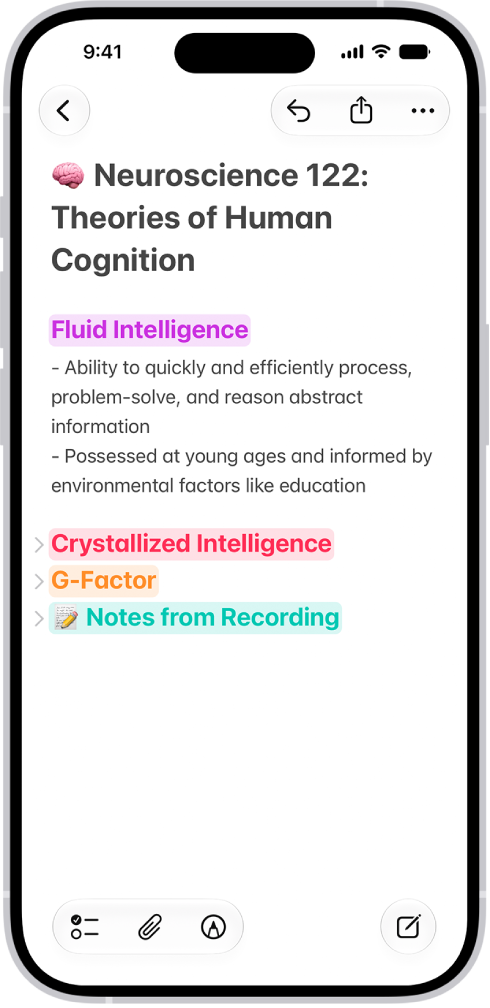
Long notes are easy to manage and outline when you collapse and expand sections.

A note in the Notes app, with collapsible headings at the top of the screen.

  1. Start the Notes app on your iPhone.
  2. In a note, select the text for the heading.
  3. Tap the Format button and then tap Heading or Subheading.
  4. Add content to the section and then do any of the following:
    • Collapse a section: Tap the Collapse button.
    • Expand a section: Tap the Expand button.

Use Writing Tools in Notes

With Apple Intelligence, you can use Writing Tools to summarize selected text with a tap, proofread your work, and create different versions of the same text to help you find the right wording and tone. Note: Apple Intelligence on iOS 27 or later is available on an Apple Intelligence-enabled iPhone 15 Pro, iPhone 15 Pro Max, or iPhone 16 model or later. Apple Intelligence is not available in all languages or regions. Usage limits may apply.* *Apple Intelligence is available with Siri and device language set to Chinese (Simplified), Chinese (Traditional), Danish, Dutch, English, French, German, Italian, Japanese, Korean, Norwegian, Portuguese, Spanish, Swedish, Turkish, or Vietnamese. Some features may not be available in all regions or languages. Some devices may not be available in all regions. Siri AI is available in beta in iOS 27, iPadOS 27, macOS 27, watchOS 27, and visionOS 27 and requires an Apple Intelligence–enabled device set to a supported language. Available in English to start. Siri AI will not be initially available in the EU on iOS, iPadOS, and watchOS. Certain Apple Intelligence features that rely on server-side models are subject to daily usage limits, including but not limited to Siri AI, Intelligent Photo Editing Tools, Image Playground, and AFM 3 Cloud models in Shortcuts. Daily limits may vary by feature, request complexity, system demand, system policies, and other factors. Expanded access to such features will be available for a fee in the future. Use of these features is subject to the Apple Intelligence Terms and Conditions.

Tag: Notes

In the Notes app, you can use multiple accounts, such as iCloud, enterprise-managed iCloud, Microsoft Exchange, Google, and Yahoo, and keep all your notes in one place. Your notes stay up to date on all your devices that use the same accounts.

You can also have an On My iPhone account for notes you keep only on this device. And removing an account doesn’t delete its notes. They stay in your internet account and on any other devices you already set up.

Note: Every Notes feature described in this guide is available with iCloud and the On My iPhone account. If you use other accounts, some features aren’t.

Keep your notes up to date on all your devices with iCloud

Your iCloud notes appear on your iPhone, iPad, and Mac wherever you’re signed in to your Apple Account, and so do any changes you make to them.

  1. Start the Settings app on your iPhone.
  2. Tap your name, then tap iCloud.
  3. Tap See All (next to Saved to iCloud). Then turn on Notes.

Add other accounts

Have notes in other accounts, such as Google, Microsoft Exchange, or Yahoo? You can manage them in the Notes app.

  1. Start the Settings app on your iPhone.
  2. Tap Apps, then tap Notes.
  3. Tap Notes Accounts and tap Add Account.
  4. Do one of the following:
    • Choose an account provider, then enter your account information.
    • If your account provider isn’t listed, tap Add Other Account, enter your email account information, then turn on Notes for that account.

Set up an On My iPhone account

This account keeps its notes on your iPhone only, though they’re still included in your iPhone backups to iCloud.

  1. Start the Settings app on your iPhone.
  2. Tap Apps, then tap Notes.
  3. Turn on On My iPhone Account.

Remove an account

Removing or deleting an account means its notes no longer appear on your iPhone. They’re still in your internet account (for example, iCloud.com or Google) and on any other devices you had already set up.

  1. Start the Settings app on your iPhone.
  2. Tap Apps, then tap Notes.
  3. Tap Notes Accounts and tap the account you want to remove.
  4. Do one of the following:

    • Stop using Notes on the account: Turn off Notes. For an iCloud account, tap iCloud. Tap See All (next to Saved to iCloud). Turn off Notes. Note: You can continue to use the account for other services, such as Mail.
    • Stop using all services on the account: Tap Sign Out (for an iCloud account) or Delete Account (for other accounts).

    If you don’t see Sign Out or Delete Account, your account may be managed by your organization. See an administrator for removal instructions.

Tags: iCloud, Notes

In the Notes app, you can record audio and have the spoken words transcribed to text. You can search the transcript, add the text to the note, or copy the text to other documents.

The transcript appears live as you record. You can also view a summary of an audio recording, and see transcripts of phone and FaceTime audio calls. You can take notes while recording, too, and pause or resume a recording.

Here’s how to record and transcribe audio in Notes on iPhone.

Note: Audio transcription works on iPhone 12 and later if your device language is English, Spanish, Portuguese, Italian, French, German, Japanese, Korean, Simplified Chinese, or Traditional Chinese.

Record audio and see the live transcript

Record audio in a note and have the spoken words transcribed.

  1. Start the Notes app on your iPhone.
  2. In a note, tap the Attachments button. Tap Record Audio.
  3. To start the recording, tap the Record button. Tip: To take notes while recording, swipe down from the top of the screen.
  4. Do any of the following:

    • Pause recording: Tap the Pause button.
    • Resume recording: Tap the Resume button.
    • See the live transcript: Tap the Transcription button.

    Note: Spoken words in supported languages are automatically transcribed. If you don’t see the Transcription button, your iPhone either doesn’t meet the minimum requirements or doesn’t detect a supported language.

  5. When you’re finished recording, tap the Pause button. Then tap the Done button.

Play an audio recording and review the transcript

  1. Start the Notes app on your iPhone.
  2. In a note with an audio recording, tap the Play button to play it.
  3. To review the transcript, tap the audio recording. Tap the Transcription button. Note: Spoken words in supported languages are automatically transcribed. If you don’t see the Transcription button, your iPhone doesn’t meet the minimum requirements or doesn’t detect a supported language. While viewing the transcript, you can do any of the following:

    • Play the audio at a specific point: Tap the text you want to hear.
    • Search the transcript: Tap the More button and then tap Find in Transcript.
    • Copy the transcript: Tap the More button and choose Add Transcript to Note or Copy Transcript.
    • Name your recording: Tap the boldfaced title, type a name for your recording, then tap Save.
    • Save or delete the audio recording: Tap the More button and then choose an option.

    Note: Deleting the audio recording also deletes the transcript.

View a summary of an audio recording

You can use Apple Intelligence to generate a summary of the transcript, so you can get to the most important information at a glance. You can also copy and share summaries. Note: Apple Intelligence on iOS 27 or later is available on an Apple Intelligence-enabled iPhone 15 Pro, iPhone 15 Pro Max, or iPhone 16 model or later. Apple Intelligence is not available in all languages or regions. Usage limits may apply.* Some languages that support Apple Intelligence summaries are not available for audio transcription.

  1. Start the Notes app on your iPhone.
  2. Open a note with a recording.
  3. Tap the recording, then tap Summary. Tip: You can copy or share a summary. Tap the More button at the top of the summary, then choose an option.

View transcripts of phone and FaceTime audio calls

You can record a call in the Phone or FaceTime app and view the spoken words transcribed in the Notes app (requires iOS 18.1 or later). *Apple Intelligence is available with Siri and device language set to Chinese (Simplified), Chinese (Traditional), Danish, Dutch, English, French, German, Italian, Japanese, Korean, Norwegian, Portuguese, Spanish, Swedish, Turkish, or Vietnamese. Some features may not be available in all regions or languages. Some devices may not be available in all regions. Siri AI is available in beta in iOS 27, iPadOS 27, macOS 27, watchOS 27, and visionOS 27 and requires an Apple Intelligence–enabled device set to a supported language. Available in English to start. Siri AI will not be initially available in the EU on iOS, iPadOS, and watchOS. Certain Apple Intelligence features that rely on server-side models are subject to daily usage limits, including but not limited to Siri AI, Intelligent Photo Editing Tools, Image Playground, and AFM 3 Cloud models in Shortcuts. Daily limits may vary by feature, request complexity, system demand, system policies, and other factors. Expanded access to such features will be available for a fee in the future. Use of these features is subject to the Apple Intelligence Terms and Conditions.

In the Notes app, you can send a copy of a note to a friend. You can also share a link to invite people to collaborate in real time on a note or on a folder of notes in iCloud, and everyone will see the latest changes.

You can view activity in a note or a folder, and change sharing settings whenever you need to.

Here’s how to share notes and collaborate on iPhone.

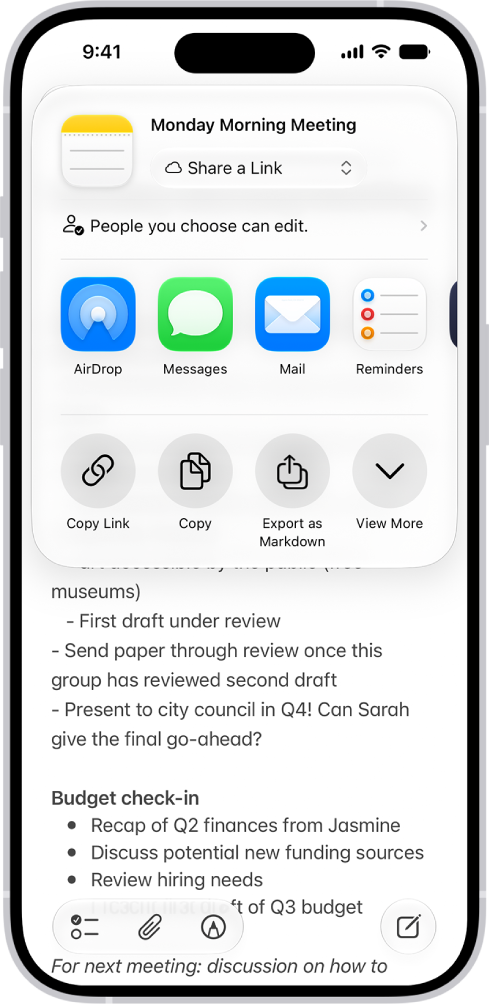
A note with an overlay showing sharing options.

Share a copy of a note

  1. Start the Notes app on your iPhone.
  2. Open the note you want to share.
  3. Tap the Share button, tap the menu under the note title, and then tap Send a Copy.
  4. Choose how to send your note.

Collaborate on a note or folder of notes using iCloud

To collaborate with others, you can share a link to a note or a folder of notes in iCloud. You can set who can access what you share and set editing permissions. All participants see changes in real time. The participants must be signed in to their Apple Account and have Notes turned on in iCloud settings. Note: You can’t collaborate on a locked note or on a folder with locked notes.

  1. Start the Notes app on your iPhone.
  2. Do one of the following:

    • Collaborate on a note: Open the note you want to share, tap the Share button, tap the menu under the note title, and then tap Share a Link.
    • Collaborate on a folder: Open the folder you want to share. Then tap the Folder Actions button.
  3. To change the access and permissions, tap People you choose can edit and then set any of the following:

    • Who can access: Choose People you choose or Anyone with the link. With People you choose, you can turn on Access Requests. Note: Requesting access to a note sends an email to the address associated with the owner’s Apple Account.
    • Permissions: Choose Edit or View and Download Only.

    Tip: If you send the invitation in Messages, you get activity updates in the Messages conversation when someone makes changes in the shared note. Tap the updates to go to the shared note.

View activity in a note

Notes that have changed since you last looked at them get an orange dot to the left of their title in the notes list.

  1. Start the Notes app on your iPhone.
  2. Open the note and then swipe right on the note or swipe up on the Activity card to see who made changes and when.
  3. To adjust how the activity is shown, tap the Collaborate button. Choose any of the following:

    • Show Updates: Shows changes made since you last opened the note.
    • Show All Activity: Shows all activity in the note.
    • Show Highlights: Shows names, dates, and changes made by each participant.

    Tip: To mention a participant and notify them of important updates, type an @ sign followed by their name.

View activity in a folder

  1. Start the Notes app on your iPhone.
  2. Touch and hold the folder. Then tap Show Folder Activity.

Change sharing settings

  1. Start the Notes app on your iPhone.
  2. The owner of a shared note or folder can change the sharing settings by doing one of the following:
    • Manage a shared note: Tap the Collaborate button, then tap Manage Shared Note.
    • Manage a shared folder: Tap the Folder Actions button. Then tap Manage Shared Folder.
  3. Do any of the following:
    • Remove participants or cancel invitations: Tap the participant you want to remove, then tap Remove Participant or Cancel Invitation.
    • Change access and permission settings: To change the settings for one person, tap their name. To change the settings for all participants, tap Sharing Options. Making a participant a Co-Owner allows them to manage participants and permissions for everyone except the owner.
    • Stop sharing: When you choose this option, the shared note or folder is deleted from the devices of the other participants.
Tags: iCloud, Notes

You can solve mathematical expressions, create and use variables, or graph equations, for example, when learning new concepts in class, doing day-to-day budgeting, planning an event, remodeling your home, and more.

You can update values, and choose to show results automatically or as suggestions. You can even use a light background, and a Math Note can include a drawing of the problem.

Here’s how to solve math with Math Notes in Calculator on iPhone.

Note: Math Notes works with common mathematical symbols and the same operations as the scientific calculator, plus select numeric systems for written math and variable names.

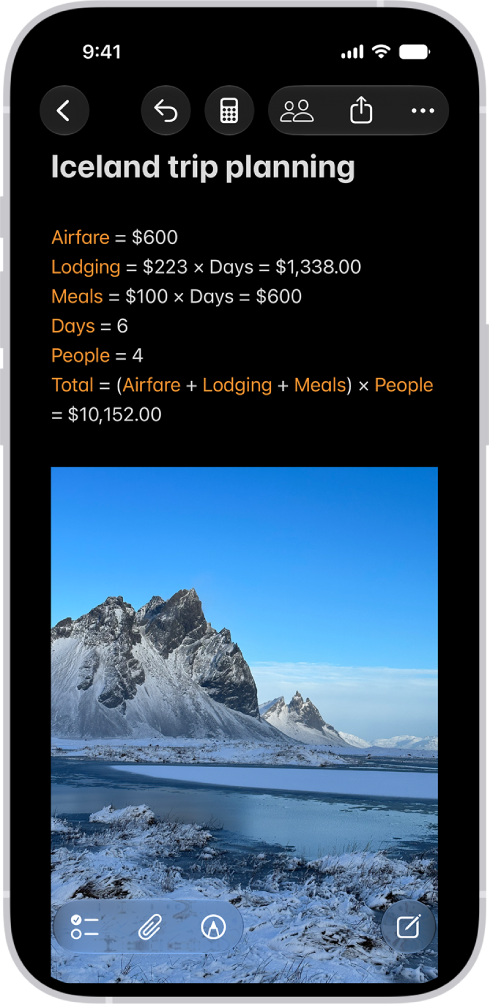
A Math Note open in Calculator, with declared variables, equations, and a drawing of the math problem.

Solve expressions

  1. Start the Calculator app on your iPhone.
  2. Tap the Change Mode button and tap Math Notes.
  3. Tap to open a previous Math Note, or tap the New Note button to start a new one.
  4. Do any of the following:
    • Type a math expression, then include an equal sign.
    • Tap the Handwriting button, write a math expression horizontally, then include an equal sign.
    • Tap the Handwriting button, write a stack of numbers, then draw a horizontal line below the numbers to add the numbers in the stack. Write a different symbol to the left of each number if you want a different operation.
  5. Tap the equal sign to see what Math Notes understood in what you wrote. To correct mistakes, you can fix any of the following:
    • Unrecognized math and unsolvable expressions: Tap any dotted red lines to see details about the error.
    • Ambiguous characters: Tap any dotted blue lines to clarify what you wrote.

In horizontal expressions, Math Notes follows the standard order of operations, so multiplication is completed before addition and subtraction, for example. Put parentheses around expressions you want calculated first. For vertically stacked math, Math Notes evaluates expressions from top to bottom.

Math Notes converts any units and currency in expressions automatically, and you can even mix different systems, like 42 meters + 143 feet. Units and currency available here match those in the Convert mode of the basic or scientific calculator.

Update values

  1. Start the Calculator app on your iPhone.
  2. Tap the Change Mode button, tap Math Notes, and tap the note you want to update.
  3. Do one of the following:
    • Erase the number, then enter a new value.
    • Tap the number, then slide left and right to adjust the value using the scrubber that appears above the number.

Graphs using the values update automatically, and when the value is assigned to a variable, any equations using that variable update their results or graphs automatically, too.

Use variables in expressions and equations

  1. Start the Calculator app on your iPhone.
  2. Tap the Change Mode button and tap Math Notes.
  3. Tap to open a Math Note, or tap the New Note button to start a new one.
  4. To declare a variable, type or write a letter or word to use as the variable, followed by an equal sign.
  5. Type or write a value or expression after the equal sign to assign a value to the variable.
  6. Type or write the variable name in an expression or an equation to use it.

Note: Math Notes reads entries from top left to bottom right, so declare a variable (for example, x = 5) before you use it in an expression (such as x + 10 =). If you write an expression without declaring the variable first, you’ll get an error. Variable names can only contain characters from the Latin alphabet, and you can’t use variables in vertical math.

Use equations with two or three variables to graph in two or three dimensions.

Show results automatically or as suggestions

How your iPhone responds to the math problems you enter in Math Notes is up to you.

  1. Start the Calculator app on your iPhone.
  2. Tap the Change Mode button and tap Math Notes.
  3. Tap to open a previous Math Note, or tap the New Note button to start a new one.
  4. Enter text, or tap the Handwriting button and begin writing with your finger.
  5. Tap the More button, tap Math Results, and then do one of the following:
    • If you want problems to be solved: Choose Insert Results. Answers appear automatically when you type or write a solvable math problem.
    • If you want suggestions to appear: Choose Suggest Results. When you type or write an equal sign or select a solvable math problem, a Solve button appears that, when tapped, inserts the answer.
    • If you don’t want any math results: Choose Off. Answers don’t appear when you type or write an equal sign after an expression.

Use a light background

By default, Math Notes uses a dark background, though you can switch to a light one.

  1. Start the Calculator app on your iPhone.
  2. Tap the Change Mode button and tap Math Notes.
  3. Tap to open a previous Math Note, or tap the New Note button to start a new one and enter text or write.
  4. Tap the More button and tap Use Light Background.

Notes can show lines or grids, too.

Tag: Notes

In Math Notes, you can insert a graph or overlay the graphs of multiple equations on the same two-dimensional grid or three-dimensional space to see how they relate.

You can graph in two dimensions or three, create a graph from an existing equation, modify a graph, and work with multiple graphs. It all starts in the Calculator app.

Here’s how to work with graphs in Math Notes in Calculator on iPhone.

Note: For written math and variable names, Math Notes relies on common mathematical symbols, select numeric systems, and the same operations as the scientific calculator.

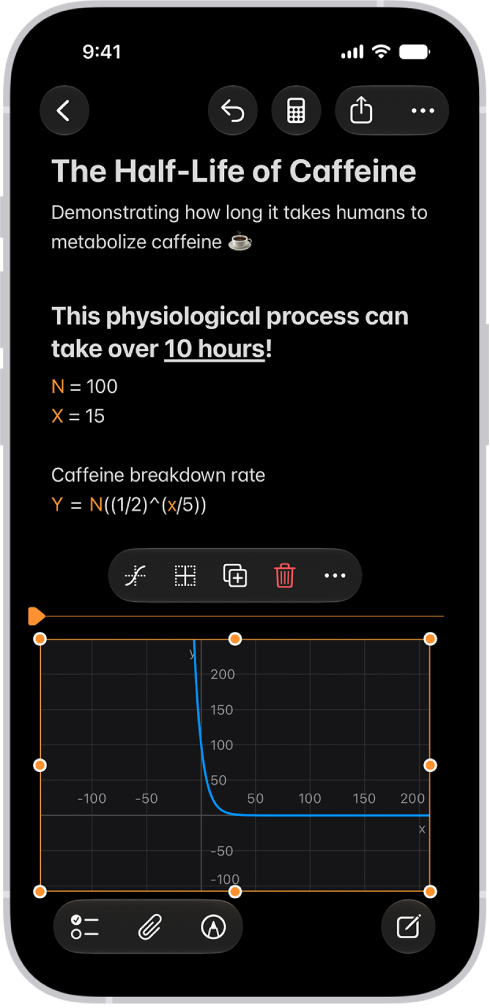
A Math Note open in Calculator, with a declared variable, an equation, and a graph.

Graph in two dimensions

  1. Start the Calculator app on your iPhone.
  2. Tap the Change Mode button and tap Math Notes.
  3. Tap to open a previous Math Note, or tap the New Note button to start a new one.
  4. Type or write an equation with exactly two undefined variables, with one on each side of the equal sign.

    You can include defined variables as well. For example, if you know a = 3, you can graph velocity = 0.5at^2. The graph’s y-axis shows velocity, and the x-axis shows t.

  5. Tap Insert Graph in the menu that appears, then, if asked, tap to assign a variable to the x-axis.
  6. Tap to select the graph and then do any of the following:

    • Reframe the graph: Swipe with two fingers to pan.
    • Zoom in or out: Pinch open and closed.
    • See coordinates: Touch and hold the graphed function. Move your finger along the line to see each point’s x- and y-value.
    • Move the graph in the note: Drag from the middle or an edge (not a handle) of the graph.

Every graph treats the equations you enter as y = f(x). That means the variable to the left of the equal sign goes on the y-axis, and the other variable goes on the x-axis.

Graph in three dimensions

  1. Start the Calculator app on your iPhone.
  2. Tap the Change Mode button and tap Math Notes.
  3. Tap to open a previous Math Note, or tap the New Note button to start a new one.
  4. Type or write an equation with a “z” on the left side of the equal sign and “x” and “y” on the right.

    For example, z = (x^3+y^3)/2.

  5. Tap Insert 3D Graph in the menu that appears, then, if asked, tap to assign variables to axes.
  6. Tap to select the graph and then do any of the following:

    • Inspect the graph from other angles: Drag from the middle of the graph.
    • Move the graph in the note: Drag the edge (not a handle) of the graph.

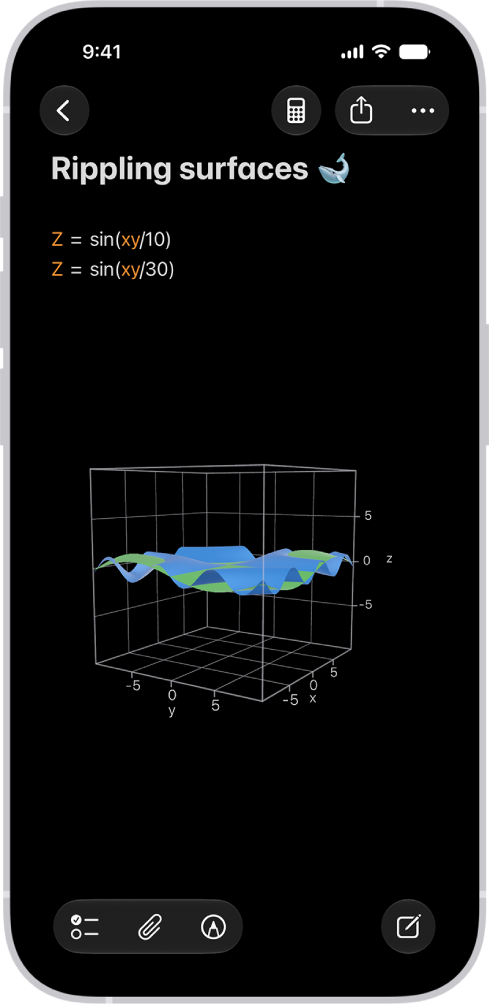
    Math Notes in Calculator on iPhone showing two intersecting 3D graphs in the same space.

Create a graph from an existing equation

  1. Start the Calculator app on your iPhone.
  2. Tap the Change Mode button, tap Math Notes, and then open a Math Note with an equation.
  3. Tap to place a cursor in the equation (without selecting text).
  4. Tap the equation again to reveal a menu above or below the equation, tap the Forward button, and then do one of the following:
    • Make a new graph: Tap Insert Graph.
    • Add an additional graph: Tap Graphs, then tap Insert Graph.

Modify a graph

  1. Start the Calculator app on your iPhone.
  2. Tap the Change Mode button, tap Math Notes, and open a Math Note with a graph.
  3. Do any of the following:
    • Change the shape of the function: Edit your equation. The graph updates automatically.
    • Resize the graph: Tap the graph and drag an edge or corner handle.
    • Adjust the axes: Tap the graph, tap the Graph Viewport button, and then swipe left or right on the numbers to make them larger or smaller, or tap Equalize Axes.
    • Zoom to the best view of the graph: Tap the graph and then tap Recenter.
    • Center the origin: Tap the Graph Viewport button and tap Center Origin.
    • Duplicate the graph: Tap the graph and tap the Duplicate button.
    • Recolor the graph: Tap the line or surface of the graph and tap the color picker to the right of the equation.

Work with multiple graphs

  1. Start the Calculator app on your iPhone.
  2. Tap the Change Mode button and tap Math Notes.
  3. Create a graph in two or three dimensions, as above.
  4. Type or write another equation and then tap Insert Graph or Add to Existing Graph.

    You can also tap an equal sign of any equation you already wrote to add it to an existing graph.

  5. Do any of the following:

    • Combine graphs in one grid or space: Tap a graph, tap the 2D Graph Settings button or the 3D Graph Settings button, and then tap the equation in the list that you want to add to the graph. A the Visibility button appears.
    • Hide a graph: Tap the graph, tap the 2D Graph Settings button or the 3D Graph Settings button, and tap the Visibility button to uncheck it.
Tag: Notes

Is the Notes app not working on your iPhone after iOS 18 update?

With Notes, you can capture a quick thought, create checklists, sketch ideas, and more. And with iCloud, you can keep your notes updated across all your devices. In iOS 18, Notes gets the same access to writing tools powered by Apple Intelligence available to other apps running on an iPhone 15 Pro or iPhone 15 Pro Max such as summaries and suggested tones. But the real story with Notes on iOS 18 comes from the more widely available additions that strengthen Notes’ claim as the only app you really need when it comes to organizing your thoughts.

In iOS 18, Notes includes a feature for capturing audio recordings and putting out a live transcript along with a summary of what’s included.

Math Notes, a built-in feature in the Notes app, allows you to solve equations, so you can do things like add up a monthly budget or figure out a split for a restaurant bill. It can solve all kinds of math problems, and generates totals when you add in an equals sign.

iOS 18 Notes app

You can also now highlight text in notes, with Apple providing five colors to choose from.

If you’re having the problem of Notes app not working after iOS 18 update, here are some solutions you can try to fix the issue.

How to Fix Notes App Not Working After iOS 18 Update

1. Close And Reopen The Notes App

Closing and reopening the Notes app can fix a potential software crash that has caused Notes app to stop working. First, open the app switcher, where you can view all the apps currently open on your iPhone.

If your iPhone has Face ID, swipe up from the bottom to the center of the screen and hold your finger there until the app switcher opens. If your iPhone doesn’t have Face ID, double-press the Home button.

Now that the app switcher is open, swipe Notes up and off the top of the screen. It wouldn’t hurt to close your other apps too, just in case one of them has crashed. You’ll know your apps are closed when they no longer appear in the app switcher.

2. Restart Your iPhone

A simple way to help correct a software problem on your iPhone is to restart the phone. It may sound like a silly thing to try, but some magic goes on when you restart your iPhone. It’s one of the most recommended troubleshooting solutions for iPhones, and it happens to work more often than not. Just give it a try! You’d be amazed how this simple step will quickly fix Notes app problem on your iPhone!

To restart your iPhone, hold down the power button. That’s on the upper right-hand side of your iPhone. Hold it for a few seconds until the screen changes. Then, slide your finger across the part that says slide to power off. Once your iPhone is off, count to 10 and then push the power button again to restart it.

If you have an iPhone with Face ID, simultaneously press and hold the side button and either volume button until slide to power off shows up on the screen. Then, swipe the power icon from left to right. Wait about 20 seconds, then press and hold the side button to reboot your iPhone.

3. Update Your iPhone to The Latest iOS 18 Version

The next troubleshooting step to try if Notes app is still not working on your iPhone is to update your software to the latest iOS 18 version. While being an update or two behind usually won’t cause any issues, apps may stop working correctly if you’re several updates behind. This is especially the case with more significant updates that make big changes in the way things work within the inbuilt apps. It’s always a good practice to keep your apps as up-to-date as possible. Since Notes is a native iOS app, the only way to update it is to update your iPhone software.

Start the Settings app on your iPhone then go into General > Software Update. Tap Download and Install or Install Now if an iOS update is available.

4. Set up Notes with iCloud

You can use iCloud to update your notes across all of your devices. To set up Notes with iCloud, go to Settings > [your name] > iCloud > Show All, then turn on Notes. You’ll see your notes on all of your Apple devices that you’re signed in to with the same Apple Account.

5. Turn iCloud Notes Off and On

From my experience, i know that sometimes an iCloud glitch may cause this issue. If you notice the Notes app not opening, instantly crashing, or freezing after iOS 18 update, simply toggle iCloud Notes off and back on. This is an easy fix. The steps below describe turning iCloud off and on for Notes. You will not lose any Notes. Here is how:

  1. Start the Settings app on your iPhone and tap on your name at the top of the screen.
  2. Go to iCloud.
  3. Under the Apps Using iCloud section, tap See All.
  4. Find Notes and toggle off the iCloud switch for Notes.
  5. When you turn it off, you will be asked what you want to do with the iCloud data, and a popup will appear with two options: Keep on My iPhone or Delete from My iPhone.
  6. Choose the Keep option. Do not choose the Delete option (of course, unless you want to delete). The Keep option will save the data on your iPhone.
  7. Wait for the process to complete. It may take up to a minute.
  8. Now, toggle on the switch again. Since we selected the Keep option, you will be asked what you want to do with the saved iCloud data. A popup saying “Existing Local Notes” will ask if you want to Merge. Choose Merge to avoid losing Notes.
  9. Now close Settings, open Notes, and check if it’s working properly.

6. Reset All Settings On Your iPhone

If Notes app is still not working on your iPhone, reset all your phone settings. Reset All Settings restores your iPhone’s settings to factory defaults, but it doesn’t delete any of your apps or personal information. your iPhone Doing so should hopefully fix the Notes app problem on your iPhone.

To reset all settings on your iPhone, go to Settings > General > Transfer Or Reset iPhone > Reset > Reset All Settings, enter your passcode, and tap Reset All Settings.

Notes app widget not working After iOS 18 Update?

Is the Notes app widget on the iPhone Home Screen or Lock Screen not displaying the notes and instead shows Folder No Longer Available or some similar error? It’s pretty easy to fix this problem, just touch and hold the Notes widget, tap Remove Widget and then tap Remove again to confirm.

Now add the Notes Widget again. Once you do that, the Notes app widget should start working again.

Fixed Notes app Not Working After iOS 18 Update!

You’ve fixed the problem with the Notes app on your iPhone and you can now capture a quick thought, create checklists, sketch ideas, and more. Make sure to share this article on social media to teach your friends and family what to do when Notes is not working on their iPhones after iOS 18 update. Leave a comment down below if you have any other questions about your iPhone or Notes app.


Tag: Notes