Got a tip for us?

Phone

When you travel with iPhone, choose settings that comply with airline requirements. Some airlines let you keep your iPhone turned on if you switch to Airplane Mode.

Turning on Airplane Mode switches off Wi-Fi, Bluetooth®, and cellular networks at first, but you can turn them back on even while it’s on. That way, you can make or receive FaceTime calls or use features and accessories that require wireless communication. When Airplane Mode is on, its icon shows up in the status bar at the top of your screen.

Turn on Airplane Mode

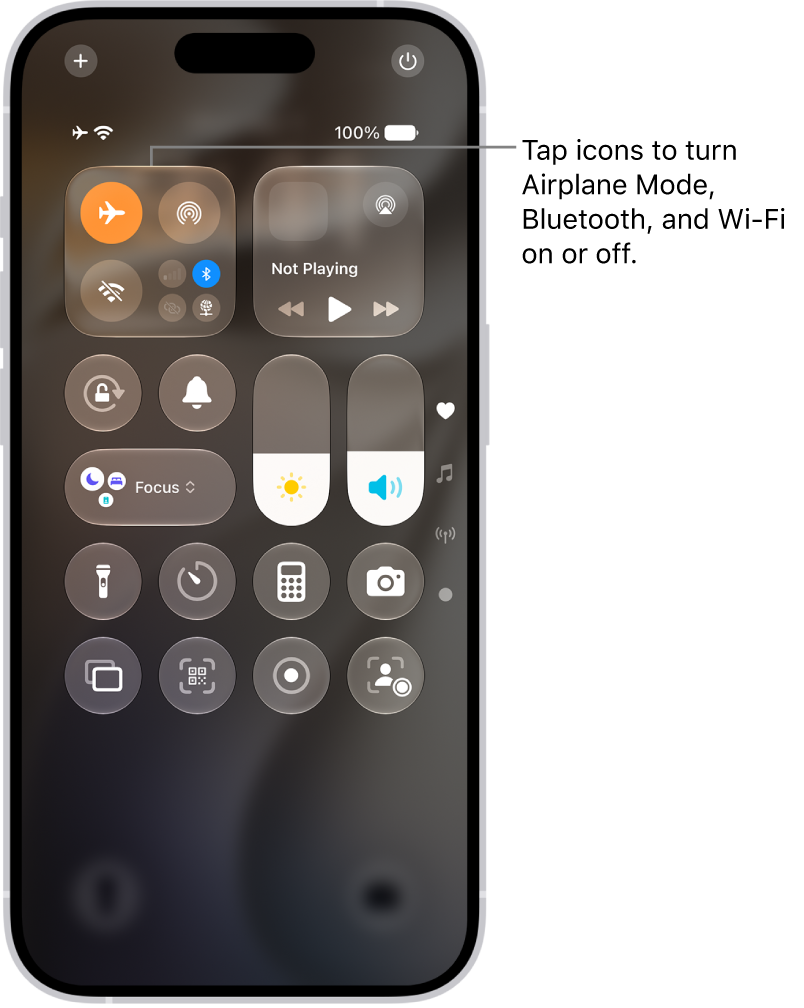
Open Control Center, then tap the Airplane Mode Switch button.

The Control Center screen showing that tapping the top-left button turns on Airplane Mode.

In Settings, you can also turn Airplane Mode on or off. The Airplane Mode icon appears in the status bar while it’s on.

Turn on Wi-Fi or Bluetooth while in Airplane Mode

Wi-Fi or Bluetooth can be used in Airplane Mode if your airline allows it.

  1. Open Control Center, then turn on Airplane Mode.
  2. Tap the Wi-Fi Switch button to turn on Wi-Fi or the Bluetooth Switch button to turn on Bluetooth.

Turning on Wi-Fi or Bluetooth in Airplane Mode means it may stay on when you next return to Airplane Mode. Control Center lets you turn it off again.

Tag: Phone

In your Phone settings on iPhone, you can hide your Caller ID on outgoing calls, prioritize caller identification apps, turn on Dial Assist, and change the default calling app. Dial Assist then automatically determines the correct international or local prefix when you’re dialing.

Change the Phone app layout

The Unified layout combines your Favorites, Recents, and Voicemails in a single tab, while the Classic layout sorts them into separate tabs. You can use either one.

  1. Open the Phone app on your iPhone.
  2. Tap Calls or Recents.
  3. Tap the Filter button and then choose one of the following:
    • Classic: Your favorite contacts, recent calls, and voicemails are sorted into separate tabs.
    • Unified: Your favorite contacts, recent calls, and voicemails are combined and displayed in the Calls tab.

Hide your Caller ID

Keep your Caller ID information from showing on outgoing calls on iPhone.

  1. Open the Settings app on your iPhone.
  2. Tap Apps, then tap Phone.
  3. Tap Show My Caller ID and turn it off.

Note: If Show My Caller ID doesn’t appear, your carrier may not let you turn off your caller ID information.

Prioritize caller identification apps

When a call comes in, your iPhone draws caller ID information mainly from these sources:

  • Contacts app: The people in your contacts app.
  • Name and Photo Sharing: Callers who have turned on Name and Photo Sharing in Settings > [their name] > Personal Information.
  • Carrier Call Directory: Caller information identified by supported carriers.
  • Business Call Identification: Caller information identified by Apple Business Connect or your cellular provider.
  • Call Identification apps: Any caller information identified by supported caller ID apps.

Additional caller identification apps you’ve installed can be prioritized for identifying incoming calls, and you can reorder them at any point. You might make one caller identification app the preferred one, for example, with the others coming into play only if the primary app can’t identify the caller.

  1. Open the Settings app on your iPhone.
  2. Tap Apps and tap Phone. Then tap Call Blocking & Identification.
  3. Tap Call Blocking & Identification. Tap Edit at the top of the screen.
  4. Drag the Sort button to reorder the priority of the apps.

Turn on Dial Assist

When you’re dialing, Dial Assist works out the correct international or local prefix automatically.

  1. Open the Settings app on your iPhone.
  2. Tap Apps, then tap Phone.
  3. Scroll down, then turn on Dial Assist.

Change the default calling app

Instead of the built-in Apple Phone app, an alternative, third-party app can be your default for making and receiving phone calls. Just check that the app you want to switch to supports these features, and if you aren’t sure, contact the app developer.

  1. Open the Settings app on your iPhone.
  2. Tap Apps, then tap Phone.
  3. Tap Default Calling App. Tap the app you want set as the default.
Tag: Phone

When you’re on a phone call on iPhone, you can switch the audio to the speaker or a Bluetooth® device. With Apple Intelligence,* you can also get a wait time prediction and view relevant information during a call.

You can use another app while you’re on a call, too. And in the U.S., you can receive a notification when you’re no longer on hold.

Here’s what you can do while on a call on iPhone.

Adjust the audio during a call

To change the volume, press the volume buttons on the side of iPhone. Or swipe down on the call banner, then do any of the following:

  • Mute: Tap the Mute button.
  • Put the call on hold: Touch and hold the Mute button.
  • Talk handsfree: Tap the Audio button, then choose an audio destination.

Use another app while on a call

  1. Go to the Home Screen, then open the app.
  2. To return to the call, tap the green call indicator.

View relevant information during a call

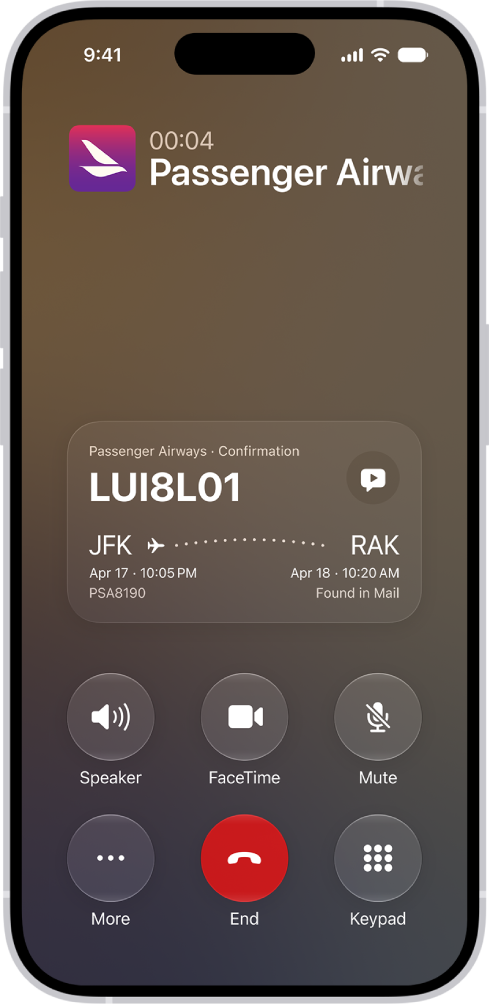
With Apple Intelligence,* a Call Context card with related information may appear during a call—like tickets, orders, confirmation numbers, or reservations. To turn Call Context cards on or off, do the following:

  1. Open Settings, then tap Apps.
  2. Tap Phone, then tap Siri.
  3. Turn Show When Calling on or off.

    The call screen, showing a Call Context card with a flight confirmation.

Note: Apple Intelligence on iOS 27 or later is available on an Apple Intelligence-enabled iPhone 15 Pro, iPhone 15 Pro Max, or iPhone 16 model or later. Apple Intelligence is not available in all languages or regions. Usage limits may apply.*

Get a wait time prediction (U.S. only)

With Apple Intelligence,* you can get predictions of how long you’re estimated to wait before your call is answered, based on average wait times in the past for some businesses.

Note: Apple Intelligence on iOS 27 or later is available on an Apple Intelligence-enabled iPhone 15 Pro, iPhone 15 Pro Max, or iPhone 16 model or later. Apple Intelligence is not available in all languages or regions. Usage limits may apply.*

Receive a notification when you’re no longer on hold

Hold Assist can tell you when a live agent is available if you’re placed on hold during a call, so you don’t have to stay on the line.

Note: Available on iPhone 12, iPhone SE (3rd generation), or later. Hold Assist isn’t available in all countries or regions.
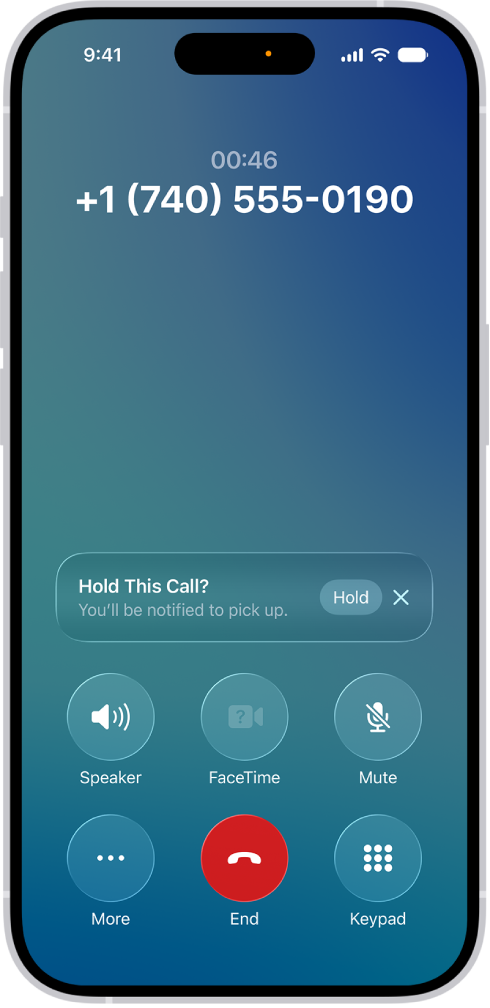
An ongoing call screen showing a banner that asks if the caller would like to use Hold Assist to receive a notification when they’re no longer on hold.

  1. Open the Phone app on your iPhone.
  2. When you’re in a call and put on hold, tap the More button. Then tap Hold Assist. Important: Check your ring settings before you step away from the call. If your iPhone is on silent or Do Not Disturb, you won’t hear the incoming call when an agent is available. Hold Assist will notify you when an agent is available and transcribe the part of the call you missed.
  3. Tap the Answer Call button to rejoin the call.

Note: Phone can also spot hold music automatically and prompt you to start Hold Assist. To set that up, go to Settings > Apps > Phone and turn on Hold Assist Detection.

Respond to a second call on the same line

If you’re on a call and

receive a second call, do one of the following:

  • Ignore the call and send it to voicemail: Tap Send to Voicemail.
  • Respond to the second call with a text message: Tap Message.
  • Set a reminder to return the call: Tap Remind Me, then choose when you want a reminder to return the call.
  • End the first call and answer the new one: When using a GSM network, tap End & Accept. With a CDMA network, tap End; when the second call rings back, tap Accept, or drag the slider if iPhone is locked.
  • Put the first call on hold and answer the new one: Tap Hold & Accept.

To switch between calls when you have a call on hold, tap Swap to switch between calls, or tap Merge Calls to talk with both parties at once.

Note: With CDMA, you can’t switch between calls if the second call was outgoing, but you can merge the calls. You can’t merge calls if the second call was incoming. If you end the second call or the merged call, both calls end. On models with Dual SIM, note the following: Wi-Fi Calling must be turned on for a line to enable that line to receive calls while the other line is in use for a call. If you receive a call on one line while the other is in use for a call, and no Wi-Fi connection is available, iPhone uses the cellular data of the line that’s in use for the call to receive the other line’s call. Charges may apply. The line that’s in use for the call must be permitted for data use in your Cellular Data settings (either as the default line, or as the non-default line with Allow Cellular Data Switching turned on) to receive the other line’s call. If you don’t turn on Wi-Fi Calling for a line, any incoming phone calls on that line (including calls from emergency services) go directly to voicemail (if available from your carrier) when the other line is in use; you won’t receive missed call notifications. If you set up conditional call forwarding (if available from your carrier) from one line to another when a line is busy or not in service, the calls don’t go to voicemail; contact your carrier for setup information.

*Apple Intelligence is available with Siri and device language set to Chinese (Simplified), Chinese (Traditional), Danish, Dutch, English, French, German, Italian, Japanese, Korean, Norwegian, Portuguese, Spanish, Swedish, Turkish, or Vietnamese. Some features may not be available in all regions or languages. Some devices may not be available in all regions. Siri AI is available in beta in iOS 27, iPadOS 27, macOS 27, watchOS 27, and visionOS 27 and requires an Apple Intelligence–enabled device set to a supported language. Available in English to start. Siri AI will not be initially available in the EU on iOS, iPadOS, and watchOS. Certain Apple Intelligence features that rely on server-side models are subject to daily usage limits, including but not limited to Siri AI, Intelligent Photo Editing Tools, Image Playground, and AFM 3 Cloud models in Shortcuts. Daily limits may vary by feature, request complexity, system demand, system policies, and other factors. Expanded access to such features will be available for a fee in the future. Use of these features is subject to the Apple Intelligence Terms and Conditions.


Tag: Phone

During a one-to-one phone call on iPhone, you can remotely control someone else’s screen or allow a trusted person to remotely control yours. The person controlling the screen can help with an issue or demonstrate how to use an app.

It works with an iPhone screen that’s being shared with you. You can accept or decline a remote control request, or stop remote control whenever you want.

Here’s how to request or give remote control in a Phone call on iPhone.

Note: Remote control is not currently available in the European Union.

Request remote control

You can ask for control of an iPhone screen that’s being shared with you.

Note: You need iOS 26 or later. So does the other participant.

  1. Open the Phone app on your iPhone.
  2. During a call, tap the window showing the shared screen. Then tap the Remote Control button.

If the other participant accepts your request, you can tap or swipe to interact with the shared screen. You can also use the onscreen keyboard within apps.

Accept a remote control request

A participant can remotely control your screen if they’re saved in your contacts and using an iPhone with iOS 26 or later. To help protect your data and privacy, additional restrictions may apply to remote control requests. When you receive a remote control request notification in the Phone app on your iPhone, tap Allow.

WARNING: The person remotely controlling the screen can perform tasks on your iPhone such as opening and closing apps, changing settings, deleting items, or sending messages. Only approve remote control requests from people you trust. The person remotely controlling the screen may be restricted from tasks such as changing your Apple Account or Face ID settings, making payments, or erasing your device. Your Face ID and Touch ID will be disabled during a remote control session. You can still tap, swipe, or type while your screen is remotely controlled—your actions take priority over remote actions.

Decline a remote control request

When you receive a remote control request notification in the Phone app on your iPhone, tap Don’t Allow. Screen sharing continues, and the other participant can still tap, draw, or write on your screen to highlight important areas.

Stop remote control

To end remote control at any time, do one of the following:

  • If you’re allowing someone to control your screen: Tap Stop at the bottom of the screen sharing window.
  • If you’re controlling someone’s screen: Tap the Remote Control button at the bottom of the screen sharing window.

Ending a call ends remote control and screen sharing, too.

Tag: Phone

While using the Phone app on an iPhone, you can share your screen or ask to see someone else’s screen. In supported apps, you can also use SharePlay to watch the latest episode of a show or listen to a new song with friends in real time.

Sharing your screen brings apps, webpages, and more into a call. You can even ask to remotely control someone else’s screen.

Here’s how to share screens during a phone call on iPhone.

Note: Both you and the other participant need iOS 26 or later. SharePlay may not support the sharing of some movies, TV shows, or live sports events across different countries or regions.

Share your screen or see another person’s screen

During a phone call, you can share your screen to bring apps, webpages, and more into the call. Or ask to see someone else’s screen, and even remotely control it.

  1. Open the Phone app on your iPhone.
  2. During a call with just one other person, tap the More button. Then tap Screen Sharing.
  3. Do one of the following:
    • Share your screen: Tap Share My Screen.
    • See the other person’s screen: Tap Ask to Share Screen.

Before screen sharing begins, a countdown from 3 to 1 appears on the screen.

Quick tip: In a one-to-one phone call, a participant on an iPhone can tap, draw, or write on your screen to point out a specific area, and the circle, drawing, or writing fades after a few seconds. If you want to stop sharing your screen, tap the More button and tap Stop next to Screen Sharing, or end the call, which also ends screen sharing.

Use SharePlay to enjoy content together

SharePlay in the Phone app lets you stream music, movies, and TV shows in sync with friends and family during a call, and shared playback controls keep everyone in sync.

  1. Open the Phone app on your iPhone.
  2. During a call, tap the More button and tap SharePlay.
  3. Tap the supported app (like Apple Music or Apple TV) and then find the show, movie, song, or other content you want to share.
  4. Tap Start or Play to begin using SharePlay. For everyone who has access to the content, the content starts playing at the same time. Note: If the shared content requires a subscription, the service may ask those who don’t have access to subscribe, make a transaction, or sign up for a free trial, if available.
  5. To stop sharing the content, go to the call screen, tap the More button, and then tap Stop next to SharePlay.

Ending the call also stops the music or video. Anyone in the conversation can play, pause, rewind, or fast-forward for everyone with the playback controls, but each person controls their own settings, like closed-captioning and volume.

Quick tip: You can stream the video to Apple TV 4K after it starts playing.

Tag: Phone

On iPhone you can block specific callers and you can change your setting to automatically identify, screen, filter, and block unknown and spam calls.

To identify incoming calls, iPhone can use Apple Business Connect, supported carriers, and call identification apps. You can also screen or silence unknown numbers, unblock a blocked contact, and view calls from unknown or spam callers. It all starts in Phone settings, under Call Blocking & Identification.

Here’s how to screen and block calls on iPhone.

Turn on call identification

Using information from supported call identification apps, supported carriers, and Apple Business Connect, iPhone can help identify incoming calls.

  1. Open the Settings app on your iPhone.
  2. Tap Apps and tap Phone. Then tap Call Blocking & Identification.
  3. Turn on one or more of the following:
    • Business Call Identification: Caller information is identified by Apple Business Connect or your carrier.
    • Call Identification apps: Caller information is identified by supported caller ID apps.

Screen or silence unknown numbers

Call Screening answers calls from unknown numbers automatically, without interrupting you. Once the caller shares their name and reason for calling, your iPhone rings and shares their response, so you can decide whether to pick up. You can also silence calls from unknown callers and send them straight to voicemail.

  1. Open the Settings app on your iPhone.
  2. Tap Apps, then tap Phone.
  3. Choose one of the following:
    • Never: Call Screening is turned off and your iPhone will ring when you receive a call from an unsaved number.
    • Ask Reason for Calling: Calls from unknown numbers will be asked for more information before iPhone rings.
    • Silence: Calls from unsaved numbers will be silenced, sent to voicemail, and appear in the Recents list.

Note: Siri speaks in your iPhone’s default language when answering calls.

Filter unknown and spam calls

  1. Open the Settings app on your iPhone.
  2. Tap Apps, then tap Phone.
  3. Turn on the following:
    • Unknown Callers: Calls from unknown numbers are removed from your Recents list and sent to the Unknown Callers list.
    • Spam: Calls identified by your carrier as potential spam or fraud are silenced, sent to voicemail, and moved to the Spam list.

You can mark an unknown caller as known to prevent future calls from being sent to the Unknown Callers list. Go to the Phone app , tap the Filter button, tap Unknown Callers, tap Mark as Known next to the call, then tap Mark as Known. To remove a number from your known callers, tap the number you want to remove, then tap Mark as Unknown at the bottom of the contact card.

Block calls from specific people or numbers

  1. Open the Phone app on your iPhone.
  2. Tap Contacts, tap a contact, and tap Block Contact.

Unblock a blocked contact

  1. Open the Settings app on your iPhone.
  2. Tap Apps, then tap Phone.
  3. Tap Blocked Contacts, then tap Edit.
  4. Tap the Remove button, then tap Unblock.

View calls from unknown or spam callers

  1. Open the Phone app on your iPhone.
  2. Do one of the following, depending on which Phone app layout you are using:
    • Unified layout: Tap Calls.
    • Classic layout: Tap Recents.
  3. Tap the Filter button.
  4. Tap Unknown Callers or Spam.
Tag: Phone

You can set up call forwarding on iPhone if you have cellular service through a GSM network, though on a CDMA network, you’ll contact your carrier for information. When call forwarding is on, its icon appears in the status bar, and you need to be in range of the cellular network for calls to be forwarded.

If your carrier supports conditional call forwarding for when the line is busy or not in service, they have the setup information.

  1. Open the Settings app on your iPhone.
  2. Tap Apps, then tap Phone.
  3. Tap Call Forwarding and then turn on Call Forwarding. The Call Forwarding icon appears in the status bar when call forwarding is on.
  4. if your iPhone has Dual SIM, choose a line (below SIMs).
  5. Tap Forward To, enter the number you want to redirect to, and tap Back.

Calls won’t be forwarded unless you’re in range of the cellular network as you set iPhone to forward calls. Does your carrier support conditional call forwarding when the line is busy or out of service? If so, ask them for setup information.

Tag: Phone

In some countries and regions, you can record a phone call when you’re talking to one other person. In select regions and languages, you can view the transcript of the call in the Notes app. And with Apple Intelligence,* you can read a summary of the phone call in the Notes app.

It’s all saved for you. iPhone automatically saves call recordings in a Call Recordings folder in the Notes app, where you can play a recorded call or delete it, and you can turn off Audio Call Recording entirely.

Note: Call recording isn’t currently available in Azerbaijan, Bahrain, Egypt, the European Union, Iran, Iraq, Jordan, Kuwait, Morocco, Nigeria, Oman, Pakistan, Qatar, Russia, Saudi Arabia, South Africa, Turkey, United Arab Emirates, and Yemen. Apple Intelligence on iOS 27 or later is available on an Apple Intelligence-enabled iPhone 15 Pro, iPhone 15 Pro Max, or iPhone 16 model or later. Apple Intelligence is not available in all languages or regions. Usage limits may apply.*

Record a call

Before you begin, check the iOS and iPadOS Feature Availability website to see if call recording is available in your language and region, and make sure the other call participant is willing to be recorded.

  1. Open the Phone app on your iPhone.
  2. Make a call.
  3. During the call, tap the More button and then tap Call Recording.
  4. Both call participants hear an audio notice that the call is being recorded.
  5. To stop recording, tap the Stop button or just hang up.

iPhone automatically saves call recordings to a Call Recordings folder in the Notes app. To see the call in the Notes app, tap View Saved Call.

Play a recorded call

  1. Open the Notes app on your iPhone.
  2. Tap a note in the Call Recordings folder and tap the Play button.

View a call transcript

In select regions and languages, the transcript of a recorded call appears in the Notes app. It may not be available right away, though, and you may see a message that the transcription is in progress.

Note: A transcription might not be a perfect representation of the conversation, so verify its accuracy before relying on it.

  1. Open the Notes app on your iPhone.
  2. In the Call Recordings folder, tap a note. Tap the recording. Note: Spoken words in supported languages are automatically transcribed. If you don’t see a transcript, your iPhone doesn’t meet the minimum requirements or detect a supported language. In the transcript, the speaker of each statement is identified.
  3. While viewing the transcript, you can do any of the following:
    • Play the audio from a specific point: Select the text you want to hear.
    • Search the transcript: Tap the More button and then tap Find in Transcript.
    • Copy the transcript: Tap the More button and choose Add Transcript to Note or Copy Transcript.
    • Save the audio recording: Tap the More button and tap Save Audio Files. Then select where you want to save the recording.
    • Share the audio recording: Tap the More button, tap Share Audio, and select how you want to share the recording.
    • Delete the audio recording: Tap the More button and then tap Delete. Note: Deleting the audio recording also deletes the transcript.
    • View the waveform of the recording: Tap the Hide Transcript button.
    • View a summary of the voicemail: If your iPhone supports Apple Intelligence,* tap Summary. Tip: To copy or share a summary, tap the More button at the top of the summary.

Delete a recorded call

  1. Open the Notes app on your iPhone.
  2. Tap a note in the Call Recordings folder, tap the More button, and then tap Delete.

Note: Deleting the audio recording also deletes the transcript.

Turn off Audio Call Recording

You can turn off Call Recording, which is on by default.

  1. Open the Settings app on your iPhone.
  2. Tap Apps, then tap Phone.
  3. Tap Audio Call Recording, then turn it off.

*Apple Intelligence is available with Siri and device language set to Chinese (Simplified), Chinese (Traditional), Danish, Dutch, English, French, German, Italian, Japanese, Korean, Norwegian, Portuguese, Spanish, Swedish, Turkish, or Vietnamese. Some features may not be available in all regions or languages. Some devices may not be available in all regions. Siri AI is available in beta in iOS 27, iPadOS 27, macOS 27, watchOS 27, and visionOS 27 and requires an Apple Intelligence–enabled device set to a supported language. Available in English to start. Siri AI will not be initially available in the EU on iOS, iPadOS, and watchOS. Certain Apple Intelligence features that rely on server-side models are subject to daily usage limits, including but not limited to Siri AI, Intelligent Photo Editing Tools, Image Playground, and AFM 3 Cloud models in Shortcuts. Daily limits may vary by feature, request complexity, system demand, system policies, and other factors. Expanded access to such features will be available for a fee in the future. Use of these features is subject to the Apple Intelligence Terms and Conditions.

There are a number of ways you can make a phone call on your iPhone: dial the number on the keypad, or call a favorite, a recent call, or a number in your contacts list.

Siri can dial for you, too. And on models with Dual SIM, you can choose which line to use before you call. You can also add or remove contacts from your Favorites.

Here’s how to make a call on iPhone.

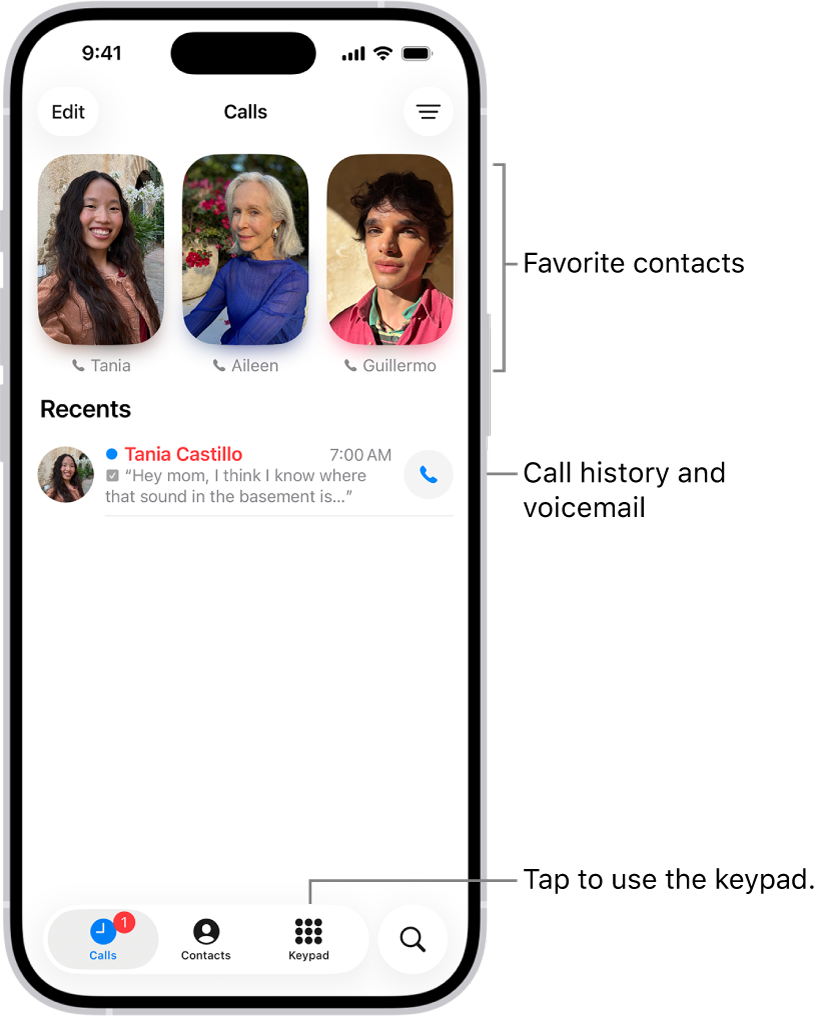
The Calls tab in the Phone app in Unified layout. Favorite contacts appear at the top. Below the Favorites is a list of recent calls and voicemail. Buttons to view the Calls, Contacts, and Keypad tabs appear at the bottom. The Search button is in the bottom-right corner.

Dial a number

Siri: Ask Siri to call or dial a number. Speak each digit separately—for example, “four one five, five five five….” For the 800 area code in the U.S., you can say “eight hundred.” Or without using Siri:

  1. Start the Phone app on your iPhone.
  2. Tap Keypad and then do any of the following:
    • Use a different line: On models with Dual SIM, tap the line at the top and choose a line.
    • Enter the number using the keypad: If you make a mistake, tap the Delete button.
    • Redial the last number: Tap the Call button to see the last number you dialed and then tap the Call button to call that number.
    • Paste a number you’ve copied: Tap the phone number field above the keypad and tap Paste.
    • Enter a soft (2-second) pause: Touch and hold the star (*) key until a comma appears.
    • Enter a hard pause (to pause dialing until you tap the Dial button): Touch and hold the pound (#) key until a semicolon appears.
    • Enter a “+” for international calls: Touch and hold the “0” key until “+” appears.
  3. Tap the Call button to start the call.

To end the call, tap the End Call button.

View information when you make a call

With Apple Intelligence,* a Call Context card with related information may appear when you start a call. This can include an upcoming or recent birthday when you call a contact, or it can include tickets, orders, or confirmation numbers when you call certain businesses. Tap the card to view the information in the related app, such as Mail or Wallet. To turn Call Context on or off, do the following:

  1. Open Settings, then tap Apps.
  2. Tap Phone, then tap Apple Intelligence & Siri.
  3. Turn Show When Calling on or off.

The call screen, showing a Call Context card with a flight confirmation.

Note: Call Context identifies the business from the phone number you dial. Then it searches Mail, Messages, Wallet, and Calendar for related information, such as confirmation codes or reservation numbers.

Note: Apple Intelligence on iOS 27 or later is available on an Apple Intelligence-enabled iPhone 15 Pro, iPhone 15 Pro Max, or iPhone 16 model or later. Apple Intelligence is not available in all languages or regions. Usage limits may apply.*

Add or remove contacts from your Favorites

  1. Start the Phone app on your iPhone.
  2. Do one of the following, depending on which Phone app layout you’re using:
    • Unified layout: Tap Calls, tap Edit, and then tap Add Favorite. If you’ve already added a Favorite, tap Edit, tap Edit Favorites, and then tap the Add button.
    • Classic layout: Tap Favorites and tap the Add button.
  3. Tap a contact and choose the default method of communication (for example, message, call, or video) and the preferred number. Tap the Done button.
  4. To remove a contact from your Favorites, do one of the following:
    • Unified layout: Tap Calls, tap Edit, tap Edit Favorites, tap the Remove button in the upper-left corner of the contact you want to remove, and then tap the Done button.
    • Classic layout: Tap Favorites. Then swipe their name all the way to the left.

To contact someone in your Favorites, tap their name.

Redial or return a recent call

  1. Start the Phone app on your iPhone.
  2. Do one of the following, depending on which Phone app layout you’re using:
    • Unified layout: Tap Calls, tap the name or number you want to call, tap the Call button, and tap the number you want to call. Note: To start a call as soon as you tap a name or number in the Recents list, go to Settings > Apps > Phone, then turn on Tap Recents to Call.
    • Classic layout: Tap Recents and then tap the name or number you want to call.
  3. To get more info about a call and the caller, do one of the following:
    • Unified layout: Tap the name or number in the Recents list.
    • Classic layout: Tap the Info button next to the name or phone number in Recents.

Call someone on your contacts list

Siri: Ask Siri something like, “Call Eliza’s mobile.” Or without using Siri:

  1. Start the Phone app on your iPhone.
  2. Tap Contacts. Then tap the contact you want to call.
  3. Tap the Call button, then tap the phone number you want to call.

Unless you set a preferred line for this contact, the call uses the default voice line on models with Dual SIM.

WARNING: For important information about avoiding distractions that could lead to dangerous situations, see Important safety information for iPhone.

*Apple Intelligence is available with Siri and device language set to Chinese (Simplified), Chinese (Traditional), Danish, Dutch, English, French, German, Italian, Japanese, Korean, Norwegian, Portuguese, Spanish, Swedish, Turkish, or Vietnamese. Some features may not be available in all regions or languages. Some devices may not be available in all regions. Siri AI is available in beta in iOS 27, iPadOS 27, macOS 27, watchOS 27, and visionOS 27 and requires an Apple Intelligence–enabled device set to a supported language. Available in English to start. Siri AI will not be initially available in the EU on iOS, iPadOS, and watchOS. Certain Apple Intelligence features that rely on server-side models are subject to daily usage limits, including but not limited to Siri AI, Intelligent Photo Editing Tools, Image Playground, and AFM 3 Cloud models in Shortcuts. Daily limits may vary by feature, request complexity, system demand, system policies, and other factors. Expanded access to such features will be available for a fee in the future. Use of these features is subject to the Apple Intelligence Terms and Conditions.

Tag: Phone
  • A call failed message could be a problem with your cellular provider or your iPhone.
  • To fix call failed error in iOS 26, toggle Airplane mode, restart your iPhone, and reset your SIM card.
  • You can also reset your iPhone’s network settings, but that will erase passwords.

There you are, about to make an important call when your iPhone suddenly flashes the dreaded “Call Failed” message. Your heart sinks, and frustration kicks in. What went wrong?

Why does my iPhone keep saying call failed on iOS 26?

When your iPhone keeps showing a “Call Failed” message, it usually means the device couldn’t maintain a connection with the cellular network. This could be due to a wide range of issues—from a weak signal to iOS glitches.

Common reasons why your iPhone says “Call Failed” on iOS 26:

  • Signal dropped.
  • Network congestion.
  • Problem with cellular network.
  • SIM card issues.
  • Problem with the Phone app.
  • Carrier-related problems.
  • iOS glitch.

How to fix Call Failed Issue in iPhone After iOS 26 Update

If you’re trying unsuccessfully to place a call, here are the most common ways to fix the call failed error on an iPhone in iOS 26:

Try your call again

I know this is pretty obvious, but the first thing you should do is to try making the call again. Often, a call will fail thanks to a temporary signal drop, and the call will work just fine a minute later. Before you do anything else, tap the dial button to redial your last number.

Close All Of Your Apps

It’s possible the call failed on iOS 26 because of a glitch with the Phone app. Closing and reopening the app can fix a minor software glitch. We recommend closing all of your apps, just in case a different apps has crashed in the background.

  1. Open the app switcher by double-pressing the Home button (iPhones without Face ID) or swiping up from the very bottom of the center of the screen (iPhones with Face ID).
  2. Swipe your apps up and off the top of the screen.

Open the Phone app again and try making a call. If the call still fails, move onto the next step.

Turn Airplane Mode On And Off

One of the most common reasons a call fails on iOS 26 is because of a glitch with your cellular connection. You can fix this by turning Airplane mode on and off.

  1. Go to Settings.
  2. Turn on Airplane Mode.
  3. Wait five seconds.
  4. Turn off Airplane Mode.

Try moving your location

It’s possible that you’re in a location that has poor service — good enough that your phone thinks it has cellular service, and you’ll see a bar or two of signal strength at the top of your phone — but bad enough that it can’t actually complete a connection. Try to make a call in another location. If you’re indoors, go outside, or otherwise try to change your location and make a call.

See also: How to Fix iPhone Showing “SOS Only” After iOS 26 Update

Restart your iPhone

The next thing you can do to fix Call Failed issue on iOS 26 is to restart your iPhone. Restarting your iPhone can fix a variety of small issues by allowing of its programs to shut down naturally. Simply turn your iPhone off, wait a minute, and then turn it back on again.

Check For A Carrier Settings Update

Carrier settings updates can help improve the connection between your iPhone and wireless carrier’s network. It’s a good idea to immediately update the carrier settings when an update becomes available.

You’ll typically receive a pop-up on your iPhone when a carrier settings update is available. Tap Update if you see that notification.

You can manually check for a carrier settings update by connecting your device to the internet and following these steps:

  1. Go to Settings.
  2. Tap General.
  3. Tap About.
  4. A pop-up will appear if a carrier settings update is available. Tap Update if it does.

.If no pop-up appears, move onto the next step.

Check For An iOS Update

Apple routinely releases iOS updates to fix known bugs and occasionally introduce new features. We recommend installing new iOS 26 update and see if that will fix your problem.

  1. Go to Settings.
  2. Tap General.
  3. Tap Software Update.
  4. Tap Update Now if an update is available.

Eject And Reinsert The SIM Card

If your iPhone has a physical SIM card, there’s a chance that there’s a problem with the way the SIM card is seated in its tray, and the phone can have trouble reading all the contacts on the card. Ejecting and reseating the SIM card can help fix this problem.

As long as you are careful, it’s not hard to inject the SIM card from your iPhone. Switch off your phone first. Then, use the SIM ejector tool to push into the hole beside the SIM tray to release it. Take out the SIM card and check for damages before putting it back in properly.

Reset your network settings

If you’ve tried everything else and your iOS 26 device can’t complete any phone calls due to the Call Failed error, we recommend that you reset your iPhone’s network settings.

Save this as a last resort, because this troubleshooting step will erase all your network settings. This means you’ll have to reenter your Wi-Fi passwords and reconfigure any virtual private networks on your iPhone. It’s a little bit of an inconvenience, but it can fix the problem when calls fail on your iPhone.

  1. Go to Settings.
  2. Tap General.
  3. Tap Transfer or Reset iPhone.
  4. Tap Reset.
  5. In the pop-up menu, select Reset Network Settings.
  6. Enter your iPhone’s Passcode.
  7. Select Reset Network Settings to confirm your decision.

Contact your carrier

If resetting network settings didn’t work, it’s time to contact your wireless carrier for assistance. Since calls are failing, you might need to visit the carrier’s store. There might be an issue with your account only a customer support representative can resolve.

Call Failed in iOS 26 Issue: Fixed!

You’ve fixed the problem and your iPhone calls aren’t failing anymore. Share this article on social media to teach your friends and family what to do if call failed in iOS 26. Leave a comment below to let us know which fix worked for you!

See also: How to Fix iPhone Not Making Calls After iOS 26 Update

Tags: iOS 26, Phone