Got a tip for us?

Phone

When you’re on a phone call on iPad, you can switch the audio to the speaker or a Bluetooth® device. With Apple Intelligence, you can also get a wait time prediction and view relevant information during a call.

During a call, a Call Context card with related information, like tickets, orders, confirmation numbers, or reservations, may appear, and you can use another app while you’re on the call. Hold Assist can notify you when a live agent is available.

Adjust the audio during a call

To change the volume, press the volume buttons on the side of iPad. Or swipe down on the call banner, then do any of the following:

  • Mute: Tap the Mute button.
  • Put the call on hold: Touch and hold the Mute button.
  • Talk handsfree: Tap the Audio button, then choose an audio destination.

Use another app while on a call

  1. Go to the Home Screen, then open the app.
  2. To return to the call, tap the green call indicator at the top of the screen.

View relevant information during a call

With Apple Intelligence,* a Call Context card with related information may appear during a call—like tickets, orders, confirmation numbers, or reservations.

To turn Call Context cards on or off, do the following:

  1. Open Settings, then tap Apps.
  2. Tap Phone, then tap Siri.
  3. Turn Show When Calling on or off.

Note: Apple Intelligence on iPadOS 27 or later is available on an Apple Intelligence-enabled iPad mini (A17 Pro) and iPad models with M1 or later. Apple Intelligence is not available in all languages or regions. Usage limits may apply.*

Get a wait time prediction (U.S. only)

With Apple Intelligence,* you can get predictions of how long you’re estimated to wait before your call is answered, based on average wait times in the past.

Note: Apple Intelligence on iPadOS 27 or later is available on an Apple Intelligence-enabled iPad mini (A17 Pro) and iPad models with M1 or later. Apple Intelligence is not available in all languages or regions. Usage limits may apply.*

Receive a notification when you’re no longer on hold

Placed on hold during a call? Hold Assist can tell you when a live agent is available. That way, you don’t have to stay on the line.

Note: Available on iPad Pro 12.9-inch (5th generation or later), iPad Pro 11-inch (3rd generation or later), iPad Air (4th generation or later), iPad (10th generation or later), and iPad mini (6th generation or later). Hold Assist isn’t available in all countries or regions.

  1. Open the Phone app on your iPad.
  2. When you’re in a call and put on hold, tap the More button. Then tap Hold Assist.

    Important: Check your ring settings before you step away from the call. If your iPad is on silent or Do Not Disturb is turned on, you won’t hear the incoming call when an agent is available. See Change iPad sounds.

  3. Hold Assist will notify you when an agent is available and transcribe the part of the call you missed. Tap the Answer Call button to rejoin the call.

Note: Phone can also detect hold music automatically and prompt you to start Hold Assist. To turn this on, go to Settings > Apps > Phone, then turn on Hold Assist Detection.

Respond to a second call on the same line

If a second call comes in while you’re on a call, do one of the following:

  • Ignore the call and send it to voicemail: Tap Ignore.
  • End the first call and answer the new one: When using a GSM network, tap End & Accept. With a CDMA network, tap End; when the second call rings back, tap Accept, or drag the slider if iPad is locked.
  • Put the first call on hold and answer the new one: Tap Hold & Accept.

    To switch between calls when you have a call on hold, tap Swap to switch between calls, or tap Merge Calls to talk with both parties at once. See Start a conference or three-way call.

Note: With CDMA, you can’t switch between calls if the second call was outgoing, but you can merge the calls. You can’t merge calls if the second call was incoming. If you end the second call or the merged call, both calls end.

*Apple Intelligence is available with Siri and device language set to Chinese (Simplified), Chinese (Traditional), Danish, Dutch, English, French, German, Italian, Japanese, Korean, Norwegian, Portuguese, Spanish, Swedish, Turkish, or Vietnamese. Some features may not be available in all regions or languages. Some devices may not be available in all regions. Siri AI is available in beta in iOS 27, iPadOS 27, macOS 27, watchOS 27, and visionOS 27 and requires an Apple Intelligence–enabled device set to a supported language. Available in English to start. Siri AI will not be initially available in the EU on iOS, iPadOS, and watchOS. Certain Apple Intelligence features that rely on server-side models are subject to daily usage limits, including but not limited to Siri AI, Intelligent Photo Editing Tools, Image Playground, and AFM 3 Cloud models in Shortcuts. Daily limits may vary by feature, request complexity, system demand, system policies, and other factors. Expanded access to such features will be available for a fee in the future. Use of these features is subject to the Apple Intelligence Terms and Conditions.

See also
Tag: Phone

You can relay phone calls and text messages through your iPhone to your iPad, so it’s easy to stay in touch no matter which device you’re on. Both devices need Wi-Fi on and the same Apple Account, and they need to be within 30 feet (10 meters) of each other. You can send and receive both iMessage and SMS messages.

Note: Cellular charges may apply. Wi-Fi Calling isn’t available from all carriers.

Before you begin

Before you begin, check that each of the following is true:

  • Both devices have Wi-Fi turned on and are connected to the same Wi-Fi network.
  • You’re signed in to the same Apple Account on both devices.

If you use a VPN, its configuration shouldn’t prevent local networking, since that may interfere with some Continuity features.

Set up your iPhone to allow phone calls on your iPad

  1. On your iPhone, open the Settings app.
  2. Tap Apps, then tap Phone.
  3. Tap Calls on Other Devices, turn on Allow Calls on Other Devices, and choose the devices you want to allow to make and receive calls.

    The devices you choose can make and receive calls when they’re near your iPhone, connected to the same Wi-Fi network, and signed in to the same Apple Account.

    Note: If you don’t have the Phone app on your iPad, you can download it from the App Store.

Make or receive phone calls on your iPad

Set up your iPhone to allow calls on your other devices, and your iPad can make and receive phone calls.

  • Make a call: Tap a phone number in Contacts, Calendar, FaceTime, Messages, or Safari. Or open the Phone app, then tap the Keypad button and type a number, or search for a contact.

    If you make a call from another device by relaying it through your iPad with Dual SIM, the call is made using your default voice line.

  • Receive a call: Swipe or tap the notification to answer or ignore the call.

Send and receive messages on your iPad

You can send and receive both iMessage and SMS/RCS/MMS messages on your iPad.

For sending and receiving iMessages on iPad, read our article, Get started with Messages on iPad.

If phone calls and text messages on your iPad aren’t working

  • Make sure that you’re signed in to the same Apple Account on both devices.
  • Make sure that your iPhone and iPad have Wi-Fi turned on.
  • Your devices must be within 30 feet (10 meters) of one another.

Besides making and receiving phone calls on your iPad, you can use Handoff to move a FaceTime call from one device to another. See our guide, Hand off a FaceTime call from your iPad to your other Apple devices.

See also

Siri can announce calls and notifications from apps like Messages on supported headphones. Announce Calls also works with supported third-party apps.

All it takes is one setting. Siri then identifies the caller when a call comes in and asks if you want to answer, letting you accept or decline the call with your voice. There’s more to learn about how to use Siri on Apple Watch, too.

  1. Start the Settings app on your Apple Watch.
  2. Tap Siri and then turn on Announce Calls.
  3. When a call comes in, the caller is identified and you’re asked if you want to answer the call. Say “yes” to accept the call or “no” to decline it.

See also

Tags: Phone, Siri

During calls on your Apple Watch, you can adjust audio settings, switch between devices, enter numbers for extensions or verification codes, and use Hold Assist to wait for a live agent.

You can adjust the volume, mute the call, and move the call to your iPhone or to an audio device. With Call Context, you can get relevant information, too, and Hold Assist recognizes when a live agent is available.

Here’s what you can do while on a call on Apple Watch.

Adjust the audio volume

  1. Open the Phone app on your Apple Watch.
  2. During a call, do any of the following:
    • Adjust the volume: Turn the Digital Crown.
    • Mute the call: Tap the Mute button.

Switch the call to another device

  1. Open the Phone app on your Apple Watch.
  2. During a call, do any of the following:
    • Move the call from your Apple Watch to your iPhone: Unlock your iPhone and then tap the green button or bar at the top of the screen.
    • Move the call to an audio device: Tap the More Options button, then choose a device.

Enter additional numbers during a phone call

  1. Open the Phone app on your Apple Watch.
  2. During a call, tap the More Options button, then tap Keypad. (Not available on FaceTime calls.)
  3. Tap the digits on the keypad.

Use Hold Assist

Hold Assist can wait on hold for you if someone puts you on hold during a call, then notify you to return to the call when it recognizes that a live agent is available.

Note: Hold Assist is available when your Apple Watch is nearby your paired iPhone and requires iPhone SE (3rd generation), iPhone 12, or later. Hold Assist isn’t available in all languages, countries, or regions.

  1. Open the Phone app on your Apple Watch.
  2. During a call, tap the More Options button and tap Hold Assist.

    Apple Watch automatically detects when you are placed on hold and asks if you want to be notified when an agent is available. Tap the Hold button in the notification to turn on Hold Assist.

  3. Hold Assist notifies you when an agent is available and transcribes the part of the call you missed. Tap the Answer Call button to rejoin the call.

Get relevant information

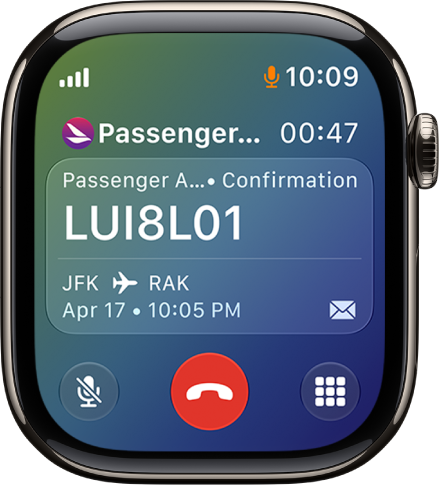
When you’re calling a business, Call Context can proactively surface relevant information from across your apps, such as a confirmation code from Mail when you call an airline.

The call screen showing the confirmation number for a ticket and flight information.

Note: Call Context requires your paired iPhone nearby. Call Context on watchOS 27 or later is an Apple Intelligence feature available when your Apple Watch is paired with an Apple Intelligence-enabled iPhone. Apple Intelligence isn’t available in all regions or languages.*

*Apple Intelligence is available with Siri and device language set to Chinese (Simplified), Chinese (Traditional), Danish, Dutch, English, French, German, Italian, Japanese, Korean, Norwegian, Portuguese, Spanish, Swedish, Turkish, or Vietnamese. Some features may not be available in all regions or languages. Some devices may not be available in all regions. Siri AI is available in beta in iOS 27, iPadOS 27, macOS 27, watchOS 27, and visionOS 27 and requires an Apple Intelligence–enabled device set to a supported language. Available in English to start. Siri AI will not be initially available in the EU on iOS, iPadOS, and watchOS. Certain Apple Intelligence features that rely on server-side models are subject to daily usage limits, including but not limited to Siri AI, Intelligent Photo Editing Tools, Image Playground, and AFM 3 Cloud models in Shortcuts. Daily limits may vary by feature, request complexity, system demand, system policies, and other factors. Expanded access to such features will be available for a fee in the future. Use of these features is subject to the Apple Intelligence Terms and Conditions.

See also
Tag: Phone

When you receive phone or FaceTime calls, you can answer on your Apple Watch or iPhone, dismiss calls and send them to voicemail, or reply with a text message. You can also use Call Screening to handle unknown callers automatically.

If you can’t answer, a wrist flick silences the call. And you can listen to and manage voicemail messages directly on your Apple Watch.

Here’s how to accept or decline incoming calls on Apple Watch.

WARNING: For important information about avoiding distractions that could lead to dangerous situations, see Important safety information for Apple Watch.

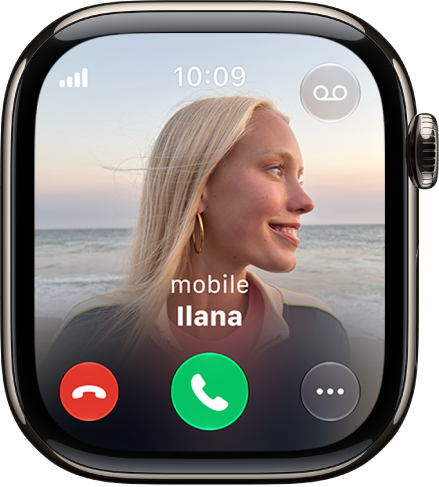
The Phone app showing an incoming call. The End Call button is at the bottom left. The Answer button is at the bottom center.

Answer a call

  1. When you hear or feel the call notification, raise your wrist to see who’s calling.
  2. Do one of the following:

    • Answer on your Apple Watch: Tap the answer button. Talk using the built-in microphone and speaker, your connected AirPods, or a Bluetooth device paired with your Apple Watch.
    • Answer using your iPhone: Tap the More Options button. Tap Answer on iPhone.

      The call is placed on hold and the caller hears a repeated sound until you answer on your paired iPhone.

      Tip: If you can’t find your iPhone, tap the Ping Phone button on your Apple Watch.

Dismiss a call

You can decline an incoming call if you can’t answer it.

  • Silence the call and send it to voicemail: Tap the end call button, cover the display, or perform a wrist flick.
  • Send a text message instead: Tap the More Options button, then tap an option.

Turn on Call Screening

Call Screening answers unknown callers automatically, so you’re not interrupted. When the caller has shared their name and the reason for the call, you decide whether to pick up.

Note: Call Screening requires that iPhone is nearby, and is available in Cantonese (China mainland, Hong Kong, Macao), English, French (Canada, France), German, Japanese, Korean, Mandarin Chinese (China mainland, Macao, Taiwan), Portuguese (Brazil), and Spanish (Mexico, Puerto Rico, Spain, U.S.).

  1. Open the Settings app on your iPhone.
  2. Tap Apps, tap Phone, and then turn on Screen Incoming Calls in the Calls from Unknown Numbers section.

When you get an incoming call from an unknown number, tap View to see a live transcription of the caller’s response, then choose whether to accept or dismiss the call.

Listen to voicemail

If a caller leaves a voicemail, tap the Play button in the notification to listen. You can also listen to the voicemail later or see a transcription.

  1. Open the Phone app on your Apple Watch.
  2. Tap Voicemail.
  3. Choose any of the following options:
    • Start and stop playback.
    • Skip ahead or back 5 seconds.
    • Adjust the volume with the Digital Crown.
    • Return the call.
    • Delete the voicemail.
    • Read a transcription of the voicemail.

See also

Tag: Phone

Make phone and FaceTime audio calls, start a Group FaceTime call from Messages, and set up Wi-Fi calling.

You can call a favorite by turning the Digital Crown, call a contact, or dial a recent number. You can also enter a phone number, and bring a Messages conversation into a FaceTime audio call, where you can even add more people. With Wi-Fi calling, you can make calls even when your paired iPhone isn’t with you.

Here’s how to make calls on Apple Watch.

The Phone app showing call options. The Answer on iPhone button is at the top and a suggested reply is below.

Call a contact

  1. Start the Phone app on your Apple Watch.
  2. Do one of the following:
    • Call a favorite: Turn the Digital Crown down, then tap a favorite.
    • Call a contact: Turn the Digital Crown upward, tap Contacts, and tap a contact.
    • Dial a recent number: Turn the Digital Crown upward to scroll through recent contacts, then tap a contact.

Start a Group FaceTime call from Messages

If you’re in a Messages conversation, you can bring it into a FaceTime audio call and then add more people to the call.

  1. Start the Messages app on your Apple Watch.
  2. In a conversation, tap the Contact’s profile picture at the top right. Tap FaceTime audio.
  3. To invite more people to the call, tap the More Options button, tap Add People, and then choose a contact.

Enter a phone number

  1. Start the Phone app on your Apple Watch.
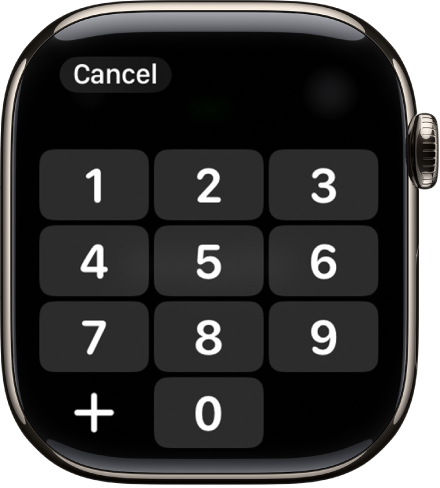
  2. Tap the Dialer button at the top right. Then enter the number.

    The keypad in the Phone app.

  3. To start the call, tap the Call button.

Quick tip: If you need to enter additional numbers during a call, like an extension or a verification code, tap the More Options button, tap Keypad, and then tap the digits.

Set up Wi-Fi calling

If your cellular carrier offers Wi-Fi calling, your Apple Watch can make and receive calls over Wi-Fi rather than the cellular network, and that works even when your paired iPhone is turned off or isn’t with you. Your Apple Watch only needs to be within range of a Wi-Fi network your iPhone has connected to in the past.

To see if your carrier offers Wi-Fi calling, see Make a call with Wi-Fi calling, and enable Wi-Fi calling on your iPhone.

  1. Start the Settings app on your iPhone.
  2. Tap Cellular and tap Wi-Fi Calling.
  3. Turn on Wi-Fi Calling on This iPhone and turn on Add Wi-Fi Calling For Other Devices.

Note: For the most accurate location during emergency calls, use cellular instead of Wi-Fi when possible. You can temporarily disconnect from Wi-Fi on your Apple Watch to prioritize the cellular connection.

See also

Tag: Phone

You can set up call waiting on iPhone if you have cellular service through a GSM network, and if your cellular service is through a CDMA network, your carrier has information about setting up call waiting. Without it, incoming calls go directly to voicemail while you’re on a call.

On models with Dual SIM, it works only for calls on the same line, except when the other line has Wi-Fi Calling on and a data connection is available.

  1. Start the Settings app on your iPhone.
  2. Tap Apps, then tap Phone.
  3. Tap Call Waiting, then turn on Call Waiting.

With call waiting turned off, incoming calls go straight to voicemail during a call. On an iPhone with Dual SIM, call waiting covers only incoming calls on the same line. The exception is when Wi-Fi Calling is turned on for the other line and a data connection is available.

Tag: Phone

You can view your call history on your iPhone and delete all your recent calls or just specific calls.

You can filter by Calls, Missed, Unknown Callers, or Spam, and get more details about your call history.

Here’s how to view and delete your call history on iPhone.

Delete your call history

  1. Start the Phone app on your iPhone.
  2. Tap the Filter button and tap Calls, Missed, Unknown Callers, or Spam.
  3. Do one of the following:
    • Delete calls one at a time: Swipe a call all the way to the left.
    • Delete multiple calls: Tap Edit, tap Select, tap the calls you want to delete, and tap Delete.

To recover a deleted call history, restore your iPhone from a backup you made before the data was deleted.

Get more details about your call history

  1. Start the Phone app on your iPhone.
  2. Tap the Filter button, then tap Calls or Missed. If you’re in the Classic layout, you may also have the option to filter by Unknown Callers.
  3. Do one of the following, depending on which Phone app layout you’re using:
    • Unified layout: Tap a call or contact.
    • Classic layout: Tap the Info button next to a call.

Note: For more information about deleted calls or older call histories, check with your carrier.

Tag: Phone

You can answer, silence, or decline an incoming call on iPhone. If you decline a call, it goes to voicemail, and you can also respond to a call with a text.

You can still answer a silenced call, too, until it goes to voicemail. Before deciding whether to answer, you can even ask the caller for more information, and their reply will appear on your screen as text. In some countries or regions, though, declined calls are disconnected without being sent to voicemail.

Answer a call

Pick up the call in one of these ways:

  • Tap the Answer Call button.
  • If your iPhone is locked, drag the slider.

Silence a call

Press the side button or either volume button when a call is coming in. You can still answer a silenced call until it goes to voicemail.

Note: It’s also possible to automatically screen and silence calls from unknown numbers.

Decline a call and send it directly to voicemail

If you’d rather not answer, decline the call in one of these ways:

  • Press the side button twice quickly.
  • Tap the Decline Call button.
  • Swipe up on the call banner.

You can also tap the call banner for more options. Do any of the following:

  • Tap Voicemail to send the call to voicemail.
  • Tap Message, then choose a default reply or tap Custom.

To create your own default replies, go to Settings > Apps > Phone > Respond with Text, tap any field below Respond With, then type your own reply.

Note: In some countries or regions, declined calls are disconnected without being sent to voicemail.

Ask a caller for more information without answering a call

When you receive a call, you can type a message asking the caller for more information before deciding whether to answer. Tap Type to Reply, then type the message you want your iPhone to say to the caller. Their reply will appear on your screen as text. iPhone can help you avoid unwanted calls by identifying callers, blocking certain people, screening unknown callers, or sending spam callers directly to voicemail. You can also filter out unknown callers so they don’t appear in your recent and missed calls.

Tag: Phone

When you’re on a phone call, you can add an additional caller or callers if you want to include more people in the conversation. If you get another incoming call, you can also respond to or ignore it.

Depending on your carrier, GSM lets you set up a conference call with up to five people, though conference calling may not be available with VoLTE or Wi-Fi Calling. While on the call, you can talk privately with one person, add an incoming caller, or drop someone.

Here’s how to have a conference or three-way call on iPhone.

Start a conference or three-way call

Conference calls with up to five people are possible with GSM, depending on your carrier.

Note: If your call uses VoLTE (Voice over LTE) or Wi-Fi Calling, you may not be able to make conference calls or use some aspects of conference calling.

  1. Start the Phone app on your iPhone.
  2. While on a call on iPhone, tap the More button, tap Add People, make another call. Tap Merge Calls. Repeat this step to add more people to the call.
  3. During the call, do any of the following:
    • Talk privately with one person: Tap the More Info button. Then tap Private next to the name of the person. Tap Merge Calls to resume the conference call.
    • Add an incoming caller on the same line: Tap Hold Call & Answer, then tap Merge Calls.
    • Drop one person: Tap the More Info button next to the name of the person you want to drop and then tap End.
Tag: Phone