Got a tip for us?

Phone

When you’re on a phone call, you can add an additional caller or callers if you want to include more people in the conversation. If you get another incoming call, you can also respond to or ignore it.

Depending on your carrier, GSM lets you set up a conference call with up to five people, though conference calling may not be available with VoLTE or Wi-Fi Calling. While on the call, you can talk privately with one person, add an incoming caller, or drop someone.

Here’s how to have a conference or three-way call on iPad.

Start a conference or three-way call

With GSM, you can set up a conference call with up to five people (depending on your carrier).

Note: When your call uses VoLTE (Voice over LTE) or Wi-Fi Calling, conference calls, or parts of conference calling, might not be available.

  1. Start the Phone app on your iPad.
  2. While on a call on iPad, tap Add Call, make another call. Tap Merge Calls.

    Repeat this step to add more people to the call.

  3. During the call, do any of the following:

    • Talk privately with one person: Tap the More Info button. Then tap Private next to the name of the person. Tap Merge Calls to resume the conference call.
    • Add an incoming caller on the same line: Tap Hold Call & Answer, then tap Merge Calls.
    • Drop one person: Tap the More Info button next to the name of the person you want to drop and then tap End.

See also

Tag: Phone

In some countries and regions, you can record a phone call when you’re talking to one other person. In select regions and languages, you can view the transcript of the call in the Notes app, and with Apple Intelligence, you can read a summary.

Both people on the call hear a notice that it’s being recorded. Recordings are saved to a Call Recordings folder in Notes, and you can delete a recorded call later.

Note: Call recording isn’t currently available in Azerbaijan, Bahrain, Egypt, the European Union, Iran, Iraq, Jordan, Kuwait, Morocco, Nigeria, Oman, Pakistan, Qatar, Russia, Saudi Arabia, South Africa, Turkey, United Arab Emirates, and Yemen. Apple Intelligence on iPadOS 27 or later is available on an Apple Intelligence-enabled iPad mini (A17 Pro) and iPad models with M1 or later. Apple Intelligence is not available in all languages or regions. Usage limits may apply.*

Record a call

Before you begin, check the iOS and iPadOS Feature Availability website to see if call recording is available in your language and region, and make sure the other call participant is willing to be recorded.

  1. Start the Phone app on your iPad.
  2. Make a call.
  3. During the call, tap the More button and then tap Call Recording.

    Both call participants hear an audio notice that the call is being recorded.

  4. To stop recording, tap the Stop button or just hang up.

    iPad automatically saves call recordings to a Call Recordings folder in the Notes app.

  5. To see the call in the Notes app, tap View Saved Call.

Play a recorded call

  1. Start the Notes app on your iPad.
  2. Tap a note in the Call Recordings folder and tap the Play button.

View a call transcript

The Notes app is where you can view the transcript of a recorded call, in select regions and languages. It may not be available immediately, and you may see a message that the transcription is in progress.

Note: Before you rely on a transcription, verify its accuracy, because it might not be a perfect representation of the conversation.

  1. Start the Notes app on your iPad.
  2. In the Call Recordings folder, tap a note. Tap the recording.

    Note: Spoken words in supported languages are automatically transcribed. If you don’t see a transcript, your iPad doesn’t meet the minimum requirements or detect a supported language.

    In the transcript, the speaker of each statement is identified.

  3. While viewing the transcript, you can do any of the following:

    • Play the audio from a specific point: Select the text you want to hear.
    • Search the transcript: Tap the More button and then tap Find in Transcript.
    • Copy the transcript: Tap the More button and choose Add Transcript to Note or Copy Transcript.
    • Save the audio recording: Tap the More button, tap Save Audio to Files, and choose an option.
    • View the waveform of the recording: Tap the Hide Transcript button.
    • View a summary of the voicemail: If your iPad supports Apple Intelligence,* tap Summary.

      Tip: To copy or share a summary, tap the More button at the top of the summary.

Delete a recorded call

  1. Start the Notes app on your iPad.
  2. Tap a note in the Call Recordings folder, tap the More button, and then tap Delete.

    Note: Deleting the audio recording also deletes the transcript.

Turn off Audio Call Recording

By default, Call Recording is on, but you can turn it off.

  1. Start the Settings app on your iPad.
  2. Tap Apps, then tap Phone.
  3. Tap Audio Call Recording, then turn it off.

*Apple Intelligence is available with Siri and device language set to Chinese (Simplified), Chinese (Traditional), Danish, Dutch, English, French, German, Italian, Japanese, Korean, Norwegian, Portuguese, Spanish, Swedish, Turkish, or Vietnamese. Some features may not be available in all regions or languages. Some devices may not be available in all regions. Siri AI is available in beta in iOS 27, iPadOS 27, macOS 27, watchOS 27, and visionOS 27 and requires an Apple Intelligence–enabled device set to a supported language. Available in English to start. Siri AI will not be initially available in the EU on iOS, iPadOS, and watchOS. Certain Apple Intelligence features that rely on server-side models are subject to daily usage limits, including but not limited to Siri AI, Intelligent Photo Editing Tools, Image Playground, and AFM 3 Cloud models in Shortcuts. Daily limits may vary by feature, request complexity, system demand, system policies, and other factors. Expanded access to such features will be available for a fee in the future. Use of these features is subject to the Apple Intelligence Terms and Conditions.

See also

You can set up call waiting on iPad if you have cellular service through a GSM network, and if your cellular service is through a CDMA network, your carrier has information about setting up call waiting. Without it, incoming calls go directly to voicemail while you’re on a call.

On models with Dual SIM, it works only for calls on the same line, except when the other line has Wi-Fi Calling on and a data connection is available. You can also change your voicemail greeting and settings.

  1. Start the Settings app on your iPad.
  2. Tap Apps, then tap Phone.
  3. Tap Call Waiting, then turn on Call Waiting.

    If you’re on a call and call waiting is turned off, incoming calls go directly to voicemail.

    On models with Dual SIM, call waiting works only for incoming calls on the same line, unless the other line has Wi-Fi Calling turned on and a data connection is available. See Set up cellular service.

See also

Tag: Phone

You can set up call forwarding on iPad if you have cellular service through a GSM network, though on a CDMA network, you’ll contact your carrier for information. When call forwarding is on, its icon appears in the status bar, and you need to be in range of the cellular network for calls to be forwarded.

If your carrier supports conditional call forwarding for when the line is busy or not in service, they have the setup information. You can also set up call waiting on iPad.

  1. Open the Settings app on your iPad.
  2. Tap Apps, then tap Phone.
  3. Tap Call Forwarding, then turn on Call Forwarding.

    The Call Forwarding icon appears in the status bar when call forwarding is on.

  4. Tap Forward To, enter the number you want to redirect to, and tap Back.

You need to be in range of the cellular network when setting iPad to forward calls, or calls won’t be forwarded.

If your carrier supports conditional call forwarding, which works when the line is busy or not in service, reach out to them for setup information.

See also

Tag: Phone

When your iPad has a low cellular signal, use Wi-Fi Calling to make and receive calls through a Wi-Fi network. When it’s available, you’ll see “Wi-Fi” after your carrier name in the status bar, and your calls go through Wi-Fi. Emergency calls go through cellular service when it’s available, though.

  1. Open the Settings app on your iPad.
  2. Tap Cellular, tap Wi-Fi Calling, and then turn on Wi-Fi Calling on This iPad.
  3. Tap Enable and then follow the onscreen instructions.

    Note: Emergency calls on your iPad are routed through cellular service when available. In the event that cellular service isn’t available, and you have enabled Wi-Fi Calling, emergency calls may be made over Wi-Fi, and your device’s location information may be used for emergency calls to aid response efforts, regardless of whether you enable Location Services. Some carriers may use the address you registered with the carrier when signing up for Wi-Fi Calling as your location. When connected to Wi-Fi calling, your iPad may not receive emergency alerts.

With Wi-Fi Calling available, all your calls go through Wi-Fi, and you’ll see “Wi-Fi” after your carrier name in the status bar.

Note: If the Wi-Fi connection is lost when you make calls, calls switch automatically to your carrier’s cellular network using VoLTE (Voice over LTE), if available and turned on. See View or change cellular data settings. (VoLTE calls also switch to Wi-Fi when a Wi-Fi connection becomes available.) Contact your carrier for feature availability.

See also

Tags: Phone, Wi-Fi

On iPad you can block specific callers and you can change your setting to automatically identify, screen, filter, and block unknown and spam calls.

Using information from Apple Business Connect, supported carriers, and supported caller ID apps, iPad can help identify incoming calls. With Business Call Identification, caller information comes from Apple Business Connect or your carrier. You can also screen or silence unknown numbers, and filter unknown and spam calls.

Here’s how to screen and block calls on iPad.

Turn on call identification

To help identify incoming calls, iPad uses information from supported carriers, Apple Business Connect, and supported call identification apps.

  1. Open the Settings app on your iPad.
  2. Tap Apps and tap Phone. Then tap Call Blocking & Identification.
  3. Turn on one or more of the following:
    • Business Call Identification: Caller information is identified by Apple Business Connect or your carrier.
    • Call Identification apps: Caller information is identified by supported caller ID apps.

Screen or silence unknown numbers

Without interrupting you, Call Screening automatically answers calls from unknown numbers. Your iPad rings only after the caller shares their name and reason for calling, and it passes along their response so you can decide whether to pick up. Another option is to silence calls from unknown callers and send them straight to voicemail.

  1. Open the Settings app on your iPad.
  2. Tap Apps, then tap Phone.
  3. Choose one of the following:
    • Never: Call Screening is turned off and your iPad will ring when you receive a call from an unsaved number.
    • Ask Reason for Calling: Calls from unknown numbers will be asked for more information before iPad rings.
    • Silence: Calls from unsaved numbers will be silenced, sent to voicemail, and appear in the Recents list.

Note: Siri speaks in your iPad’s default language when answering calls. To change it, see our article, Change the language and region.

Filter unknown and spam calls

  1. Open the Settings app on your iPad.
  2. Tap Apps, then tap Phone.
  3. Turn on the following:
    • Unknown Callers: Calls from unknown numbers are removed from your Recents list and sent to the Unknown Callers list.
    • Spam: Calls identified by your carrier as potential spam or fraud are silenced, sent to voicemail, and moved to the Spam list.

You can mark an unknown caller as known to prevent future calls from being sent to the Unknown Callers list. Go to the Phone app, tap the Filter button, tap Unknown Callers, tap Mark as Known next to the call, then tap Mark as Known.

To remove a number from your known callers, tap the Filter button, tap Calls, tap the number you want to remove, then tap Mark as Unknown at the bottom of the contact card on the right side of the screen.

Block or unblock calls from specific people or numbers

  1. Open the Phone app on your iPad.
  2. Tap the Filter button in the top left of your screen. Then tap Calls, Missed, Unknown Callers, or Spam.
  3. Tap the number or contact you want to block on the left side of your screen.
  4. On the right side of your screen, tap Block Contact or Unblock Contact.

View calls from unknown or spam callers

  1. Open the Phone app on your iPad.
  2. Tap the Filter button.
  3. Tap Unknown Callers or Spam.

See also

Tag: Phone

Use the Phone app to listen to, delete, read, share, or get a summary of your voicemail messages. You can also check your voicemail messages when Visual Voicemail isn’t available.

You can also share a message, or recover a deleted one. A transcription of each voicemail appears in the bottom half of the screen. Your messages stay until you delete them, unless your carrier erases them first when they aren’t stored in iCloud.

Play, share, or delete a voicemail message

Siri: Ask Siri something like, “Play the voicemail from Eliza.” Learn how to use Siri.

Or without using Siri:

  1. Open the Phone app on your iPad.
  2. Tap Voicemail, then tap a message.
  3. Do any of the following:

    • Play the message: Tap the Play button.

      Messages are saved until you delete them (or until your carrier erases them, if they’re not stored in iCloud).

    • Read a transcript of the message: A transcription of the voicemail appears in the bottom half of the screen.
    • Share the message: Tap the Share button.
    • Delete the message: Tap the Delete button.

      Important: In some countries or regions, deleted messages may be permanently erased by your carrier. Your voice messages may also be deleted if you change your SIM card.

To recover a deleted message, tap Deleted Messages, tap the message, then tap the Undelete button.

Quick tip: Apple Intelligence can show you Siri suggested actions based on the transcript, such as adding a reminder or creating a calendar event. To choose whether you see these suggestions, go to Settings > Apps > Phone and turn Suggestions in Voicemail on or off.

Siri suggested actions are available in English. Apple Intelligence on iPadOS 27 or later is available on an Apple Intelligence-enabled iPad mini (A17 Pro) and iPad models with M1 or later. Apple Intelligence is not available in all languages or regions. Usage limits may apply.*

Check your messages when Visual Voicemail isn’t available

  • On your iPad: Tap Voicemail, then follow the instructions.
  • On another phone: Dial your own mobile number, press * or # (depending on your carrier) to bypass your greeting, then enter your voicemail password.

*Apple Intelligence is available with Siri and device language set to Chinese (Simplified), Chinese (Traditional), Danish, Dutch, English, French, German, Italian, Japanese, Korean, Norwegian, Portuguese, Spanish, Swedish, Turkish, or Vietnamese. Some features may not be available in all regions or languages. Some devices may not be available in all regions. Siri AI is available in beta in iOS 27, iPadOS 27, macOS 27, watchOS 27, and visionOS 27 and requires an Apple Intelligence–enabled device set to a supported language. Available in English to start. Siri AI will not be initially available in the EU on iOS, iPadOS, and watchOS. Certain Apple Intelligence features that rely on server-side models are subject to daily usage limits, including but not limited to Siri AI, Intelligent Photo Editing Tools, Image Playground, and AFM 3 Cloud models in Shortcuts. Daily limits may vary by feature, request complexity, system demand, system policies, and other factors. Expanded access to such features will be available for a fee in the future. Use of these features is subject to the Apple Intelligence Terms and Conditions.

See also

Tag: Phone

Visual Voicemail shows you a list of your voicemail messages in the Phone app, so you can choose which ones to play and delete without listening to them all. When you store your voicemail messages in iCloud, they sync across your devices, and a badge on the Voicemail icon shows the number of unheard messages.

Setting up Voicemail starts with a voicemail password and your greeting, either Default or Custom.

Live Voicemail lets you see a real-time transcription as someone is leaving you a message. You can even pick up the call as they’re leaving their voicemail.

Note: Voicemail, Visual Voicemail, and Live Voicemail are available from select carriers in select countries or regions.

Set up Voicemail

The first time you tap Voicemail, you’re asked to create a voicemail password and record your voicemail greeting.

  1. Open the Phone app on your iPad.
  2. Tap Voicemail, then tap Set Up Now.
  3. Create a voicemail password.
  4. Choose a greeting—Default or Custom; if you choose Custom, you can record a new greeting.

Turn on Live Voicemail

As someone is leaving you a message, Live Voicemail automatically shows you a real-time transcription. You can even pick up the call while they’re still leaving their voicemail.

To turn on Live Voicemail, do the following:

  1. Open the Settings app on your iPad.
  2. Tap Apps, then tap Phone.
  3. Tap Live Voicemail and turn on Live Voicemail.

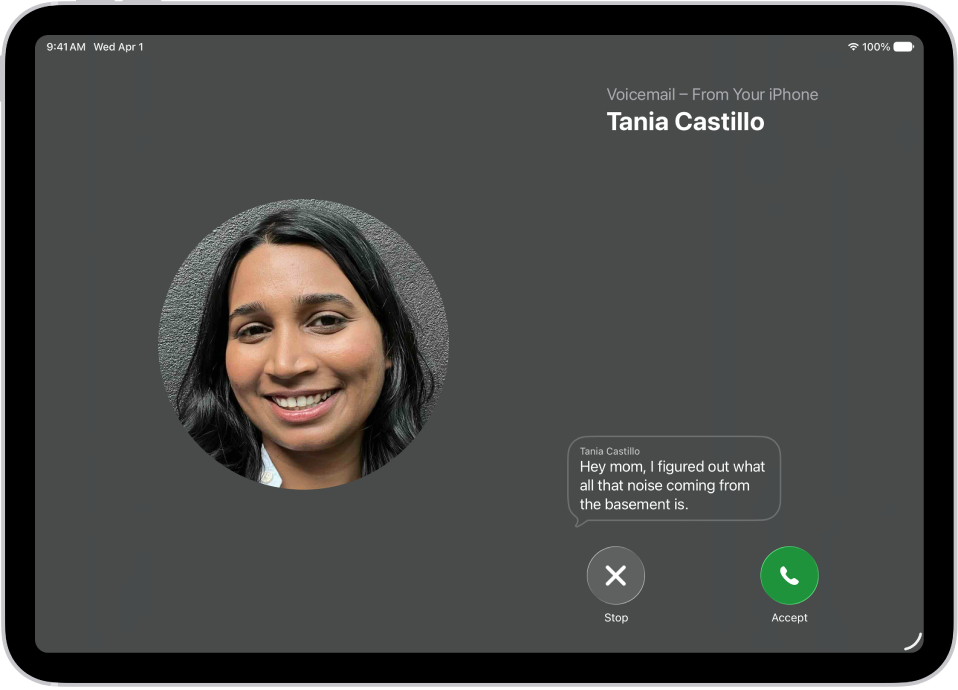
    When Live Voicemail is on and a caller is sent to voicemail, your iPad displays a transcription of the caller’s voicemail as they speak. (Calling and data rates may apply.) The caller won’t be able to hear you and you won’t be able to hear them unless you choose to answer the call. To stop the incoming voicemail without answering or blocking the call, tap Stop.

    If your iPad is turned off or is out of your carrier network’s range, the call is sent to carrier voicemail, if available.

    If you have Silence Unknown Callers turned on, unknown numbers go directly to Live Voicemail without ringing you first. Calls identified as spam by your carrier don’t go through Live Voicemail and are instead instantly declined.

Note: Live Voicemail isn’t available in all countries, regions, or languages.

A call screen showing a Live Voicemail from a contact. Below the transcribed text are Stop and Accept buttons for the call.

Store Voicemail in iCloud

You’re able to store and sync your Live Voicemail and Carrier Voicemail in iCloud.

  1. Open the Settings app on your iPad.
  2. Tap your name, then tap iCloud.
  3. Tap See All next to Saved to iCloud and then turn on Phone & FaceTime.

See also

Tags: iCloud, Phone

You can change your voicemail greeting, password, and alert sounds.

You can record a custom greeting in the Phone app on your iPad, though recording isn’t supported by all carriers or in all countries and regions. You can also change your voicemail password, and choose a new alert sound for new voicemail from the list or purchase one from the Tone Store. And you can change your Contact Photo & Poster, too.

Change your voicemail greeting

  1. Start the Phone app on your iPad.
  2. Tap the Filter button and tap Voicemails.
  3. Tap Edit and then tap Edit Voicemail Greeting.
  4. Tap Custom and tap Record (not supported by all carriers or in all countries and regions).

Change your voicemail password

  1. Start the Settings app on your iPad.
  2. Tap Apps, then tap Phone.
  3. Tap Change Voicemail Password, then enter the new password.

Change your voicemail alert sound

  1. Start the Settings app on your iPad.
  2. Tap Sounds and tap New Voicemail.
  3. Tap a new alert sound from the list, or tap Tone Store to purchase one.

Note: For changing your Contact Photo & Poster, see our guide, Add or edit your avatar and poster.

See also

Tag: Phone

You can assign distinctive ringtones to certain people, and turn the ringer on or off. Clock alarms still play in Silent mode. To temporarily silence incoming calls, you can turn on or schedule a Focus, and you can also change the default sound that plays for a call, text, voicemail, email, reminder, or other notification.

Assign a different ringtone to a contact

  1. Open the Contacts app on your iPad.
  2. Select a contact, tap Edit, tap Ringtone, and then choose a ringtone.

Turn the ringer on or off

  • Open Control Center, then tap the Mute Switch button.

Clock alarms still play when Silent mode is on.

To temporarily silence incoming calls, turn on or schedule a Focus.

It’s also possible to change the default sound that plays when a call, text, voicemail, email, reminder, or other notification comes in. Read our guide, Change ringtone settings, to learn more about ringtones.

See also