









You may experience some issues with iPhone 18 Pro Max at some point in life. Fortunately, most of these issues are fixable. So, before you consider investing in a new phone, let’s dig deeper into the biggest iPhone issues and see how to fix them.
1. No SIM or Invalid SIM Error
Thanks to Wi-Fi, many people forget the existence of SIM cards. What’s the point of dialing from your phone if you are getting facilities to call and message people without extra charges?
You might not notice that your iPhone has lost the SIM connection until it’s actually needed. Your iPhone might lose its connection due to a glitch in an update or a malfunction in the iOS system. iPhone 18 Pro and iPhone 18 Pro Max use advanced eSIM technology for more convenience and security (not compatible with physical SIM cards). An eSIM is a digital version of the physical SIM card inside your iPhone that connects to your cellular carrier.
Before taking it to the nearest Apple Store, try these steps:
- Confirm that your eSIM is active and ready to use.
- Activate Airplane Mode on the phone and turn it off. Your iPhone should start catching signals.
- If enabling/disabling Airplane Mode doesn’t fix your problem, restart your iPhone. It should show mobile signals now.
You may need to update iOS if the above method doesn’t work. You can do so by going to Settings > General > Software Update on your iPhone.
If you erase your iPhone, or restore it from a backup and accidentally delete your eSIM, your iPhone may lose its cellular connection; to restore it, you’ll need to contact your cellular provider.
2. Problems With Face ID
Face ID is an additional security step that lets you unlock the phone and authorize different transactions on the device.
Users might experience issues because of improper lighting or objects near the face when setting up Face ID on the iPhone. If you cannot unlock your phone, clean the sensors (or the entire screen) with a soft microfiber cloth.
You can also reset your Face ID. To do that, follow these simple instructions:
- Go to Settings and scroll down until you see Face ID & Passcode.
- Enter your passcode and toggle any disabled tabs mentioned under the Use Face ID For section.
-
If that doesn’t work, tap Reset Face ID, then Set Up Face ID.
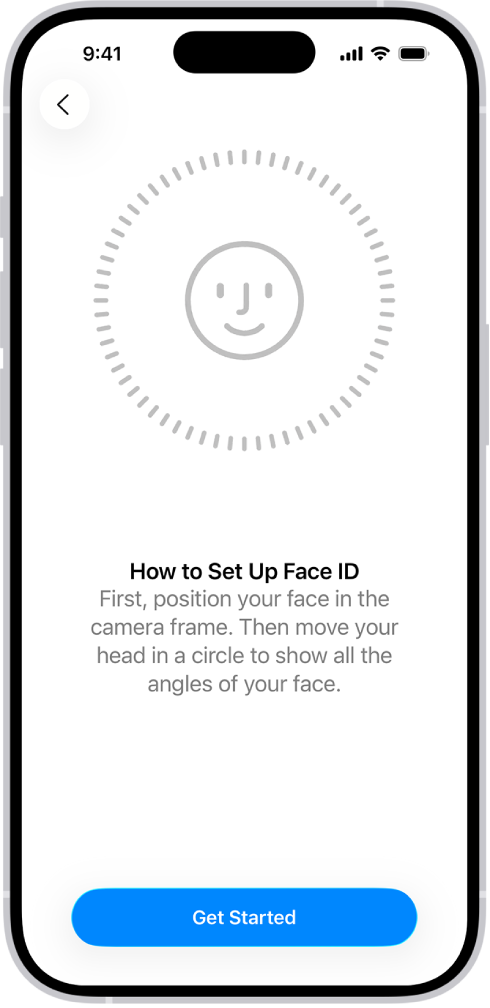
- Adjust Require Attention for Face ID and Attention Aware Features as desired. Enabling them adds an extra security layer and does not unlock the phone unless you are facing the screen.
Usually, it is just a permission-related issue, but you have the option to reset it if needed.
Finally, you can add an alternate appearance. First, open Settings > Face ID & Passcode. Then, tap Set Up an Alternate Appearance.
3. Audio Issues
Some users might come across audio issues. Remember that it’s a temporary problem and super easy to fix within a couple of steps. Press and hold the Action button to turn Silent mode on. Press and hold the Action button again to turn Silent mode off.
Once the ringer is turned ON, here’s what you need to do on your iPhone:
- Open Settings and tap Sounds & Haptics.
-
Increase the sound by dragging the slider below Ringtone.
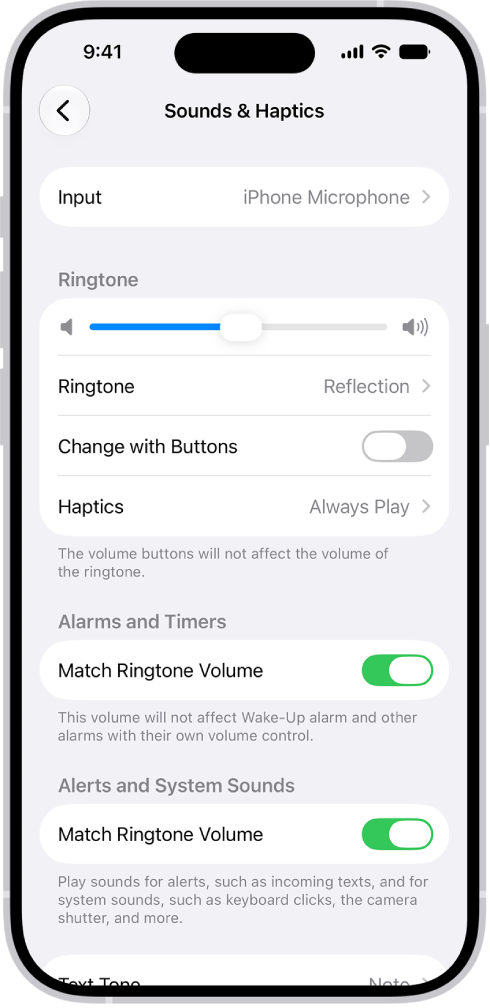
- Stop where you feel the iPhone is at an adequate volume level.
If your ringer is on full, but the speakers don’t produce sound, restart your iPhone. Still not successful? Maybe your speakers are damaged or filled with dust—time to seek the services of a professional.
4. Bluetooth Issues
This might be the most annoying issue on the list because some users might experience connectivity issues, especially when connecting with a non-Apple device. Try fixing this problem by bringing both gadgets up close.
If it still doesn’t work, turn off Bluetooth on both devices and turn it back on. Also, make sure both devices are visible and available for pairing. If the problem persists, you should get your device checked.
5. Wi-Fi Connection Problems
Using your iPhone without a stable Wi-Fi connection is a bit challenging. A poor connection or out-of-range Wi-Fi might be the top reasons your phone isn’t connecting to the network. Apart from this, limited data plans or router issues may also lead to connectivity concerns.
To fix the Wi-Fi problem, you can try the following steps:
- Turn off the Airplane Mode on your iPhone and restart it.
- Go to Settings and tap on Wi-Fi.
-
Tap the Info button next to the Wi-Fi network you’re connected to and tap on Forget This Network.
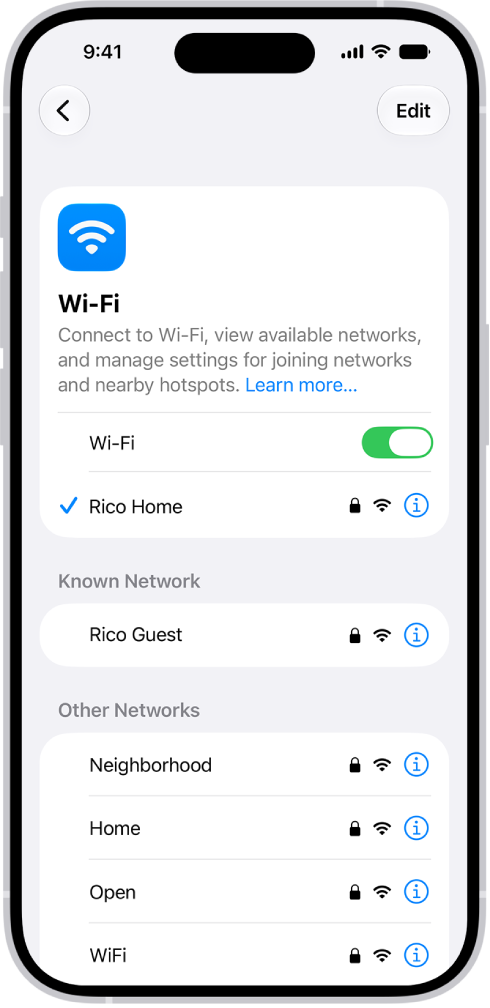
- Now, re-enter the password and connect to the network again.
To toggle your Wi-Fi connection off and on, head to Settings > Wi-Fi. Then, tap the toggle at the top right of the screen. After 30 seconds, tap it again to enable it.
To turn off Connectivity Assist, open Settings > Wi-Fi and toggle off Connectivity Assist.
This fixes the internet connectivity issues. However, you can opt for other steps like:
- Checking if the router is powered on and working smoothly. You can restart it if needed.
- Connecting your iPhone to any other available Wi-Fi network.
- Contacting your internet service provider if nothing seems to work.
6. Personal Hotspot Issues
Your iPhone 18 Pro Max might have a Personal Hotspot issue where the network keeps dropping. The first step will be to check if Personal Hotspot is still active. Also, disable Low Data Mode.
To disconnect and reconnect to the hotspot, here’s what you need to do:
- From Settings, go to Personal Hotspot.
- Use the Allow Others to Join toggle to disable/enable Personal Hotspot.
- Enter the network password on the other device.
Don’t forget that you need an active 3G, 4G LTE, or 5G internet plan with your mobile carrier to use the Personal Hotspot feature on your iPhone.
7. LTE/5G Issues
Sometimes when you change location or live in a close society, it gets difficult for your iPhone to provide fast LTE/5G internet. You can resolve this by enabling and disabling the Airplane Mode, restarting the device, or reinserting the SIM.
Additionally, you can try resetting the network settings. Follow the simple instructions below to do so:
- Navigate to Settings and select General.
- Scroll down until you see Transfer or Reset iPhone.
- Tap on Reset and press Reset Network Settings.
- Your device will require a passcode. Enter that to get the network to function.
8. iCloud Issues
There are multiple iCloud issues that iPhone users might experience. The most common problems include data sync, authentication, storage, and verification.
You can also experience iCloud issues because of poor internet connection or lack of storage. Upgrade the space or clear any unwanted files to see if it works.
When nothing seems to work, troubleshoot your iCloud or seek iCloud support from the official Apple Store.
9. iTunes and App Store Problems
Both the iTunes Store and App Store can sometimes have trouble functioning properly. This can be due to outdated iOS, weak internet connection, or app glitches. Consider the following steps to restore your connection with Apple’s servers:
- Confirm with Apple’s System Status page to check whether the issue is on your end or not.
- Change your internet connection to a faster/more stable one.
- Restart your iPhone, update iOS (if available), and then try relaunching the iTunes Store app or App Store.
If that doesn’t help, you should browse relevant forums on Reddit to see if others are facing similar issues or start a discussion in Apple Support Community.
10. Fast Battery Drainage
Over time and constant use, the battery inside your iPhone may start to deteriorate, and that’s just unstoppable. However, excessive usage might lead to faster battery drainage. So, change your iPhone charger if you feel your phone isn’t holding up the charge as before, especially if you use a third-party one.
However, if it’s a software issue, there’s a chance you can fix it. You can use Low Power Mode, limit your iPhone frame rate, and stop background app refresh to improve your battery’s performance.
To use Low Power Mode, head to Settings > Battery > Power Mode and tap Low Power Mode.
You can limit your iPhone frame rate by opening Settings > Accessibility > Motion and tapping the Limit Frame Rate toggle. Doing this will cap the frame rate at 60 frames per second.
Turn off Background App Refresh by heading to Settings > General > Background App Refresh, tapping Background App Refresh, and selecting Off.
Keep in mind that while Low Power Mode is enabled, it will limit background phone activity, including downloads, certain messages, and mail fetch.
Additionally, disabling Background App Refresh will limit how apps behave in the background and may prevent them from working properly.
You can also contact the nearest Apple store and book an appointment for a battery replacement. Users also get guidance on efficient battery consumption by booking a Genius Bar reservation.
11. Overheating Issues
Most iPhones tend to overheat now and then, especially under heavy workloads. Sometimes, it can also overheat because of using an airtight cover, exposure to sunlight, or generally being in a room with significantly less ventilation.
Regardless of the cause, you may be unable to use certain features like flash or even charge the iPhone when it overheats. An infrequent heat-up is considered normal, and you can avoid that by placing your iPhone under a shade.
However, consistent heating might mean a severe issue waiting to be addressed. So, factory reset your iPhone to clear out any glitches. And if your iPhone 18 Pro Max is still heating up more than usual, contact Apple to get a quick solution.
Fix Your iPhone Issues Like a Pro
Apple’s iPhone is trendy for users who wish to have a modern smartphone experience. Overall, it is a high-end device with premium features, but it’s not without its problems.
Fortunately, most of the issues we listed here are fixable and require simple steps. In fact, we discussed the most persistent problems and how to fix them.
However, in the rare event that nothing we discussed here helped, get expert assistance from Apple Support for additional help.


