Got a tip for us?

Apple Watch

Live Activities—app activities in progress such as a workout, a timer, or music—appear on the Apple Watch face and at the top of the Smart Stack.

You can see them at a glance, and choose when and how Live Activities appear.

Here’s how to view Live Activities on Apple Watch.

See Live Activities

  1. Tap the Live Activity at the top of the watch face.

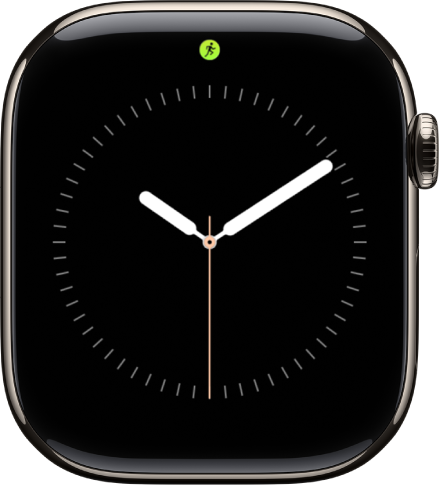
    The Apple Watch face with a Live Activity dot at the top center.

  2. To return to the watch face, press the Digital Crown.

Choose when and how Live Activities appear

  1. Start the Settings app on your Apple Watch.
  2. Tap Smart Stack and tap Live Activities. Then set any of the options.

See also

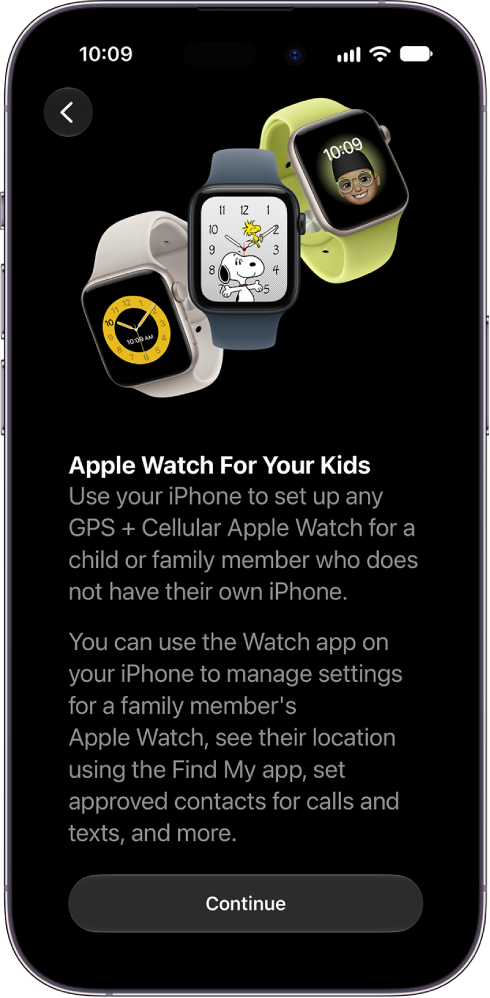
You can set up any Apple Watch with cellular for your child or family member, even if they don’t have their own iPhone. To do so, you must be the family organizer or parent/guardian in your Family Sharing group.

On watchOS 27, your child or family member must be part of your Family Sharing group and have a cellular-capable Apple Watch SE 3 or Apple Watch Series 9 or later. Their watch doesn’t have to use the same cellular carrier as the iPhone you manage it with, but the iPhone you use to pair and set up the watch must be within normal Bluetooth range (about 33 feet or 10 meters) of it to manage settings and update the software.

An iPhone showing setup details for Apple Watch For Your Kids.

Apple Watch For Your Kids is not available in all countries or regions.

With the Photos app on your Apple Watch, you can view photos from the iPhone album of your choice, featured photos, and Memories.

At first, it shows photos from your Favorites album, but you can change the album it uses. You can also stop photo syncing, or limit photo storage on Apple Watch. It all starts in the Apple Watch app on your iPhone.

Here’s how to choose a photo album and manage storage on Apple Watch.

Choose the album to store on Apple Watch

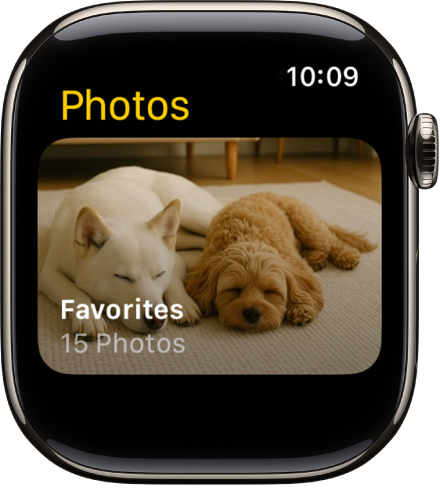
The Photos app on Apple Watch showing an album called Favorites.

A new Apple Watch displays photos from your Favorites album, meaning the photos you tagged as favorites, though you can change the album it uses.

  1. Start the Apple Watch app on your iPhone.
  2. Tap My Watch, go to Photos, tap Sync Album, and then choose the album.

Removing a photo from Apple Watch happens in the Photos app on your iPhone, where you remove the image from the album you’ve synced.

You create a new album for Apple Watch photos in the Photos app on your iPhone.

Show featured photos and Memories on Apple Watch

Featured photos and Memories from the photos library on your iPhone can sync to your Apple Watch automatically.

  1. Start the Apple Watch app on your iPhone.
  2. Tap My Watch, tap Photos, and turn on Sync Memories and Sync Featured Photos.

Stop photo syncing

If you don’t want your iPhone to sync Memories, featured photos, or photos from an album you’ve chosen, follow these steps:

  1. Start the Apple Watch app on your iPhone.
  2. Tap My Watch and tap Photos. Then turn off Photo Syncing.

Limit photo storage on Apple Watch

Available space decides the number of photos stored on your Apple Watch, so you can limit it to save space for songs or other content.

  1. Start the Apple Watch app on your iPhone.
  2. Tap My Watch and then go to Photos and tap Photos Limit.

To see how many photos are on your Apple Watch, do one of the following:

  • Go to the Settings app on your Apple Watch, tap General, then tap About.
  • Go to the Apple Watch app on your iPhone, tap My Watch, tap General, then tap About.

To see how much space is used for your photos, go to the Settings app on your Apple Watch, tap General, then tap Storage. To do this on your iPhone, open the Apple Watch app, tap My Watch, tap General, then tap Storage.

Take a screenshot of Apple Watch

  1. Go to the Settings app on your Apple Watch, tap General, and then tap Screenshots, then turn on Enable Screenshots.
  2. Press the Digital Crown and the side button at the same time to take a picture of the screen.

Screenshots end up in Photos on your iPhone.

See also

Tag: Photos

In the Photos app, you can browse your photos, view Live Photos, and share your favorite shots.

You can browse memories, Featured Photos, and albums you’ve synced to your Apple Watch, and even see an entire photo album at once.

Here’s how to view photos and Memories on Apple Watch.

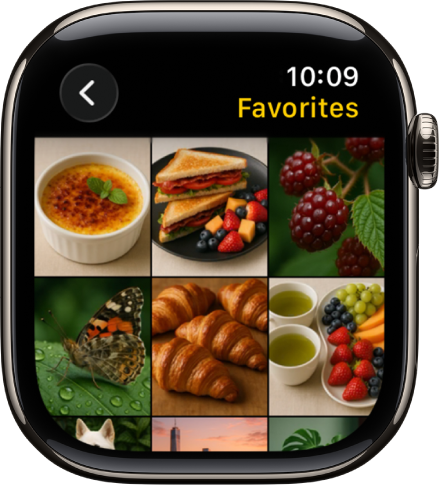
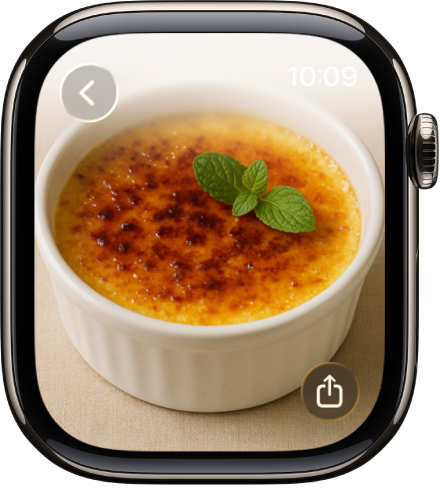
The Photos app on Apple Watch showing an album called Favorites, with several photos displayed in a grid.

Browse photos in the Photos app on Apple Watch

Go to the Photos app on your Apple Watch and use these actions to browse your photos.

  1. Tap a memory, Featured Photos, or an album you’ve synced to your Apple Watch.
  2. Tap a photo to view it.
  3. Swipe left or right to see other photos.
    • Turn the Digital Crown to zoom, or drag to pan a photo.
    • Double-tap to fill the screen or see the entire image.
    • Zoom all the way out to see the entire photo album.

While viewing a photo, turn the Digital Crown to zoom, drag to pan, or double-tap to switch between viewing all of the photo and filling the screen. Swipe left or right to see the next photo. A Share button is on the bottom right.

View a Live Photo on Apple Watch

Look for the Live Photo symbol in the bottom-left corner of a photo, then touch and hold the photo.

Share a photo

While viewing a photo in the Photos app on your Apple Watch, tap the Action button, then choose a sharing option.

You can choose a different photo album; read our article, Choose a photo album and manage storage.

See also

Tag: Photos

Refer to the following resources to get more Apple Watch-related software and service information. They cover managing your Apple Account, using iCloud, finding your Apple Watch serial number, obtaining warranty service, and battery service. There’s more, too.

To learn about Do this
Apple Watch service and support, tips, forums, and Apple software downloads See the Apple Watch Support website.
The latest information about Apple Watch See the Apple Watch website.
Getting personalized support (not available in all countries or regions) See the Apple Support website.
Managing your Apple Account Sign in to your Apple Account.
Using iCloud See the iCloud User Guide.
Finding your Apple Watch serial number, IMEI, or ICCID You can find your Apple Watch serial number on the Apple Watch packaging. Or, on your Apple Watch, go to the Settings app, then go to General > About.
Obtaining warranty service First follow the advice in this guide, then see the Apple Watch Support website.
Viewing Apple Watch regulatory information On your Apple Watch, go to the Settings app, then go to General > Regulatory.

You can also view this information on the paired iPhone—go to the Apple Watch app on your iPhone, tap My Watch, tap General, then tap About. Scroll to the bottom and tap Legal to view Legal Notices, License, information on where to find the Warranty, and RF Exposure information.

Battery service See the Battery Service and Recycling website and the Apple Watch Service and Repair website.
Viewing the Apple Watch User Guide from the Apple Watch app Go to the Apple Watch app on your iPhone, tap Discover at the bottom-right, then tap Apple Watch User Guide.
Viewing the Apple Watch User Guide from the Tips app Go to the Tips app on your iPhone, scroll down, then tap Apple Watch below User Guides.

Use Siri to control your Apple Watch and other Apple devices with just your voice—like opening apps, adjusting settings, and locating your other Apple devices or items with AirTags. You can also control smart home accessories that you set up in the Home app.

On your watch, Siri can open apps and settings, adjust utility and accessibility settings, and contact emergency services. At home, you can ask Siri to turn on lights or adjust the thermostat, even when you’re not there, and make an announcement.

Control your Apple Watch

Siri: On your Apple Watch, activate Siri, then see the ideas below for requests you can make.

  • Open apps and settings

    • “Open the Sleep app”
    • “Open Settings”
    • “Read my notifications”
  • Adjust utility settings

    • “Turn on Airplane Mode”
  • Adjust accessibility settings

    • “Turn on VoiceOver”
  • Contact emergency services

    • “Hey Siri, call 911”
    • “Start the siren” (Apple Watch Ultra Models only)

Control your home

Siri can turn on lights, adjust the thermostat, and control the products you use in your home, even when you’re away.

Siri: On your Apple Watch, activate Siri, then see the ideas below for requests you can make.

  • Control accessories

    • “Turn on the lights”
    • “Set the temperature to 72 degrees”
  • Adjust an accessory

    • “Siri, make it cooler”
    • “Set my reading scene”
  • Control a room or zone

    • “Turn off the lights in the office.”
  • Check your home’s status

    • “Siri, is the front door locked?”
    • “Hey Siri, are the upstairs lights on?”
  • Make an announcement

    • “Hey Siri, announce upstairs ‘I’m going to the store.'”
    • “Hey Siri, tell the office ‘The movie is starting'”
    • “Siri, intercom, ‘Time for school'”
    • “Siri, it’s movie night”

See also

Tags: Home, Siri

The Home app provides a secure way to control your smart home accessories—such as lights, locks, smart TVs, thermostats, window shades, and smart plugs. You can also use the intercom and watch video streams from your HomeKit Secure Video cameras.

The available controls depend on the type of accessory, and a scene lets you control multiple accessories at once. And with more than one home set up, you can pick which one to view.

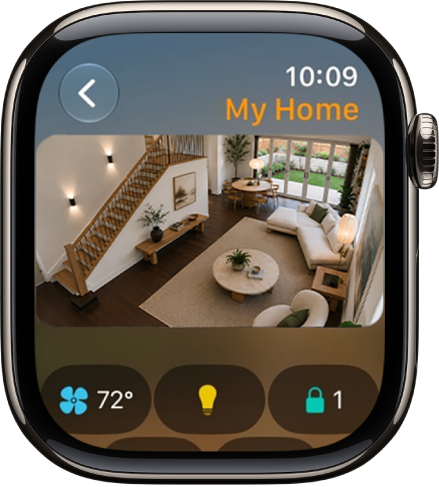
The Home app screen showing four camera views. Along the bottom are buttons for climate controls, lighting accessories, and locks.

Note: Before you can control your home from Apple Watch, you need to set it up in the Home app.

View and control accessories and scenes

  1. Start the Home app on your Apple Watch.
  2. Scroll to see video streams from your cameras, categories (Climate, Lights, Security, Speakers and TV, or Energy), scenes, and accessories.
  3. Do any of the following:

    • Control an accessory: Tap the accessory.

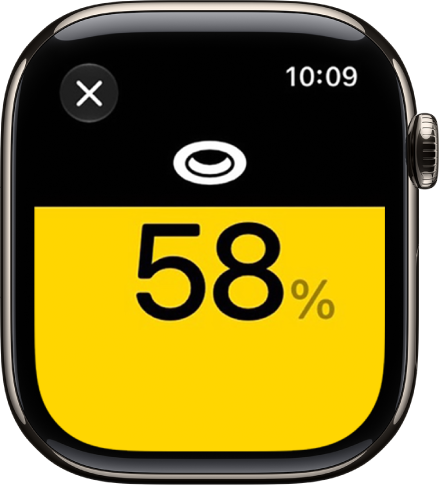
      The available controls depend on the type of accessory. For example, with some lightbulbs, you can adjust the brightness.

      A control for a lighting accessory with the brightness set to 58%.

    • Control multiple accessories at once: Tap a scene.
    • View the Grid Forecast: Tap the Energy category.

Send and receive intercom messages

  1. Start the Home app on your Apple Watch.
  2. Swipe down and tap the Intercom button.
  3. Say something like, “Who ate the last piece of pizza?”
  4. Tap Done.

View a different home

With more than one home set up, you choose which one to view on your Apple Watch.

  1. Start the Home app on your Apple Watch.
  2. Tap the Back button to see the list of homes and tap a home.

See also

Tag: Home

watchOS 11 was announced at WWDC 2024. While the latest software won’t launch officially until later this year, you can get your hands on the beta now — although we don’t recommend it for everyone.

watchOS 11 compatible Apple Watch models

To install the watchOS 11 developer beta on your Apple Watch, you must have one of the following Apple Watch models:

  • Apple Watch Series 5
  • Apple Watch Series 6
  • Apple Watch Series 7
  • Apple Watch Series 8
  • Apple Watch Series 9
  • Apple Watch Ultra
  • Apple Watch Ultra 2

HOW TO DOWNLOAD THE WATCHOS 11 BETA

To install watchOS 11 developer beta on Apple Watch, you’ll need to:

  • Ensure your Apple Watch has at least a 50 percent of battery power.
  • Ensure your iPhone is connected to Wi-Fi.
  • Keep your iPhone next to your Apple Watch to make sure they’re in range.
  • Make sure your iPhone is running the latest iOS 18 beta.

Here’s how to install watchOS 11 beta on your Apple Watch:

  1. Open the Apple Watch app on your iPhone.
  2. Tap My Watch.
  3. Tap General.
  4. Tap Software Update.
  5. Tap Beta updates.
  6. Choose watchOS 11 Developer Beta.
  7. If prompted for your iPhone passcode or Apple Watch passcode, enter the passcode.
  8. Wait for the Apple logo and progress bar to appear. When the update is done, your Apple Watch will restart.

Final Thoughts

Whether we’re talking about phone or watches, beta updates can be full of bugs in unlikely places. They’re primarily for developers and early adopters, and there are processes in place for reporting bugs and improve your iOS and watchOS experiences. See Apple’s Beta Software Program site for more details.

watchOS 11 is going to be a significant update, so if it does take a long time to install, don’t worry, this is normal. Likewise with the iOS 18 beta software. However, after this lengthy process is complete, you’ll gain access to all of the new features on watchOS 11 and iOS 18 earlier than anyone else.

As the official launch in September draws nearer, you can expect to see fewer bugs as things get ironed out. We have no idea exactly what sort of bugs you can expect to see – but that’s part of the ‘fun’ of beta testing.

If you are set on downloading Apple’s beta software across all platforms, then you might also be interested in how to download the macOS Sequoia beta on your Mac.

Can’t update your Apple Watch to the latest version of watchOS? Here’s what to do when your Apple Watch won’t update.

Apple just released a new watchOS update and you’re eager to try all of the new features it includes. You go to update your Apple Watch to the latest version of watchOS and BAM! Your Apple Watch won’t update. No matter how many times you try, error messages keep popping up or the Apple Watch takes too long to update, and it’s getting infuriating. In this article, I’ll explain why your Apple Watch won’t update and show you how to fix the problem.

Five Apple Watch devices show features in watchOS 10, including a new Smart Stack and two additional watch faces.  

Why is my Apple Watch not letting me update?

You might be unable to update your Apple Watch for one of these reasons:

  • Your watch doesn’t support the latest version of WatchOS
  • There isn’t enough available storage space on your watch
  • The update takes a long time to download
  • Your watch isn’t able to reach the update server
  • The update doesn’t complete

How to fix an Apple Watch that won’t update

Here’s how to fix your Apple Watch when it won’t let you update watchOS:

1. Charge Your Apple Watch

Let’s start with some basics before diving into more advanced troubleshooting. As you probably know, your Apple Watch won’t let you upgrade if you don’t have enough battery power. This is to prevent your watch from shutting off in the middle of an update, which can cause serious problems.

Make sure your Apple Watch has at least 50% battery charge before starting the OS update. It’s a good idea to leave it on the charger while the process runs, too. That way, if it takes longer than expected, your watch won’t run out of power.

2. Are Apple Servers Overloaded?

When Apple releases a new watchOS update, thousands of people are connecting their Apple Watches to Apple servers to download and install it. With all those people connecting at the same time, Apple’s server may struggle to keep up, which could be the reason why your Apple Watch won’t update.

If you receive an error when trying to update to the latest version of watchOS, try waiting for a while. You should have better luck later when the update servers aren’t under as much strain. Visit Apple’s website to see if their servers are working properly.

3. Make Sure You Have Enough Free Space

A lack of storage is a common culprit for a faulty update process. If you don’t have enough storage to update your Apple Watch, your Apple Watch might say that you need more available storage to install a watchOS update.

To check how much available storage your watch has, follow the steps below:

  1. Open Settings.
  2. Tap General.
  3. Tap Storage.

Alternatively:

  1. Open the Watch app on your iPhone.
  2. Tap General.
  3. Scroll down, and select Storage. In this menu, you’ll see how much storage you have used and remaining.

If your Apple Watch doesn’t have enough room to store the update, try to free up storage on your watch, then try to install the watchOS update. You can free up storage on your Apple Watch by removing any music or removing any photos that you’ve synced to your watch. You can also remove some apps to free up more space.

4. Restart Your Apple Watch

A one-off bug can prevent you from updating your Apple Watch. Simply restart your Apple Watch, then try updating it again. Restarting your watch will restart its processes and hopefully clear up any temporary glitches.

  1. Press and hold the side button until the Power icon appears at the top-right of your screen.
  2. Tap the Power icon.
  3. Drag the Power Off slider to the right to turn off your watch.
  4. Turn on your watch by holding the side button till the Apple logo appears on the display.

5. Make Sure Your Apple Watch Has An Internet Connection

If you still can’t update your Apple Watch, the next step is to take a look at your internet connection. A slow or unreliable Wi-Fi connection means you may not be able to update properly.

Make sure you’re connected to a reliable Wi-Fi network when you try to update. It’s worth restarting your router if you haven’t done so in a while. If you have continued issues, you might also try connecting to a different Wi-Fi network and seeing if you have the same issue there.

6. Is Your Apple Watch Compatible With The New Update?

Almost every year, a few older Apple Watches lose their compatibility with new watchOS updates. It’s possible your Apple Watch won’t update because it’s not compatible with the new update. For example, watchOS 10 requires iPhone XS, iPhone XR or later with iOS 17 and one of the following Apple Watch models:

  • Apple Watch Series 4
  • Apple Watch Series 5
  • Apple Watch SE
  • Apple Watch Series 6
  • Apple Watch Series 7
  • Apple Watch Series 8
  • Apple Watch Ultra

7. Unpair and update your Apple Watch

  1. Keep your Apple Watch and iPhone close together as you unpair them.
  2. Launch the Watch app on your iPhone.
  3. Navigate to the My Watch tab and select All Watches at the top of the display.
  4. Tap on the info button next to the watch that you want to unpair.
  5. Tap on Unpair Apple Watch.
  6. Tap again to confirm your decision.

Next, set up your Apple Watch with your iPhone. When asked whether you want to set up as new or restore from a backup, choose to set up as new. Then follow the onscreen instructions to complete setup.

If you want to update to the watchOS beta, reinstall the beta profile after setup is complete.

Finally, update your Apple Watch.

My Apple Watch won’t update: Problem Fixed!

It’s frustrating when your Apple Watch won’t update. Hopefully, one of these fixes solved your problem and you can now enjoy the latest version of watchOS.

Aside from keeping current with updates, make sure you’re taking good care of your Apple Watch so it serves you for many years.

Here are some watchOS 10 features you might have heard about.
Five Apple Watch devices show features in watchOS 10, including a new Smart Stack and two additional watch faces.  

With watchOS 10, Apple introduced a number of headline new features like redesigned apps, new watch faces, new Smart Stack, and more. But it also made a number of smaller yet notable changes and additions that make your Apple Watch more functional and convenient to use.

In this article, we’ve listed 10 best hidden watchOS 10 features and enhancements, some of which may have gone under your radar. Bear in mind that ‌watchOS 10‌ requires Apple Watch Series 4 or later and an iPhone running iOS 17.

Best watchOS 10 hidden features

Here are some watchOS 10 hidden features you might not have heard about.

1. Redesigned interface

With watchOS 10, redesigned apps provide more information at a glance, and there are new ways to navigate and quickly access content.

The home screen uses machine learning to show you relevant information at the right time of day. Early in the morning? You get meetings and weather information, while later on, you’ll be served other (unspecified) information, probably a traffic report or something similar. Something like a timer will jump to the top of the list when it’s active.

2. Smart Stack

A new Smart Stack contains widgets that display timely information that adapts to the user’s context and can be revealed with a simple turn of the Digital Crown from any watch face. For example, at the beginning of the day, Weather will show the forecast, or, when traveling, the Smart Stack will show boarding passes from Wallet. Calendar and Reminders will reshuffle to the top to display upcoming meetings or tasks, and apps that are running, such as Podcasts, will also move up so they are readily available. Smart Stack also enables users to enjoy a beautiful watch face, like Portraits, while still offering a way to quickly access information they care about.

Apple Watch Series 8 shows the new Smart Stack with currently playing music displayed on top.

3. Two new watch faces

New Watch Faces
watchOS 10 introduces two new artistic and joyful watch faces: Palette and Snoopy. The Palette face depicts time in a wide variety of colors using three distinct overlapping layers, and as the time changes, the colors on the display also shift.
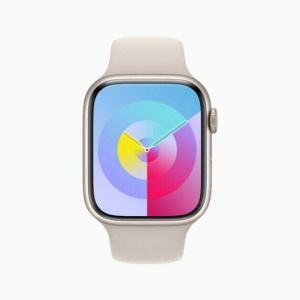
Apple Watch Series 8 shows the new Palette watch face in iris.

Additionally, the beloved comic strip Peanuts comes to life on Apple Watch with a new watch face featuring Snoopy and Woodstock. The characters interact and play with the watch hands, react to the weather conditions in the area, or even get active when the user does a workout.
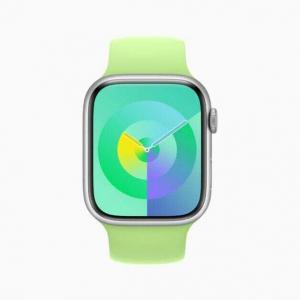
Apple Watch Series 8 shows the new Palette watch face in emerald.

4. Cycling

Apple Watch is a great device for cyclists, with features including automatic Workout reminders, calorimetry for e-biking, and Fall Detection. watchOS 10 takes this popular activity even further with advanced new metrics, views, and experiences.

When a cycling workout is started from Apple Watch in watchOS 10, it will automatically show up as a Live Activity on iPhone and, when tapped, will utilize the full screen. Workout Views, such as Heart Rate Zones, Elevation, Race Route, Custom Workouts, and a new Cycling Speed view, have been optimized for the display size of iPhone, which can be mounted to a bike for convenient, easy viewing during a ride.

An Apple Watch user is shown riding a bicycle with Apple Watch on their wrist and iPhone mounted to the bike’s handlebars.

Apple Watch can now automatically connect to Bluetooth-enabled cycling accessories, such as power meters, speed sensors, and cadence sensors. This enables brand-new metrics, including cycling power (watts) and cadence (RPM), and additional Workout Views, including Power Zones. Bluetooth connection is supported for Indoor and Outdoor cycling workouts, as well as GymKit.

New algorithms combining sensor data from Apple Watch and connected power meters can estimate Functional Threshold Power (FTP), the highest level of cycling intensity that a rider could theoretically maintain for an hour. Using FTP, Apple Watch calculates personalized Power Zones, used to easily see the current zone and track how long is spent in each, which is an effective and popular way of improving performance.

5. Hiking

The Compass app on Apple Watch is a helpful tool for exploring the great outdoors. With watchOS 10, Compass automatically generates two new waypoints: A Last Cellular Connection Waypoint will estimate the last place with cellular reception, which may be useful for checking messages or making a call. In case of emergencies, a Last Emergency Call Waypoint will estimate where on the route their device had the last connection to any available carrier’s network so that an emergency call can be made.

When preparing routes, a new Elevation view uses altimeter data, offering a three-dimensional view of saved waypoints. And starting in the U.S., Apple Maps displays a new topographic map featuring contour lines, hill shading, elevation details, and points of interest. Users can also search for nearby trails and trailheads, with place cards that include detailed information, like trail length, type, and difficulty.

6. Mental Health monitoring

Mental health is as important as physical health, and research shows that reflecting on state of mind can help build emotional awareness and resilience. With the Mindfulness app in watchOS 10, users can discreetly and conveniently log their momentary emotions and daily moods. Users can turn the Digital Crown to scroll through engaging, multidimensional shapes to choose how they are feeling, select what is having the biggest impact on them, and describe their feelings.

In the Health app in iOS 17 and iPadOS 17, users can see valuable insights to identify what might be contributing to their state of mind — whether it’s associations or lifestyle factors, like sleep or exercise. Additionally, depression and anxiety assessments often used in clinics are now easily accessible in the Health app and can help users determine their risk level, connect to resources available in their region, and create a PDF to share with their doctor.

7. Daylight Sensitivity

Apple is concerned about children developing myopia, or near-sightedness, and says that it’s less likely to develop if children spend at least 80 minutes or more in daylight. Apple Watch can now measure the time spent outside using the ambient light sensor, and parents can monitor it in the Health app. It comes as Screen Distance is being used across other devices to help people avoid holding their iPhones and iPads too close, which can be another cause of issues while children are developing, apparently.

Time spent in daylight can provide additional benefits to physical and mental health for all ages. And children who do not have their own iPhone can use Family Setup to pair their Apple Watch to their parent’s iPhone, giving parents visibility into the amount of time their kids are spending in daylight with Health Sharing.

The new Screen Distance feature uses the same TrueDepth camera that powers Face ID in iPad and iPhone to encourage users to move their device farther away after holding it closer than 12 inches for an extended period of time.

When a device is locked with a passcode, Touch ID, or Face ID, all Health app data, including mental health and vision health data, is encrypted.

8. Widgets

Apple has revamped and improved its old Glances system into all-new widgets, which sit at the forefront of the watchOS 10 design ethos. The aim is to allow you to open up your watch and use it instantly by scrolling through your favorite widgets with the Digital Crown rather than picking through the polka-dot Where’s Waldo? cloud of apps.

Widgets enable you to access some of your most-often functionalities such as weather (which got a big redesign), workout metrics, stock tickers, timers and more. The timer, for example, can be activated via the Complications widget with a simple press of the crown, and then you can check the timer simply by scrolling up from your watch face.

9. Enterprise

Apple Watch offers enterprise customers features to enhance productivity and safety in the office or in the field, such as hands-free communication and responding to notifications on the go, or Fall Detection on a job site. watchOS 10 introduces support for Mobile Device Management (MDM), enabling enterprise customers to remotely and centrally install apps and configure accounts on a fleet of devices, with features such as passcode enforcement, and configuring Wi-Fi and VPN settings. With this update, Apple Watch can further help improve employee wellness, productivity and health, and safety monitoring.

10. APIs for Workout App Developers

watchOS 10 includes new APIs for workout app developers that will allow them to create compelling new experiences. The powerful motion sensors on both Apple Watch Series 8 and Apple Watch Ultra can detect rapid changes in velocity and acceleration, such as when swinging a golf club or a tennis racket. Now, developers will have access to this high-frequency motion data, so apps like SwingVision can analyze serve pronation, which is the twisting motion of the forearm, wrist, and hand, and Golfshot can detect small wrist movements to refine a golf swing.

watchOS 10 supported devices

The big news here is that Apple is dropping support for the Apple Watch Series 3. The 2018 model will no longer get updates and will miss out on watchOS 10. If you have an Apple Watch Series 4 or above paired with iPhone Xs or later, you are eligible for the update.

Here’s a list of Apple Watch models that are compatible with watchOS 10:

  • Apple Watch Series 4
  • Apple Watch Series 5
  • Apple Watch SE (Both models)
  • Apple Watch Series 6
  • Apple Watch Series 7
  • Apple Watch Series 8
  • Apple Watch Ultra

Enjoy All the New watchOS 10 Features

While not getting a lot of attention, these lesser-known improvements in watchOS 10 continue to make the experience even better.

Whether you’re using widgets, Watch Faces, enjoying cycling features, or something else, Apple Watch is a great way to enjoy the Apple experience on a wearable device.