Got a tip for us?

Apple Watch

The Apple Watch is great for health and fitness use, but that’s not all. Here are some other uses of an Apple Watch that you might not know about.

We’ve spent the last year digging into all of the weird and wonderful things that the best fitness trackers, like the Apple Watch, can offer, and we’ve discovered some important uses of an Apple Watch we think everyone should be aware of.

Without further ado, here are the best uses of an Apple Watch that you should know about.

1. Detailed sleep quality reports

Most people know this, but thought it worthy of a highlight at the top in any case. An Apple Watch offers the best way to track sleep outside of a professional study, as it can track things and offer trend reports that a phone app just can’t.

Apple’s sleep tracking is one of the best, offering 14-day trends, weekday and weekend sleep schedules, goals, sleep focus mode and a whole lot more. We love the ‘wind down’ feature that reminds us to wrap up our day and prepare our body and mind for bedtime.

2. Auto workout playlists (for Apple Music)

If you don’t want to bother carrying your iPhone with you during workout but still want to listen to your Apple Music playlist, you can do so with your Apple Watch—even if you’re offline!

it’s perhaps understandable that an Apple Music subscription opens up a whole new set of integrations. The best one might be the ability to tie a particular playlist with a workout, eliminating the need to jump around apps just when you want to set off.

3. Hand washing timer

Be honest, has your ‘happy birthday’ singing been lacking while washing your hands lately? While we were all diligent about hand hygiene just a couple of years ago, like any habit it can be difficult to stick to it long-term. Thankfully the Apple Watch has a timer specially designed for hand-washing, so you can be sure that you’re doing a thorough job – no singing required.

4. Cardio fitness alerts

Unless you’ve splashed out on a personal trainer, it’s likely that you only have a rough idea of your cardio fitness levels based on how you feel during and after a period of activity. The Apple Watch makes this a lot more precise, using data like your age, sex, weight, height, medications, and your VO² max range. You will even get an alert when this data indicates your fitness is lower than average.

5. Fall detection

Smartwatches aren’t just for athletes – they also have many functions for everyday safety and well-being. Apple Watch’s Fall Detection feature, for example, is a way to ensure an accident doesn’t go unnoticed. If the device detects that you have fallen down, it will display an option to call emergency services or press the ‘I’m OK’ button if things aren’t that serious. After a minute, help will be called automatically. You can also choose key contacts to be notified.

6. Access Siri from anywhere

Siri might not be as much of a household name as Google Assistant or Alexa, but it’s a great smart assistant if you’re an Apple user. Being able to access Siri from your Apple Watch is a bit of a gamechanger, as it means you have the helpful robot with you at all times (don’t worry, you can stop her from listening if you want), even without a HomePod Mini in the vicinity. Ask her questions, translate conversations on the go, or set timers and alerts with your voice.

7. Decompress with ‘Do Not Disturb’ mode

The ‘Do Not Disturb’ mode might be our favorite thing about the Apple Watch and iPhone, allowing us to literally switch off unnecessary distractions either when we want to get down to some focused work or wind down for the evening. Just a few taps on your wrist and precious silence is achievable. This mode silences everything except alarms, and you can also set certain contacts to be able to get through in an emergency. Otherwise, your time and attention are yours.

8. Get some ‘me time’ with apps like Headspace

Apple Health has its own meditation and mindfulness features, but we’re big fans of Headspace for its approachable tone and abundance of content. We’ve found that having Headspace (and other apps like Calm or Simple Habit) on your Apple Watch means you’re much more likely to fire up a guided meditation or calming video than if you had to unlock your phone in the morning.

9. Accessorise with different straps

Let’s face it, smartwatches are fantastic in a lot of ways, but they aren’t always the most stylish. Thankfully, there are a ton of third-party brands that have brought out their own straps that you can retrofit onto the Apple Watch face.sure the band matches your model.

10. Control Your iPhone’s Camera With Your Apple Watch

One of the coolest features on your Apple Watch is that you can use it as a camera remote to control your iPhone’s camera.

Those times when you are alone, and want to position your iPhone for a photo and then take the photo from a distance, you can use your Apple Watch to view the iPhone camera image and take the photo. You can also use your Apple Watch to set a shutter timer—this gives you time to lower your wrist and raise your eyes when you’re in the shot.

Use Your Apple Watch to Its Fullest

If you own an Apple Watch, you probably know all about its fitness-related uses, but there’s a lot more to smartwatches than that. With these 10 lesser-known uses of an Apple Watch, you can be sure to make the most out of it.

If you just purchased the Apple Watch series 8, there are a variety of hacks that can help you get the most out of your new wearable. Read on for some guidance on our favorite Apple Watch series 8 hacks to help you make the most out of it.

1. Setting up your Apple Watch activity rings

For the vast majority of people, the Apple Watch is first and foremost a fitness-focused wearable. The key to this is a trio of rings each represented by a different color: red for move, green for exercise, and blue for stand.

By default, the green exercise ring closes when you log 30 minutes of intense activity, the blue stand or roll ring closes when you move around for at least one minute of 12 different hours, and the red move ring closes when you meet your personal goal for active calories burned in a day.

Apple also offers you the ability to customize your exercise and stand goals. Maybe you’re recovering from an injury and 12 stand hours paired with 30 minutes of exercise is too much for your body to handle. People have also been calling on Apple to integrate rest days into the Apple Watch rings system, and this feature at least gives users more control over their goals.

Follow the steps below to change your Apple Watch move, exercise, and stand goals:

  1. On your Apple Watch, open the Activity app.
  2. Scroll down to the bottom and find the “Change Goals” button.
  3. Use the or – buttons to adjust your goals, or use the Digital Crown.
  4. Tap “OK” to confirm your changes.

The exercise ring can be lowered or raised in intervals of five, down to a minimum of 10 minutes or a maximum of 60 minutes. The stand goal can be changed in single-hour intervals, down to a minimum of six hours. You can’t increase the stand goal beyond the default 12-hour mark.

2. Customizing your watch face

Another cool Apple Watch series 8 hack is the ability to customize watch face to your liking. On your watch face, you can add bits of information known as complications, including things such as weather, activity data, heart rate information, and much more. The easiest way to build an Apple Watch face is with the Apple Watch app on iPhone.

You can find the entire library of watch faces in the “Face Gallery” tab of the app, and as you build them, you can add faces to your personal collection. Once you create multiple watch faces, you can swipe between them from your Apple Watch, making it easy to adjust on the fly for different scenarios.

3. Apple Watch App Store

Another Apple Watch Series 8 hack most people don’t know is that you can find apps built specifically for the Watch in the watchOS App Store.

  1. Press the digital crown on your Apple Watch.
  2. Look for the App Store icon and tap on it. Here, you’ll be able to easily find and install dedicated Apple Watch applications without using your iPhone at all.

4. Sharing your activity

Another great Apple Watch series 8 hack is the ability to share your activity data with friends and family. When you do this, you can see when your friends complete workouts, how much progress they’ve made towards their goals, and when they earn new awards.

To share your Apple Watch activity data with others, follow the steps below:

  1. Start the Fitness app on your iPhone.
  2. Tap the sharing icon located at the bottom-right corner.
  3. Tap the “ ” button located at the top corner.
  4. Start typing a name, then tap the name you’d like to add. If the other person has an Apple Watch the name will turn red.
  5. Hit the Send button, then wait for your friend to accept your Activity request. Once accepted, you’ll receive a notification on your Apple Watch.

5. Set up health monitoring features

The Apple Watch series 8 is not only useful for deliberately tracking your fitness progress, but also for passively monitoring it in the background.

Fall Detection

One such feature is called Fall Detection, and it uses the gyroscope and accelerometer to detect if you’ve fallen, and more importantly, if you’ve fallen and cannot get back up. By default, Fall Detection is disabled for users under the age of 65, but you can manually enable it by following the steps below:

  1. Start the Apple Watch app on your iPhone.
  2. Go to Emergency SOS.
  3. Find the Fall Detection toggle. Apple warns that more physically active users may trigger Fall Detection even when you haven’t fallen. This is due to high impact activity, and may appear as a fall.
  4. Tap Confirm.

6. Heart

Another cool Apple Watch series 8 hack is that you can enable a suite of features that will allow your Watch to help you look after your heart.

  1. Open the Apple Watch app on your iPhone.

  2. Find the Heart category. In this section, you can enable the following features:

  3. Install the ECG app for taking electrocardiograms from your Apple Watch

  4. Set up Cardio Fitness Levels and notifications, which are a strong indicator of your overall health.

  5. Irregular Rhythm notifications for receiving a notification when Apple Watch identifies multiple heart rhythms that may be atrial fibrillation.

  6. High Heart Rate notifications for receiving a notification when Apple Watch detects a heart rate that rises to a certain level while you appear inactive.

  7. Low Heart Rate notifications for receiving notification when Apple Watch detects a heart rate that falls below 50 bpm for 10 minutes.

7. Blood oxygen

The Apple Watch Series 8 offers support for taking blood oxygen readings with your device. Apple Watch can also take measurements in the background so you have data to regularly reflect on.

  1. Launch the Watch app on your iPhone,
  2. Find the Blood Oxygen category and tap on it.
  3. Enable the settings as you desire.

8. Rein in your notifications

The Apple Watch series 8 makes it pretty easy to stay on top of your notifications. Every time an app sends a push notification, you’ll get a tap on the wrist and hear a sound. For many people, however, this can actually be overwhelming and unnecessary.

To manage notifications on your Apple Watch, follow the steps below:

  1. Start the Apple Watch app on your iPhone.
  2. Choose the Notifications category.

Here, you can see a list of applications and manage notifications as necessary. My recommendation is to limit notifications as much as possible on your Apple Watch, otherwise, you might become overwhelmed.

9. Check out Apple Fitness

Apple Fitness offers access to a library of hundreds of on-demand workouts across popular categories such as running, cycling, HIIT, rowing, yoga, and more.

Apple Fitness features deep integration with Apple Watch series 8, showing live data from your Apple Watch on the screen during your workout. Plus, if you recently got a new Apple Watch, you likely have three months of free access to the service.

You can find Apple Fitness in the Fitness app on your iPhone or Apple TV. It’s also available on the iPad, and you can download it from the iPadOS App Store to get started.

10. Rearrange Control Center

Just like Control Center on your iPhone, Control Center on the Apple Watch is where you go to quickly adjust settings like do not disturb and airplane mode and to activate the flashlight.

You may find the default list of options in the Control Center isn’t the best fit for how you use your watch, however, and you want to rearrange the list. For me, that means moving the Bedtime toggle from near the bottom of the list to the top. That way when I want to track my sleep over the weekend when I don’t have sleep goals set, I can swipe up and tap the icon.

To access the Control Center on your watch series 8:

  1. Swipe up from the bottom of the watch face, or when in an app you can long-press on the bottom of the screen until you see Control Center start to slide up, after which you just need to slide your finger up to access it. The same trick works to view your notifications from anywhere.
  2. Change the order, or hide some buttons in the Control Center by tapping the Edit button at the bottom of the list. The icons will begin to jiggle and show a red minus sign to hide an option. Drag and drop the icons into your preferred order, or tap the red minus button to remove the option altogether.
  3. When you’re done, tap Done or press the Digital Crown on the side of your watch to go back to the watch face.

Apple Watches are undoubtedly the most expensive smartwatchs on the market.

From their sleek design to the user-friendly interface, there are so many reasons Apple Watchs are so expensive.

Apple Watch was launched in 2016 and since then it has been ruling the smartwatch category for about 6 years now.

There are multiple reasons why Apple Watch is quite expensive than other options available in the market.

Top 10 reasons why Apple Watches are so expensive

1. Accurate Fitness tracking

An Apple Watch can help you meet your sleep goals, track important information related to your heart, log your medications, encourage you to wash your hands, and track your menstrual cycle.

When it comes to the smartwatch users look for fitness-tracking features. There are a number of brands available in the market that are equipped with these features but the problem is accuracy. The accuracy is not up to the mark that gives you false data.

It can be disappointing to have such smartwatches that cannot track the activities for which you have bought them. But Apple fitness watches are upto the mark because they come with insane fitness and health tracking sensors and algorithms.

The overall reliability of an Apple Watch also adds to the overall watch pricing.

See also: Can the Apple Watch Series 8 measure blood pressure?

2. Durable material

One of the most apparent reasons why an Apple Watch is so expensive takes us to the physical materials it is made from. Just like any other Apple Products, an Apple Watches must be of a certain build quality to command their hefty ‘premium’ price tag. As such, Apple cannot skimp on their materials.

The main difference between other smartwatches and Apple Watches is the lifetime use of the watch.

After purchasing an Android smartwatch, it may function quickly and efficiently with performance comparable to that of an Apple Watch.

However, the performance quickly starts to decrease, usually within six to seven months.

Users can reset the watch to bring back some of its performance capability, but it will never be able to function as it did when it was first purchased.

Apple Watches, on the other hand, retain their performance capability for years.

They can still function as fast as they did when they were first purchased.

The main reason for this is that Apple uses extremely high-quality materials to make an Apple Watch, which ensures a lifetime use capacity much longer than that of Android smartwatches.

While Apple has secured the first position among fitness smart watches it is also best when it comes to durability and build quality. Apple Watch 7 is made from 100% recycled aluminum polished stainless steel that gives it a premium look. These are some of the features that make it a bit more expensive than any other brand available in the market. Even if you go to the market you will find that it’s only Apple watches that are made up of premium material.

To afford these great materials, Apple needs to charge a hefty price.

Even though Apple Watches have a hefty price point, it pays off in the end because the watches last much longer than the several $200 Androids that you would have to buy in the same period as owning a single Apple Watch that could last you many years.

3. Levels of finishing

Feeding off of the point about the materials, the materials that make up an Apple Watch will also usually be finished to a high standard. This means the watch surface has been expertly polished, brushed, and constructed so that it looks immaculate and fits together correctly.

You might notice that an Apple Watch just looks different from afar than a less expensive watch; this is usually due to the higher level of finishing that make up an Apple Watch.

4. User-Friendly Interface

One of the trademark features of Apple devices is the easy-to-use interface that anyone can pick up and learn quickly.

While smartwatches made by other companies can be challenging to figure out and are often riddled with bugs and viruses, Apple Watch has intuitive software that is easy to learn.

For people who need more help in learning how to work an Apple Watch, the Apple store runs several free classes for learning things from beginner to advanced technology levels.

Since the brand’s inception, Apple has sought to erase the need for an instruction manual by making all of the products intuitive.

iTunes made music so easy that it ushered in the extinction of the CD.

Steve Jobs himself said, “Any product that needs a manual is broken.”

One of the reasons Apple Watches are so expensive is that you can buy yourself a lot of time that you would have otherwise spent trying to learn how to use the device.

Apple Watchs are so easy to use that there is no need for an instruction manual.

5. Compatibility With Other Apple Devices

One benefit of the iCloud technology is that it automatically syncs with all your Apple products. An Apple Watch has no exception.

For example, as soon as you receive a message on your iPhone, you can access it on your Apple Watch.

Similarly, when you send a message on your Apple Watch, it will appear automatically in Messages app on your iPhone.

In addition, an Apple Watch can unlock an iPhone, an iPhone a Watch, and a Watch a Mac.

When you buy an Apple Watch, you are buying the seamless technology that allows you to connect your watch to your and others’ Apple products.

6. Exclusive Features

Another primary reason why Apple Watches are so expensive is the exclusive features on Apple smartwatches.

The features on Apple Watches are very impressive.

The company focuses well on retaining the features Apple Watchs already provide with the addition of the latest features.

There are quite a few unique features that are worth looking at and considering as you look at the advantages of an Apple Watch.

For example, Crash Detection feature on Apple Watch Series 8 and Apple Watch Ultra can detect impacts and automatically call emergency services and contacts.

Unusually high or low heart rates and irregular heart rhythms (known as arrhythmias) could be signs of a serious condition.

But many people don’t recognize the symptoms, so the underlying causes often go undiagnosed. Notifications in the Heart Rate app will alert you to these irregularities so you can take action and consult your doctor.

These exclusive features add real value to the Apple Watches.

Of course, the problem with all of these great features is the pricing.

See also: Can the Apple Watch Series 8 detect heart attacks?

7. Sophisticated Appearance

When looking at an Apple Watch, you can usually tell it came from Apple by its design alone.

Besides the tell-tale Apple logo, the brand has a specific look that it tends to lean towards.

They focus on making their products look sophisticated and minimalist.

That sort of design makes products look expensive.

When something looks sophisticated, people often think that it’s probably valuable or was expensive to make.

They’re able to forgive an expensive price tag because the design of the product looks like it matches the price tag.

A lot of people who love the design and look of Apple products are more willing to spend money on a watch that follows that design and look.

While there are other smartwatches out there, since they’re not produced by Apple, they don’t always have that signature look of sophistication.

As such, they may not want to buy them because they doesn’t match the rest of their aesthetic.

They’d rather pay more money to get the right look for their watch.

Apple Watches are expensive because they look expensive.

8. Brand Name

One of the main reasons Apple Watches are expensive is that you’re paying the Apple price.

Apple has a reputation for providing high-quality products.

However, they also have a reputation for selling those high-quality products at expensive prices.

Because Apple has built up its reputation over time, its customers have come to expect high prices.

This allows them to put an expensive price tag on the Apple Watches because people tend to already expect them to be on the expensive side.

A brand name is more expensive than a third party brand because of the trust it has built with its customers.

It markets itself in such a way as to make it look as though it sells superior products.

When people buy those products and find satisfaction with them, it reinforces the marketing and reputation.

The customer is more willing to pay higher prices on brand names because of marketing.

9. Research And Development Costs

Apple doesn’t push out new Watches out of thin air.

A lot of thought goes into the design of each new watch.

Apple spends a lot of money on its research and development team.

Those who are part of the team are responsible for introducing new and innovative features of keeping an Apple Watch useful.

This usually means they need a certain amount of money to start researching and testing new features.

They then thoroughly test the features to see if it gives the kind of results that they want.

If it doesn’t, then that entire project gets scrapped.

That means monetary resources have gone to waste.

Once the team has a features that they think will work, they do more testing.

That requires more money because they need to buy things to test the new features.

The engineers themselves also need to get paid.

Throughout this testing, Apple isn’t earning any money from the sale of that specific product.

They’re in the hole with that item.

Once the engineers approve the new feature, it gets put through development.

Then they’re back to the drawing board for the next big thing.

Apple is able to stay as competitive as it does because it focuses on innovation.

Innovation is expensive.

Apple Watches, thus, are expensive because Apple spends a lot of money on its research and development teams.

10. Associated Costs

There’s a lot that goes into the manufacture and sale of Apple Watches than people might first think.

All those associated costs are also why Apple Watches are expensive.

One of the biggest costs is shipping and transporting.

While Apple Watches aren’t that heavy or large, Apple still needs to ship them in bulk.

Even if the shipping costs are low, those are still costs that Apple needs to cover to earn a profit.

Shipping costs can also vary due to factors outside of Apple’s control.

High gas prices, driver shortages, and even distances to the buyer’s location can all impact the price.

Then there are also markup prices from whatever store is selling the Apple Watch.

If people aren’t buying directly from the Apple store, then they might be buying an Apple Watch from another electronics store or general store.

Those stores need to earn a profit, too, so they mark up the prices of the product.

That adds a few dollars to the price tag as well.

There’s also the cost of marketing the product.

No one is going to buy the Apple Watch if no one knows about it.

Apple has to spend a lot of money to market the Apple Watches.

The company is aware that people have a lot of choices when it comes to getting smartwatches.

As such, it needs to prove through its marketing why its latest Apple Watches are worth it.

That costs money as well.

All these costs add up for Apple which means it needs to sell its Apple Watches at higher prices.

Conclusion

Now you know the main reasons Apple Watches are so expensive. Apple Watch includes great features, durable materials, easy to use interface and more.

You are also making it a lot easier for yourself by purchasing a product that is compatible with other Apple products.

Though Apple Watches include a high price tag, you are investing in a fitness tracker and a watch all in one.

Additionally, you are investing in your own convenience.

The Apple Watch Series 8 offers cool features such as heart rate measurements, statistics revolving around exercise and active calorie burning, and much more. Does it support blood pressure measurements, though?

The Apple Watch Series 8 misses out on blood pressure measurements

As of 2022, non of the released Apple Watch models supports blood pressure measurements, and that includes the Apple Watch Series 8. So if you intend to purchase this wearable for this particular purpose, you may want to look into a dedicated medical device instead. Notably, Apple advises customers not to depend on its watches as medical devices. So if you suspect you have a certain medical condition, consult your doctor immediately.

Apple Watch Series 8 keeps on with the same sizes that launched with Apple Watch Series 7. That’s 45 and 41mm cases and a larger display that’s 20% bigger than Series 4-6/SE and 50% larger than Series 3. However, New with Apple Watch Series 8 is a temperature sensor that enables advanced cycle tracking and new hardware to detect car crashes.

Apple’s temperature sensor measures skin temperature, similar to how other wearables work. The measurements are collected at night while sleeping, and it takes five days for the watch to collect enough data to establish a starting baseline. (According to Apple, the baseline temperature will keep calibrating over time.) From that point on, the measurements only show up in Apple’s Health App on the iPhone, under Skin Temperature.

One more immediately useful area for temperature-sensing data is ovulation tracking, another new watch feature. Similar to how Fitbit and Oura already work, the temperature shifts are used to track fertility cycles, as well as possible interruptions.

The Apple Watch Series 8 also offers great features such as an Always-On display, fast charging, and ECG.

See also: Can the Apple Watch Series 8 detect heart attacks?

If you’re willing to pay more for AOD, ECG, Blood Oxygen monitoring, and the other exclusives, then consider buying an Apple Watch Series 8.

The Apple Watch Series 8 can detect a lot of things, but can it detect heart attacks? Here’s what you need to know about heart attack detection on the Series 8 model.

The Apple Watch Series 8 cannot detect heart attacks

As of 2022, none of the released Apple Watch models can detect heart attacks, including the Series 8. In fact, there are no smartwatches on the market that can alert you to a cardiac event as massive as a heart attack. While the hardware may be capable of detecting it, the wearable doesn’t notify you or allow you to view the relevant data revolving around this particular matter. If you suspect you’re having a heart attack, contact emergency services as soon as possible.

However, the Apple Watch Series 8 can monitor your heart rate and notify you when it’s too high or low. Additionally, it can alert you if it detects signs of atrial fibrillation (AFib). Nonetheless, the iPhone maker advises customers not to depend on the Apple Watch as a medical device. If you believe you have a heart-related condition, seek a cardiologist immediately.

The Apple Watch Series 8 offers great features such as an Always-On display fast charging, and low power mode.

In addition, the Apple Watch Series 8 carries all of the normal heavy lifting for the health sensors on the Series 8 as the Series 7. That means you’re still getting blood oxygen monitoring, one of the best heart rate monitors on the market and electrocardiogram (ECG) support. As you’d expect, all of these features work great, with solid accuracy and plenty of detail. You still can’t use the Apple Watch as a medical device, mind you, so keep in mind that data from these sensors should only be used for reference and sharing with medical professionals if you’re concerned about your health.

See also: Can the Apple Watch Series 8 measure blood pressure?

What’s perhaps the biggest new feature associated with the Apple Watch Series 8 is temperature sensing, thanks to a new sensor located at the bottom of the watch. The marquee way temperature sensing is used is in cycle tracking, which lets you see a retrospective chart of when you likely ovulated, which helps in family planning. You also get improved period predictions as well as notifications if your data shows a possible cycle deviation. All of this data is stored securely on your iPhone and can’t be accessed by anybody you don’t explicitly share it with, such as your doctor or health care provider.

In this article, I’ll explain the most common watchOS 9 problems and possible solutions for fixing them.

watchOS 9 is not only official — it’s now available as a public beta. The update to Apple’s Apple Watch software comes packed with new features for the smartwatch including new running metrics, refreshed watch faces, an AFib History tool, added sleep-tracking data and a medication management app. However, it isn’t exempt from issues. We’ve combed through forums, comments, and other online opinions on a host of issues, glitches, and everyday annoyances to put together a comprehensive list of the most common watchOS 9 problems and how to solve them.

Below are potential solutions to common watchOS 9 problems including sluggish navigation, a stuck Digital Crown, no cellular service, update issues, and more.

Apple Watch battery drain after watchOS 9 update

Battery life is definitely one of the main weaknesses of the Apple Watch, but it should generally still get you through the day before needing a refuel. If you find that your Apple Watch battery is draining fast after watchOS 9 update, then you may have a problem.

Potential solutions:

  • You can choose to put your Apple Watch in Power Reserve mode so it only shows the time. Press and hold the side button on your Apple Watch until the sliders appear, then drag Power Reserve to the right.
  • Open up the Apple Watch app on your iPhone and go into Notifications. Turn off anything that you don’t need.
  • Go to Settings > Brightness & Text Size on your Apple watch and reduce the brightness.
  • On your Apple Watch, go into Settings > General > Wake Screen, and toggle off Wake Screen on Wrist Raise. You can also do this in the Apple Watch app on your iPhone via General > Wake Screen.
  • Buy an Apple Watch strap with a battery in it.
  • Turn off the heart rate sensor by opening the Apple Watch app on your iPhone, tapping Workout, and then toggling Power Saving Mode on.
  • Try updating your watch to the latest version of WatchOS 9.
  • If you’ve signed up for the WatchOS 9 beta, that could also be the culprit. Some have said a simple re-pairing has fixed this issue.
  • Simply turn it off and on again. Press and hold the side button on your Apple Watch until the slider appears, then drag Power Off to the right. To turn it back on, hold down the side button until the Apple logo appears.
  • Maybe an app is causing problems. Try uninstalling everything you don’t need. Tap and hold on the Apple Watch screen until your app icons begin shaking, then pick the app you want to get rid of and tap Delete App. Don’t worry, it won’t uninstall the app on your iPhone. You can also get rid of apps on your Apple Watch by opening up the Apple Watch app on your iPhone, tap on any app you don’t want, and toggle Show App on Apple Watch to off.
  • The last thing to try is to erase all content and settings on your Apple Watch. Go to Settings > General > Reset > Erase All Content and Settings. Once it’s done, you’ll have to pair your Apple Watch with your iPhone and other devices again.

Apple Watch not pairing after watchOS 9 update

Pairing your Apple Watch and iPhone is usually a seamless process, but it can run into issues. Whether the devices aren’t close enough to each other, not in Wi-Fi range, or Apple’s QR code pairing method doesn’t work, there are a few things you can try to fix watchOS 9 pairing problems.

Potential solutions:

  • If pairing your Apple Watch using the viewfinder method on your iPhone fails, try manual pairing. On the pairing screen, tap Pair Apple Watch Manually and follow the prompts.
  • Still not pairing? Most tech issues in life can be solved by rebooting a device. This is true for Apple products, too. So if you’re facing pairing issues, try rebooting your iPhone and Apple Watch, and then attempt to pair them again.
  • To reboot your Apple Watch, hold the side key until the Slide to power off option appears. Then, slide it to switch the wearable off. Press the same button to switch it back on.
  • Ensure your Apple Watch and iPhone are close together and within Wi-Fi range.

Are you facing an “Unable to check for update” error when pairing your devices?

  • Try toggling your phone’s Wi-Fi off and on.
  • Reboot both devices.
  • Still nothing? If you’re trying to pair an older Apple Watch, and you have access to an older iPhone, try pairing the watch to that device instead. If you’re lucky, the watch will pair and install the required update. You can then pair the watch with your new iPhone.

Other solutions:

  • Reset your iPhone’s network settings. Find this by heading to Settings > General > Reset > Reset Network Settings. Note: you’ll need to reenter any Wi-Fi networks and other network-related data on your iPhone again after this step.
  • As a last resort, try resetting your Apple Watch. Be sure to back up your Apple Watch to your iCloud account before you wipe it, though.

Apple Watch not charging after watchOS 9 update

Your Apple Watch will inform you that it’s charging through a little green lightning bolt icon. If your Apple Watch is not charging after watchOS 9 update, there are a few things you can try.

Potential solutions:

  • Place your Apple Watch on the charging cradle and check if the magnetic charging cable is pushed all the way into the adapter and charger.
  • Also, check if the plug is switched on at the wall. If it is, but your Watch still isn’t charging, try a different appliance in the wall to see if the plug is the issue. If you’re not sure, relocate the charger to another wall plug.
  • Clean the magnetic charger and the back of the Apple Watch.
  • Double-check if the Apple Watch is seated correctly on the charger. The magnets should grab onto the Watch.
  • Try a different cable. Apple recommends using the charging cable that ships with the Watch, but it might be damaged. Check if the cable is the problem by using another if you have one on hand.
  • If all else fails, try force restarting your Apple Watch. To do this, hold both the side button and Digital Crown until you see the Apple logo.

Apple Watch not turning on after watchOS 9 update

The Apple Watch’s big, responsive display is a key part of its experience, but it could be a minor issue or an indication of a growing problem if it doesn’t switch on after watchOS 9 update.

Potential solutions:

  • Try force restarting your Apple Watch. You don’t need the screen for this, so it should be the first thing you try. To do this, press and hold the side button and the Digital Crown for at least 10 seconds. Then, release both when the Apple logo appears.
  • If that doesn’t work, try unpairing the Watch from your iPhone. Thankfully, you can do this from your iPhone. Head over to the Watch app, tap on the My Watch tab, tap your watch, then tap the lower case i. Finally, select Unpair Apple Watch. This should wipe your smartwatch, but you’ll be able to restore your data later through a backup.
  • Try placing your Apple Watch on its charger. If the display doesn’t switch on, there’s a possibility that the battery is dead. If it still doesn’t switch on despite charging, the display may be damaged.
  • Apple may repair the display at “no cost” under specific circumstances and if the issue is “covered by the Apple Limited Warranty or consumer law.”

If your Apple Watch Series 7 isn’t turning on, see our guide here.

Raise to wake not working after watchOS 9 update

  • If the screen isn’t switching on when you raise your wrist but does when you tap the display, check if Wake Screen on Wrist Raise is switched on. Head to Settings > General > Wake Screen > switch on Wake Screen on Wrist Raise.
  • If this doesn’t solve your issue, try resetting your Apple Watch.
  • Still nothing? Finally, try updating your watchOS software.
  • If none of these solutions fix your problem, you’ll need to contact Apple.

Apple Watch notifications not working after watchOS 9 update

A core part of the Apple Watch experience is interacting with notifications on your wrist. However, some people have reported that notifications are not working after watchOS 9 update.

Possible solutions:

  • Check if Do Not Disturb is switched on. When this mode is activated, the Apple Watch will not send notifications. To check if the mode is on. Check if the crescent moon icon is present on your watch face. If it is, swipe up on the watch face and tap the Do Not Disturb button. It’s also a crescent moon icon.
  • Still no notifications? Try to reconnect your Apple Watch to your iPhone. To do this, ensure Airplane Mode is off on your iPhone. You can switch it off by opening the Control Center and tapping on the airplane icon. Once this step is complete, restart your iPhone and Apple Watch. They should reconnect once switched on.

Receiving notifications for some apps but not others? Head to the Watch app on your iPhone, tap Notifications, scroll down to an app that isn’t sending notifications, and tap it. Here, select Show Alerts, and the app should now send notifications to your wrist.

Apple Watch not updating to watchOS 9

If you own an older Apple Watch, you’ve probably run into the “unable to install update” message at least once. However, there are a few basic things to remember before updating your device:

  • Be sure to place the Apple Watch on a charger. It’s not necessary, but it’s definitely advised. This is especially true if the Watch’s battery is less than 50% full.
  • Ensure your iPhone is nearby and both the Apple Watch and iPhone are connected to Wi-Fi. The stronger the signal, the better.
  • You can also try restarting the Apple Watch before installing an update. This is especially recommended if you haven’t rebooted the device in a while.

Potential solutions:

If you’ve ticked the above steps and your Apple Watch still refuses to update to watchOS 9, you can try deleting the software update file. To do this, open the Watch app on your iPhone. Head to General > Software & Update > tap Delete. Be sure to restart your Apple Watch after this step. Once it’s switched on, redownload the update and try installing it once more.

Older Apple Watches often suffer storage errors while updating watchOS. The fix is relatively simple — free up space the update needs to install.

First, you’ll need to note how much storage the update requires. Your iPhone and Apple Watch should highlight how much storage is required in the update error message.
To see how much storage you have available, head to the Settings app on your Watch, select General > About, and scroll down to Available.
You can also see what is taking up most of your storage, be it music, photos, or apps. Make a note of this, too.
To delete music from your Apple Watch, head to the Music app > Library > Downloaded > Albums or Songs > More > Remove > Remove Download.
To delete photos from your Apple Watch, you’ll need your iPhone. Open the Watch app > My Watch > Photos > Photo Syncing > Selected Photo Album. Toggle the option to None.
To delete apps from your Apple Watch, grab your iPhone and head to the Watch app > My Watch > Installed on Apple Watch. Then, tap the app you wish to remove and deselect Show on Apple Watch. Do this for any apps you don’t need.
You can also uninstall apps directly from the Watch. Press the Digital Crown. If your Home Screen uses grid view, tap and hold the app icon until they jiggle. Tap the delete button, then tap Delete App.
For those using list view, swipe left on the app, then tap the red delete button.
Once you’ve freed up storage, try to install the update once more.
If the watchOS 9 update still isn’t installing, reset your Apple Watch, pair it with your phone, and install the update.

Digital Crown not working after watchOS 9 update

The Digital Crown is a nifty button that powers much of the Apple Watch’s menu navigation. Unfortunately, sometimes dust and debris get lodged into the cog, jamming it or stopping it from rotating. In this case, you’ll need to give your Apple Watch a thorough clean to mitigate this Apple Watch problem.

Potential solutions:

  • Switch off the Apple Watch and remove the band.
  • Hold the Apple Watch under warm, running water for 10-15 seconds. Apple doesn’t recommend using soap or other cleaners but does suggest “continuously” turning and pressing the Crown during the process.
  • Dry the Watch with a non-abrasive cloth.
  • If this still doesn’t work, try restarting the Apple Watch.
  • Still nothing? You may need to unpair and repair the Watch to your iPhone. If it’s a software issue, this should solve it.

Fitness tracking not working after watchOS 9 update

The Apple Watch is a stellar smartwatch and a capable fitness tracker. However, some people have reported that fitness tracking is not working after watchOS 9 update.

Potential solutions:

  • Firstly, check if your Apple Watch is correctly fastened to your wrist. The device can’t be too tight but not too loose either.
  • Check if Fitness Tracking is enabled. If you’re a first-time Watch user, you may need to check if this privacy setting is toggled on. To check, grab your iPhone and head to the Watch app > Privacy > toggle on Fitness Tracking.
  • If this still doesn’t work, you can recalibrate your device to improve its accuracy. To recalibrate your Apple Watch, grab your iPhone and open the Watch app. Select My Watch > Privacy > Reset Fitness Calibration Data.
  • To calibrate your Apple Watch, ensure you’re outside with good GPS connectivity, open the Workout app on your Watch, Select Outdoor Walk or Outdoor Run, tap the three-dot menu to set a goal, and walk or run for 20 minutes. This data will give the Apple Watch a baseline, but each successful workout will improve the calibration data.

Cellular not working after watchOS 9 update

If you have an LTE-enabled Apple Watch, you may occasionally run into network issues. Usually, this isn’t a major problem if LTE has worked on your device before.

Potential solutions:

  • Check if Airplane Mode is accidentally togged on your Apple Watch. If it is, disable it.
  • Check if the Cellular button on your Apple Watch is green with green dots above it in the Control Center. The dots represent the signal strength, while the green button itself shows when a connection is established. If the icon isn’t highlighted, the next step should be restarting your iPhone and Apple Watch.
  • Still nothing? You might need to upgrade your carrier settings on your iPhone manually. To do this, ensure your phone is connected to Wi-Fi or a mobile network. Next, head to Settings > General > About, then follow the instructions as these vary per carrier.
  • If you’re a first-time Apple Watch user, double-check if the device supports your carrier. You can find a full list at the link. Also, ensure your Apple Watch and iPhone are using the same carrier.
  • If all else fails, you may need to set up your mobile plan once more. Head to the Watch app on your iPhone > My Watch > tap the i alongside the carrier name > tap Remove. You can now add your carrier details again. Once complete, restart your iPhone and Apple Watch.
  • Finally, it might be worth trying a master reset of your iPhone’s network settings. Head to Settings > General > Reset > Reset Network Settings. Do note; you’ll need to reenter any Wi-Fi networks and other network-related data on your iPhone again after this step.

Apple Watch not sending or receiving messages after watchOS 9 update

Sending messages directly from your Apple Watch to other Apple devices is a nifty trick, but it’s not flawless. If your Apple Watch can’t send or receive texts after watchOS 9 update, you can run through the checklist below to fix one of the most common watchOS 9 problems.

Potential solutions:

  • Check if Do Not Disturb and Airplane mode are toggled off in the Control Center.
  • Check if you are connected to your iPhone or you have cellular reception on your Apple Watch. LTE-enabled Apple Watches still require the paired iPhone to be switched on even if it isn’t nearby.
  • Check if iMessage is the issue by sending a message from your iPhone. The service could be down, or the issue could be with your iPhone itself.
  • Apple also suggests checking if iMessage is switched on. To do this, head to Settings > Messages > toggle on iMessage. Then, tap Send & Receive to initiate the syncing process.
  • Still no luck? Sign out of iMessage by tapping Settings > Messages > Send & Receive on your iPhone. Next, tap Apple ID > Sign out. Apple also recommends restarting iMessage. Do this by tapping Settings > Messages > toggle off iMessage > toggle on iMessage. Once complete, sign in to iMessage once more.
  • Once complete, restart both your Apple Watch and iPhone.
  • Finally, if all else fails, check if there are any pending updates to either device.

Apple Watch Apps not working after watchOS 9 update

Part of the Apple Watch’s power is the plethora of apps available to install. However, some people have reported that Apple Watch apps are crashing randomly after watchOS 9 update. Thankfully, there’s an easy fix.

Potential solutions:

  • The first thing to do is check if that app has any pending updates. Then, head to the App Store on your Watch > Account > Updates. Install any available updates. Try opening the app after this.
  • If this doesn’t solve the issue, uninstall the app. To delete apps, press the Digital Crown. Suppose your Home Screen uses grid view; tap and hold the app icon until they jiggle. Next, tap the delete button, then tap Delete App. For those using list view, swipe left on the app, then tap the red delete button.
  • To delete apps from your iPhone, head to the Watch app > My Watch > Installed on Apple Watch. Then, tap the app you wish to remove and deselect Show on Apple Watch.
  • Once deleted, reinstall the problem app.

Other solutions:

Are your widgets and complications not updating after watchOS 9 update? Ensure that background refresh is activated. Open the Watch app on your iPhone, select General > Background App Refresh > ensure the master toggle is on. Alternatively, you can activate the setting for specific apps.

Apple Watch slow after watchOS 9 update

It’s unlikely the Apple Watch Series 6 or Apple Watch Series 7 will slow down after watchOS 9 update, but older models might experience some lag after watchOS 9 update. Lagging software is one of the most common Apple Watch problems for older models. Below are a few ways to mitigate this.

Potential solutions:

  • The easiest fix is a simple reboot. It’s good practice to reboot your device now and then, even if you own an Apple Watch Series 6 or Apple Watch Series 7.
  • If you own one of the older Apple Watches like Series 5, you can disable watchOS animations. To do this, open the Watch app on your iPhone > My Watch > General > Accessibility > toggle on Reduce Motion. This should make your Watch feel quicker and should also improve battery life slightly.
  • The Apple Watch fetches content for apps in the background, but this can also slow the device down in certain situations. So if you find that you don’t benefit from this feature or don’t want specific apps using it, it’s best to switch it off. To do this, open the Watch app on your iPhone > General > Background App Refresh. You can now toggle off the apps you don’t want using this feature or hit the master switch to kill the feature entirely.
  • Don’t need an app running in the background? You can force close it on your Apple Watch. To do this, press the side button on the Apple Watch, and use the Digital Crown to scroll through apps. To select an app to close, swipe on it from right to left and hit the red close button to kill it.
  • If your Watch remains a lag fest, it might be best to start over by resetting the device. To do this, go to Settings on your Apple Watch > General > Reset > Erase All Content and Settings.

Apple Pay not working after watchOS 9 update

Apple Pay is incredibly convenient, however, some users have reported that Apple Pay is not working after watchOS 9 update. Rebooting the Watch is a good first solution. If that doesn’t solve it, you may need to run through the steps we outline below.

Potential solutions:

  • Try using Apple Pay on your iPhone to rule out any issues with the service itself. If it only fails to function on your Watch, it’s an issue related to the Watch itself.
  • Try deleting the card from your Apple Watch. To do this, open the Watch app on your iPhone > My Watch > Wallet & Apple Pay > tap your card > Remove This Card. You can also delete it directly from the Apple Watch by tapping the Wallet app > tapping your card > Delete.
  • Now, try adding the card again. To do this, you’ll need to head back to the Watch app on your iPhone and the My Watch tab. Then, tap Wallet & Apple Pay > Add Credit or Debit Card > input the relevant data. Tap Next, and wait for your bank verification. Once complete, the card should be available to use.
  • If you’re facing issues with a specific card, try adding another if you have one at hand. If the other card works, the old card is likely the issue.

Walkie Talkie not working after watchOS 9 update

Walkie Talkie is a super nifty feature on the Apple Watch that lets users communicate with one another directly from their wrists. While it’s endlessly useful, some users have reported that Walkie Talkie is not working after watchOS 9 update. Here are some of the more common fixes.

Potential solutions:

Walkie Talkie has a few requirements right off the bat. Without these, the service simply won’t work.

  • You’ll need FaceTime activated on your iPhone.
  • An internet connection is also required. This means either an LTE-enabled Apple Watch or a watch that’s tethered to your iPhone with a mobile connection.
  • If Walkie Talkie has worked before, try restarting your phone and watch.
  • If this doesn’t work, try restarting FaceTime. Open the Settings app on your iPhone, head to FaceTime, then toggle the FaceTime master switch off and on.
  • Double-check that FaceTime is working on your phone. If you can’t complete a call, there’s a high chance Walkie Talkie won’t work on your watch.
  • Check if your iPhone has an active and functioning Wi-Fi or cellular connection and is connected to your Apple Watch.
  • If all else fails, uninstall Walkie Talkie on your watch and FaceTime on your phone.

Can’t Download Apps on Apple Watch after watchOS 9 update

One of the weirdest issues that I have encountered quite a few times on Apple Watch is the “Can’t download and install apps” after watchOS 9 update. And when that happens, I’m left scratching my head as to what is causing the installation of apps to not work on the Apple Watch. I’m sure many of you would have come across this path as well.

In some cases, when you tap on the install button right next to an app located under the Watch app’s Available Apps section, a never-ending spinning icon takes over. Even after waiting for minutes, the app does not install on the watch.

Potential solutions:

  • Try to restart both the Apple Watch and iPhone.
  • Also, make sure to connect your device to a strong internet connection.
  • If you are trying to install the already available apps via the Watch app, install one app at a time to prevent congestion.

Fix Common watchOS 9 Errors and Problems Yourself

Those were some of the most commonly reported and observed watchOS 9 erros and issues, and their fixes. I have tried to include all of the most common watchOS 9 problems in this article along with their fixes but if you are still having issues, be sure to let us know in the comments below. We’ll do our best to help.

An
Apple Watch
can do many things that your iPhone can’t. Benefits include tracking your heart rate, sleep, activity and overall fitness level.

The Apple Watch has taken center stage in the last few years. An Apple Watch has the capabilities of a fitness tracker, can run apps like an iPhone, and looks fashionable while being worn on the wrist.

Maybe you’ve been thinking of buying an Apple Watch for quite some time but still unsure whether you really need such a device. To help you make an informed decision, we will discuss the Apple Watch advantages.

Advantages of an Apple Watch

There are many advantages of having an Apple Watch. Here are just some of them:

1. timekeeping

This is the first most concrete benefit of having an Apple Watch. It’s not an uncommon story: You stopped wearing a watch because your iPhone had a big clock right on the Lock screen, only a pocket- or bag-pull away. It’s the old single- vs. multi-tasker debate, and why convergent devices like the iPhone proved so popular in the first place.

The Apple Watch is also a convergent device, and that convergence can be seen in every aspect, including how it tells time. When you want to see the clock on your Apple Watch, you don’t have to dig into your pocket or reach for your bag. You simply turn your wrist, the screen lights up, and you can view the time and date. It can be just that simple or, in the grand tradition of timekeeping, you can add “complications”.

The Watch’s faces range from minimal to infographic to utilitarian to motion graphics to astronomy to, well, Mickey and Minnie Mouse. Each face also includes a number of complications which offer even more data, if you want to enable them.

Complications can include features as subtle as a monogram for personalization, but also world clocks, alarms, a stopwatch, the weather, sunrise and sunset, activity levels, phases of the moon, upcoming appointments, and stock quotes.

You can have complications for your apps as well, so you can see your ETA, access your voice recorder, see sports scores, measure your activity, or even tell how much distance is left before your Pokémon eggs hatch. (Seriously.)

If that level of efficiency is intriguing to you, the Apple Watch might be just intriguing to you.

2. Quick Access to Notifications

You already get notifications on your iPhone. You can tell when they come in thanks to the beep, buzz, or bubble on your Lock screen. With the Apple Watch, however, those notifications can appear on your wrist, sending you a subtle tap that doesn’t even light up the display unless you turn the Watch to signal your interest.

Then, you only get a short summary of the information, providing the app name along with a brief bit of context. From there, you get to decide if you want to stop what you’re doing and view more.

There’s also a Notification Center, just like on iPhone, so you can swipe down and glance at everything and anything that’s come in and quickly see what’s happening and what, potentially, you need to take care of. And you can do it without reaching into your pocket or bag.

Facebook messages, turn-by-turn directions, airplane boarding passes, coffee cards, and other app interactions can benefit from being more easily accessible. If that appeals to you, Apple Watch might appeal to you.

3. health and fitness

Apple has recently re-focused Watch marketing around health and fitness and it’s no mystery as to why. With a GPS and an upgraded built-in heart-rate monitor on the latest Series 7 models, Apple Watch makes for a compelling exercise and wellness companion.

You automatically track all the basics, including standing and moving around as well as exercise, steps, and stairs climbed.

There’s also a Workout app that’s been specifically created to track your walks, runs, rides, rolls, and more. With improved water resistance for more recent Apple Watches, you can even track your swims and get detailed maps of your routes on land and sea.

Beginning with the Apple Watch Series 4, Apple has included an ECG, or electrocardiograph in the watch. Electrodes built into the Digital Crown and the back crystal work together with the ECG app to read your heart’s electrical signals. Customers in the United States, much of the European Union, as well as an expanding list of countries around the world, simply need to open the ECG app, place a finger on the digital crown, and wait for 30 seconds while measurements are taken. The app will tell you whether you’re experiencing normal (sinus) rhythm, or if you might be experiencing atrial fibrillation.

The newer Apple Watch models also packs hardware for fall detection. If you have this feature turned on, and you take a serious fall, the Apple Watch will issue an alert, allowing you to either dismiss it if you’re not hurt, or call emergency services. If you don’t respond to the alert within one minute, the watch will automatically contact emergency services for you.

With Activity Sharing, you share your achievements with the people closest to you. That way, when you reach a goal or they do, you can send a message or emoji to encourage them. Or to trash talk them. Whatever works for you.

Strava, Nike , RunKeeper, and most other popular exercise apps have extensions for Apple Watch as well: You get to add the convenience of Apple Watch to whatever system and community you’re already involved with.

If any of those features could help you live a healthier, fitter life, the Apple Watch might be all the help you need.

4. Apple Pay

Apple Pay on Apple Watch is magic. Instead of having to fumble for your wallet or even your iPhone, you simply press a button on your Apple Watch, hold it close to the terminal, and you’re done. What makes it so great is that it’s always right there on your wrist, it never reveals your real credit card number or personal information, and if it loses contact with your skin (via the heart rate monitor), it shuts off so no one else can use it.

In many countries, tap to pay is already ubiquitous. In the U.S., it’s still rolling out. Yes, years later. Still. If you have a lot of tap-to-pay near you, the Apple Watch is especially compelling.

5. Reply to messages & receive calls instantly

Apple Watch has basic phone and messaging features built right in, which makes it feel like something straight out of science fiction. It’s incredibly convenient, especially if you have a bigger iPhone you typically leave on a table or in a bag. When any call or message comes in, rather than scrambling for it, you can simply glance at your wrist.

For short conversations or replies, you can talk or text right from your watch. For longer communications, you can start on your watch and smoothly transition to your phone, or you can just go get your phone once you see who’s calling and messaging on your wrist. You can even dictate or hand write short messages on Apple Watch, which makes it remarkably effective for quickly communicating on the go.

The GPS Cellular model takes this one step further, letting you call, communicate, dictate, or write even when your iPhone is far away. Send a message on a boat in the middle of a lake or look up a friend’s location while walking over to their place — whatever your heart desires, the GPS Cellular model lets you do it with or without your iPhone nearby.

If keeping in touch matters to you, the Apple Watch just might be the right touch for your wrist.

6. Remote control

The Apple Watch will let you control your Apple TV. It’ll also let you remotely access your iPhone’s camera, and thanks to Siri and HomeKit integration, it can even control the lights, thermometer, blinds, fans, and other connected devices in your home.

The possibilities for the Apple Watch are boundless. Not only does it mean never having to get up to turn off your lights, it means not even having to reach for your phone. You can adjust anything in your setup, right from your wrist.

7. Find your missing iPhone

Although an Apple Watch can do a lot of the same tasks as your iPhone, it’s still not an outright replacement – yet. However, it can come in very handy if you ever misplace your iPhone nearby by acting as a tracker.

If your iPhone and watch are still connected, you will be able to locate your larger device easily via the Find My app. Simply tap from the watch to make your iPhone emit a ringing sound that you can use to locate it. This is a very simple feature, but one you’ll likely end up using time and time again.

8. Listen to music offline

The Apple Watch come with some internal storage space. How much you get depends on the model, but there should always be enough for a few personal files. If you install a music app like Spotify then you’ll be able to use this storage space to download music for offline listening. This is perfect for certain situations where you want to listen to music but don’t want to take your iPhone, like going out for a run. You’re able to put an album or podcast on and hear it using wireless headphones.

9. Crash detection in Apple Watch might save your life

If a serious car wreck happens in a remote location, there might not be anyone to call for help. The driver can lie unconscious for hours or even die without rapid medical attention. In hopes of preventing this, the 2022 Apple Watch models all have crash detection.

The Apple Watch Series 8, the new Apple Watch SE and the Apple Watch Ultra use their accelerometer and gyroscope and a crash detection algorithm of Apple’s own creation. The software also gets data from the barometer to detect cabin pressure changes, the GPS for speed changes and the microphone listens for sounds indicative of a car wreck.

“To create the algorithm, data was collected from these new motion sensors at professional crash test labs with common passenger cars in simulated real-world accidents, including head-on, rear-end, side-impact, and rollovers,” said Apple.

If the Apple Watch detect an automobile wreck, the user will be notified that emergency services are about to be notified. If they are unresponsive after a 10-second countdown, the automatic call will go out. . Emergency responders will be given the device’s location, which is also shared with the user’s emergency contacts.

Many people who’ve been in a serious car wreck tell the same story – they’re driving down the road and the next thing they know there’s a EMT leaning over them. In situations like this, having an Apple Watch call for help can be a life saver.

Conclusion

There are many other benefits of having an Apple Watch. The ones mentioned above are just some of the concrete benefits you must know.

See also: Top 10 Advantages of an iPhone Over Android in 2022!

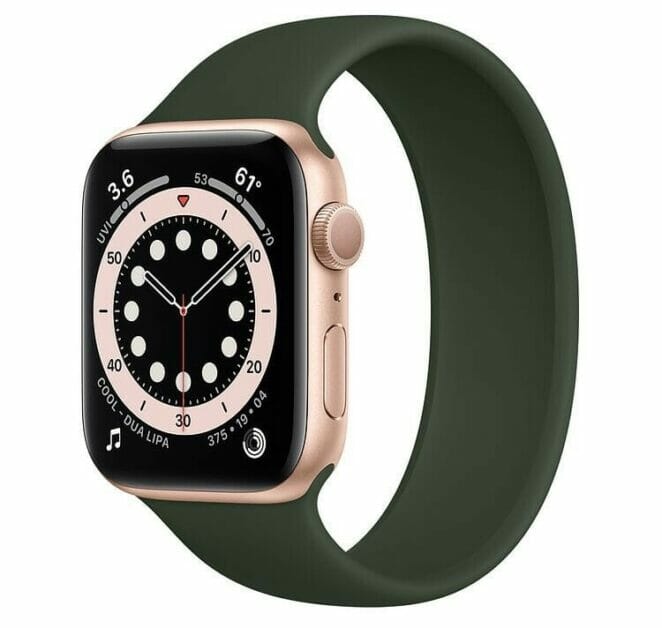
Apple Watch series 6: Front view Gold Aluminum Case with Solo Loop  

Apple recently announced a new operating system for the Apple Watch, the beta version of which is already being tested in combat mode. Its name is watchOS 7. In this regard, we decided to put together the best apps that will perfectly complement your new watch with the new firmware, which will inspire you for a new life.

Peloton
Cost: Free

Despite the name, which refers the user to a car or bike race, it can also be used without a vehicle. The Peleton app turns your watch into a serious fitness tracker for running, yoga, circuit training, and even meditation with the ability to track your progress.
The watch screen, of course, doesn’t allow you to watch streaming video, but it’ll do just fine for an information board: It displays pace and distance readings for runs, heart rate tracking for all types of exercise, and the rest of the statistics. It also integrates with the Apple Health app.

Gymatic Workout Tracker
Cost: Free

If you want to look like Channing Tatum in his prime years, the first thing to do is put down the bun and download the Gymatic Workout Tracker. This thing can automatically pick up your workouts, set the number of reps, and is also famous for tracking the number of calories burned more accurately than other apps. Gymatic Workout Tracker is not just about the walkout. The app has been tested on all kinds of workouts – from running and gymnastics to bodybuilding and CrossFit.
The Apple Watch app displays all the key parameters when you’re panting – rep count, heart rate, number of reps left, and even a little preview showing how to do the current exercise if you forgot how to squat with a barbell in the middle of a workout. The biggest downside is that the free version is limited in functionality. For full stuffing, you need to pay as much as $50.

RocketBody
Cost: Free

Perhaps the smartest fitness app in our collection. RocketBody not only keeps a log of your activities but based on this data it shows your way to a healthy body – makes a workout plan and makes predictions on the amount of time spent on all this. It does this by continuously monitoring your EKG, the number of steps, calorie consumption, and amount of food you eat during the day, so if you eat a Big Mac, take off your watch.

The watch form factor app allows you to control the app’s workout tracking from your wrist, displaying total time spent, calorie expenditure, and current heart rate in a simple and easy-to-read format. The minus is the same as the previous application – for full functionality, you will have to pay your hard-earned money.

Nike Run Club
Cost: Free

It would be strange to do a review without Nike. Their mobile apps are considered the benchmark among users for a reason (see average rating) and we agree with their reviews. The app tracks all runs and their stats offers to listen to audio guides while you run, and even has a motivation system so you don’t get the urge to foul up today.

Run Club’s top-notch design beats all the competition around, and the functionality is sure to please even professional runners. Best of the Best.

Note-taking/productivity apps
If you see a man talking to his watch, take the time to diagnose him. This busy gentleman or businesswoman may be taking another voice memo so that she doesn’t forget to do what’s most important.

Noted
Cost: free

The app relies on voice notes and makes it very handy to work with, in case you are using a watch. In addition to the notes themselves, ‘Noted’ adds timestamps, and everything you’ve written down during the day can be transferred to your iPhone, where you can add text to your notes, add a photo or video content, and export in a format you like. How cool is that? Cool!

Writing down thoughts or ideas on the go is a great idea and there are no complaints about the interface of the app itself. But the 5 notes limit for the free version is. But it is not worth complaining to the developers, a monthly subscription will be worth a cup of coffee – only $2.

Productive – Habit Tracker
Cost: free

In the beginning, it was a word. Then the word became a habit. That’s what Productive – Habit Tracker was created for. Drink 2 liters of water a day, walk at least 10,000 steps – you set your own “rules” for your checklist. The app will help you stick to your daily routine and turn good habits into regular good habits.
The emphasis in the app is on usability – it is as simple as possible. The watch version lets you see what tasks need to be done today, reminds you when it’s time to do them, and lets you either mark a task as done

FiLMiC Pro
Price: $ 15

FiLMiC Pro is an app for video production professionals. The developers claim that it can shoot video on the iPhone 7 and 7 Plus with a real gamma distribution logarithmic curve, contains a white balance matrix with ready-made and custom settings, slowdown and acceleration effects, linear zoom control, and more. Despite the controversial reviews, the app is well-deservedly popular
Why would an app like this need a watch version? Here, as with Camera Plus, the Apple Watch plays the role of remote control with which you can start, pause and resume video recording.

Pillow Automatic Sleep Tracker
Cost: free

The app serves two purposes: to inform you if you’re sleeping properly and to automatically determine when it’s best to lift your head from the pillow, no matter how much you don’t want to. Artificial intelligence in collaboration with your body knows best.
It syncs with the Apple Health app to get a more complete picture of your overall health. Pillow Automatic Sleep Tracker can set any sound or melody you want to wake up to (pulled from iTunes).

All apple watch fans like to share different new functions of their old or new accessory. A lot of Apple lovers are on lustylocals.com, enjoying the benefits their powerful gadgets offer. This article will focus on Apple Watch 6 and its features that can help you in online dating.

All Benefits of the Apple Watch

Apple products aren’t just useful; they are a symbol of prestige. Not everybody can afford them, which makes them even more desirable. Apple Watch 6 is just one of many Apple products, but it could become your assistant that’ll save you a lot of time and keep you healthy.

Yes, you read that correctly. Wearing the latest Apple Watch can have enormous benefits for your health. It can quickly determine oxygen level, and it counts your every step. Counting calories and your physical activity levels won’t be a problem anymore once you put this smart accessorize around your wrist. If you’re an active person, those functions will make your life easier. If you aren’t a sport type, those functions might motivate you to take care of your health. The watch will compare your results from the previous 90 days with your results in the previous 365 days, which gives a special feeling of joy because you’ll be able actually to see statistics of your progress.

But an Apple Watch takes care about more than exercise. It can warn you when you spend too much time in a noisy area to preserve your sense of hearing. Ladies love it because it has an option to track the menstrual cycle. With all those benefits, Apple Watch is the leader in the field. And that’s just a beginning. We didn’t even mention how cool it looks and how easy it is to personalize it. With numerous watch faces, you can wear an Apple Watch on every occasion. You can show your style, even your mood, by changing how your watch looks. Your friends will think you got a new watch at first glance, but that will be just one of your favorite faces. That’s still not all because you can make this watch tell you the exact time; by telling, we mean that. Tap Apple Watch with 2 fingers, and it will speak to you. You can use your voice to browse apps in the Apple Store and reply to messages, but more about that later.

All Notes on Your Hand

The time when we carried little black books around is long gone. Nobody writes their notes on paper anymore because it’s easier to have everything on your phone. But what if we tell you it can be even easier if you’re wearing an Apple Watch. All of your notes will be on your wrist then. You’ll never forget meetings, birthdays, or anything else.

You can browse Apple stores and choose a notes app you like the most (and thousands of other apps that will make your watch unique and just yours). Our recommendation is the Voice Memos app because it lets you record your notes instead of writing them. The only downside is that those notes won’t magically turn into text. Still, if you combine a classic notes app with Voice Memos, you’ll be able to preserve your thoughts in every situation. While you’re on the go or in a hurry, use recorder notes. When you’re more relaxed, write your notes directly into your watch. It will keep a copy on your iPhone, but accessing them through your watch will be much easier.

Answer With your Watch Quickly

If you’re a busy or very social person, you get hundreds of messages and calls every day. Looking for your iPhone or pulling it out from your tight pockets is a pain in the ass. Apple Watch solves that for good. With nothing more than a light tap, you can answer your calls, read and send messages. You don’t even have to be close to your phone as long as Apple Watch is connected to the internet. That means you can save even more time by quickly answering your calls and messages. In a world where every second is important, you want to stay ahead of the competition especially if those messages are related to your business or love life.

This article explains five Apple Watch SE tips and tricks most people don’t know about.

5 Apple Watch SE Tips and Tricks Most People Don't Know

Apple Watch SE users may think they know everything about their watch, but there are still some hidden features they don’t know about. We dug deep into watchOS to uncover five hidden Apple Watch SE tips and Tricks to make your life easier. If you know of any others, please share them in the comments. Read on to learn about 5 Apple Watch SE tips and Tricks most People don’t Know About.

See also: 30+ Apple Watch Tips & Tricks to Make your Life Better

Best Apple Watch SE tips and tricks

here are the best Apple Watch SE tips and tricks for 2020:

Calculate a Tip with a Button Press

Apple Watch SE Tips and Tricks Most People Don't Know

Ever wonder how much you should tip your waiter or waitress? Don’t mess around with math. Just launch the Calculator app on your Apple Watch, type in your bill’s total, then tap the tip button. The app will calculate a 20 percent tip and add that amount to your total so you’ll know how much you should leave your server. Turn the Digital Crown to add people to split the bill with.

You Can Customize Your Workout Screen

Apple Watch SE Tips and Tricks Most People Don't Know

If you use your Apple Watch SE to workout, you may want to customize the interface based on your exercise goals. Launch the Watch app, find Workouts, and then Workout View. Here you can edit the metrics you can see and rearrange them according to your needs.

Scribble a Response

Apple Watch SE Tips and Tricks Most People Don't Know

When you get a text message on your Apple Watch, you can respond using an emoji or by dictating a reply, but did you know you can scribble out a response? When responding to a text message, tap on the icon with a hand, and the letter A. Draw out your letters, and they will show up as text.

Capture a Screenshot

Apple Watch SE Tips and Tricks Most People Don't Know

To capture the contents of the Apple Watch screen, hold down both the Digital Crown and the side button at the same time The photo will then be saved to your iPhone in the Photos album. If this fails, check to make sure screenshots are enabled. Head over to iPhone > General. Then scroll down to find “Enable Screenshot” and ensure it is turned on.

Use and Customize the Dock

Apple Watch SE Tips and Tricks Most People Don't Know

When you press the side button while wearing your Apple Watch, it will launch the Dock. The Dock shows your most recent apps, but you can change that behavior in the settings to open your favorite apps. Launch the Watch app, select Dock, and change the setting from “Recents” to “Favorites.”

Your Favorite Apple Watch SE Tips and Tricks

What are some of your favorite tips and tricks for using the new Apple Watch SE? Share with us in the comments section below.