Got a tip for us?

Featured

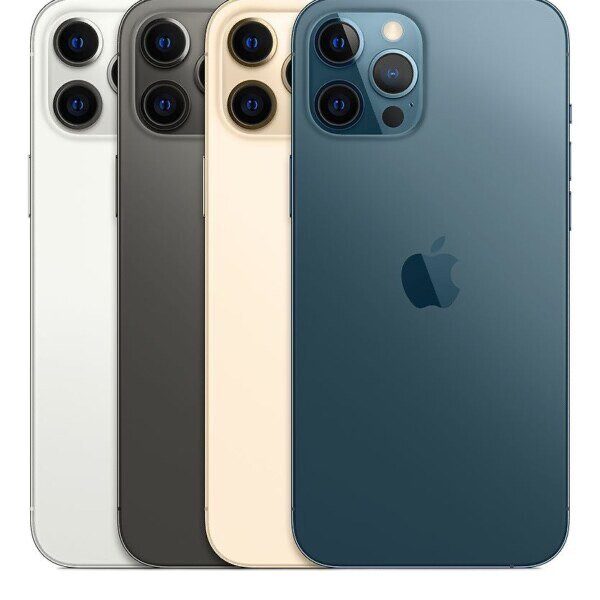
We all know Apple is an American company and enjoys making a large chunk of their revenue domestically. But Apple sells their products in many international markets and even has retail stores in 24 foreign countries. Some of those markets, like Japan, have access to Apple products at a price comparable to the US. For example an iPhone 12 Pro Max (128GB) costs 117,800 yen in Japan, which is about 1,099 USD. And when you consider the country’s 8% sales tax is included in that price, it actually makes the iPhone 12 Pro Max about $20 cheaper than in the US. Although this fluctuates depending on the conversion rate. But not every country is lucky enough to pay comparable prices for Apple products.

So why are Apple products so expensive in these countries? Well, that’s exactly what we’re going to find out in this article.

Why are Apple products overpriced?

one of the biggest reasons why Apple products are so expensive overseas is because of taxes. And the perfect example of this is the Value Added Tax or VAT, which exists in over 140 countries around the world. But despite its prevalence, it isn’t something that exists in the US.

In Brazil for example, the iPhone 12 Pro Max with 512GB of storage will cost you a whopping $2,535! Yup, for those living in Brazil, they will be paying more than $1,000 more than those who are living stateside. This doesn’t really come as a surprise due to the high taxes in the country for certain tech-related products.

Other countries outside the US aren’t faring that well either, where over in India, the iPhone 12 Pro Max is priced at $2,159, which is rather ironic given that these are supposed to be emerging markets, so it’s odd that Apple would price their products well out of reach for a lot of customers living in the region.

Countries like Brazil tend to levy a huge tax on products that aren’t made in the country, and even though Apple has shifted some of its production over to the country, there could be other reasons as to why Apple products are so expensive.

So let me explain how it works.

In places like the European Union a VAT is a consumption tax added to the price of goods and services. Products exported abroad aren’t typically subject to the Value Added Tax, but imported goods, like Apple products, are. And depending on the country, prices of these goods can increase up to 25%. And unlike the US, consumption taxes in most countries abroad are included in a product’s retail price. So when you notice the iPhone 12 Pro Max 500GB selling for $2,535 in Brazil compared to $1,400 in the US, that isn’t really a fair comparison, since US prices don’t include local sales tax. Now if you’re doing the math, you’ll find that iPhone prices in countries like Brazil still don’t add up. Because if their Value Added Tax is 25% on a $1,400 phone, they should be paying $1,775. But instead, the iPhone 12 Pro Max is priced about $760 higher. And that’s because taxes is just one part of the complex equation companies like Apple use when calculating retail prices.

Another factor to consider are any associated costs with importation. Things like import duties, shipping, insurance costs, and tariffs all contribute to price inflation when selling products overseas. India is a great example of this. They’ve enacted something called the Foreign Direct Investment policy which punishes foreign companies who don’t source at least 30% of their products components from Indian suppliers. And since Apple doesn’t meet that standard, they’re restricted from opening retail stores in the country in addition to being hit with a 20% tariff. There’s also an 11.4% custom duty on imported products in addition to the Value Added Tax that we discussed earlier. And when you add all that up, it isn’t surprising that customers in India pay a 28% premium for products like the iPhone. Now Apple is taking steps to not only price their products more competitively in India but also to open their first retail store in the country. I’ll talk about that in more detail near the end of the article.

Now you may imagine import costs only being a factor in foreign markets, but they can also effect customers in the US. Recently President Trump planned to implement a 10% tax on Chinese imports which would effect tech companies like Apple. Now that deadline was pushed back to December 15th, but Tim Cook would like to see the tax eliminated altogether. In fact, he met with Trump and apparently made a convincing argument since Trump told reporters, “Tim was talking to me about tariffs and … he made a good case … that Samsung is their number one competitor and Samsung is not paying tariffs. I thought he made a very compelling argument so I’m thinking about it.” Now if the decision isn’t reversed and Apple has to pay the 10% tax, they’d have to make a decision: Increase prices in the US by 10%, or keep prices the same and allow their profit margin to take a major hit. Both of which are dangerous for the company. If Apple raises prices it would exacerbate the issue of slowing of hardware sales, but if they allow their margins to fall 10%, it would severely damage their profit potential. So depending on how this story plays out, US customers made soon be feeling the effects of tariffs that foreign countries have been dealing with for years.

Something else that may contribute to high prices are legally binding consumer guarantees that exist in places like the EU. For example, when you buy an Apple product in the US, you receive a standard one year limited warranty that covers faulty parts, product defects, or other conditions that the manufacturer is responsible for. But the problem is companies are free to define their warranty terms as they see fit. That’s why only certain components may be covered, or you may have to pay a fee to ship the product back to the manufacturer. And that’s exactly why the EU established a consumer guarantee that offers customers much more protection than a standard warranty. Customers in the EU are entitled to a minimum two year warranty in addition to the standard manufacturer’s warranty. And this adds quite a bit of liability for companies like Apple who typically offset the risk by increasing the price of their products.

But when it comes to foreign markets, a major concern is the volatility of each country’s currency. Just take the UK for example. When Brexit happened, there was a 19% drop in the value of their currency compared to the dollar, which caught a lot of companies off guard and caused them to quickly adjust their prices to keep pace with the UK’s currency fluctuation. Apple understands which foreign markets are most susceptible to this volatility and preemptively raises their prices. You can see this clearly with South Africa. Notice how the value of its currency has fluctuated over the past five years compared to the EU, Australia, and Mexico. And that volatility is a major reason why Apple inflates their product’s prices in South Africa beyond what’s typically seen in other foreign markets.

But in order to truly understand Apple’s pricing overseas, we have to consider the American market. Because consumer behavior in the US can be quite different than those in other regions, mainly because American society is very consumption-based. We have the most credit cards issued per capita in the world, with each person charging an average of $4,000 annually. Compare this to other countries like the UK or France, who opt instead for Debit Cards and therefore charge less than $300 on their credit cards every year. You can see companies like Apple capitalizing on America’s “buy now, pay later” mindset by offering monthly payment plans for their products. And all of this amounts to US customers buying a higher volume of products more frequently, allowing Apple to charge less than other countries which don’t have a comparable level of consumerism.

Now up to this point we’ve discussed pretty concrete reasons why Apple prices their products higher in some foreign countries. But there’s one last factor I want to discuss that’s less easy to prove with hard facts, and that is brand image. Apple is considered a premium brand in countries like India where the average smartphone selling price is $200. So when it comes to the iPhone XS price of $1,285, it makes sense that only the wealthy class in India could afford them. And if Apple knows their product will only be accessible to the upper class, why not charge as much as you can? It’s an approach taken by many luxury clothing brands, whose customers have no problem overspending on items that ultimately serve as a status symbol. And you can find evidence of this when comparing the iPhone’s price to other flagship smartphones. For example, the Galaxy S10 retails for $900 in the US, and $935 in India. An increase of just $35. The LG V40 retails for $900 in the US, and $700 in India. That’s a discount of $200. And when you compare those prices to the iPhone’s $285 premium in India, it supports the idea that Apple is simply extracting as much revenue from customers in India as possible, since they know people with money with pay any price for their premium phones anyway. It would also make sense then that iPhones have only captured about one percent of India’s smartphone market, which is a shame considering India’s sizable population.

But Tim Cook has made it clear that Apple has an aggressive plan to grow their presence in the region and make India one of their biggest sources of revenue. It all started earlier this year when Foxconn began trial runs of iPhone production in India, setting the foundation for Apple to one day manufacture their smartphones in the region and satisfy the 30% local sourcing rule. This would allow Apple to avoid India’s 20% tariff in addition to opening their own retail stores in the country for the very first time. In fact, Apple has already finalized a list of several locations in the country where they might build their store. But they’re went a step further by saying they’d overhaul the company’s relationship with independent retailers, and improve apps and services aimed more closely at Indians. So while Apple is known for being a pricey brand in the US, their products are typically even more expensive abroad. Perhaps they can take measures like those in India to reduce their tax burden and drop prices, but it’s more likely that customers in foreign markets will have to continue biting the bullet and shell out the extra money for their favorite products.

The iOS operating system is one of the few mobile platforms that does not need antivirus software; at least that is what the developers say. Antivirus programs are redundant due to some specific architectural features of iOS. The operating system simply does not provide mobile apps with access to the file system. Thus, any antivirus scan is problematic in principle.

Nevertheless, what are the odds you will need it? Let’s look at why the iPhone has such strong protection or why it may need one.

Specifics of iOS

This is a well-known fact that all applications in iOS run in the sandbox. This is an isolated environment from which they cannot have direct access to the operating system components and other programs. Precisely this feature ensures a high level of security of the OS. When working in a sandbox, the application interacts only with its data and resources, so the malicious program will simply have no chance to infiltrate.

Moreover, Apple allows the installation of applications to mobile devices exclusively from its own App Store. And they get there after a fairly close inspection. “Unhappy” iPhone owners are denied the opportunity to use the “Allow the installation of applications from unknown sources” function, which is usual for Android users.

Outdated devices problem

However, along with securing the device, such tight restrictions deprive iOS owners (iPhone and iPad) of several useful features. If your iPhone belongs to an outdated model range and its OS is already out of date, sooner or later, you will face a complete inability to install or update the application you need through the App Store. It creates room for the possible virus attack.

There are two ways out of the deadlock:

  • buying a new and updated device;
  • jailbreak.

Jailbreak means using special utilities to hack the operating system. It allows you to get access to the file system not authorized by the phone manufacturer, and besides, install applications from third-party application directories (repositories) or, in some cases, directly from your computer.

Corporate internal application installing

Another loophole allows users to almost officially install various applications on iPhones and iPads, bypassing the App Store. It is called Mobile Device Management (MDM). It is a set of tools that allows you to manage iOS devices in a corporate environment. In particular, it is used to install various internal applications on the
Apple devices owned by corporate employees that are not intended for general distribution outside the company.

Such programs can be delivered to iOS devices without uploading them to the App Store and meticulous testing. The method has several security limitations designed to exclude its possible use by hackers.

Does all this mean that the existence of viruses for iOS is impossible in principle, and users of Apple devices can feel completely safe? Unfortunately, no. And yet, viruses for iOS exist. Below, we will talk about the most famous virus spreading technologies for iOS.

MDM technology and iOS malware

Because of Apple’s high-security mechanisms in its mobile operating system’s architecture, creating full-fledged malware for this platform turned out to be complicated. Nevertheless, it was made, and it came as no surprise to the experts. Being unable to enter iOS through a front door, an attacker can always break through a window.

Cybercriminals started to use the same mechanism for distributing MDM applications using corporate certificates to spread Trojan programs. Using this technology, it is quite possible to implement targeted precision attacks, which was proven in practice in the summer of 2018. Among other things, an attacker can be, for example, an offended employee of a company using MDM if he has access to the server.

In 2015, a broad distribution of the YiSpecter Trojan using MDM was arranged. The malware was hidden in a client application, which was a video player for viewing pornography. Although it was distributed mainly in China, YiSpecter was one of the first real viruses capable of infecting an iPhone without jailbreak.

iOS viruses and DRM technology

Trojans that did not use MDM to spread originated from the same place where most original IT developments come from, i.e., China. As you know, iPhone applications must be purchased from the official App Store. If the program is honestly bought on this resource and is listed on the user’s account, they can install it on the phone later by connecting it to the computer using a USB-Lighting cable and using iTunes.

When launched, the program will check the user’s Apple ID and ask for an authorization code to ensure that the application installed on the mobile device was actually legally purchased by this user. It uses Apple’s Digital Rights Management (DRM) technology. To bypass this check, the Chinese have come up with a unique program that emulates iTunes’ actions.

Having bought an application from the App Store, the creators of this program intercept and save the authorization code using a vulnerability in the DRM implementation and then transfer it to all other application users. As a result, they get the opportunity to install on their iPhone or iPad a program that they did not pay for. One of these applications is called Aisi.

Aisi allows users of Apple devices to install illegal software and update and create backup copies of the firmware, jailbreak, download ringtones, and various multimedia content to the phone. When launched, the application asked for your Apple ID account information. This information was immediately sent to the control server.

Bottom Line

In the end, the leak of Apple ID opens up a lot of opportunities for potential attackers. They can change the password, lock the device, and demand a ransom from its owner for unlocking, as ransomware does. Thus, despite the reliable security of iOS devices, the user should either think about protection or be as careful as possible.

Tag: iOS

If you want an easy way to download photos or videos from Instagram on your Mac, check out this software!

How to download from Instagram on Mac using 4K Stogram

You want to download from Instagram on Mac, but you’re not sure how? 4K Stogram is a software that helps you Download Instagram photos and videos easily. In this article, I’ll review 4K Stogram and show you how to download photos, videos, and stories from Instagram accounts on Mac!

Instagram doesn’t allow you to download photos, videos, or user stories. So if you come across a beautiful scenery picture or those outrageously funny videos from Instagram, you can’t download it on your Mac and share it with friends and family. You only have the ability to share the Instagram post link, which is not convenient. Enter 4K Stogram, an app that will let you download any photo or video you desire from Instagram on your Mac. Saving Instagram content is just a few clicks away. Let’s get started:

What is 4K Stogram?

4K Stogram is an Instagram Photo, Video Viewer and Downloader for Windows, Mac, and Ubuntu. It allows you to directly downloads complete Instagram profiles and save them on your device so that you can access photos, videos, and stories in offline mode. It works for both public and private accounts.

How to download from Instagram on Mac using 4K Stogram

What Types of Instagram Data Can I download With 4K Stogram?

With 4K Stogram, you can download Instagram stories, photos, accounts, hashtags, locations, and much more. The software also lets you download Instagram photos of private account straight to your Mac!

4K Stogram doesn’t stop there. The software offers a unique Instagram viewing experience on the big screen. The software also lets you subscribe to unlimited user accounts, follow trends with hashtags, and even lets you backup your entire Instagram account in just one click.

How to download from Instagram on Mac using 4K Stogram

Ease of Use

The configuration of the software with your Mac computer is easy, quick and time-saving. For first-time users with no technical background, this software is a boon. The best part of this software is that it comes with clear descriptions under each feature and you can always revert to its website.

How to Download Instagram Videos and Photos on Mac with 4K Stogram

step 1– Download install and launch the Stogram software.

How to download from Instagram on Mac using 4K Stogram

Step 2– from Stogram user interface, log in to your Instagram account.

Step 3– From the Stogram search box, type in the Instagram username, hashtag, or location.

Step 4– Select the desired account or hashtag from the search results that appears.

Step 5– Configure the download options from the Advanced Downloads Options menu.

Step 6– The Advanced Download Options allows you to select the date range for an account or hashtag. You can also leave out photos, videos, stories, or highlights by unchecking the boxes from the download menu.How to download from Instagram on Mac using 4K Stogram

Step 7– After configuring the download options, click the subscribe button and the content will start downloading.

Step 8– 4K Stogram will download all the photos and videos associated with the added account or hashtag from Instagram.

The Bottom Line: Should I Buy 4K Stogram?

If you need to download Instagram photos, videos, hashtags, locations, or user stories on Mac, 4K Stogram is a great choice. 4K Stogram is incredibly user-friendly — at any point in the process, you’re only just a few clicks away from downloading Instagram data of your choice.

Furthermore, 4K Stogram completes downloads very quickly. Each time I initiated the download, it was finished in seconds. If you’re in need of a fast solution, 4K Stogram is a great option.

How Do I Download 4K Stogram?

4K Stogram comes in three versions: for Mac, Windows and Ubuntu. It has a free version, of course, with limited number of subscriptions, posts download, and stories download. You can try out the free version before buying this software. The premium version offers additional features like unlimited downloads, account access, etc. There are two options available in the premium version:

  • Personal License, that costs about $10 as a one-time fee for three computers.
  • Pro Professional license, that costs about $30 as a one-time fee for three computers.

The Windows, Mac and Ubuntu versions of 4K Stogram are available for download on 4K Stogram’s website. Simply select which version you’d like to purchase and download.

Of course, the price may not be a factor when you’re trying to download something as priceless as the first photo of your child or those outrageously funny videos from Instagram.

Highlights of 4K Stogram

  • Download Instagram posts by username, Hashtag, or Location
  • Download Instagram stories and highlights
  • Download Instagram video posts
  • Download private Instagram photos or videos
  • Download Instagram posts from specific time periods
  • Backup your entire Instagram account in just one click
  • Import the list of subscriptions that you have made on Instagram
  • Powerful filters and sortings
  • Available on Mac, Windows and Ubuntu
  • A free version is available

Download Instagram Videos and Photos on Mac Made Easy!

4K Stogram makes it easy to download any user’s Instagram photos, videos, stories on Mac. The software performs very well. It does the downloading quickly and at the same time does not compromise the quality of downloaded content.

4K Stogram can also backup your Instagram account in seconds. It also gives you the ability to browse and download the photos easily by location and by hashtags. The software works as an Instagram viewer and downloader through which you can download Instagram stories highlights, pictures and videos from your favorite accounts, backup your Instagram profile and do a lot more. If you wish to download videos from services such as YouTube, TikTok, etc., well, you just need to download their other software called 4K Video Downloader. The software lets you download YouTube playlists, channels, 360-degree videos, and more in just a few clicks.

Leave us a comment down if you have any other questions or if you’d like to tell us your experience with 4K Stogram.

Have you purchased a brand new iPhone 13 or iPhone 13 Pro and wants to get most of it? Here are the best iPhone 13 and iPhone 13 Pro tips and tricks that will help you to get the most out of your new device.

From setting up focus modes to using Siri offline, we’ve got an assortment of iPhone 13 and iPhone 13 Pro tips and tricks you probably didn’t know your iOS device could do. These iPhone 13 and iPhone 13 Pro tips and tricks will have you showing off your abilities to your friends and having them ask you where you learned it all – you can link them here and share the knowledge, of course!

Without any further ado, here are the best iPhone 13 and iPhone 13 Pro tips and tricks you should try first.

Best iPhone 13 and iPhone 13 Pro tips and tricks

Here is a list of the Best iPhone 13 and iPhone 13 Pro Tips and Tricks:

1. iPhone 13 tips and tricks: Set up Focus Modes

Focus creates a distract-free environment around you and disables irrelevant notifications from apps and users. Based on your activity and preference, you can customize a focus profile and select specific apps and contacts to send messages and notifications. It’s like Do Not Disturb mode on steroids. And thankfully, the focus profiles aren’t limited to Apple’s choice only. You can create a custom focus profile for different activities such as Writing, Yoga, Running, Driving, and more. In short, this iPhone 13 and iPhone 13 Pro trick enables you to set up several profiles for different scenarios that give you more control over how you interact with your iPhone. On vacation? You can block notifications from your work apps and email. Sneaking out for a workout during lunch? Same thing, except you can opt to allow messages from Slack in case something urgent comes up. You can even create custom home screens that only show you the apps you want to see for a particular scenario.

You can set up Focus profiles by heading to Settings > Focus. You’ll find preset modes for generic Do Not Disturb, along with Sleep (formerly Bedtime), Personal and Work, with the latter two ready to be set up. Tap on either and follow the on-screen instructions to customize the focus mode, and once complete, you can activate it via the Control Centre. Focus profiles are extremely customizable, so you can really go ham experimenting on what works best for you.

2. iPhone 13 tips and tricks: Schedule Your Notifications

Scheduled Summary collects notifications that aren’t time sensitive and displays them at a certain time in the morning and evening. Or, you can add more summaries and control at what time they appear.

Using on-device machine learning, notifications are arranged by priority based on your interactions with apps. Notifications that the device deems more important are displayed at the top of the summary. Important messages will be immediately delivered.

To set it up, head to Settings > Notifications > Scheduled Summary and toggle it on. You’ll then be prompted to set up the system, adding the apps you’d like to contribute to the notification summary, and set the time(s) you’d like it to appear.
You can choose up to 12 summaries per day, and there are other configurable options including one that allows time-sensitive apps to break free from Notification Summary.

3. iPhone 13 tips and tricks: Re-order Home Screen Pages

Moving multiple icons from one home page to another took a long time. Sure ability to move multiple icons at once helped, but that too had its complications.

This iPhone 13 and iPhone 13 Pro trick lets you re-order entire home screen pages. You can move the whole home screen page from first position to third position without having to individually moving icons.

The best thing about this hidden iPhone 13 and iPhone 13 trick is that all of your widgets and folders will also move along with the page, making it easier to quickly rearrange home screen.

You can move home screen pages by entering the wiggle mode and then tapping on the page dots located right below the home screen icon rows.

4. iPhone 13 tips and tricks: FaceTime Android and Windows users

This iPhone 13 and iPhone 13 Pro trick lets you enable anyone, even if they don’t have an Apple device, to join a FaceTime call with you by creating a link to a ‌FaceTime‌ conversation that can be shared anywhere.

Using this new link facility, friends and family members who do not have an Apple account can log into a ‌FaceTime‌ call with you using a web browser opened on any non-Apple device, whether that’s a Windows PC or an Android phone.
This effectively makes ‌FaceTime‌ a platform-agnostic video service, although you do need to be an iOS or Mac user to start the ‌FaceTime‌ call and send the link. Here’s how this iPhone 13 and iPhone 13 Pro trick work:

  1. Start the FaceTime app on your iPhone 13 or iPhone 13 Pro.
  2. Tap on Create Link.
  3. Give your ‌FaceTime‌ Link an identifiable name by tapping Add Name at the top of the Actions menu that appears.
  4. Select a method of sharing your link from the Actions menu, e.g. over Messages or Mail.
  5. Once you’ve sent the link and the recipient opens it, they’ll be directed to a web page where they can enter their name to join the conversation. Once they’ve joined the call, they’ll have the usual ‌FaceTime‌ options to mute their microphone, disable video, switch the camera view, and leave the call.

5. iPhone 13 tips and tricks: Zoom in QuickTake videos

The next cool iPhone 13 and iPhone 13 Pro trick involves QuickTake. You can zoom in while recording a QuickTake video. To zoom in all you have to do is swipe up or down while recording to zoom in or out.

6. iPhone 13 tips and tricks: Use built-in Authenticator

Gone are the days when you had to rely on third-party Authenticator apps like Google Authenticator or Authy, as now iPhone 13 and iPhone 13 Pro features a built-in Authenticator feature that gives you the ability to quickly generate verification codes and enter them into your online accounts. You can set up authentication code generator on your device by going to Settings > Passwords.

Once you have set up this feature, your device will automatically generate new verification codes when required and autofill them into the website you are trying to log into.

7. iPhone 13 tips and tricks: Organize Your Notes

If you’re a heavy Notes user, then you’ll be happy to try this iPhone 13 and iPhone 13 Pro trick. You can now add tags such as #Work #Grocery or #list to your notes to sort them under these tags.

8. iPhone 13 tips and tricks: Enable iCloud Private Relay

iCloud Private Relay is a feature from Apple that is available on all iCloud subscription tiers. It lets you connect to virtually any network and browse through the Safari browser on your iPhone 13 or iPhone 13 Pro with more security and a private environment.

With iCloud Private Relay all the traffic that leaves your device is not only encrypted but it is also sent through two separate internet relays. This means no one, which includes Apple is able to see your iPhone’s IP address, location or browsing activity. This stops data companies and advertisers from creating a detailed profile based on your browsing history.

You can enable the options from Settings > Profile > iCloud > Private Relay menu.

9. iPhone 13 tips and tricks: Hide IP Address from All Websites

This iPhone 13 and iPhone 13 Pro trick lets you hide IP address from both the third-party trackers and websites. Start the Settings app on your iPhone and head to Safari > Privacy & Security > Hide IP Address and select Trackers and Websites from the following menu.

10. iPhone 13 tips and tricks: Use your iPhone’s camera to scan any text

Have you ever wished you could point your iPhone’s camera at a sign or piece of paper and have it automatically identify then copy the text into an email or a document?

That’s where Live Text comes in – this new iPhone 13 and iPhone 13 Pro trick lets you scan and copy text from photos and your iPhone camera, even if it’s handwritten. And once you’ve pulled the text, you can paste it into any text field. It’s great for quickly sharing addresses, phone numbers, and anything else you don’t want to type out manually.

To use the iPhone 13 and iPhone 13 Pro new scan text feature, long-press inside a text field as if you are going to use the copy and paste prompt. Only, you’ll now see a Scan Text button. You may also see a button that uses just the scan icon, which looks like a piece of paper with brackets around it.

Tap the button, which will then replace your keyboard with your iPhone camera’s viewfinder. Point your camera at whatever you want to scan, and then follow the prompts on the screen. For instance, if you’re moving the camera too fast, you’ll see a “Slow Down” message flash on the screen.

As you’re lining up the camera and text just right, you’ll see a live preview of the text your iPhone is identifying and ready to place in your document. Tap the Insert button when you’re ready.

11. iPhone 13 tips and tricks: Switch between tab bar and single bar in Safari

One of the best iPhone 13 and iPhone 13 Pro tips and tricks is the ability to switch between tab bar and single bar. With Tab bar option you can move the Safari address bar to the bottom of the screen, and add new swipe gestures for switching between opened tabs.

When Single Bar option is selected, you get the classic Safari look in which the address bar is moved towards the top of the screen, just like iOS 14 or earlier.

You can switch between the two types of Safari address bars by following these steps.

  1. Go to Settings > Safari
  2. Choose between Tab Bar or Single Bar options
  3. Exit

12. iPhone 13 tips and tricks: Get real-time precipitation alerts from the iPhone’s weather app

Another iPhone 13 and iPhone 13 Pro tip is that you can see real-time snow and rain alerts in the weather app. You can turn on the new precipitation alerts by opening the Weather app, then tapping the three-line icon in the bottom-right corner of the screen. Next, tap the circle icon with the three dots in the top-right corner of the screen followed by Notifications.

Slide the switch next to My Location to the On position and then tap Done. If you have more cities added to the Weather app, you can also turn on alerts for each one.

The next time rain or snow is getting close to you, your iPhone 13 or iPhone 13 Pro will alert you a few minutes before it’s going to start. You’ll also receive another alert when the rain is almost finished.

13. iPhone 13 tips and tricks: Drag-and-drop between apps

One of the best iOS 15 tips and tricks most people don’t know about is the ability to drag and drop items between apps. You can grab an item like a photo, screenshot, text, phone number etc and then drop into into another application. The drag and drop feature works on a system level and works on both stock and third-party apps.

Here’s how to drag and drop files between apps on iPhone 13 and iPhone 13 Pro:

Start the Photos app and view your recent photos. Don’t tap on a picture to open it full screen, instead place a finger on the photo and start to drag your finger across the screen. Don’t lift your finger when the thumbnail starts to float over the rest of the photos, then switch back to the messages app.

You’ll see a green circle with a sign in it show up on the thumbnail indicating that you can lift your finger and the photo will be placed in the text field, ready for you to send.

Pretty easy, right? You can use this same iPhone 13 and iPhone 13 Pro trick to attach a document from the Files app to an email as well.

14. iPhone 13 tips and tricks: Get more information about your photos

I’ve always had to use a third-party app if I wanted to view any of the finer details stored in the EXIF data about a photo I was sent or took myself. With this iPhone 13 and iPhone 13 Pro trick, whenever you’re viewing a photo in the Photos app, you can swipe up on it to open an information view that will detail where you saved the photo from, as well as all of the EXIF information such as shutter speed, location, the camera used and so on.

The added information is a welcome addition even if you don’t care about all of the finer details. At the very least, being able to see where you saved the picture from (including who sent it to you) is enough.

15. iPhone 13 tips and tricks: change your iPhone’s text size for a specific app

Next on out list of best iPhone 13 and iPhone 13 Pro tips and tricks is Per-App Settings feature. You can set and customize display and text settings on per-app basis.

Previously these settings could only be changed on system-level, so if you want to make text larger in one app you would have to make text large on all other apps as well.

With the new Per-App Settings, you can choose which apps you want to customize display and text settings for. You can change these settings for each individual apps, thus having more control over how your iPhone 13 or iPhone 13 Pro works.

To use this iPhone 13 or iPhone 13 Pro trick, open the Settings app, then go to Control Center and scroll down until you find the option labeled Text Size by tapping on the green sign.

The next time you’re in an app and you want to adjust the size of the text, open Control Center (swipe down from the top-right corner of the screen on your iPhone and tap on the Text Size button. Slide the button at the bottom of the screen to the left side of the toggle to indicate you only want your changes applied to the app you’re currently using, and then adjust the font size up or down.

16. iPhone 13 tips and tricks: Set background Sounds

Next up on our list of the best iPhone 13 and iPhone 13 tips and tricks is Background Sounds. With this trick, you can mask unwanted environmental sounds by playing calming background sound on your iPhone. This hidden iPhone 13 and iPhone 13 Pro trick lets you minimize distractions and as a result can help you focusing on the task at hand or help you in getting calm and rest.

You get multiple background sounds including the following:

  • Balanced Noise
  • Bright Noise
  • Dark Noise
  • Ocean
  • Rain
  • Stream

To activate ‘Background Sounds’ on your iPhone 13 or iPhone 13 Pro, head to Settings > Accessibility > Audio/Visual > Background Sounds. From here, you can tap the toggle at the top to turn on the sound, set a volume level, etc.

17. iPhone 13 tips and tricks: Watch Movies and TV Shows Together Using FaceTime

Officially called SharePlay, this iPhone 13 and iPhone 13 Pro trick lets you watch streamed movies and TV shows together. When you’re on a ‌‌FaceTime‌‌ call, everyone on the call will see the same synced playback and video controls.

The following steps explain how this iPhone 13 and iPhone 13 Pro tip works. Note that both parties need to be using ‌FaceTime‌ on an Apple device that supports ‌iOS 15‌, ‌iPadOS 15‌ or MacOS Monterey, for SharePlay to work. SharePlay is not compatible with the browser version of ‌FaceTime‌ available to non-Apple device users.

  1. Start the FaceTime app on your iPhone 13 or iPhone 13 Pro and initiate a call.
  2. When the call has connected, tap the SharePlay button at the top-right corner of the screen in the new control panel.
  3. Tap Share My Screen in the dropdown. After a three-second countdown, screen sharing will initialize.
  4. Now navigate to the TV app or another streaming app, select something to watch, then press Play.
  5. Select SharePlay when the prompt asks you if you want to SharePlay content. Other people on the call will also be asked whether they want to join SharePlay with you.

That’s all there is to it. The video will stream to other people on the call. As you chat and watch the stream together in sync, the volume will automatically adjust so that you can hear everyone talking without missing the show, and if you fast forward or rewind the video, other people on the call will be notified.

Did you know that you can also listen to music together using SharePlay? Simply launch Apple Music and choose a song for everyone to hear it at the same time.

18. iPhone 13 tips and tricks: Adjust the Date, Time, and Location of Your Photos

Up until this point, you had to use the Photos app on a Mac, or rely on third-party iOS apps, to edit the metadata for your iPhone photos.

But now, this iPhone 13 and iPhone 13 Pro trick offers a built-in way for changing these details right inside the Photos app on your iPhone. Here’s how:

  1. Start the Photos app on your iPhone 13 or iPhone 13 Pro.
  2. Select any photo you want to edit the metadata for.
  3. Tap the i icon at the bottom to view the image’s metadata. Alternatively, swipe up from any part of the image.
  4. Select Adjust.
  5. You should see the Adjust Date & Time page. Next, scroll through the calendar by swiping left or right and tap any date. Alternatively, you can also use the arrows to navigate. Remember, you can also choose a future date.
  6. Once done, tap the original time under the calendar and choose your custom time using the spinner.
  7. If you want to change the time zone, tap Time Zone and search for a city of your choice.
  8. Tap Adjust to save all your changes.

19. iPhone 13 tips and tricks: Track your iPhone with Find My, even if it’s turned OFF

Devices that have been turned off can still be tracked by the ‌Find My‌ network in ‌iOS 15‌. If a device was low on battery power or turned off by a thief, it can still be found when it’s close to another Apple device.

With this iPhone 13 or iPhone 13 Pro trick, an iPhone that has been turned off will actually enter an ultra-low power state that keeps the Bluetooth beacon active, effectively turning your iPhone into an AirTag.

You’ll see a little “iPhone findable after power off” notice under the Slide to Power Off interface, too.

20. iPhone 13 tips and tricks: Keep Night Mode off

For the most part, Night Mode in the Camera app on modern iPhones is a great thing. It can absolutely transform photos taken in very low light.

If the Camera app detects a dark scene, Night Mode is enabled automatically, but sometimes you want that dramatic dark effect, and it’s annoying to disable Night Mode to get it. You have to tap the Night Mode indicator and then slide the timer down to zero seconds.

If you wait a while before taking another photo, it will re-engage automatically.

With iOS 15, you can head to Settings > Camera > Preserve Settings to find an option to preserve your Night Mode settings (among other things). With this enabled, Night Mode will remember when it has been turned off and won’t re-enable itself. If you want to take a Night Mode shot, you can manually tap the Night Mode indicator to enable it yourself.

21. iPhone 13 tips and tricks: Adjust video playback speed

Apps like YouTube have had variable speed playback for some time now, but the default iPhone video player has not. In iOS 15, the default player (used for many web videos and by lots of apps) has playback speed controls.

When playing back a video, tap the overflow menu in the lower right (the three dots) and you’ll be able to select from up to five different playback speeds.

22. iPhone 13 tips and tricks: Share things with Siri

Sometimes it’s a pain to share that cool thing you found online. You have to copy URLs or images, switch to Messages, hold down to paste, hope it works…

With this iPhone 13 and iPhone 13 Pro trick, you can finally just ask Siri. Simply say “Hey Siri, share this with [name]” (or something similar like “send this to [name]” and Siri will share the content on the screen to that person using Messages.

Items like images, web pages, Apple Music or Podcasts, Apple News stories, and Maps locations will share the actual content (or a link to it). For content Siri can’t share, it will warn you that it can only send a screenshot—but Siri will still automatically take that screenshot and drop it in a Message to that person.

It’s all very frictionless. Just ask Siri to share something, and Siri will prepare the item in a flash and ask “ready to send it?” Say yes, and you’re done. No finding and opening share menus, no copy/paste, no flipping back and forth to the Messages app.

23. iPhone 13 tips and tricks: Translate anywhere

With this iPhone 13 and iPhone 13 Pro tip, you can translate text just about anywhere. In almost any app where you can select text!

Just tap and hold on a block of text to show the text selection window and drag the start and end points—just as you would if you were going to copy/paste. You’ll notice the little popup menu has a new Translate option (in some apps you might have to hit the right arrow to see more options).

You’ll get a warning that the text is going to be sent to Apple to process the translation. Tap Continue and a pop-up card will show the translated text and give you options to copy the translation, change languages, and so on.

Want to do the translation without sending data to Apple? Open Settings, then Translate and enable On-Device Mode. You’ll have to also open up the Downloaded Languages menu and download the languages for which you want to enable offline translation.

24. iPhone 13 tips and tricks: Keep an eye on app activity

Apple is always expanding privacy features, and with this iPhone 13 and iPhone 13 Pro trick you have a powerful new tool to find out which apps are accessing your phone’s features and data.

Start the Settings app, then tap Privacy, and scroll to the bottom to Record App Activity. You’ll have to enable this at the top of the screen.

This will record a 7-day summary of exactly when and how often all your apps access things like your microphone or microphone, or which web domains they visit. Just come back to this screen a week later for a full report.

You can even tap Save App Activity to export a JSON file of all the data if you’re into that kind of thing.

25. iPhone 13 tips and tricks: Set Recovery and Legacy Contacts

Your Apple ID and iCloud account get more important every year. It’s full of purchases, services, cloud data, photos…if you lost access, a lot of that stuff would be gone forever.

Apple has two welcome new tricks on iPhone 13 and iPhone 13 Pro. Account Recovery Contacts are people you trust that Apple can contact to help you reset your passcode if you ever lose it. They can’t actually access your data, but if you initiate a password reset but are locked out of your own devices, the reset code can be sent to that contact.

To enable it, start the Settings app then tap on your profile at the top. Then choose Password & Security, then Account Recovery. You’ll see an option to Add Recovery Contact.

What about accessing all your content should you pass away? In the event of your untimely demise, a Digital Legacy Contact is a person who can request access to your data after you die. They’ll get access to Messages, Photos, Notes, Contacts, Calendar events, App purchases, and your device backup, but not your iCloud Keychain or licensed media purchases.

26. iPhone 13 tips and tricks: Use Spotlight from the lock screen

Spotlight search is the tool you get when you swipe down on the screen to search your iPhone. iOS 15 adds another way to access Spotlight Search to another, extremely convenient area: the lock screen.

To use this iPhone 13 or iPhone 13 Pro trick, simply swipe down on the lock screen to pull down Spotlight Search. Your iPhone doesn’t even need to be unlocked first, so you can use this feature whether you’re holding your iPhone up or flat down on a desk. However, if you decide to tap on something, you will need to unlock your iPhone to continue.

27. iPhone 13 tips and tricks: Temporary iCloud Storage For Transferring Data

Have you ever ran out of iCloud Storage when backing up your iPhone? This can make transferring to another iPhone very difficult as without a complete backup you run into the risk of losing data. One of the hidden iPhone 13 and iPhone 13 Pro tips and tricks includes temporary iCloud Storage for transferring data.

Now when you buy a new iPhone and use iCloud backup to move data, iCloud will detect that you are low on cloud storage and grant you as much storage as you need to complete the backup proceed. The storage is provided temporarily though and will go away in 3 weeks, however this is enough to move your data, apps and settings to your new device.

28. iPhone 13 tips and tricks: Use the Wallet app to open your hotel room or house

Companies that make HomeKit-compatible locks can add support for a Wallet-based house key that can be used to tap to unlock HomeKit door locks.
Home keys will be available in the Wallet app and can be accessed on ‌iPhone‌ and Apple Watch.

Participating hotels that use digital keys can allow customers to add those keys to the Wallet app after making a reservation, allowing them to bypass the lobby.

The digital hotel key stored in the Wallet app can be used to unlock a hotel room. After checkout, the hotel room key is automatically archived.

29. iPhone 13 tips and tricks: Use Siri offline

Did you ever trigger Siri on your iPhone and got disappointed after being told that you must connect to the Internet to perform certain tasks? Bother not, you are not alone to have felt dejected for being unable to use Siri offline on your iPhone to perform common and repetitive tasks. No longer! Finally, it’s possible to use offline Siri in iOS 15 on iPhone 13 and iPhone 13 Pro.

Here are some tasks that you can perform using Siri without an Internet connection:

  • Controlling system settings such as enabling dark/light mode, low power mode, AirPlane mode, activate Accessibility features, etc.
  • Playing the next or previous song in the Apple Music app.
  • Opening apps.
  • Setting and changing timers
  • Setting and changing alarms.

30. iPhone 13 tips and tricks: Search the web by voice

Tap the Tab Bar at the bottom of the screen, and you’ll now see a microphone icon appear in the far right of the text field. Tap the mic and you can dictate your search term to Siri. The moment you’re done talking, the search takes place automatically, without you having to tap or type anything else. It’s very convenient.

31. iPhone 13 tips and tricks: Identify animals, items and plants in photos

Your iPhone 13 and iPhone 13 Pro can now identify and tell you more information about an animal, a landmark, a plant or an object, such as a book. An icon is available on top of photos in your gallery and, with a tap, it can identify a pet’s dog breed and show you more information, for example. Or it can name a flower with some background on the plant. The feature is similar to the one that’s been available on Android phones called Google Lens.

32. iPhone 13 tips and tricks: Use new Clothing Options For Memoji

If you love Memoji, then you are going to love the 40 new outfits that are available for Memoji. In addition to new outfits iOS 15 also brings three different colors for clothes, two different eye colors for right and left eye, new glasses, new stickers and multicolor headwear. All of the new goodies are available under the Memoji editor.

Your Favorite iPhone 13 and iPhone 13 Pro Tips and Tricks

So these were some of the best iPhone 13 and iPhone 13 Pro tips and tricks you would love to try today. My favorite iPhone 13 tips and tricks include Focus,, FaceTime Links and Live Text. There’s surely plenty more hidden iPhone 13 and iPhone 13 Pro tips and tricks to discover, so I’ll keep tapping, swiping and noting anything I find. Did we miss out on something important that needs to be added to the list? Which are your favorite iPhone 13 and iPhone 13 Pro tips and tricks? Let me know in the comments section below.


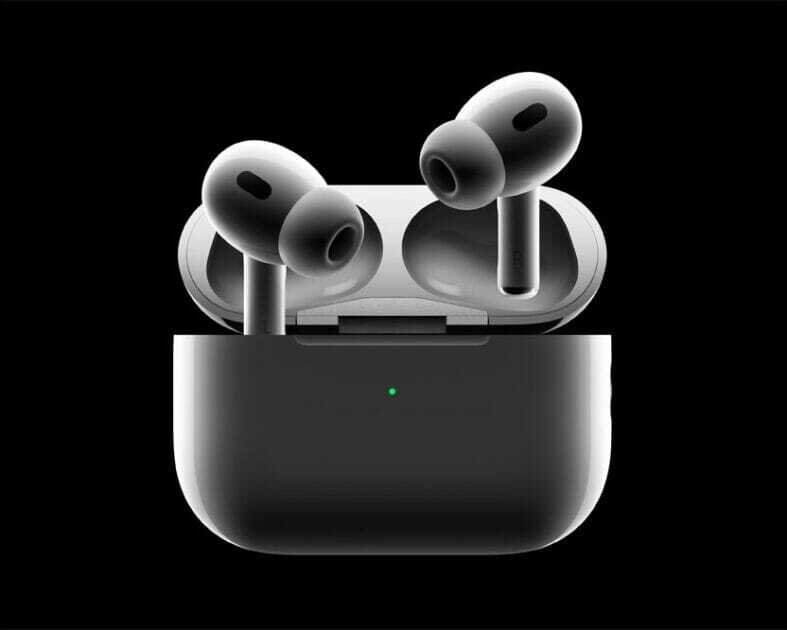
Apple AirPods Pro 2 were released in September 2022, and it wasn’t long before scammers flooded the market with cheap knockoffs. With a hefty price tag of $249+ and talk of being Apple’s premium Samsung Buds contender, it’s no wonder fake AirPods Pro 2 became a hot counterfeit item so quickly.

The second-generation AirPods Pro and new charging case.

Now, it’s harder than ever to know the difference. Without a bit of know-how and background info, it’s easy to get duped into a scam. We’re here to help make sure that doesn’t happen.

Below, we’ll walk you through everything you need to know about fake AirPods Pro (2nd generation) so that you can avoid scams and find good deals on authentic earbuds.

What Are Fake AirPods Pro 2?

Fake AirPods Pro 2 are imitation earbuds built to look like Apples’s AirPods Pro 2, but they lack the sophisticated hardware and software to warrant the high price tag. Scammers use cheap materials that lack iOS compatibility and often break down much faster than the authentic AirPods.

Apple doesn’t create fake AirPods Pro 2, so you’ll get no customer support if (more likely when) your AirPods stop working. You’ll be on your own.

Unfortunately, there’s not one tell-tale sign of a fake pair of Apple AirPods Pro 2. Expert scammers have nailed the design, and some will even sell the AirPods Pro 2 at a premium to fend off any initial buyer suspicion. You’ll need to inspect the nitty-gritty details to find the counterfeit giveaways.

Where Are Fake AirPods Pro 2 Sold?

Scammers sell fake AirPods Pro 2 all across the internet and local listings. So unless you’re buying from Apple, Best Buy, or another credible tech store, you’ll have to deal with fake products to some extent.

Here are the most common places scammers are selling fake Apple AirPods Pro 2:

  • Craigslist
  • Amazon
  • Wish
  • eBay
  • Facebook Marketplace
  • Walmart
  • Alibaba

Scammers operate on other e-commerce platforms, too, but these are often the most prevalent. And that’s because these sites sometimes have mind-blowingly low legitimate discounts on high-quality tech items.

How to Identify Fake AirPods Pro 2

1. Check the Box

Apple is meticulous about its packaging, so if you still have the box your AirPods Pro 2 came in, check here first. The box may look legitimate at first glance, but there are a few areas to check.

The AirPods Pro 2 come in a very familiar, minimalist white square box. The earbuds are the only thing you’ll see on top of the box, printed beautifully, and even embossed.

Stickers on the side of the box, and the printing on the bottom reassure you that these are 2nd generation AirPods Pro with a MagSafe charging case (hard to tell otherwise, at least at first).

The box itself should fit quite snug. If the inner box and its lid come apart very easily or don’t line up correctly, this is a sign that something may be amiss.

The lettering used for the AirPods name and the Apple logo on the box are another area to check. If these are reflective and not flat gray, for example, you may be dealing with a counterfeit.

Getting to your new true wireless earbuds is the usual ordeal for Apple products – you hold the top of the retail box, with the bottom part sliding out slowly, so you can really savor the moment.

Inside the box you’re greeted with your new AirPods Pro 2 wrapped in protective plastic, a Lightning-to-USB Type-C charging cable, paperwork (no Apple sticker though), and not the usual three, but four pairs of ear tips.

Those are extra small, small, medium and large ear tips too choose from, with the medium ones already pre-applied to the earbuds.

Second-generation AirPods Pro’s ear tip sizes, including the new extra small ear tip.

2. Check Your Case

The original AirPods Pro 2 charging case has a few new things going for it, visible almost immediately. First, it now has a metal lanyard loop to the right, which is a nice little touch to see make a comeback in general. But perhaps even more noteworthy – the AirPods Pro 2 case now has its own speaker on the bottom, and thus, a little speaker grill next to its Lightning charging port. Yep, no USB Type-C, but fake models will sometimes have a USB-C port at the bottom instead.

Lanyard loop attached to a backpack on the all-new charging case of the second-generation AirPods Pro.

Besides that, the AirPods Pro 2 case is a familiar rounded rectangle, with a solid-feeling lid, and a metal hinge. On the front of the case, we still have a single LED light, and on the back of the case is the Bluetooth pairing button you’ll likely never need to use. If your case doesn’t have either of these features, it’s a fake.

3. Closely Inspect Your AirPods

For some reason, the very ends of the AirPods seem to be difficult for counterfeit manufacturers to match. On the original AirPods, the bottom should be an oval-shaped vent. If this is circular, it’s likely counterfeit.

The low-distortion audio driver and custom amplifier on the second-generation AirPods Pro.

Original airpods Pro 2 have the familiar straight stems, with touch-sensitive spots that serve as playback controls. We also have generally the same glossy plastic build as always. If the headsets lack any of these features, it’s a fake airpods Pro 2.

4. Check the color

Now let’s talk about the AirPods Pro 2’s color options – there are none. As you may have expected, the AirPods Pro 2 only come in glossy white, for both the case and the earbuds themselves. If you see a different color, it’s a fake airpods Pro 2.

5. Try pairing

Pairing genuine AirPods Pro 2 with an iPhone is as easy as ever – simply unbox your new earbuds, open their case close to your iPhone, and a pairing prompt will pop up on screen. It’s a very quick and easy process.

However, if you’re pairing them with an Android phone, you’ll have to go the longer route – navigating into the Bluetooth settings on your phone, then finding and tapping your new AirPods to pair them that way. If they’re not appearing, press and hold the circular button on the back of the AirPods Pro 2 case until the LED on the front starts flashing, which means they’re in pairing mode. If the airpods Pro 2 are not detected by your devices, they’re probably fake.

6. Check the Serial Number

The most definitive method of making sure your AirPods Pro 2 are the genuine item is checking the serial number with Apple. If the company has never heard of the serial number, you’ve probably got a fake.

To check, open the lid of your AirPods case and look on the underside of the lid. It’s on the section that is closest to the charging status LED when the case is closed.

You can also check on the underside of the right earbud, even though the type is smaller, and it’s more difficult to see here.

Once you’ve found your number, head to https://checkcoverage.apple.com and enter the serial number.

What to Do If You Purchase Fake AirPods Pro 2?

Mistakes happen. If you accidentally purchased fake AirPods Pro 2, not all is lost. Depending on when you bought the earbuds and where you bought them from, there’s still a lot you can do to recoup your money and right the wrong. The processes differ depending on the platform you purchased the product:

  • Wish: Contact Wish’s customer service to take advantage of their 30-day return policy. Check their list of exceptions to make sure your purchase qualifies. Wish is notorious for selling fake products, so always be cautious buying on the platform.
  • Craigslist: Craigslist won’t be able to protect you from scammers and counterfeits. You’ll need to do your due diligence to avoid getting scammed. However, if you believe you’ve been scammed, Craigslist still appreciates you reporting the fraud so that they can protect future buyers.
  • Facebook Marketplace: Facebook Marketplace doesn’t provide protections for sellers and buyers.
  • Walmart Marketplace: Request a refund via the Walmart Marketplace Promise to recover your funds.
  • Amazon: Contact Amazon customer support to file an A-to-Z Guarantee to start your refund process.
  • eBay: Contact eBay to ask for their money-back guarantee.

Contact the FBI’s digital division to submit a fraud report. They’ll provide additional advice, and this information will hopefully help them catch the bad guys.

Where to Buy original Apple AirPods Pro 2

You can find authentic AirPods Pro 2 at various in-store and online retailers. Here’s a shortlist of the most reliable places you can buy real AirPods Pro 2:

  • Apple
  • Best Buy
  • Walmart
  • Target
  • Verizon
  • Microsoft

You can find real pairs of AirPods Pro 2 on popular e-commerce sites like eBay and Amazon, but you’ll always run the slightest risk of getting scammed. That’s not the case with the authentic websites listed above.

Apple iPhone 13 Pro Max

Congratulations on your brand new iPhone 13 Pro Max! Now you’ve given so much money over to Apple, you’re going to want to make the most out of your handset, and we’re here to guide you through some of its best features and how to use them. Now, check out some of the best iPhone 13 Pro Max tips and tricks to unlock the full potential of your new phone.

Some of the tips and tricks we’ve listed apply specifically to the iPhone 13 Pro Max, while others are tied to the iOS 15 update that Apple just pushed out (and so should work on older phones too). Check out the best iPhone 13 Pro Max tips and tricks below.

Best iPhone 13 Pro Max Tips and Tricks

Here’s a list of the best iPhone 13 Pro Max tips and tricks to try first:

1. iPhone 13 Pro Max Tips and Tricks: Share items with Siri

One of the best features in iPhone 13 Pro Max, you can share items onscreen like photos, web pages, content from Apple Music or Apple Podcasts, Apple News stories, Maps locations, and more. For example, just say “Send this to Filipe” and Siri will send it. If the item cannot be shared, Siri will offer to send a screenshot instead.

2. iPhone 13 Pro Max Tips and Tricks: Understand 5G Icons

The iPhone 13 Pro Max comes with improved 5G connectivity over the iPhone 12. That allows for incredible download and upload speeds of up to 4.0 Gbps and 200 Mbps, respectively.

When you’re in an area with 5G coverage for your carrier and your 5G cellular plan has been activated, you’ll see a 5G icon in the status bar of your iPhone 13 Pro Max. There are three different status icons that you may want to keep an eye out on — 5G, 5G , 5GUW, and 5G UC.

5G — Indicated normal 5G network availability.
5G / 5GUW / 5G UC— Indicated faster high-frequency 5G network availability.

3. iPhone 13 Pro Max Tips and Tricks: Manage Smart Data Mode

5G is great. But it can also reduce your iPhone’s battery life. To address this, Apple has included Smart Data Mode feature on iPhone 13 Pro Max, a functionality that switches between 5G and 4G depending on network activity.

For example, you won’t need 5G while scrolling down your Twitter and Facebook timelines. Smart Data Mode will make your iPhone use 4G in those instances. But if you choose to download a video on Apple TV, your iPhone 13 Pro automatically takes advantage of faster 5G.

To manage Smart Data Mode on your iPhone 13 Pro Max, go to Settings > Cellular > Voice & Data. Select 5G Auto to enable Smart Data Mode or 5G On to disable the functionality — 5G On always uses 5G network when it’s available but it can reduce your iPhone’s battery life.

4. iPhone 13 Pro Max Tips and Tricks: Restrict 5G

You can use Low Data Mode to reduce Wi-Fi and cellular-data usage by pausing automatic updates and background tasks on your iPhone 12 Pro Max. Go to Settings > Battery to turn it on. Alternatively, you can enable Low Data Mode from the Control Center.

5. iPhone 13 Pro Max Tips and Tricks: Buy 20W USB-C Power Adapter

The iPhone 13 Pro Max doesn’t come with a charging adapter in the box. There is only one cable included in the box — a USB-C to Lightning cable. Therefore, you need an USB-C charging adapter. Using a USB-C cable and USB-C charging adapter will allow the iPhone to charge at faster speeds. Using USB-C, you can charge the iPhone to 50% in about half an hour. The highest wattage the iPhone 13 Pro Max will use is around 22 watts, so a 20 watt or 30 watt charger will result in the about same charging speed. But basically any USB-C charger will be significantly faster than the old USB-A chargers.

6. iPhone 13 Pro Max Tips and Tricks: Get a MagSafe Charger

The iPhone 13 Pro Max features a magnetic area on the back of the device, called MagSafe. MagSafe is essentially a better version of Qi as the magnets auto-align with the case. Using the secure magnetic attachment, Apple enables up to 15 watt charging for MagSafe chargers. So for the best wireless charging, choose MagSafe over Qi … but the USB-C cable is still the fastest overall.

7. iPhone 13 Pro Max Tips and Tricks: Install iOS Updates Over 5G

The 5G connectivity on the iPhone 13 Pro Max unlocks the ability to download iOS updates over 5G. You can enable this by going to Settings > Cellular > Data Mode and select Allow More Data on 5G.

8. iPhone 13 Pro Max Tips and Tricks: FaceTime HD Calls

Another advantage of 5G is the ability to perform FaceTime video calls in 1080p HD on your iPhone 13 Pro Max. You can enable this by going to Settings > Cellular > Data Mode and select Allow More Data on 5G to FaceTime in HD over 5G. Alternatively, use WiFi to perform FaceTime HD calls.

9. iPhone 13 Pro Max Tips and Tricks: FaceTime Eye Contact

You can complement FaceTime HD on the iPhone 13 Pro Max with Eye Contact to improve your experience with FaceTime video calls. Essentially, the Eye Contact feature augments the FaceTime call to make it look like you are looking at the person, rather than at the screen. You can enable this by going to Settings > FaceTime and enable the toggle next to Eye Contact.

10. iPhone 13 Pro Max Tips and Tricks: Night Mode for All Cameras

All iPhone 13 Pro Max camera sensors include Night mode feature. This lets you take Night mode shots using the telephoto as well as the ultra-wide camera in low-light scenarios.

11. iPhone 13 Pro Max Tips and Tricks: View Image Metadata

The Photos app on the iPhone 13 Pro Max has a much-needed feature with the new iOS 15 software update. It can now display the image metadata or EXIF data for photos shot and stored on your iPhone. To do this, start the Photos app and tap the photo you want to view the metadata for. Next, tap on the info ‘i’ button to view the camera used, lens type, focal length, shutter speed, image resolution, file size,, location and more.

12. iPhone 13 Pro Max Tips and Tricks: Use iCloud Private Relay

When Private Relay is enabled, all of your browsing activity in Safari will be routed through two internet “hops,” or relays. Your data is encrypted and then sent to Apple, so your ISP can’t see any of your web browsing requests.

Please note: iCloud Private Relay is only available for paid iCloud users. To enable this, go to Settings > iCloud > Private Relay menu.

13. iPhone 13 Pro Max Tips and Tricks: Drag and Drop Content Across Apps

This iPhone 13 Pro Max trick lets you drag and drop text, photos, links, videos, documents, audio files, PDFs, and more. To do this, simply long-press any image/video/file from one app, open another app, and drop it there. Without lifting your finger off the screen, exit the app and open another app with another finger and drop the content.

This new drag and drop trick for copy/pasting texts, photos, and other files, is pretty useful and makes moving things much faster. It’s just one of the many new features in iOS 15 that has, and will make life easier for many users. You can try it out in your favorite apps to see if it works, but not to worry if it doesn’t. We’re sure most apps will support the feature in due course.

14. iPhone 13 Pro Max Tips and Tricks: Shoot Videos in Dolby Vision

The iPhone 12 was the first smartphone in the world last year to allow shooting videos in Dolby Vision. However, the non-Pro models were limited to 4K30fps. There’s no such limitation this time around, so if you have the iPhone 13 mini or iPhone 13, you can now shoot stunning 4k60fps Dolby Vision videos and edit them straight off your iPhone.

15. iPhone 13 Pro Max tips and tricks: Use your iPhone’s camera to scan any text

Have you ever wished you could point your iPhone’s camera at a sign or piece of paper and have it automatically identify then copy the text into an email or a document? That’s where Live Text comes in – this new iPhone 13 Pro Max trick lets you scan and copy text from photos and your iPhone camera, even if it’s handwritten. And once you’ve pulled the text, you can paste it into any text field. It’s great for quickly sharing addresses, phone numbers, and anything else you don’t want to type out manually.

To use the iPhone 13 Pro Max new scan text feature, long-press inside a text field as if you are going to use the copy and paste prompt. Only, you’ll now see a Scan Text button. You may also see a button that uses just the scan icon, which looks like a piece of paper with brackets around it.

Tap the button, which will then replace your keyboard with your iPhone camera’s viewfinder. Point your camera at whatever you want to scan, and then follow the prompts on the screen. For instance, if you’re moving the camera too fast, you’ll see a “Slow Down” message flash on the screen.

As you’re lining up the camera and text just right, you’ll see a live preview of the text your iPhone is identifying and ready to place in your document. Tap the Insert button when you’re ready.

16. iPhone 13 Pro Max Tips and Tricks: Turn Off Night Mode

The iPhone 13 Pro Max will automatically enable Night mode in low-light scenarios for the best possible photos. If you don’t want ‌‌Night Mode‌‌ engaged when you’re shooting in low light environments, you can turn it off by tapping the yellow ‌‌Night Mode‌‌ button when it appears at the top of the viewfinder. The problem is, when you open the Camera app again and the sensor detects low light, ‌Night Mode‌ will automatically enable itself again. In iOS 15, you can turn off ‌Night Mode‌ and ensure it stays off. Go to Settings -> Camera -> Preserve Settings and enable the Night Mode toggle.

17. iPhone 13 Pro Max Tips and Tricks: Shoot Macro Photos

The iPhone 13 Pro Max can take ultra close-up photos with a new macro mode. Simply open the camera app and tap on the 0.5X button to use the ultra-wide lens, and the moment you point your iPhone 13 Pro Max towards an up-and-close object (macro mode works from 2cm distance), the phone will automatically know and capture a macro photo.

18. iPhone 13 Pro Max Tips and Tricks: Record Macro Videos

iPhone 13 Pro Max can now also shoot macro videos! Simply Open the ultra-wide camera. Get your iPhone 13 Pro Max up and close to an object and macro mode will work automatically.

19. iPhone 13 Pro Max Tips and Tricks: Shoot Cinematic Videos

Cinematic mode is designed to act like a virtual focus puller. Cinematic mode mimics professional videography techniques by adding on-the-fly depth of field effects to recognized subjects. Software algorithms are used to detect and focus on people, pets and objects, which are made to stand out against blurred backgrounds. Be sure to record Cinematic Videos on your iPhone 13 Pro Max if you want to take your videos to the next level.

20. iPhone 13 Pro Max Tips and Tricks: AirPlay 4K HDR Content

If you have a second-gen Apple TV or an AirPlay 2-enabled smart TV, you can AirPlay 4K HDR content using your iPhone 13 Pro Max. Once your Mac gets the macOS Monterey support, you’ll also be able to AirPlay videos to it.

21. iPhone 13 Pro Max Tips and Tricks: Quick Take Videos

To capture a QuickTake video, just press and hold the Shutter button.. Release the button to stop recording. Swipe your finger to the right if you want to switch to video recording completely.

22. iPhone 13 Pro Max Tips and Tricks: Shoot in Apple ProRAW

ProRAW means you no longer needed an expensive DSLR to capture stunning professional-level pictures — now you can capture them on your iPhone 13 Pro Max.

To use Apple ProRAW, the first thing you need to make sure you do is enable the feature. Here’s how you do that:

Open the Settings app and go to Camera > Formats. Toggle Apple ProRAW on. The next time you go into the Camera app, you should see a button to turn Apple ProRAW on and off.

23. iPhone 13 Pro Max Tips and Tricks: Get the MagSafe Wallet Case with Find My Support

If you are someone who tends to lose or misplace their iPhone frequently, get the new MagSafe Wallet case from Apple. The case can come in handy if you are unable to track your iPhone directly. You can instead try to locate your wallet case. Alongside the iPhone 13, Apple launched an updated MagSafe Wallet case with Find My functionality built in. That means if you accidentally lose your wallet when it becomes unattached from your iPhone, you can launch the Find My app to locate it as you can with other Apple devices or items attached to your Apple AirTags.

In this case, the MagSafe leather wallet will notify you of the last known location where the wallet was separated from the phone. It will not, however, provide real-time tracking.

24. iPhone 13 Pro Max Tips and Tricks: Watch Videos in Picture-in-Picture Mode

Picture in Picture lets you watch videos or view FaceTime calls in a corner of your screen while continuing to use other apps. It works on any iOS 15-compatible phone but obviously benefits from the larger screen size of newer phones like the iPhone 13 Pro Max.

Most of the major video apps support PiP, as well as browser videos through Safari. Swipe up while watching a video in full-screen mode, and you should see the video show up in a floating PiP pane automatically.

25. iPhone 13 Pro Max Tips and Tricks: Change Default Browser

The default browser on your iPhone 13 Pro Max can be changed by following a few simple steps. By changing it, any URL or web-based file you tap on will open in your browser of choice, as long as your phone supports it.

To change the default browser on your iPhone 13 Pro Max, open the Settings app and select the app that you want to make the default. Then, tap Default Browser App and specify the app as the default.

26. iPhone 13 Pro Max Tips and Tricks: Track Your iPhone Even When Switched Off

Thanks to iOS 15, you can now find a lost or missing iPhone 13 Pro Max in Find My — even if it’s powered off or factory reset. This can help you locate a missing iPhone 13 Pro Max that was low on battery power or that may have been turned off by a thief.

Your Favorite iPhone 13 Pro Max Tips and Trick?

So these were some of the best iPhone 13 Pro Max tips and tricks you would love to try today. surely plenty more hidden iPhone 13 Pro Max tips and tricks to discover, so I’ll keep tapping, swiping and noting anything I find. Did we miss out on something important that needs to be added to the list? Which are your favorite iPhone 13 Pro Max tips and tricks? Let me know in the comments section below. Meanwhile, you may want to check our list of 30+ Best iOS 15 Tips and Tricks to help you master your new iPhone better.

Here are the best airpods pro 2 tips and tricks to get the most out of Apple’s new wireless headsets.
The new AirPods Pro (2nd generation) come with Adaptive Transparency, which blocks out loud sounds even when your Pros aren’t in Noise Cancellation mode.
You can charge your AirPods Pro 2 in four different ways.
Thanks to a new speaker on the AirPods Pro (2nd generation) case, you can play a sound to help you locate lost AirPods.
Apple’s new AirPods Pro (2nd generation) launched on Sept. 23 and cost $249. They have a ton of new features that make them a must-buy if you like AirPods.

Here’s are the best airpods Pro 2 tips and tricks to get the most out of your wireless earbuds.

Best Airpods Pro 2 Tips and Tricks

1. AirPods Pro 2 tips and tricks: turn Adaptive Transparency on or off

Thanks to a new H2 chip, the new AirPods have Adaptive Transparency mode, which allows them to block out harsh noises such as a siren or motorcycle. It’s not the same feature as Noise Cancellation mode, which will block out much more noise around you, and instead blocks out loud noises even if noise cancellation is off. Here’s how to turn it on.

  1. Make sure your AirPods are connected to your iPhone.
  2. Open Settings.
  3. Tap the listing for your AirPods at the top of the Settings page.
  4. Scroll down to Adaptive Transparency and toggle this on or off.

2. AirPods Pro 2 tips and tricks: control the volume on your AirPods Pro 2

Touch control on the new Pros allows you to lower or raise the volume by lightly swiping up or down on the stem of the AirPods. Here’s how to use the feature.

  1. You’ll feel an area that’s slightly indented and has a matte texture, instead of a shiny one, on the side of either AirPod.
  2. Lightly stroke up or down to control the volume.
  3. Each time you stroke the stem, the volume will only increase or decrease by one level. You’ll hear a ticking sound with each stroke. You’ll also be able to see the volume increasing on your iPhone.

3. AirPods Pro 2 tips and tricks: charge AirPods Pro 2

There are four ways to charge your new AirPods Pro (2nd generation).

  • You can use the Lightning charger that comes with the new AirPods.
  • You can also drop them onto any Qi wireless charging pad.
  • MagSafe is built into the AirPods Pro 2, which means the case will automatically stick to any MagSafe charger you might already own for an iPhone.
  • And for the first time ever, you can use an Apple Watch Charger to charge your airpods Pro 2. It just sticks on magnetically and begins charging.

4. AirPods Pro 2 tips and tricks: find your AirPods Pro 2

The AirPods Pro 2 case has Apple’s U1 chip inside, so you can use the Find My app to see the exact location of where you last left your AirPods.

Since there’s a new speaker built into the case, you can also ask Find My to play a noise from your AirPods case so you can better locate it. Here’s how to do it.

  1. Open the Find My App.
  2. Locate your AirPods by their name. Mine are called Johnson’s AirPods Pro #2, for example.
  3. Press Play Sound to hear your AirPods.
  4. Select Find to see where your AirPods are on a map.
  5. If your buds aren’t in your case, the Find My App will help you locate each individual bud, too.

5. Airpods Pro 2 tips and tricks: Set Up AirPods Personalized Spatial Audio

According to Apple, Personalized Spatial Audio is designed to create an even more precise and immersive listening experience than standard Spatial Audio, which uses Dolby Atmos to create a richer, more immersive soundstage when listening to songs in the Apple Music catalog.

Personalized Spatial Audio does this by using the TrueDepth camera on an ‌iPhone‌ to analyze the shape of your ears in three dimensions and use this mapping to create a personal sound profile that’s tuned just for you. Here’s how to Set Up Personalized Spatial Audio

  1. With AirPods connected, launch the Settings app on your ‌iPhone‌.
  2. Tap on the name of your AirPods, just below your Apple ID banner.
  3. Under “Spatial Audio,” tap Personalized Spatial Audio.
  4. Tap Personalize Spatial Audio….
  5. Follow the on-screen instructions.

When the setup process is complete, you can tap See & Hear How It Works on the previous screen to get an idea of how it sounds. If you don’t like what you hear, you can always disable the feature via Personalized Spatial Audio -> Stop Using Personalized Spatial Audio….

Your favorite airpods pro 2 tips and tricks?

So these were some of the best airpods pro 2 tips and tricks you would love to try today. My favorite airpods pro 2 tips and tricks include Adaptive Transparency mode, and ability to lower or raise the volume by lightly swiping up or down on the stem of the AirPods. There’s surely plenty more hidden airpods pro 2 tips and tricks to discover, so I’ll keep tapping, swiping and noting anything I find. Did we miss out on something important that needs to be added to the list? Which are your favorite airpods pro 2 tips and tricks? Share your thoughts in the comment section below.

AirPods 3

You can enjoy your AirPods 3 even more if you know how to fully use and customize them. Here are the best AirPods 3 tips and tricks to get the most out of Apple’s wireless earbuds.

The AirPods 3 feature spatial audio and industry-leading sound, longer battery life, and an all-new design. If you’re one of the many to have picked up a new pair of AirPods, but don’t know if you’re making the most of their functionality, here are the best AirPods 3 tips and tricks to help you get the most from your earbuds.

These helpful AirPods 3 tips and tricks can help you control and customize your earbuds to manage playback, preserve the battery, find them if they’re lost, and a lot more. Some of these you may already know, while a few added in iOS 15 might be new. So take a look till the end.

The best AirPods 3 tips and tricks

Here’s a list of the best 31 AirPods 3 tips and tricks that will help you get the most from Apple’s new wireless earbuds. Have fun!

1. Use your iPhone as a remote mic

You can use your iPhone as a remote microphone while it’s connected to your AirPods, if you need to—it can help pick up what’s being said in conversations in noisy environments, or even let you hear what’s happening in another room.

  1. Open Settings on your iPhone.
  2. Choose Control Center.
  3. Select Customize Controls.
  4. Tap the green button next to Hearing to add it to your control center list.
  5. Now, when you want to use it, turn on Live Listen by opening control center.

2. Use Headphone Safety to Protect Your Hearing

With the “Headphone Safety” feature enabled, the iPhone can determine whether you’ve been listening to music too loud over a long period of time and — if so — it will lower your sound levels and send you a warning notification.

  1. Go to Settings.
  2. Go to Sounds & Haptics.
  3. Go to Headphone Safety.
  4. Turn on the toggle next to Headphone Notifications and Reduce Loud Sounds.
  5. Finally, use the slider to adjust the decibel level, and you are all set.

3. Turn on spatial audio for a surround sound effect

With AirPods 3, you can take advantage of spatial audio. This technology creates a 360-degree surround sound effect when watching TV, listening to music or participating in FaceTime calls using AirPods. To activate spatial awareness or to check whether it’s turned on, make sure the AirPods you’re wearing are connected to your iPhone or iPad via Bluetooth. Then tap Settings > Bluetooth, and choose your AirPods. Press the ”i” icon and select Spatial Audio.

4. Get Notified If You Leave Your AirPods 3 Behind

With Find My, you’ll be able to get left behind alerts if you should head out without your AirPods, and you’ll be able to rely on the Find My Network to help locate them.

To turn on left behind alerts:

  1. On your iPhone, launch the Find My app
  2. Tap on your AirPods under the devices tab
  3. Tap Notify When Left Behind under Notifications
  4. This is also where you can white-list locations. You may not want to get a notification every time you leave your house without your AirPods so you can white-list your home. Then you’ll get notifications everywhere but at your own home. You can add multiple locations.

5. Understand What the Light Means

Wondering what the light on the AirPods 3 case is trying to tell you? The light is really useful to quickly see the charging and pairing status of your AirPods.

The AirPods 3 has a single light, but it can change color, and it flashes—it can be difficult the decode the meaning. Here’s what the status light means:

  • White light (flashing): This means that your AirPods are in pairing mode. This happens when you press and hold the Pairing button at the back of the AirPods case.
  • Amber light (with AirPods in case): Ambre is the color for charging. It means that your AirPods are not fully charged, and that the case has now started charging them.
  • Amber light (without AirPods in case): This means that your AirPods case is not fully charged, and that there’s less than one full charge remaining in the case. This is when you should charge your AirPods case.
  • Amber light (with power source): This means your AirPods are being charged.
  • Green light (with AirPods in case): A green light means your battery is fully charged. If your AirPods are inside the case and you’re seeing a green light, it means that both the AirPods and the case are fully charged.
  • Green light (without AirPods in case): If you’re seeing a green light in the case without the AirPods, it means that the case itself is fully charged.
  • Green light (with power source): This means that your AirPods case is fully charged and you can remove the charger.
  • Flashing amber light: A flashing light generally means something has gone wrong. In this case, a flashing amber light denotes a pairing error. If you see this, it means you’ll have to reset your AirPods.
  • No light: Lastly, no status light means your AirPods are dead and have run out of battery.

6. Manually Switch Between Devices

If you’re listening to another device with your AirPods but you want to listen to your ‌iPhone‌ instead, start playing music, a podcast, or other audio on your ‌iPhone‌, and your AirPods will switch to ‌iPhone‌ automatically. Your AirPods can also switch to ‌iPhone‌ when you make or answer a call on your ‌iPhone‌. Sometimes, the automatic switching feature isn’t reliable. But bother not, this is why Apple has included the manual switching so that you can take control of any ill-functioning.

  1. Swipe down from the top-right corner of the screen to bring down the Control Center on iPhones with Face ID or iPads. If you’re using a device with a Home button, swipe up from the bottom of the screen.
  2. Here, tap the “AirPlay” icon found in the top-right corner of the Now Playing widget.
  3. You’ll now see a list of all available devices. As long as your AirPods are out of the case and in your ears, you’ll see them on the list. Select your AirPods to switch to them.

7. Change the name of your AirPods

With so many Bluetooth-enabled devices to connect to — from your car’s audio to your noise-cancelling headphones to your living room speaker — it can be hard to keep track of what’s what. That’s why it can be helpful to rename devices like your AirPods 3 so you never get them mixed up again.

With your AirPods 3 connected to your iPhone or iPad, go to Settings > Bluetooth. Then tap on the ”i” icon next to your AirPods’ name. Next, tap on the Name field and enter your preferred name. The new name will sync to the rest of your iCloud-linked devices.

8. Customize the AirPods controls

Each of your AirPods (3rd generation) has a Force Sensor on the stem. From your AirPods’ settings, you can also change the press-and-hold function for either earbud. Once again, with your AirPods connected to your iPhone or iPad, go to Settings > Bluetooth. Then tap on the ”i” icon next to your AirPods’ name. Tap on Left or Right to alter the functionality of each AirPod, or disable any interaction at all.

9. Use Force Sensor to Control Music With Ease

Each of your AirPods (3rd generation) has a Force Sensor on the stem. You can use the Force Sensor to do any of the following:

  • Play and pause audio: Press the Force Sensor once. To resume playback, press it again.
  • Play the next track: Press the Force Sensor twice.
  • Play the previous track: Press the Force Sensor three times.

10. Use AirPods 3 with Your Apple Watch

One aspect that makes Apple’s AirPods so appealing is how easy it is to set them up. Connecting the earbuds to your iPhone only takes a few seconds and very minimal effort. As long as you’re signed into iCloud, your AirPods 3 will automatically sync with any other supported Apple device — like an Apple Watch — that’s linked to your Apple ID.

11. Use AirPods 3 with your Mac

Being part of the Apple ecosystem, AirPods also work seamlessly with Mac. As long as you’re using the same Apple account on all your devices, once you have paired your AirPods 3 with your iPhone, they are automatically paired with your Mac as well. Though you can still pair your AirPods with your Mac like any other Bluetooth headphones.

12. Check AirPods battery status on an iPhone

To check the battery status of your AirPods and the charging case, simply open the charging case next to your iPhone (it works on the iPad and iPod Touch, as well), which should prompt your phone to display a popup with battery status.

13. Check AirPods battery status on an Apple Watch

If you own an Apple Watch, here’s a cool trick: Place your open AirPods case next to your watch, then open Control Center and tap the battery option. In addition to displaying battery stats for your watch, you will also find stats for your AirPods and the case.

14. Check AirPods battery status on a Mac

  1. Open the lid or take your AirPods out of the case.
  2. Click the Bluetooth icon in the menu bar.
  3. Hover the pointer over your AirPods in the menu.

15. Check the Model Number of Your AirPods 3

Considering how difficult it is to spot the difference between real Vs. Fake AirPods 3, it’s important to check the model number of your AirPods.

  1. Go to Settings > Bluetooth.
  2. Find your AirPods in the list (for example, ”Monica’s AirPods”).
  3. Tap the More Info button next to your AirPods, and you’ll see the model number.

16. Update Your AirPods 3

Apple’s quietly been pushing new firmware to AirPods to help with performance. You can’t update the firmware manually, but you can force an update to make sure you have the latest version.

To force an update: Place AirPods in the charging case, connect it to a power source, place it all next to the iPhone for an auto-update.

17. Hard reset your AirPods 3

Resetting the AirPods, also known as performing a hard reset, is how you return them to their factory settings. After you do this, you can set them up again.

Some of the situations in which you’ll need to reset your AirPods include:

Go to Settings > Bluetooth, tap the i icon next to AirPods in My Devices then tap Forget This Device > Forget Device.
Next: Put Airpods in charging case, wait 30 seconds, then open and press/hold the button until status light flashes yellow, then white.
After a reset, you’ll need to set your Airpods up again just as if they were brand-new.

18. Keep the audio playing

One of the smartest tricks the AirPods are capable of is stopping playback once you pluck either or both of them out of your ears, but you might not always want to interrupt playback while you’re temporarily paying attention to the real world. If you open Settings in iOS, then tap Bluetooth and select the Info button (the “i” next to your AirPods), this feature can be disabled by toggling the Automatic Ear Detection toggle switch to Off.

19. Use your AirPods 3 with non-Apple devices

Notice that small, flush button on the back of the charging case? That’s what you’ll use to pair AirPods 3 to an Android device or anything else that doesn’t work with Apple’s proprietary chips.

To start pairing to anything new, put the AirPods in their case, then flip the lid up and press and hold the small button on the rear of the charging case until the little LED light starts pulsing white. They should then show up in any Bluetooth-pairing settings on an Android phone, or computer, or TV. Simply start the Bluetooth connection process from your other device to establish the wireless link.

Keep in mind that when you’re paired with a non-Apple product, they lose some of their magic. Taking an AirPod out of your ear won’t pause music, and playback controls won’t work either.

20. Have Siri read your notification’s via your AirPods

Want to stay tuned into what’s going on with your phone’s notification’s while listening to music? With iOS 15, you can now turn on “Announce Notifications” and allow Siri to read you every notification. Yep, whether it’s an iMessage or a Snapchat, Siri will know, and she’ll be sure to let you know, too. Here’s how to enable the feature so you never miss a notification again.

  1. Open your Settings, and tap on Notifications.
  2. Tap on ”Announce Notifications.”
  3. Toggle on ”Announce Notifications.”
  4. Choose which apps you want to have notifications announced for.

21. Find out who is calling without looking at your iPhone

You can set up your AirPods 3 to announce who is calling you without having to get your iPhone out of your pocket or handbag by enabling the “Announce Calls” feature on iPhone. To configure how this works, open Settings, then choose Phone, Announce Calls, and Headphones Only (or Headphones & Car). To answer or end a call: Press the Force Sensor on either of your AirPods.

22. Use the Find My network to locate a lost AirPod

Individual AirPods can be easy to lose, but thankfully you can track them down using Apple’s Find My app. If your AirPods 3 are linked to your Apple ID and you’ve set up Find My on your iPhone, you’ll be able to view your AirPods’ last location on a map. If you happen to lose one AirPod, you can also prompt it to play a sound so that you can find it as long as it’s near your other Apple devices and connected to Bluetooth. You can do this by launching the Find My app, navigating to the Devices tab, tapping on your AirPod, and pressing the Play Sound option.

23. Share audio with two pairs of AirPods

You can easily share audio from one iPhone to two pairs of AirPods at the same time, which is very handy for watching movies or listening to tunes with a friend, for example. Open Control Center with a swipe down from the top right corner of the screen, tap the AirPlay icon, then choose Share Audio from the dialog that appears—once you’ve done that, you’ll need to bring the second pair of earbuds close to your phone so they’re detected.

24. Save Battery by Using Just One AirPod

If you only take one AirPod out of its case, your iPhone will route all the audio through it, which is helpful if you’ve got a long day of calls and audio streaming ahead of you and want to maximize the available battery life: when the first AirPod has died, you can switch to the second one and carry on. The other reason you might want to do this is to listen to music in one ear while keeping your other ear open to the sounds of the world around you.

25. Access Siri from your AirPods

On the thirdgen AirPods, you can launch Siri with a “hey Siri” voice command while they’re in your ears without touching your phone at all. If you didn’t enable the functionality when you set the earbuds up the first time, go to Settings on your iPhone, tap Siri & Search, then make sure Listen for “Hey Siri” is enabled. For example, you can ask about the weather, turn the volume down, or skip to the next track.

26. Charge with MagSafe

For the first time ever, Apple has released a charging case for the AirPods that is compatible with MagSafe. Now, you don’t need to worry about misaligning the charging case on your Qi wireless charger as the case just snaps into place.

27. Change the active AirPod microphone

By default, the active microphone automatically switches between left and right AirPods, but you can change it so it is fixed to one side.

Open Bluetooth settings on your iPhone > Make sure your AirPods are connected > Click on the ”i” symbol on the AirPods tab > Scroll down to Microphone > Select your preference.

28. Answer a call using your AirPods 3

It’s possible to answer a call directly from your AirPods, though we recommend switching the Announce Calls feature on so you know who you’re about to speak to.

To answer a call with your AirPods 3, just squeeze the Force Touch sensor when you hear the incoming call chime in your ear.

29. End a call using AirPods 3

To end a call with AirPods 3, simply squeeze the Force Touch sensor on the stem.

30. Turn the volume up on AirPods 3

There are no volume controls on the AirPods themselves, except the AirPods Max. To turn the volume up or down on the AirPods 3, you’ll need to use the device your AirPods are connected to.

For example, if you are using your AirPods with your iPhone, simply adjust the volume as you would if you were talking on your iPhone with the volume rocker on the left of your device.

31. Improve Sound With Headphone Accommodation

The Headphone Accommodations feature enhances the audio from your AirPods by boosting softer sounds and certain frequencies.

Go to Settings > Accessibility > Audio/Visual > Headphone Accommodations and turn on the switch. Tap Play Sample to start playing music, which will allow you to tune the audio for a balanced tone across a range of frequencies, a vocal range for middle frequencies, or brightness for higher frequencies. You can also boost softer sounds slightly, moderately, or strongly.

Your favorite AirPods 3 tips and tricks?

So these were some of the best AirPods 3 tips and tricks you would love to try today. With all these AirPods 3 tips, tricks, and hacks in mind, you should be a master of your new earbuds in no time. Life will be much easier for you and most of the things you need to do are a voice command or two taps away. My favorite AirPods 3 tips and tricks include the ability to read notifications without unlocking my iPhone, Spatial Audio, and find them if they’re lost. Which AirPods 3 tips and tricks did you find the most interesting? Do you have any other life-changing AirPods 3 tips and tricks up your sleeve that we might have missed? Share it with us through the comments.

Tag: AirPods