Got a tip for us?

Featured

Even though wireless charging is advantageous in many situations, it isn’t necessarily useful all the time. In this article, we’ll talk about the disadvantages of wireless charging for iPhone.

It’s been almost five years since Apple first announced wireless charging capabilities in its iPhones. Apple diehards were buzzing at the news. Apple wasn’t the first company to build Qi wireless charging into smartphones, but as the most iconic smartphone company in the world, they received a lot of attention about it. Although there are many advantages of getting a wireless charger for your iPhone, there are also many disadvantages. Compared with wired charging, iPhone wireless charging has the following disadvantages.

Disadvantages of wireless charging for iPhone

1. Can’t play with your iPhone while charging

“One thing, one thing, yes.” As far as the current commercial technology is concerned, when using wireless charging, the iPhone must be placed on a fixed wireless charging board. According to my observation, this is also the “main force” in the current complaints about wireless charging.

Most of the iPhone wireless chargers on the market are placed flat, and the iPhone must be close to the charger. In this charging position, you can barely use your phone while it is charging. You can’t pick it up, move it, or do anything besides use it while it remains flat on the charger. With a normal wire, you can use your iPhone for sustained periods while it’s charging. In my living room, I love having a long cable with a wired charger because it allows me to scroll Twitter while I watch TV. As long as you’re close enough to an outlet, a wired charger means you can keep using your iPhone even at the end of a long day. That’s especially true with long cables; a 10-foot Lightning cable should let you reach any outlet without having to be right next to the wall.

2. Wireless charging is not compatible with metal back cover

Metal phone cases will definitely disrupt the connection between your phone and a wireless charger. Aluminum phone cases are very durable and robust, keeping your phone safe, but they’re no good for wireless charging devices. This is why Apple’s new iPhone models no longer feature an aluminum shell. Instead, they offer a solid glass back that helps conduct the charge efficiently. In other words, it’s not just about aesthetics.

3. Wireless charging is slow

Qi wireless chargers are slower than wired chargers, full stop.

There’s a reason we normally plug devices in to charge them. It’s just faster and more efficient to transmit energy over a wire.

The fastest chargers we’ve measured in our testing recharged a fully drained iPhone 13 to only 50 percent battery capacity in an hour, around half as fast as a wired charger. But any wireless charger can still fully charge any phone overnight. That’s why I also use one on my bedside table. If I wake up in the middle of the night and want to check my phone (bad habit, I know), I don’t have to worry about waking up my partner when I’m fumbling to plug my phone back in.

One thing I didn’t realize about the MagSafe Charger is that it charges much slower than a lightning connection. I assumed that the magnetic alignment would make it charge super fast, but this is not exactly the case. The MagSafe Charger can only charge the iPhone at 15W, which takes about an hour to charge an iPhone 13 to 50% battery capacity. Considering a lightning-connected 20W adapter can charge an iPhone 13 to 50% in 28 minutes, that’s quite a bit slower.

If you value getting the most charge to your iPhone as fast as possible, like those precious few minutes between when you get home from work and when you have to run back out the door, stick with a wired charger.

See also: iPhone 13 Charging Slowly? How To Speed Up Your Charging

4. There is electromagnetic radiation

Wireless charging of mobile phones is carried out by electromagnetic induction, so the charger generates electromagnetic waves all the time. This electromagnetic wave is generally in the frequency range of tens to hundreds of MHz. Although it may not cause much harm to the human body, it is still much more harmful than wired charging.

5. It’s wasteful

While the normal person might not care, wireless charging is an inherently inefficient form of power transfer. (Take this as an exaggerated example: a wired charger will transfer, let’s say 80% of the power it gets at the wall to the phone. thus to charge a theoretical 1000ma battery, it will use 1,250ma. If a comparative wireless charger is able to transfer 40% of the energy to the phone, the same amount of charge will take 2,500 ma at the wall. This extra energy is wasted as heat.)This wastes energy, which is bad for the environment and our energy grid.

6. Not true wireless

When people hear the term wireless, they immediately think that they can move around pretty freely. Unfortunately, this isn’t the case with wireless charging. Wireless charging requires a charging pad. The charging pad must be plugged in. Already not so “wireless”. The iPhone must sit on top of the charging pad (perfectly) to receive a (trickled down) charge. Meaning, when you lift your iPhone off the charging pad to use it, it’s no longer receiving a charge.

True wireless charging would mean that beam-shaped power would be directed at the device from across the room. The power source finds all devices in the room and magically squirts microwave juice into them.

There are a number of patents about which describe this sort of true wireless power. But the stray microwave issue might be a source of concern. Your devices might magically recharge on your bedside, but no one wants to wake up with a half-cooked face.

Maybe the biggest disadvantage that is often overlooked by people is the need to pay closer attention to charging your phone. This is because, you have to get the iPhone centered just right, or buy a $50 plus pad with multiple coils. Then you STILL have to get the iPhone centered just right. And the charging pad still has a wire attached to it, so it won’t help wire clutter that much. So it’s a solution looking for a problem.

7. Wireless charging usually causes iPhone to overheat

There are many discussions around whether or not ” wireless charger heat harms your battery” amongst those who have started charging their iPhones wirelessly. Wireless charging usually generates a bit of waste heat and can even make the iPhone battery overheat compared to conventional cable charging. Some of that wasted power transform to heat, and the extra heat will cause more wear and tear on the battery, speeding up the aging of your battery every time your iPhone’s battery gets exposed to high temperatures.

See also: 11 Tips to Fix iPhone 13 Pro Overheating Issue in 2022

8. Wireless charging pads cost more than cable chargers

The charging pad is much more complex than a standard USB wall charger power supply and cord. That means they are more expensive.

Check the price for cables and wireless chargers on Amazon, and you will find that most of the cables are less than $10 while usually, a wireless charger costs $20 more or less. That’s quite a big difference.

For example, at my office I might need another charging pad. Do I really want to drag one charging pad around with me? No. Do I want to buy multiple, expensive charging pads or cradles? No. Plug-in cords are so much cheaper, and only represent about 3 seconds of extra effort to connect and disconnect versus placing a phone on a pad.

9. Wireless chargers are less portable

In addition to being more expensive, they are also less portable. They require a surface on which to rest, preferably flat and level. For example, there’s not a spot in my car that is either flat or level, so I can’t reliably use a charging pad in my car. I probably could get a cradle that holds the phone firmly, but the cradle wouldn’t be useful outside of my car.

10. Compatibility

Although the same charging stations can be used for different Apple devices, there are people who have witnessed an issue with the same. There are cases where people have reported to have faced problems with regards to charging varied Apple devices.

There have also been compatibility issues with some iPhones not being attracted to draw in power from the power station.

Conclusion

The dream of wireless charging is great, of course. If only we could have some sort of wireless power device in our home that would charge our iPhones as we use them without having to press them against it. If only our iPhones would charge automatically when we placed them down on a table at a restaurant. But we’re a ways from that.

Wireless charging is a new technology in the world of gadgets; hence it certainly will require some time for more development to be truly wireless and also to gain popularity with all.

With so many disadvantages of charging iPhone wirelessly, if I had to recommend a single charger, I’d still say go with a wired charger. It’s more versatile and almost always smaller, which makes it more convenient if you need to bring it along to work or school or when you’re traveling.

But it’s a luxury to have different charging options in different areas of the house. Think about how you use your phone in each spot — use wired where you want to keep your phone in hand or you need a faster charge, and choose wireless where you’ll get more out of the simplicity of dropping it and leaving it. Charging, both wired and wireless, is going to continue to get both faster and less expensive over the next few years, making it even easier to optimize your setup.

There are plenty of convincing reasons to get a wireless charger for your iPhone. In this article, we look at the best advantages of wireless charger for iPhone.

If you’re looking for a way to upgrade your iPhone experience, picking up a wireless charger could be a great option for you. Choosing wireless charging and finally ditching the cord on your iPhone is easier than ever. If you’ve picked up a new iPhone in the last couple of years, it more than likely already supports wireless charging. And unlike the early days of wireless charging, you don’t have to make a big sacrifice when it comes to charging speed.

Now, for those with iPhones compatible with wireless charging, we’ll discuss the benefits of wireless charging.

Advantages of wireless charger for iPhone

Here are ten advantages of getting a wireless charger for your iPhone:

1. Wireless Charging Has Gotten a Lot Faster

Although many Android phones had wireless charging for years already, Apple didn’t bring it to the iPhone until 2017 with the release of the iPhone 8. Even though wireless charging was a long-awaited feature for the iPhone, it didn’t catch on like a lot of people thought it would.

That’s because when compared to traditional wired charging, wireless charging was a lot slower. To make things worse, even though 7.5W fast-charging Qi wireless chargers were already on the market, at launch the iPhone 8 was limited to only 5W of power when using a wireless charger. It wasn’t until later that software updates finally let the iPhone 8 access a full 7.5W wireless charge.

These days, Apple’s entire iPhone lineup supports standard Qi wireless charging, and there are tons of wireless chargers to choose from. On top of that, with the iPhone 12 series Apple brought MagSafe from the MacBook to the iPhone.

Unlike the MagSafe MacBook chargers, MagSafe for iPhones is completely wireless. Better yet, MagSafe is the fastest way to charge your iPhone wirelessly. MagSafe can deliver up to 15W of charging speed directly to your iPhone. That’s double the power of a Qi charger.

2. It’s Perfect for Your Desk or Nightstand

One of the best places for a wireless charger is at your office or workspace. There are tons of wireless chargers specifically designed for your desk. Many of them even prop your iPhone up, so it’s easy to glance at incoming alerts and notifications. Better yet, because your iPhone isn’t tied down with a cable, you can quickly grab it when you need to get up to chat with clients or make a personal call.

Equipping your nightstand or bedside table with a wireless charger can add another layer of convenience to your life. It means the end of waking up to a dead phone because you forgot to plug it in before you dozed off.

Having a wireless charger on your desk or nightstand can help you make your workspace more organized, and it means the end of having to hunt down your iPhone’s charging cable in the dark.

As almost no cabling is required, cable clutters are not present. This in turn provide you more space and electrical hygiene.

3. It Also Works With Your iPhone’s Accessories

Even though the original AirPods debuted without wireless charging, a wireless charging case was brought out as an optional extra for the AirPods 2. Since then, every version of AirPods has shipped with standard wireless charging that’s MagSafe compatible. That means a wireless charger for your iPhone also works with your AirPods.

AirPods aren’t the only iPhone accessories that you can charge wirelessly. If you’ve got an Apple Watch Series 6 or newer, you’ll be thrilled to know it’s also got wireless charging built in.

4. Convenience

Another benefit of having wireless charging is that you will not have to deal with cords again. It leaves the need of messy cords and makes it much simpler by just letting you drop your iPhone at the charging station.

How many times do you charge your device in a day? Probably at least two times in the case of a smartphone, depending on its age. It’s no secret that smartphone batteries have a short life. But since that is a given at the moment, you can at least make the process of juicing up your device less frustrating. And that’s where you’ll appreciate the convenience of wireless chargers.

Even though wireless chargers are slower, they offer a different kind of convenience: they’re dead simple to use. Just drop your phone onto the charging pad and it’ll start charging. I love having a wireless charger at my desk and in the kitchen, two places where I know I’ll pick up my phone to glance at it a lot. Instead of having to physically unplug the phone every single time, I can just pick it up and put it back when I’m done. As a bonus, stand-style Qi chargers let me see notifications or check recipes at a glance when I don’t have a free hand.

No more hunting down cables, fiddling with them, a wireless charger saves you all of this trouble by only requiring you to just drop and go. It’s that simple. Forget about fumbling with cords and adaptors when you need some power—wireless chargers are as intuitive to use as they are easy to set up.

While wireless charging is not (yet) truly wireless as you would expect from its name, it’s still way more convenient than regular cables. Of course, you still have to connect the charging dock to a power outlet, but that’s nothing compared to the struggle of untangling cables.

5. Charge Multiple Devices Simultaneously

One of the best advantages of wireless chargers is the ability to charge multiple devices at once. This is all thanks to the ability of certain charging docks to support two or three devices simultaneously.

Such functionality is becoming standard for charging pads and mats where you can charge your Apple Watch, AirPods, and iPhone all at once. With this, you can reduce the amount of cables and international power adapters at your home and workplace.

6. MagSafe Might Make You Ditch Cables Altogether

One of the biggest reasons wireless charging hasn’t taken over the world quite yet is the speed. When compared to wired charging, most wireless chargers just can’t keep up. But that’s changing quickly. If you’re using a standard Qi charger, iPhones can only support up to 7.5W, but if you pick up a MagSafe charger, that speed can be amped up to 15W.

Advances in fast-charging technology mean that a MagSafe wireless charger can actually charge your iPhone faster than using a lightning cable with a 5W charging brick.

While the fastest charging solution for your iPhone is still going to be a 20W charging brick paired with a USB-C to Lightning charging cable, MagSafe isn’t far behind. Depending on your needs, the convenience factor that comes with MagSafe might make it worth the slightly slower charging speed.

7. No Wear and Tear

You may not know it yet but wear and tear is one of the reasons you’re constantly shopping for charging cables. Naturally, cables wear and tear over time. Heck, even charging ports, too. And good genuine cables don’t come cheap, especially iPhone cables.

Because iPhone wireless charging does not require frequent plugging and unplugging of the charging cable, the wear and tear of the data interface of the iPhone will be reduced a lot. At the same time, the coil for wireless charging of iPhones is not exposed to the air, which can also reduce the oxidation and corrosion of the charging unit. The wired charging is often plugged and unplugged, which will easily lead to wear and tear, and the interface is exposed, which is prone to oxidation and corrosion.

Since using frayed cables isn’t an option due to the different risks they pose to your device, a sure-fire way to stay out of this trouble is to get a wireless charger. Unlike with charging cables, you only place your device atop the charging dock, and that’s it.

8. Wireless Charging Is the Future

Back in the day, when you bought a new iPhone it was a given that it would come with a few accessories, most importantly a charger. That all changed in 2020, when Apple controversially decided to start shipping new iPhones without any accessories at all. iPhones now come without earbuds and without a charger.

The iPhone has always been a tribute to minimalism, and Apple hasn’t been shy about cutting out features to achieve its vision of a perfect phone. Just like how Apple removed the headphone jack from the iPhone 7, rumors are circulating that the next leap forward might mean getting rid of the Lightning port altogether.

Although we haven’t seen a portless iPhone just yet, it’s possible we might see one in the near future. Picking up a wireless charger means you’ll be able to charge your iPhone now, and you’ll be ready for a portless future, whenever it does come. And, who knows, with the speed and convenience of MagSafe wireless charging, you might not miss the lightning port at all.

9. It is more safer than conventional charging

As there is less cabling involved, and that too need not to be in open space, the chances of common electrical hazards like low insulation, cable wear and tear or cable cut, sparks etc are very low. Hence, it can be said that the absence of open cabling reduces the chances of electrical accidents.

10. Faster to connect and disconnect

It is faster to connect and disconnect your iPhone from charging as you only have to place/lift your phone on/from the charging pod. No need to connect jacks or plugs.

Benefits of Wireless Charging on iPhone

Wireless charging has many advantages. First, wireless charging has no wear and tear. Additionally, it allows you to charge several devices simultaneously, helps you maintain a clean desk environment, and is very convenient. While it has its disadvantages, these reasons are good enough for you to switch to the wireless side.

How to know if HomePod is fake original

Apple debuted the HomePod in 2018 and it wasn’t long before scammers flooded the market with cheap knockoffs. With a hefty price tag of $349, it’s no wonder fake HomePod became a hot counterfeit item so quickly.
Now, it’s harder than ever to know the difference. Without a bit of know-how and background info, it’s easy to get duped into a scam. We’re here to help make sure that doesn’t happen.

Below, we’ll walk you through everything you need to know about fake HomePod so that you can avoid scams and find good deals on authentic Apple’s smart speaker.

How to know if HomePod is fake original

HomePod delivers impressive sound, works seamlessly with iPhone, features the intelligence of Siri, and is the foundation for any smart home. Unfortunately, counterfeit HomePods and knock-offs have been profiting from this initiative as well. And, distinguishing the copycats from real ones has become noticeably harder.

Fake HomePod Manufacturers have become so clever — even nailing the software aspect of the HomePod. In fact, even actual HomePod owners have been scratching their heads when identifying the real ones from the fakes.

The burden of checking for authenticity falls on the buyer. And if that someone is you, then you’re lucky because we’ll show you five ways to spot fake HomePod.

How to know if HomePod is fake original

Without further ado, here’s your ultimate guide on how to tell if HomePod is fake.

How to Identify Fake HomePod or HomePod mini

1. How to Tell if HomePod is Fake via the Serial Number

The serial number is the fingerprint of a product. It is a combination of numbers and letters assigned only to a specific unit produced.

This allows Apple to track specific units during inventory. Aside from that, Apple also uses serial numbers to identify defective batches. For users, the serial number is proof that the product actually came from Apple and not any other manufacturer.

The serial number can also be used to identify stolen or lost HomePod. Every HomePod has a one-of-a-kind serial number so you can verify whether a unit is yours or not. For example, if you suspect that another person is using your lost HomePod, check the serial number.

If you’ve casually picked up your HomePod and looked for the serial number, you might not have noticed it, but Apple does print the numbers on each and every smart speaker.

Flip the HomePod upside down and take a closer look at the writing at the bottom. You’ll find that the serial number is stated along with the Designed by Apple in California writing that surrounds the Apple logo.

If you can’t read the serial number on the HomePod, you can also find it on the original packaging. The serial number is located next to a barcode on the sticker. Check each side of the packaging to find this sticker. Make sure you read the serial number and not the UPC, which is next to a different barcode.

Apple has a dedicated website to check the authenticity of its products. To check whether the HomePod mini is original or not, visit Apple’s official https://checkcoverage.apple.com page. Enter the serial number and check the validity of the purchase date along with other details.

Checking the serial numbers to identify fakes used to be a foolproof method. Unfortunately, that’s not the case nowadays. Manufacturers of fake HomePod have been taking serial numbers from real HomePods to use in batches of fakes
We also noticed that counterfeit HomePods have different serial numbers on the box and the smart speakers themselves.

2. Price Difference of Real vs. Fake HomePod

The price difference between fake and real HomePod is the most significant source of temptation for counterfeit buyers. After all, why spend almost a hundred bucks on authentic HomePod if you can buy a pair that looks like it for a third of the price?

Currently, the HomePod mini cost $99. We saw quite a few discounts on the ‌HomePod mini‌ over the 2021 holiday season, but right now there isn’t currently a notable deal on the speaker. In contrast, counterfeit HomePod mini only costs around $10-$40, depending on their quality.

Some high-quality counterfeit HomePods are sold at a higher price — closer to the original’s price range. Some sellers raise the prices of their counterfeit HomePods to make it seem like they’re the real deal.
The best way to ensure that you’re buying originals is to buy from Apple Stores of Apple Authorized Resellers. You can check Apple’s locate page to find the nearest legit sellers near you. If you’re buying through online platforms such as Amazon, make sure that you’re buying from their official Apple Store.

3. How to Spot Fake HomePod via the Packaging

Minimalist, intelligent, and clean — these are the perfect words to describe the boxes that come with Apple products. Anyone who knows a thing or two about tech brands also knows how much Apple pays attention to the details, even when it comes to the packaging.

Because of this, counterfeit manufacturers seem to have a harder time producing high-quality packaging than the smart speaker itself.

Different counterfeit HomePods come from different manufacturers. This means that some manufacturers could have gotten parts of packaging right that other manufacturers haven’t.

The packaging for an original HomePod minis is exquisite. Each of the real HomePod minis come in a matching box. They’re absolutely gorgeous and the colors are eye popping. Each box has a unique “mini” word mark with a different sound-related effect applied to it. The top of each box shows off the colors that appear on the top of the new HomePod minis as well.

Check for misspellings and wrong information. A company like Apple would not have typographical errors on the box itself and even on the manuals. These materials go through multiple rounds of proofreaders and copywriters before printing. If you spot any errors on your HomePod’s packaging, then you’re probably holding a counterfeit one.

You’ll also notice that the labels for original boxes are separated whereas fake ones simply have one whole strip of paper attached.

You can also authenticate your HomePod by checking what’s inside the box. Oftentimes, counterfeit HomePods would only have the manual. However, authentic HomePod would have two more items outside of the manual — the 20W power adapter and the warranty card.

Who knew that even the suction you feel when you open the box of an Apple product was intentionally put there?

Apple boxes are composed of two parts — an inner box that houses the box contents and an outer box that has the image of the product. To open the box, you need to raise the outer box and wait for the inner box to naturally release itself. This is something that most counterfeit products cannot fabricate.

To check this, get yourself another box from an authentic Apple product. Familiarize yourself with the drag and suction from that box and compare it to your HomePod’s box. If the sensation isn’t the same, then you probably have counterfeit HomePod.

4. Physical Checks To Help Identify Real vs. Fake HomePod

Now, onto the HomePod itself.

Apple really showed their detail-oriented side with the HomePod so counterfeit manufacturers tend to miss the little things.

Unlike the packaging, though, the physical differences between real and fake HomePod are a lot more subtle. To an untrained eye, high-quality counterfeits can easily pass as originals so below are the key areas you can use to authenticate.

Different manufacturers make counterfeit HomePods differently. Some manufacturers can get some areas of the HomePod right so it’s important to check out the smart speaker from all angles and spot the mishaps.

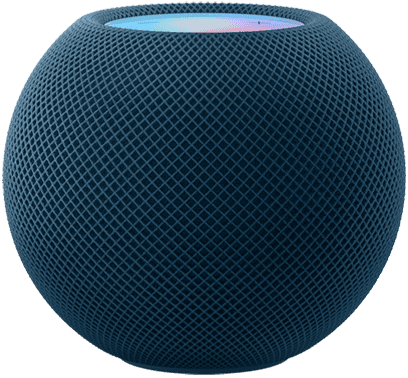
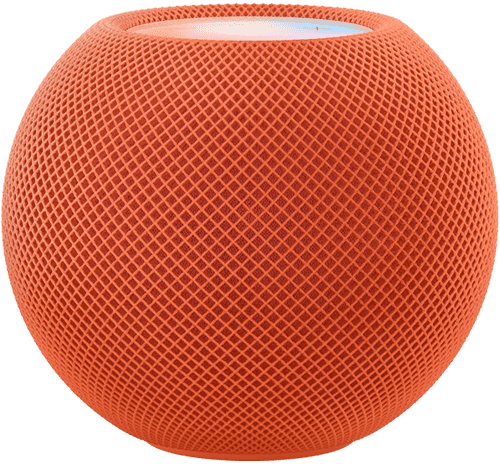
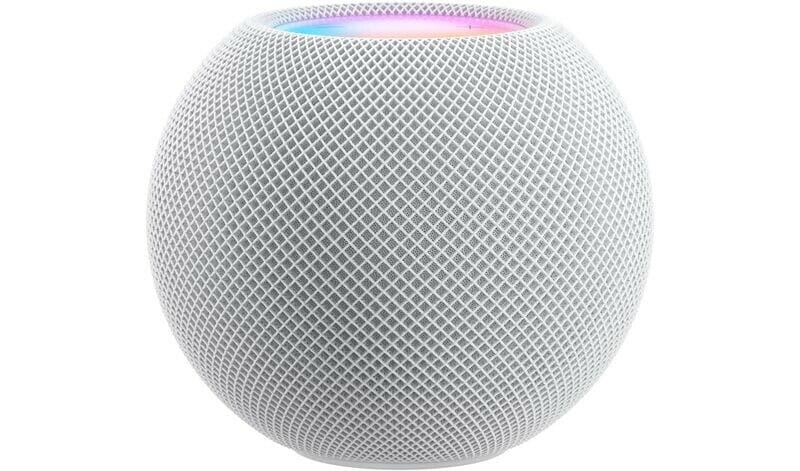
To identify HomePod clone, look carefully at the device. The ‌HomePod mini‌ has a compact spherical design, while the original ‌HomePod‌ has a bulkier capsule-like design.

Both devices are covered in Apple’s audio-conductive mesh material. The ‌HomePod‌ and ‌HomePod mini‌ also share the ‌Siri‌ waveform that appears on the top display to indicate when ‌Siri‌ is engaged, and integrated touch controls for volume.

The HomePod mini features a long, non-detachable fabric cable. The cable sports a USB-C connector,, which makes it fairly versatile on that end. HomePod mini clone will sometimes have a detachable cable instead.

Although technically not meant to be removed, the power cable on the original HomePod could be detached and reattached with a bit of force. In addition, the original HomePod model requires a direct connection to a power outlet via a plug, rather than a power adapter.

HomePod mini comes in 5 colors: orange, yellow, blue, white and space gray. If the HomePod mini doesn’t have either of these colors, that’s a bad sign.

On the bottom of the HomePod is a hard plastic base. This is where the Apple logo is located. If you don’t see Apple Logo on the bottom of the HomePod, it’s likely counterfeit.

Also in typical Apple fashion, HomePod has no buttons (no real physical buttons, at least). There’s just a glass touchscreen (more like touchpad) on the top. If you spot physical buttons on HomePod, you are dealing with counterfeit.

5. Check if it can connect to your iPhone

How to know if HomePod is fake original

Image Credit: Apple

You can’t connect your iPhone to the HomePod Mini through Bluetooth. However, the whole setup process is pretty simple with an iPhone. The HomePod and your iPhone see each other, and the iPhone tells the HomePod everything it needs to know about your home network, and your iCloud ID. It’s quite similar to pairing AirPods.

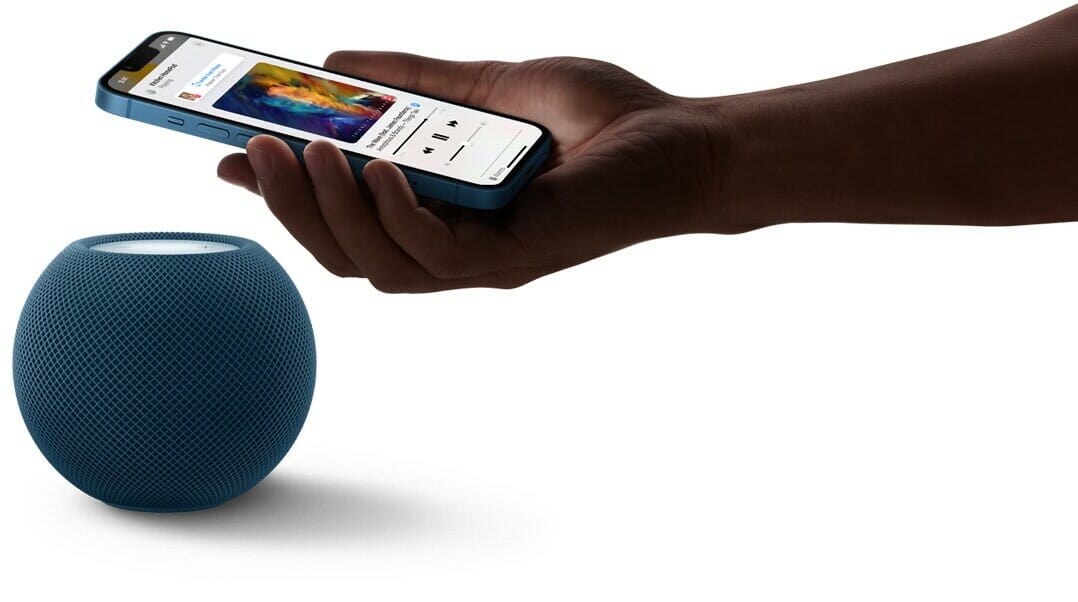
To set up your HomePod, plug it into an outlet and wait until you hear a chime and a white light appears on top. Then hold your unlocked iPhone next to it and tap Set Up. Follow the on-screen instructions, center the HomePod into your iPhone’s viewfinder, then wait for it to finish setting up.

If the HomePod is suddenly not working, make sure you’ve gone through the troubleshooting process first before calling the smart speaker a counterfeit.

What to Do If You Purchase Fake HomePod?

Mistakes happen. If you accidentally purchased fake HomePod, not all is lost. Depending on when you bought the smart speaker and where you bought it from, there’s still a lot you can do to recoup your money and right the wrong. The processes differ depending on the platform you purchased the product:

  • Wish: Contact Wish’s customer service to take advantage of their 30-day return policy. Check their list of exceptions to make sure your purchase qualifies. Wish is notorious for selling fake products, so always be cautious buying on the platform.
  • Craigslist: Craigslist won’t be able to protect you from scammers and counterfeits. You’ll need to do your due diligence to avoid getting scammed. However, if you believe you’ve been scammed, Craigslist still appreciates you reporting the fraud so that they can protect future buyers.
  • Facebook Marketplace: Facebook Marketplace doesn’t provide protections for sellers and buyers.
  • Walmart Marketplace: Request a refund via the Walmart Marketplace Promise to recover your funds.
  • Amazon: Contact Amazon customer support to file an A-to-Z Guarantee to start your refund process.
  • eBay: Contact eBay to ask for their money-back guarantee.

Contact the FBI’s digital division to submit a fraud report. They’ll provide additional advice, and this information will hopefully help them catch the bad guys.

Where Are Fake HomePods Sold?

Scammers sell fake HomePods all across the internet and local listings. So unless you’re buying from Apple, Best Buy, or another credible tech store, you’ll have to deal with fake products to some extent.

Here are the most common places scammers are selling fake Apple HomePods:

  • Craigslist
  • Amazon
  • Wish
  • eBay
  • Facebook Marketplace
  • Walmart
  • Alibaba

Scammers operate on other e-commerce platforms, too, but these are often the most prevalent. And that’s because these sites sometimes have mind-blowingly low legitimate discounts on high-quality tech items.

Where to Buy original Apple HomePod

You can find authentic HomePod at various in-store and online retailers. Here’s a shortlist of the most reliable places you can buy real HomePod:

  • Apple
  • Best Buy
  • Walmart
  • Target
  • Verizon
  • Microsoft

You can find real HomePod on popular e-commerce sites like eBay and Amazon, but you’ll always run the slightest risk of getting scammed. That’s not the case with the authentic websites listed above.

Conclusion

Authenticating HomePod is as tricky as ever. With the things we discussed above, though, you should be properly armed to take on the challenge. Now, you won’t be easily fooled by those who want to take advantage of you. The only thing left for you to do is to go get that HomePod now!

What inspections worked for you? Do you have any other tricks under your sleeves? Tell us about it through the comments below!

See also: 30 Best HomePod mini Tips and Tricks to Try First

No one is perfect in the world. If God cannot make a perfect creature, how can humans? Everything in the world has its advantages and disadvantages. there are a lot of people who love iPhones but there are also many who would never like to own an iOS device due to some of its most annoying drawbacks. In this article, we are going to talk about the Disadvantages Of iPhones.

The vast majority of people dislike iPhones. Mostly it’s because of the few options of hardware and software customization that they have. If you happen to ask someone to recommend a good smartphone for you, they will probably ask you to buy another type of phone apart from an iPhone. So the big question is, what are the disadvantages of iPhone? In this article, i’m going to explain 21 disadvantages of buying an iPhone in 2026.

If you traverse across the Internet, you are likely to come across loads of Apple lovers making some pretty good things about iPhone. But frivolous altercation aside, what are the disadvantages of iPhone?

The short answer: The iPhone is expensive, have few apps in Apple Store, lack of headphone jack and more.

Top 21 disAdvantages of an iPhone

The disadvantages of using an iPhone are mostly subjective to an individual’s needs, but the general ones are as follows.

1. iPhones are expensive

iPhones are exorbitantly priced. Even a two-year-old iPhone is more expensive than a new high-end smartphone. Yes, the user interface and hardware integration with the apps on the iPhone are superior to those on other smartphones. However, this does not excuse the exorbitant iPhone costs.

2. Few free apps and games in Apple store

On iPhone, you can only install applications from Apple’s App Store. If Apple doesn’t want to approve an app or they have removed it from the app store, you just can’t use it. For example, Apple store do not allow video games emulators, BitTorrent clients and many other types of apps that they consider controversial.

3. Radio is not in-built

Unlike devices running on other platforms, Apple phones do not come with radio pre-loaded on them. Users wanting to listen to radio on the iPhones have to do so by downloading radio apps.

4. iPhone apps are usually big, consuming too much space.

With specific features and characteristics made specifically for the iPhone, apps made for the platform become very heavy, taking up a lot of storage space of the device. Thus, when you want to play games on the device using an iPhone, you have to make way for apps that come in several gigabytes.

5. Limited widgets even after upgrades on iPhone

With minimal variation in user interface and design, the platform offers very little to look forward to in terms of trending designs in upgrades. Even when the users buy a higher version with the same icons as before, Home screen continues to look the same. Those looking for an exciting new look have to stay satisfied with the previous look and feel of the platform.

6. Too simple and doesn’t support computer work as in other devices

When using the iPhone, the platform has its limitations in terms of offering a computer -like experience. As compared to other platforms, iPhone offers comparatively simpler performance options.

7. Lack of Headphone Jack

If you have ever used an iPhone, I know there is time you have gone to insert a pair of headphones into your phone only to realize that you have forgotten your headphone dongle somewhere. This feels so bad because an iPhone can’t be connected with standard headphone due to absence of headphone jack. Thus the absence of headphone jack is one of the major disadvantages of the iPhone.

8. Use of iTunes is a bloated mess.

Apple is a pioneer of hardware and software design, but iTunes – which is required to transfer music between your iPhone and computer – is a bloated mess. Uninstalling it is a nightmare, to the extent that Apple publishes an extensive guide for how to fully remove iTunes from your PC.

9. Absence of physical back button

Physical back button allows you to go back from one application to another seamlessly. Like if you hit a link in Facebook and get transported to the Chrome browser, you can return to the social media app when you hit the back button. This is not the same case in iPhone because there is no back button, however, you can get contextual back buttons within apps or a back button that appears when you click a link that takes you from one app to another.

10. limited Launcher

With minimal variation in user interface and design, the platform offers very little to look forward to in terms of trending designs in upgrades. Home screen continue to look the same even when users buy higher versions with the same icons as before. Those looking for an exciting new look have to stay satisfied with the previous look and feel of the platform.

11. Expensive Accessories.

It goes without saying that iPhone accessories are expensive. Airpods, phone cases, Apple pencils, lightning cables, and anything else made by Apple is expensive.

12. No External Storage.

The iPhone does not support SD cards. There is no SD card slot on any iPhone. Even if you attach an SD card reader to your iPhone and insert an SD card, your iPhone will only allow you to move images and not other documents or media files.

13. Overheating

One of the most common problems in iPhones is overheating. Sometimes an iPhone will just feel a little warmer than it should, and other times the back of the iPhone will be too hot and it feels like it might burn your hand. Either way, if you have got a hot iPhone, it means there’s something wrong.

14. Limited storage

Apple only offered iPhone users 5GB of free iCloud storage, which is enough space for about 1,500 photos. While that may sound like a lot, most users found themselves burning through their 5GB allotment within one year of device ownership. And to make matters worse, Apple only supply’s 5GB of free space for each iCloud account, rather than for each device you own. So you could be taking photos and videos on your iPhone, creating iWork documents on your iPad, and storing important files on your Mac with iCloud Drive, and you’d still be supplied with just 5GB of space.

15. Apple Ecosystem

The Apple Ecosystem is mostly a curse. Once you get in, it’s really difficult to get out. The ecosystem is essentially there to make consumers purchase more Apple products. You’re likely to purchase a MacBook if you have an iPhone rather than a windows laptop. This way you won’t be able to see if other brands have better devices and you’ll have to wait until Apple makes one or updates the previous model.

16. Battery Life

The iPhone battery life is not that great when compared to other smartphones. While many people will be happy with the performance of their batteries, especially if it lasts all day long, some may find this a problem for them.

17. Less choices in iPhone Hardware

When it comes to Apple, it releases a maximum of four types of iPhone in every generation in a year. That is iPhone Pro Max, iPhone Pro, iPhone and iPhone mini. You will only be needed to choose between the four types in that year.

18. Lightening cable charger is hard to find

The chip inside lightening cable charger is encryption protected. Third-party manufacturers also need to authorize MFI and other technical certification to allow production, thus making it hard to be found and when found it becomes expensive.

19. No customization

iOS supported devices are not customizable and all the code is private. You have to jailbreak your phone to make it customizable. But if you jailbreak your iPhone then the privacy of your phone comes at a risk.

20. No multitasking

Multitasking is achieved by splitting the screen and using two apps simultaneously. For example, you can be watching a YouTube video and replying to your WhatsApp messages at the same time. It’s unclear why Apple hasn’t added this feature to the iPhone yet, but perhaps it has something to do with the size of the app windows on the iPhone’s display as compared with the larger iPad.

You can argue iOS does multi-tasking all you want. And it’s true, you can do multiple things at once by switching apps back and forth, but that doesn’t even come close to the level of multi-tasking some devices offer.

21. No sideloading of Apps

Sideloading of Apps means, installing apps from outside the authorised place to bypass some restrictions. Apple does not let you do that on an iPhone. It has even faced criticism and pressure from regulators for this, but Apple has always maintained its stance that its iPhone is secure this way. Thus you can not install an app that is not in the Apple Store.

Disadvantages of an iPhone? Now you know!

With numerous disadvantages of having an iPhone, it’s easy to figure out why iPhones are not preferred more. Before buying an iPhone, it’s good to read the above cons of iPhone.

HomePod sounds incredible, and with access to more than 90 million songs in the global Apple Music catalog and deep integration with your Apple devices, it’s the must-have smart speaker for iPhone users. HomePod fits in even more places and delivers amazing sound, the power of Siri, and simple and secure smart home controls, all while protecting your privacy. In this article, we’ll highlight 7 benefits of owning an Apple HomePod, kicking off with the room-rocking audio.

7 Benefits of Apple HomePod

Here are some of the advantages of having an Apple HomePod in 2025:

1. Genuinely Impressive Audio

This is arguably the most important thing about HomePod. Sure, whether it’s smart or not matters, but remember that Apple is promoting this as a hi-fi speaker, aiming to blow other smart speakers out of the water by offering greatly superior audio chops. Apple found that people who had smart speakers already, even cheap mini-model ones, were mostly being used for music, so that was Apple’s priority. If it doesn’t sound good, the implication is, the HomePod would be a disaster.

Not just compared to other smart speakers, though it certainly is better than any other I have heard, but also compared to regular, non-smart speaker systems that are similarly priced or more expensive.

The sad truth is that the vast bulk of smart speakers fail roundly to deliver on the audio front.

At first glance, it might seem unthinkable for a product to miss the mark in terms of core functionality, but that’s the thing.

For many smart-speaker customers, these dinky devices are simply portals for controlling other devices with voice commands.

Here is where being honest about your needs and usage habits can help you get the best device first time round. Think about how you will use the device, not what features it has and how you could theoretically use it.

Despite what smart speakers permit in terms of controlling other connected devices hands-free, for most people who buy Echo, Home or HomePod speakers, the main reason for purchase is listening to music.

HomePod is designed first and foremost as a speaker, so if you place real value on the quality of the audio you’re listening to, you won’t regret the stiff investment. Apple packed a lot of audio power into a small speaker. It’s loud enough to fill a room with sound. Bass, mids and treble are all distinct and easy to detect. Compared to the latest Echo Dot and Nest Mini, the HomePod Mini is clearer and less distorted.

Apple’s S5 processing chip powers some behind-the-scenes software to help make the audio clearer, pick up audio commands even when the music is loud, plus sort out direct and ambient sounds with echo cancellation.

Room-sensing tech baked in means Apple HomePod will optimize the soundscape to the living space. Using the multi-directional speakers, microphones, accelerometer and S5 chip, a lot of processing happens for real-time adjustments with the audio. The HomePod analyzes the room by listening to reflections of the sound off of surfaces, so it knows when it’s on a shelf, against a wall or in the middle of the room.

Energy is beamed into the centre of the room and reflects off the walls so that no matter where you are, the music sounds full and clear. You can stand behind the HomePod, in the corner of a cluttered room or directly in front of the speaker and you’ll have a consistent sound, much to my surprise. The impressive technology means there isn’t just one sweet spot for listening like other speakers have.

Room-sensing tech baked in HomePod works well with just one speaker, but when you have two HomePods set up through a simple stereo pairing process, the audio quality is even more full with an extra dimension and the hardware creates even better low and high frequencies. If money is no option, using stereo HomePods is the way to go.

In short, the technology makes for a very impressive music listening experience. Detail can be heard at all volume levels, making for crisp acoustics and deep bass. It is impressive that the high quality and detail in the sound can come from such small speakers.

You’ll be able to use AirPlay to stream audio from your phone to HomePod without needing to pair like you would with a Bluetooth set-up. AirPlay delivers superior audio compression, too. Connectivity with AirPlay is robust, but you will need to hook up to a WiFi network.

Analyze how you intend to use your smart speaker. If music is your first love, Apple makes sure you’ll hear all your music at its very best.

2. HomePod is the best way to listen to Apple Music

Apple Music doesn’t yet have the same global dominance as the music streaming service Spotify. As of 2021, Apple Music has estimated about 98 million users worldwide. Spotify, which has scored first place, has approximately 116 million users as of 2021.

Still, 98 million users is nothing to scoff at, and many of them are most likely looking for a way to get the most out of their music.

The iteration of Siri built into HomePod can be sorely lacking in places. Fortunately, Siri comes fully to the fore with Apple Music.

Siri will gradually become accustomed to your tastes and can soon start presenting you with playlists based on artists and genres you listen to on a regular basis. You can say things like, “Hey, Siri, I don’t like this song,” and the device will adjust the music accordingly and remember for the future.

It also learns what you like over time, so if you say, “Hey, Siri, play some party music,” it will present you a playlist full of the types of artists and genres it knows you like.

Ask, “Hey Siri, play my station” and you’ll get a customized playlist based on the contents of your Apple Music library.

AirPlay yourself a podcast and listen to something stimulating as you get ready for your day.

While these capabilities may not be must-have features, they’re certainly enhancements to any listening experience. Plus, everything syncs between the Apple Music you’re enjoying on the HomePod and the version on your phone, so your preferences will carry over when you leave the house.

If you’re already a committed Apple Music fan and iOS user, you’ll find Apple HomePod the perfect way to get the very most from the service.

3. Tight Integration with Apple Ecosystem

When you buy an Apple HomePod, you’re not only getting a HomePod, you’re getting a small cog in the grand symphony that a machine is. In this case, you’re buying a part of Apple’s Ecosystem. This is basically a fancy way of saying that almost every if not every piece of tech Apple makes works well with the rest of their devices.

The way HomePod slides in with the Apple ecosystem is made clear right out the box.

The setup process for the HomePod is simple. You simply hold your iPhone next to speaker and an automatic pop-up takes you through the process — a couple of minutes at most. Your iPhone’s Apple ID will be the profile associated with the HomePod and its calendar, reminders, messages and music library.

Phone calls and text messages are both supported, which is not the case with Alexa.

One potential flashpoint to be aware of is that you can only sync Apple HomePod to a single iPhone. This is less than ideal in the average household. The problem is that anyone could read your text messages or potentially send a message to anyone in your contacts. Think closely about the environment where you’ll be placing your speaker and ask yourself whether you’re comfortable with this or not. You can disable access to messages if required.

In a sense, the situation is the same with Apple HomePod as with all smart tech. If you’re heavily invested in the Apple ecosystem—Macs, iPhones, iPads, and HomeKit security devices—HomePod is your best bet. That makes for simple setup, more interoperability, and smoother functioning. If you’re not already a convert, buckle up for an expensive but rewarding journey!

4. Privacy Comes Uppermost

It seems like everybody and their mother is harvesting personal data from technology users these days. A lot of people are hesitant to buy a smart speaker because of this fear, and tech companies like Apple are keenly aware of this.

Apple assures users that the HomePod only listens after hearing the wake phrase, and you can disable Siri by saying, “Hey Siri, stop listening.” You can later re-enable Siri in the Home app. You can also disable the HomePod’s location services. Your verbal requests are associated with a random identifier rather than your Apple ID when they are sent to Apple to be processed, which prevents Apple from storing this information about you. When you ask Siri to read your messages or notes aloud, the HomePod doesn’t send that information to Apple, but rather the communication occurs directly between the HomePod and your iPhone.

Sending or receiving personal messages can only be tied to a single iCloud account. When your phone is not connected to the WiFi network, messages won’t shoot through to Apple HomePod. This is a nice touch if you’re concerned about your kids or housemates getting into your inbox.

Apple doesn’t adopt the same cavalier approach to monetizing your data as you can expect from Amazon and Google. Their business model is more fluid and you can remain quietly confident your data is as safe as it could be.

If you dislike the idea of inviting always-on devices from Amazon, Facebook, and Google into your home in the wake of so many privacy breaches, HomePod is a sea change. You can install a smart device without worrying about the manufacturer probing into your personal information.

5. Enjoy Basic Smart Home Control

It’s no secret that most people invest in a smart speaker at least in part due to the ability to control other compatible connected devices.

If you’re interested in Apple HomePod, this is quite likely not your primary motivation. We’ll assume, though, that you’ll want to enjoy at least basic control of other devices in your ecosystem.

While you might not be able to have items re-ordered from Amazon on your behalf or engage in a round of trivia questions, when the frippery is stripped away, Apple HomePod allows you to control other devices hands-free or in-app.

Smart Home control is improving with Siri as more companies add HomeKit support into their products. Third-party app integration has also been getting considerably better thanks to SiriKit. You won’t get the reach of control or interoperability that you’ll enjoy with Alexa or Google Assistant, but you’ll be able to get the job done.

And you can get that job done while listening to your favorite tunes in fine style rather than enduring a tinny whine.

6. You can use Your HomePod as a TV Speaker

Speaking of entertainment, another advantage of HomePod speakers is as the output for Apple TV, making for an immersive audio experience no matter what you’re watching.

The experience used to be fiddly, but it has improved with newer tvOS releases. A pair of HomePod speakers will certainly sound better than the speakers built into your TV so it’s worth taking the time to set this up if you have HomePods in the same room as your Apple TV. It’ll be a huge improvement over your TV’s stock speakers, turning movie night into a true surround-sound cinematic experience.

The bonus advantage of using Apple HomePod instead of regular external speakers is that you’ll also get all the perks of a Siri-powered smart home. You’ll be able to control your TV with voice commands like, “Hey, Siri, play Dexter season 4, episode 1,” and you won’t even need to bother with the remote control.

You’ll need to make sure your TV supports ARC or eARC technology to use your HomePod as a TV speaker, but most modern smart 4K TVs do, so you likely won’t need to upgrade to an entirely new TV at least.

7. It sounds more human.

Much has been made of the superior sound quality of Apple’s speaker, but the improvements go beyond technical specs for audiophiles. Siri’s communication on the HomePod is more human-like than that of Amazon’s Alexa or Google Home.

Specifically, after asking a question, [Siri] does not repeat the whole thing back to you as is the case with Google Assistant and Alexa, which makes for a subtly smoother process.

The HomePod is also a better listener than the Echo or Google Home. Thanks to a noise-cancellation feature, you could use your regular speaking voice with HomePod even in a situation where you’d have to raise your voice to talk to others in the same room. This is the HomePod’s most stellar feature.

Amazon’s weakness in that sense has been with listening: users like myself often have to shout several times to be heard by Alexa. Google’s is personality, and the fact that users still have to say “Ok, Google” to activate its speaker. (I still can’t make peace with the idea of regularly addressing a multibillion dollar corporation in my living room.)

Advantages of having an Apple HomePod: now you know!

So, these, according to us, are the seven of the most important benefits of owning an Apple HomePod. If you’re an Apple Music convert and you’re looking for a primary listening device that delivers, HomePod is a smart bet. For music lovers already invested into Apple’s ecosystem, this is undoubtedly the neatest match. AirPlay 2 means you can send the audio from your Apple TV or Mac to the HomePod, for example. You can also use your iPhone to control all the HomePods and other AirPlay devices in your home, plus individually switch which one is playing what. It’s very seamless and useful.

Being able to read and send messages, add reminders and notes, use the HomePod as a speaker phone and other native iOS features is very useful and not in other speakers. Plus if you use Apple Music as your primary music source like I do, then suddenly the HomePod feels like the smart speaker that opens up the floodgates. Other smart speakers don’t play nearly as well with the service.

See also: 10 Amazing Advantages of Apple TV in 2022

Should you consider buying an Android smartphone rather than an iPhone? What are the advantages of Android over iPhone? Let’s find out!

See also: Top 10 Advantages of an iPhone Over Android in 2023!

Android, the operating system equivalent of a cup of water. It’s nothing special at a glance, but it’s also simple and easy to digest. Android phones have a much better user interface and better specifications, so we’ve prepared here 14 advantages Android phones have over iPhones in 2023.

Advantages of Android Over iOS

Android Phones have many software and hardware features and advantages that IPhones don’t that could be useful to you. Here is a list of those features.

Expandable storage

Some android phones come with a micro sd card slot that can be used to add extra storage to your device. This is great if you want to store lots of movies,pictures,music,and documents on a micro sd card so that your internal storage doesn’t get filled up, and can be used for more applications.

Usb type c

Most android phones that are released now have a usb type c port. IPhones still use the lightning port. What is the benefit of usb type c you might ask? Well for one, usb type c can have much faster data transfer speeds than lighting .The IPhone 13 pro still uses usb 2.0 while the galaxy s21 uses usb 3.2.Usb type c can also have greater power delivery than lightning. Another great thing about a usb type c cable is that it is capable of transmitting video signals, and they can even delivery enough power to actually power a monitor as well. Lastly, usb type c has the advantage of being a universal standard, so it can charge more devices.

Reverse wireless charging

Some android phones have reverse wireless charging, which is a hardware feature that allows you to charge another device that is capable of using wireless charging by simply placing that device on the back of your phone. Reverse wireless charging is not very fast, but I do think it could still be useful sometimes if you just want to charge accessories like watches or wireless earbuds to get a lit bit of extra battery life.

High Refresh rate displays

A lot of flagship android phones have high refresh rate displays. The reason why having a refresh rate is better is because it makes using your phone feel smoother. This is because the display is refreshing more times per second. As a result the image looks smoother. A 120hz display is going to look noticeable smoother than a 60 hz display. Also, if you have a high-end phone there are some games that can run at framerates higher than 60fps.Having a higher refresh rate screen will allow you to actually notice the higher framerate.

Higher optical and digital zoom

There are android phones that have higher optical and digital zoom than the latest iphone. For example, the galaxy s21 has 10x optical zoom and 100x digital zoom. In contrast, the iphone 13 pro max has 3x optical zoom and 15x digital zoom.

Fm radio

Some android phone still have an Fm radio. This will allow you to listen to the radio using your phone. Apple shows the biggest middle finger to its customers, by not even including an FM receiver on an iPhone.

Active cooling

Some android phones have active cooling. This is useful because it can help keep the phone cool when it’s performing a demanding task like gaming. Active cooling can prevent the components from overheating which will prevent the phone from throttling which has a negative impact on performance.

Notification led

Many android phones have a notification led which lets them know they got a notification without them having to pickup there phone and check. These notification leds can also display different colors for different types of notifications.

Full usb otg support

Usb otg is a feature that let’s user plug just about any usb peripheral into your device using the appropriate adapter. Some examples of things you can plug into your phone with usb otg are flashdrives,usb keyboards, webcams, microphones, printers, usb controllers, ethernet adapters, and usb fans. The Iphone can work with flashdrives made specifically for iphones, sd cards, and a wireless mouse, but that’s about it. Anything else you plug in to the iphone would require more power, which means the iphone would have to be plugged in.

Knox

This is a security feature that is exclusive to some Samsung phones. What knox essentially does is it allows you to isolate personal data from the rest of the operating system by creating a security layer for you to store that data. This feature is useful for storing personal information on your phone.

Customization

Android is much more customizable than ios. One simple example of how android is more customizable than ios is giving user the ability to places apps anywhere in the app grid. On ios apps have to be placed in order from top to bottom with no blank spaces. Aside from that you can install third party launchers on ios that allow you to change the actual size of the app grid, change the icon pack, the animations and much more. You can also change your gesture navigation system, add custom quick setting tiles etc. Overall android is much more customizable than ios.

File management

On ios there is no centralized filesystem. This makes file management cumbersome, and let me explain why.Apps on ios do not have direct access to the filesystem, instead apps are only allowed to directly access files in their own folder. This means that if you want an app to have direct access to a file for some reason, you would have to export that file from the file manager to the app you want to use it in. For example, let’s say I have a bunch of videos on my phone, and I want to watch them in vlc. I could go to the files app ,find the video, long press it, click share, and play it through vlc.This works, but it’s less convenient than simply accessing those videos through the app, I can’t save the last position in the video doing this, and I can’t add it to a playlist in the app. So if I want that extra convenience and functionality, vlc would have to have direct access to those files. For that to happen I would have to individually export all the videos from my files app to vlc. Then if I want to organize them into folders I would have to do that in the vlc app. This creates duplicates of those videos which takes up more storage on your phone, and makes managing files more difficult. If you wanted to edit one of those videos,and add it to the vlc app,you would have to export the edited version of that video to vlc. This is not the case with android. On android you have a centralized filesystem that apps can access directly. So on android you would simply have to grant vlc access to your filesystem, and then all the videos stored on your phone will be accessible through the vlc app.They will also be organized the same way there organized in your file manager. No need for duplicates, it’s just one place you can manage your files. Also, you can plug in your android phone to a pc ,and have access to all your files like you would with a flashdrive. On ios you can only access pictures and videos by default.

Features

There are some features on android that are still not available on ios. Here is a list of the more major features.

  • Split screen: run two apps at once in a split screen screen view. For example, you can have a math assignment in pdf format open on the top of your screen, and a calculator on the bottom of the screen.
  • Chatheads: Have a floating chathead on your screen allows you to be quickly notified if you receive a new message, and respond to that message in a windowed version of the messaging app.
  • Multiuser accounts: This feature allows you to have separate user accounts on your phone. This similar to having a separate user account on windows. The separate account has different apps,settings, files etc. It’s the other person’s own setup. You can also put your phone into guest mode which basically how your phone looks right out of the box. The guest account does not have any of your apps or personal data. This is a good feature to utilize if a friend wants to use your phone to make a call or look something up on the internet, but you don’t want them accessing your personal information.
  • Notifications: There are many features in the android notification system that can’t be found in the ios notification system. The main ones are the ability to snooze notifications, notification channels,persistent notifications, the ability to prioritize conversations, smart replies, and notification history.
  • Live captions: This feature is an accessibility feature that creates captions for whatever audio is playing. It could even be a video you recorded and it will try to transcribe the audio from that videos,and create captions.
  • Pin apps to share sheet: Android allows you to pin apps to the top of the share sheet. This is a good feature to use you have apps that you share to often, and want the be easily accessible.
  • 2 hour grace period: on android if you purchase an app,you have 2 hours to try it out and anytime within 2 hour window you can get a guaranteed refund for the app you purchased for any reason. On Ios if you purchase an app you have to request a refund, and hope the developer refunds your money.
  • Send files via Bluetooth: This one is pretty self explanatory on android you can send files via Bluetooth, while this not possible on ios. Ios does have airdrop which is much faster, but the problem with airdrop is that it’s limited to apple devices. The vast majority of devices out there are windows computers, and android phones. Also, there are third party apps that let you share files via Wi-Fi direct on android, and google is working on their own airdrop competitor called nearby share.
  • Adding shortcuts to files on homescreen: on android you can add a shortcut to a specific file directly on your homescreen. This could be a document,video,picture etc. You can literally have a folder filled with videos on your homescreen, and have things setup so that when you click on a video you get to choose which video player the video plays in.
  • Developer options: While these options are made developers there are somethings in developer options that can be useful to users. With developers you change the animation speed, and the duration of animations, enable usb debugging, unlock the bootloader, and more.

More diverse selection of apps

Compared to ios, android has alot of unique apps/app subgenres. The reason for this is because ios apps have less permissions compared to android apps,and because apple is more strict with the types of apps they allow in there store. Below are examples of app or app subgenres that can only be found on android.

  • App cloners: These are apps that let’s you clone and run two accounts of the same app simultaneously. For example, you can have two seperate whatsapp accounts,or two seperate clash of clan accounts. You can’t find apps like these ios.
  • Universal copy: This is an app that allows you to select and copy text from places you normally wouldn’t be able to. For example, the youtube comment section in the youtube app. This app can useful when you run into a situation where you want to copy something, but you can’t.
  • Emulators: These are apps that you emulate game consoles. So for example you can emulate the nes, psp, ds, gamecube, wii, and even the 3ds.These apps are not available on the ios appstore because apple bans them. You can try to sideload them, but they will get revoked.
  • Floating apps: These are apps that are placed of your screen. Some examples of floating apps are Fooview,lynklet browser, lynket browser, overlays, and idea note.
  • Servers ultimate: This app let’s you run a plethora of different servers on your phone. There is no ios equivalent of this app
  • Apk extractors: These apps allow you to extract apk files from apps on your phone. The apk is basically the download file for an android app. So even if the android app is no longer available on the playstore you can still have the download file to reinstall it. you can also share apk files with another android user.
  • Hide screen: This app lets you turn on your screen while still keeping the phone awake. To turn the screen back on you simply double tap it. This is app great if you want to just put your phone in your pocket, and listen from an app that does not support background play without worry about it turn off,or if you just want a quick way to shut off your screen without putting the phone standby to ensure that the app your using doesn’t get kicked out of memory.
  • Rotation control pro: This app gives you more control over the rotation controls on your phone. You can even lock your screen into to portrait or landscape mode. This sometimes works with apps that don’t support a certain screen orientation.
  • Hermit lite apps: This app allows you to turn normal sized apps into smaller web-based apps that perform better, take up less space, and use less data.
  • Soundwire: This app lets you use your android phone as a speaker for your pc.
  • Muviz: A systemwide music visualizer that stays on your navbar.
  • Autoclickers: These apps allowed to automated repeat taps on your phone.
  • Touch protector: This app prevents accidental touches on your phone by allowing you to disable the touch screen.

Those are just some examples of the kinds of apps you can get on android that can’t be found on ios. I think I should also mention that you can sideload apps on android as well. One good sideload app I like on android is newpipe. Newpipe is a youtube client that let’s you download videos in up to 4k quality, play audio in the background, and play videos in a resizable pip window. It also does not use google services either. Another thing I didn’t really mention is that sometimes apps can be less functional on ios because of the restrictions. For example, third party browsers on ios can’t use there own engine. As a result you can’t use add-ons from third party browsers on ios Also, since apps on ios don’t have permission to draw over apps there are no third party screen recorders with floating toolboxes or the ability to use a face cam while recording on ios. These are two examples but I’m sure there is more. So

that pretty much sums up the advantages the android phones, and the android operating system has over iphones and ios.

HomePod mini
Here are the best HomePod mini tips and tricks to help you make the most of your smart speaker.
HomePod mini is tiny, but it pack a ton of innovation and can do several things that you may not be aware of. Thus to help you get the most out of them, I have compiled a list of the best HomePod mini tips and tricks to boost your experience. Some of these you may already know, while a few added in iOS 15 might be new. So take a look till the end.

Your HomePod mini can really do it all. Whether you want to read messages, read news, stream music, or control your smart home — your HomePod mini has you covered. With all of these neat tricks and the list of Siri commands ever-growing, it can be easy to overlook the basic — yet useful — things your Apple smart speaker can do for you. If you’re one of the many to have picked up an HomePod mini, but don’t know if you’re making the most of its functionality, or you’re simply wondering what to ask Siri next, here’s everything you’ll want to try.

The best HomePod mini tips and tricks

Here’s a list of the best 31 HomePod mini tips and tricks that will help you get the most from Apple’s new smart speaker. Have fun!

1. Pair Two HomePod mini for Stereo Sound

Adding a second ‌HomePod‌ mini to your setup enables stereo sound to create a wider soundstage for richer, more enveloping sound.

If you’re setting up a new HomePod mini, and you choose to add it to a room where a HomePod already lives, then you’ll see a pop-up asking you if you want to create a stereo pair, but be aware that you cannot pair a ‌‌HomePod mini‌‌ and an original ‌‌HomePod‌‌ together. You can only pair two original HomePods or two ‌‌HomePod‌‌ minis as stereo speakers. It’s also worth bearing in mind that when two ‌HomePod‌ mini speakers are joined, only one responds to Siri requests, plays alarms, and acts as a speakerphone.

2. Send and read messages through HomePod mini

Beyond music controls, the HomePod mini also has the ability to send, read, and reply to text messages. Try saying, “Hey Siri, send a message to [contact name]” or “Hey Siri, send a message to [phone number].” Don’t worry; Siri will read back the message so you can make sure it heard you correctly before sending.

You can even have Siri on HomePod mini read your latest text messages to you, but you’ll need to have set up Siri to handle Personal Requests. Head into the Home app, go into the settings for the home in which the HomePod lives. Tap on the icon with your name on it under People then select Personal Requests at the bottom. You’ll be able to ask Siri things like, ”Read the latest message from Monica”.

Note that below it there’s a second option for adding authentication. You can switch this on to stop other people sending messages and causing other havoc with your account.

3. Make calls on HomePod with Siri

This HomePod mini trick lets you ask Siri to make and take calls on the speaker. This is a recent feature so first of all, make sure your HomePod is up to date. First you’ll need to enable Personal Requests. Go to your HomePod mini settings and scroll down, you’ll find Personal Requests under Siri. Switch it on.

To make a call with HomePod mini, just say, “Hey Siri, call [contact name]” or “Hey Siri, call [phone number].” Your iPhone will handle the call using your regular number while routing audio through the HomePod mini.

You can also transfer calls in-progress from your phone to the HomePod and back. Just open the call menu from your iPhone, press the “audio” button, and select your HomePod from the source list.

When you’re finished with a call, say, “Hey Siri, hang up,” double-tap the top of the HomePod, or just hang up from your phone.

One more phone-related HomePod mini trick: If you miss a call and your phone isn’t in reach, try saying, “Hey Siri, who just called me?” Siri will read out your most recent caller and offer to call them back.

4. Use Siri as a HomePod translator

Wondering how to say something in another language? Wonder no more – Siri can translate English to French, German, Italian, Spanish and Mandarin.

Simply ask, ”Hey Siri, how do you say [word] in [language]?” to expand your vocabulary.

5. Change Siri’s voice on your HomePod mini

It’s well-known that Siri has a female voice by default in the USA. Some people may want to change this and use a male voice instead, whereas others may want to use a more familiar or fun accent. Regardless of what you want to change about Siri’s voice on your HomePod mini, you can make these changes within just seconds using the Home app.

Head into your iPhone or iPad’s Home app, long press or 3D Touch the HomePod’s tile and you get the options to switch up some of Apple’s personal assistant’s settings – language, default voice and the like. You can also choose to mute the Apple digital assistant, if you want.

6. Grow your music trivia knowledge

Siri’s musicologist skills aren’t limited to skipping tracks, rewinding and fast forwarding. Apple’s digital assistant is quite the music buff – it’s got all the knowledge (well, it’s got a direct link to Wikipedia, at least).

While listening to a song, you can ask things like, “Hey Siri, who plays the drums in this band?”… “What year was this album released?”… “Tell me something about this artist” and so on. Every day is a school day with Siri.

7. Automate your smart home with Siri

Siri can control your HomeKit enabled kit from your HomePod mini, that’s a given. But a much more natural, and cool, way of getting Siri working harder in your smart home is to create scenes that it can control.

For example, set up a bedtime routine in which Siri turns off all the lights, activates the alarm and locks the front door – where a simple, “Hey Siri, it’s bedtime,” gets the scene started. Any scenes created in the Home app can be activated using Siri on your HomePod mini.

8. Control your HomePod with your iPhone instead of Siri

One of the big selling points of HomePod mini is obviously voice control for music playback, however, not everyone likes to call out, “Hey Siri” when listening to music or podcasts on a speaker. Maybe you don’t want to have to ask Siri every time you want to know the name of the song your listening to, or maybe you feel silly asking Siri to turn up the volume. You can control playback of HomePod audio (even if you’re not AirPlaying from another device) from your iPhone or iPad. Here’s how.

From within the iOS Music app, choose the song you want, click the AirPlay logo and choose your HomePod. Or, from the lock screen, you’ll see the Music widget – again, just tap that AirPlay icon and do the same as above.

Finally, from the Control Center, either long-press or 3D Touch the music tile and you’ll get a screen with all your current music playbacks on your Apple devices. Again, just hit the AirPlay button to transfer a song over to your HomePod, or choose the HomePod section if something is already streaming on your smart speaker.

Remember, with AirPlay 2 you can pair two HomePods together easily from the AirPlay menu or even pair the HomePod with another AirPlay 2-supporting speaker.

9. Use HomePod mini as a TV speaker

TV speakers are crap – that’s a fact. And while a HomePod mini isn’t necessarily designed to be a TV speaker, it does a pretty good job of room-filling sound for your movies and TV shows.

Until now this has only been available with the Apple TV, but with AirPlay 2 landing on TVs from the likes of Samsung, LG, Vizio and Sony – the HomePod can be paired with third-party sets.

When watching something from your Apple TV, you can hold down the play/pause button on the Apple TV remote and choose the HomePod option. If you want it to be the default speaker permanently, go to your Apple TV settings, select the Video and Audio section, choose Audio Output and pick your HomePod.

It gets even better when using the Apple TV 4K though – As part of Apple’s new ‘Home Theater with Apple 4K’ the first-gen HomePod can be used to form an immersive surround sound experience, with virtual 2.1, 5.1, 7.1 and Dolby Atmos all on offer.

The caveat here is you only get that surround sound action when you’re watching stuff via your Apple TV 4K; you can’t just plug your HomePod directly into your TV and get Atmos action on everything.

However, with Apple TV now supporting pretty much all the major streaming services – Netflix, Prime, HBO, Disney , Hulu and more – it’s a pretty compelling argument to make that single HDMI input switch for your AV setup.

10. Get the headlines from your HomePod mini

Siri can also read news headlines to you from several sources, including CNN, NPR, or the BBC. Simply say, “Hey, Siri, what’s the news today?” for a personal broadcast. If you want sports, just ask Siri, ”what’s the sports news?” instead.

11. Get help with your spelling from Siri

Can’t remember how to spell a word? No problem. Siri, Apple’s personal digital assistant, can help. To ask for help on your HomePod mini, simply say, ”Hey Siri, how do you spell [word]?” and your smart speaker will tell you what’s what.

12. Find your iPhone using HomePod

Misplaced your iPhone in the morning rush? Your HomePod mini can help you find it. Just say, “Hey, Siri, where’s my iPhone?” Siri will then say, “Should I try to make it play a sound?” Say yes, and you’ll hear a ping from your phone if it’s nearby.

13. Block explicit content from being played on your HomePod mini

You can set whether you want to listen to music without explicit content or not on the HomePod mini. This is especially handy if you have kids.

Navigate to the Home app, then hold your finger down on the icon for the HomePod for a few seconds. Click Settings in the bottom right of the new menu that pops up. In the next menu, untoggle the setting that says Allow Explicit Content under the Music & Podcasts section. And you’re done.

14. Factory reset your Apple HomePod mini

Whether you are looking to sell your HomePod mini or give it away, you should reset it to factory settings first. This will delete all your personal information and data linked to the device. Resetting your HomePod mini can also fix most issues you are having with your device, such as WiFi connectivity problems.

You’ve got two methods for resetting your HomePod mini. Firstly, on the Home app, press and hold the HomePod tile, tap ’Details’, scroll to the bottom and select ’Remove Accessory’.

To reset your HomePod mini without a Mac or iOS device, unplug it and wait 10 seconds. Then plug it back in and wait for 5 seconds. Next, press and hold the middle button on top of the device until you hear three beeps. Finally, let go when Siri tells you that your device is about to reset. You will know your HomePod has been reset when you hear it sound a chime.

15. Add a song to a Apple Music playlist

When you’re listening to Apple Music or Beats Radio you can simply say, ”Hey Siri, add this song to [name of playlist]” and it’ll be added on to the end of that playlist.

16. Turn on a HomePod mini Siri tone

The Siri waveform animation is a visual indicator that Siri is listening to you and working to answer your questions or commands. The sound tone is an audio indicator that Siri has heard you. If you have your HomePod on a shelf above your eye level, the chances are you’ll struggle to notice that Siri has heard you. If that’s the case, the Siri tone may be useful.

To turn it on, head into the HomePod’s settings menu within the Home app on your iPhone and check the Sound When Using Siri option.

17. Stream sound from Mac to HomePod

The Spotify app itself doesn’t list AirPlay speakers in the devices list, and the Mac AirPlay option in the menu bar only lists Apple TVs. But you can play any sound from your Mac – Spotify and more – over AirPlay to your HomePod. Dive into your System Preferences. From there, choose Sound and select your HomePod as the device for sound output.

18. Control Your Smart Home

You can also use HomePod as a smart-home hub for Apple HomeKit devices. In fact, when you first set up your HomePod, it automatically becomes a hub for your home. From there, you can use voice commands to control all sorts of HomeKit-enabled devices.

To take control of your hub, launch the Home app, and then tap the “house” icon in the top-left corner. Here, you can invite people to your hub, so they can also control your smart home. This is great for family members and guests, but be careful to whom you give access.

You can also change the “Allow Speaker and TV Access” setting to lock down your HomePod in case of abuse. If you choose “Everyone,” anyone in your home (regardless of whether they’re on the same Wi-Fi network) can control it.

The “Allow Speaker and TV Access” menu in the Home app for iOS.

If you limit the setting to “Only People Sharing This Home,” you’ll need to manually add people to your Home hub before they can use the HomePod on their own devices.

19. Enable VoiceOver on HomePod mini

VoiceOver has long been a fine gesture-based screen reader. With this Accessibility feature, you can hear the description of what is currently going on on the device’s screen. What could be music to the ears of the blind and sight impaired is that they can enable and use VoiceOver on Apple’s smart speaker, HomePod as well?

To enable it, head into the HomePod settings, scroll down to Accessibility and select VoiceOver.

20. Reset the HomePod’s Sound Calibration

The HomePod mini can calibrate itself to sound its best, given the current conditions. This happens every time the HomePod is moved, so if you want to force a manual recalibration, simply pick up the speaker and put it down again.

21. Share your HomeKit access for HomePod

Having a HomePod is well and good, but you might want to make sure that other people in your home can take advantage of it, too.

If you’re using your HomePod as a smart home hub, you can also add other users in your ‘Home’ app, allowing them to control the smart speaker and all its paired devices just like you might. You’ll practically feel the responsibility slipping off your shoulders.

22. Prevent other HomePod users from affecting your Apple Music recommendations

If you’re concerned that other people in your household will skew your Apple Music recommendations by using HomePod to play songs that don’t align with your tastes, then there’s a setting you’ll want to disable as soon as possible. It’s called “Use Listening History”, and here’s how to find it.

Launch the Home app and long-press your HomePod. Tap the Settings button, and then tap the “Update Listening History” option to turn it off.

If it’s too late and your recommendations have already been impacted, launch Music on your iPhone. Next, long-press any artists, albums, or songs you don’t like, and then tap “Suggest Less Like This” from the context menu.

23. Teach Siri your tastes

Ask Siri to play some music you like and it’ll use your listening history to put together a setlist of tunes by bands or artists you’ve listened to before, or from genres you told it you liked when you initially set up your Apple Music account. You can help it get a better grip on your tastes just by saying: “Hey Siri, I like this,” when it plays something you’re into, or “Hey Siri, I don’t like this band,” if it ever plays something you don’t like. Siri will take your taste into account and adjust what music it plays for you based on your likes and dislikes.

24. Set up multiple users

The HomePod Mini can now recognize individual voices from up to six users, so you always get your own information – like calendars and playlists – when interacting with it.

You should actually get a prompt to set this up automatically, provided you’ve met certain criteria that Apple has set out here (updating your iPhone to the latest iOS, having Bluetooth and “Hey Siri” turned on, and so on).

To customize how your HomePod interacts with your personally, head to the Home app on your phone, and tap the Home icon, Home Settings, then your home setup and your user profile under People.

25. Rename your HomePod Mini

You can customize settings for an individual HomePod mini, including changing its name from the default “HomePod” to something more descriptive, by using the Home app on your iPhone.

To rename your HomePod mini – just long press on the device in the Home app, then tap on Settings, then tap on the current title.

26. Understanding HomePod mini touch gestures

Along with Siri voice control, you can use gestures to control your smart speaker.

If your HomePod is in reach you can use tap gestures to control it, too. HomePod supports tap and touch for Siri and music playback. Single tap to Play/Pause, double-tap to skip to the next Track, triple-tap to jump to the previous Track, touch and hold to activate Siri, tap or hold the plus symbol to increase the volume, tap or hold the minus symbol to lower the volume.

27. Find songs by their lyrics

Have you recently found yourself singing some song lyrics only to discover that you’re unable to remember the actual name of the song they belong to? With Siri on your HomePod mini, you can quickly search the entire ‌Apple Music‌ catalog using just a short lyric phrase, allowing you to find the song in question and add it to your library or your favorite playlist for safekeeping.

Say ”Hey Siri, what’s that song that goes…” followed by a line or two to get a match – you can then ask to hear the song straight away as well, if you like.

28. Use your HomePods in multiple rooms

If you have multiple HomePods, you can move with your music or podcast from room to room, play the same music on all speakers and generally control audio in multiple places with ease. Multiple HomePods let different members of your household enjoy different music on different devices.

Go to Control Center on your phone and long press on the music playing tile, and you’re able to configure the multiple room setup further.

29. Play Ambient Sounds on HomePod mini

To start streaming one of the sounds on your ‌HomePod‌, simply ask Siri.

  • “Hey Siri, play white noise sounds”
  • “Hey Siri, play rain sounds.””
  • “Hey Siri, play fireplace sounds.”
  • “Hey Siri, play forest sounds.”
  • “Hey Siri, play night sounds.”
  • “Hey Siri, play stream sounds.”

You can also get ‌HomePod‌ to play a random ambient sound by saying ”Hey Siri, play sounds.”

30. Update HomePod Mini

First things first, make sure to update iOS on your iPhone. Updates for the HomePod mini depend on the most recent version of iOS on your iPhone.

  1. Open the Home app and tap the Home tab at the bottom. If a software update is available, you’ll see this at the top of the Home screen. Tap Update Available.

Alternatively, tap the Home icon on the top left. You can do this from either the Home or Rooms tab at the bottom. Choose Home Settings.

Scroll down and select Software Update.

If you have more than one HomePod, you can view which will receive the update by tapping More. All HomePods in the list will receive the update at the same time.

Tap either Update All next to Update Available or Update next to the HomePod at the bottom and follow the onscreen instructions.

31. Turn off Hey Siri on HomePod mini

There’s isn’t a physical button on the HomePod to turn off Siri like the Echo, Sonos One, and Google Home, but you can still turn off the function if you are worried about Siri listening in on your conversation. To turn Siri off on the HomePod you have to do it via the Home app on your iPhone.

  1. Go to the Home app
  2. Select HomePod speaker in Favourite Accessories
  3. Long press on HomePod icon
  4. Tap Details
  5. Scroll down to Siri
  6. Toggle Listen for “Hey Siri”

Your Favorite HomePod mini Tips and Tricks

So these were some of the best HomePod mini tips and tricks you would love to try today. My favorite HomePod mini tips and tricks include the ability to grow my music trivia knowledge, send and read messages through HomePod, and the ability to automate my smart home with Siri. There’s surely plenty more hidden HomePod mini tips and tricks to discover, so I’ll keep tapping, swiping and noting anything I find. Did we miss out on something important that needs to be added to the list? Which are your favorite HomePod mini tips and tricks? Drop a comment and let us know!


iPhone 13 Pro Camera

If you just purchased a new iPhone 13 or iPhone 13 Pro, here are the best iPhone 13 and iPhone 13 Pro camera tips, tricks, and settings you must know for better photos.

Best iPhone 13 and iPhone 13 Pro camera tips and tricks

Apple has made a number of improvements to the iPhone 13 series camera. On paper, the camera specs of iPhone 13 series might not be that different from the iPhone 12 series but under the hood, there are a lot of improvements and changes. Apple has also added a number of new camera features and settings to the iPhone 13 lineup. Check out the best iPhone 13 and iPhone 13 Pro camera tips and tricks to amp up your photography game.

See also: 30 Best iPhone 13 and iPhone 13 Pro Tips and Tricks

With a next-level smartphone like the iPhone 13, you have everything you need to shoot, edit and share incredible social content quickly and affordably. So if you’d like to shoot better photos with your new iPhone, keep reading. We’re going to introduce you to several iPhone 13 and iPhone 13 Pro camera tips and tricks you need to know about.

Best iPhone 13 and iPhone 13 Pro camera tips and tricks

Best iPhone 13 and iPhone 13 Pro Camera tips and tricks to Know About

without further ado, here are 20 best iPhone 13 and iPhone 13 Pro camera tips and tricks you should know in 2021:

1. Understanding What Is Cinematic Mode

Best iPhone 13 and iPhone 13 Pro camera tips and tricks: Cinematic Mode

Cinematic mode is designed to bring a depth-of-field effect to your iPhone 13 videos by leveraging its A15 Bionic chip and advanced computational algorithms. Just as important, Cinematic mode can provide automatic focus changes when there’s multiple subjects in the frame. The iPhone 13 is even smart enough to switch from one subject to another if, say, one person turns their head towards another.

The goal of Cinematic mode is to make your iPhone 13 videos look more immersive and dynamic. And while the iPhone 13 can switch focus between subjects automatically, you can tap on subjects as you shoot to direct where you want the focus to be. In addition, you can tweak the depth-of-field effect and the level of bokeh after you record in editing.

2. Shoot Videos in Cinematic Mode

It’s incredibly easy to start using Cinematic mode on your iPhone 13 or iPhone 13 Pro. All you need to do is launch the camera app and slide over to spots to the left where it says Cinematic. From there you just tap Record button.

I would suggest that you try to position the iPhone 13 camera in front of your subject or subjects in such a way that you’ll see the bokeh effect in action before you start shooting. You’ll see a live preview of what your Cinematic mode footage will look like as you move your iPhone 13 around.

3. What Are Photographic Styles?

Another iPhone 13 camera trick that seems to have sent the shutterbug for a blitzkrieg is “Photographic Styles.” Photographic Styles consist of a series of subtle filter-like adjustments that you can enable before you’ve taken any photos, allowing you to bring a stylistic effect to your shots beforehand that won’t affect the skin tone of your subjects. These styles come in four presets:

  • Vibrant
  • Rich Contrast
  • Warm
  • Cool

Vibrant captures the shot in bright, vivid, yet natural-looking colors, while Rich Contrast adds a more dramatic look that makes shadows darker and increases color and contrast. Warm adds a summery golden undertone to subjects, and cool uses blue undertones to achieve its signature cool look.

These styles work more intelligently than filters, since they capture certain elements of the photo as it’s taken, rather than applying changes in post-processing.

You have two controls for every Photographic Style: Tone and Warmth.

Bringing the tone up, makes a photo brighter and more vivid, while bringing it down increases the contrast and adds more shadows.

Bringing the warmth up, enhances golden tonalities in a photo, while bringing it down actually enhances blue tonalities.

The changes will also be saved and can be reused later on, so that you can easily take every photo with your personal style. Photographic Styles can be used with the front-facing camera, too, so you can style up your selfies. Bear in mind though that a style can’t be removed from a photo once it’s shot.

4. How to Use Photographic Styles on iPhone 13

  1. Start the Camera app on your ‌iPhone 13‌.
  2. If you’ve not used Photographic Styles before, or you previously chose the Standard mode, swipe the horizontal menu below the viewfinder so that Photo mode is selected, then swipe up from the bottom of the viewfinder and tap the Photographic Styles icon (it looks like three cards lined up in a row).
  3. Swipe through the four presets (in addition to the Standard option) and you can preview each one applied to the scene currently in the viewfinder.
  4. Use the optional Tone and Warmth sliders below the viewfinder to adjust the look to your preferences.
  5. When you’re ready, hit the Shutter button.
  6. Now that your style is active, you’ll see the Photographic Style icon appear in the top-right corner of the Camera interface. Tap it to change the style at any time.

By default, the Photographic Style you select will remain active the next time you launch the Camera app until you select another one or return to the Standard style. You can also change which Photographic Style is active using the Settings app.

In Settings, tap Camera, then under ”Photo Capture” select Photographic Styles.

5. Take Macro Photos on iPhone 13 Pro

Another iPhone 13 Pro camera trick is the ability to capture macro photos and videos with the ultra-wide camera. With Macro mode enabled, you can take pictures or video of subjects that are as close as 2cm to your iPhone’s camera lens, which means you can now take shots of flowers, textures, insects, or pretty much anything small or at close distance, with accurate focus, rich detail, and no blurring.

Here’s how to use the Macro mode feature on ‌iPhone 13 Pro‌ and ‌iPhone 13 Pro‌ Max.

  1. Launch the Camera app on your ‌iPhone 13 Pro‌.
  2. Make sure Photo mode is highlighted in the camera mode menu. If you’re shooting video, swipe to Video mode instead.
  3. Line up your close-up subject in the viewfinder and allow the camera to switch to the wide-angle lens. Move in closer – the subject can be as close as 2cm away from the lens (you can use the zoom if necessary).
  4. Hold the phone steady. Once the lens has focused on the subject, tap the shutter to take the shot or begin capturing video. If you’re shooting video, tap the shutter button again to finish.

6. Take a Video While You’re in Photo Mode

Want to record a video on the iPhone 13 quickly? When you find the perfect moment for a video, you don’t always have time to switch between Photo and Video mode on your iPhone. Simply hold down the shutter button or volume button while using the Photo mode of the Camera app, then capture video until you release the button. You can even slide the on-screen shutter button over to lock in video mode on the spot.

7. Turn Off Automatic Night Mode

When using the Camera app on iPhones, the ‌Night Mode‌ feature comes on automatically when the camera sensor registers an indoor or outdoor scene that is dark enough to warrant brightening, resulting in natural colors and reduced noise. The reality is that ‌Night Mode‌ won’t always capture the kind of nighttime image that you want. If you’re aiming to shoot an authentic evening scene in which any sources of light remain subdued, for example, it’s better to turn off ‌Night Mode‌ to prevent extreme light exposure and a blown out picture.

If you don’t want ‌‌Night Mode‌‌ engaged when you’re shooting in low light environments, you can turn it off by tapping the yellow ‌‌Night Mode‌‌ button when it appears at the top of the viewfinder. The problem is, when you open the Camera app again and the sensor detects low light, ‌Night Mode‌ will automatically enable itself again.

In iOS 14, there’s no way to disable ‌Night Mode‌ for good – you have to manually switch ‌Night Mode‌ off every time you relaunch the Camera. In iOS 15, however, you can turn off ‌Night Mode‌ and ensure it stays off. Here’s how.

  1. Start the Settings app on your iPhone and tap Camera.
  2. Tap Preserve Settings.
  3. Toggle the Night Mode switch to the green ON position.

Turning on this switch makes the Camera remember that you disabled ‌Night Mode‌ last time you were shooting. You can still manually enable ‌Night Mode‌ in the Camera app in the usual way, but now you’re in control of when it’s active.

8. Prioritize Faster Shooting

This iPhone 13 camera trick is designed to modify how images are processed. It plays a key role in helping you to capture more photos when you rapidly tap the Shutter button. Depending on your needs, you can enable/disable Prioritize Faster Shooting feature.

  1. Start the Settings app on your iPhone.
  2. Scroll down and select Camera.
  3. Scroll down and enable or disable Prioritize Faster Shooting.

If you disable Prioritize Faster Shooting, your iPhone 13 will take higher quality pictures but it won’t take pictures as quickly as before. You’ll need to test it around and decide whether you prefer quality over quantity.

9. Test Apple ProRAW

Another iPhone 13 camera trick is Apple ProRAW. It’s basically a type of image file that’s completely raw, with little to no edits from the camera software.
This means you can completely edit your pictures however you want, making it easier for you to give them the look you want. Of course, this takes more time and effort, but if you’re into photography you have to try this feature.
Here’s how you can enable Apple ProRaw on your iPhone 13 series:

  1. Start the Settings app on your iPhone.
  2. Scroll down and tap Camera.
  3. Select Formats.
  4. Enable Apple ProRAW.
  5. After you enable it, you can turn ProRAW on and of on the Camera app, by tapping on the RAW button on the top right corner of your screen.
    Keep in mind that Apple ProRAW files take much more space on your iPhone, and they won’t be as edited as your regular picture, so this feature isn’t the most ideal if you just want to take casual pictures. Still, it’s worth giving it a shot if you already have an iPhone 13 model.

10. Turn Lens Correction off and on

The Lens Correction setting adjusts photos taken with the front camera or Ultra Wide camera for more natural-looking results.
On iPhone 13 and iPhone 13 Pro, lens Correction is enabled by default. To turn off Lens Correction, head over to Settings > Camera, then turn off Lens Correction.

11. Take Control of Scene Detection Setting

The Scene Detection setting can identify what you’re taking a photo of and apply a tailored look to bring out the best qualities in the scene. While there is no denying the fact that it’s a great iPhone 13 camera trick, I don’t think pros would want to let the Scene Detection setting have its way without any control.

Start the Settings app on your iPhone and go to Camera and then turn off/on Scene Detection based on your needs.

12. Take Advantage of the iPhone Camera Timer

If you enjoy taking selfies, it’s the perfect tool. Instead of trying to do acrobatics with your arm to fit everyone in the shot, you can use a nearby ledge, line up the photo, and still have plenty of time to get yourself into position.

To use the timer, tap on the Arrow icon in the bar at the top of the camera window, then hit the Stopwatch button that appears at the bottom. You have the choice of a three or 10-second timer. Make your selection and compose your image. The timer won’t start until you press the shutter button.

13. Mirror Front-Facing Camera

The front-facing camera on your iPhone 13 can be a bit weird when taking selfies. You see, when you’re taking a selfie, you’ll see yourself as if you’re looking in a mirror. But when you check the picture in the Photos app, you’ll see it the other way around.
For instance, if you take a selfie holding your right hand up, the Camera app will show you a mirror version of yourself. But once you see the picture, you’ll see it as if you’re holding your left hand up.
You can actually change this so your selfies show a mirror version of yourself. Here’s how you can do it:

  1. Start the Settings app on your iPhone.
  2. Scroll down and go to Camera.
  3. Under Composition enable Mirror Front Camera.

14. Enable Grid Lines

Most people who enjoy photography are familiar with the Rule of Thirds. It’s one of the essential rules to follow when you’re composing a photograph.

Put simply, it dictates that you should place the subject of a shot in one of the four intersections of lines on a 3×3 grid.

However, in order to get the most out of the rule, you’ll need to enable an on-screen grid so you can see the four intersections. Gridlines are also useful for other composition issues, such as keeping the horizon level or making sure walls and buildings are at precisely 90 degrees

To turn these gridlines on, go to Settings > Camera > Grid and slide the toggle into the On position.

15. Turn View Outside the Frame off and on

On iPhone 13 models, the camera preview displays content outside the frame to show you what can be captured by using another lens in the camera system with a wider field of view. While this is a great feature, you may want to have manual control over it. To do so, start the Settings app on your iPhone and go to Camera and then turn off/on View Outside the Frame toggle.

16. Burst Mode

Have you ever tried to take a picture of a fast-moving object on your iPhone?

Often, the object in question is long gone before your phone can process the image. And even if you manage to get the shot, your subject will often be blurry and distorted.

The trick is to use Burst Mode. This takes a rapid-fire series of shots that’ll give you a selection of photos to choose from. You can keep the best and discard the rest.

To use Burst Mode, head over to Settings > Camera and enable Use Volume Up for Burst. Then keep your finger pressed on the Volume Up button while taking a shot. Burst Mode will automatically engage and continue until you release your finger.

17. Preserve Camera Settings

Do you have a favorite filter or camera mode? If so, it’s frustrating to have to select it afresh every time you open your camera app. By the time you’ve got your camera set up, the fleeting moment you wanted to capture could have vanished forever.

The trick is to use the iPhone 13 Preserve Settings feature.

To set it up, start the Settings app on your iPhone 13 and go to Camera > Preserve Settings and then customize the settings to your heart’s liking.

18. Adjust Depth Control in Portrait mode

Before taking your Portrait photo, you might want to edit the depth-of-field setting to change how blurry the background is.

To get started, launch the Camera app on your iPhone and then choose Portrait mode. After that, frame your subject and then tap the f button in the top-right corner of the camera, then move the slider at the bottom of the screen.

This slider relates to the f-stop of the camera. The lower the number, the greater the depth of field, which means the background is more blurry. If you want to make the background less blurry, select a higher f-stop number. You might want to do this if the edges of your subject start to go blurry.

Next, tap the Shutter button to take the shot. You can also change the depth of field from the editing options after taking a Portrait mode photo.

19. Adjust Portrait Lighting Effects in Portrait Mode

Portrait mode on the iPhone 13 creates a depth-of-field effect that blurs the background of your photo while keeping the subject in sharp focus. You can use lighting effects to further enhance your Portrait mode iPhone 13 photos. These effects use software algorithms to create different lighting options on your subject’s face, based on popular lighting setups in photography studios.

Simply choose the Portrait mode in the Camera app. After that, drag the Portrait Lighting control to choose between the following lighting effects:

  • Natural Light: No additional lighting effects are added.
  • Studio Light: Facial features brighten to mimic photo studio lights.
  • Contour Light: Sharper lighting creates dramatic highlights and lowlights.
  • Stage Light: Imitate a spotlight and plunge the background into darkness.
  • Stage Light Mono: The same as Stage Light, but in black and white.
  • High-Key Light Mono: Create a white background with a black and white subject.

Next, tap on the Portrait Control button that appears at the top of the screen. The Portrait Lighting slider shows below the frame.
Now, drag the slider to the right or left to fine-tune the effect.
Once you have fine-tuned the portrait lighting effect, hit the Shutter button to take the shot. Now, check out the image to ensure it’s in line with your taste. If you aren’t pleased with the portrait image, get into the edit mode and then use the Portrait Lighting slider to further adjust the lighting effect.

20. Learn to Use Auto FPS

If you like taking videos at night, you might have noticed that your video files aren’t as clear as they should. Some of the footage might look a bit washed out at night. If that’s the case for you, that’s probably your iPhone trying to help you by using Auto FPS.
Auto FPS is a feature that can reduce the frame rate of your video to improve low light. Although it may be useful on some occasions, it’s best to learn how to turn it off when needed.

  1. Start the Settings app on your iPhone.
  2. Scroll down and tap on Camera.
  3. Tap on Record Video.
  4. Scroll down and tap on Auto FPS.
  5. Select Off.

You can play around with this feature to find when you should use Auto FPS and when you shouldn’t.

See also: 30 Best iOS 15 Tips and Tricks to Try First

Your favorite iPhone 13 and iPhone 13 Pro camera tips and tricks?

There you go! So, these are the best camera tips and tricks for iPhone 13 and 13 Pro. Hopefully, the features and tricks we’ve covered introduced you to some iPhone 13 camera tips and tricks that you weren’t aware of previously.

While it’s all well and good to know these iPhone 13 and iPhone 13 Pro Camera tips and tricks, that won’t get you very far in the real world. The only way to really supercharge your photo skills is to get out there and practice. While you are into it, do tell us about your favorite iPhone 13 and iPhone 13 Pro camera tips and tricks in the comments section below.

Apple products enjoy a solid reputation as some of the most reliable devices on the planet. Each year when a new version is released, thousands of people line the streets, sleep outside the Apple store, and try to get in first to buy the glorious new iOS device. iPads and iPhones are common in most households now, serving many uses – streaming music or video, FaceTiming family, or iMessaging.

The one thing you want to make sure you’re doing is keeping your iPhone or iPad safe from online hackers. Because nowadays, there’s more cybercrime, with these and other types of devices being targeted, especially as they’re all connected to the internet. That’s why we’ve put together some top security tips to help protect yourself from hackers.

First, some alarming stats which show just why you should take notice:

  • According to Security magazine, there is a hacker attack every 39 seconds
  • Cybercrime is more profitable than the illicit drugs trade, says Cybersecurity Ventures
  • Hackers manage to steal 75 records every second, according to Breach Level Index

So, with that in mind, here are ways to protect yourself and your iPhone and iPad.

Keep up to date

It’s easy to let this fall by the wayside, but it’s vital that you make sure your iOS operating system is up to date, and not just to stop it from slowing down. You’ll often get a reminder that your OS needs to be updated, but so many people ignore this. Especially if they don’t have the right amount of battery or enough space on their cell phone. Hackers will find exploits in older versions and can use that to hack your iPhone or iPad. By updating it, you can use Apple’s latest security releases to give you some extra protection. If you don’t update straight away, simply go to the Settings, and under General, you’ll find the Software Update. You can also turn on automatic updates for next time.

Don’t lose it

It sounds simple, but you wouldn’t believe the number of people that lose their iPhones. It’s one of the worst feelings, and then the fear overcomes you as you think about all those precious photos and messages that you hadn’t backed up to the cloud. The first step then is to make sure you don’t put it in silly places, like loose in a bag. But more importantly, make sure you activate Find My iPhone. The last thing you want is for someone to find your lost phone and then hack into it. By activating this, you can track your phone and hopefully find it before anyone else does. If this isn’t possible, you can still remotely wipe it to make sure no hackers can get any of your details.

Stay on top of current trends

It’s always worth knowing about the latest cybersecurity trends and news stories. By being aware of what’s currently going on, you’ll be well placed to take the right measures if and when the time comes. As hackers are always changing their techniques, you never know what could happen next. All you need to do is read the latest cybersecurity news to find out everything you need to know in the world of online privacy and cybercrime.

Passcode protected

When you created your passcode for your iPhone and iPad, did you use one that you use for everything else? If you have both devices, have you used the same passcode for both? And when was the last time you changed it? There are hackers out there who can find out a simple 4-digit code – and we hope you haven’t got 1234 or 0000 as your passcode? What you need to do to protect yourself from hackers is have a long password that’s made up of numbers and letters. It’s also worth changing it every so often, just to keep any hacker off the scent.

Don’t lose your photos

Okay, it’s not necessarily you losing your photos, but rather hackers getting them from you. You probably remembered the massive celebrity leak a few years ago. While iPhones and iPads are notoriously safe devices, there are always extra steps you can take to keep your photos safe. First of all, make sure any embarrassing ones are deleted or stored safely offline somewhere. Then make sure you’ve turned off Photo Sharing and iCloud backup – if you want to send or back up photos, do it manually in a safe, controlled way. As so many of us use iPhones as a camera, we have lots of photos that we want to keep private. Be sensible and make sure you keep your privacy too.

Bye-bye Siri

It’s always fun to ask Siri stupid questions, but more often than not, Siri’s a hindrance rather than a help. Hackers are sophisticated and can also use Siri to get personal data, so do away with the nonsense and just disable the little iOS robot voice.

These are some of the basic steps you can do to ensure your iPhone and iPad is kept safe away from hackers. They’re pretty easy to do, too, meaning you can carry on using your device while keeping these in mind and staying safe.

How Can Independent Apple Repair Shops Keep Up with the Brand?

In a world of fast-moving consumer technological goods, it is almost inevitable that one of them will give us an issue at some point. Take Apple, for example. They have billions of active devices, with new ones being conceived annually. So, the older ones may begin to wear down. That’s where Apple repair shops come in. But how can independent Apple repair shops keep up with the global brand?

Is an Apple Repair Shop a Viable Business?

There is a market for Apple repairs. Indeed, the average American household has two Apple products in it. It is likely that some will need fixing. Some of these device fixes are small, such as a smashed iPhone screen. This is fairly common as almost half of Brits have smashed their phone screen. The study actually found that 20% smashed it within a month of getting the phone.
So many would opt not to spend money on a new one, but to repair their existing one. Other fixes may take longer, such as hardware or software issues in a MacBook. But the technical professionals have made it their bread and butter to fix these problems.
Apple may be trusted to provide phones and computers, but its own repair services are expensive. Independent specialist repair companies can gain business through their lower prices. But they need to treat the brand that customers hold in high regard with respect.

Broken iPhone screen

How Can Apple Repair Shops Gain Customers’ Trust?

One of the main issues for these kinds of businesses is gaining people’s trust. Apple already have, but these repairers must find a way to ensure the brand trust of Apple transfers to them, too. It’s important, then, that the repair business invokes the trust customers feel towards Apple.
By building a website that reflects the ideals of the Apple brand, customers can trust the repair business. These features include images of Apple’s products, a similar font, and a color scheme that matches the global brand. This can be achieved through free website builders or can be built by a professional. The former is simpler to do without hiring outside help, which would suit many businesses who can use their resources to focus on fixing Apple products.
For example, Boxmode allows you to make your own free website using a series of templates. Many of these can be customized to appeal to those who trust Apple’s branding. By creating a simple, intuitive website in the style of Apple, customers who need repairs will be more likely to use the repair business.
The website can use video features, images, and text to convey the knowledge of the business. The repair business can list prices and gain custom through its services. It can also showcase consumer reviews and blogs about Apple-related issues. Apple’s customer loyalty came from them being an expert in their field, so the repair business would also need to prove its own expertise.
Creating a business that repairs Apple products can be lucrative. There is a major need for it and custom can be frequent. But this hinges on the ability to ensure you can also gain the trust that customers place in Apple.