Got a tip for us?

iPhone

The iPhone is a smartphone from Apple that runs the iOS mobile operating system. Between its apps, communication features, the camera, mobile internet access, and other functionalities, the iPhone has quickly become an integral part of many peoples tech lives.

Apple Support advisors help iPhone customers with all sorts of questions, from forgotten passwords to lost photos. Below are a few pieces of advice that Apple Support advisors wish all iPhone owners knew.

Follow these simple steps now to keep your iPhone, and the important information you keep on it, safe. They cover what to do if your iPhone is lost or stolen, how to recover deleted photos, and how to maximize the life of your battery. The first, though, is simply not forgetting your passcode.
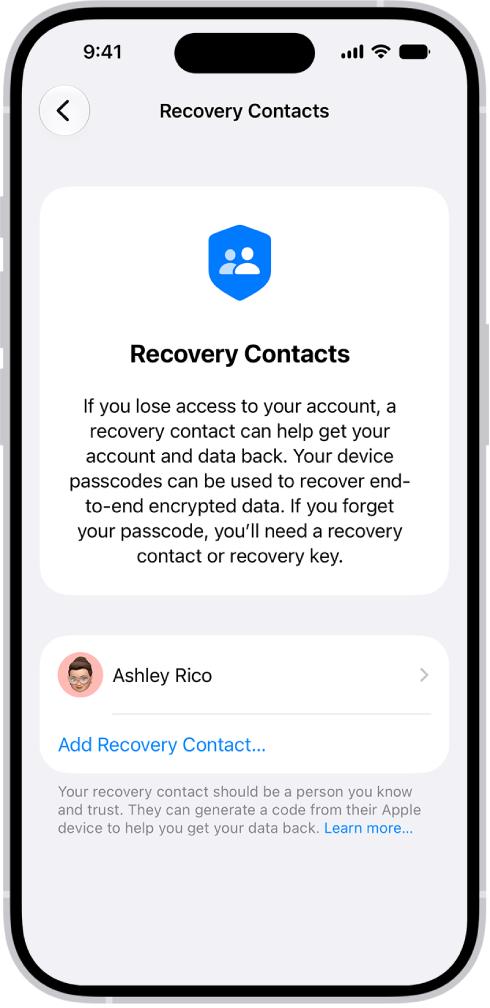
The Add Recovery Contact screen.

Just in case you forget

Once your iPhone is set up, your iPhone passcode and your Apple Account information are two things you really don’t want to forget. To unlock your iPhone, you use your iPhone passcode, which is a four- or six-digit numerical code. Your Apple Account is what you use to make purchases in the App Store, sign in to Apple services, and more, and it’s typically your primary email address or phone number plus the unique password you create to use with it.

If you think you might forget these things, you can designate a trusted person as your account recovery contact. Your recovery contact doesn’t have access to your iPhone or Apple Account, but they can give you a code to reset your passcode or access your account if you get locked out. Go to the Settings app , tap your name, then tap Sign-In & Security. Tap Recovery Contacts, then tap a suggested contact or tap Choose Someone Else.
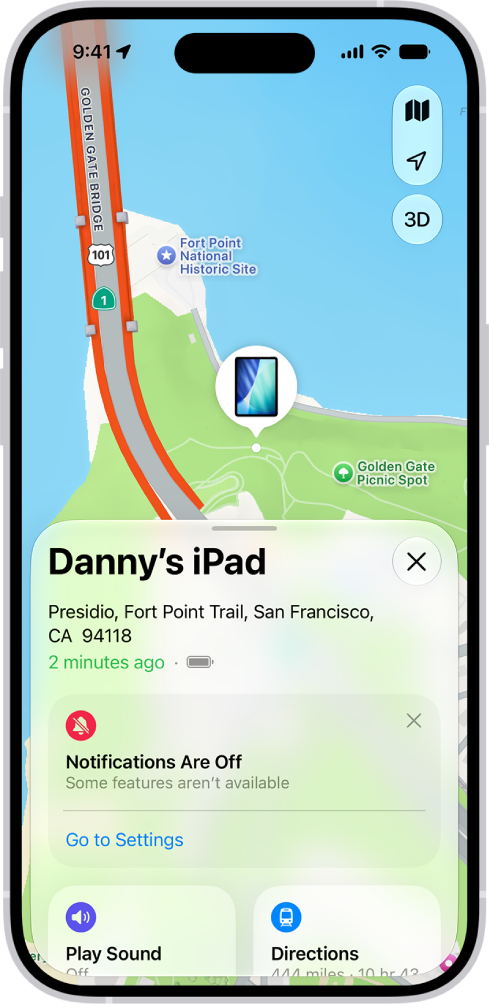
The Find My app showing the location of an iPad on a map.

How to find your iPhone if it’s lost or stolen

It’s easy to find your iPhone if it ever gets lost or stolen—as long as you turn on Find My iPhone before that happens. First, make sure you’re signed in to your Apple Account, go to the Settings app , tap your name, tap Find My, then turn on Find My iPhone.

After you turn on Find My iPhone, you can use the Find My app on another Apple device to see the location of your iPhone; you can even play a sound on your lost iPhone to help you find it. (Make sure you’re signed in to the same Apple Account on the other Apple device.) If you don’t have another Apple device, go to the Find Devices website on any web browser and sign in to the same Apple Account.
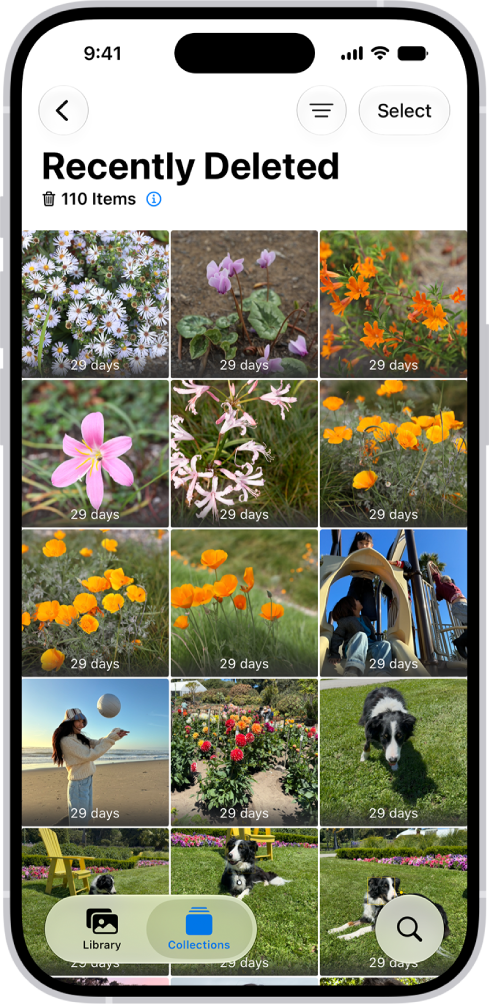
The Recently Deleted folder in the Photos app. Recently deleted photos appear in a grid on the screen.

Recover deleted photos or videos

Photos or videos you delete from the Photos app are automatically saved in the Recently Deleted album for 30 days. So if you accidentally delete one, you can recover it and restore it to your Photos library.

To recover deleted items, open the Photos app , then tap Collections. Tap the Recently Deleted collection (below Utilities), then tap View Album. Unlock the album using your iPhone passcode, Face ID, or Touch ID. Tap a photo or video, tap Recover, then tap Recover Photo or Recover Video.
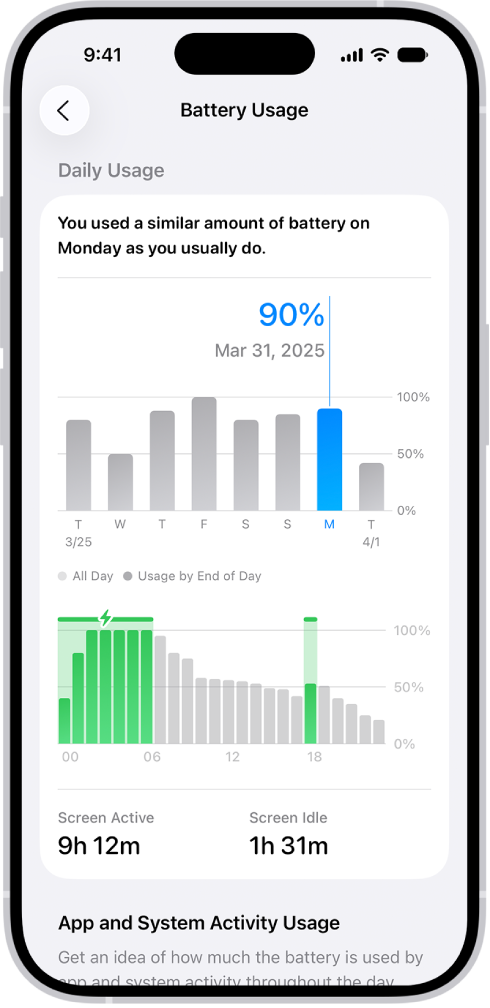
An iPhone screen showing battery usage, and the battery charged 90%.

Maximize the life of your iPhone battery

There are a few easy steps you can take to preserve the life of your iPhone battery. First, make sure your iPhone is updated to the latest version of iOS. To check if a software update is available, go to the Settings app , tap General, then tap Software Update.

Next, connect to Wi-Fi whenever it’s available, since a cellular connection uses more battery power than Wi-Fi.

Finally, turn down your screen brightness: Open Control Center, then slide Brightness down. To automatically dim your screen based on the surrounding light, go to the Settings app , tap Accessibility, tap Display & Text Size, then turn on Auto-Brightness.

To learn more about your iPhone battery health, go to the Settings app , then tap Battery.
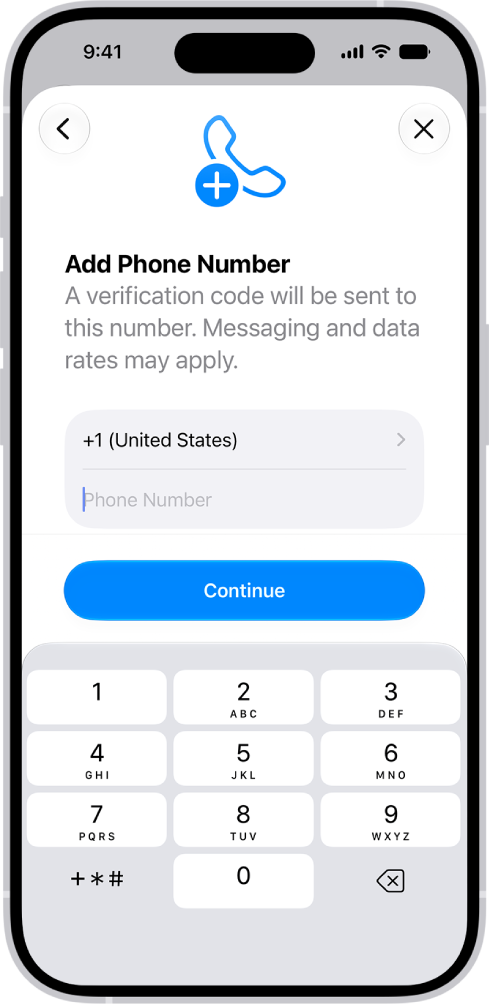
The Add Phone Number screen in Settings.

If you get a new phone number

Your Apple Account has a phone number associated with it, known as your trusted phone number, which often helps verify your identity and authenticate that your iPhone is really yours. If you get a new phone number, update your trusted phone number to match. Otherwise, you could lose access to your account if you move to a new iPhone or forget your Apple Account password.

To update your trusted phone number, go to the Settings app , tap your name, tap Sign-In & Security, then tap Add Email or Phone Number. Tap Phone Number, then enter your new phone number and follow the onscreen instructions to verify your new number.
An iPhone screen showing an illustration of the globe. At the top of the globe is a radio signal and an airplane flies around the globe.

All about eSIM

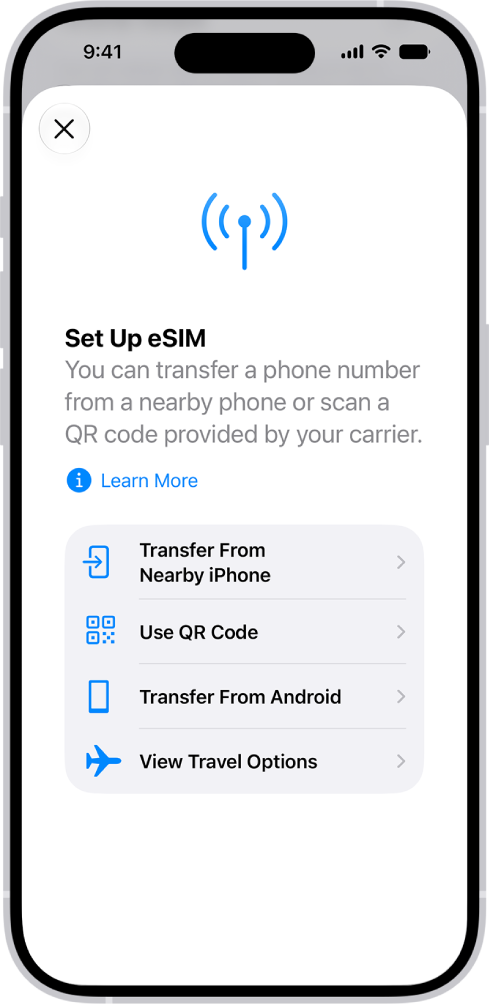
A digital version of the physical SIM card inside your iPhone, an eSIM connects you to your cellular carrier. With eSIM, there’s no SIM card to swap out when you get a new iPhone, and connecting to new cellular carriers at home or while traveling is easy.

Your iPhone may lose its cellular connection if you erase it. The same can happen if you restore your iPhone from a backup and accidentally delete your eSIM. You’d then need to contact your cellular provider to restore the connection.

Step-by-Step Help: Get guided and personalized support troubleshooting issues on your iPhone. Open Step-by-Step Help.

If you’d like to dig deeper, start with these related guides:

  • Keep your Apple Account secure on iPhone
  • Locate a device in Find My on iPhone
  • Delete or hide photos and videos on iPhone
  • Understand your iPhone battery usage and health
  • Set up an eSIM

Per Apple, not all features are available for all iPhone models.
Tag: iPhone

Use AutoMix or Crossfade to transition songs smoothly.

AutoMix transitions between songs like a DJ when you’re listening to music from the Apple Music catalog, and it selects the best transition, depending on the music. Crossfade fades in each song while the previous song is fading out. AutoMix is on by default, but you can turn it off, and albums and some genres skip transitions. Neither is available while Hi-Res Lossless is turned on, though.

Change how music transitions

  1. Start the Settings app on your iPhone.
  2. Tap Apps and tap Music.
  3. Tap Song Transitions, then choose an option.

Note: While Hi-Res Lossless is turned on, Automix and Crossfade aren’t available. To use them, select Lossless or another audio quality setting.

About AutoMix

With iOS 26 or later, AutoMix moves seamlessly between songs like a DJ when you listen to music from the Apple Music catalog. It automatically picks the best transition for the music. When it makes sense, AutoMix might trim silence at the beginning and end of a track, for example, or use a simple crossfade instead of a more complex transition.

Note: You won’t hear transitions with albums and some genres. AutoMix is on by default, though you can turn it off in the queue or in Settings.

Turn on Crossfade

You can set the Music app to fade in each song (gradually increase its volume) while the previous song is fading out—this is called crossfading.

  1. Start the Settings app on your iPhone.
  2. Tap Apps and tap Music.
  3. Tap Song Transitions, then turn it on.
  4. Tap Crossfade. Drag the slider to choose the length of the crossfade.
Tag: Music

When you find something special in the App Store, you can share a link to it or send it as a gift. Both start on the app’s details page, where the Share button lets you pick a sharing option or Gift App.

Note: Not all apps are available to send as gifts.

  1. Start the App Store app on your iPhone.
  2. Tap the app you want to share or give to see its details.
  3. Tap the Share button and choose a sharing option or tap Gift App.

You can use your Apple TV 4K or an AirPlay 2-enabled smart TV to watch videos and view photos streamed from your iPhone. For this, both devices need to be connected to the same Wi-Fi network.

You can also mirror your iPhone on the TV, and turn automatic AirPlay streaming on or off.

Here’s how to wirelessly stream videos and photos to Apple TV 4K or a smart TV from iPhone.

Note: To stream videos or photos to Apple TV 4K or a smart TV from your iPhone, both devices must be on the same Wi-Fi network.

Play video on Apple TV 4K or an AirPlay 2-enabled smart TV

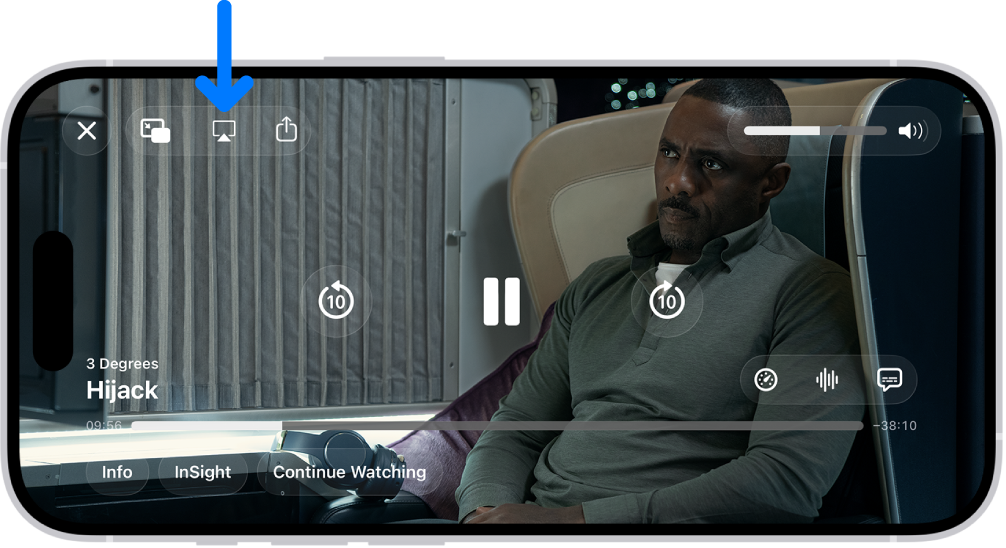
  1. While playing video in the Apple TV app or another supported video app on your iPhone, tap the screen to show the controls.
  2. Tap the AirPlay button. Then choose your Apple TV 4K or AirPlay 2-enabled smart TV as the playback destination.

If an AirPlay passcode appears on the TV screen, enter the passcode on your iPhone.

A movie playing on the iPhone screen. In the middle of the screen are the playback controls. The AirPlay button is near the top left.

To change the playback destination, choose a different AirPlay option on your iPhone screen.

Show photos on Apple TV 4K or an AirPlay 2-enabled smart TV

  1. Start the Photos app on your iPhone.
  2. Tap a photo, then tap the Share button.
  3. Swipe up, tap the AirPlay button, and then choose your Apple TV 4K or an AirPlay 2-enabled smart TV as the playback destination.

If an AirPlay passcode appears on the TV screen, enter the passcode on your iPhone.

To stop streaming photos, tap the AirPlay button near the top of the iPhone screen, then tap Turn off AirPlay.

Turn automatic AirPlay streaming on or off

When you play content from apps you regularly use with AirPlay, your iPhone can automatically discover and connect to any frequently used Apple TV 4K or smart TV, if you allow it.

Go to Settings > General > AirPlay & Continuity, then choose Automatic, Never, or Ask.

Mirror your iPhone on Apple TV 4K or a smart TV

Whatever appears on your iPhone can show up on Apple TV 4K or a smart TV.

  1. Open Control Center on your iPhone.
  2. Tap the Screen Mirroring button and choose your Apple TV 4K or an AirPlay 2-enabled smart TV as the playback destination.

If an AirPlay passcode appears on the TV screen, enter the passcode on your iPhone.

To switch back to iPhone, open Control Center, tap the Screen Mirroring button, then tap Stop Mirroring.

Tag: Photos

When VoiceOver is on, standard touchscreen gestures have different effects, and additional gestures let you move around the screen and control individual items. VoiceOver gestures include two-, three-, and four-finger taps and swipes.

You can use different techniques to perform VoiceOver gestures. For example, a two-finger tap can be done with two fingers on one hand, one finger on each hand, or your thumbs. And instead of selecting an item and double-tapping it, you can use a split-tap gesture. As you explore, VoiceOver names each item you touch.

Explore and speak items on the screen

To explore the screen, drag your finger over it. VoiceOver speaks the name of each item you touch.

You can also use VoiceOver gestures to explore the screen in order, from top to bottom and left to right.

Action Gesture
Select and speak an item Tap or touch the item
Select the next item Swipe right
Select the previous item Swipe left
Move into a group of items Two-finger swipe right
Move out of a group of items Two-finger swipe left
Select the first item on the screen Four-finger tap near the top of the screen
Select the last item on the screen Four-finger tap near the bottom of the screen
Speak the entire screen from the top Two-finger swipe up
Speak the entire screen from the selected item Two-finger swipe down
Pause or continue speaking Two-finger tap
Speak additional information, such as the position within a list or whether text is selected Three-finger tap

Scroll up, down, left, and right

Use VoiceOver gestures to move to another page.

Action Gesture
Scroll up one page Three-finger swipe down
Scroll down one page Three-finger swipe up
Scroll left one page Three-finger swipe right
Scroll right one page Three-finger swipe left

Take action on an item

Use VoiceOver gestures to perform actions on an item.

Action Gesture
Select an item Tap
Activate the selected item Double tap
Touch and hold (long press) the item Triple tap
Drag a slider Tap the slider to select it, then swipe up or down with one finger; or double-tap and hold the slider until you hear three rising tones, then drag the slider
Start or stop the current action (for example, play or pause music or a video, take a photo in Camera, start or stop a recording, start or stop the stopwatch) Two-finger double tap
Dismiss an alert or return to the previous screen Two-finger scrub (move two fingers back and forth three times quickly, making a “z”)
Edit an item’s label to make it easier to find Two-finger double tap and hold
Lower the top half of the screen Swipe up from the bottom of the screen with one finger, then, without lifting your finger, swipe down

Quick tip: Instead of selecting an item and double-tapping to activate it, you can touch and hold the item with one finger, then tap the screen with another.

Use gestures to control VoiceOver

Action Gesture
Mute or unmute VoiceOver Three-finger double tap. If both VoiceOver and Zoom are turned on, use the three-finger triple-tap gesture.
Turn the screen curtain on or off (When the screen curtain is on, the screen contents are active even though the display is black and appears to be turned off.) Three-finger triple tap. If both VoiceOver and Zoom are turned on, use the three-finger quadruple-tap gesture.
Use a standard gesture Double-tap and hold your finger on the screen until you hear three rising tones, then make the gesture. When you lift your finger, VoiceOver gestures resume. For example, to drag a volume slider with your finger instead of swiping up and down, select the slider, double-tap and hold, wait for the three tones, then slide left or right.
Open the Item Chooser Two-finger triple tap. To move quickly through the list of items, type a name in the search field, swipe right or left to move through the list alphabetically, or tap the table index to the right of the list and swipe up or down. You can also use handwriting to select an item by writing its name. If you use Braille Screen Input to type braille directly on the screen, when you’re not entering text, you can type to search for an item. To dismiss the Item Chooser without making a selection, do a two-finger scrub (move two fingers back and forth three times quickly, making a “z”).
Open the VoiceOver quick settings Two-finger quadruple tap.
Start or stop Live Recognition Four-finger triple tap.

Use the VoiceOver rotor

With the onscreen rotor, you can jump from one item to the next on the screen, change VoiceOver settings, select special input methods like Braille Screen Input or Handwriting, and more.

You can use these gestures with the rotor.

Action Gesture
Choose a rotor setting Two-finger rotation
Move to the previous item or increase (depending on the rotor setting) Swipe up
Move to the next item or decrease (depending on the rotor setting) Swipe down

In the Photos app, you can edit your memory movies to make them even more personal. Try Memory Looks, which let you apply different songs paired with a matching photographic style. You can also choose new songs, edit the title, change the length, and add or remove photos.

Apple Music subscribers have even more to choose from, since they can add songs from the millions of songs in the Apple Music catalog. You can also reorder photos and change transitions.

Change the look of a memory movie

Memory Looks change the look and feel of a memory movie with curated combinations of different songs, pacing, and styles.

  1. Start the Photos app on your iPhone.
  2. Tap Collections.
  3. Swipe left under Memories to scroll through a selection of your memories, or tap Memories to view them all.
  4. Tap the Play button in the bottom-right corner of a memory to play it.
  5. Tap the screen, then tap Customize.
  6. Tap Customize Look, then swipe left to view different Memory mixes. You can also do the following:
    • Tap the Filters button to view all of the Memory Looks at the same time.
    • Tap the Music button to change the song.
  7. Tap the screen to apply the Memory Look.

Change the music of a memory movie

To change a memory movie’s music, choose from memory soundtracks or suggested songs in Apple Music. If you’re an Apple Music subscriber, you can also access your Apple Music library and view suggested songs based on your musical preferences or the content of the memory.

  1. Start the Photos app on your iPhone.
  2. Tap Collections.
  3. Swipe left under Memories to scroll through a selection of your memories, or tap Memories to view them all.
  4. Tap the Play button in the bottom-right corner of a memory to play it.
  5. Tap the screen, then tap Customize.
  6. Tap Music, then tap Change Song.

Apple Music subscribers can tap Browse to search for songs in the Apple Music library.

Add or remove photos in a memory movie

To choose the photos that appear in a memory movie, choose photos directly from your library, or add or remove suggested photos.

  1. Start the Photos app on your iPhone.
  2. Tap Collections.
  3. Swipe left under Memories to scroll through a selection of your memories, or tap Memories to view them all.
  4. Tap the Play button in the bottom-right corner of a memory to play it.
  5. Tap the screen, tap the Browse button, and do any of the following:
    • Add a photo: Tap the photos you want to add (tap All to see your entire library),then tap the Done button.
    • Remove a photo: Deselect a photo to remove it from the memory. Tap the Done button.
    • Search for photos in your library: Tap All and tap the Search button. Then type what you’re looking for. Tap the photos you want to add. Then tap the Done button.
  6. Tap the Back button to return to the memory movie.

Reorder photos in a memory movie

  1. Start the Photos app on your iPhone.
  2. Tap Collections.
  3. Swipe left under Memories to scroll through a selection of your memories, or tap Memories to view them all.
  4. Tap the Play button in the bottom-right corner of a memory to play it.
  5. Tap the screen, then tap the Browse button.
  6. Touch and hold a photo, then drag it to a new position in the grid.
  7. Tap the Back button to return to the memory movie.

Change the length and transitions of a memory movie

You can change a memory movie’s length to short, medium, or long, depending on how many photos it has, and your choice automatically adjusts the number of photos included. It’s up to you how the transition between photos appears, too, like crossfade or rotate.

  1. Start the Photos app on your iPhone.
  2. Tap Collections.
  3. Swipe left under Memories to scroll through a selection of your memories, or tap Memories to view them all.
  4. Tap the Play button in the bottom-right corner of a memory to play it.
  5. Tap the screen and tap Customize. Tap Transition and Duration.
  6. Make your selections, then tap the Done button.

Edit the memory title, subtitle, and key photo

Edit a memory’s title or subtitle, and change the key photo that appears with its title.

  1. Start the Photos app on your iPhone.
  2. Tap Collections.
  3. Swipe left under Memories to scroll through a selection of your memories, or tap Memories to view them all.
  4. Tap a memory to view the collection.
  5. Tap the More button, tap the current title, and then do any of the following:
    • Edit the memory title or subtitle: Enter a new title or subtitle in the text fields.
    • Change the key photo: Tap the photo icon in the bottom-right corner of the current key photo. Then select a new photo in the photo grid.
  6. Tap the Done button.
Tag: Photos

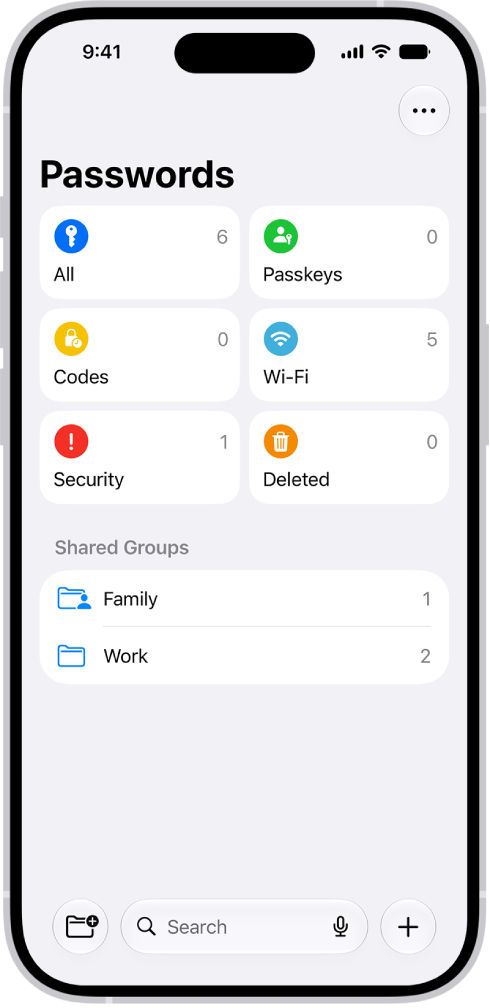
The Passwords app gathers all your passwords, passkeys, and verification codes in one place. They’re available on every device where you sign in with the same Apple Account and turn on Passwords & Keychain in iCloud settings. Here are all your types of password credentials:

The Home Screen for the Passwords app, with buttons for All, Passkeys, Verification Codes, W-Fi, Security, and Deleted, along with a list of Shared Groups.

  • App passwords
  • Website passwords
  • Sign in with Apple
  • Passkeys
  • Verification codes
  • Wi-Fi passwords
  • Passwords shared with groups

Find a password by sorting or searching. Then tap Edit to reveal the password, or to change or delete the password. Tip: In Passwords, tap Security for recommendations to change weak passwords.

You can use SharePlay while playing music on a HomePod, Apple TV 4K, or other third-party Bluetooth® speaker, and everyone can control the music with their iPhone.

Only the host needs to be an Apple Music subscriber. Everyone needs an iPhone with iOS 18 or later, an internet connection, and Bluetooth turned on, and participants can join SharePlay with the iPhone camera. And you can leave SharePlay whenever you want.

Before you begin

  • The host must have an iPhone with iOS 18 or later and be an Apple Music subscriber.
  • Participants must have an iPhone with iOS 18 or later, but don’t need to have an Apple Music subscription.
  • Everyone must have an internet connection and Bluetooth turned on.
  • Everyone must allow their contacts to discover them when playing music to a speaker—go to Settings > Apps > Music, then turn on Discoverable by Nearby Contacts if it isn’t on already.

Start SharePlay from Music on your iPhone

To play music together with SharePlay, you’ll start on your iPhone as the host.

  1. Start the Music app on your iPhone.
  2. While a song is playing, tap the MiniPlayer to open the Now Playing screen.
  3. Tap the Playback Destination button and select a playback destination.

    The music starts playing to the device you selected.

  4. Tap the MiniPlayer to open the Now Playing screen. Tap the SharePlay button.

    A QR code appears; tap the QR code to enlarge it.

  5. To begin controlling the music, participants can scan the QR code on your iPhone.

Join SharePlay with the iPhone camera

  1. Start the Camera app on your iPhone.
  2. Point the camera at the QR code on an iPhone that’s already joined SharePlay.

    A button appears below the picture of the QR code.

  3. Tap the button, then tap Connect.

    The host receives a notification and must tap the Checkmark button on their iPhone to allow you to join.

Quick tip: You only need to approve a participant to join SharePlay once. They’re automatically approved the next time they join.

Leave SharePlay

Tap the SharePlay button at the bottom of the Now Playing screen, then tap Leave or End.

Tag: Music

You can share photos and videos in Mail or Messages, or other apps you install. You can also use AirDrop to instantly share photos with anyone nearby on an iPhone, iPad, Mac, or Apple Vision Pro.

You can adjust the information you share about a photo or video, and even share photos and videos by bringing one iPhone close to another.

Here’s how to share photos and videos on iPhone.

Note: Sharing a photo or video includes sharing its associated metadata, such as date and time, location, device, and captions.

Share photos and videos

  1. Start the Photos app on your iPhone.
  2. Do any of the following:

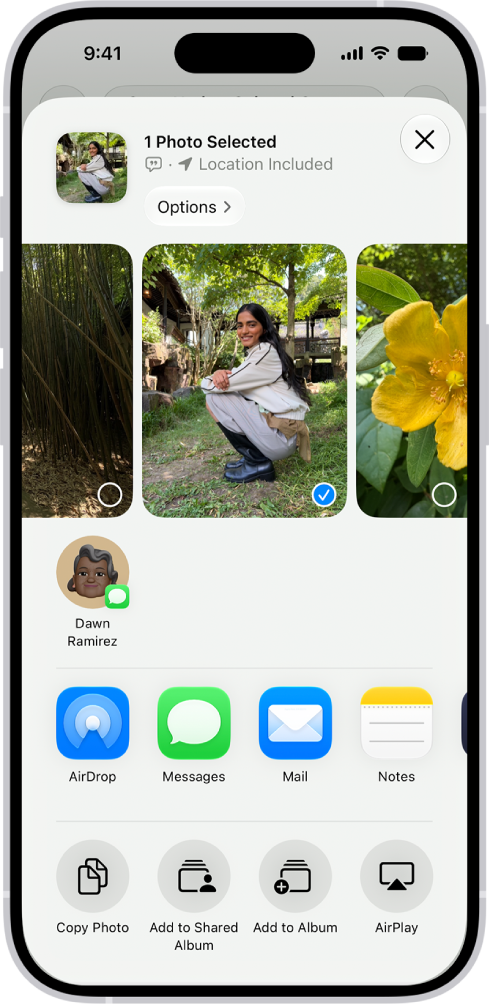
    • Share a single photo or video: Open the photo or video and tap the Share button. Then choose a sharing option such as Mail, Messages, or AirDrop.

      A selected photo is displayed in the top half of the iPhone screen, with a row of share options below. Additional options appear below those, including Copy Photo, Add to Shared Album, Add to Album, and Use as Wallpaper.

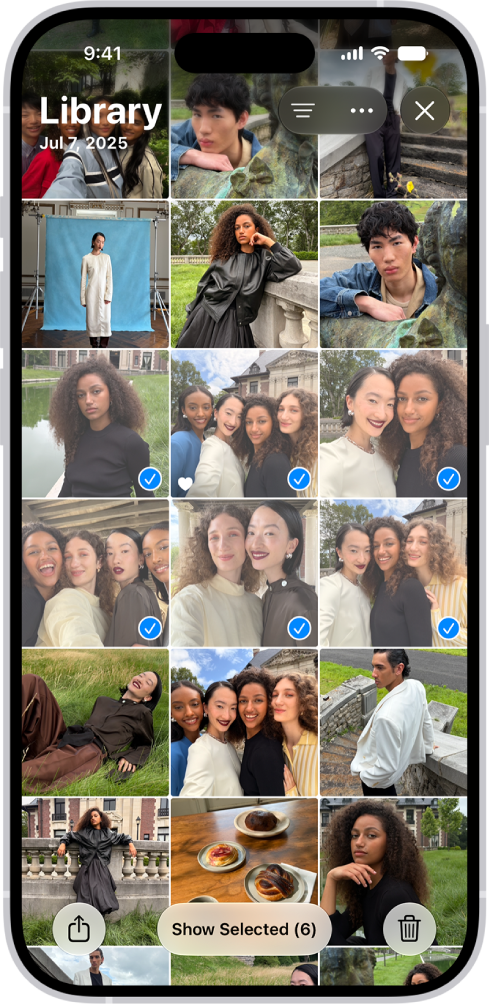
    • Share multiple photos or videos: While viewing a screen with multiple thumbnails, tap Select. Then tap the thumbnails of the photos and videos you want to share. Tap the Share button, then choose a sharing option such as Mail, Messages, or AirDrop.

      The iPhone screen is filled with a grid of photos, some of which are selected. At the bottom of the screen are the Share and Delete buttons.

      Tip: If you’re sharing multiple items, tap Show Selected to view or modify your selections before you share.

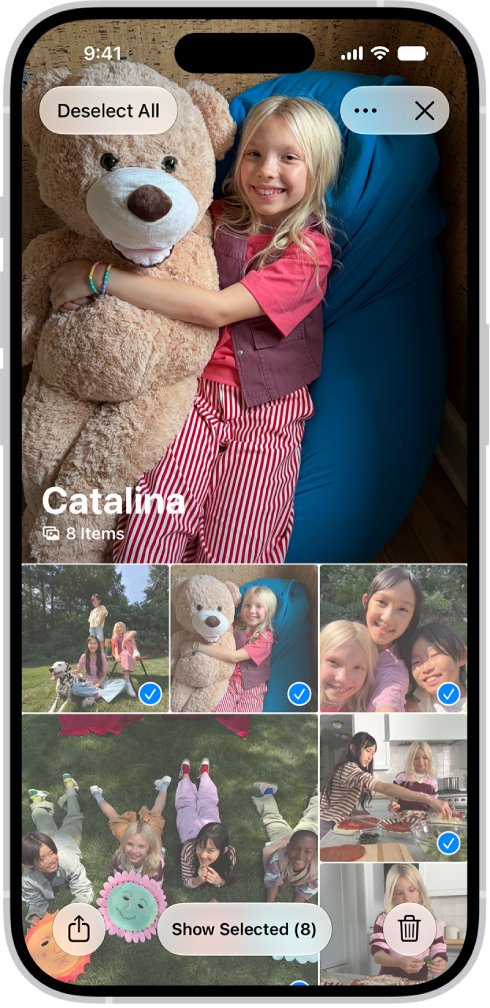
    • Share all the photos in a collection: While viewing a collection of photos, tap Select. Then tap Select All. Tap the Share button. Then choose a sharing option such as Mail, Messages, or AirDrop.

      On iPhone, a collection is open in the Photos app, and all of the photos are selected.

You can also create a shared album and share photos and videos there with a group of friends and family, who can contribute to the album as well.

Note: Your service provider sets the size limit of attachments. On devices or services that don’t support Live Photos, a Live Photo goes out as a still photo.

Adjust the information you share about a photo or video

Before you share a photo or video, you can adjust its format, its file type, and the information shared with it.

  1. Start the Photos app on your iPhone.
  2. Open a photo or video, tap the Share button, tap Options, and then do any of the following:
    • Don’t share keywords: Turn off Keywords.
    • Adjust the file format: Tap Automatic for the best file format for the destination, tap Current to prevent a file format conversion, or tap Most Compatible and files may convert to JPEG or MOV.
    • Send all photo data: Turn on All Photos Data to share the original file with edit history and metadata; the recipient can view and modify the current version (available with AirDrop only).
  3. Tap the Close button.

Share photos and videos by bringing one iPhone close to another

To transfer photos and videos from one iPhone to another, bring the two devices close together.

  1. Make sure each iPhone is turned on, unlocked, and has AirDrop turned on.
  2. On the iPhone with the items you want to share, open the Photos app and then do one of the following:
    • Share a single photo or video: Open the photo or video you want to share and keep it on the screen.
    • Share multiple photos or videos: Tap Select and tap multiple photos or videos to share from your library.
  3. Bring the devices together and then tap Share.

The recipient’s Photos library gets the shared items.

Save or share a photo or video you receive

You can save photos that others share with you from other apps.

Depending on the app, tap the Save button next to the image, or touch and hold the photo or video, then tap the Save button.

You can see your saved photos and videos in your photo library.

Note: Photos and videos people share with you in the Messages app get saved in your photo library automatically. If you’d rather turn off this feature, go to the Settings app , tap Apps, and then tap Messages. Tap Shared with You and turn off Photos.

Tag: Photos

It’s more fun to play games with friends. In the Apple Games app, you can invite friends, see friend requests, and more.

You can also add a friend from their contact card in the Contacts app, see your friends’ recent activity, and report a user or remove a friend. When you get a friend request, there are several ways to respond.

Here’s how to connect with friends in the Apple Games app on iPhone.

Add friends

  1. Start the Apple Games app on your iPhone.
  2. Tap Friends, then tap the Invite Icons button.
  3. Find a contact by entering their name and tap Invite.
  4. Tap the Send button to send the invitation using the Messages app.

You can also add a friend in the Contacts app. Open their contact card, then tap Add Friend on Game Center.

Respond to friend requests

When a contact sends you a friend request in the Apple Games app, you can respond from a few different places:

  • In the Apple Games app: Tap your avatar, then tap Friend Requests.
  • In the Messages app: Tap the friend request link.
  • In the Settings app: Tap Game Center, then tap Friend Requests.

See your friends’ recent activity

Besides sending friends invite links and party codes, you can see their shared gaming history and compare achievements.

  1. Start the Apple Games app on your iPhone.
  2. Tap Friends.
  3. In Friends & Groups, scroll down to see your friends’ recent activity.

You can also see your friends’ profiles and recent activity by going to the Settings app, tapping Game Center, then tapping All Friends.

Report a user or remove a friend

If a user is cheating or has an inappropriate picture or nickname, or there’s another problem, you can report them. And you can remove someone from your Friends list.

  1. Start the Apple Games app on your iPhone.
  2. Tap your avatar and then tap All Friends.
  3. Tap the friend you want to report or remove and tap the More button. Choose Report Friend or Remove Friend.