Got a tip for us?

iPhone

The iPhone is a smartphone from Apple that runs the iOS mobile operating system. Between its apps, communication features, the camera, mobile internet access, and other functionalities, the iPhone has quickly become an integral part of many peoples tech lives.

In the Calendar app, you can set up multiple calendars to keep track of different kinds of events. You can keep track of all your events and appointments in one calendar, but additional calendars are easy to set up and a great way to stay organized.

You can see multiple calendars at once, change a calendar’s color, move an event to another calendar, and turn on calendar event alerts. You can also unsubscribe from a calendar.
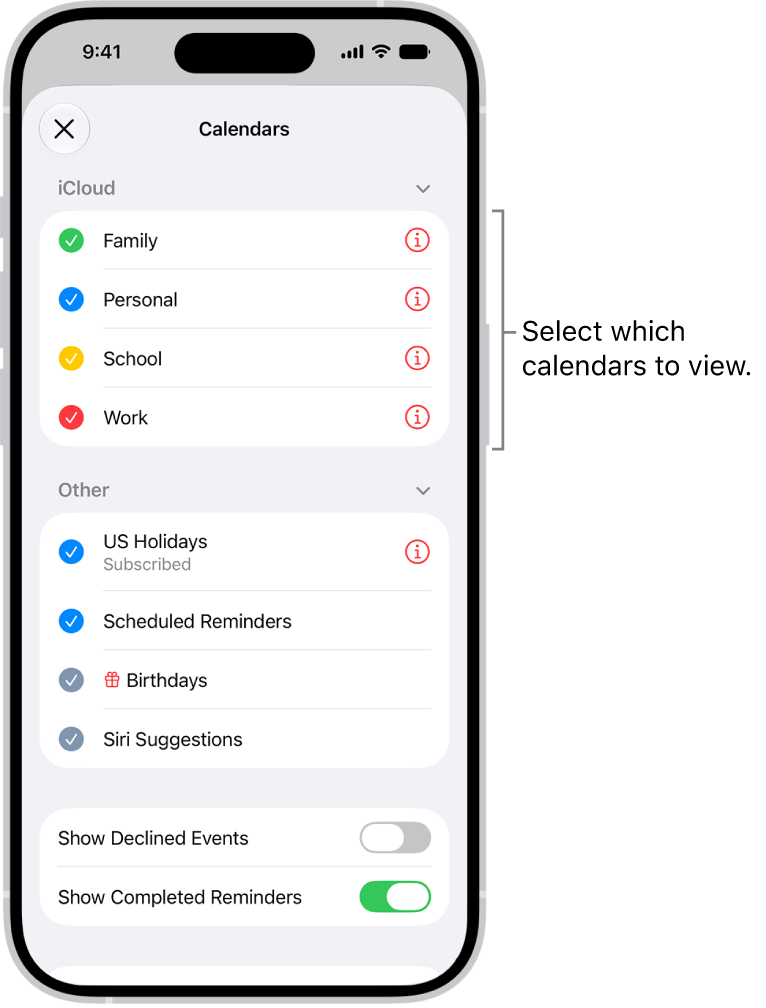
The Calendars list, with checkmarks indicating which calendars are active. The Done button for closing the list is in the top-right corner.

Set up a calendar

  1. Open the Calendar app on your iPhone.
  2. Tap the Calendars button, then tap Add Calendar.
  3. Do one of the following:
    • Create an iCloud calendar: Tap Add Calendar and enter a name for the calendar. Choose a color for it.
    • Subscribe to an external, read-only calendar: Tap Add Subscription Calendar, enter the URL of the .ics file you want to subscribe to (and any other required server information), and then tap Find.
    • Add a Holiday calendar: Tap Add Holiday Calendar, then tap the holiday calendar you want to subscribe to.

You can also subscribe to an iCalendar (.ics) calendar by tapping a link to it.

Unsubscribe from a calendar

When you unsubscribe from a calendar you’re subscribed to, you can also report it as junk.

  1. Open the Calendar app on your iPhone.
  2. Tap the Calendars button.
  3. Tap the Info button next to the calendar you want to unsubscribe from.
  4. Tap Unsubscribe and tap Unsubscribe or Unsubscribe and Report Junk.

Note: If you tap Unsubscribe and Report Junk, the calendar gets reported to Apple as a suspected junk subscription.

See multiple calendars at once

  1. Open the Calendar app on your iPhone.
  2. Tap the Calendars button and then do any of the following:
    • Select the calendars you want to view.
    • Tap US Holidays to include national holidays with your events.
    • Tap Birthdays to include birthdays from Contacts with your events.

Turn on calendar event alerts

For calendars you create or subscribe to, you can turn on event notifications.

  1. Open the Calendar app on your iPhone.
  2. Tap the Calendars button.
  3. Tap the Info button next to a calendar.
  4. Turn Event Alerts on or off.
  5. Tap the Done button.

Change a calendar’s color

  1. Open the Calendar app on your iPhone.
  2. Tap the Calendars button.
  3. Tap the Info button next to the calendar, then choose a color.
  4. Tap the Done button.

For some calendar accounts, like Google, the server sets the color.

Move an event to another calendar

  1. Open the Calendar app on your iPhone.
  2. Tap the event and tap Calendar. Select a calendar to move the event to.
You can use mono audio, adjust left-right stereo balance, and—with supported headphones—amplify soft sounds and adjust certain frequencies to best suit your hearing needs.

With Mono Audio on, the left and right speakers play the same content. Stereo Audio Balance lets the sound lean toward the left or right. And with Headphone Accommodations on supported Apple and Beats headphones, you can make soft sounds louder and make dialogue in videos sound clearer.

Balance the audio

  1. Open the Settings app on your iPhone.
  2. Tap Accessibility, then tap Audio & Visual.
  3. Adjust any of the following:
    • Mono Audio: Turn on Mono Audio to make the left and right speakers play the same content.
    • Stereo Audio Balance: Drag the Balance slider left or right.

Use phone noise cancellation

By using air pressure to reduce ambient background noise, phone noise cancellation helps you hear better in certain noisy environments when you’re holding the receiver to your ear. It’s available on iPhone 12 and earlier, where it’s on by default, but you can turn it off for your comfort.

  1. Open the Settings app on your iPhone.
  2. Tap Accessibility, then tap Audio & Visual.
  3. Turn Phone Noise Cancellation off or on.

Adjust certain frequencies and soft sounds

Headphone Accommodations can adjust certain sounds to best suit your hearing on supported Apple and Beats headphones. Soft sounds get louder, and boosting some frequencies makes phone calls and media sound crisper and clearer.

  1. Make sure you’re in a quiet environment and that you’ve paired your AirPods or paired other supported Bluetooth® headphones.
  2. Open the Settings app on your iPhone.
  3. Tap Accessibility, then tap Audio & Visual.
  4. Tap Headphone Accommodations and turn on Headphone Accommodations.
  5. Adjust any of the following:
    • Frequencies: Below Audio Tuning, choose an option to boost different frequencies.
    • Soft sounds: Drag the slider to set an amplification level for soft sounds.
  6. Scroll down and then do any of the following:
    • Turn on Phone to apply the settings to phone calls.
    • Turn on Media to apply the settings to media playback like music, movies, and podcasts.
    • Turn on Transparency to apply the settings to transparency mode, if you’re using AirPods model with Transparency Mode.

With some supported headphones, you can use Headphone Accommodations to personalize your audio based on what sounds good to you. You can use an audiogram to help customize your audio, and depending on your country or region, you may see the option to customize your transparency settings. Tap Customize Audio, then follow the onscreen instructions.

Quick tip: The Headphone Accommodations button in Control Center gets you to Headphone Accommodations quickly. If the button isn’t there, you can add it: Tap the Add button and tap Add a Control, then scroll down to Hearing Accessibility and tap Headphone Accommodations.

Make dialogue sound clearer in videos

Turn on voice isolation, and the dialogue is easier to hear when you watch supported video content. During dialogue, it isolates voices and substantially reduces all other audio.

  1. Open the Settings app on your iPhone.
  2. Tap Accessibility, tap Audio & Visual, and then turn on Add Voice Isolation.
  3. While watching a supported video in the Apple TV app, tap the More Controls button. Tap Audio.
  4. Tap Enhance Dialogue and then tap Enhance or Enhance More.

Have iPhone play a sound effect when it’s turned on and off

If you have an iPhone 14 or later, iPhone can play a sound when you turn it on and off.

  1. Open the Settings app on your iPhone.
  2. Tap Accessibility, then tap Audio & Visual.
  3. Turn on Power On & Off Sounds.

When you’re in a Family Sharing group, you can share Apple subscriptions and eligible App Store subscriptions with other family members. If your Family Sharing group has purchase sharing turned on, any subscriptions shared with the group are billed directly to the organizer’s default payment method.

The family organizer can also require that children in the family group request approval for eligible purchases or free downloads.

Here’s how to share Apple and App Store subscriptions with family members on iPhone.

Note: Not all services are available in all countries or regions, and some selections are subject to content restrictions set in Screen Time. Age restrictions for Ask to Buy vary by country or region. In the United States, the family organizer can turn on Ask to Buy for any family member under age 18; for children under age 13, it’s on by default.

Share Apple subscriptions

  1. Open Settings and then tap Family.
  2. Tap Subscriptions and then do one of the following:
    • Tap a subscription you want to share, then follow the onscreen instructions.
    • Tap Manage Subscriptions, then tap a subscription.
  • Apple Arcade: All members of your family can download and play Apple Arcade games from the App Store. Each player gets a personalized account—your progress is carried over between devices.
  • Apple Fitness+: All members of your family can access workouts in the Fitness app on their iPhone or iPad.
  • Apple Music: With a family subscription, each family member gets their own music library and personal recommendations.
  • Apple News+: All members of your family can read Apple News+ publications for no additional charge.
  • Apple TV: Each family member can watch on their iPhone, iPad, iPod touch, Mac, Apple TV 4K, and supported smart TVs and streaming devices, using their own Apple Account and password.
  • iCloud+: When you share iCloud+, all family members have access to iCloud+ features and storage. For storage, you only share the space—your photos and documents stay private and everyone keeps using their own accounts.

Share App Store subscriptions

Which eligible App Store subscriptions you share with family members is your call.

  1. Open the Settings app on your iPhone.
  2. Tap Family and tap Subscriptions. Then tap Manage Subscriptions.
  3. Do either of the following:
    • Share all new subscriptions: Turn on Share with Family. When you purchase a new subscription that’s eligible for sharing, it’s shared with your Family Sharing members by default.
    • Change the settings of a specific subscription: Tap a subscription and turn Share with Family on or off.

If you don’t see Share with Family, the subscription isn’t eligible for sharing.

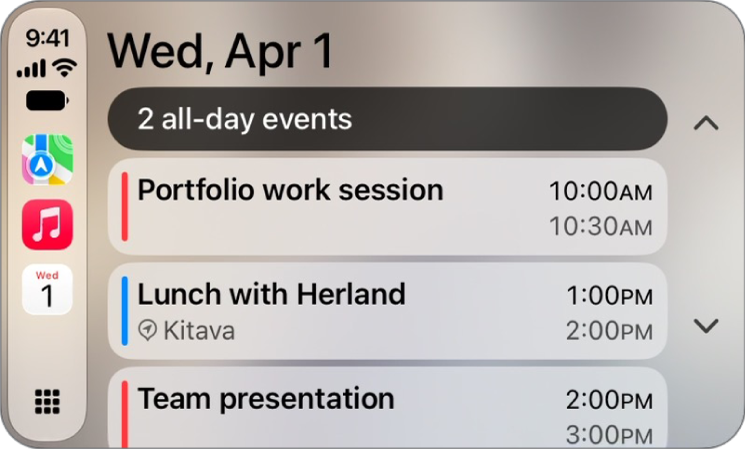
Upcoming events appear in CarPlay Dashboard. You can also use your vehicle’s built-in controls to open Calendar in CarPlay to view upcoming events. Calendar is with the rest of your apps, on the pages of all of your CarPlay apps in CarPlay Home. When you select an event, you can see more information about it. Some events give you options to get directions to the event or phone into it.

CarPlay showing Maps, Music, and Calendar in the Sidebar. To the right are events for the current day.

Note: If you’re on CarPlay Dashboard, tap the Home button to see pages of all your CarPlay apps, Calendar included.

To see more information about an event, select it. Options may allow you to get directions to the event or phone into it.

Tag: carplay

With Voice Control, you can use your voice to navigate CarPlay and apps, and interact with what’s on the CarPlay touchscreen. While it’s listening, the Voice Control icon appears in the sidebar, and you can pause or resume Voice Control and use it in Maps and Music.

Note: Voice Control is available only in supported languages. CarPlay is available only in supported countries and regions.

Turn Voice Control on or off

  1. In CarPlay, open Settings and then tap Accessibility.
  2. Turn Voice Control on or off.

When Voice Control is on, the Voice Control icon appears in the sidebar to show that Voice Control is listening for commands.

Start using commands

To use Voice Control in CarPlay, just say a command.

Voice Control: Say, for example, “Open Maps,” “Pan left,” or “Go back.”

Pause about half a second between commands when you say multiple commands in quick succession.

Pause or resume Voice Control

If you don’t want the words you say interpreted as commands, pause Voice Control. Once you’re ready for Voice Control to listen for commands again, resume it.

Voice Control: Say “Stop listening” or “Start listening.”

Commands for navigation and interaction

Command Description
“Open [app]” Open an app.
“Go Home” Return to the Home Screen.
“Go back” Return to the previous screen (in apps with a Back button).
“Tap [item]” Tap an item on the touchscreen. In some apps, if you’re not sure what to call an unlabeled item, you can refer to it based on its position relative to other items. For example, if you see a row of icons with no text labels, you can try saying “Tap first” or “Tap second” to tap the first or second icon in the row, respectively.
“Single tap” Tap the touchscreen. This can be useful in an app like Maps where some items are hidden after a period of inactivity. Tapping the screen causes hidden items to reappear.
“Double-tap” Double-tap the touchscreen. This can be used in an app like Maps to zoom in on the map.
“Double-tap [item]” Double-tap an item on the touchscreen.
“Swipe left” or “Swipe right” Swipe between pages in CarPlay Home or CarPlay Dashboard.
“Swipe up” or “Swipe down” Navigate up or down in a list.
“Pan left,” “Pan right,” “Pan up,” or “Pan down” In an app like Maps, move around the map.
“Open Siri” Activate Siri (instead of pressing the voice command button on the steering wheel).

Use Voice Control in Maps

If you use Voice Control in the Maps app in CarPlay and don’t know what to call a button, you can use the button names in the table below.

If a button has a text label, use the text shown as the name of the button. For example, to tap a button labeled Go, just say “Tap Go.”

Button Name
Zoom In
The Zoom Out button. Zoom Out
The Pan button. Pan
The Tracking button. Tracking
The Overview button. Overview or Route Overview
The Expand button. Expand or Up
The Collapse button. Collapse or Down
Close or Dismiss
The Report button. Report
The Speaker button. All Guidance or Speaker
The Alerts Only button. Alerts Only
The Mute button. No Guidance or Mute
The Siri button. Siri or Dictation
The Keyboard button. Keyboard

Use Voice Control in Music

If you use Voice Control in the Music app in CarPlay and don’t know what to call a button, you can use the button names in the table below.

If a button has a text label, use the text shown as the name of the button. For example, to tap a button labeled Cancel, just say “Tap Cancel.”

Button Name
The Play button. Play
The Pause button. Pause
The Fast Forward button. Fast Forward
The Rewind button. Rewind
Shuffle
The Repeat button. Repeat
The Autoplay button. Autoplay
The Favorite button. Favorite
The More button. More
The Go Back button. Go back
The List button. List
Tag: carplay

Check the weather for your current location. View the upcoming hourly and 10-day forecast, see severe weather information, and more.

Weather uses Location Services to get your current location’s forecast, and you can turn on Precise Location for better accuracy. The details for your current location are shown first, and you can learn what the weather icons mean. You can look at different times in the hourly forecast, customize the weather units, and send a report about the weather where you are.

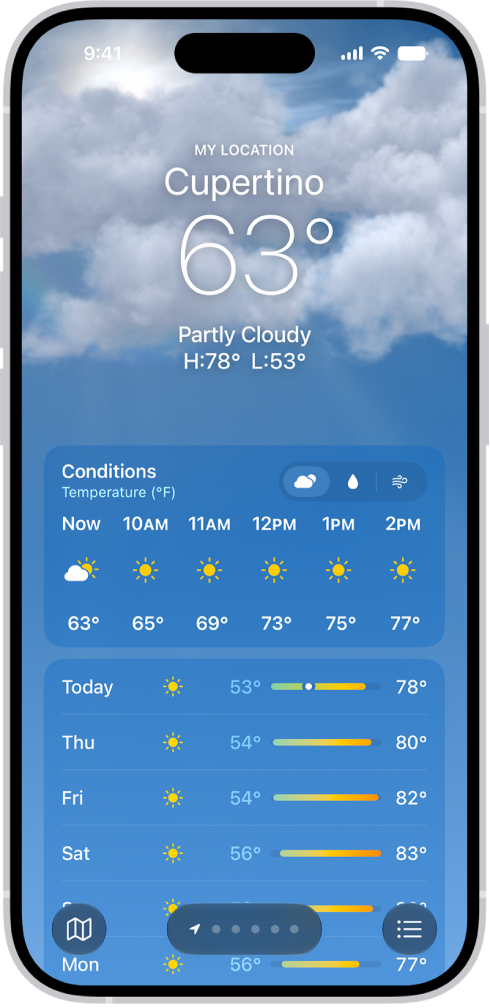
The Weather app showing, from top to bottom: the location, current temperature, the high and low temperatures for the day, hourly forecast, and the first few days of a 10-day forecast. A row of dots at the bottom center represent other locations in the location list. At the bottom-right corner is the Location List button and at the bottom-left corner is the Show Map button.

Note: Some Weather app features—such as severe weather alerts, air quality, next-hour precipitation, and news—aren’t available in all countries and regions.

Before you begin

To get the forecast for your current location, Weather relies on Location Services. Turning on Precise Location increases the forecast’s accuracy.

  1. Open Settings, tap Privacy & Security, tap Location Services, and then tap Weather.
  2. Turn on Precise Location.

Check the local forecast and conditions

  1. Start the Weather app on your iPhone.

    The details for your current location are shown.

    If you don’t see the details for the location you want to know about, tap the Location List button, then tap My Location or another location.

  2. Do any of the following:

    • Look at different times in the hourly forecast: Swipe the hourly display left or right.

      Note: The air quality scale appears above the hourly forecast when air quality reaches a particular level for that location. For some locations, the air quality scale always appears above the hourly forecast.

    • Change the hourly and ten-day forecast display: Tap a symbol above the hourly forecast to switch between Conditions, Precipitation, and Wind.
    • See the upcoming forecast and information for different conditions: Tap the hourly forecast and tap the Chart Condition button to change the displayed weather condition.
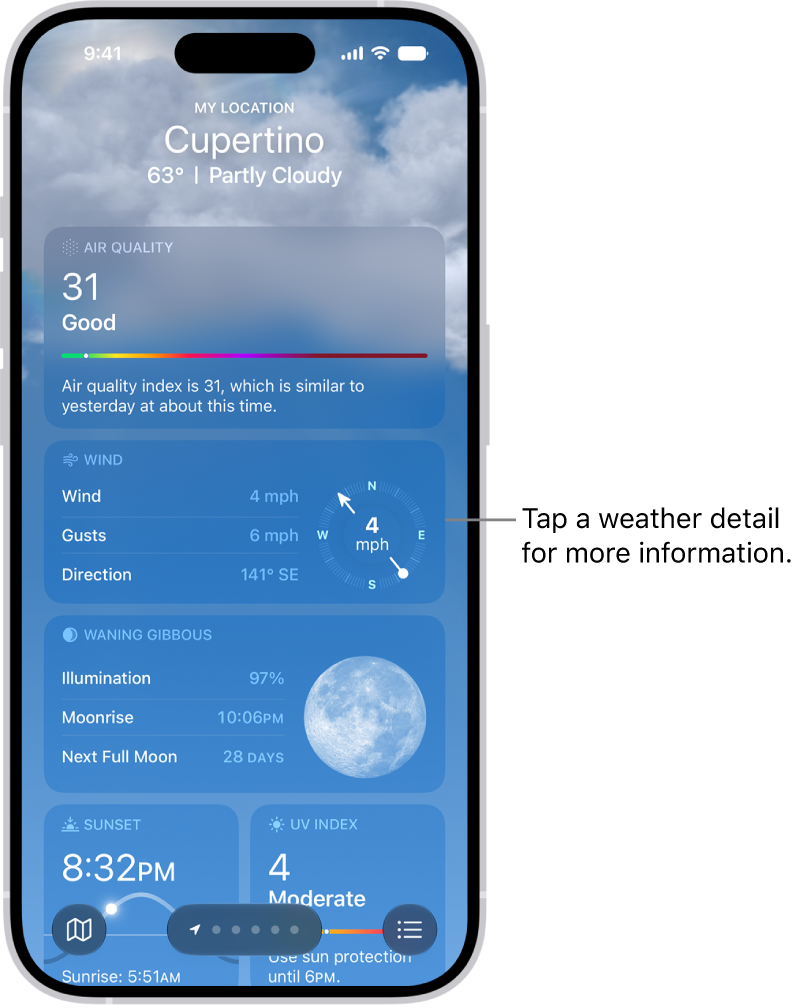
    • See more weather details: Each location’s weather page includes detailed information, including potential severe weather alerts, weather-related news, air quality, UV index, wind, visibility, moon phases, and more.

Quick tip: The Averages weather detail shows how today’s temperature or precipitation compares to the historical average, and you can tap it to see more information.

The Weather app showing weather details for a location.

Customize the weather units

Weather data can use different units. For temperature, choose Fahrenheit or Celsius, and for wind, there’s miles per hour, kilometers per hour, knots, or Beaufort.

  1. Start the Weather app on your iPhone.
  2. Tap the Location List button.
  3. Tap the More button, tap Units, and then do any of the following:
    • Change temperature units: Tap Fahrenheit, Celsius, or Use system setting.
    • Change wind, precipitation, pressure, or distance units: Tap the Action Button menu next to the current measurement unit and then choose an option.

Send a report about the weather

If the weather in your location doesn’t match what’s shown in the Weather app, you can report it.

  1. Start the Weather app on your iPhone.
  2. Tap the Location List button, tap the More button, and then tap Report an Issue.
  3. Tap the options that best describe the weather conditions in your location and tap Submit.

What you share with Apple isn’t associated with your Apple Account.

Tag: Weather

In the Reminders app, you can use tags as a fast and flexible way to categorize and organize your reminders. You can add one or more tags to a reminder, such as #shopping and #work, and easily search and filter your reminders across lists using the Tag Browser or Smart Lists.

You can also rename or delete a tag whenever you want.

Here’s how to tag items in Reminders on iPhone.

Note: When you use updated reminders, every Reminders feature described in this guide is available, but some aren’t with other accounts.

Add tags

  1. Open the Reminders app on your iPhone.
  2. When you create or edit an item in a list, tap the Tag button and type a tag.

A tag can be only one word, but you can combine words using dashes and underscores. An item can have multiple tags.

View items with tags

  1. Open the Reminders app on your iPhone.
  2. Below Tags at the bottom of the screen, do any of the following:

    • View items with specific tags: Tap one or more tags. Then choose to view items matching any or all of the selected tags.

      Tip: To save this list as a Smart List, tap the More button, then tap Create Smart List.

    • View all items with tags: Tap All Tags.

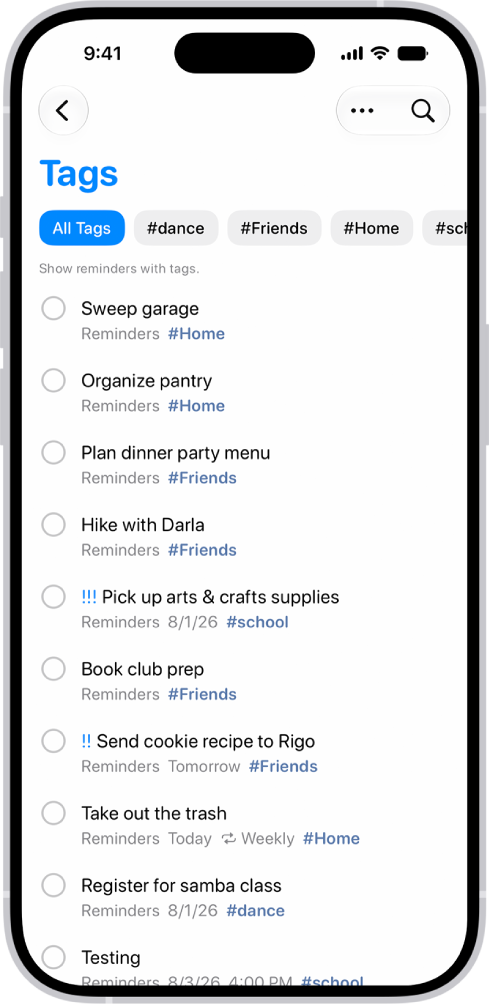
A list of tagged reminders in the Reminders app. Buttons along the top show additional tags that you can apply.

Rename or delete a tag

  1. Open the Reminders app on your iPhone.
  2. Below Tags at the bottom of the screen, touch and hold a tag. Then tap Rename Tag or Delete Tag.

When you delete a tag, it’s also removed from all Smart Lists that use it.

Tapbacks give you a quick and easy way to respond to a message, such as a heart, a thumbs-up or thumbs-down, laughter, exclamation points, a question mark, and any sticker, Memoji, or emoji.

A Tapback is attached to a specific message, and everyone in the conversation can see it. If a message has more than one, they appear in a stack, and you can see who added each one. You can edit or remove only the Tapbacks you added, too.

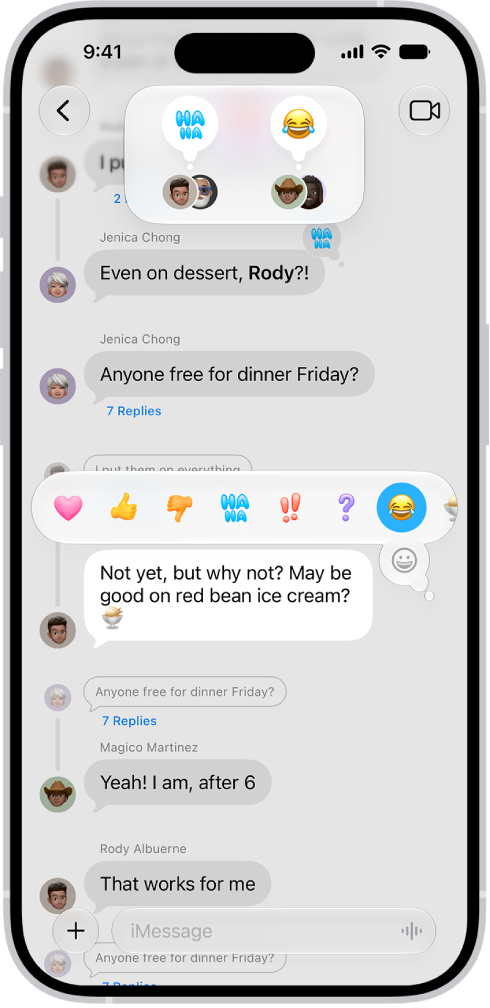
A Messages conversation with Tapbacks attributions visible near the top of the screen, and the Tapbacks menu visible above a message.

React with a Tapback

  1. Start the Messages app on your iPhone.
  2. Open a conversation.
  3. Double-tap (or touch and hold) a message.
  4. Swipe left to see suggested emoji and stickers, or tap the Emoji button. Then tap to choose any of the following kinds of Tapbacks:
    • Other emoji: Tap the Emoji button (jump to other emoji categories with icons to the right of the Emoji button).
    • Stickers: Tap the Live Stickers button.

Everyone who’s part of the conversation can see the Tapback, which is attached to a specific message in it.

Find out who sent a Tapback

When a message has more than one Tapback, they stack up, and you can find out who added each one.

  1. Start the Messages app on your iPhone.
  2. Open a conversation with Tapbacks.
  3. Tap a stack of Tapbacks.

Near the top of the screen, you’ll see senders and their tapbacks.

Edit or remove your Tapback

You can edit or remove only the Tapbacks you added, not ones other people added.

  1. Start the Messages app on your iPhone.
  2. Open a conversation.
  3. Tap your Tapback and then do one of the following:
    • Use a different Tapback: Tap a different emoji, Memoji, or sticker.
    • Remove the Tapback: Tap the same Tapback you used (so it’s not highlighted).

You can add only one Tapback per message.

View and customize widgets in CarPlay to allow quick access to your most important information at a glance.

You do it when you’re not driving, from the Settings app on your iPhone. You can add widgets, rearrange them in the order you want, remove them, or turn on Smart Rotate or Widget Suggestions. How many widget stacks you see depends on your vehicle’s CarPlay screen.

Here’s how to customize widgets in CarPlay.

Add a widget for CarPlay

  1. When you’re not driving, open the Settings app on your iPhone.
  2. Tap General and tap CarPlay. Tap your car.
  3. Tap Widgets and tap Add Widgets.
  4. Follow the onscreen instructions to add a widget.

Note: Your vehicle’s CarPlay screen decides the number of widget stacks you see.

Rearrange or remove CarPlay widgets

  1. When you’re not driving, open the Settings app on your iPhone.
  2. Tap CarPlay and then tap your car.
  3. Tap Widgets and drag the Reorder button to rearrange a widget, or tap the Remove button to remove it.

Turn on Smart Rotate or Widget Suggestions

  1. When you’re not driving, open the Settings app on your iPhone.
  2. Tap CarPlay and then tap your car.
  3. Tap Widgets and turn on Smart Rotate or Widget Suggestions.
Tag: carplay

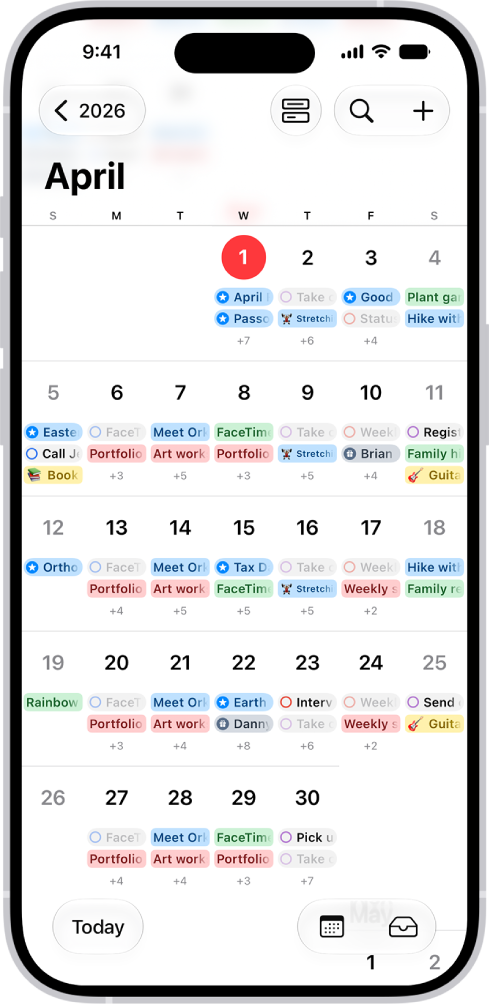
You can view events across the span of a month, week, or multiple days, or view a list of upcoming events. In Month view, there’s a choice of a single bar indicator for the events on each day, a bar indicator for each event, or event titles.

A calendar in Month view showing events and reminders.

See events in Month view

Your Month view can show either event indicators or details.

  1. Start the Calendar app on your iPhone.
  2. In Month view, tap the Month view icon and then do one of the following:
    • Show a single bar indicator for the events on each day: Tap Compact.
    • Show a bar indicator for each event: Tap Stacked.
    • Show event titles: Tap Details.

View events across multiple days

  1. Start the Calendar app on your iPhone.
  2. Do any of the following:
    • View multiple days: In Day view, tap the Day view icon and choose Multi Day.
    • View a weekly calendar: In Month or Day view, rotate iPhone sideways.

View events in a list

  1. Start the Calendar app on your iPhone.
  2. Do any of the following:
    • View a list of events for each day: In Month view, tap the Month view icon and choose List. Tap each day to see a list of events.
    • View a complete list of upcoming events: In Day view, tap the Day view icon and choose List.