Got a tip for us?

iPhone

The iPhone is a smartphone from Apple that runs the iOS mobile operating system. Between its apps, communication features, the camera, mobile internet access, and other functionalities, the iPhone has quickly become an integral part of many peoples tech lives.

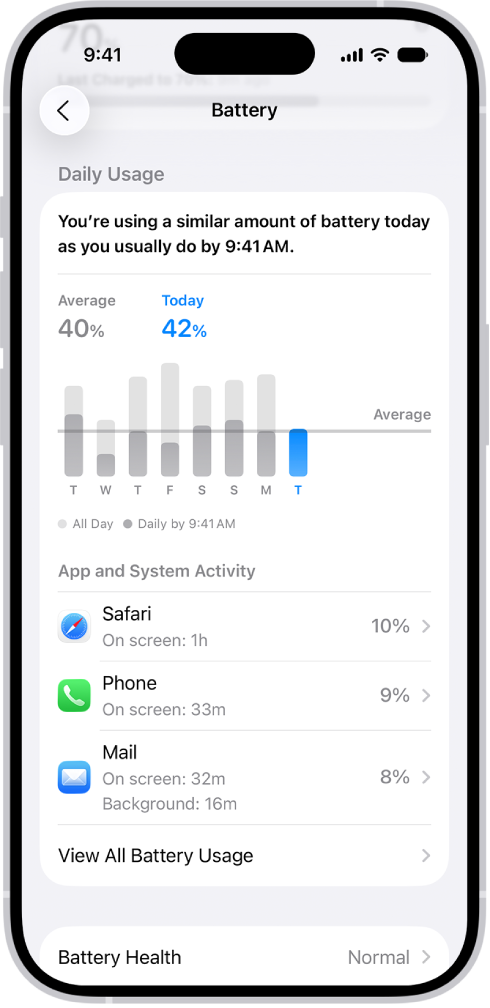
Is your iphone battery draining fast all of a sudden? No problem. In this article, i’ll give you reasons why iPhone battery dies quickly and offer you possible solutions to fix the issue.
There is this constant issue with iPhones battery life users always have to grapple with even after purchasing the flagship iOS device. This is because after a while, your iPhones battery life starts to drop rapidly and it’ll struggle to make it through a day (on a full day).

Your current iPhone might still offer you great battery life, but as you continue to use, you will notice a gradual decline in battery life. Also, Apple does not make the whole thing easy since it does not provide users an easy access to their
iPhones battery
This makes replacing these batteries when their life spans drop, a daunting task.

Reasons why iPhone battery dies quickly

Here are the reasons why iPhone battery dies fast and what you can do to fix the issue.

1. Constantly Recharging Your iPhone Battery

According to
Battery University, lithium battery starts to degrade after undergoing between 300 and 500 discharge/charge cycles. A charge cycle is a charge of a battery from 0% to 100%. Therefore, for instance, charging your iPhone from 50% to 100% twice will translate to a complete charge cycle.

To prevent your iPhone battery from degrading faster, you should minimize charge cycles of your device.

2. Too Many Applications Running on the background

I understand that iPhones are preferred for their multitasking capabilities and this is one of the reasons why most people chose to use iPhones in the first place. While this is great, running multiple apps simultaneously can immensely reduce your iPhones battery life. Always remember to quit all apps which you are not using to save its battery.

There are a couple of indicators you get when your battery is under heavy usage. The common one, however, is your iPhone getting extremely hot. Another solution to stop battery drainage is to quit apps running in the background.

3. Using unauthorized Charges

Another reason why iPhone battery dies fast is due to use of unauthorized chargers. It’s a bad idea to use charges that aren’t made by Apple. It’s understandable that these chargers are quite cheap, however, you should note that original iPhones chargers are designed to act as adaptors, to convert direct circuit (DC) power to a level the iPhone requires to charge healthily. Anything above the required current and voltage can damage your iphones’ battery thereby reducing its life span.

4. Screen Brightness Level is Always Very High

Another major reason why iPhone battery dies quickly is high brightness. iPhones screen is one component that probably drains the most power. Keeping your screen brightness to the maximum at all times also reduces your iPhones battery life. Always lower the screen brightness of your iPhone when it is not necessary to have it very bright.

Related article
How To Improve iOS 13 Battery Life on iPhone: 17 Tips and Tricks You Need to Know.

Why iPhone battery dies quickly? Now you know

Despite the fact that batteries have a natural life span, your iPhone battery can still last for a longtime – at least more than a day. For this to happen, you should endeavor to create a battery maintenance culture. In this regard, keep in mind to follow the above-recommended tips and avoid this battery draining features as much as possible.

Tag: Battery

Wondering how you can reduce data usage on a wi-fi network while using your iPhone or iPad? You have come to the right place.

Depending on where you live, Internet may or may not be costly. If you live in US, there’s a possibility you’re paying a higher bill for your broadband connection and cellular data compared to one of your friends living in Europe or Asia. If internet bills are hurting your pocket, you might want to reduce your data usage. With the launch of iOS 13, Apple included a nifty feature called “Low Data Mode” that claims to reduce Wi-Fi data use when enabled, and a similar feature exist for cellular data users. Most people have limited data when they’re using their home internet use (or a cellular network) to browse the internet, so this feature is very useful when you’re about to hit your data limit, or you just want to reduce the bandwidth used by iPhone or iPad on a wi-fi network.

If you want to enable low data mode for Wi-Fi networks on iPhone or iPad to conserve your monthly data usage while on a wireless network, there are a few simple steps which you need to follow.
Here is the step-by-step guide which will show you how you can turn the low data mode feature on for Wi-Fi networks.

Part of how this feature works is that it aims to limit your data use by preventing automatic updates as well as other background tasks, hence reducing the amount of data used on the iPhone or iPad. Simply follow these steps.

How to Enable Low Data Mode for Wi-Fi Networks on iPhone & iPad

If your problem isn’t cellular data usage but rather skyrocketing broadband bills, you may need to use as less data as possible over Wi-Fi. Don’t worry, simply follow these simple steps to turn on low-data mode for a wireless network:

  1. Start the “Settings” app on your iPhone or iPad and tap on “Wi-Fi”.
  2. Next, tap on the “i” icon next to the Wi-Fi network name that you’re incurring high charges on, as you can see in the screenshot below.
    How to enable low data mode on iPhone
  3. you’ll see the option to enable Low Data Mode. Just tap once on the switch to turn it on.

There you have it. You have configured your iPhone or iPad to use less data.

As you can see, it takes just a few taps to enable or disable the feature.

This mode is very useful if you have a low data cap on your broadband connection, in addition to lowering your bills. By restricting background activities on your iPhone or iPad from consuming your internet data while you’re not using your device, you could use the spare data to do more important stuff at the full bandwidth.

Keep in mind, this method applies to using Low Data Mode on wi-fi, whereas you have a separate setting for using low data mode on iPhone with cellular data, which is what you’d want to use when you’re out roaming around.

While the benefits are numerous, Low Data mode has a couple of drawbacks. Since it prevents automatic updates and background activities as mentioned earlier, your iPhone and iPad data wouldn’t be automatically backed up to the cloud. If you aren’t aware, when your iPhone or iPad is powered on and plugged to a power source, iOS automatically backs up documents, photos, contacts and other files to iCloud. So, you may need to perform a manual backup to iCloud or you may risk losing data permanently.

Well, what’s your take on the new Low Data Mode features on iOS 13? Did it help you save a lot of valuable data and consequently save some cash? We’d love to know your thoughts and experiences in The comment section below.

What are haptics? Haptics are a tactile way for your iPhone to respond to touch, pressure, or both, in the form of a small vibration. In case you are wondering how to turn off haptic touch on your iPhone or iPad, you have come to the right place.
Haptic Touch uses the Taptic Engine and delivers haptic feedback when the screen is pressed on latest Apple devices. . A Haptic Touch is a touch and
hold gesture, and it can be used across the
iOS 13
operating system.

What’s the difference between haptic touch and 3D touch?

The difference between Haptic Touch and3D touch is that 3D touch responds to different levels of pressure with different responses and features while haptic touch does not have various level of pressure
but rather the length of a finger press. This call and response is determined by the pressure sensitivity built into the iPhone screen, so depending on which
iPhone model you own, you will get one or the other or both. 3D Touch is a hardware-based feature because it is paired with pressure-sensitive screens.
Haptic Touch is software-based.
For example, the new
iPhone 11
and
iPhone 11 Pro
substitute 3D Touch with Haptic Touch. As on the iPhone XR, the haptic feedback consists of a subtle vibration in response to the long press. Older models
with touch-sensitive glass may still retain the original 3D Touch feature.
Regardless of whether the touch response is 3D or haptic, some people hate both equally, and could never find or get the hang of the feature’s light-medium-firm
press subtlety, or did not find the results edifying. If you want to turn off haptic touch, there are a few simple steps which you need to follow.
Here are the step-by-step instructions for how to disable haptic touch on iPhone and iPad running iOS 13 and iPadOS 13.

How to turn off Haptic Touch:

Follow these steps to turn off Haptic Touch:

  1. Start the Settings app on your iPhone.
  2. Tap Sounds and Haptics.
  3. Scroll down and toggle off system haptics.
    Turn off haptic touch on iPhone system haptics

That’s pretty much it. You have disabled haptic touch on your iPhone or iPad. For step-by-step instructions on how to turn off 3D Touch on your iPhone, check out our step by step guide How to turn off 3D Touch on an iPhone

Signing off

In case you have been wondering how can haptic touch be turned off on iPhone and iPad running iOS 13, there you have it.
Questions?
Let us know in the comment section below. We also have plenty of other articles that I suggest you check right now.

Apple’s AirPods can help you hear better. An accessibility feature called “Live Listen” lets you use AirPods as hearing aids.
This is how you can use AirPods as hearing aidsApple AirPods are among the most stylish iPhone accessories you can buy right now. Besides listening to music and podcasts, you can use them as hearing aids by enabling “Live Listen” feature which amplifies sounds around your immediate environment.
The AirPods Live Listen feature uses iPhones Mic which is used to capture and transfer the audio straight to your AirPods. As such, should you be hard of hearing, you can simply lay your iPhone on a table — or even hold it close to someone’s mouth — and the AirPods will amplify what’s being spoken rather than asking someone to raise their voice.
The feature works perfectly and you can even use it to spy on other peoples conversations. This is because your iPhone can transfer audio to your AirPods even when you are a few yards away from your iPhone as long as the AirPods remain connected to your iPhone via the Bluetooth. If you want to activate and use the AirPods Live Listen feature, there are a few simple steps you need to follow.
Here is the step by step guide which can help you set up and use live listen feature on your iOS device.

Steps to Use AirPods as Hearing Aids Using Live Listen

Follow these steps to turn on and use The Live Listen feature in your iPhone or iPad:

  1. Start Settings app on your iPhone.
  2. Tap on Control Center.
  3. Tap on Customize Controls.
  4. Tap the green + button next to Hearing to add it to control center.

Now, you can enable Live Listen feature on control center.

How to use Live Listen on your iPhoneor iPad with AirPods

Now that you have the feature enabled on your iPhone or iPad, you can start using Live Listen with yourAirPods:

  1. Pop your AirPods in your ears.
  2. on an iPhone X or newer, swipe down from the top-right of your home screen to launch control center.
  3. on an iPhone 8 or earlier,swipe up from the bottom of your home screen to launch control center.
  4. Next, tap on the ear icon.
  5. Finally, tap the “Live Listen” option to turn it on.

Now, you can lay your iPhone on a table and you’ll be able to hear their conversation from your AirPods. To test the feature, put your
iPhone on the table while people are having a conversation at the table and walk out of the room.
That’s pretty much it. You can turn on live listen feature on the Control Center any time you want to use it. When you are done using the feature, keep in mind to turn it off to avoid distorting your music or podcast.

Want to know what else AirPods can do? Check out my
AirPods tips and tricks guide
and
AirPods Pro tips and tricks guide
questions?
Let us know in the comment section below. We also have plenty of other articles that I suggest you check right now.

“I just got my iPhone 11 Pro Max, and I was so excited to use it. I’ve been trying to sign into iCloud to sync my files, but I keep getting an error message saying: Verification failed. There was an error connecting to the Apple ID server”. Why am I getting that error? More importantly, how can I fix this problem?”

“Have you tried to log in to iTunes and Apple Store, but still received the error message? ‘Apple id Validation failed. An error when connecting to your
Apple ID? ‘ If you have a wrong apple id verification failed, there are a few simple steps you need to follow to fix Verification failed. There was an error connecting to the Apple ID server.

Why Verification failed. There was an error connecting to the Apple ID servers?

Error connecting to apple id server could be caused by two reasons:

Reason #1: Poor internet connection.

You need a strong internet connection to sign into Apple’s services. If you have unstable internet connection, you are likely to experience an error. In this regard, use of Wi-Fi network is recommended.

Try navigating to any site of your choice on your browser. If the website is loading too slowly, then Your Internet Connection is to Blame. If you are using Wi-Fi,
try connecting to a different network or restart your router. If you don’t have Wi-Fi, try using your cellular network connection.

Reason #2: Incorrect Apple ID and password.

Again, if you enter invalid Apple ID and password, you are likely to experience There was an error connecting to Apple ID server. In case you have forgotten your Apple ID password, you can reset it from the Apple ID
account page.

Click Forgot Apple ID or password. You may be asked to answer security questions to verify your identity or have the new password sent to your Email address in file.If you don’t
think the above issues are the cause of there was an error connecting to Apple ID server, Read on, we have solutions that may surely fix the problem.

How to Fix Error Connecting to Apple ID Server?

There are eight solutions that you can try out to fix the error of “apple verification failed.” “There was an error connecting to Apple ID server.”

Solution #1: Reset your device.

This is the easiest and quickest fix to try.
To Force restart iPhone 7 or iPhone 7 Plus:

  1. Press and hold both the volume down button and the Sleep/Wake button.
  2. When the Apple logo appears, let go off both buttons.

To force restart iPhone 6S or older:

  1. Hold down the Power and Home buttons together.
  2. When the Apple logo appear, let go off both buttons.

To force restart iPhone 8 and iPhone X series:

  1. Quickly press and release the volume up button.
  2. Quickly press and release the volume down button.
  3. Press and hold down the side button.
  4. When the Apple logo appears, let go off the button.

Turn on your device again and check if you can now sign in without any problem.

Solution #3: Sign out and back in again.

Logging out and back in on iCloud is a great way to resolve temporary issues on Apple’s services. If you’re trying to sign into iCloud but you are still getting an error, follow the steps below.

  1. Start the Settings app on your phone and tap on your name
  2. Scroll down and tap Sign Out.
  3. Enter your password in the provided field and tap Turn Off to proceed.
  4. Turn on the data you want to keep a copy of on your device.
  5. Tap on sign out.
  6. Tap sign out one more time to confirm that you want to sign out. You are now signed out of your iCloud account.
  7. To sign in again, type in your Apple ID and tap Sign in.

Check if you can now sign in without any problem. If you are still getting an error connecting to Apple ID server, try the next solution.

Solution #4: Update your iOS.

There could be a bug in your OS that is causing error connecting to your Apple ID server. Make sure your device is running the latest version of iOS.
Updating your device to the latest software will fix bugs in the OS. To check for available updates, head over to Settings > General and tap Software Update.
Be sure to download and install any updates that you find.
Tip: It is highly recommended for all Apple users to run the latest version of iOS. Apple is continually releasing patch updates to resolve existing glitches, and
you should take advantage of that.

This will keep your device running smoothly, so you won’t experience difficulties using Apple’s services on your
iPhone
Check if you can now sign in without any problem. If you are still getting an error connecting to Apple ID server, try the next solution.

Solution #5: Reset network settings.

Resetting your device’s network settings might actually resolve the problem. Non of your data will be deleted, so you don’t need to worry.

To reset network settings, head over to Settings > General > Reset > Reset Network Settings. Enter your password and tap Reset Network Settings to continue.
After resetting your network settings, Check if you can now sign in without any problem. If you are still getting an error connecting to Apple ID server, try the next solution.

Solution #6: Disable iCloud Backup.

This fix works in case you’re experiencing error connecting to the Apple ID server when you try to sign into iCloud. If you already have iCloud syncing
enabled on one device.

You might experience difficulty signing in on iCloud on another iOS device. To resolve the issue, you should turn off iCloud backup on your device. Head over to Settings >
Your name > iCloud > iCloud Backup > Toggle off.
Check if you can now sign in without any problem. If you are still getting an error connecting to Apple ID server, try the next solution.

Solution #7: Fix “apple id verification failed” on Mac.

If you’re using a Mac, try to restart it. Moreover, check to make sure that the date, time, and time zone are correct. If you still encounter problems, it’s time to
check your Mac’s Keychain Access settings.

Check to make sure both OCSP and CRL are set to Best Attempt. If not, click on the drop-down box to change.
Check if you can now sign in without any problem. If you are still getting an error connecting to Apple ID server, try the last solution.

Solution #8: Contact Apple Support

Just in case none of the methods worked for you, try Reaching out to Apple Support. You can
make a genius bar reservation
Or
Chat with Apple online.
The company will surely work out a solution for you.
If this guide was helpful, please share it. We also have other articles that I suggest you check right now.

So in today’s article, we will be looking at How to spot fake iPhone XR, fake iPhone XS, or fake iPhone XS max.
If you want to spot Fake iPhone 11, 11 Pro or 11 Pro Max
Check the above link.
Its becoming a custom now that these fake iPhone Clones imitate Apples flagship devices precisely. If you want to spot fake iPhone XR,  fake iPhone XS, or fake iPhone XS max, there are a few cool tips which you need to know.
Here is the step-by-step guide which will help you spot iPhone XR clone, iPhone XS clone, or iPhone XS Max clone.
Do keep in mind that these fake devices are countless and they do not subscribe to any particular design code so their is not common signs to hunt for.  At the end
of the day you will have to use common sense and look out for any signs that will show your device is a Fake. According to Business insider
iPhone XR is the iPhone for most people so, it’s important to make sure you don’t end up with a fake
iPhone in your pocket.

See also: How to Spot a Fake iPhone 12

What is a Fake or Clone iPhone?

Do to the reputation of iPhones, there are now clone or Fakes devices which you can purchase at a lower price, the issue though is that in some occasions,
the Fakes may be so convincing to a point of appearing as the genuine iPhone and you may be duped into purchasing one. Below I’ll give you tips that will help you identify weather or not you
have fake or a genuine iPhone XR, iPhone XS, or iPhone XS Max.

See also: How to Spot a Fake iPhone 12 Pro or iPhone 12 Pro Max

How to spot a Fake iPhone XR, XS, or XS Max?

You can use the following to tell real vs Fake iPhone XR, fake iPhone XS, or fake iPhone XS max.

Sign 1: The Price:

If you paid say $100 for an iPhone or considerably amount than the Apple custom price tag then you are either the most fortunate person on the earth or you
just purchased a fake iPhone. Fakes are sold at a lower price and some users will not mind the price tag and assume they have a real product so be very cautious.

Sign 2: The Packaging

Keep in mind to check the specifications of the device or the features and remember to reference apples official specifications
for the iPhone XS, iPhone XR and the iPhone XS Max. In addition, look out for spelling mistakes as well as naming references as some fake iPhones are usually manufactured even before the official device
launch. Finally, look out for tacky presentation from the outer to the inner box that Apple would never do.In some occasions, the image on the box is incorrect.

Sign 3: The Accessories

The fakes every so often have weak accessories when compared to the real iPhone. In addition, you may get incorrect accessories for the fake iPhone. Moreover, manual document inside the box may be poorly put together or even poorly written.

Sign 4: Slow

Fakes are every so often sluggish and lagging in overall performance and in booting up compared to the real deal. The iPhone X and newer are very quick devices
and should not be sluggish whatsoever especially when they new.

Sign 5: Incorrect Applications

Opening some Apple native apps may end in a totally different application such as Apple Maps or the App store. This is due to the fact that the fakes
are only trying to imitate the genuine iPhone and they fail time and again in this regard.

Sign 6: Poor Battery life

Fakes often have very poor battery life that may even have problems with charging and stuff like that. Look out for overheating and you may
get ads popping up in wrong places such as apps where they should not be.

Sign 7: Picture and Video Quality

Real iPhone X and newer have a super display that has a very high-resolution and crisp clear while fakes have a lower resolution which is
understandable because of the inferior quality display that’s included with the fake.

Sign 8: Face ID

Try running the Face ID and if the feature does not function or simply fake the unlock process and can be unlocked by any Face then its a Fake iPhone.

Signing off

So that’s pretty much it on How to spot fake iPhone XS, fake iPhone XR or fake iPhone XS Max. Some users will still want clearer signs that they have an original device or not, but the thing is
that Apples superior built quality and devotion to detail compared to a inexpensive knock off only requires proper phone inspection. Just as we saw in
fake iPhone 11 pro
faults in fake iPhones are conspicuous and you can easily distinguish fake from the original so, do inspect everything on your phone meticulously.

Before you Go

GeeksModo helps millions of people solve problems with iPhones, Macs, and other devices, through easy-to-understand articles and a support community led by experts.
For even more Tips & Tricks, follow us on social media to stay in touch
We hang out here:

Twitter

Handle: @Geeks_Modo

Facebook

Handle: GeeksModo
If you have any questions do ask below and do check out our other articles here on the website. I would also love if you could share this articles with
your friends as well on social media.

Looking to guard the screen of your iPhone or iPad? No problem. In this article , we shall provide you with merits and demerits of tempered glass screen protector and liquid screen protector.

Getting a screen protector for your iPhone or iPad is very important therefore, in case you are planning to purchase a screen protector to shield your iPhone from those annoying scratches you see on smartphones screen, you have come to the right place. Here is a complete guide which will help you to choose between Tempered glass screen protector vs liquid screen protector.

Its worth mentioning that both tempered glass screen protector and liquid screen protector do an excellent job at protecting your iPhone’s screen. They have unique physical characteristics That sets them apart.
Tempered glass protector
is made with tempered glass. On the other hand, Liquid screen protector uses liquid glass.
Without further ado, let’s dive into identifying the differences between Tempered glass screen protector vs liquid screen protector and establish which one is superior to the other!

Tempered glass screen protector vs liquid screen protector for iPhone

Here is a comprehensive comparison between Tempered glass protector Vs liquid screen protector.

Liquid Screen Protector

Liquid screen protector

Pros:

  • Very smooth
    Liquid screen protector is very smooth. It’s quick and simple to install on your iPhone or iPad screen. In this regard, it can defend your device screen from scratch.
  • Highly transparent
    Liquid glass protector is highly transparent due to its thin layer to your iPhone screen. It offers clear viewing experience from all angles.
  • Enormously responsive to the touch
    Liquid screen protector is highly sensitive to the screen. In this regard, it responds swiftly to taps and swipes.
  • Extremely lightweight
    Liquid glass protector adds a very thin layer on your device screen. Thanks to its’ ultra-light design, it’s barely noticeable to most users.
  • Bubble Free, Easy to Clean
    The liquid screen is capable of protecting your device screen against bubbles. If you are averse to bubbles and can’t put up with them, it can be a great choice. In addition, It is easy to clean using a soft piece of cloth.

Cons:

  • Less Impact Protection
    When it comes to providing full protection against drops, bumps and scratches, toughened glass blows liquid screen guard out of water. If you are looking to guarding your iPhone from accidental bumps or drops, tempered glass protector is a better option.
  • Comparatively Less Scratch Resistance
    Liquid glass protector can only defend your touchscreen to a given extent. Your iPhone display would be susceptible to sharp scratch.
  • Gets Easily Discoloured from Sun and Oil
    The other drawback of the liquid screen protector is that it doesn’t have adequate resistance to ward off the sun, oil, and grime for a long period of time. In addition, it’s more susceptible to fingerprint.

Tempered Glass Screen Protector

Tempered glass protector

Pros:

  • Highly protective
    tempered glass offers a high level of protection. To prove it’s efficiency, you can use it in passenger vehicle windows, shower doors, smartphones screen protectors and more. Tempered glass screen protector boasts an hardness rating of 9H. In this regard, it can adequately protect your device from bumps, dropps or scratches.
  • A Lot Safer
    Tempering puts the interior into tension and exterior into compression. In this regard, should the glass break, it crushes into tiny granular pieces that cause less damage to your device.
  • Boasts Four to Six Times stronger than regular Glass
    Most tempered glass screen protectors are highly durable. Compared to the regular glass, tempered glass is 4 to 6 times stronger. It’s pretty tough and entirely capable of shielding your iPhone’ screen from those annoying Scratches.
  • Exceptionally Sensitive to the Touch
    tempered glass is highly sensitive to the touch. Moreover, it’s capable of protecting your device from oil, grime, dust and those ugly fingerprints allowing it to remain functional for a long time. What makes it durable is the oleophobic coating.
  • Incredibly Transparent
    Tempered glass offers the highest level of transparency and provides crystal clear display. Its’ HD clearness offers users great viewing experience from all angles making them worth investing in.

Cons:

  • Prone to Breakage
    Tempered glass screen protector is prone to damage. If the edge of the glass develops a crack, the whole unit Will in the end get damaged.
  • Less aesthetic
    Sleekness is a major determiner when it comes to buying a smartphone. Therefore, thick, inconspicuous tempered glass screen protector can be a deal breaker to many.
  • Can Pose Security Risk
    Tempered glass could pose security risk in some cases. The tendency to get completely shattered upon hard impact pose a security risk especially to kids.

The Verdict:

Putting Liquid Screen Protector Vs Tempered Glass head to head, Tempered glass screen protector is superior compared to liquid screen protector. Whether you want to protect your iPhone from drops, bumps, or scratchs, the former is superior to the latter. Though liquid screen protector can guard your device from scratches and cracks, you cannot compare it to the thicker, harder tempered glass protector.

Most people prefer the tempered glass protector for its ease of installation. In addition, it offers maximum screen protection to your
iPhone
Moreover, tempered Glass protectors are totally bubble-free, easy to remove and clean. Therefore, liquid screen guards does not beat it in this regard either.

So, Liquid Screen Protector Vs Tempered Glass? Which one do you choose? Let us know in the comment section below. We also have plenty of other articles that I suggest you check right now.

The Low power mode is one of the battery saving features in the iPhone. The feature is gaining popularity as more and more iOS users
are using this feature toImprove iPhone Battery Life
Low power mode in iPhone is an important feature among users, who play power-hangry games like Pokemon Go
and other battery consuming apps. Low Power Mode enhances your iPhone’s battery life span by disabling a number of background activity, such as motion effects, animated wallpapers, fetching mail, disabling “Hey Siri” and decreasing
Auto-Lock time. It is recommended when your battery reach 20% and 10%.
At present, almost all our activities are directly or indirectly related to our smartphones, and in such situations, battery drain is a major issue for everyone.
Apple understands the issue very well and therefore , introduced a low-power mode option. Apple states that by turning on the low power mode, the iOS device
will get extra three hours of battery life.
Here’s how to enable low power mode (iPhone only, iPads do not support this feature).

How to Enable Low Power Mode on iPhone

Step 1: Open Settings.

Step 2: Scroll down and tap on Battery.

Step 3: Locate the Low Power Mode switch and turn it on.

Low Power Mode automatically disables itself when battery life reaches 80%.

At this point in time, virtually all smartphone makers are working hard to enhance their battery performance, because it is one of the important features for increasing

their market.Apple has always been on the front-line with innovations; low power mode is certainly a welcome feature amongst all iPhone users.

That’s all folks.

Did you enable this awesome feature on your iPhone? Let us know in the comment section below. We also have plenty of other articles that I suggest you check right now.

Apple

Mac Keyboard shortcuts (or keyboard hotkeys) are super useful. Not only do they boost productivity and allow you efficiently get work done, they also allow users get the most out of their computers. If you aren’t actively utilizing Mac keyboard shortcuts to boost your productivity and streamline your
workflow at work, at home or anywhere, you should definitely start using keyboard shortcuts.
Mac keyboard
Keyboard shortcuts can help you navigate and execute tasks swiftly on your Mac and ultimately make your work (and life) a lot easier. We previously compiled a list of over
40 super useful keyboard shortcuts for Windows users.
Using keyboard shortcuts can help you do many things much faster on your Mac. You can control your system, work with documents, and navigate faster
and easier than you probably think.
To use a keyboard shortcut, press and hold one or more modifier keys and then press the last key of the shortcut. For example, to use Command-V (paste), press and hold the Command key, then the V key, then let go off both keys.
here are Top 36 Keyboard Shortcuts for Macbook, MacBook Pro and iMac Users you need to know to help you fully utilize your Mac.

Top Keyboard shortcuts for Mac users

  1. Command + Tab — Switch/Cycle through apps
  2. Shift + Control + Power button — Put all display to sleep (when using multiple displays).
  3. Command + F — Find text in a document or webpage.
  4. Command + Spacebar — Opens Spotlight search bar. Use this to find files in a folder.
  5. Command + Brackets “[” or “] “ — Move to the Previous ( [ ) or Next ( ] ) folderBy pressing “command” and the left bracket ([) you can move to the previous
    Folder.
  6. Command + Colon OR Command + Shift + Semicolon — Open the spelling and grammar window.
  7. Command + Ctrl + D — Look up a word in dictionary (hover mouse over a word)
  8. Command + Z — Undo a previous action
  9. Command + Semicolon — Find misspelled words in a given document.
  10. Command + Shift + Z — Redo a previous action that was undone with the “Command + Z” function.
  11. Command + Delete — Move files to the Trash
  12. Command + Control + Space — Open Emoji and Special character panel.
  13. Command + Opt + Delete — Delete a File (does not put the file in Trash)
  14. Command + Control + F — Display current app in fullscreen.
  15. Command + Shift + 4 — Take a screenshot of a selected area (Drag over an area to select it)
  16. Command + Shift + 5 — Open Screen Utility
  17. Command + Shift + O — Open the Documents folder
  18. Command + H — Hide the current app.
  19. Command + Option + H — Hide all other apps (asides the current app
  20. Command + Shift + 3 — Take a screenshot of the entire screen
  21. Command + Shift + D — Open the Desktop folder
  22. Command + Shift + C — Open the Computer window
  23. Command + I — Get information on a selected file/folder.
  24. Command + Shift + F — Open the Recents folder
  25. Command + Plus (+) or Minus (-) — Adjust the font size in Messaging app
  26. Command + Shift + V — Paste and Match Style — paste text without its previous formattting, otherwise known as “Paste as plain text” in Windows.
  27. Command + Tab — Switch between apps (Press Cmd + Tab to switch to last used app; press the two buttons again to switch back)
  28. Command + Left Arrow key — Go back a page in a browser window or Go to beginning of line when typing/working with text.
  29. Command + Right Arrow key — Go to the next page in a browser or Go to end of all the text when typing.
  30. Command + Shift + T — Open last closed tab in a web browser.
  31. Option + Command + Power button — Put your Mac to sleep.
  32. Control + Shift + Power button — put your display to sleep.
  33. Shift + Command + Q — log out of your Mac user account.
  34. control + Command + Power button — force restart without option to save open files.
  35. Control + Power button — Display a dialog box to restart, sleep, or shut down.
  36. Quit all apps and shut down with option to save open files: Control + Option + Command + Power button.

Bonus

  • Option + Shift + Volume Up/Down — Increase or Decrease the volume on your Mac PC in small increments.
  • Command + Accent (`) + Shift — Activate previous window in an application
  • Command + Accent (`) — Activate next window in an application
  • Command + A — Select all
  • Command + Option + A — Undo Select All or Deselect all
  • Command + Option + C — Copy a file’s pathname
  • Command + C — Copy Files
  • Command + V — Paste Files
  • Command + Option + V — Move copied files.

Best Mac keyboard shortcuts? Now you know

Mac keyboard shortcuts are great tools and once you get used to them, you’ll find yourself using them without even thinking about it.

Do you take advantage of keyboard shortcuts on your Mac? Which ones do you use the most?

Before you Leave

As always please share this article for Mac keyboard shortcuts with a friend and comment below. We also have plenty of other interesting articles that I suggest you check out right now.

Some of the most important iPhone privacy settings are also the most buried — and they’re absolutely worth your while to uncover and put into action.

You might not know it from all the panic-inducing headlines out there, but iPhone is actually packed with practical and powerful privacy options. Some are activated by default and protecting you whether you realize it or not, while others are more out of the way but equally deserving of your attention.

Ready? Ready. Let’s do this:

iPhone setting No. 1: Use a passcode

First step: set up a passcode. Do not walk around with an iPhone that anyone can swipe to open. Protect your iPhone with a passcode — preferably a six-digit passcode or a custom numeric or alphanumeric code. With either Touch ID or Face ID, you won’t need to enter your passcode unless your finger is wet or you are bundled up to a degree that your face is obscured. You can set up a passcode by going to Settings > Touch ID & Passcode or Settings > Face ID & Passcode and enroll your fingerprint or face. Make sure iPhone Unlock is toggled on after you set up your passcode.

If you have a phone that supports Face ID, make sure the Require Attention for Face ID option is enabled so that your phone can’t be unlocked when your eyes are closed. If you choose a PIN, make the PIN a more complex alphanumeric code so that it’s harder to guess. To do so, tap Change Passcode, enter your passcode, and then tap Passcode Options.

iPhone setting No. 2: Change what’s accessible on your lock screen

If someone else ever gets their sweaty paws on your iPhone, you don’t want ’em to be able to access any of your personal and/or company information — right?

Well, take note: iPhone typically shows notifications on your lock screen by default — which means the contents of emails or other messages you receive might be visible to anyone who looks at your device, even if they can’t unlock it.

If you tend to get sensitive messages or just want to step up your security and privacy game, you can restrict how much notification info is shown on your lock screen by going to Settings > Notifications > Show Previews and pick either When Unlocked or Never. Always will, as the name implies, always show the content of your notifications even when your phone is locked.

iPhone setting No. 3: Limit activities on your locked iPhone

Here’s arguably the most important part of completely securing your iPhone. Go to Settings > Face ID/Touch ID & Passcode > enter your passcode and then scroll down to the section labeled Allow Access When Locked.

There you’ll find a list of different device features, ranging from things like Siri and Today View to Control Center and Wallet. Every feature with the switch in the on position can be accessed directly from the lock screen, even when your device is locked.

For instance, I was able to pick up my wife’s phone, hold in the side button to trigger Siri and tell it to send a message or make a call. I could also swipe to the right across the lock screen to view her Today View page, where she has widgets that included her day’s agenda and other personal information — all while the phone was locked.

Go through this list and turn off any features you don’t want anyone to have access to. I suggest turning off all of them if you really want to keep your phone and its information locked down. Leaving something like Home Control turned on may seem innocent, but depending on how many and the types of HomeKit devices you have, someone could control your smart home. Thankfully, Apple requires authentication before you can unlock a door or open a garage door.

iPhone setting No. 4: Enable data protection

This should be something you only do if you regularly back up your iPhone and can get your information back without any issues.

Go to Settings > Face ID/Touch ID & Passcode > enter your passcode and then scroll the very bottom of the page. Slide the switch next to Erase Data to the on position.

With Erase Data turned on, your device will automatically factory reset itself after someone incorrectly enters a passcode 10 times.

The process isn’t something that takes place in just a few minutes. After a few incorrect attempts, your phone will set a time limit before someone can retry to enter your passcode again. After another failed attempt, the time between attempts will be extended. For someone to reach the 10 failed attempt mark would take 1 hour and 36 minutes before the erase feature would be triggered.

iPhone setting No. 6: Enable two-factor authentication

Two-factor authentication adds a second layer of security to your Apple account, in this case requiring a one-time-use code alongside your password for you to log in from an unfamiliar device. After you set it up, even if someone has your password, they shouldn’t be able to access your account without also having your phone or computer. For example, if you have an iPhone and you sign in to a new Mac for the first time, it will prompt you to enter a verification code that pops up on your phone. If you buy a new iPhone and don’t have another Apple device, you’ll receive a text message with the code. If you haven’t set up two-factor authentication for your Apple ID, you should.

To enable it from your phone, head to Settings > [Your name] > Password & Security, and then tap Turn on two-factor authentication.

iPhone setting No. 6: Enable FindMy

Whether you’ve simply misplaced your iPhone around the house or office or you’ve actually lost it out in the wild, always remember that iOS has its own built-in mechanism for finding, ringing, locking, and even erasing a device from afar.

The iPhone Find My feature should be enabled by default. You can make sure by heading
Audit app permissions
A screenshot of the Privacy menu on iOS.
Why: Every time you install an app, it asks for permissions to access hardware and system services such as the microphone, your location, the camera, and more, but mindlessly tapping through these notifications is all too easy, and you could miss some indicators of problematic app behavior. For example, some apps that don’t need location data to function still record that data so that they can sell it—alongside other information they collect about you—to marketing firms.

Open Settings & Security > Privacy and scroll through each of the various privacy controls. (Alternatively, you can open Settings and scroll to the bottom for a list of apps and then go through it that way. And a future update will add a new dashboard, called the App Privacy Report, that provides more details.) Accessing Location Services ranks among the most overreaching requests that apps make, so it’s worthwhile to make sure that Location Services on most apps is set to Never or While Using. For any app that doesn’t require your exact location but can function with an approximate location, such as a weather app, disable Precise Location. Very few apps are enhanced by knowing your location, so that’s often data they collect just to bundle up and sell to advertising companies. The same goes for Bluetooth: For years, retail stores have quietly used Bluetooth to track your location when you’re shopping.