Got a tip for us?

iPhone

The iPhone is a smartphone from Apple that runs the iOS mobile operating system. Between its apps, communication features, the camera, mobile internet access, and other functionalities, the iPhone has quickly become an integral part of many peoples tech lives.

Clock

It took this long for Apple to let you set the volume of alarms and timers hitting zero seconds separately from your ringtone volume. Go to Settings > Sounds & Haptics and, under Alarms and Timers, disable Match Ringtone Volume.

Find My

The native Find My app on all platforms has two changes related to duration or availability when you share your location with other people:

  • Previously, you could share your location for an hour, until the end of the day, or indefinitely. Now you can set a custom period of time.
  • If you’re sharing your location with someone, you can hide your location from your end until the next morning (at 4 a.m.), and they’re not notified. They’re also not told when you resume sharing, or “unhide” your location. They simply see you with a “location unavailable” label.

This is widely seen as another tool for people facing family or intimate-partner abuse to hide their whereabouts without an abuser knowing.

Health and Fitness

The big news in the Health app for iPhone is that, if you have periods, Cycle Tracking supports perimenopause and menopause by notifying you when it identifies patterns consistent with perimenopause.

Other changes worth noting include:

  • Health now has a Browse button (instead of a search icon), which better identifies what the action is. The design has changed from a list to a series of small color-coded cards.
  • iPhones now support GymKit, which was available only on Apple Watch before this. You can now pair an iPhone directly with supported treadmills, bikes, and other gym equipment.

Home

The Home app now supports 4K resolution video for live streaming and recording from cameras designed for HomeKit Secure Video and with any tier of iCloud+ and that, of course, have 4K output. (Apple still uses the HomeKit name there, even though the concept has been renamed Apple Home.)

If you have more than one camera, Home used to require awkward navigation among them. Now, you can see the previews in the main Home view, but tapping any camera brings up an aggregated view with a unified set of detected events.

With Apple Intelligence, Home reduces the amount of “attention noise” that motion-detecting cameras can generate. Home will combine related activity notifications to prevent a series of motion events from resulting in a constant stream of alerts. It can also stitch together video from multiple cameras, allow natural-language searches for recorded events, and provide summaries you can read without watching the video.

To use Apple Intelligence features, you must subscribe to the 2 TB iCloud+ plan or higher. Your home hub must be a HomePod (2nd generation or later), HomePod mini, or Apple TV updated to the latest release, such as tvOS 27. The Home app and Home accessories must have access to location services.

Podcasts

If you navigate to a podcast’s view of all of its episodes by tapping the podcast and then tapping Episodes, you can now search against the title and show notes of all listed episodes.

This doesn’t search transcripts, which Podcasts generates for some shows. It searches only the per-episode notes published in the podcast feed.

Over the last few years, Apple has released a number of features that parents can use for children that are aimed at reducing two categories of risk: use of apps parents disapprove of, activities parents want to discourage or limit, and spending money online; and exposure to unwanted contact, images, and videos, as well as preventing children from being able to make unfettered connections or send material to arbitrary people.

There have been bumps along the way. When Apple first introduced their more advanced child-safety features, they proposed invading people’s phones to look for potentially illegal material in a way that would treat a billion customers as if they might be criminals. They revised the approach, not without even more criticism.

On the parental-restriction front, Screen Time was Apple’s most direct foray into enabling guardians to shape children’s digital access. But Screen Time is janky—there’s no better word. It is sometimes hard to configure, it often fails, and kids can work around it even when they aren’t intending to.

With iOS 27 and iPadOS 27 (and extending to other platforms), Apple tries to offer substantive fixes and improvements to both aspects of child safety and adult supervision.

My children are, alas, both older than 18, and I’m unable to test these features directly.

Blur gore and violence

Apple has gingerly expanded features in this category. In this set of releases, Apple has pushed forward just a single change. The Communication Safety feature, which is enabled by default for children 13–17, already blurs any image or video that appears to contain nudity, whether the child is receiving it or attempting to send it, across a range of Apple’s communications apps, including Messages, AirDrop, and FaceTime video messages. The blurred image comes with a warning, offering guidance on seeking help. (For children under 13, they’re also prompted to start a conversation with a parent or guardian.)

In the 27 series of releases, images and video that a screening algorithm determines contain gore or violence also trigger the blur filter and warning.

Siri spent years seeming like it didn’t quite fit the level of quality Apple aspires to. Worse, the company announced capabilities it wasn’t able to release, and features that have disappointed. You can tell this wasn’t just users carping: more than one head of the Siri effort has left the company altogether.

Apple Intelligence was more of a success, if limited. The company, making use of mostly on-device computation, focused their use of Apple Intelligence on specific tasks within apps or systemwide. I think many of these attempts were boring or unnecessary: generating custom emojis, Image Playground for slightly icky picture generation, and the global Writing Tools, which were worse than many previous generations of non-AI-based assistants.

The reboot has come, however. With Siri AI and Apple Intelligence in iOS 27 and iPadOS 27, Apple is resetting our expectations for Siri and adding Apple Intelligence features in many more apps. Those features are a mix of machine learning and large language models (LLMs), and some tie into off-device, data-center-based LLM assistance.

Learning by rote versus guessing the next word

Machine learning typically refers to training an algorithm with a massive amount of data so that it can loosely pattern-match a result. In Photos, the loose searching you can do to find matches for people, places, buildings, and things relies on this. Likewise, voice transcription and Live Text are largely machine-learning-based.

LLMs, by contrast, use huge bodies of text and images to produce essentially sophisticated autocompletion. Given a set of words, what is the constellation of the next most likely one? Randomly selecting among those provides something that sounds like human writing. However, they are actually providing a statistical guess. Image generation is more complicated, but it relies on extracting features and then inserting them seamlessly, with the same degree of random guessing about which one to add.

Let Siri AI answer your questions

While Apple has rebranded Siri as “Siri AI” on supported devices and in their marketing, you won’t see that name on your devices. It’s still called Siri. But everything is affected by the availability of Apple Intelligence. Whenever you invoke Siri on an Apple Intelligence-supported device, you’re invoking Siri AI.

Instead of the glow around all four edges of your device in iOS 26/iPadOS 26, Siri in iOS 27/iPadOS 27 appears as an orb at the top of the screen. The design cleverly hides the non-screen areas in Dynamic Island on the many iPhone models with that carveout.

You can bring up Siri (by default), as in previous releases, by saying “Siri” or “Hey Siri,” or by pressing and holding the side button. However, the change introduced in iOS 26 that let you double-tap the bottom of the screen is gone. Instead, you can swipe down on a Home screen to reveal the new combination of Spotlight and Siri: a field labeled Search or Ask. You can type into that field, or tap the Dictation icon and talk to Siri that way.

Siri now provides much more accurate and detailed answers than before, even reaching into other apps to provide more information. Ask it a question, and it parses the results instead of trying to squeeze them into a format it understands.

Here are the most significant things Siri AI can do that its predecessor Siri could not:

  • Use your data to produce better results or find things. One of the biggest ongoing complaints about Siri is that for software that ostensibly had access to our email, messages, contacts, calendar entries, photos, and other private data while running entirely on our devices, it sure didn’t know much about us. With Siri AI, you can ask, “Who did I have lunch with in 2013 in New Haven?” and it may be able to answer.
  • Answer questions about what’s on screen. You could be looking at a webpage, reading a Wikipedia entry, having a conversation in Messages, or writing an email, and can ask Siri for more information about or to explain something that’s visible.
  • Engage in a back-and-forth conversation. Siri has become something more like a chatbot, though it’s not quite as open-ended as the ones from Anthropic, Google, OpenAI, and others. However, it retains context and remembers aspects of conversations to provide better insight in the future.
  • Create a plan. You might ask Siri to help you figure out the best sights to see in New York. Unlike chatbots that rely solely on synthesizing vast data stores, Siri can use your information, Apple’s human-made travel guides, map data, and other information to produce something that could be much more useful.
  • Use a Siri app. You can revisit Siri conversations using the Siri app, the first time Apple has offered that kind of interaction with Siri.

Isn’t this invasive?

Didn’t we think one of the best things about Siri, and Apple’s overall approach to data privacy, is that everything stayed on our devices and within our control? Or, if it were synced in the cloud, we had two tiers we could choose from to protect it, including end-to-end encryption (E2EE) for nearly everything?

Yes, and that remains the case. Siri AI performs as much processing as possible on your device. When it needs to tap into more or different AI models, it uses what Apple calls Private Cloud Compute, which includes servers under Apple’s control and those that are part of Google Cloud. Apple says our “personal data is not stored nor made accessible to Apple or anyone else.” There are limits to that promise worth knowing.

Where Siri AI is available

  • European Union: Siri AI will first appear in macOS and Apple Vision Pro. It’s unclear when they will roll out to iPhone and iPad.
  • China: Siri AI and new features in Apple Intelligence were originally slated to be delayed at launch in China (PRC), with Apple saying regulators need to review changes. However, news reports in mid-August 2026 indicated Apple had trained an AI model with a Chinese partner that would allow it to offer Apple Intelligence features in China at launch.

Siri has been around in one form or another since the end of 2010. It first arrived on iPhones, and later came to other Apple devices. Although Apple tweaked and improved Siri in various ways over the years, it has been showing its age for quite a while. Even the version available in mid-2026, featuring Apple Intelligence and an optional ChatGPT integration, couldn’t hold a candle to modern AI chatbots and digital assistants from other large tech companies. So, the new Siri AI is both welcome and long overdue. However, to appreciate how much better it is, we want to remind you what the old Siri was like.

First, Siri’s capability to use real-world knowledge left a lot to be desired. If you asked Siri about something in the real world—say, the plot of a movie or a recipe for risotto—it would likely as not suggest webpages you could visit to learn about those things. It couldn’t just tell you.

Siri could retrieve information from, and add information to, various apps (such as Calendar, Contacts, and Reminders), and could even make limited inferences (“Show me messages Pat sent me last week”), but it couldn’t tell you anything about what’s on your screen right now, what your camera is looking at, or what time your upcoming flight leaves. That is, it lacked both situational and personal context.

And, the old Siri was largely stuck in a “one request at a time” model, with only a limited capacity for follow-up requests. You could, for example, ask about the weather in Toronto and then say, “What about Vancouver?” and Siri could remember the immediate context—that you want to know about the weather there, too. That was helpful as far as it went, but there was no way to carry on an extended conversation or revisit an earlier one.

Beyond these examples, the old Siri frequently left us with the impression that it could work with only a limited list of requests, but because Apple never revealed what that list was, everything was a guess. A great many requests were met with some variation on “I’m sorry, I didn’t understand that.”

It’s not as though the old Siri wasn’t useful! It certainly was. But anyone who had tried out Alexa, Google Assistant, ChatGPT, Claude, or other such providers immediately felt that Siri was way behind the times, which is true. Siri AI brings it, if not into the future, at least into the very recent past.

Extended conversations

Siri can now do much more than answer a simple follow-up question. Like other AI chatbots, it can now carry on extensive conversations, with each response building on and taking into account the context of what was said before. This makes for a much more natural interaction.

Personal context

Siri can now understand what Apple calls “personal context,” which is to say, information that can be pulled from the various apps on your device—data associated with Calendar, Contacts, Mail, Messages, Notes, Photos, Reminders, and so on. That means Siri can incorporate information found in any of those apps into its responses and actions. This can come in handy if you remember seeing something—text or a photo, say—but you don’t remember where or when. Siri can figure that out now.

For instance, you can ask, “Did I talk to Phil Fumble in the past six months?” and Siri can consult your email archive, calendar, and messages to deliver an answer that might have taken you 10 minutes to figure out—if you didn’t give up along the way—while also providing summaries of the topics discussed.

In the future, this should expand to more third-party apps.

Expanded Visual Intelligence

Visual Intelligence lets your device describe what it sees on its screen, in a screenshot, or in the Camera app—and even act on it, like extracting information from a poster or a bill. This means you can ask Siri about anything on your screen, or have it do something with that information. Although part of this capability was previously available on iPhones and iPads, the feature now has expanded powers and is also available on Macs.

Access to web-based data

Although Siri could previously gather information from a limited number of websites (like Wikipedia and IMDb), it can now access the web broadly, incorporating information it finds into its responses and no longer saying things like “I found these articles on the web that might help you.”

In-app and cross-app actions

For years, Siri has been able to change system settings, open apps, and more. In iOS 27, iPadOS 27, and macOS 27, thanks to an underlying framework called App Intents, Siri can take a much wider set of actions in a larger number of apps. For example, you can ask Siri to send a message in Messages containing the title of the song now playing in Music. Most of Apple’s apps already support actions like these, and third-party apps are getting there.

The Siri app

A new Siri app lets you revisit and continue previous conversations, among other things, and sync your conversations across devices.

Merged Siri and Spotlight UI

Instead of doing one thing to search your device and another to interact with Siri, you can now go to a single place for both.

Other changes

Among numerous other smaller changes, the set of features formerly known as Writing Tools, and now called Write/Edit with Siri, look and behave a bit differently. And, a couple of features—more expressive voices and enhanced dictation—are available only to those with new-enough and powerful-enough devices.

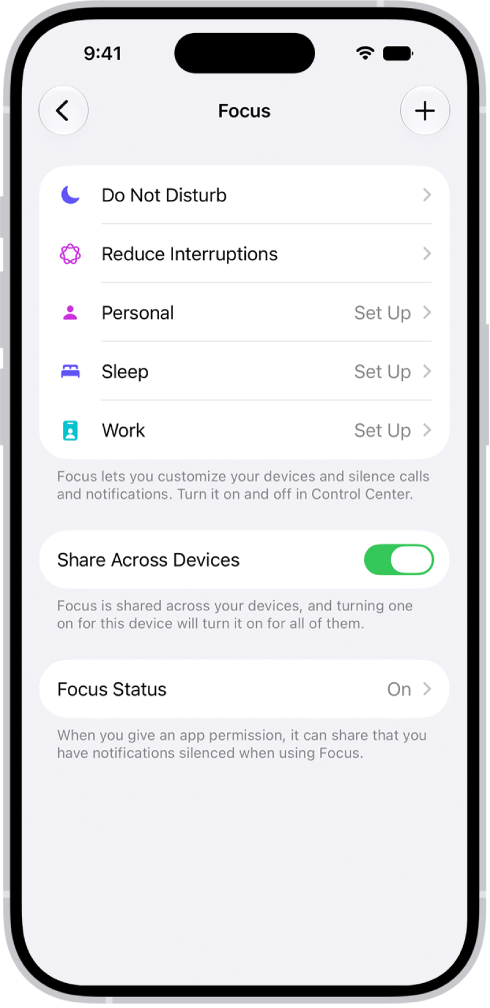
Focus uses Apple Intelligence to help you manage interruptions dynamically by evaluating the kinds of alerts and other attention-grabbing indicators that get through to you.

Intelligent Breakthrough & Silencing appears as an option in any Focus mode. Instead of rigid exclusions and inclusions, this option uses machine learning to understand how you work and adapts which attention-getting activities are delivered to you when your Focus mode is engaged.

Alternatively, you can use the Reduce Interruptions mode, which is essentially just a custom Focus mode with Intelligent Breakthrough & Silencing locked to the “on” position.

Even though you need Apple Intelligence to use Reduce Interruptions, the mode appears on all your devices regardless of whether syncing is enabled. On devices without Apple Intelligence, you don’t get the intelligent benefits.

With either Intelligent Breakthrough & Silencing or Reduce Interruptions engaged, Apple Intelligence processes each incoming notification separately and decides whether it’s important enough to break through and display it.

Importantly, Apple explains this analysis only vaguely and generically:

  • The support documentation notes only, “The Reduce Interruptions Focus understands the content of your notifications and shows you the most important ones, but silences notifications that are less important.”
  • In marketing copy, Apple says merely that the feature “highlights notifications that might need immediate attention.”
  • When Apple executive Craig Federighi introduced Apple Intelligence in the keynote at the company’s 2024 Worldwide Developer Conference, he said, in reference to Reduce Interruptions, “It understands the content of your notifications to selectively surface only the ones that might need immediate attention, like a text about today’s daycare pickup.”

Apple also uses the term “notifications,” not the phrase “notifications and incoming calls,” so we can’t tell you for sure whether phone calls and FaceTime calls (as well as those from third-party calling apps) are analyzed for origin and other factors.

Given how coy Apple is about particulars, we can’t predict whether this option or mode will work well for you. It’s possible it will identify—through context clues from the sender, the text in the alert, calendar entries, and other data—exactly the best alerts to send you. Or it might miss incredibly important stuff or allow inconsequential stuff through. It’s impossible to know without you testing it out for yourself.

Because you can use other customization options that let you override which people and apps are either always included or excluded, you can potentially use those to mitigate any true disaster of a missed alert.

Apple released Siri AI in 2026: a digital assistant that works with voice recognition and typing, and represents a major expansion of the previous Apple Intelligence system woven throughout their operating systems. Siri AI marks the biggest step forward in this area the company has ever taken.

Siri listens or lets you type requests, and then tries to respond by executing a task or providing an answer. Apple Intelligence is more subtle, using artificial intelligence algorithms for analysis, synthesis, or generation, like summarizing notifications, transcribing audio, rewriting text, or creating images from prompts.

What each term actually means

Throughout Apple’s updated operating systems you’ll see the terms Siri AI, Apple Intelligence, Visual Intelligence, and Spotlight. They are four different things:

  • Siri AI appears as just “Siri” in all interfaces, and it’s a digital assistant you can address by voice or typing. It processes requests and general questions.
  • Apple Intelligence is the company’s catch-all term for anything that requires advanced processing capability to analyze, synthesize, or generate something, like allowing for Live Translation or creating images from your description in Image Playground.
  • Visual Intelligence refers to the analysis that can be performed against static images and via the Camera app to describe what’s in them. It can also extract details, like event information from a poster, and transform it into something else, like a calendar event.
  • Spotlight is what Apple calls the search feature in iOS, iPadOS, and macOS, though it often appears just as an icon or a field with Search in it. Spotlight searches local files, data in apps (like people’s cards in Contacts), the web, and more. Starting with Siri AI, Spotlight and Siri are combined into one entity that, when triggered, appears as Search or Ask, where you can type.

All devices that support Apple Intelligence can use Siri AI and Visual Intelligence. However, for two advanced features, expressive voices and advanced dictation, you need a recent iPhone, iPad, or Mac model that must also meet minimum memory requirements.

Siri on an unsupported device

If you don’t have a device that supports Apple Intelligence but can use the 27 update, your Siri will be akin to the “old” Siri. To find out whether your device qualifies, see which iPhones, iPads, and Macs support Siri AI.

Where Siri AI came from

Siri AI is the latest evolution of Apple’s original voice-only assistant. On supported devices, you can trigger Siri AI by voice, through a button press, or by swiping and typing, among other methods. Then you can ask it questions, or just search stuff that’s on your device.

The camera on your iPhone or iPad can use Visual Intelligence to describe objects in its view. This option isn’t available on a Mac, and works differently on an Apple Vision Pro.

Apple doesn’t label Visual Intelligence as a distinct element from Siri in iOS 27 and iPadOS 27. Rather, when you use Siri with the camera, you’re using Visual Intelligence, no matter which method you use to bring it up.

Invoke Visual Intelligence

  • Camera Control: Click and hold the Camera Control button on iPhones with that hardware button.
  • Action button: Customize the Action button (Settings > Action Button) to Visual Intelligence.
  • Lock Screen: Customize the Lock Screen to add a Visual Intelligence button in one of the slots at the bottom. (On the Lock Screen, touch and hold on the screen, tap Customize, then remove an existing button or add Visual Intelligence into an empty space.)
  • Control Center: You can use an existing Visual Intelligence button. Swipe down from the upper-right corner, and tap Visual Intelligence.

Use Siri AI mode

First, use any method to invoke Visual Intelligence: Camera Control, the Action button, Control Center, or a Lock Screen button. For instance, swipe down from the upper-right corner to tap the Visual Intelligence button in Control Center.

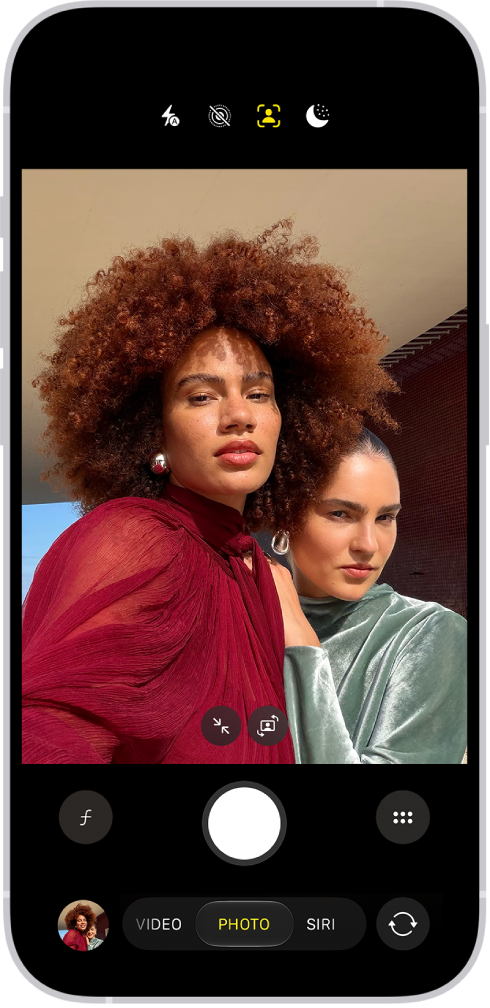
Starting in iOS 27 and iPadOS 27, you can also open the Camera app and slide the mode selector, set by default to Photo, to Siri. Whichever method you choose, the Camera app opens to the Siri mode. Visual Intelligence can offer suggestions for what it can do even before you tap the shutter button, which are covered below. But let’s start with the most obvious action: tapping the Shutter button, which is replaced with a Siri icon.

Starting in iOS 27 and iPadOS 27, you will see the new Siri icon everywhere the Apple Intelligence icon previously appeared. This includes the Visual Intelligence button in Control Center—the Siri icon set within four corner elements representing camera focus. Yes, even though it opens to Siri in Camera, it’s called Visual Intelligence.

When you tap the Siri shutter, your device performs what is probably a gratuitous animation of scanning the image. It’s fun to look at, and covers the period of time that analysis is actually happening, distracting you from thinking about that. So—OK? Then it provides information, which can come in two forms:

  • Identify the primary object on screen. A Kennedy half dollar is identified, and the information correctly shows its date, 1998, and provides specific details about that issue.
  • Present a series of potential actions based on its analysis. For instance, we put a business card and a membership card in its field of vision, tapped the shutter, and it suggested adding a pass to Wallet, adding a Contact, and provided various bits of the address information.
  • Do both! Pointing at a couple of objects, Visual Intelligence provided a summary of information about both. Among the button options are Add Pass to Wallet, make a call, send an email, and map. Tapping Add Pass to Wallet brings up the new pass creator.

What follows next are the kinds of tasks Apple has called out or, we’ve found in testing, that Siri presents a button based on.

Take actions based on what camera sees

When you point your camera at something in Siri mode that Visual Intelligence instantly recognizes as being in a certain category, the Camera app displays a yellow button, such as Split Bill with Apple Cash. This is quite similar to how Camera in Photo mode recognizes a QR code and presents an option, such as opening a URL or authenticating via passkey. It’s just much, much more extensive with Visual Intelligence.

If it doesn’t automatically recognize an object, tap the Siri shutter button, and the analysis described above it performed. That often triggers the appropriate button to appear when live analysis fails.

The bill is the richest of these, and has its own walkthrough.

Learn about nutrition

Point Siri at food, and it tells you something about its nutritional value. In our testing, we’ve found that Look Up Nutrition is quite broad, offering insights you might naturally assume when looking at a product without involving any kind of artificial intelligence. For instance, it doesn’t provide the U.S. Nutrition Facts (already printed on packaged products), nor does it give detailed information of any kind. We expect Apple wants to do more here, given that there’s so much room to provide people with information.

Add a card to Wallet

Point at a membership or other kind of card that Wallet understands, and Siri offers to add it to Wallet. That is covered in how to turn any card into a Wallet pass.

Parse a business card

Siri recognizes business cards and can structure data extracted from them to insert into Contacts.

Import multiple calendar events

There is a special kind of drudgery in having to enter information manually that you know very well a computer should be able to process for you. For instance, imagine being presented with a school calendar brought home by a child on a piece of paper that is not, somehow, also a shared Calendar or downloadable CalDAV file. (We know this is inconceivable in the modern era, but bear with us.) Visual Intelligence solves this for you, starting in iOS 27 and iPadOS 27.

Point Siri at a list of events, and it translates them into calendar entries. Your mileage may vary on exactly what’s extracted, but Visual Intelligence appears to pull out salient date, time, and location information. It makes an assumption that all events are one hour long unless a time range appears.

After a nice meal at a restaurant, what’s the consistently most irritating thing? Waiting for a server to bring the bill, even when they’ve been very attentive while you ate. The second most irritating thing is splitting the bill, particularly when people insist on doing it based on items ordered, rather than an even split. (Yes, we’re looking at the person who ordered three drinks and Lobster Thermidor when the rest of us had water and a cheeseburger.)

The requirements to use Split Bill with Apple Cash appear in the title: you have to have Apple Cash set up on your device, and you reach it from Siri mode in the Camera app, which limits its use to the United States.

Here’s how to split a bill (with Apple Cash):

  1. Point Siri at a bill. It should automatically recognize it.
  2. If it does, the Split Bill with Apple Cash button appears. Tap it.
  3. Tap the items you purchased. You can adjust elements, including quantity. So if there were four orders of potato wedges, and you’re paying for three of them, you can express that.
  4. If the tip doesn’t appear on the receipt, you can tap to enter it, then only your share is shown.
  5. As you change item selection or quantity, your percentage of tax and the total automatically update. The tip may work in one of two ways:
    • If the tip has been filled in, your percentage is shown and automatically updated as you choose your items from the bill.
    • If the tip hasn’t yet been filled in, you can tap the quantity to the right of the Tip label and set the percentage or amount you want to add as a tip.

The baffling part of Split Bill with Apple Cash is nearly as annoying as waiting for the bill—the system lets you figure out only your split. It doesn’t let you or everyone tag what they ordered and give you a summary of each person’s share of food, tax, and tip.

For that, we would turn to an app, or something like the notepad calculator Soulver, which in version 4 added a relatively straightforward bill splitter.

In the past, we turned to Spotlight to search for things like files, photos, email messages, and apps, while we used Siri to answer questions and perform simple actions on our devices. Now that the two are conceptually merged—and with the addition of personal context and extended Visual Intelligence—you can search by description, and Siri pulls together information from numerous sources to deliver results.

Use Siri for search

You can still search for files, photos, and other items on your device exactly as you did using Spotlight in the past. What’s new is that you can search more broadly, using natural language, in ways that require Siri to perform analysis, make inferences, or combine data from multiple sources.

For example, one of us got a text message in which the new school bus driver for one of his kids introduced herself. Later, he tried to recall the driver’s name, so he asked, What is the name of the new school bus driver?

Sure enough, Siri produced the correct name from the text in Messages and also provided a link to the original message. In other words, you’re still searching, but in a way that’s simpler for you while producing more sophisticated results.

Here are a few other examples:

  • Files related to dancing
  • People who sent in support requests in the past year
  • The dates of my last three dentist appointments
  • All the books I wrote between 2021 and 2025

Spotlight without Siri?

What if you just want a plain Spotlight search, without Siri’s involvement at all? You can still have it, with some extra effort.

On a Mac, activate Siri and type a search term, then press ⌘-2 to search for that term only within files and folders. You can also press ⌘-1 to look for apps, ⌘-3 to look for actions, or ⌘-4 to search your clipboard history.

On any device, you can also specify as part of your search term where Spotlight should look—for example, Files about cats or Contacts named John or Emails about Apple.

Siri AI has the same basic requirements as Apple Intelligence. If your device is capable enough for Apple Intelligence, it can install iOS 27, iPadOS 27, or macOS 27 and use Siri AI. watchOS 27 also provides ancillary access via a paired iPhone on supported Apple Watch models. Apple Vision Pro can also use Apple Intelligence.

Siri AI minimum hardware

You can use Apple Intelligence and Siri AI on these devices:

  • Mac: Any Mac with Apple silicon, including the MacBook Neo (A18 Pro)
  • iPhone: iPhone 15 Pro, iPhone 15 Pro Max, iPhone Air, or any iPhone 16 or iPhone 17 model or later
  • iPad: Any A17 Pro or M-series iPad:
    • 11-inch iPad Pro: 3rd generation or later
    • 12.9-inch iPad Pro: 5th generation or later
    • 11-inch iPad Air: 5th generation (M1, 2022) or later
    • 13-inch iPad Air: 1st generation (M2, 2024) or later
    • iPad mini: A17 Pro (2024) or later

Note: The regular iPad series (no extra qualifiers) does not have an advanced enough processor for Apple Intelligence.

  • Apple Watch: Apple Watch Series 9 or later, Apple Watch Ultra 2 or later, or Apple Watch SE 3 when paired with an Apple Intelligence-enabled iPhone nearby
  • Apple Vision Pro: All models

Two features carry stricter requirements than this list: Siri AI’s expressive voice and the more advanced dictation.

Siri AI language support

As is often the case, Apple is launching a new feature in English only at first to support the greatest number of users across their base and work out bugs in the beta release. Apple said they will “quickly expand support for more languages.” The Siri language you choose has to match your system language, or your device falls back to the old Siri.

Apple Intelligence has greater support, partly because it’s been under continuous development for a couple of years. Apple supports English, Danish, Dutch, French, German, Italian, Norwegian, Portuguese, Spanish, Swedish, Turkish, Vietnamese, Chinese (simplified), Chinese (traditional), Japanese, and Korean.

Region limitations and delays

Apple has an ongoing dispute with the European Union about how it provides third-party and other access to some of their core features. As a result, Apple said that Mac and Apple Vision Pro users in the EU will have Siri AI access in supported languages at launch, but Siri AI won’t be available on iPhone, iPad, or Apple Watch. Their statement: “Apple is working hard to find a path forward that preserves its users’ privacy and security.”

Apple said they need to work through regulatory issues in China before they launch Siri AI and new Apple Intelligence features in that country. However, news reports in mid-August 2026 indicated Apple had trained an AI model with a Chinese partner that would allow it to offer Apple Intelligence features in China at launch.

More generally, Apple offers the proviso that “some features may not be available in all regions or languages.”