Got a tip for us?

accessibility

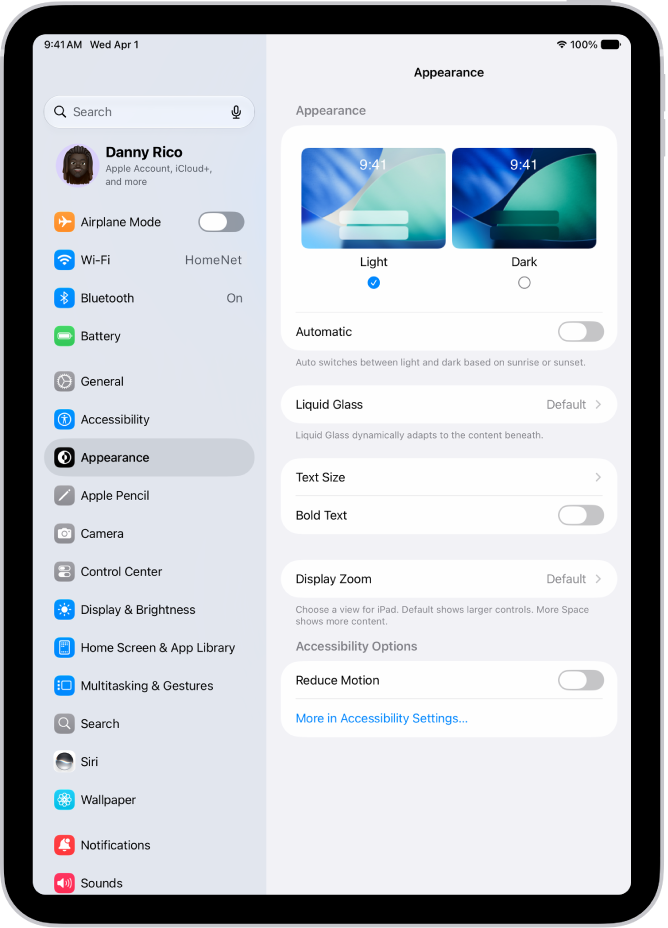
You can increase the size of text on your iPad, make the text bold, choose your preferred look for Liquid Glass, and display more content on the screen.

On supported models, Display Zoom makes text and buttons smaller, so more content fits. If you turned on Reduced Transparency or Increased Contrast, those need to be off before you can change the Liquid Glass look.

Here’s how to adjust iPad display and text settings.

The Display and Brightness screen in Settings.

Adjust the text size

  1. Open the Settings app on your iPad.
  2. Tap Appearance, then tap Text Size.
  3. Drag the slider left or right to change the text size.

Make the text bold

  1. Open the Settings app on your iPad.
  2. Tap Appearance, then turn on Bold Text.

Choose your preferred look for Liquid Glass

  1. Open the Settings app on your iPad.
  2. Tap Appearance, then tap Liquid Glass.
  3. Drag the slider to the right to increase the tint of Liquid Glass, and to the left to make Liquid Glass more clear.

    Note: If you turned on Reduced Transparency or Increased Contrast in Accessibility settings, you need to turn them off to change the look for Liquid Glass.

Fit more content on your screen

Display Zoom on supported models can make text and buttons smaller, so more content fits on your screen.

  1. Open the Settings app on your iPad.
  2. Tap Appearance, tap Display Zoom, and then tap More Space.
  3. Tap the Done button and tap Use More Space.

See also

You can make it easier to read text on iPad by increasing its size, making it bold, and more. A single preferred text size can apply to all supported apps, like Calendar, Mail, Messages, and Notes, and Larger Accessibility Sizes give you even more. You can also turn on Display Zoom, or zoom in on the screen.

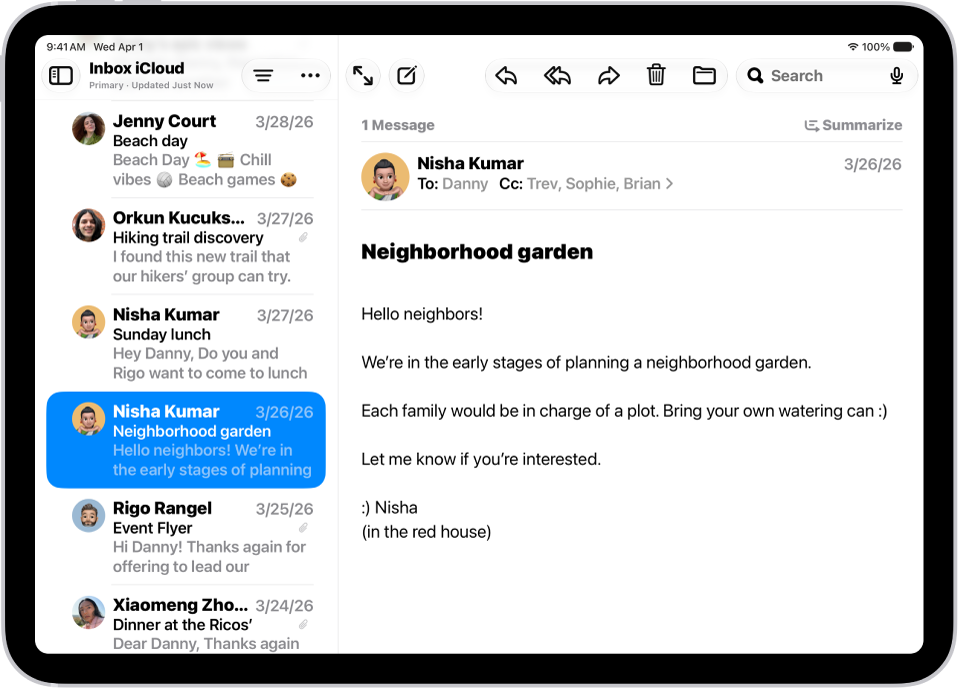
An iPad with the Mail app open. Emails are displayed with large, bold text.

Make text bigger and bolder

A single preferred text size can apply to all supported apps, including Calendar, Mail, Messages, Notes, Settings, and more, and you can also turn on bold text.

  1. Open Settings, tap Accessibility, and then tap Display & Text Size.
  2. Do any of the following:

    • Make text bigger: Tap Larger Text and drag the slider to adjust the text size.

      For additional text sizes, turn on Larger Accessibility Sizes.

    • Make text heavier: Turn on Bold Text.

Quick tip: You can change the size of text while you’re in an app. Just open Control Center and adjust the Text Size slider. If the Text Size slider isn’t there, tap the Add button (top-left corner), then tap Add a Control, and then tap the Text Size control.

For bigger text plus larger interface elements like icons and buttons, you can also turn on Display Zoom.

You can also temporarily hover over text to see it larger, change display colors on iPad to make it easier to see what’s onscreen or zoom in on the screen.

See also

In many apps, you can zoom in or out on specific items. For example, you can look closer in Photos or expand webpage columns in Safari. You can also use the Zoom feature to magnify the screen no matter what you’re doing.

You can magnify the entire screen (Full Screen Zoom), magnify only part of the screen with a resizable lens (Window Zoom), or magnify a portion of the screen that stays in one place (Pinned Zoom). And you can use Zoom together with VoiceOver.

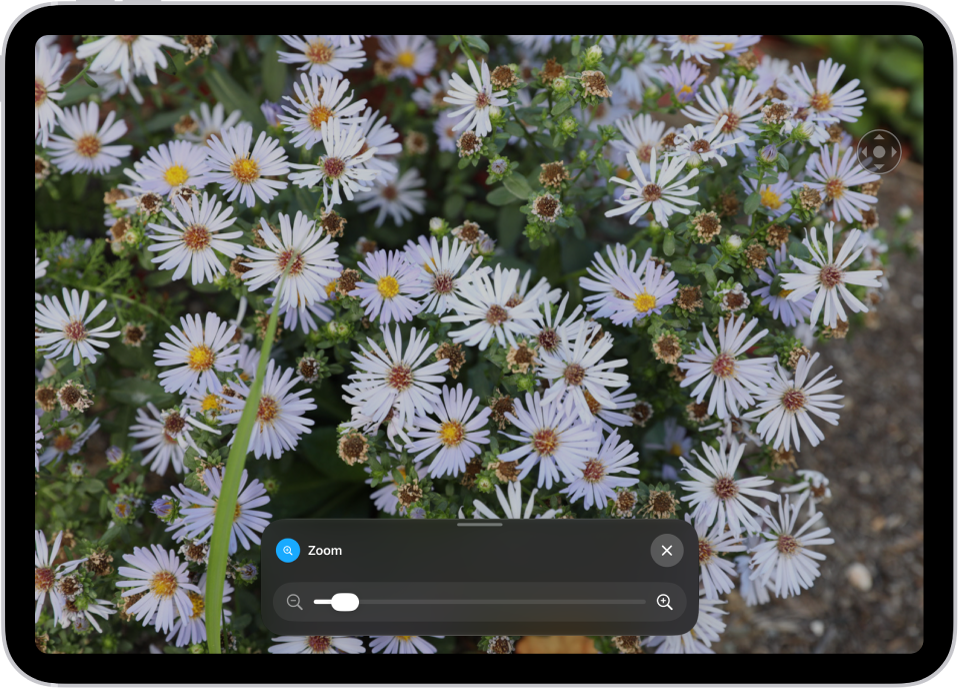
An iPad showing a zoomed in image of white flowers.

Set up Zoom

  1. Open Settings, tap Accessibility, tap Zoom, and turn on Zoom.
  2. Adjust any of the following:
    • Follow Focus: Track your selections, the text insertion point, and your typing.
    • Smart Typing: Switch to Window Zoom when a keyboard appears.
    • Keyboard Shortcuts: Control Zoom using shortcuts on an external keyboard.
    • Zoom Controller: Turn the controller on, set controller actions, and adjust the color and opacity.
    • Zoom Region: Choose Pinned Zoom, Full Screen Zoom, or Window Zoom.
    • Zoom Filter: Choose None, Inverted, Grayscale, Grayscale Inverted, or Low Light.
    • Maximum Zoom Level: Drag the slider to adjust the level.
  3. If you use iPad with a pointer device, you can also set the following below Pointer Control:
    • Zoom Pan: Choose Continuous, Centered, or Edges to set how the screen image moves with the pointer.
    • Adjust Size with Zoom: Allow the pointer to scale with zoom.
  4. To add Zoom to Accessibility Shortcut, open Settings, tap Accessibility, tap Accessibility Shortcut, and then tap Zoom.

Use Zoom

  1. Double-tap the screen with three fingers or use Accessibility Shortcut to turn on Zoom.
  2. To see more of the screen, do any of the following:
    • Adjust the magnification: Double-tap the screen with three fingers (without lifting your fingers after the second tap). Then drag up or down. Or triple-tap with three fingers. Then drag the Zoom Level slider.
    • Move the Zoom lens: (Window Zoom) Drag the handle at the bottom of the Zoom lens.
    • Pan to another area: (Full Screen Zoom) Drag the screen with three fingers.
  3. To adjust the settings with the Zoom menu, triple-tap with three fingers and then adjust any of the following:
    • Choose Region: Choose Pinned Zoom, Full Screen Zoom, or Window Zoom.
    • Resize Lens: (Window Zoom) Tap Resize Lens and then drag any of the round handles that appear.
    • Choose Filter: Choose Inverted, Grayscale, Grayscale Inverted, or Low Light.
    • Show Controller: Show the Zoom Controller.
  4. To use the Zoom Controller, do any of the following:
    • Show the Zoom menu: Tap the controller.
    • Zoom in or out: Double-tap the controller.
    • Pan: When zoomed in, drag the controller.

When you use Zoom with an Apple external keyboard, the Zoom region moves with the insertion point and keeps it in the center of the screen; see our article, iPad Magic Keyboard and Smart Keyboard.

To turn off Zoom, double-tap the screen with three fingers or use Accessibility Shortcut.

See also

Mono Audio lets you hear a combined left+right audio signal out of both audio channels on speakers or headphones connected to your Apple Watch. You can also adjust the left-right balance of your Apple Watch audio, whether stereo or mono.

And you can change AirPods settings to be more accessible, show HomePod transcriptions, and get headphone notifications. You can also make these changes in the Apple Watch app on your iPhone.

Here’s how to change accessibility audio settings on Apple Watch.

Change mono audio and balance settings

Go to the Settings app on your Apple Watch, tap Accessibility, then, under Hearing, do any of the following:

  • Switch from stereo to mono audio: Turn on Mono Audio.
  • Adjust the audio balance: Tap the L or R button below Mono Audio.

You can also go to the Apple Watch app on your iPhone, tap My Watch, tap Accessibility, then turn on Mono Audio and adjust the audio balance.

Change AirPods settings

You can change press speed and press-and-hold duration settings for the AirPods you use with your Apple Watch. You can also turn on noise cancellation on AirPods Pro for when you have one of your AirPods in only one ear.

  1. Start the Settings app on your Apple Watch.
  2. Go to Accessibility, tap AirPods, select your AirPods, and choose settings.

You can also go to the Apple Watch app on your iPhone, tap My Watch, then go to Accessibility > AirPods.

Show HomePod transcriptions

When Apple Watch and HomePod are signed in to the same Apple Account, your watch can show transcriptions for any HomePod announcements.

  1. Start the Settings app on your Apple Watch.
  2. Go to Accessibility, then turn on Show Audio Transcriptions.

Turn on headphone notifications

If you’ve been listening to loud headphone audio long enough to affect your hearing, your Apple Watch can send a notification to help protect it.

  1. Start the Settings app on your Apple Watch.
  2. Go to Accessibility, then turn on Headphone Notifications.

See also

After 1 second of inactivity, the App Switcher can automatically open the focused app on your Apple Watch, thanks to an accessibility setting called Auto-Select Focused App. It’s optional, and you can still open an app from the App Switcher yourself.

Turn on or off Auto-Select Focused App

  1. Start the Settings app on your Apple Watch.
  2. Go to Accessibility and turn on or off Auto-Select Focused App.

See also

You can make it easier to read text on iPhone by increasing its size or making it bold. You can set a single preferred text size for supported apps, like Calendar, Mail, Messages, and Notes. For additional text sizes, there’s Larger Accessibility Sizes, too.

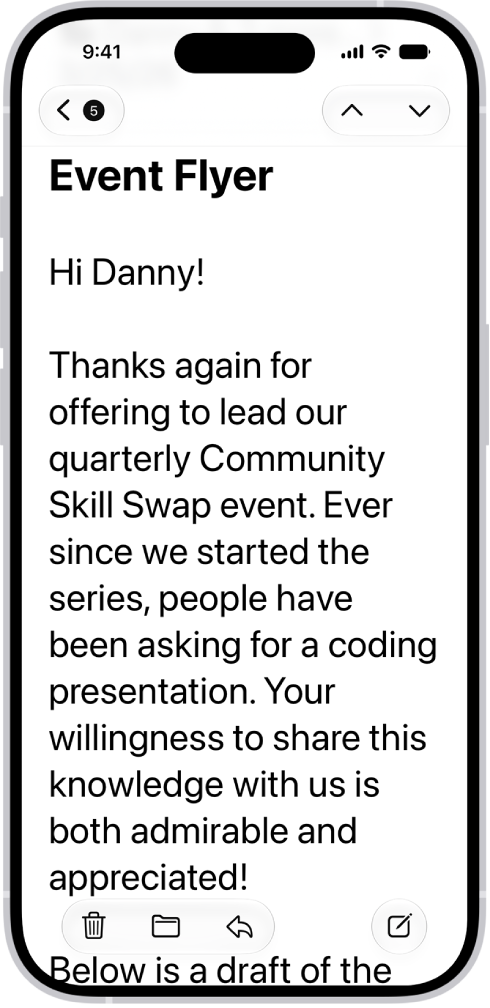
An iPhone with the Mail app open. An email is displayed with large, bold text.

Make text bigger and bolder

For all supported apps, including Settings, Notes, Messages, Mail, Calendar, and more, you can choose a single preferred text size and turn on bold text.

  1. Open Settings, tap Accessibility, and then tap Display & Text Size.
  2. Do any of the following:

    • Make text bigger: Tap Larger Text and drag the slider to adjust the text size.

      For additional text sizes, turn on Larger Accessibility Sizes.

    • Make text heavier: Turn on Bold Text.

Quick tip: You can change text size without leaving an app. Open Control Center and adjust the Text Size slider . If the slider isn’t there, tap the Add button in the top-left corner and tap Add a Control, then tap the Text Size control.

Turning on Display Zoom to increase the size of text also enlarges interface elements like icons and buttons.

You can also temporarily hover on text to see it larger, change display colors on iPhone to make it easier to see what’s onscreen or zoom in on the screen.

If you use VoiceOver on iPhone, and don’t need to see what’s on the screen, you can turn on the screen curtain. It improves battery life and helps maintain privacy. And even though the display is off, your iPhone stays active.

With VoiceOver on, triple-tap with three fingers to turn the screen curtain on or off. If both VoiceOver and the Zoom feature are turned on, quadruple-tap with three fingers.

You can remotely control your other Apple devices without adjusting any switch connections. With Platform Switching, you can navigate your iPad, Mac, or Apple TV 4K using the same switch that you use to control your iPhone.

All your devices need to be on the same Wi-Fi network and signed in with the same Apple Account, with Switch Control turned on for each one. And you can disconnect at any time from the Devices menu on the connected device.

  1. Connect your devices to the same Wi-Fi network.
  2. Sign in with the same Apple Account on all your devices.
  3. Set up and turn on Switch Control on iPhone. Turn on Switch Control for the others: iPad, Mac, or Apple TV 4K.
  4. Use the switch to open the Scanner menu.
  5. Choose Device, choose Use Other Device, and then choose Connect.

To remove control from your iPhone, choose Devices on the connected device, then choose Disconnect.

You can use Switch Control on iPhone to select items, perform actions, and more. Once you set up and turn on Switch Control, you can use item mode to select items and perform actions, or use the gliding cursor, head tracking, or eye tracking to control the cursor on the screen.

  • Item mode: The cursor sequentially highlights items or groups of items. This is the default method when you first turn on Switch Control and whenever the Scanner menu appears.
  • Gliding cursor: You select a point on the screen using scanning crosshairs. This method is useful when you need to select a specific point, such as in Maps, or on a screen with many items.
  • Head tracking: You can move your head (detected by the front-facing camera) to control the cursor on the screen.
  • Eye tracking: You can move your eyes (detected by the front-facing camera) to control the cursor on the screen.

When the cursor is on the item you want, the Scanner menu opens to show the available actions such as tap, scroll, control the volume, and more.

Use item mode to select items and perform actions

  1. Depending on the scanning style you’re using, do one of the following:
    • If using Auto Scanning: Watch or listen as groups of items are sequentially highlighted.
    • If using Manual Scanning: Activate your Move to Next Item switch to navigate through the groups of items on the screen.
    • If using Single Switch Step Scanning: Activate your Move to Next Item switch to navigate through the groups of items on the screen.
  2. When the group you want is highlighted, do one of the following:
    • If using Auto Scanning: Activate your Select Item switch.
    • If using Manual Scanning: Activate your Select Item switch.
    • If using Single Switch Step Scanning: Wait until the current group is automatically selected.
  3. Repeat steps 1 and 2 to scan and select an item within the group.
  4. Repeat steps 1 and 2 to scan and choose an action in the Scanner menu. The dots at the bottom of the menu provide more options.

Once the original item is highlighted and every icon in the menu is dimmed, activating your Select Item switch closes the Scanner menu without choosing an action.

Use the Gliding Cursor to select a point

By default, Switch Control starts in item mode, though you can use the Gliding Cursor instead.

  1. Do either of the following:

    • Go to Settings > Accessibility > Switch Control > Switch Control Mode > then select Gliding Cursor.
    • Use item mode to select any item, then choose Gliding Cursor (in the Scanner menu).

    To position the vertical crosshair, activate your Select Item switch when the wide vertical band is over the item you want.

  2. Activate your Select Item switch again when the fine vertical line is over the item.
  3. To position the horizontal crosshair, activate your Select Item switch when the wide horizontal band is over the item you want.
  4. Activate your Select Item switch again when the fine horizontal line is over the item.
  5. In the Scanner menu, select the action you want and then activate your Select Item switch.

To return to item mode, open the Scanner menu, then choose Item Mode.

Set up Head Tracking

With Head Tracking, your head movements control a cursor on the screen, and you can assign actions to facial expressions, like a smile or raised eyebrows.

Here’s what to do if you want to set up Head Tracking:

  • Go to Settings > Accessibility > Switch Control > Switches, then make sure you’ve set up switches.
  • Go to Settings > Accessibility > Switch Control > Head Tracking, turn on Head Tracking, then set any of these options:
    • Assign actions to facial expressions: Each expression can perform a different action and require a different degree of expressiveness.
    • Choose how the pointer tracks your head movement: Tap Tracking Mode. Then choose With Face, When Facing Screen Edges, or Relative to Head.
    • Adjust the pointer speed: Tap the Decrement button or the Increment button.

Use Head Tracking

  1. Do either of the following:
    • Go to Settings > Accessibility > Switch Control > Switch Control Mode > then select Head Tracking.
    • Use item mode to select any item, then choose Head Tracking (in the Scanner menu).
  2. Move your head to position the cursor on the location you want and then activate it using your Select Item switch or facial expression.
  3. In the Scanner menu, select the action you want. Activate your Select Item switch or facial expression.

To return to item mode, open the Scanner menu, then choose Item Mode.

Set up Eye Tracking

With Eye Tracking, you move your eyes to control a cursor on the screen. And you can use Dwell Control to perform actions by holding your gaze for a set amount of time.

To set up Eye Tracking, work through these steps in order:

  • Go to Settings > Accessibility > Switch Control > Switches, then make sure you’ve set up switches.
  • Go to Settings > Accessibility > Switch Control > Eye Tracking, turn on Face Guidance.
  • Go to Settings > Accessibility > Switch Control > Eye Tracking > Dwell Control, choose a switch action, then set any of these Dwell Options:
    • Dwell Timeout: Tap the Decrement button or the Increment button.
    • Movement Tolerance: Drag the slider to set the distance you can move while dwelling on an item.

Use Eye Tracking

  1. Do either of the following:
    • Go to Settings > Accessibility > Switch Control > Switch Control Mode > then select Eye Tracking.
    • Use item mode to select any item, then choose Eye Tracking (in the Scanner menu).
  2. Move your eyes to position the cursor on the location you want. Activate it using your Select Item switch.
  3. In the Scanner menu, select the action you want and then activate your Select Item switch.

With VoiceOver on your Apple Watch, you can perform many functions with a press, swipe, or turn of the Digital Crown.

You can change or customize a watch face, check notifications from the watch face, open Control Center from the watch face, and show widgets, and there’s more, from the App Switcher and Grid View to reading mail and navigating with the Digital Crown. Try the following while viewing the current watch face.

  • Change the watch face: Triple-tap the screen, turn the Digital Crown to browse available faces, then press the Digital Crown to choose the face.
  • Customize a watch face: Triple-tap the display, swipe down to choose Edit, then double-tap. Swipe left or right with two fingers to browse the customizable features. Turn the Digital Crown to customize the selected feature. When you finish, press the Digital Crown, then double-tap the face to save your changes.
  • Check notifications from the watch face: Swipe down with two fingers.

    To check notifications from most other screens, tap the time in the top-right of the display, then swipe down with two fingers.

  • Open Control Center from the watch face: Press the side button.
  • Show widgets: From the watch face, scroll down with the Digital Crown or swipe up with two fingers.
  • Open the App Switcher: Double-click the Digital Crown, then turn the Digital Crown to scroll through recent apps. Double-tap an app to open it.
  • Open any app in Grid View: Press the Digital Crown once to go to the Home Screen. Turn the Digital Crown to scroll through apps. Drag your finger to highlight an app, then double-tap to open it. Or use Siri to open it: hold down the Digital Crown until you feel the double tap, then say “launch” followed by the app name (for example, “launch Mail”).
  • Read mail: Press the Digital Crown once to go to the Home Screen. Swipe to highlight the Mail app, double-tap (or hold down) the Digital Crown to use Siri, then say “launch Mail.” When the Mail app opens, turn the Digital Crown to navigate and hear messages. Navigate through the message with the Digital Crown.
  • Navigate with the Digital Crown: Triple-tap with two fingers, then turn the Digital Crown to select an item. Triple-tap with two fingers to turn off Digital Crown Navigation.

See also