Got a tip for us?

Find My

When a friend shares their location with you, you can use the Find My app to locate them on a map.

When your friend can’t be located, “No location found” appears below their name, and if you aren’t following them, you see “Can see your location” instead. You can also contact a friend, get directions to them, and set a label for a location.

Here’s how to locate a friend in Find My on iPhone.

Note: Want to know how far away your friends are? Turn on Precise Location for the Find My app.

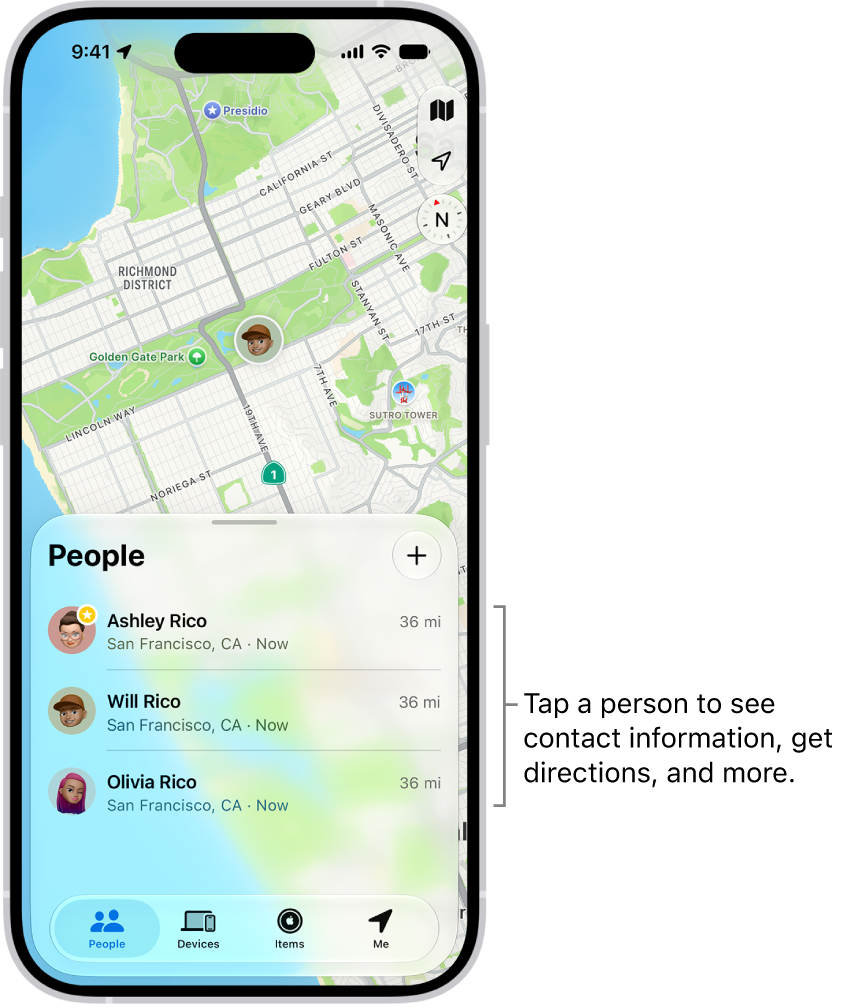
The Find My screen open to the People list. There are four people in the list: Olivia Rico, Dawn Ramirez, Ashley Rico, and Will Rico. Tap the Add button at the top of the People list to share your location.

See the location of a friend

  1. Open the Find My app on your iPhone.
  2. Tap People. Then tap the name of the person you want to locate.
    • If your friend can be located: They appear on a map so you can see where they are.
    • If your friend can’t be located: You see No location found below their name.
    • If you aren’t following your friend: You see Can see your location below their name. You can ask to see a friend’s location.

Contact a friend

  1. Open the Find My app on your iPhone.
  2. Tap People, then tap the name of the person you want to contact.
  3. Tap Contact and choose how you want to contact your friend.

Get directions to a friend

The Maps app can give you directions to a friend’s current location.

  1. Open the Find My app on your iPhone.
  2. Tap People, then tap the name of the person you want to get directions to.
  3. Tap Directions to open Maps.

Set a label for a friend’s location

To make a friend’s current location more meaningful, you can give it a label, like Home or Work. When they’re at that location, the label appears below their name.

  1. Open the Find My app on your iPhone.
  2. Tap People, tap the name of the person you want to set a location label for, and tap the More button.
  3. Tap Edit Location Name and select a label.

To add a new label, tap Add Custom Label, enter a name, then tap Done.

Mark a friend as a favorite

Favorite friends are marked with a star and appear at the top of the People list.

  1. Open the Find My app on your iPhone.
  2. Tap People. Find the person you want to mark as a favorite.
  3. Do one of the following:
    • Tap the name of the person, tap the More button, then tap “Add to Favorites.”
    • Swipe left across the person’s name, then tap the star.

To remove a friend from your Favorites, swipe left and tap the star, or tap the friend, tap the More button, then tap “Remove from Favorites.”

Tag: Find My

In the Find My app, you can turn on separation alerts for an AirTag or other item so you don’t accidentally leave it behind. You receive an alert every time the device sharing your location separates from the item, unless you’re in a Trusted Location.

For separation alerts to work, notifications for the Find My app need to be allowed, and you can choose a suggested Trusted Location or add a new one on the map.

Important: In order to receive separation alerts, make sure you allow notifications for the Find My app.

  1. Start the Find My app on your iPhone.
  2. Tap Items and tap the name of the item you want to set an alert for. Then tap the More button.
  3. Tap When Left Behind and then turn on Notify When Left Behind.
  4. If you want to add a Trusted Location, you can choose a suggested location, or tap New Location, select a location on the map.
  5. Tap the Done button.
Tag: Find My

If you want to share an item that’s paired with an AirTag, or a third-party item that works with Find My, you can share it in Find My so the borrower can see it on a map and find it. If it’s nearby, Find My can play a sound, and if you’re using a supported iPhone, you can find its precise location.

People you’re sharing items with don’t receive tracking notifications when the items are moving with them. And you can stop sharing an AirTag whenever you want.

You can share an AirTag or other item with as many as five borrowers besides you, for a total of six users per item. Just make sure you meet the following requirements:

  • Two-factor authentication must be turned on for your Apple Account.
  • The person you share with must have an Apple Account and be signed in to it. They must also use iCloud.
  • You can’t share with a child account.
  • The owner and borrowers must have iCloud Keychain turned on.
  • The owner and borrowers must be using iOS 17, iPadOS 17, macOS 14, or later.

Note: You share an AirTag and a third-party item the same way.

Share an AirTag

  1. Open the Find My app on your iPhone.
  2. Tap Items and tap the name of the AirTag or item you want to share. Tap the More button.
  3. Tap Add Person below Share AirTag (or Share This Item).
  4. Enter the Apple Account information of the person you want to add.

    To add more people, tap the Add button.

  5. Tap the name of the person you want to share with. Tap their Apple Account.

    Repeat steps 3 and 4 for each person you want to add.

  6. When you’re finished adding borrowers, tap the Done button.

A list of everyone you invited shows up on the item’s main screen, along with the status of each invitation.

When someone accepts an invitation, the shared AirTag shows up in Find My below Items, and the recipient gets a notification that an item is being shared with them. If they decline the invitation instead, their name is removed from the list and you won’t see it anymore.

Ask the owner of an AirTag to share it in Find My

If the owner of an AirTag shares it with you but doesn’t do so in Find My, you’ll receive an unknown AirTag notification and tracking notifications. To stop receiving tracking notifications for the AirTag, ask the owner to share it with you in Find My.

Note: Asking an owner to share an AirTag only works if you’re both in the same Family Sharing group.

  1. In the tracking notification you receive, tap Ask Owner to Share AirTag.
  2. Tap Ask Owner.
  3. If the owner wants to add you as a borrower, you receive an invitation to share the AirTag.

Accept or decline an invitation to share

If you’re invited to share an AirTag, you receive a notification.

To see the invitation in Find My, tap Items , then do one of the following:

  • Accept the invitation: Tap Add.

    The AirTag appears in your Items list, below [Sharer]’s Items. You stop receiving tracking notifications for as long as you borrow the AirTag.

  • Decline the invitation: Tap Don’t Add.

Stop sharing an AirTag

Owners of an AirTag who no longer want to share it can stop sharing in Find My.

  1. Open the Find My app on your iPhone.
  2. Tap Items, tap the name of the item you’re sharing, and tap the More button.
  3. Tap the name of the person you’re sharing it with.
  4. Tap Stop Sharing, then tap Stop Sharing again.

The person you were sharing with no longer sees the AirTag’s location, but may still get tracking notifications when the AirTag is moving with them.

Tag: Find My

If your iPhone Wallet with MagSafe has Find My support, you can connect it to your Apple Account so you can see its last known location in the Find My app. You can allow someone who finds it to see your contact information to help them return it to you.

When you add your iPhone Wallet with MagSafe to Find My, you can get notified if it detaches from your iPhone. You can add it the first time you attach it to your iPhone, or later from the Find My app.

Here’s how to add your iPhone Wallet with MagSafe to Find My on iPhone.

Note: iPhone Wallet with MagSafe and Find My support needs a compatible iPhone model.

Add iPhone Wallet with MagSafe when you first attach it to your iPhone

  1. Go to the Home Screen on your iPhone.
  2. Attach your iPhone Wallet with MagSafe and Find My support to your iPhone.
  3. Tap Continue on your iPhone screen. Follow the onscreen instructions.

Add iPhone Wallet with MagSafe later

You can still add your iPhone Wallet with MagSafe and Find My support later from the Find My app, even if you decide not to when you first attach it to your iPhone.

  1. Open the Find My app on your iPhone.
  2. Attach your iPhone Wallet with MagSafe and Find My support to your iPhone.
  3. Tap the Add button and choose Add MagSafe Accessory. Follow the onscreen instructions.

Is the iPhone Wallet with MagSafe and Find My support associated with someone else’s Apple Account? Then they need to remove it before you can add it.

Tag: Find My

Separation alerts in the Find My app let you know when you’ve left a device behind. You can set them up for your iPhone, iPad, Mac, or AirPods, and add Trusted Locations, where you can leave a device without getting an alert.

If you have an iPhone Wallet with MagSafe and Find My support, you can get an alert when it detaches from your iPhone, too.

Here’s how to set separation alerts in case you leave a device behind in Find My on iPhone.

Important: In order to receive separation alerts, make sure you allow notifications for the Find My app.

Set up alerts for your iPhone, iPad, Mac, or AirPods

Separation alerts work for an iPad, iPhone, or iPod touch with iOS 15, iPadOS 15, or later, a Mac with Apple silicon and macOS 12 or later, and AirPods with the Find My network turned on. You can set up a separation alert only from the device sharing your location, and you’ll get an alert every time it separates from the device you set the alert for.

  1. Open the Find My app on your iPhone.
  2. Tap Devices, tap the name of the device you want to set up an alert for, and then tap the More button.
  3. Below Notify Me, tap Notify When Left Behind.
  4. Turn on Notify When Left Behind and then follow the onscreen instructions.
  5. If you want to add a Trusted Location, you can choose a suggested location, or tap New Location, select a location on the map, and then tap Done.
  6. Tap the Done button.

Get notified when your iPhone Wallet with MagSafe detaches from your iPhone

If your iPhone Wallet with MagSafe and Find My support gets separated from your iPhone, you can get an alert one minute later. The Find My app then shows its last known location on a map.

  1. Open the Find My app on your iPhone.
  2. Tap Devices, tap the name of your iPhone Wallet with MagSafe, and tap the More button.
  3. Tap Notify When Detached.
  4. Turn off or on Notify When Detached and tap the Done button.
Tag: Find My

Use the Find My app to mark a missing iPhone, iPad, iPod touch, Apple Watch, Mac, supported AirPods, or iPhone Wallet with MagSafe as lost. In order to mark a device as lost, you must turn on Find My [device] before it’s lost.

When you do, a confirmation email is sent to your Apple Account email address, and you can add a message to the device saying it’s lost and how to reach you.

What happens when you mark a device as lost?

  • A confirmation email is sent to your Apple Account email address.
  • You can create a message for the device that says it’s lost and how to contact you.
  • For an iPhone, iPad, iPod touch, Mac, or Apple Watch, your device doesn’t display alerts or make noise when you receive messages or notifications, or if any alarms go off. Your device can still receive phone calls and FaceTime calls.
  • For applicable devices, payment cards and other services are suspended.

Mark a device as lost

If your device is lost or stolen, you can lock your Mac or turn on Lost Mode, which works with your iPhone, iPad, iPod touch, Apple Watch, supported AirPods, and iPhone Wallet with MagSafe.

  1. Start the Find My app on your iPhone.
  2. Tap Devices and tap the name of the lost device. Then tap the More button
  3. Tap Lost Mode.
  4. Follow the onscreen instructions, keeping the following in mind:
    • Passcode: If your iPhone, iPad, iPod touch, or Apple Watch doesn’t have a passcode, you’re asked to create one now. For a Mac, you must create a numerical passcode, even if you already have a password set up on your Mac. This passcode is distinct from your password and is only used when you mark your device as lost.
    • Contact information: For iPhone, iPad, iPod touch, Mac, or Apple Watch, the contact information and message appear on the device’s Lock Screen. For AirPods or iPhone Wallet with MagSafe, the information appears when someone tries to connect with your device.
  5. Tap Activate (for an iPhone, iPad, iPod touch, Apple Watch, AirPods, or iPhone Wallet with MagSafe) or Lock (for a Mac).

Once the device is marked as lost, Activated appears below the Mark As Lost section. And if it wasn’t connected to a network when you marked it as lost, you’ll see Pending until it goes online again.

Change the information for a lost device

You can adjust the information in the Lost Mode message for your Apple Watch, iPhone, iPad, iPod touch, or iPhone Wallet with MagSafe once you’ve marked it as lost.

  1. Start the Find My app on your iPhone.
  2. Tap Devices, tap the name of the lost device, and then tap the More button.
  3. Below Lost [device], tap Pending or Activated.
  4. Update the information, then tap Done.

Turn off Lost Mode for an iPhone, iPad, iPod touch, Apple Watch, AirPods, or iPhone Wallet with MagSafe

Once you find your lost device, you can turn off Lost Mode.

  1. Start the Find My app on your iPhone.
  2. Tap Devices and tap the name of the lost device. Then tap the More button
  3. Tap Pending or Activated below Lost [device], tap Turn Off Mark As Lost, and then tap Turn Off.

On iPhone, iPad, iPod touch, or Apple Watch, entering your passcode on the device also turns off Lost Mode.

Attaching iPhone Wallet with MagSafe to your iPhone turns off its Lost Mode.

Unlock a Mac

When your lost Mac turns up, do one of the following:

  • Mac with Apple silicon: Enter your Apple Account password.
  • Intel-based Mac: Enter the numeric passcode on the Mac to unlock it (the one you set up when you marked your Mac as lost). If you forget your passcode, you can recover it using Find Devices on iCloud.com.

If you lose your iPhone, Find Devices on iCloud.com lets you turn on Lost Mode.

Tag: Find My

An iPhone or iPad will detect any item within Bluetooth range that is traveling with you persistently, whether the device works with Apple’s or Google’s crowdsourced ecosystem. An alert helps you take action.

An iPhone or iPad shows an alert that reads “AirTag Found Moving with You” or “Item Detected With You,” depending on which is true. iOS 17.5/iPadOS 17.5 or later can also detect Google trackers.

You might see such an alert because you borrowed something that has an AirTag attached or hidden in it without that person sharing the item with you. For instance, my wife has a Find My item in the car she drives most frequently. We solved the problem with device sharing. See how to share an AirTag with someone else.

The name of an Apple tracker will appear as Person Name’s Name They Gave Device, like “Moses Johnson’s Wallet.” I haven’t determined where Apple pulls the name from, but likely the Apple Account associated with the device—another strong clue to or the actual identity of the tracking person. If the name isn’t retrievable, the generic model type is shown instead. Google items also reveal some identifying information, like their serial number.

Apple told me that the alert appears for someone in three particular circumstances:

  • They arrive home, as defined in the Me card in Contacts.
  • They arrive at a Significant Location (see sidebar ahead).
  • It is the “end of the day” and they haven’t been alerted yet. Apple declined to explain when the end of the day is measured.

Apple once said they planned, in a future release, to provide alerts “sooner” than the scenarios described above. They didn’t define what “sooner” means, however, and never set a timeline for changes. It’s been years!

Because Find My items routinely change the encrypted Bluetooth ID they transmit, this recognition that an item is moving with someone has to happen over what we believe is 12 to 24 hours. Apple doesn’t disclose the interval at which the Bluetooth ID changes.

What you can do about it

The person who receives the alert can ignore it. They may know they have someone else’s Find My item with them, or they may not know why they’re receiving it, and it isn’t of interest to them.

However, the person who sees the alert can tap it to open a screen explaining why it appeared. The screen explains that “The owner can look up its location,” that they can mute the alert, that they can play a sound, and that they can get “visual guidance” to locate it. Tap Continue, and a map appears showing the track detected with a red dashed line.

This map can be viewed later by tapping the item in the Items/Unknown Items Detected With You list in the Items view; see below.

This track is made up of points at which a device has detected that the item is traveling with someone. The device knows only the time-bounded encrypted Bluetooth ID of the item and a location that the device determines.

They can now choose an option:

  • Find: Find My guides you to the item, either with Precision Finding with an AirTag (see how to use Precision Finding) or imprecise location via Bluetooth.
  • Play Sound: Play Sound is the rare communication that passes from a device to a Find My item. It uses Bluetooth to trigger a sound from the device to help determine its physical location. AirTags produce a mid-level volume pattern of audio; the Chipolo ONE Spot has a 120 dB emitter that is pretty impossible to not pay attention to. Other Find My items vary from loud to extremely loud.
  • Pause Tracking Notifications: Pause Safety Alerts doesn’t disable tracking, but stops the device from popping up the “Detected/Moving with You” warning. Strangers can tap to disable notifications for a day; people in your Family Sharing group see the additional option to pause indefinitely. (I recommend sharing an item in this case.)

If you don’t take an immediate action on an item that’s been identified as traveling with you, it appears in the Items list in a new category, Items Detected With You.

I’d argue your best strategy is to find the device using Find and Play Sound, then use the Find My app’s ability to learn more about the item as described in how to identify an AirTag you have found.

You can use the native Find My app on an iPhone, iPad, or Apple Watch (the Find Items app) to find nearby Find My items. See how to identify an AirTag you have found.

With Android 6 or later and a 2024 update, you should receive alerts about Apple and Google tracking devices with no additional effort on your part. The message and options are similar to those on an iPhone or iPad.

There’s also a manual scanning app called Tracker Detect that Apple released for Android. It requires Android 9 or later. See how to identify an AirTag you have found.

Why an AirTag chirps alone

The iPhone or iPad requirement for the previous notification leaves out people with older hardware or who use an Android phone that doesn’t have Apple’s Tracker Detect app installed (or no smartphone at all). For them, Apple has the device itself issue a secondary warning.

Whenever an item becomes separated from its owner, it starts an internal timer. At a random point 8 to 24 hours later, the AirTag or third-party item plays a sound—but only when it’s moved. This timer is internal to the device, so it’s not reliant on other hardware tracking Bluetooth IDs over time.

Some third-party trackers produce a sound dramatically louder than the 1st-generation AirTag. Apple increased audio volume with the 2nd-generation AirTag, which the company says is 50% louder. While the company declined to answer questions about loudness and anti-stalking measures, it’s clear that the more intense sound benefits both finding an AirTag you placed intentionally and one placed without your knowledge.

This requirement that the device be moved strikes a balance between deterring stalking and allowing the use of Find My items for items that you want to remain in place without you around. Because the owner of an AirTag or other item knows where they left it the last time their paired device was nearby, the only information they can derive if it isn’t moved, is that it has remained in place. That could reveal some “negative knowledge”: that someone’s purse or car, say, remained in place. Yet, the unwanted-tracking party would never be sure whether or not it were moved and made a great racket. That risk will help deter misuse.

A great justification for the movement requirement comes from an example a friend gave me. His son wanted to put an AirTag on his bike when he parked it at school for more than eight hours at a time. If the bike started keening while left behind, this might lead passersby or university police or security to investigate.

The same is true if you’re traveling or living with other people. If you or others leave bags or items behind while elsewhere for extended periods, you and they don’t want a sound to go off in the middle of the night, say, or from an obscure closet.

Significant Locations stay on your device

Your iPhone or iPad takes note of places you frequently visit, and some others it thinks are “significant.” I went to a sushi place once, was there for a few minutes picking up takeout, and my phone decided that was significant.

Significant Locations are stored only on your devices, and are synced using end-to-end encryption. Apple says they never have access to them, and that iPhones, iPads, and Macs use them entirely on-device.

These locations are stored in Settings/System Settings > Privacy & Security > Location Services > System Services (tap on an iPhone or iPad; click Details on a Mac). The label reads Significant Locations & Routes starting in iOS 26/iPadOS 26 and Tahoe; it’s called Significant Locations in earlier releases. Tap the item or click Details next to it on a Mac. You can view the places you consider significant, disable the feature, or clear the locations currently stored.

Where to get help

There are many organizations beyond law enforcement eager to help people trapped in situations of domestic abuse or child subject to violence and an unsafe environment. For adults in the United States, that includes the National Domestic Violence Hotline; for children or those concerned about their welfare in the United States and Canada, the Childhelp National Child Abuse Hotline.

For those being stalked, one starting point is Safehope. It’s more likely you will need the help of police or federal authorities. Local police departments have their own paths to navigate, but for online or cyber stalking, it may be better to start with the FBI.

If the person you are worried about may be watching your device, use one they cannot see. Removing a tracker or turning off sharing can be noticed, and advocates warn that it can make a situation worse rather than better, so it is worth talking to someone before you act.

In a native Find My app or the Find Items app on an Apple Watch, you can discover the location of your AirTags and other Find My items in the Items view and any someone else has shared with you. The map zooms in as with Devices; in the version 27 releases, select again to deselect the item, and the map zooms out.

If you have any 2nd-generation AirTags, they appear only on devices updated to at least version 26.2.1 of Apple’s operating systems.

Ultrawideband (UWB) can be used for short-range finding, which Apple calls Precision Finding. (See AirTag 2 vs AirTag for the explanation of UWB.) A Find button with a Nearby label beneath it appears as an option if you have an iPhone 11 or later and you are trying to find an AirTag that’s nearby. It can also be used—in a more complicated manner—with certain Apple Watch models; see below. Precision Finding works with your own Find My items and any that other people have shared with you.

Tap Find and Find My pops up a wayfinding mechanism that tries to detect, range, and point to the item. Apple doesn’t provide details about the distance over which they expect Precision Finding to function. However, in my testing and that of many others, you typically start seeing a signal connection display within about 30 feet (10 meters). As you get within about 10 to 15 feet (3 to 4.5 m), a proximity indicator shows distance and direction.

That’s the baseline capability with a 1st-generation AirTag or either generation of AirTag with an iPhone that has a 1st-generation UWB chip. Apple upgraded UWB with a 2nd-generation chip in the 2nd-generation AirTag and in the iPhone 17 series, the iPhone Air, the Apple Watch Ultra 3, and the Apple Watch Series 11. A 2nd-generation AirTag and any of these devices should see about 50% greater range, according to Apple.

If your device has haptic feedback and it’s enabled, an iPhone vibrates more or less strongly as you lock onto the correct direction and come closer. You can tap the speaker button to briefly play a sound from the AirTag to aid in finding it.

When you’re adjacent to the item, Find My replaces the distance with the label “here” (yes, in lowercase), and shows a 3D rotating image of the item at the center of the display.

Why it says More Light Required

If you use Precision Finding when it’s dark around you, Find My might show the error “More Light Required.” It’s not that UWB requires light. Rather, it appears Apple uses some camera and sensor inputs to help orient your iPhone relative to an AirTag or AirPods Pro (2nd generation) charging case. You can tap the Flashlight button to help.

UWB is not available at all in 10 countries. Indonesia and Nepal allow its use only with items and devices that have the 2nd-generation UWB chip: the 2nd-generation AirTag, the iPhone 17 series, the iPhone Air, the Apple Watch Series 11, the Apple Watch Ultra 3, and the MagSafe Charging Case for AirPods Pro 3.

Precision Finding on an Apple Watch

Apple built a 1st-generation UWB chip into the Apple Watch starting with the Apple Watch Series 9 and the Apple Watch Ultra 2. But Apple didn’t enable Precision Finding until watchOS 26.2.1, and limited it to Apple Watch models with a 2nd-generation UWB chip: the Apple Watch Ultra 3 and the Apple Watch Series 11, as noted above.

Further, you don’t use Find Items for Precision Finding. Perhaps due to its late addition, Precision Finding can be used only via the Apple Watch Control Center. Press the side button to reveal Control Center, and scroll down to Edit and tap it. Tap the plus button, and any available AirTag appears. Tap to add it. Return to the Control Center when you want to use Precision Finding with that AirTag.

As you turn towards the AirTag, the display lights up green, indicating you’re getting warmer. If the item moves while you’re trying to find it, Find My shows a diffuse display indicating it’s in motion.

What else an item’s sheet offers

Select an item in the list and view its sheet of actions. Many of the actions are the same as for devices; here are the exceptions:

  • Share AirTag: Share or manage sharing of an AirTag. See how to share an AirTag with someone else. (For AirTags shared with you, a Shared AirTag label appears.)
  • Change Name and Emoji/Rename Item: On an iPhone or iPad, this option lets you change the item’s name, required because all items lack a display or interface. You can also change the emoji.
  • Find: When using the Find My app on any iPhone 11 series phone or later with an AirTag and the item is within a short distance, Directions is replaced with Find.
  • Serial number and other details: You can obtain the serial number of a Find My item in one of two ways when viewing its sheet of actions:

— AirTag: On an iPhone or iPad, tap the name area, and the serial number (and firmware release) appear.

— Find My item: On the sheet shown on an iPhone, iPad, or Mac, scroll or swipe down to see a panel of information, including the manufacturer’s name, the item’s model, serial number, and firmware version.

— Apple Watch: Select the item, scroll down, and tap Show Details for either an AirTag or Find My item.

Tags: Find My, iOS

AirTags, third-party items, and associated accessories can be used in a lot of ways, some of them more obvious than others. Clearly, you might add them to a keychain (AirTags require a keychain holder), or zip them into the pocket of a purse, messenger bag, backpack, or luggage.

Less obvious might be placing them in an interior pocket of a jacket, sewing them into clothing, or putting one in a saddle bag on your bicycle—or on a pet’s collar.

Apple differentiates between hardware that can use both the Find My Device options and Find My network and those, like AirTags, that can only use Find My network. The former, like Macs, iPads, and audio hardware, Apple always calls devices; the latter, items.

An AirTag is a powerful piece of always-on, always-broadcasting technology that can help you in four distinct ways:

  • Track stuff you lose: If you routinely can’t find things, I would urge you to not be ashamed of it. All brains are different and, as I’ve learned from my wife—an ADHD/executive-function coach—some people are not wired to retain the location of objects. Hurray, technology can help!
  • Track stuff that gets stolen: A sad fact of existence across all societies and in nature is that organisms steal from one another. If you’re concerned about theft or have been a victim of it, a Find My item can sometimes help with recovery.
  • Tracking kids: Parents definitely overestimate the risk of a child being abducted by a stranger. But the number of children who go “missing” for an hour or a few hours is huge. They might take the wrong bus, get lost, or actually be perfectly safe with a family friend, relative, parent, or guardian other than the one who is legally responsible. Putting a tracking tag in a kid’s backpack or clothing may alleviate worries and reduce anxiety.
  • Tracking animals: Those who have pets know they roam. Sometimes, we’re just curious where they get to. Other times, we need to rescue them when they’re stuck or lost. Except in quite rural areas, a lost or wayward pet is almost always quite near an Apple device possessed by people passing nearby.

Do not track adults

Tracking a child can be fraught with issues of agency, consent, and purpose, but it’s generally legal (this is not legal advice) and may be advisable. For adults, however, it’s nearly always unwarranted and unwelcome, and may violate civil statutes and constitute a crime unless one is in a guardianship relationship with the person (again, this is not legal advice). See how to check whether someone is tracking you for more on how Find My items can be misused.

Keys, wallets and small things

For items like keychains, wallets, and even non-Apple mobile devices like gaming consoles or Kindles, adding a Find My item can mean the difference between tearing your hair out while never finding something and easily recovering it.

Apple offers AirTag cases with key rings and other attachments from third parties at their online and retail stores, but there are many more, including those with built-in carabiners (and some of those with combination locks).

You might also consider a third-party Find My item that’s designed for attachment or fitting in a wallet. Many companies now make thin, wallet-sized trackers (3.35 by 2.1 inches or 85 by 54 mm), several of which can be wirelessly recharged using a Qi charger.

You can also “roll your own” solution. For an expensive pair of headphones one of my kids purchased and used away from the house, I attached a Chipolo ONE Spot: it’s thin, circular, matte, and flat—no bulge, unlike an AirTag. It blended in nearly invisibly with the headphones. We tested its weight by first attaching it with painter’s tape to wear around the house.

We paired it with their iPhone, and I attached it with an absurdly strong but removable acrylic adhesive film (3M’s 468MP). The ONE Spot has a remarkably similar black tint to the headphones, too.

Bags and luggage

We carry our lives in our purses, fanny packs/bum bags, messenger bags, and luggage. And they’re danged easy to lose, get stolen, or have an airport fling into the outer darkness, never to be seen again.

A Find My item is a chef’s-kiss match for bags. There are many ways to insert an AirTag or other item into a bag. Many AirTag cases are designed to snap onto, wrap around, or clip onto bag straps. Some even have adhesive to glue them inside a hidden area of your bag.

Even within an airport, the density of people with Apple devices and the precision of the Find My network can help you track down your luggage among thousands mounded all around you.

I started putting AirTags and Find My items in all my checked and carry-on bags—even in my wallet—when I resumed air travel in 2022. It’s worked like a charm. My family now uses about 15 AirTags across all our luggage and carry-on bags—and three trombones.

Starting in iOS 18.2/iPadOS 18.2 and macOS 15.2 Sequoia, you can opt to share a secure link that will allow them to track your item for up to seven days or until found. Apple added this to help airlines and other people recover your lost stuff that has a tracker in it. (See how to share an AirTag with someone else.)

Using iOS 26 and iPadOS 26 or later, you can add baggage to an airline flight record, so that you can see your tracked luggage at a glance. See how to track lost luggage with an AirTag.

Cars

A Find My item in a car won’t readily deter thieves because an item that’s separated from your paired device for any period of time or that travels with someone—i.e., thieves who have stolen your car—will alert a nearby iPhone, iPad, or Android device (see what an “AirTag Found Moving With You” alert means).

However, if you frequently have to park your car in different places in your neighborhood, in garages, or around work, using Find My can be a nice adjunct to dropping a pin in Maps.

My wife, who is savvy about privacy issues, opted to put an AirTag in the car she drives most often of our two after losing track of it in a badly designed, discontinuous, multi-part garage—with multiple identical-looking entrances to different subterranean floors. (I’ve lost my car in the same facility.) She was reassured by Apple’s security and privacy protocols with Find My items.

When someone else drives the car when you’re not in it, they would normally receive alerts about an AirTag moving with them. You can avoid that alert, however, by sharing the Find My item. You can share access to a Find My item with up to five other people; see how to share an AirTag. Everyone with shared access to a Find My item is treated like the owner: they don’t receive safety alerts and can track it.

Bikes

About 100 million bikes are in people’s homes in the United States, and a few tens of millions of people ride regularly. Annual thefts range from 150,000 (reported) to 2,000,000 (estimated). If you live in a high-theft area for bikes, the odds could be 5% or more that your bike will be stolen at some point across years of public use.

You can hide an AirTag in a lot of places on a bike—though I wouldn’t recommend it inside a bike, as the metal would prevent effective radio-signal transmission. I suggest an Elevation Lab TagVault: Bike. It’s a case that screws into a standard water-bottle cage mount. You can screw a cage in or use it by itself. It’s not obtrusive, and a thief might be unaware that it’s a tracker at all.

The Knog Scout is a hybrid option. It’s a Find My device that also offers Bluetooth-based alarm arming. Attached beneath a water bottle cage, you can use Find My to track it like any other item, and you can also arm it when within Bluetooth range to trigger a loud alarm. If you’re within range when the alarm goes off, you’re notified, too.

I got a deal on an Aventon e-bike several months ago, and—besides its excellent range and price—one of its selling points is a built-in GPS and cellular tracker. Even more remarkably, the first year is free, and subsequent years cost $20.

However, the Aventon tracker pushes the bike’s most recent location to your paired e-bike app only when the bike is powered down. You can activate Lost Mode, which then triggers location pings even when the bike is “off,” disabling the electric-motor assist, locking the bike’s rear wheel, and displaying an error code.

That’s all great, and I have insured the bike. But I also installed an AirTag using the Elevation Lab case. This gives me the best of both worlds: using an AirTag that’s difficult to remove, I can actively track the bike at any given time; if it’s stolen, I can engage the Aventon system to improve my odds of finding it or getting it back if a thief pries off the AirTag case.

Things that get wet

Depending on your item, you may need to consider whether it’s water-resistant—especially if it’s likely to be exposed to rain or even dunked. For portable items, here’s an incomplete selection of ratings:

  • AirTags (2021 and 2026 models) have a rating of IP67, offering protection against water intrusion from sprays, rain, and high-pressure water jets. They can also survive immersion in water up to 3.3 feet (one meter) deep for up to 30 minutes.
  • ElevationLab offers what it calls a “waterproof” TagVault in keychain and pet-collar attachment versions of AirTags. It doesn’t disclose an IP rating, but I tested one in a glass of water for several minutes with no ill effects.
  • The Chipolo ONE Spot tracker has an IPX5 rating, or resistance from water up through low-pressure water jets or sprays. The Pebblebee Clip 5 tracker is even better at IP66, which protects against high-pressure jets. Neither protects against immersion.

Tags: Find My, iOS

Pairing an AirTag is remarkably simple. Here’s how.

Set up an AirTag

  1. Unwrap the plastic around the AirTag and then pull the connected strip that’s part of it, preventing the battery from touching the internal contacts. The AirTag makes a “tweetle” sound (something like “tuh TWEE tuh WEE dull”).
  2. Hold a 2nd-generation AirTag close to an iPhone or iPad with iOS 26.2.1/iPadOS 26.2.1 or later installed; a first-generation AirTag can be held near an iPhone or iPad with iOS 14.5/iPadOS 14.5 or later. The device recognizes an unpaired AirTag using NFC.
  3. This prompts the phone to display a connection dialog. Tap Connect.
  4. You can then name it and assign an emoji, from a preset list or a custom one.
  5. Once the AirTag is paired, Apple warns you about its appropriate use and potential legal consequences. Tap Agree.
  6. Apple provides a summary of details about the item and actions you can take.
  7. Tap View in Find My App, or Done, to finish. Third-party items show a slightly different list here.

Before you ask: No, there’s no way to pair a 2nd-generation AirTag with a device that isn’t running those minimum versions of iOS 26/iPadOS 26.

Change the name or emoji of an AirTag

  1. Go to the Find My app 656662b1-6b5c-469e-9d04-915022f44dae on your iPhone.
  2. Tap Items b44f9563-4315-48bf-8490-64ca27d3e29c, tap the AirTag whose name or emoji you want to change, then tap the More button.
  3. Tap “Change Name and Emoji.”
  4. Choose a name from the list or choose Custom Name to type a name and select an emoji.
  5. Tap the Done button.

View more details about an AirTag

After you add an AirTag to your Apple Account, you can view more details about it in the Find My app.

  1. Go to the Find My app 656662b1-6b5c-469e-9d04-915022f44dae on your iPhone.
  2. Tap Items b44f9563-4315-48bf-8490-64ca27d3e29c, tap the AirTag you want to see more details about, then tap the More button.
  3. Tap the address of the AirTag to see the model, serial number, and the firmware version.

If the battery level is low, a message appears below the location of the AirTag. You can also see a low battery indicator next to the name of the AirTag in the Items list.

If the AirTag isn’t automatically recognized, tap the plus button in the upper-right corner of the People, Devices, or Items list at the bottom of the screen and tap Add AirTag.

The warning about being linked to your Apple Account is pertinent, as Apple doesn’t consider illegal use of an AirTag as something that it preserves user privacy over. See how Apple and Google detect an unwanted AirTag.

The limit is 32 items

Apple limits you to having access to 32 items in Find My, which includes both the ones you’ve paired and items shared by others. However, that limit is lower than it appears because earbud versions of AirPods count as two or more items. The AirPods and AirPods Pro 1 count as two; AirPods Pro 2 and later count as three. (It still seems unlikely most people will surpass 32.) While AirPods and Beats hardware show up in the Devices tab, they’re items at heart; see how to find a lost iPhone, Mac or AirPods.