Got a tip for us?

Find My

With Family Sharing, you can share your location with members of your Family Sharing group and help them find lost devices.

When the family organizer sets up location sharing, the organizer’s location is automatically shared with everyone in the family, including new members added later. Each family member decides whether to share their location, and you can stop sharing with anyone at any time. You can even get notified if a child leaves school during school hours. You can also ask a family member to share an AirTag with you.
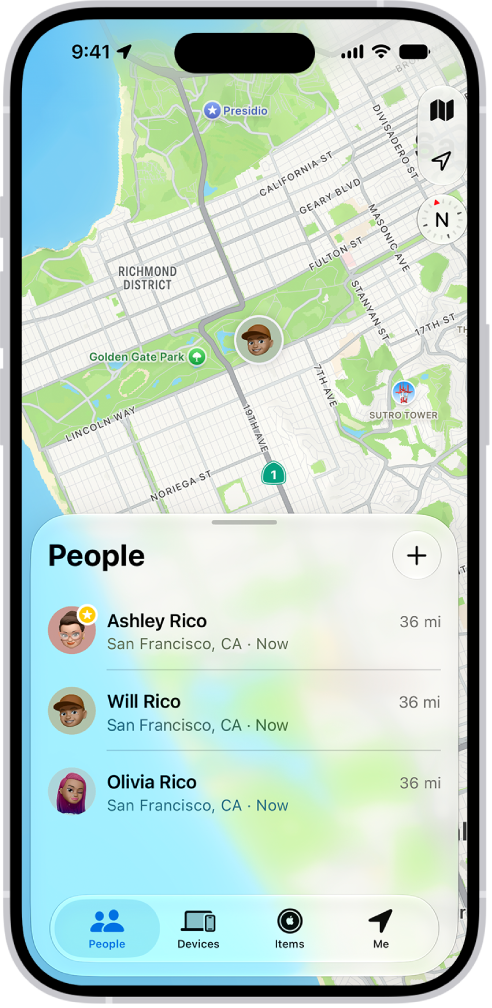
The Find My app showing locations of family members on a map.

Share your location with family members

When you share locations with your family, your location shows up for them in Find My. You can also get notified when family members’ locations change, say, if a child leaves school during school hours.

  1. Open Settings, tap Family, and then tap Location Sharing.
  2. Turn on Location Sharing for the family member you want to share your location with.

    You can repeat this step for each family member you want to share your location with. Each family member receives a message that you’re sharing your location and can choose to share their location with you.

    You can stop sharing your location with any family member at any time.

  3. If you want to share your location with new members that join later, turn on Automatically Share Location.

    When Automatically Share Location is turned on for a child, only parents and guardians in the family group can see the child’s location, including parents and guardians that are added to the group later.

Note: Children and teens with Screen Time turned on may not be able to change their own location sharing settings.

To share your location, you must have Location Services turned on in Settings > Privacy & Security.

Locate a family member’s device

After members of your Family Sharing group have your location, they can help track down a missing device that’s been added to the Find My app.

Your devices sit at the top of the list, with your family members’ devices below them.

Ask a family member to share an AirTag with you

If you receive a notification in the Find My app that says AirTag Detected Near You or Unknown AirTag, you can ask the family member who owns it to share the AirTag with you.

  1. In the notification, tap Ask Owner to Share AirTag.
  2. Tap Ask Owner.
Tag: Find My

You can use the Find My app to remove an AirTag or third-party item from your Apple Account so someone else can register it. You start by bringing the item near your iPhone. If it isn’t nearby, you can still remove it, but the item must be reset before anyone can register it.

  1. Start the Find My app on your iPhone.
  2. Tap Items and tap the item you want to remove. Tap the more button.
  3. Bring the item near your iPhone.

    If the item isn’t near your device, you can still remove it from your account. However, the item must be reset before anyone can register it to their Apple Account.

  4. Tap Remove and then follow the onscreen instructions.

Note: Follow the manufacturer’s instructions to reset an item.

Tag: Find My

You can use the Find My app to locate a missing AirTag or third-party item that you’ve registered to your Apple Account. If you have an iPhone 15 or later model, you can also find their exact location.

If an item can’t be located, you still see where and when it was last located, and you can turn on Notify When Found. You can also play a sound on the item or get directions to it.

Here’s how to locate an AirTag or other item in Find My on iPhone.

See the location of an item

Tap Items , then tap the item you want to locate.

  • If the item can be located: It appears on the map so you can see where it is. The location and timestamp appear below the item’s name. The item’s location is updated when it connects to the Find My network.
  • If the item can’t be located: You see where and when it was last located. Below Notifications, turn on Notify When Found. You receive a notification once it’s located again.

Important: Make sure you allow notifications for the Find My app.

Play a sound

When the item is nearby, playing a sound on it can help you find it.

Note: You won’t see the Play Sound button for an item that can’t play a sound.

  1. Start the Find My app on your iPhone.
  2. Tap Items and tap the item you want to play a sound on.
  3. Tap Play.

To stop playing the sound before it ends automatically, tap Stop Sound.

Get directions to an item

The Maps app can also give you directions to an item’s current or last known location.

  1. Start the Find My app on your iPhone.
  2. Tap Items and tap the item you want to get directions to.
  3. Tap Directions to open Maps.

Find the precise location of an AirTag

With a supported iPhone, you can find the precise location of your AirTag when you’re near it.

  1. Start the Find My app on your iPhone.
  2. Tap Items, then tap the nearby AirTag.
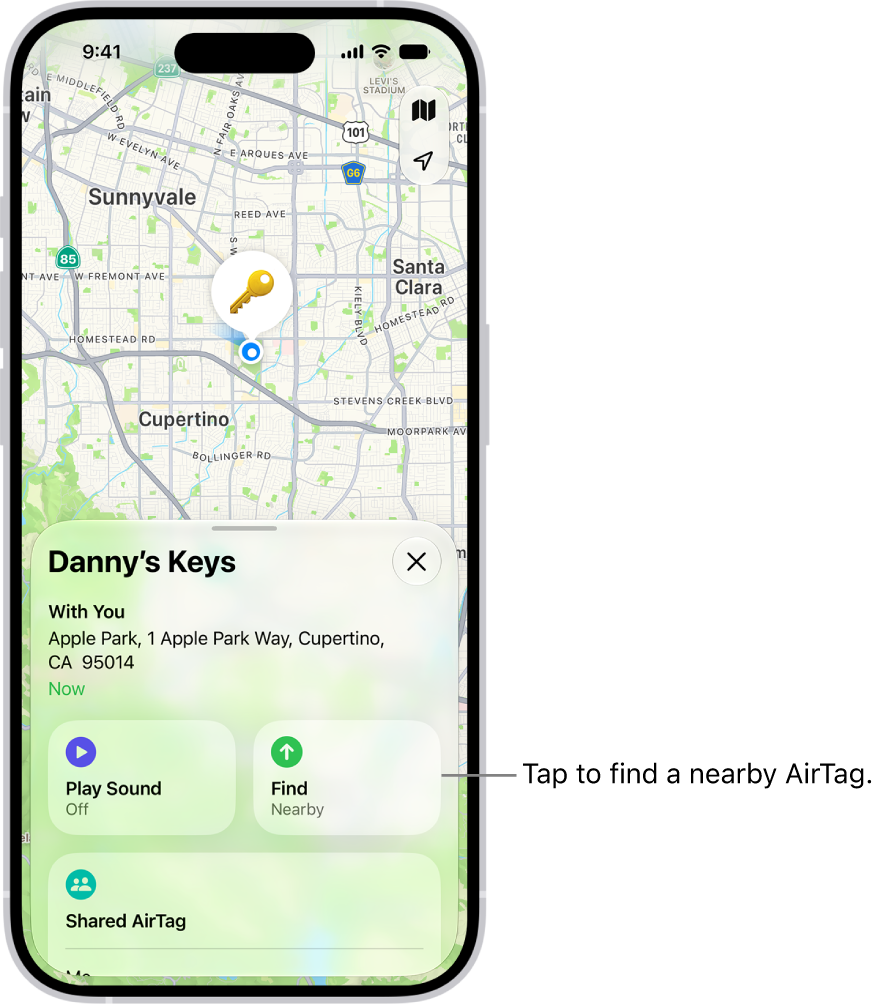
  3. Tap Find.

    The Find My app open, showing Danny’s keys in Golden Gate Park. Tap the Find button to locate a nearby AirTag.

  4. Do any of the following:

    • Move closer to the AirTag: Start moving around to locate the AirTag and follow the onscreen instructions. You may see an arrow pointing in the direction of the AirTag, an approximate distance telling you how far away it is, and a note if it’s located on a different floor.
    • Play a sound: Tap the Play Sound button to play a sound on the AirTag.
  5. When you locate the AirTag, tap the Close button.
Tag: Find My

If you lose an AirTag or third-party item registered to your Apple Account, you can use the Find My app to mark it as lost.

You can add a message saying that the item is lost, along with your phone number or email address. Anyone who finds it can see that message on a website, using a supported device.

Here’s how to mark an AirTag or other item as lost in Find My on iPhone.

What happens when you mark an item as lost?

  • You can add a message saying that the item is lost and include your phone number or email address.
  • If someone else finds your item, they can use a supported device to see a website with the Lost Mode message.

Turn on Show Contact Info for a lost item

To Turn on Show Contact Info for a lost item, do the following:

  1. Open the Find My app on your iPhone.
  2. Tap Items, tap the name of the lost item, and tap the More button
  3. Below Lost AirTag, tap Show Contact Info.
  4. Follow the onscreen instructions to enter a phone number where you can be reached. To enter an email address instead, tap “Use an email address.”

    Important: Make sure you allow notifications for the Find My app.

  5. Tap the Done button.

Change the contact information in the Lost Mode message

  1. Open the Find My app on your iPhone.
  2. Tap Items, tap the name of the lost item, and then tap the more button.
  3. Below Lost AirTag, tap Show Contact Info.
  4. Edit the phone number or message. Then tap the Done button.

Turn off Show Contact Info for a lost item

Once you find your lost item, turn off Show Contact Info.

  1. Open the Find My app on your iPhone.
  2. Tap Items, tap the name of the item, and tap the more button.
  3. Below Lost AirTag, tap Show Contact Info.
  4. Tap Stop Showing Information.
Tag: Find My

In the Find My app on your iPhone, you can create a temporary webpage to share the location of a lost AirTag or other item. For example, you can share the webpage with an airline to help them track your mishandled bag.

You can view and manage the shared item location, and stop sharing location updates when you’re done.

Here’s how to share location of a lost item in Find My on iPhone.

Note: When an item is within proximity of the device sharing your location, you can’t share its location.

Create and share a webpage for location updates

  1. Start the Find My app on your iPhone.
  2. Tap Items, tap the item that you want to share location updates for, and then tap the More button.
  3. Tap Share Item Location.
  4. Follow the onscreen instructions to create and share a temporary webpage.

    Note: To provide updated locations, at least one of your Apple devices where you’re signed in to your Apple Account needs to be online.

  5. Tap Done.

View and manage the shared item location

  1. Start the Find My app on your iPhone.
  2. Tap Items, tap the item with the shared webpage, and tap the More button. Share Item Location.
  3. Tap Share Item Location, then do any of the following:
    • Copy the URL: Tap the field at the top.
    • View the details: View the Visited By and Expiration rows.
    • Share the webpage with additional people: Tap Share Location Link and choose a sharing option (such as AirDrop or Mail).

Stop sharing location updates

Sharing ends after 7 days, when you reunite with the item, or when you stop it manually.

  1. Start the Find My app on your iPhone.
  2. Tap Items and tap the item with the shared webpage. Then tap the More button.
  3. Tap Stop Sharing Item Location.
Tag: Find My

You can register an AirTag to your Apple Account using your iPhone. When you attach it to an everyday item, like a keychain or a backpack, you can use the Find My app to locate it if it’s lost or misplaced.

AirTag can only be registered to one Apple Account at a time, but you can share an AirTag with others. You can also get notified if you leave your AirTag behind, and add supported third-party products to Find My.

Here’s how to add an AirTag in Find My on iPhone.

Add an AirTag

  1. Remove the product wrapping and battery tab from the AirTag and then hold it near your iPhone.
  2. Go to the Home Screen on your iPhone.

    Note: To retry pairing, turn your screen off and back on.

  3. Tap Connect on the screen of your iPhone.
  4. Choose a name from the list or choose Custom Name to type a name and select an emoji. Tap Continue.
  5. Tap Continue to register the item to your Apple Account. Then tap Finish.

You can also register an AirTag in the Find My app. Tap the Add button, then choose Add AirTag.

Before you can add an item that’s registered to someone else’s Apple Account, they need to remove it.

Change the name or emoji of an AirTag

  1. Open the Find My app on your iPhone.
  2. Tap Items, tap the AirTag whose name or emoji you want to change, and then tap the More button.
  3. Tap Change Name and Emoji.
  4. Choose a name from the list or choose Custom Name to type a name and select an emoji.
  5. Tap the Done button.

View more details about an AirTag

When you add an AirTag to your Apple Account, the Find My app shows more details about it.

  1. Open the Find My app on your iPhone.
  2. Tap Items, tap the AirTag you want to see more details about, and tap the More button.
  3. Tap the address of the AirTag to see the model, serial number, and the firmware version.

When the battery level is low, a message appears below the AirTag’s location. There’s also a low battery indicator next to its name in the Items list.

Tag: Find My

Before you can use the Find My app to share your location with friends, you need to set up location sharing.

Once it’s set up, you can share your location with a friend, set a label for your location, and stop or pause sharing whenever you want. You can also respond to a location sharing request, or stop receiving new location sharing requests.

Here’s how to share your location in Find My on iPhone.

Note: When others still can’t see your location after you set up location sharing, check that Location Services is turned on in Settings > Privacy & Security > Location Services > Find My.

Set up location sharing

  1. Start the Find My app on your iPhone.
  2. Tap Me, then turn on Share My Location.

    The device sharing your location appears next to Sharing From.

  3. If your iPhone isn’t currently sharing your location, you can tap Use This iPhone as My Location.

    Note: To share your location from another device, open Find My on the device and change your location to that device. If you share your location from an iPhone that’s paired with Apple Watch (GPS + Cellular models), your location is shared from your Apple Watch when you’re out of range of your iPhone and Apple Watch is on your wrist.

You can also change your location sharing settings in Settings > [your name] > Find My.

Set a label for your location

You can set a label for your current location to make it more meaningful (like Home or Work). When you tap Me, you see the label in addition to your location.

  1. Start the Find My app on your iPhone.
  2. Tap Me and then tap Location Label.
  3. Select a label.

To add a new label, tap Add Custom Label, enter a name, then tap Done.

Share your location with a friend

  1. Start the Find My app on your iPhone.
  2. Tap People, tap the Add button, and choose Share My Location.

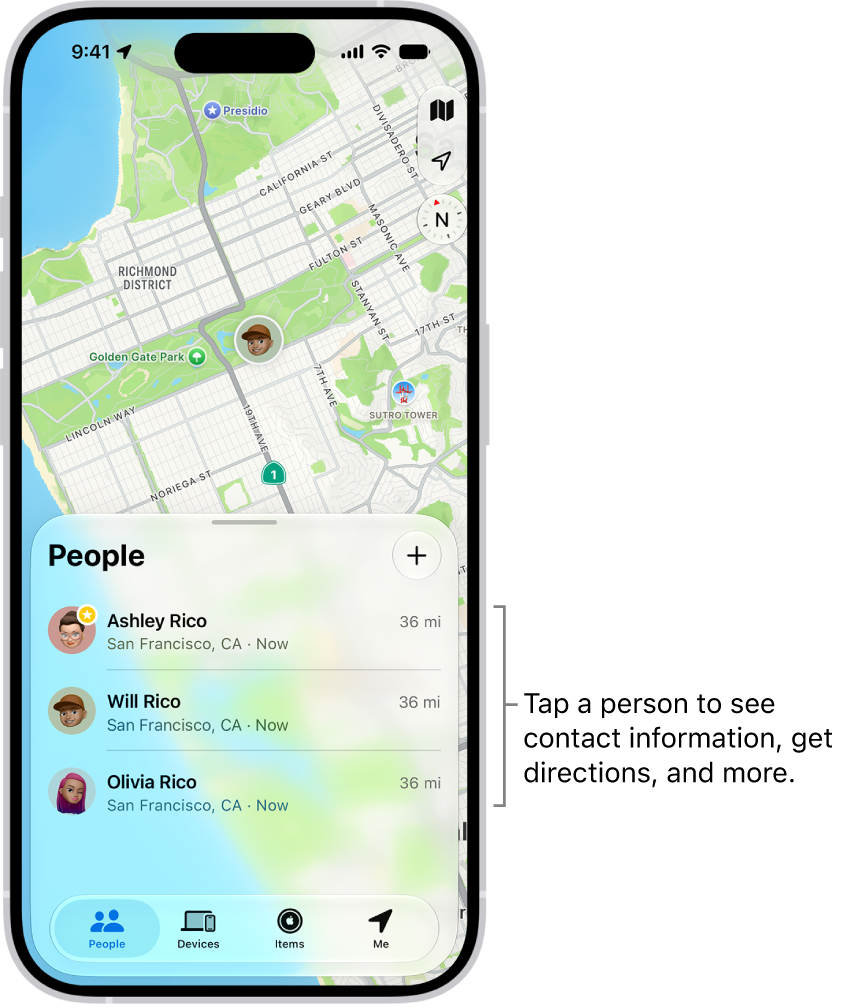
    The Find My People list, with the Add button at the top. Tapping a person in the list shows their contact information, directions, and more.

  3. In the With field, enter the name of a friend you want to share your location with (or tap the Add Contact button, then select a contact).
  4. Tap the Done button. Then choose how long you want to share your location.

Quick tip: Choose Custom and adjust the fields to set a duration or an end time for your location sharing.

You can also notify a friend or family member when your location changes.

Stop or pause sharing your location

Hide your location from everyone, or stop or pause sharing it with a specific friend.

  • Stop sharing with a friend: Tap People , then tap the name of the person you don’t want to share your location with. Tap Stop Sharing My Location, then tap Stop Sharing Location.
  • Pause sharing with a friend: Tap People , then tap the name of the person you want to pause sharing your location with. Tap the More button. then tap Hide Location.
  • Hide your location from everyone: Tap Me , then turn off Share My Location.

Respond to a location sharing request

  1. Start the Find My app on your iPhone.
  2. Tap People.
  3. Tap Share below the name of the friend who sent the request and choose how long you want to share your location.

If you don’t want to share your location, tap Cancel.

Stop receiving new location sharing requests

  1. Start the Find My app on your iPhone.
  2. Tap Me, then turn off Allow Friend Requests.
Tag: Find My

Use the Find My app to locate and play a sound on a missing iPhone, iPad, iPod touch, Mac, Apple Watch, AirPods, or Beats headphones (supported models).

There’s a catch, though: in order to locate a device, you must turn on Find My [device] before it’s lost. Once it’s on, you can see the device’s location on a map, get directions to it, and even locate or play a sound on a friend’s device.

Note: Turn on Precise Location for the Find My app, and you’ll be able to see how far away your devices are from you.

No access to the Find My app after losing your iPhone? You can still locate it or play a sound on it with Find Devices on iCloud.com.

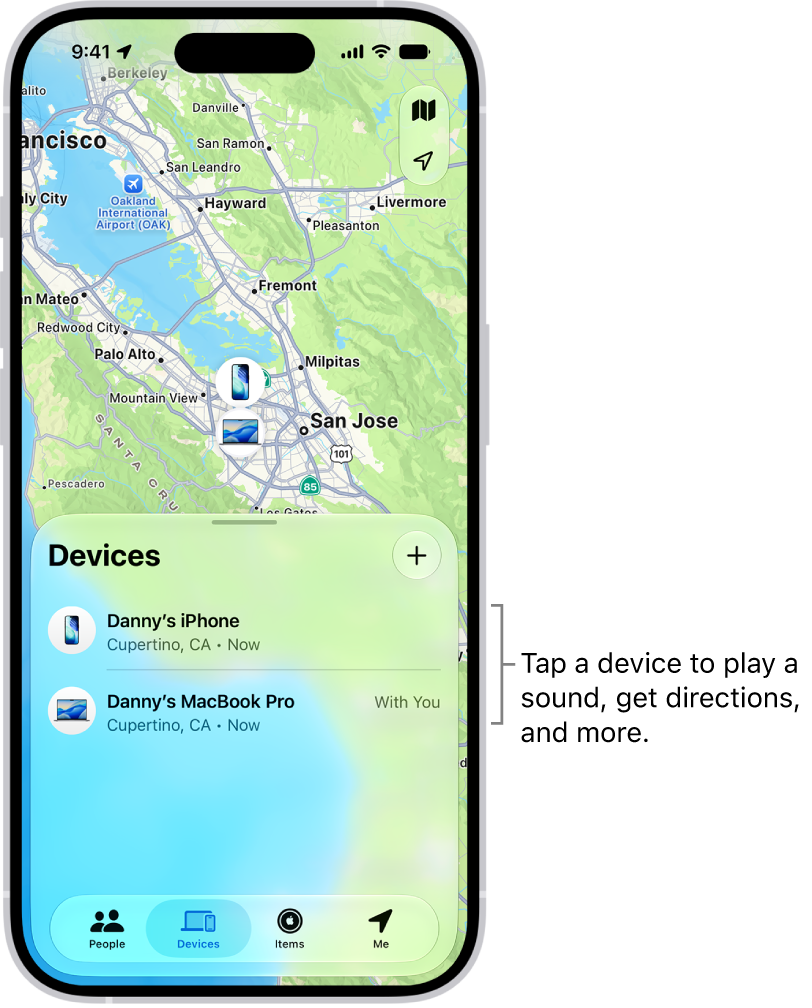
The Find My screen open to the Devices list. There are two devices in the Devices list: Danny’s iPhone and Danny’s iPad. Their locations are shown on a map.

About locating a device

  • You can use Find My on your iPhone to see the location of your device on a map. If the device is online, you see its location, and it plays a sound to help you find it. If the device is offline, you see its location, but it doesn’t play a sound.
  • For AirPods and supported Beats headphones, you can locate them when they’re near your device and connected to Bluetooth®. For supported AirPods, you can also see their location via the Find My network for up to 24 hours after they last connected to your device, even if they’re not nearby.
  • For iPhone Wallet with MagSafe and Find My support, you can see its location when it’s attached to your iPhone and its last known location if it detaches from your iPhone.

See the location of your device on a map

The Find My app shows your device’s current or last known location.

Tap Devices , then tap the name of the device you want to locate.

  • If the device can be located: It appears on the map so you can see where it is.
  • If the device can’t be located: You see “No location found” below the device’s name. Below Notifications, turn on Notify When Found. You receive a notification when it’s located.

Important: Make sure you allow notifications for the Find My app.

Play a sound on your device

  1. Start the Find My app on your iPhone.
  2. Tap Devices. Then tap the name of the device you want to play a sound on.
  3. Tap Play.

    • If the device is online: A sound starts after a short delay and gradually increases in volume. Then plays for about two minutes. If applicable, a Find My [device] alert appears on the device’s screen.

      A confirmation email is also sent to your Apple Account email address.

    • If the device is offline: You see Sound Pending. The sound plays the next time the device connects to a Wi-Fi or cellular network. For AirPods and Beats headphones, you receive a notification the next time your device is in range of your iPhone or iPad.

With separated AirPods, you have additional options to play a sound.

Stop playing a sound on a device

When you find your device, you may want to turn off the sound before it stops automatically. To do that, use one of the following:

  • iPhone, iPad, or iPod touch: Press the power button or a volume button, or flip the Ring/Silent switch. If the device is locked, you can also unlock it, or swipe to dismiss the Find My [device] alert. If the device is unlocked, you can also tap OK in the Find My [device] alert.
  • Apple Watch: Tap Dismiss in the Find My Watch alert, or press the Digital Crown or side button.
  • Mac: Click OK in the Find My Mac alert.
  • AirPods or Beats headphones: Tap Stop in Find My.

Get directions to a device

If you see your device’s location on the map, you can get turn-by-turn directions to it.

  1. Start the Find My app on your iPhone.
  2. Tap Devices. Then tap the name of the device you want to get directions to.
  3. Tap Directions to open the Maps app.

If you’re near your supported AirPods, you can tap Find for additional directions.

Locate or play a sound on a friend’s device

A friend who loses a device can sign in to their Apple Account on Find Devices on iCloud.com to locate it or play a sound on it.

With Family Sharing set up, Find My can locate a family member’s missing device.

Tag: Find My

Use the Find My app to get a notification when your friend’s location changes. You can get notified when a friend arrives at a location, leaves a location, or isn’t at a location, and with a larger radius, you’re notified when they’re near it.

Your friend gets an alert after you set the notification up.

Here’s how to get notified when a friend’s location changes in Find My on iPhone.

Important: In order to receive a notification when your friend’s location changes, make sure you allow notifications for the Find My app.

You can also let friends know when your location changes.

Get notified when your friend arrives at or leaves a location

  1. Start the Find My app on your iPhone.
  2. Tap People, tap the name of the person you want to be notified about, and then tap the More button.
  3. Below Notify Me, tap Add Location Alert.
  4. Choose whether you want to be notified when a friend arrives at or leaves a location.
  5. Choose a location, or tap New Location to create a new location and set a location radius.

    With a larger radius, you’re notified when your friend is near the location instead of right at the location.

  6. Choose whether you want to be notified only once or every time.
  7. Tap the Done button, then tap OK.

When you set the notification, your friend receives an alert.

A recurring notification needs your friend’s approval before it’s set. The first time they arrive at or leave the location you chose, they get an alert asking for approval.

Get notified when your friend isn’t at a location

When you set a schedule, you can get a notification if a friend or family member isn’t at a specific location during it. You could be notified if your child isn’t at school during school hours, for example.

  1. Start the Find My app on your iPhone.
  2. Tap People, tap the name of the person you want to be notified about, and then tap the More button.
  3. Below Notify Me, tap Add Location Alert.
  4. Below When, tap [your friend’s name] Is Not At.
  5. Choose a location, or tap New Location to create a new location and set a location radius.

    With a larger radius, you’re notified when your friend is near the location instead of right at the location.

  6. Select when you want to be notified.

    • Time: Select a start and end time.
    • Days: Select the days of the week.
  7. Tap the Done button, then tap OK.

Your friend has to approve the notification before it’s set. On the time and day the notifications start, they get an alert asking for approval.

Change or turn off a notification you set

  1. Start the Find My app on your iPhone.
  2. Tap People, tap the name of the person you want to be notified about, and then tap the More button.

    This could be a notification you receive about a friend, or a notification your friend receives about you.

  3. Tap the notification.
  4. Do either of the following:

    • Change a notification: Change any details and then tap the Done button.
    • Turn off a notification: Tap Delete Notification and tap Delete Notification again.

You can create up to 25 Notify Me notifications.

Note: Recurring notifications only work for friends who have two-factor authentication turned on.

Tag: Find My

Use the Find My app to let a friend know when your location changes. You can also get a notification when your friend’s location changes.

You choose when your friend hears from you, for example when you arrive at or leave a location. You can also see all notifications about you, and turn them off whenever you want.

Here’s how to notify a friend when your location changes in Find My on iPhone.

Notify a friend when your location changes

  1. Start the Find My app on your iPhone.
  2. Tap People, tap the name of the person you want to notify, and then tap the More button.
  3. Below Notify [your friend’s name], tap Add Location Alert.
  4. Choose whether you want to notify your friend when you arrive at or leave a location.
  5. Choose a location, or tap New Location to create a new location and set a location radius.

    With a larger radius, your friend is notified when you’re near the location instead of right at the location.

  6. Choose whether you want your friend to be notified only once or every time.
  7. Tap the Done button.

At any time, you can stop notifying friends when your location changes.

See all notifications about you

  1. Start the Find My app on your iPhone.
  2. Tap Me.

    A list of people who are notified when your location changes appears below Alerts on My Location.

    Note: If you don’t see the Alerts on My Location section, you aren’t notifying any friends when your location changes.

  3. Tap a name to see more details.

Turn off notifications about you

You can turn off any location notification about you, including notifications you set and notifications your friends create.

  1. Start the Find My app on your iPhone.
  2. Tap Me.

    Below Notifications About You, you see a list of people who are notified when your location changes.

    If you don’t see the Notifications About You section, you aren’t notifying any friends when your location changes.

  3. Select a name and tap a notification.
  4. Tap Delete Notification and tap Delete Notification again.
Tag: Find My