Got a tip for us?

iCloud

You can restore content, settings, and apps from a backup to a new or newly erased iPhone. You can restore from an iCloud backup or a computer backup, and if you’ve already set up your iPhone, you need to erase all of its content first. If your backup is encrypted, you’ll need its password, too.

Important: To restore your iPhone, you must have a backup to restore from.

Restore iPhone from an iCloud backup

  1. Turn on your iPhone.

    The Hello screen should appear. If you already set up your device, you need to erase all of its content before you can use these steps to restore from your backup.

  2. Do one of the following:

    • Tap Set Up Manually, tap Restore from iCloud Backup, then follow the onscreen instructions.
    • If you have another iPhone, iPad, or iPod touch with iOS 11, iPadOS 13, or later, you can use Quick Start to automatically set up your new device. Bring the two devices close together, then follow the onscreen instructions to securely copy many of your settings, preferences, and iCloud Keychain. You can then restore the rest of your data and content to your new device from your iCloud backup.

    Or, if both devices have iOS 12.4, iPadOS 13, or later, you can transfer all your data wirelessly from your previous device to your new one. Keep your devices near each other and plugged into power until the migration process is complete.

You’re asked for your Apple Account.

Restore iPhone from a computer backup

  1. Using USB, connect a new or newly erased iPhone to the computer containing your backup.
  2. Do one of the following:
    • On a Mac (macOS 10.15 or later): In the Finder sidebar, select your iPhone, click Trust, and click Restore from this backup.
    • On a Mac (macOS 10.14 or earlier) or a Windows device: Open the iTunes app, click the button resembling an iPhone near the top left of the iTunes window, click Summary, and click Restore Backup.
  3. Choose your backup from the list and click Continue.

You must enter the password before restoring your files and settings from an encrypted backup.

Tags: iCloud, iPhone

In the Notes app, you can use multiple accounts, such as iCloud, enterprise-managed iCloud, Microsoft Exchange, Google, and Yahoo, and keep all your notes in one place. Your notes stay up to date on all your devices that use the same accounts.

You can also have an On My iPhone account for notes you keep only on this device. And removing an account doesn’t delete its notes. They stay in your internet account and on any other devices you already set up.

Note: Every Notes feature described in this guide is available with iCloud and the On My iPhone account. If you use other accounts, some features aren’t.

Keep your notes up to date on all your devices with iCloud

Your iCloud notes appear on your iPhone, iPad, and Mac wherever you’re signed in to your Apple Account, and so do any changes you make to them.

  1. Start the Settings app on your iPhone.
  2. Tap your name, then tap iCloud.
  3. Tap See All (next to Saved to iCloud). Then turn on Notes.

Add other accounts

Have notes in other accounts, such as Google, Microsoft Exchange, or Yahoo? You can manage them in the Notes app.

  1. Start the Settings app on your iPhone.
  2. Tap Apps, then tap Notes.
  3. Tap Notes Accounts and tap Add Account.
  4. Do one of the following:
    • Choose an account provider, then enter your account information.
    • If your account provider isn’t listed, tap Add Other Account, enter your email account information, then turn on Notes for that account.

Set up an On My iPhone account

This account keeps its notes on your iPhone only, though they’re still included in your iPhone backups to iCloud.

  1. Start the Settings app on your iPhone.
  2. Tap Apps, then tap Notes.
  3. Turn on On My iPhone Account.

Remove an account

Removing or deleting an account means its notes no longer appear on your iPhone. They’re still in your internet account (for example, iCloud.com or Google) and on any other devices you had already set up.

  1. Start the Settings app on your iPhone.
  2. Tap Apps, then tap Notes.
  3. Tap Notes Accounts and tap the account you want to remove.
  4. Do one of the following:

    • Stop using Notes on the account: Turn off Notes. For an iCloud account, tap iCloud. Tap See All (next to Saved to iCloud). Turn off Notes. Note: You can continue to use the account for other services, such as Mail.
    • Stop using all services on the account: Tap Sign Out (for an iCloud account) or Delete Account (for other accounts).

    If you don’t see Sign Out or Delete Account, your account may be managed by your organization. See an administrator for removal instructions.

Tags: iCloud, Notes

In the Reminders app, you can use multiple accounts—such as iCloud, enterprise-managed iCloud, Microsoft Exchange, and Yahoo—and keep all your to-do lists in one place. Your reminders stay up to date on all your devices that use the same accounts.

They appear on your iPhone, iPad, Apple Watch, and Mac when you’re signed in to the same Apple Account. Reminders from iOS 12 or earlier may need an update in iCloud before you get features like attachments and flags.

Note: Some features aren’t available with other accounts. To use all the Reminders features described in this guide, you need updated reminders in iCloud.

Keep your reminders up to date on all your devices with iCloud

  1. Open the Settings app on your iPhone.
  2. Tap your name.
  3. Tap iCloud, tap See All, and turn on Reminders.

Sign in to the same Apple Account on your iPhone, iPad, Apple Watch, and Mac, and your reminders stored in iCloud show up on each one, changes included.

Update your reminders stored in iCloud

Features such as attachments, flags, list colors and icons, and more may require an update to your reminders stored in iCloud if you’ve been using Reminders with iOS 12 or earlier.

  1. Open the Settings app on your iPhone.
  2. Tap your name.
  3. Tap iCloud, tap See All, and make sure Reminders is turned on.
  4. Open the Reminders app.
  5. On the Welcome to Reminders screen, choose one of the following options:
    • Update Now: Begin the update process.
    • Update Later: A blue Update button appears above your lists; tap it when you’re ready to update your reminders.

Note: Updated reminders don’t work with the Reminders app in earlier versions of iOS and macOS, because they aren’t backward compatible.

Add other accounts

If your to-do lists are in other accounts, such as Microsoft Exchange and Yahoo, you can manage them in the Reminders app, too.

  1. Open the Settings app on your iPhone.
  2. Tap Apps and tap Reminders.
  3. Tap Reminders Accounts and tap Add Account.
  4. Do one of the following:
    • Choose an account provider, then enter your account information.
    • If your account provider isn’t listed, tap Other, tap Add CalDAV Account, enter your account information, then turn on Reminders for that account.

Remove an account

If you remove or delete an account, the reminders in it stop appearing on your iPhone, but they remain in your internet account, such as iCloud.com or Microsoft Exchange, and on any other devices you had already set up.

  1. Open the Settings app on your iPhone.
  2. Tap Apps and tap Reminders.
  3. Tap Reminders Accounts. Then tap the account you want to remove.
  4. Do one of the following:

    • Stop using Reminders on the account: Turn off Reminders.

      You can continue to use the account for other services, such as Calendar.

    • Stop using all services on the account: Tap Sign Out (for an iCloud account) or Delete Account (for other accounts).

Your account may be managed by your organization if you don’t see Sign Out or Delete Account. Ask an administrator for removal instructions.

In the Photos app, you can make stickers from the subjects in your photos and animated stickers from the subjects in your Live Photos. Then use your stickers to decorate messages, photos, notes, and more.

It starts with the subject of a photo. Once you add it as a sticker, it shows up in your stickers menu, ready to use from the onscreen keyboard or Markup tools. You can delete a sticker later, too.

Turn a photo or Live Photo into a sticker

The main subject of a photo can become a sticker.

  1. Start the Photos app on your iPhone.
  2. Tap a photo to open it in full screen.
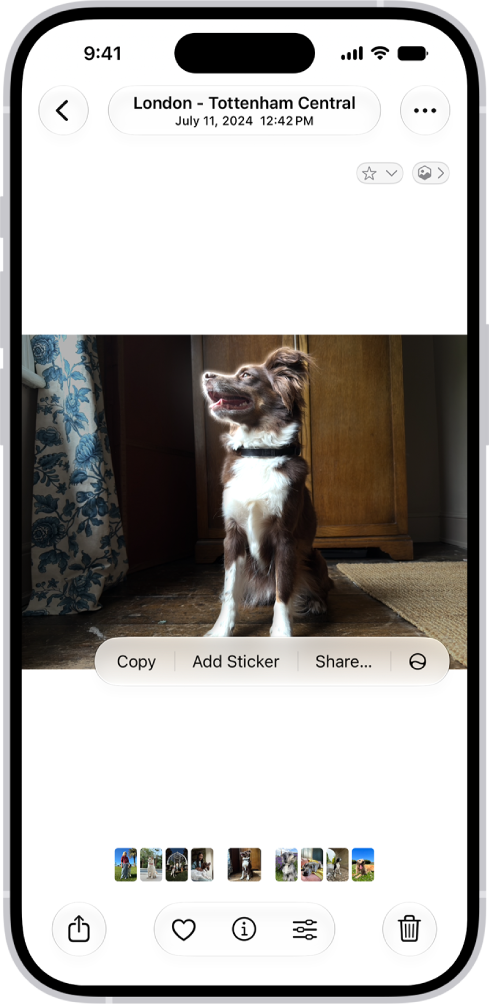
  3. Touch and hold the subject, then release.
  4. Tap Add Sticker.

    The sticker appears in your stickers menu, which you can access when you use the iPhone onscreen keyboard or Markup tools.

  5. Tap Add Effect to apply a visual effect such as Outline, or Comic, or turn the Live Photo animation on or off.

    The Photos app is open to a photo of a dog. The dog is selected, and the option Add Sticker is available in the menu above.

  6. Tap the Close button to close the stickers menu.

Quick tip: You can use stickers you’ve created to decorate a photo.

Delete a sticker

  1. Start the Photos app on your iPhone.
  2. Open a photo and then tap the Edit button.
  3. Tap the Markup button, then tap the Add button.
  4. Tap Add Sticker, touch and hold the sticker you want to delete, and tap Remove.

Since your stickers sync with iCloud, they’re available on any iPhone, iPad, Mac, or Apple Vision Pro where you’re signed in to the same Apple Account.

Tags: iCloud, Photos

In the Notes app, you can send a copy of a note to a friend. You can also share a link to invite people to collaborate in real time on a note or on a folder of notes in iCloud, and everyone will see the latest changes.

You can view activity in a note or a folder, and change sharing settings whenever you need to.

Here’s how to share notes and collaborate on iPhone.

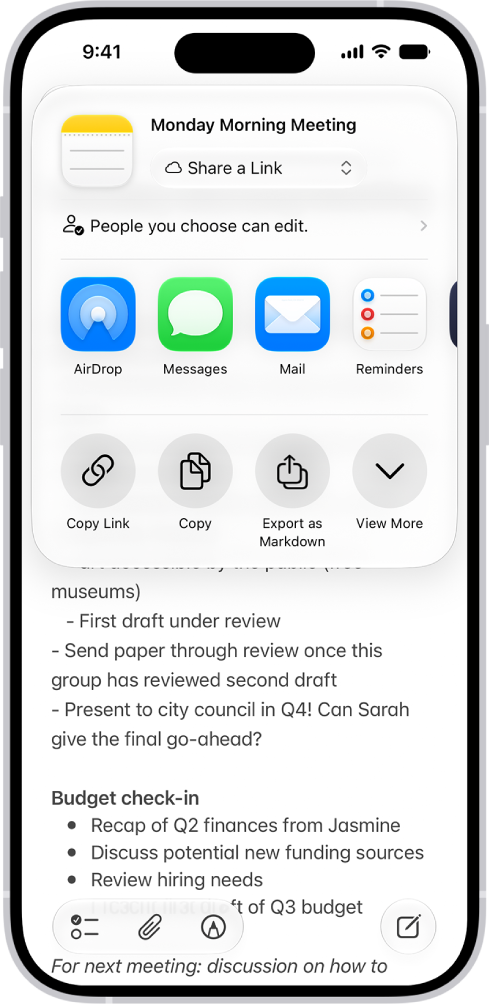
A note with an overlay showing sharing options.

Share a copy of a note

  1. Start the Notes app on your iPhone.
  2. Open the note you want to share.
  3. Tap the Share button, tap the menu under the note title, and then tap Send a Copy.
  4. Choose how to send your note.

Collaborate on a note or folder of notes using iCloud

To collaborate with others, you can share a link to a note or a folder of notes in iCloud. You can set who can access what you share and set editing permissions. All participants see changes in real time. The participants must be signed in to their Apple Account and have Notes turned on in iCloud settings. Note: You can’t collaborate on a locked note or on a folder with locked notes.

  1. Start the Notes app on your iPhone.
  2. Do one of the following:

    • Collaborate on a note: Open the note you want to share, tap the Share button, tap the menu under the note title, and then tap Share a Link.
    • Collaborate on a folder: Open the folder you want to share. Then tap the Folder Actions button.
  3. To change the access and permissions, tap People you choose can edit and then set any of the following:

    • Who can access: Choose People you choose or Anyone with the link. With People you choose, you can turn on Access Requests. Note: Requesting access to a note sends an email to the address associated with the owner’s Apple Account.
    • Permissions: Choose Edit or View and Download Only.

    Tip: If you send the invitation in Messages, you get activity updates in the Messages conversation when someone makes changes in the shared note. Tap the updates to go to the shared note.

View activity in a note

Notes that have changed since you last looked at them get an orange dot to the left of their title in the notes list.

  1. Start the Notes app on your iPhone.
  2. Open the note and then swipe right on the note or swipe up on the Activity card to see who made changes and when.
  3. To adjust how the activity is shown, tap the Collaborate button. Choose any of the following:

    • Show Updates: Shows changes made since you last opened the note.
    • Show All Activity: Shows all activity in the note.
    • Show Highlights: Shows names, dates, and changes made by each participant.

    Tip: To mention a participant and notify them of important updates, type an @ sign followed by their name.

View activity in a folder

  1. Start the Notes app on your iPhone.
  2. Touch and hold the folder. Then tap Show Folder Activity.

Change sharing settings

  1. Start the Notes app on your iPhone.
  2. The owner of a shared note or folder can change the sharing settings by doing one of the following:
    • Manage a shared note: Tap the Collaborate button, then tap Manage Shared Note.
    • Manage a shared folder: Tap the Folder Actions button. Then tap Manage Shared Folder.
  3. Do any of the following:
    • Remove participants or cancel invitations: Tap the participant you want to remove, then tap Remove Participant or Cancel Invitation.
    • Change access and permission settings: To change the settings for one person, tap their name. To change the settings for all participants, tap Sharing Options. Making a participant a Co-Owner allows them to manage participants and permissions for everyone except the owner.
    • Stop sharing: When you choose this option, the shared note or folder is deleted from the devices of the other participants.
Tags: iCloud, Notes

Visual Voicemail shows you a list of your voicemail messages in the Phone app. You can choose which ones to play and delete without listening to them all, and a badge on the Voicemail icon shows the number of unheard messages.

When you store your voicemail messages in iCloud, they sync across your devices. Live Voicemail lets you see a real-time transcription as someone is leaving you a message, and you can even pick up the call as they’re leaving their voicemail.

Note: Voicemail, Visual Voicemail, and Live Voicemail are available from select carriers in select countries or regions.

Set up Voicemail

The first time you tap Voicemail, you’re asked to create a voicemail password and record your voicemail greeting.

  1. Start the Phone app on your iPhone.
  2. Do one of the following, depending on which Phone app layout you’re using:
    • Unified layout: Tap the Filter button, tap Voicemails, tap Edit, and then tap Edit Voicemail Greeting.
    • Classic layout: Tap Voicemail, then tap Greeting.
  3. Choose a greeting—Default or Custom; if you choose Custom, you can record a new greeting.

Turn on Live Voicemail

When a caller is sent to voicemail, your iPhone can display a transcription of the caller’s voicemail as they speak. (Calling and data rates may apply.) To turn on Live Voicemail, do the following:

  1. Start the Settings app on your iPhone.
  2. Tap Apps, then tap Phone.
  3. Turn on Live Voicemail.

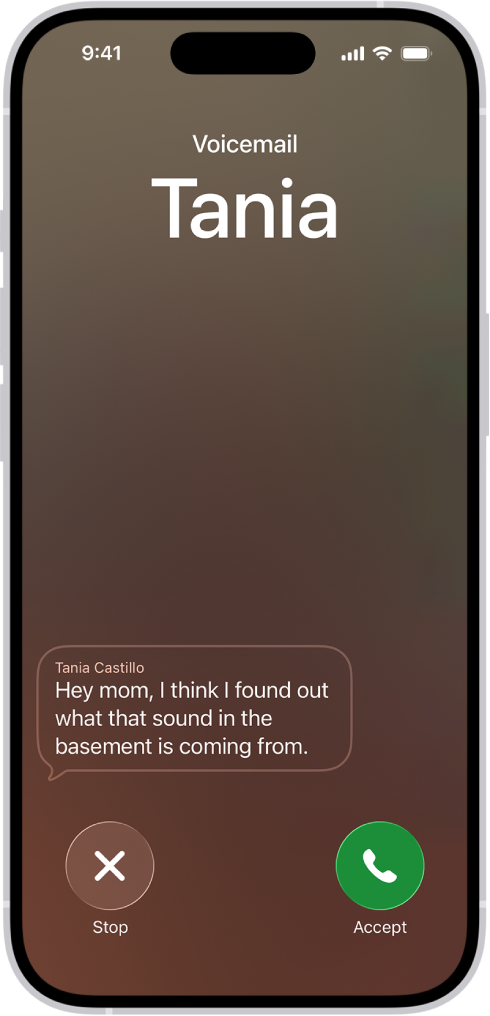
The caller won’t be able to hear you and you won’t be able to hear them unless you choose to answer the call. To stop the incoming voicemail without answering or blocking the call, tap Stop. If your iPhone is turned off or is out of your carrier network’s range, the call is sent to carrier voicemail, if available. If you have Silence Unknown Callers turned on, unknown numbers go directly to Live Voicemail without ringing you first. Calls identified as spam by your carrier don’t go through Live Voicemail and are instead instantly declined.

Note: Live Voicemail isn’t available in all countries, regions, or languages.

A call screen showing a Live Voicemail from a contact. Below the transcribed text are the Stop and Accept buttons for the call.

Store Voicemail in iCloud

iCloud can store and sync your Live Voicemail and Carrier Voicemail.

  1. Start the Settings app on your iPhone.
  2. Tap your name, then tap iCloud.
  3. Tap See All next to Saved to iCloud and then turn on Phone & FaceTime.
Tags: iCloud, Mail

In the Reminders app, you can use iCloud to share to-do lists. You can collaborate and assign tasks to other people who also use iCloud.

People who accept the invitation can add and edit items, and everyone sees the changes. Once a list is shared, you can assign items in it to people, and turn notifications on or off for the shared list.

Here’s how to share lists and collaborate in Reminders on iPhone.

Note: With updated reminders in iCloud, all the Reminders features described in this guide are available. Some aren’t when you use other accounts.

Collaborate on a list using iCloud

People who use iCloud can work on a list with you once you share it. Anyone who accepts the invitation can add and edit items and mark items as completed, and all participants see everyone’s changes. To collaborate, everyone needs to be signed in to their Apple Account, with Reminders turned on in iCloud settings.

  1. Open the Reminders app on your iPhone.
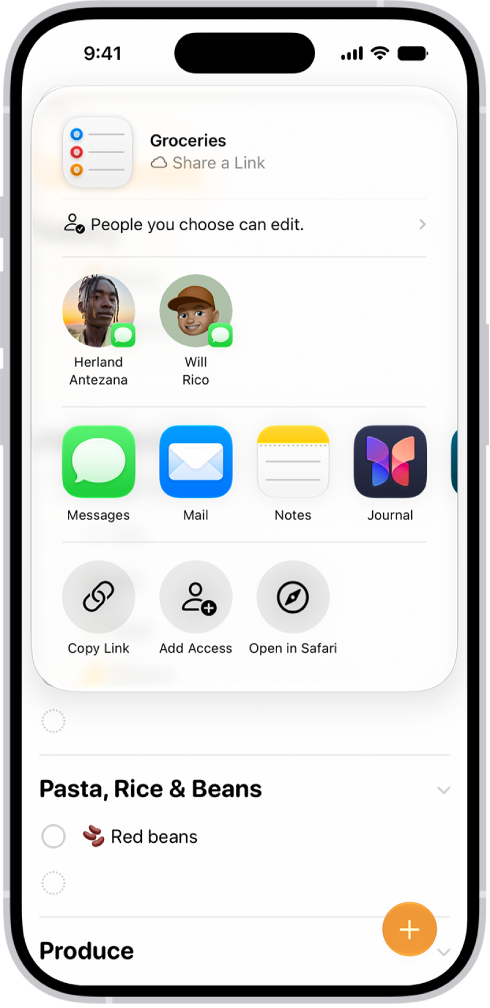
  2. View the list you want to share. Then tap the Share button.

    A Reminders screen showing a grocery list with options for sharing at the bottom.

  3. By default, participants on the list can invite other people. To restrict sharing, tap People you invite can add others and then turn off Allow others to invite.
  4. Choose how to send your invitation (for example, using Messages or Mail).

If you send the invitation in Messages, you get activity updates in the Messages conversation when someone makes changes in the shared list. Tap the updates to go to the shared list.

Assign items in a shared list

You can assign a task to any person on the list, including yourself.

  1. Open the Reminders app on your iPhone.
  2. In the shared list, create or edit a reminder, then do either of the following:
    • Type @ followed by the person’s name or choose a person from the menu above the keyboard.
    • Tap the Person button, then choose a person.

Quick tip: Use the Assigned to Me Smart List to see all items assigned to you at a glance.

Turn notifications on or off for a shared list

  1. Open the Reminders app on your iPhone.
  2. In the shared list, tap the Collaborate button and tap Manage Shared List.
  3. Below Notify When, turn on or off any of the following:
    • Adding Items: Receive an alert when someone adds an item to the list.
    • Completing Items: Receive an alert when someone completes an item on the list.

Use iCloud Keychain to keep your website and app passwords and passkeys, credit card information, Wi-Fi network information, and other account information up to date across all your approved devices and Mac computers. iCloud Keychain can also keep the accounts you use in Mail, Contacts, Calendar, and Messages up to date across all your iPhone and iPad devices and Mac computers.

It’s secure, too. iCloud Keychain is secured with 256-bit AES encryption during storage and transmission, and its data can’t be read by Apple. And if all your devices are lost or stolen, you can still recover your iCloud Keychain.

Set up iCloud Keychain

You can set up iCloud Keychain now if you didn’t do it when you first set up your iPhone.

  1. Start the Settings app on your iPhone.
  2. Tap your name, then tap iCloud.
  3. Tap See All (next to Saved to iCloud) and tap Passwords & Keychain.
  4. Turn on Sync this iPhone and then follow the onscreen instructions.

Set up iCloud Keychain on an additional device

Turning on iCloud Keychain on an additional device sends a notification to your other devices using iCloud Keychain. It asks for your approval. Approve the additional device on one of your other devices, and iCloud Keychain automatically begins updating on it. Without access to your other devices, you can approve iCloud Keychain with your iCloud Security Code by following the onscreen instructions.

Recover your iCloud Keychain if all your devices are lost or stolen

iCloud Keychain syncs across devices to provide convenience and redundancy in case you lose a single device. If all your devices are lost and you’ve added a recovery contact to your Apple Account, your contact can help you recover your iCloud Keychain. Go to Settings > [your name] > Sign-In & Security, tap Recovery Contacts, then tap Learn More. You can also recover your iCloud Keychain through iCloud Keychain escrow, which is also protected against brute-force attacks. iCloud Keychain escrows a user’s keychain data with Apple without allowing Apple to read the passwords and other data it contains. Your keychain is encrypted using a strong passcode, and the escrow service provides a copy of the keychain only if a strict set of conditions is met. To recover your keychain through iCloud Keychain escrow, authenticate with your Apple Account on a new device, then respond to an SMS sent to a trusted phone number. After you authenticate and respond, you must enter the device passcode. iOS, iPadOS, and macOS allow only 10 attempts to authenticate. After several failed attempts, the record is locked and you must contact Apple Support on the Apple Support website to be granted more attempts.

You can keep adding photos and videos after you set up or join an iCloud Shared Photo Library in the Photos app. Keep in mind that content you move there leaves your personal library and becomes visible to all participants. There are several ways to add more:

  • Manually move photos from your personal library
  • Save photos and videos you take directly to the shared library from Camera
  • Share photos you take when other members of the shared library are nearby
  • Share photos and videos you take at home

Note: iCloud Shared Photo Library needs iOS 16.1, iPadOS 16.1, macOS 13, or later. If a device runs an earlier version of the software, it won’t have the photos and videos added to a shared library.

Manually add photos and videos to an iCloud Shared Photo Library

From your personal library, you can add individual photos and videos to the iCloud Shared Photo Library.

  1. Open the Photos app on your iPhone.
  2. Tap the photo or video you want to add. Or to add multiple photos and videos at the same time, tap Select. Tap the thumbnails you want to add.
  3. Tap the More button. Then tap Move to Shared Library.

Quick tip: The Photos app can suggest photos and videos for your Shared Library. To see them, tap Collections , tap your account in the top-right corner, and then tap For Your Shared Library.

After content is moved to the shared library, it’s no longer in your personal library and it’s visible to all of the shared library participants. To move content from the shared library back to your personal library, follow the steps above, but tap Move to Personal Library instead of Move to Shared Library.

Add photos and videos to an iCloud Shared Photo Library directly from Camera

Camera saves to your personal library by default. Once you set up or join an iCloud Shared Photo Library, though, a Shared Library button appears at the top of the screen when you open Camera, so you can switch between saving photos and videos to your personal library or to the shared library.

To switch, tap the Personal Library button to save to the shared library; tap the Shared Library button to switch back to your personal library.

To turn the feature on or off after you complete the setup process, go to Settings > Apps > Photos > Shared Library > Sharing from Camera, then turn Sharing from Camera on or off.

Add photos and videos to an iCloud Shared Photo Library when participants are nearby

There’s an option to automatically add photos you take when you’re near other shared library participants. You can choose it when you set up or join an iCloud Shared Photo Library.

To allow iPhone to detect when participants of your shared library are nearby, participants need to be signed in to their Apple Account on their device, and have Bluetooth® turned on in Settings > Bluetooth.

To turn the feature on or off after you complete the setup process, do the following:

  1. Open the Photos app on your iPhone.
  2. Tap Collections.
  3. Tap your account in the top-right corner.
  4. Tap Shared Library, then tap Sharing from Camera.
  5. Tap Share Automatically.

Automatically add photos and videos taken at home to an iCloud Shared Photo Library

Photos and videos you take at home can land in the shared library automatically, too. Choose that option when you set up or join an iCloud Shared Photo Library.

To turn the feature on or off after you complete the setup process, do the following:

  1. Open the Photos app on your iPhone.
  2. Tap Collections.
  3. Tap your account in the top-right corner.
  4. Tap Shared Library, then tap Sharing from Camera.
  5. Turn Share When At Home on or off.

Turn iCloud Shared Photo Library sharing suggestions on or off

Sharing suggestions recommends photos you might want to add to your iCloud Shared Photo Library, such as photos you took when participants of the shared library were nearby, or photos of people you indicated interest in during the setup process. iPhone sends a notification to review sharing suggestions. To turn suggestions on or off, follow these steps:

  1. Open the Photos app on your iPhone.
  2. Tap Collections.
  3. Tap your account in the top-right corner.
  4. Tap Shared Library, then turn Shared Library Suggestions on or off.

If you want to get sharing suggestions for additional people, tap Add People, tap a person, then tap Add. The person doesn’t have to be a member of the shared library.


Tags: iCloud, Photos

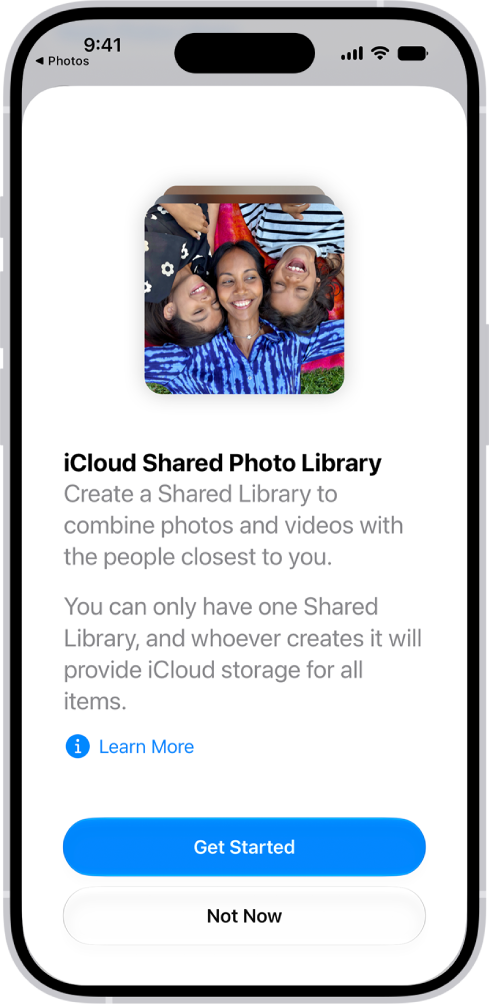
With the iCloud Shared Photo Library feature, you can set up or join a shared library to share photos and videos with up to five friends or family members. You and those close to you can collaborate on the photo collection and enjoy more complete memories, all in one place. You can belong to one shared library at a time.

When you join a shared library, the photos and videos that you contribute move from your personal library to the shared library, and all members can view, edit, and delete them. Shared library photos and videos appear in the Photos app alongside your personal content, and a filter lets you quickly switch between your personal and shared libraries.

Note: The minimum system requirements for iCloud Shared Photo Library are iOS 16.1, iPadOS 16.1, macOS 13, or later. On devices with earlier versions of the software, photos and videos added to a shared library aren’t available.

An iPhone showing the Get Started Screen for creating an iCloud Shared Photo Library.

Before you begin

Make sure iCloud Photos is turned on before you set up or join an iCloud Shared Photo Library.

  1. Start the Settings app on your iPhone.
  2. Tap your name, then tap iCloud.
  3. Tap Photos and then make sure Sync this iPhone is on.

Note: To set up a shared library, you don’t need Family Sharing turned on.

Set up an iCloud Shared Photo Library

Whoever sets up a shared library is its organizer.

  1. Start the Photos app on your iPhone.
  2. Tap Collections.
  3. Tap your account in the top-right corner.
  4. Tap Shared Library and then follow the onscreen instructions to add participants and move photos and videos into the shared library.

Note: Your personal library doesn’t show the photos and videos you add to the shared library.

Before you invite participants using Messages or a web link, you can preview and change the photos and videos you add to the shared library.

Join an iCloud Shared Photo Library

To join an iCloud Shared Photo Library, tap the invitation sent from the organizer, tap Get Started, then follow the onscreen instructions. During setup, you can add photos and videos to the shared library the same way as the organizer.

Once you’ve joined a shared library, you can add photos and videos to it in several ways and access the same content as the organizer and other participants.

Add participants to an iCloud Shared Photo Library

The organizer, the person who sets up an iCloud Shared Photo Library, can add new participants.

  1. Start the Photos app on your iPhone.
  2. Tap Collections.
  3. Tap your account in the top-right corner.
  4. Tap Manage, then tap Add Participants.

Note: Up to six participants, organizer included, can share a library, and you can only belong to one shared library at a time.

Delete or leave an iCloud Shared Photo Library

Organizers of an iCloud Shared Photo Library can delete it, while anyone who isn’t the organizer can leave the shared library.

  1. Start the Photos app on your iPhone.
  2. Tap Collections.
  3. Tap your account in the top-right corner.
  4. Tap Manage, then tap one of the following:
    • Delete Shared Library: When a shared library is deleted, participants who have been members of the shared library for more than 7 days can copy everything from the shared library into their own libraries. Participants who have been members for less than 7 days can copy only the content they contributed.
    • Leave Shared Library: When you leave a shared library, you can copy everything from the shared library into your own library, or just the content you contributed.

Everything added to a shared library counts toward the library organizer’s iCloud storage space.

Tags: iCloud, Photos