Got a tip for us?

iCloud

You can use iCloud Mail Cleanup to help keep your inbox uncluttered and free up storage by deleting old promotions, unsubscribing from mailing lists, and more. When you set up iCloud Mail Cleanup recommendations, they work on any device that has iCloud Mail turned on.

Turning on iCloud Mail Cleanup doesn’t touch your inbox right away. Nothing changes until you turn on a cleanup recommendation, such as Clean Up Promotions, and you can edit the rules for a recommendation at any point.

Here’s how to automatically clean up your iCloud Mail inbox on iPhone.

Note: iCloud Mail Cleanup may not be available in all languages.

Turn on iCloud Mail Cleanup

  1. Start the Settings app on your iPhone.
  2. Tap [your name], then tap iCloud.

    Below Saved to iCloud, tap Mail, tap iCloud Mail Cleanup, then turn on Use iCloud Mail Cleanup.

    Note: Your inbox isn’t affected until you turn on a cleanup recommendation.

    You can also turn on iCloud Mail Cleanup on iCloud.com.

Turn on a cleanup recommendation

  1. Start the Settings app on your iPhone.
  2. Tap [your name], then tap iCloud.

    Below Saved to iCloud, tap Mail, then tap iCloud Mail Cleanup.

  3. Tap Get Recommendation under one of the cleanup recommendations.

    For example, you can choose Clean up Transactions or Clean Up Promotions.

    If necessary, tap the pop-up menu for a rule, then choose another option.

    Action: What happens to the email Status: Whether the action applies to unread emails, read emails, or all emails Age: How old the emails need to be before the action applies Tip: You can edit the rules for a recommendation at any point.

  4. Tap an active recommendation. Then tap a pop-up menu to choose an option.
  5. Tap Turn On.

Delete a cleanup recommendation

  1. Start the Settings app on your iPhone.
  2. Tap [your name], then tap iCloud.

    Below Saved to iCloud, tap Mail, then tap iCloud Mail Cleanup.

  3. Tap an active cleanup recommendation and turn it off.

Use iCloud Mail Cleanup recommendations to unsubscribe

iCloud Mail Cleanup can suggest senders in the Promotions and Updates categories to unsubscribe from in bulk, and it can automatically move future messages to the Trash.

  1. Start the Settings app on your iPhone.
  2. Tap [your name], then tap iCloud.

    Below Saved to iCloud, tap Mail, then tap iCloud Mail Cleanup.

  3. Tap Get Recommendations under Unsubscribe Recommendations.
  4. Select each sender you want to unsubscribe from and tap Unsubscribe.

    Note: If you don’t see any recommendations, iCloud Mail Cleanup doesn’t have any recommendations at this time.

Remove a sender from the Unsubscribed list

Changed your mind about a sender you unsubscribed from? Remove them from the Unsubscribed list to receive their emails again.

  1. Start the Settings app on your iPhone.
  2. Tap [your name], then tap iCloud.

    Below Saved to iCloud, tap Mail, then tap iCloud Mail Cleanup.

  3. Tap Unsubscribed and tap Edit.
  4. Tap the Delete button next to each sender you want to remove from the Unsubscribed list.
  5. To receive emails again from a sender you were previously unsubscribed from, you can sign up for updates and promotions through their website.

    After you resubscribe, future messages from that sender will go to your inbox.

Turn off iCloud Mail Cleanup

Once iCloud Mail Cleanup is off, iCloud Mail stops managing old messages and stops deleting messages from senders you unsubscribed from. It deletes the list of those senders, too.

  1. Start the Settings app on your iPhone.
  2. Tap [your name], then tap iCloud.

    Below Saved to iCloud, tap Mail, tap iCloud Mail Cleanup, then turn off Use iCloud Mail Cleanup.
Tags: iCloud, Mail

You can create rules to automatically move, delete, forward, or mark new or already-received emails as read based on specific criteria. For example, you can create a rule that sorts emails from a particular sender into a specific folder.

You can edit and delete these rules at any time, and reorder them, too.

Here’s how to use iCloud Mail rules to automatically apply actions to emails in Mail on iPhone.

Note: New or changed rules can take up to 15 minutes before they’re applied to incoming emails.

Create a rule

  1. Open the Settings app on your iPhone.
  2. Tap your name, then tap iCloud.

    Below Saved to iCloud, tap Mail, tap iCloud Mail Rules, then tap Add Rule.

  3. Enter a name for the new rule.
  4. Use the pop-up menu next to Message and the text field to specify the type of emails you want to manage.
  5. Use the pop-up menu next to Action to specify an action for the rule.
  6. Tap the Add button.

    Important: If you apply rules to a folder and then delete the folder or change its name, make sure to update the rules for that folder accordingly.

    For example, you can’t forward emails to a deleted folder.

Change a rule

  1. Open the Settings app on your iPhone.
  2. Tap your name, then tap iCloud.

    Below Saved to iCloud, tap Mail, then tap iCloud Mail Rules.

  3. Tap a rule and then specify new conditions in the pop-up menus and text fields.
  4. Tap the Done button.

Reorder rules

Multiple rules are applied in the order they appear in the list.

  1. Open the Settings app on your iPhone.
  2. Tap your name, then tap iCloud.

    Below Saved to iCloud, tap Mail, then tap iCloud Mail Rules.

  3. Tap Edit.
  4. Press and hold the Grab button and drag a rule up or down in the list.
  5. Tap the Done button.

Delete a rule

  1. Open the Settings app on your iPhone.
  2. Tap your name, then tap iCloud.

    Below Saved to iCloud, tap Mail, then tap iCloud Mail Rules.

  3. Tap Edit, tap the Delete button next to the rule you want to delete, and then tap the Trash button.
  4. Tap the Done button.
Tags: iCloud, Mail

In the Contacts app, you can add multiple accounts, such as iCloud, Microsoft Exchange, Google, and Yahoo. You can choose a default account, set up LDAP or CardDAV accounts, show or hide accounts, and delete accounts.

You can also let third-party apps add contacts to the Contacts app. Those contacts are managed by the app, though, so you can’t edit them in Contacts.

Here’s how to add or remove accounts in Contacts on iPhone.

Add your iCloud contacts

  1. Open the Settings app on your iPhone.
  2. Tap [your name], then tap iCloud.
  3. Tap See All next to Saved to iCloud and turn on Contacts.

Add your contacts from other accounts

The Contacts app can manage your contacts in other accounts, too, such as Google, Yahoo, and Microsoft Exchange.

  1. Open the Settings app on your iPhone.
  2. Tap Apps, then tap Contacts.
  3. Tap Contacts Accounts and tap Add Account.
  4. Choose an account, sign in to it, then turn on Contacts.

Note: Some accounts don’t support Push notifications. If you add one, you can still update your contacts from it on a Fetch schedule. Go to Settings > Apps > Contacts, tap Contacts Accounts, and then tap Fetch New Data. Choose a schedule under Fetch, and if you choose Automatically, your iPhone downloads new data whenever it’s charging and connected to Wi-Fi.

Add contacts from contacts provider apps

Third-party apps can add contacts to the Contacts app if you allow it. Because the third-party app manages them, those contacts can’t be edited in Contacts.

  1. Open the Settings app on your iPhone.
  2. Tap Apps, then tap Contacts.
  3. Tap Providers, then turn on the option for an app.

Choose your default account

If you select a default account, new contacts are automatically added to it.

  1. Open the Settings app on your iPhone.
  2. Tap Apps, then tap Contacts.
  3. Tap Default Account and tap the account you want to make your default.

Set up an LDAP or CardDAV account to access business or school directories

  1. Open the Settings app on your iPhone.
  2. Tap Apps, then tap Contacts.
  3. Tap Contacts Accounts and tap Add Account.
  4. Tap Add Other Account and then tap Add LDAP Account or CardDAV Account.
  5. Enter the account information.

Remove a contact account

Once you remove an account, its contacts no longer appear on your iPhone. They remain in your internet account, like iCloud.com or Google, and on any other devices you had already set up.

  • Turn off iCloud contacts: Go to Settings > [your name] > iCloud. Tap See All next to Saved to iCloud, then turn off Contacts.

    You can choose to keep or delete the previously synced iCloud contacts on your iPhone.

  • Temporarily stop using an account: Go to Settings > Apps > Contacts > Contacts Accounts, tap the account, then turn off Contacts.

    To view the contacts in that account on your iPhone again, turn on Contacts.

  • Delete an account: Go to Settings > Apps > Contacts > Contacts Accounts, tap the account, then tap Delete Account.

Don’t see Sign Out or Delete Account? Your organization may manage your account, so see an administrator for removal instructions.

You can keep your audio recordings up to date automatically on your iPhone, iPad, and Mac. There are two conditions. You need to be signed in to the same Apple Account on each device, and Voice Memos must be turned on in iCloud settings, with macOS 15 or later on a Mac.

To turn on Voice Memos in iCloud on your devices, follow these steps:

  • iOS or iPadOS: Go to Settings > [your name] > iCloud > See All, then scroll down and turn on Voice Memos.
  • macOS 15 or later: Choose Apple menu > System Settings, then click your name in the sidebar. If you don’t see your name, click “Sign in” to sign in to your Apple Account or create one. Click iCloud, click See All, then scroll down and turn on Voice Memos.

You can customize the notifications that let you know about upcoming calendar events, invitations, and more. You can also make sure your events and other calendar information are kept up to date on all your devices.

You can choose whether notifications appear for specific occasions, like upcoming events, and turn on customized notifications for specific calendars. iCloud keeps your calendar current on all your devices. If you don’t want to use iCloud for your calendar, you’ll sync your calendar information between your iPhone and your computer instead.

Customize Calendar notifications

  1. Open the Settings app on your iPhone.
  2. Tap Notifications and tap Calendar.
  3. Turn on Allow Notifications.
  4. Choose how and where you want the notifications to appear—for example, on the Lock Screen, in Notification Center, as banners at the top of the screen, with an alert sound, and so on.

Turn on customized notifications for specific calendar events

When you’ve customized Calendar notifications, you can choose whether they appear for specific occasions, like upcoming events or invitee responses.

  1. Open the Settings app on your iPhone.
  2. Tap Notifications and tap Calendar.
  3. Scroll down and tap Customize Notifications.
  4. Turn the specific customized notifications on or off.

Keep your calendar up to date across your devices

If you’re signed in to the same Apple Account on all your devices, iCloud can keep your calendar information up to date on each one.

  1. Open the Settings app on your iPhone.
  2. Tap your name, then tap iCloud.
  3. Tap See All next to Saved to iCloud.
  4. Tap iCloud Calendar and turn on Use on this iPhone.

Rather not use iCloud for your calendar? Sync your calendar information between your iPhone and your computer instead.

AirDrop lets you securely share passwords and passkeys for website and app accounts with someone using an iPhone, iPad, or Mac. Compared to sharing other types of information, though, AirDrop has more stringent requirements for passwords and passkeys. iCloud Keychain must be set up, and you each need to be in the other’s contacts.

Check the AirDrop requirements

For passwords and passkeys, AirDrop has more stringent requirements than it does for sharing other types of information.

  • iCloud Keychain must be set up on your iPhone.
  • The person youʼre sharing with must be in your contacts list in the Contacts app, and they must be listed with the email address they use for iCloud.
  • You must be in the other person’s contacts list in the Contacts app, and you must be listed with the email address you use for iCloud.

Send a password or passkey

If the person you’re sharing with is on iPhone or iPad, ask them to open Control Center and allow AirDrop to receive items. Someone on a Mac needs to allow themselves to be discovered in AirDrop in the Finder.

  1. Start the Passwords app on your iPhone.
  2. Tap All. Tap the account you want to share.
  3. Tap the Share button, then tap Share with AirDrop.
  4. Tap the device or picture of the person you want to send the password or passkey to.

Receive a password or passkey

  1. If you haven’t already done so, allow AirDrop to receive items.
  2. When you receive a request to accept a password or passkey from someone else, tap Accept.

Your iPhone saves the password or passkey, where you can see its information, and iPhone can automatically fill it in on the account’s sign-in screen. It’s saved to your iCloud Keychain, too, which makes it available on other devices where you’re signed in to your Apple Account.

When you set up a text replacement on iPhone, you can enter long or complicated text by typing just a few characters, like shorthand for your most frequently used words and phrases.

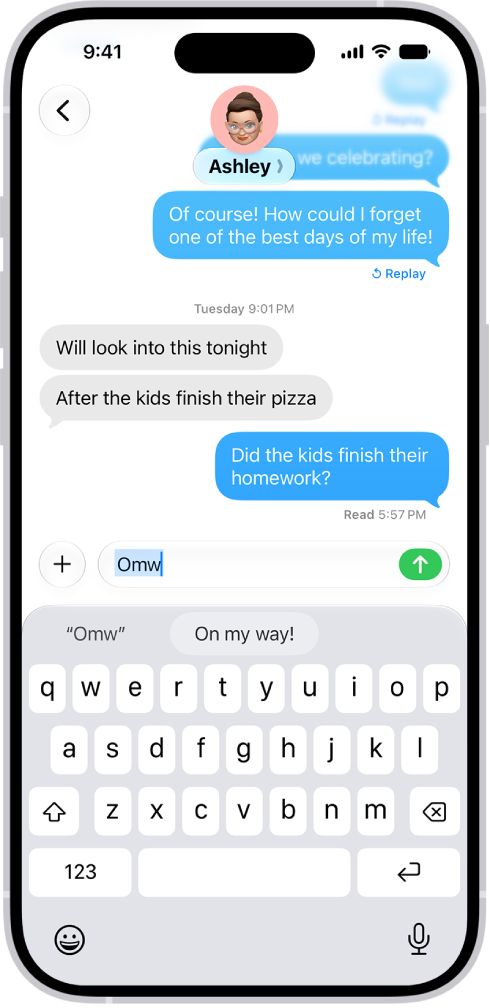
One shorthand for “On my way” is already set up for you, but you can add your own. You can also stop a word or phrase from being replaced, and create replacements for word and input pairs on certain Chinese or Japanese keyboards.

A message with the text shortcut “Omw” typed and the phrase “On my way!” suggested below as replacement text.

Create a text replacement

  1. While in a text field, touch and hold the Emoji button or the Switch Keyboard key.
  2. Tap Keyboard Settings and tap Text Replacement.
  3. Tap the Add button.
  4. Type a phrase in the Phrase field and the text shortcut you want to use for it in the Shortcut field.

Don’t want to replace a word or phrase you use?

  1. Open the Settings app on your iPhone.
  2. Tap General, tap Keyboard, and tap Text Replacement.
  3. Tap the Add button and enter your word or phrase in the Phrase field, but leave the Shortcut field blank.

Create a text replacement for word and input pairs

Using certain Chinese or Japanese keyboards, you can set up text replacements for word and input pairs, and each one goes into your personal dictionary. Then, when you type the text shortcut for a word or input on a supported keyboard, the paired word or input replaces the shortcut you typed.

You can use shortcuts with these languages:

  • Simplified Chinese: Pinyin
  • Traditional Chinese: Pinyin and Zhuyin
  • Japanese: Romaji and Kana

Sync your personal dictionary across devices

Your personal dictionary can stay current on your other devices with iCloud.

  1. Open the Settings app on your iPhone.
  2. Tap your name, then tap iCloud.
  3. Tap See All, tap iCloud Drive, and then turn on Sync this iPhone.

Reset your personal dictionary

  1. Open the Settings app on your iPhone.
  2. Tap General, then tap Transfer or Reset iPhone.
  3. Tap Reset and tap Reset Keyboard Dictionary.
  4. Enter your passcode, then tap Reset Dictionary.

This deletes all custom words and shortcuts and returns the keyboard dictionary to its default state.

Tags: iCloud, iPhone

It’s possible to share your Accessibility settings with another iPhone or iPad for a while. Say you’re borrowing a friend’s iPhone or using a public iPad: You can use your settings on that device, then remove them when you’re done. Here are some settings you can share with another device:

  • Zoom
  • Hover Text and Hover Typing
  • Display & Text
  • VoiceOver
  • Touch Accommodations
  • Read & Speak
  • Full Keyboard Access
  • Live Speech
  • Music Haptics
  • Audio & Visual
  • Side Button

Note: During the sharing session, the other device only gets your Accessibility settings.

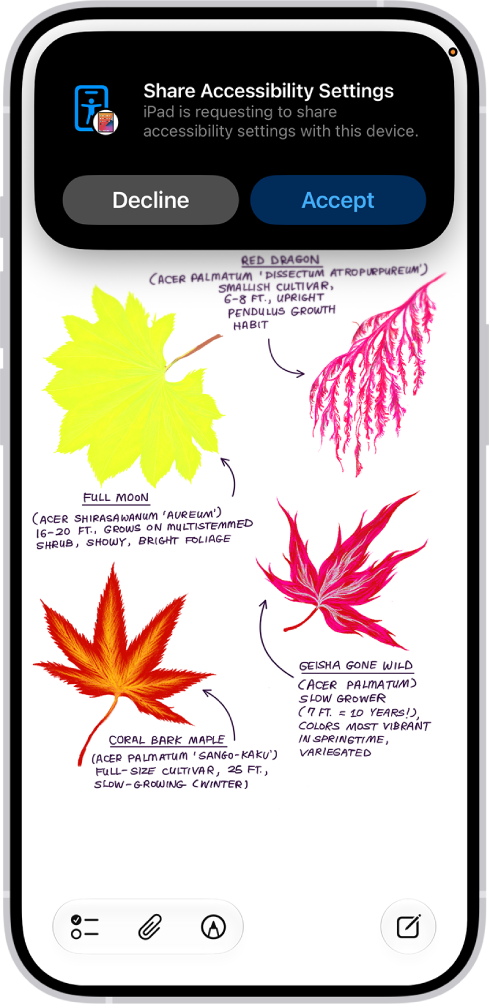
An iPhone showing a notification that Danny’s iPhone is requesting to share accessibility settings.

Share your Accessibility settings with another device

  1. Open the Settings app on your iPhone.
  2. Tap Accessibility, then tap Share Accessibility Settings. (You may need to scroll down.)
  3. Tap Share Accessibility Settings, then tap Continue.
  4. Make sure both devices have Bluetooth and Wi-Fi turned on and then do one of the following:
    • Select a device: Tap a device in your contacts or a device signed in to your iCloud account.
    • Bring your iPhone to another iPhone: Hold the top of your iPhone near the top of another iPhone.
    • Bring your iPhone to an iPad: Tap Search People Nearby and tap and hold the screen on the other device with three fingers to create a six-digit code. Enter the code on your device and select the name of the device.

Note: To hear the six-digit code spoken aloud, continue to tap and hold the screen on the other device with three fingers.

  1. Do either of the following on the other device to accept your request to share your accessibility settings:
    • Tap Accept.
    • Tap and hold the screen on the other device with three fingers.
  2. Start using the other device with your Accessibility settings.
  3. When you’re finished using the device, do any of the following:
    • iPhone models with a Dynamic Island: Tap the Accessibility button at the top of the screen and then tap Stop Sharing.
    • iPhone models without a Dynamic Island: Tap the Share Accessibility Settings button in the Status Bar. Then tap Stop Sharing.
    • All iOS models:
      • Lock your device and let it go to sleep.
      • Triple-click the side or home button.

Note: If you move more than 30 feet away from the device that has your Accessibility settings, the session ends automatically.

If you add Share Accessibility settings to your Control Center, you can start sharing directly from there.

Sync your Share Accessibility Settings to iCloud

Using different Accessibility settings on different devices? Sync your preferences to iCloud, and they’ll be available when you share Accessibility settings between devices. Say you sync your iPhone settings, then later share from your iPad to another iPhone: Your iPhone accessibility preferences can be used.

  1. Open the Settings app on your iPhone.
  2. Tap Accessibility, then tap Share Accessibility Settings. (You may need to scroll down.)
  3. Turn Sync to iCloud on or off.

In the Calendar app, you can share an iCloud calendar with other iCloud users. When you share a calendar, others can see it, and you can let them add or change events. You can also share a read-only version that anyone can view but not change.

You can change a person’s access to a shared calendar, and turn off notifications for shared calendars.

Here’s how to share iCloud calendars on iPhone.

Create an iCloud calendar

  1. Start the Calendar app on your iPhone.
  2. Tap the Calendars button.
  3. Tap Add Calendar.
  4. Tap Add Calendar, enter a name for the new calendar, and tap the Done button.

If iCloud isn’t your default calendar, tap Accounts, then tap iCloud.

Share an iCloud calendar

Share a calendar in iCloud with one or more people, and each person you invite receives an invitation to join it.

  1. Start the Calendar app on your iPhone.
  2. Tap the Calendars button.
  3. Tap the Info button next to the iCloud calendar you want to share.
  4. Tap Add Person and enter a name or email address, or tap the Add button to browse your contacts.

Note: To share an iCloud calendar with your contacts, they need an email address.

Tap the Done button.

Change a person’s access to a shared calendar

After you invite someone to share your calendar, you can turn their ability to edit the calendar on or off, or stop sharing the calendar with them entirely.

  1. Start the Calendar app on your iPhone.
  2. Tap the Calendars button and tap the Info button next to the shared calendar. Tap the person’s name.
  3. Do any of the following:
    • Turn Allow Editing on or off.
    • Tap Delete.

Turn off notifications for shared calendars

When someone modifies a calendar you’re sharing, you get notified of the change. You can turn off those notifications if you don’t want them.

  1. Start the Settings app on your iPhone.
  2. Tap Notifications and tap Calendar.
  3. Tap Customize Notifications, then turn off Shared Calendar Changes.

Share a read-only calendar with anyone

  1. Start the Calendar app on your iPhone.
  2. Tap the Calendars button then tap the Info button next to the iCloud calendar you want to share.
  3. Turn on Public Calendar. Then tap Share Link to copy or send the URL for your calendar.
  4. Choose a method for sending the URL—Messages, Mail, and so on.

Anyone you send the URL to can subscribe to the calendar in a compatible app, like Calendar for macOS.

Delete a calendar

  1. Start the Calendar app on your iPhone.
  2. Tap the Calendars button.
  3. Tap the Info button next to the iCloud calendar you want to delete.
  4. Tap Delete Calendar at the bottom of the list.

There are multiple ways to transfer photos, videos, and other files between your iPhone and other devices like an iPad, Mac, or Windows device.

You can transfer files wirelessly with features like AirDrop or apps like Mail and Messages, or you can connect your iPhone to a computer or an external storage device with a cable, and then transfer or sync files. You can also use iCloud to store your files, photos, videos, and more, and keep everything up to date on all your devices where you’re signed in to the same Apple Account.

Important: Transferring, sharing, or syncing may be restricted for some types of data, such as files saved in an app’s proprietary format, files saved in older software versions, and files protected by copyrights.

Transfer files from your iPhone wirelessly

You can use AirDrop to quickly share a file, photo, or other item from your iPhone with a nearby Apple device.

Another way to transfer files from your iPhone to another device is to send the file as an attachment in the Mail or Messages app.

Transfer files by connecting your iPhone with a cable

With a cable, you can connect your iPhone to your Mac or Windows device to transfer files to a file server, an external storage device, or your computer. To transfer files to your Mac or Windows device, you’ll use the Finder, Apple Devices, or iTunes, depending on your computer’s model and operating system.

Note: You can only transfer files from iPhone apps that support file sharing.

Sync your iPhone with other devices

Connecting your iPhone to your Mac or Windows device also lets you sync supported content, such as music, movies, TV shows, and more. Say you add a movie to your iPhone. When you sync, that movie appears on your computer, too.

Syncing files to your Mac or Windows device works through the Finder, Apple Devices, or iTunes. The one you need depends on the model and operating system of your computer.

  • Sync content with your Mac (macOS 10.15 or later): Use the Finder.
  • Sync content with your Windows device (Windows 10 or later): Use Apple Devices for Windows.
  • Sync content with your Mac (macOS 10.14 or earlier) or Windows device (Windows 7 or earlier): Use iTunes.

Automatically keep your files in sync with iCloud

When you store your files, photos, videos, and more in iCloud, you can access them on all your devices and supported web browsers and keep them in sync. Change a file on a device signed in to your Apple Account, and that change shows up on every device signed in to the same Apple Account.

Note: You’ll need OS X 10.10 (or later) or Windows 7 (or later). Your iPhone, your computer, and any supported web browsers you might be using also need to be signed in to the same Apple Account.

Tags: Files, iCloud