Got a tip for us?

iCloud

You can use iCloud Photos to keep your photos and videos securely stored in iCloud. If you turn on iCloud Photos on all your devices, you can see the photos and videos you took on iPhone on any device.

When iCloud Photos is turned on, the photos and videos you take are uploaded automatically and stored in their original format at full resolution. Any changes you make to your photo collection on one device are reflected on your other devices, too. You can check whether your photos are syncing right from the Photos app.

Here’s how to back up and sync your photos and videos with iCloud.

Note: Make sure that you’re signed in to the same Apple Account on all your devices, and that your devices meet these minimum system requirements: iOS 8.3, iPadOS 13.1, macOS 10.10.3, or later, or a Windows device with iCloud for Windows 7.x or later.

Turn on iCloud Photos

  1. Open the Settings app on your iPhone.
  2. Tap your name, then tap iCloud.
  3. Tap Photos and turn on Sync this iPhone.

When you take a photo or video, iCloud automatically uploads it, so your photos stay backed up and in sync. You can access your library from any device, anytime.

Check if your photos and videos are backed up to iCloud

To make sure you have copies if something happens to your iPhone, check that iCloud Photos is syncing your photos to iCloud.

  1. Open the Photos app on your iPhone.
  2. Tap Collections.
  3. In the top-right corner of the screen, you can see a preview of your syncing status. You may see any of the following:
    • Yellow badge: iCloud syncing is paused. Tap your account icon to see the details.
    • Yellow warning icon: Your iCloud storage is almost full. Tap your account icon to see the details.
    • Red exclamation mark: Your iCloud storage is full.
    • Blue badge: You have notifications from a shared library or shared album. Tap your account icon to see the details.
    • Partially filled blue circle around your account icon: Photos are actively uploading to iCloud. Tap your account icon to see the details.
    • Partially filled gray outline around your account icon: Uploads are paused. Tap your account icon to see the details.
  4. Tap your account to see more details. The last time your iPhone synced with iCloud appears below the account profile.

Note: If iCloud sync is in progress or paused, a notification also appears in the upper-left corner of the library.

Sync iCloud Photos immediately

Once you turn on Sync Immediately, iCloud Photos prioritizes syncing items added to your library after that.

  1. Open the Photos app on your iPhone.
  2. Tap Collections. Tap your iCloud account profile at the top of the screen.
  3. Tap Sync Immediately, then tap For Today.

To turn off syncing, tap Off. Sync Immediately automatically turns off after one day.

Note: Sync Immediately may affect battery and cellular usage and will pause if Low Power Mode or Low Data Mode is turned on.

Turn off Optimize Storage on your iPhone

To make the most of the storage space on your iPhone, iCloud Photos offers Optimize iPhone Storage. When it’s on, iCloud stores all your full‑resolution photos and videos in their original formats, and your iPhone keeps storage-saving versions. Optimize iPhone Storage is on by default, but you can turn it off.

  1. Open the Settings app on your iPhone.
  2. Tap your name, then tap iCloud.
  3. Tap Photos, tap iPhone Storage, and then tap Download and Keep Originals.

Get more iCloud storage

You can upgrade to iCloud+ for more storage and additional features if your uploaded photos and videos exceed your storage plan.
Tags: iCloud, Photos

After you set up or join an iCloud Shared Photo Library, you can share photos and videos with friends and family in the Photos app. You and up to five other participants can add photos and videos to the library, and any edits, comments, or other adjustments made to them are seen by everyone in real time.

Content in a shared library is also added to everyone’s memories, featured photos, and the Photos widget. And because shared photos and videos are separate from your personal library, you can switch between viewing the shared library, your personal library, or both. When you view both, content that’s part of the shared library has a badge on its thumbnail.

Switch between viewing your iCloud Shared Photo Library and personal library

  1. Start the Photos app on your iPhone.
  2. Make sure Library is selected.
  3. Tap the Sort and Filter button and select the following:
    • View your Photos content and iCloud Shared Photo Library content: Tap Both Libraries.
    • View only your personal Photos content: Tap Personal Library.
    • View only iCloud Shared Photo Library content: Tap Shared Library.

Viewing both your personal and shared library? Anything that’s part of the shared library shows a badge in the top-right corner of its thumbnail.

Make edits and changes to content in an iCloud Shared Photo Library

All participants see these changes when you make them to photos and videos in an iCloud Shared Photo Library:

  • Edits.
  • Favorites, captions, keywords, or date and time adjustments.
  • Deleted content.

Note: If someone deletes content you added to the shared library, you get a notification. To turn off these notifications, in Photos tap your account in the top-right corner of the screen, tap Shared Library, and then turn off Deletion Notifications. You can also move deleted content you added from Recently Deleted back to your personal library within 30 days.

Move shared content from an iCloud Shared Photo Library to your personal library

Photos stored in your shared library carry a badge in their top-right corner. If you contributed photos and videos to the shared library, you can move them back to your personal library.

  1. Start the Photos app on your iPhone.
  2. Open a photo or video in your shared library.
  3. Tap the More button at the top of the screen. Tap Move to Personal Library.

Add storage space to your iCloud Shared Photo Library

All participants can access the content in an iCloud Shared Photo Library, but the iCloud storage it uses counts against the library organizer’s storage space.

When the shared library content goes beyond the organizer’s available storage space, the organizer can upgrade to iCloud+ or add more storage to their existing iCloud+ subscription.

Tags: iCloud, Photos

Some website and app sign-in screens require you to pass CAPTCHA challenges, such as recognizing letters in unusual shapes. iCloud allows you to bypass many challenges by automatically and privately verifying your iPhone and account. It’s called Automatic Verification, and you can turn this bypass on or off.

  1. Start the Settings app on your iPhone.
  2. Tap your name and tap Sign-In & Security.
  3. Turn Automatic Verification on or off.
Tags: iCloud, iPhone

You can use Private Browsing Mode, view the Privacy Report, and adjust settings in the Safari app to keep your browsing activities private and help protect yourself from malicious websites.

Tabs you open in Private Browsing don’t appear in History on iPhone or in the tab list on your other devices, even if you’re signed in to the same Apple Account. And if you have a passcode set, Private Browsing locks when it’s not in use.

Here’s how to browse the web privately in Safari on iPhone.

Visit sites privately

Private tabs you open with Private Browsing stay out of History on iPhone and out of the list of tabs on your other devices. Signing in to the same Apple Account doesn’t change that: tabs in Private Browsing aren’t shared with your other Apple devices.

Private Browsing locks when it’s not in use if your iPhone has a passcode set, though it may not lock immediately.

  1. Open the Safari app on your iPhone.
  2. Tap the Tabs button.
  3. Swipe right on the tab bar at the bottom of the screen until Private Browsing opens. Then tap Unlock.

To exit Private Browsing, tap the Tabs button, then swipe left to open a Tab Group from the menu at the bottom of your screen. The websites you have open in Private Browsing stay open, and Private Browsing locks.

To allow Private Browsing to be locked, go to Settings > Apps > Safari, then turn on Require Passcode to Unlock Private Browsing, Require Face ID to Unlock Private Browsing (supported models), or Require Touch ID to Unlock Private Browsing (supported models).

Note: Any Safari extensions you have installed that have access to browsing data are automatically turned off in Private Browsing.

Choose a search engine for Private Browsing

  1. Open the Settings app on your iPhone.
  2. Tap Apps, then tap Safari.
  3. Turn off Also Use in Private Browsing.
  4. Tap Private Search Engine, then choose a search engine.

View the Privacy Report

Safari helps keep trackers from following you across websites and viewing your IP address. On the current webpage you’re visiting, the Privacy Report shows a summary of trackers that Intelligent Tracking Prevention has encountered and prevented. Reviewing and adjusting Safari settings can also keep your browsing activities private from others who share the device, and it helps protect you from malicious websites.

  1. Open the Safari app on your iPhone.
  2. Tap the Page Menu button and tap Privacy & Security.
  3. Tap Privacy Report.

Use iCloud Private Relay to browse the web with more privacy

With an iCloud+ subscription, iCloud Private Relay can help stop websites and network providers from creating a detailed profile about you. Once it’s turned on, your iPhone’s traffic is encrypted and sent through two separate internet relays. So websites can’t see your IP address and exact location, and network providers can’t collect your browsing activity in Safari.

See Protect your web browsing with iCloud Private Relay to learn how to:

  • Turn iCloud Private Relay completely on or off for your iPhone.
  • Turn iCloud Private Relay on or off for a specific Wi-Fi or cellular network.
  • Turn iCloud Private Relay off temporarily.
  • Set the specificity of your IP address location.

Note: iCloud Private Relay isn’t available in all countries or regions.

Temporarily allow a website to see your IP address

A website that relies on IP filtering, monitoring, or rate-limiting might require your IP address to be visible. You can temporarily turn off iCloud Private Relay for that website only.

  1. Open the Safari app on your iPhone.
  2. On the website, tap the Page Menu button on the left side of the search field and then tap Privacy & Security.
  3. Tap Show IP Address.

Until you leave the website or close its Safari tab, your IP address remains visible to it. For other websites, iCloud Private Relay remains on.

Control privacy and security settings for Safari

  1. Open the Settings app on your iPhone.
  2. Tap Apps, then tap Safari.
  3. Turn any of the following on or off:
    • Prevent Cross-Site Tracking: Safari limits third-party cookies and data by default. Turn this option off to allow cross-site tracking.
    • Hide IP address: Safari automatically protects your IP address from known trackers. For eligible iCloud+ subscribers, your IP address is protected from trackers and websites as you browse in Safari. If this option is off, your IP address isn’t hidden.
    • Fraudulent Website Warning: Safari displays a warning if you’re visiting a suspected phishing website. Turn this option off if you don’t want to be warned about fraudulent websites. (Not available in all countries or regions.)
    • Camera: Choose whether Safari websites can use your camera without asking you first. Tap Camera and choose Ask, Deny, or Allow.
    • Microphone: Choose whether Safari websites can use your microphone without asking you first. Tap Microphone, then choose Ask, Deny, or Allow.
    • Location: Choose whether Safari websites can use your location without asking you first. Tap Location and then choose Ask, Deny, or Allow.

To set exceptions for a specific website, open the website in the Safari app, tap the Page Menu button, tap Website Settings, then tap the setting you want to change below Website Settings For.

Tags: iCloud, Safari

To keep your contact information up to date across all your devices where you’re signed in to your Apple Account, you can use iCloud. With iCloud, your contacts stay up to date automatically. You can also sync the information between iPhone and your Mac or Windows device instead.

  1. Open Settings, tap [your name], and then tap iCloud.
  2. Tap See All next to Saved to iCloud and turn on Contacts.

To keep the information current across iPhone and your computer, you can sync it between iPhone and your Mac or Windows device instead.

Using iCloud for Contacts keeps your contacts up to date automatically, so options for syncing them with your computer don’t appear.

You can create your own watchlists to organize the stocks you follow. For example, you could organize them according to categories such as entertainment or sustainability. You can switch between watchlists, and view them on your other devices.

It’s all up to you. You can add or remove symbols, rearrange or sort them, and change the value displayed in a watchlist, and you can reorder, rename, or remove watchlists whenever you like.

Here’s how to manage watchlists in Stocks on iPhone.

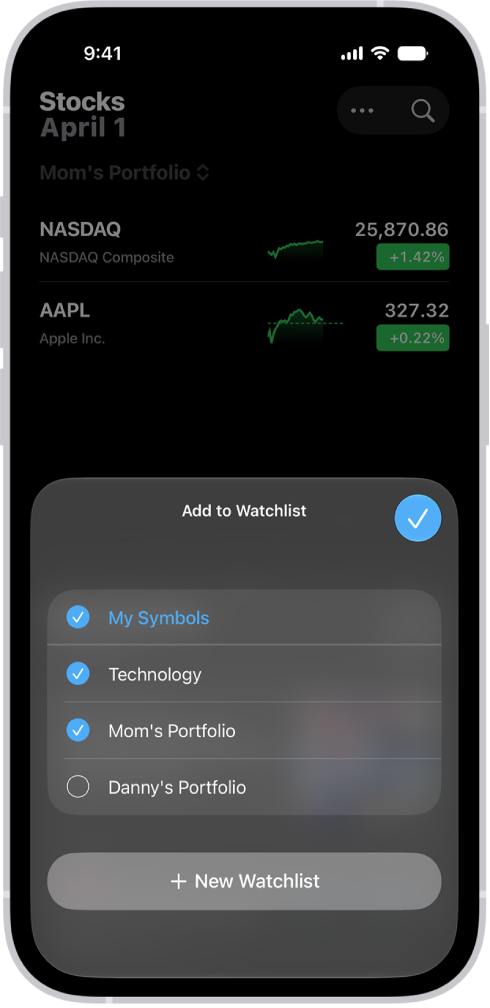
A list of customized watchlists in the Stocks app: My Symbols, Mom’s Portfolio, Sustainability, and Entertainment.

Create a new watchlist

  1. Start the Stocks app on your iPhone.
  2. Tap the More button, then tap New Watchlist.
  3. Name the watchlist, then tap Save.

To switch between watchlists, tap the Watchlist menu next to the name of the current watchlist you’re viewing, then tap the name of the watchlist you want to see.

Add symbols to a watchlist

  1. Start the Stocks app on your iPhone.
  2. In any watchlist, tap the Search button and then enter the name of a ticker symbol, company, fund, or index in the search field.
  3. Tap the Add button next to the symbol in the search results.
  4. Tap the Close button.

Quick tip: To add a symbol to another watchlist as well, swipe left on it, tap Lists, choose the watchlist you want, then tap the Done button.

Any symbol you add to a watchlist also goes into the My Symbols watchlist.

Remove symbols from a watchlist

  1. Start the Stocks app on your iPhone.
  2. In any watchlist, swipe left on the symbol and tap Remove.

Note: Removing a symbol from a watchlist you created leaves it in the My Symbols watchlist. But if you remove a symbol from the My Symbols watchlist, it’s also removed from your other watchlists.

Rearrange or sort symbols in a watchlist

The symbols in your watchlists can be sorted however you choose.

  1. Start the Stocks app on your iPhone.
  2. In the watchlist you want to sort, do any of the following:
    • Rearrange a watchlist manually: Touch and hold a symbol. Then drag to place it elsewhere in the list.
    • Sort a watchlist automatically: Tap the More button, tap Sort Watchlist By, and tap how you want to sort the list. To return to manual order after automatically sorting, tap Manual.

To reverse the order of the symbols in an automatically sorted watchlist, tap the More button, tap Sort Watchlist By, then tap Ascending or Descending.

Change the value displayed in a watchlist

Below each symbol’s price in a watchlist, you can change the value that’s displayed.

  1. Start the Stocks app on your iPhone.
  2. In any watchlist, tap the More button.
  3. Tap Watchlist Shows and choose one of the following options:
    • Price Change
    • Percentage Change
    • Market Cap

Tap Currency to show or hide the currency for each symbol in the watchlist.

Note: Any change you make to the currency display applies everywhere in the app.

Reorder, rename, or remove watchlists

  1. Start the Stocks app on your iPhone.
  2. Tap the Menu button next to the name of the watchlist and tap Manage Watchlists. Then do any of the following:
    • Reorder your watchlists: Touch and hold the Reorder button and then drag the watchlist to a new position.
    • Rename a watchlist: Tap the Pencil button, enter a new name, and then tap Save.
    • Remove a watchlist: Tap the Delete button, tap Delete Watchlist, and then tap Delete Watchlist to confirm.
  3. Tap the Done button.

View your watchlists on all your devices

Any iPhone, iPad, or Mac signed in to the same Apple Account can show your watchlists.

  • On your iPhone or iPad: Go to Settings > [your name] > iCloud, tap See All (next to Saved to iCloud), then turn on Stocks.
  • On a Mac with macOS 13 or later: Choose Apple menu > System Settings, click your name at the top of the sidebar, click iCloud, then turn on Stocks.
Tags: iCloud, Stocks

When you subscribe to iCloud+, you can use iCloud Private Relay to help prevent websites and network providers from creating a detailed profile about you. When it’s on, the traffic leaving your iPhone is encrypted and sent through two separate internet relays.

That keeps websites from seeing your IP address and exact location, and keeps network providers from collecting your browsing activity in Safari. You can turn it on or off for a specific Wi-Fi or cellular network, too, and set the specificity of your IP address location.

Note: iCloud Private Relay isn’t available in all countries or regions.

Turn iCloud Private Relay on

Go to Settings > [your name] > iCloud > Private Relay, then tap Private Relay.

Note: You need to turn on iCloud Private Relay on each device where you want to use it.

Turn iCloud Private Relay off

  1. Open Settings, tap [your name], tap iCloud, tap Private Relay, and tap Private Relay.
  2. Do one of the following:

    • Turn off iCloud Private Relay temporarily: Tap Turn Off Until Tomorrow.

      Within 24 hours, iCloud Private Relay will turn back on automatically. If you want it to resume sooner, follow the instructions for turning it on at any time.

    • Turn off iCloud Private Relay completely: Tap Turn Off Private Relay.

Turn iCloud Private Relay on or off for a Wi-Fi network

  1. Open Settings and then tap Wi-Fi.
  2. Tap the Actions Available button. Turn Limit IP Address Tracking on or off.

Turning off Limit IP Address Tracking on your iPhone for a Wi-Fi network turns off iCloud Private Relay for that network on every device where you’re signed in to the same Apple Account.

Turn iCloud Private Relay on or off for a cellular network

  1. Open Settings and tap Cellular. Do one of the following:
    • If your iPhone has a single line: Tap Cellular Data Options.
    • If your iPhone has multiple lines: Select a line (below SIMs).
  2. Turn Limit IP Address Tracking on or off.

On your iPhone, the network setting is specific to a physical SIM or eSIM. According to Apple, eSIM isn’t available in all countries or regions.

Set the specificity of your IP address location

Go to Settings > [your name] > iCloud > Private Relay > IP Address Location, then choose one of the following:

  • Maintain General Location (for example, to see local content in Safari)
  • Use Country and Time Zone (to make your location more obscure)
Tag: iCloud

By default, iCloud secures your information by encrypting it when it’s in transit, storing it in an encrypted format, and securing your encryption keys in Apple data centers. Advanced Data Protection goes further.

Many Apple services already use end-to-end encryption, where your information is encrypted using keys derived from your devices and your device passcode, which only you know. With Advanced Data Protection, you get the highest level of cloud data security, plus end-to-end encryption on more data categories, like device backup, iCloud Drive, Notes, and Photos.

For the highest level of cloud data security, you can turn on Advanced Data Protection (iOS 16.2 or later required). It uses end-to-end encryption on more data categories such as the following:

  • Device backup
  • Messages backup
  • iCloud Drive
  • Notes
  • Photos
  • Reminders
  • Safari bookmarks
  • Siri Shortcuts
  • Voice Memos
  • Wallet passes

With Advanced Data Protection, your protected data, Apple says, can be decrypted only on your trusted devices, protecting your information even in the case of a data breach in the cloud. Not even Apple can access your information.

Turn on Advanced Data Protection

  1. Open Settings, tap [your name], tap iCloud, and tap Advanced Data Protection.
  2. Tap Turn On Advanced Data Protection.
  3. If you haven’t set up a Recovery Contact or Recovery Key, tap Account Recovery, tap Set Up Account Recovery, and then follow the onscreen instructions.

WARNING: If you use Advanced Data Protection, you’re responsible for your data recovery. Because Apple won’t have the keys required to recover your data, you’ll need to have a Recovery Contact or Recovery Key set up on your account. You can use these additional recovery methods to regain access to your data if you ever forget your password or lose access to your account.

If you turn off Advanced Data Protection later, your iCloud data goes back to the standard level of security.

Tag: iCloud

iCloud+ gives you everything iCloud offers plus premium features including Apple Invites, iCloud Private Relay, Hide My Email, HomeKit Secure Video support, and all the storage you need for your photos, files, and more.

You can subscribe to iCloud+ or to Apple One, which includes iCloud+ and other Apple services. You can also upgrade, change, or cancel your iCloud+ subscription, and share iCloud+.

Here’s how to subscribe to iCloud+ on iPhone.

Note: Some iCloud+ features have minimum system requirements. The availability of iCloud+ and its features varies by country or region.

What’s included with iCloud+

When you subscribe to iCloud+, here’s what you can do on iPhone:

  • Get 50 GB, 200 GB, 2 TB, 6 TB, or 12 TB (depending on your plan) of storage for photos, files, backups, and more.
  • Create and share custom invitations for your events.
  • Create unique, random email addresses that forward to your personal inbox with Hide My Email.
  • Browse the web in an even more secure and private way with iCloud Private Relay.
  • Set up home security cameras with HomeKit Secure Video so you can view your footage from anywhere while keeping it private and secure.
  • Use a custom email domain to personalize iCloud Mail.

Upgrade, change, or cancel your iCloud+ subscription

  1. Open the Settings app on your iPhone.
  2. Tap your name, then tap iCloud.
  3. Tap Storage and tap Manage Plan. Follow the onscreen instructions.

Note: Canceling your iCloud+ subscription means you’ll lose access to the additional iCloud storage and iCloud+ features.

Share iCloud+

With Family Sharing, you can share iCloud+ with up to five other family members. Once they accept your invitation to share iCloud+, they get instant access to the extra storage and features.

Note: Sharing iCloud+ with a family group stops if you cancel the subscription, leave the family group, or turn off or leave Family Sharing.

Tag: iCloud

Your iMessage texts appear in blue bubbles, while SMS, MMS, or RCS messages appear in green bubbles. It’s an easy way to tell them apart. Before you start texting, you can turn on iMessage, sync messages on all your Apple devices, choose other devices for SMS, MMS, or RCS messaging, and share your name and photo.

The Messages app gives you several different ways to send text messages:

  • Over Wi-Fi or cellular service, using iMessage with others who also use iMessage. Your iMessage texts appear in blue bubbles.
  • Over cellular service with SMS, MMS, or RCS messages, which appear in green bubbles. (RCS messages aren’t supported by all carriers or in all countries or regions.)
  • Over satellite when you’re outside of cellular and Wi-Fi coverage, using iMessage or SMS on supported iPhone models and certain carriers (U.S., Canada, and Mexico only).

Turn on iMessage

  1. Open the Settings app on your iPhone.
  2. Tap Apps, then tap Messages.
  3. Turn on iMessage.

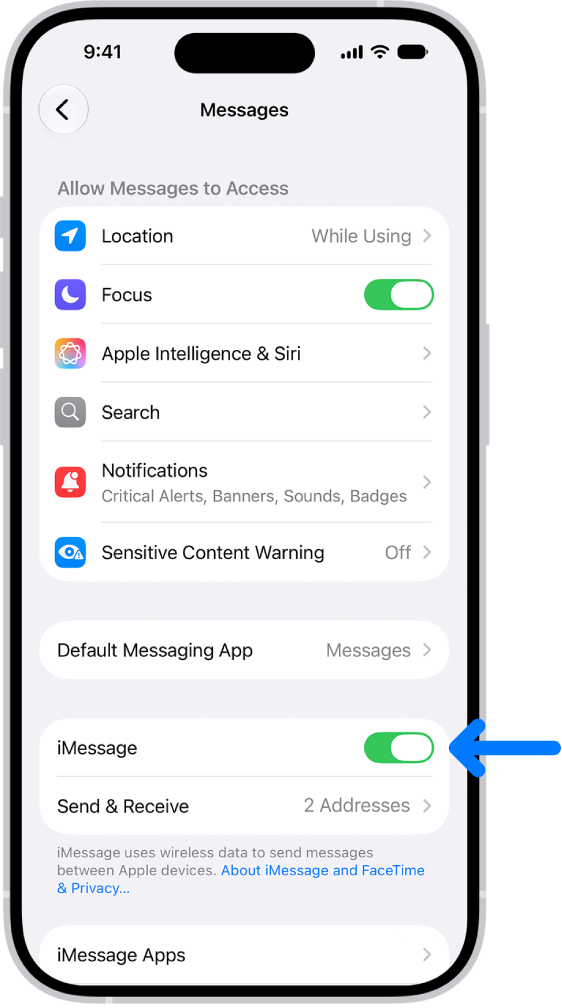
    The Messages settings pane with iMessage turned on.

  4. To select which of your phone numbers and email addresses you want to use with iMessage, tap Send & Receive and choose from the available options below You can receive iMessages to and reply from.

Sync messages on all your Apple devices

Turn on Messages in iCloud, and iCloud saves the messages you send and receive on your iPhone. Once another device is signed in to the same Apple Account with Messages in iCloud turned on, your conversations show up and sync there as well. Your entire message history stays current on those devices, even on a new device you set up, including messages sent or received with SMS, MMS, RCS, or iMessage.

  1. Make sure that your iPhone is turned on and connected to a Wi-Fi or cellular network, and that you sign in to the same Apple Account on each device.
  2. Open the Settings app on your iPhone.
  3. Tap your name and tap iCloud. Tap Messages.

    If Messages doesn’t appear, tap See All in the Saved to iCloud section.

  4. Turn on Use on this iPhone (if it’s not already turned on).
  5. To confirm which devices receive any SMS, MMS, or RCS text messages you get on your iPhone, go to Settings, tap Apps, and then tap Messages. Tap Text Message Forwarding and turn on your other devices.

Once Messages in iCloud is on, deleting messages or attachments from iPhone also deletes them from your other Apple devices where Messages in iCloud is turned on (visionOS 1, watchOS 1, macOS 10.13.5, iPadOS 13, iOS 11.4, or later).

Note: Messages in iCloud uses iCloud storage.

Choose other devices for SMS, MMS, or RCS messaging

With text message forwarding set up on your iPhone, your other Apple devices show messages you send or receive, without needing Messages in iCloud.

Note: Availability varies by region and carrier.

  1. Open the Settings app on your iPhone.
  2. Tap Apps, then tap Messages.
  3. Tap Text Message Forwarding, then turn on any devices you want to include.

    If your iPhone is set up with Dual SIM, turn on each line.

Note: If you’re not using two-factor authentication, you’ll have to enter the six-digit activation code shown on the other device.

Share your name and photo

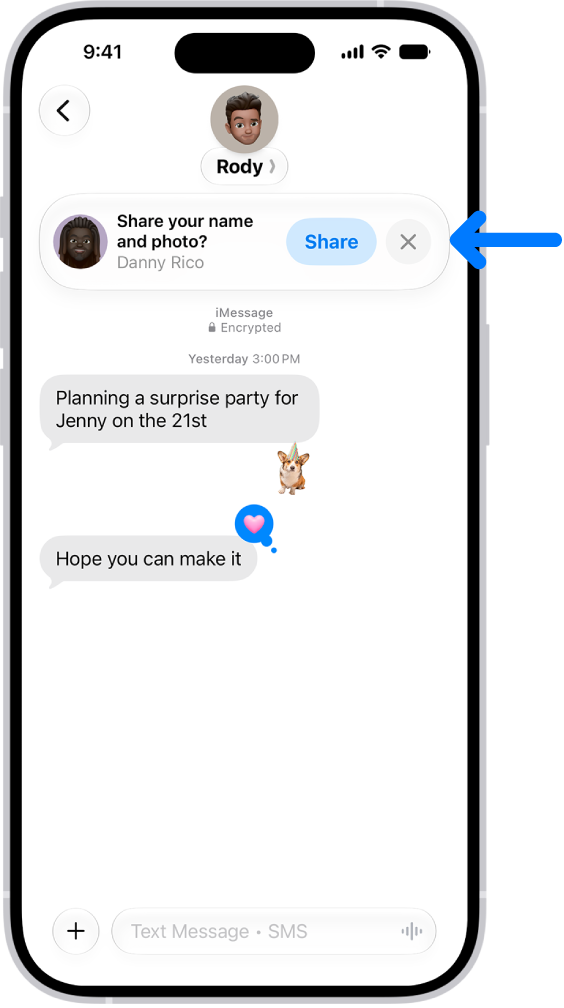
In Messages, you can share your name and photo** with others. You decide whether to share it whenever you send or receive a message from someone new.

A conversation in Messages. A notification appears at the top asking whether the user’s name and photo should be shared with the other person in the conversation.

  1. Open the Messages app on your iPhone.
  2. Do one of the following:
    • At the top of the conversation list, tap Edit, then tap Set Up Name & Photo.
    • Swipe up to the top of the conversation list, then tap Share Your Name & Photo.
  3. Choose how you want to be represented, scroll down, and then turn on Name and Photo Sharing.
  4. Tap Share Automatically and then choose one of the following:
    • Contacts Only: Anyone who is a saved contact receives the option of using the name and image you chose when they communicate with you.
    • Always Ask: You decide to share your name and photo as you communicate with each contact.
  5. Tap the Done button to save your changes.

To change these settings after you set them up, tap Edit, then tap Name & Photo.

Note: Recipients using non-Apple devices may not see your name and photo as expected.

**Availability varies by region.