Got a tip for us?

iCloud

You can delete the password you use to sign in to a website or app on your iPad. You just find the account for the password you want to delete in the Passwords app and delete it. That doesn’t remove your password from the website or app where you created it, though.

  1. Go to the Passwords app on your iPad.
  2. Tap All, then tap the account for the password you want to delete.
  3. Tap Edit.
  4. Tap Delete and then tap Delete Password to confirm.

Note: The password stays on the website or app where you created it.

See also

You can use iCloud Photos to keep your photos and videos securely stored in iCloud. If you turn on iCloud Photos on all your devices, you can see the photos and videos you took on iPad on any device, and you can also access them in a web browser.

When it’s on, the photos and videos you take are uploaded automatically and stored in their original format at full resolution. Changes you make on one device show up on your other devices, too.

Note: Make sure that you’re signed in to the same Apple Account on all your devices, and that your devices meet these minimum system requirements: iOS 8.3, iPadOS 13.1, macOS 10.10.3, or later, or a Windows device with iCloud for Windows 7.x or later.

Turn on iCloud Photos

  1. Open the Settings app on your iPad.
  2. Tap your name, then tap iCloud.
  3. Tap Photos, then turn on Sync this iPad.

iCloud uploads every photo and video you take automatically, keeping your photos backed up and in sync. Your library is then available from any device, anytime.

Check if your photos and videos are backed up to iCloud

To make sure you’ll have copies if something happens to your iPad, check that iCloud Photos is syncing your photos to iCloud. Paused syncing means your photos aren’t being backed up to iCloud.

  1. Open the Photos app on your iPad.
  2. Tap Collections.
  3. In the top-right corner of the screen, you can see a preview of your syncing status. You may see any of the following:
    • Yellow badge: iCloud syncing is paused. Tap your account icon to see the details.
    • Yellow warning icon: Your iCloud storage is almost full. Tap your account icon to see the details.
    • Red exclamation mark: Your iCloud storage is full. See Get more iCloud storage.
    • Blue badge: You have notifications from a shared library or shared album. Tap your account icon to see the details.
    • Partially filled blue circle around your account icon: Photos are actively uploading to iCloud. Tap your account icon to see the details.
    • Partially filled gray outline around your account icon: Uploads are paused. Tap your account icon to see the details.
  4. Tap your account to see more details. The last time your iPad synced with iCloud appears below the account profile.

Sync iCloud Photos immediately

iCloud Photos prioritizes syncing items that are added to your library after Sync Immediately is turned on.

  1. Open the Photos app on your iPad.
  2. Tap Collections. Tap your iCloud account profile at the top of the screen.
  3. Tap Sync Immediately, then tap For Today.

    To turn off syncing, tap Off. Sync Immediately automatically turns off after one day.

Note: Sync Immediately may affect battery and cellular usage and will pause if Low Power Mode or Low Data Mode are turned on.

Turn off Optimize Storage on your iPad

iCloud Photos can help you get the most from the storage space on your iPad. With Optimize iPad Storage on, your full-resolution photos and videos stay in iCloud in their original formats, while your iPad keeps storage-saving versions. Optimize iPad Storage starts out on, though you can turn it off.

  1. Open the Settings app on your iPad.
  2. Tap your name, then tap iCloud.
  3. Tap Photos and tap iPad Storage. Tap Download and Keep Originals.

Get more iCloud storage

If your uploaded photos and videos exceed your storage plan, you can upgrade to iCloud+ for more storage and additional features. See Subscribe to iCloud+.

See also

Tags: iCloud, Photos

When you subscribe to iCloud+, you can use Hide My Email to keep your personal email address private. With Hide My Email, you can generate unique, random email addresses that forward to your personal email account, so you don’t have to share your real email address when filling out forms on the web or signing up for newsletters.

If you don’t like the suggested address, you can get a new one, and you can delete a Hide My Email address at any time.

  1. When you’re asked for your email address on a website, tap the email address field.
  2. Tap Hide My Email above the keyboard.

    The Hide My Email screen suggests a new, randomly generated Hide My Email address.

  3. If you don’t want to use the suggested address, tap the Reload button to see a new suggested address.
  4. Tap Continue.

At any time, you can delete the Hide My Email address; read our guide, Create and manage Hide My Email in Settings.

See also

Tags: iCloud, Safari

All photos and videos you take with your iPhone camera are saved in the Photos app. With iCloud Photos turned on, all new photos and videos are automatically uploaded and available in Photos on all your devices that are set up with iCloud Photos (with iOS 8.1, iPadOS 13, or later).

You can see the photos you’ve taken recently right from Camera. You can also share and print your photos.

Note: If Location Services is turned on in Settings > Privacy & Security > Location Services, photos and videos are tagged with location data that can be used by apps and photo-sharing websites.

View your photos

  1. Open Camera on your iPhone.
  2. Tap the thumbnail image in the lower-left corner.
  3. Swipe left or right to see the photos you’ve taken recently.
  4. Tap the screen to show or hide the controls.
  5. Tap All Photos to see all your photos and videos saved in the Photos app.

Share and print your photos

  1. While viewing a photo on your iPhone, tap the Share button.
  2. To share your photo, select an option such as AirDrop, Mail, or Messages.
  3. To print your photo, swipe up to select Print from the list of actions.

Upload photos and keep them up to date across devices

Use iCloud Photos to upload photos and videos from your iPhone to iCloud and then access them on other devices where you’re signed in to the same Apple Account. iCloud Photos is useful if you want to keep your photos up to date across multiple devices or save space on your iPhone. To turn on iCloud Photos, go to Settings > Apps > Photos, then turn on iCloud Photos.

Tags: iCloud, Photos

You can back up iPhone using iCloud or your computer. iCloud backups store information and settings on your iPhone that don’t regularly sync to iCloud, including things like device settings, Home Screen layout, and app organization.

iCloud automatically backs up your iPhone daily when it’s connected to power, locked, and connected to Wi-Fi. You can also save a backup of your iPhone on your Mac or Windows device, and encrypt your backup data to protect it with a password.

Quick tip: If you replace your iPhone, you can use its backup to transfer your information to the new device.

Back up iPhone using iCloud

Things like device settings, Home Screen layout, and app organization don’t regularly sync to iCloud, so iCloud backups store that information.

  1. Start the Settings app on your iPhone.
  2. Tap [your name] and tap iCloud. Tap iCloud Backup.
  3. Turn on Back Up This iPhone.

    iCloud automatically backs up your iPhone daily when iPhone is connected to power, locked, and connected to Wi-Fi.

    Note: On models that support 5G, your carrier may give you the option to back up iPhone using your cellular network. Go to Settings > [your name] > iCloud > iCloud Backup, then turn Back Up Over Cellular on or off.

  4. To perform a manual backup, tap Back Up Now.

View available iCloud storage

  1. Start the Settings app on your iPhone.
  2. Tap [your name], then tap iCloud.

Both the amount of iCloud storage used and the amount available appear at the top of the screen.

Manage iCloud storage

For iCloud backups, you can view details such as the last backup, the apps included in the backup, and the next backup size.

  1. Start the Settings app on your iPhone.
  2. Tap [your name], then tap iCloud.
  3. Tap iCloud Backup, then tap your iPhone (This iPhone).
  4. To reduce the size of a backup, turn off the apps you don’t want to back up anymore; the apps’ existing backup data will also be deleted from iCloud.

Back up iPhone using your Mac

Your Mac can store a backup of your iPhone, too.

  1. Connect iPhone and your computer with a cable.
  2. In the Finder sidebar on your Mac, select your iPhone.

    To use the Finder to back up iPhone, macOS 10.15 or later is required. With earlier versions of macOS, use iTunes to back up iPhone.

  3. At the top of the Finder window, click General.
  4. Select Back up all of the data on your iPhone to this Mac.
  5. To encrypt your backup data and protect it with a password, select Encrypt local backup.
  6. Click Back Up Now.

    Note: You can also connect iPhone to your computer wirelessly.

Back up iPhone using your Windows device

  1. Connect iPhone and your computer with a cable.
  2. In the iTunes app on your Windows device, click the iPhone button near the top left of the iTunes window.
  3. Click Summary.
  4. Click Back Up Now (below Backups).
  5. To encrypt your backups, select “Encrypt local backup,” type a password and click Set Password.

To see the backups stored on your computer, choose Edit > Preferences, then click Devices. Encrypted backups have a lock icon in the list of backups.

Note: You can also connect iPhone to your computer wirelessly.

Tags: iCloud, iPhone

By default, iCloud encrypts your information in transit, stores it in an encrypted format, and secures your encryption keys in Apple data centers. Many Apple services also use end-to-end encryption, with keys derived from your devices and your device passcode, which only you know.

With Advanced Data Protection, your protected data can be decrypted only on your trusted devices, protecting your information even in the case of a data breach in the cloud. Not even Apple can access your information.

For the highest level of cloud data security, you can turn on Advanced Data Protection (iPadOS 16.2 or later required). It uses end-to-end encryption on more data categories such as the following:

  • Device backup
  • Messages backup
  • iCloud Drive
  • Notes
  • Photos
  • Reminders
  • Safari bookmarks
  • Siri Shortcuts
  • Voice Memos
  • Wallet passes

Turn on Advanced Data Protection

  1. Open Settings, tap [your name], tap iCloud, and tap Advanced Data Protection.
  2. Tap Turn On Advanced Data Protection.
  3. If you haven’t set up a Recovery Contact or Recovery Key, tap Account Recovery, tap Set Up Account Recovery, and then follow the onscreen instructions.

    WARNING: If you use Advanced Data Protection, you’re responsible for your data recovery. Because Apple won’t have the keys required to recover your data, you’ll need to have a Recovery Contact or Recovery Key set up on your account. You can use these additional recovery methods to regain access to your data if you ever forget your password or lose access to your account.

Should you turn off Advanced Data Protection later, your iCloud data returns to the standard level of security.

Tag: iCloud

You can view the tabs that are open on your other Apple devices and keep tabs and Tab Groups updated across them. You must be signed in to iCloud with the same Apple Account on all your devices to manage Safari tabs on those devices.

You can even close a tab on another Apple device. To see tabs open on your Mac, too, Safari needs to be on in iCloud on your Mac, with two-factor authentication.

View tabs that are open on your other Apple devices

  1. Start the Safari app on your iPhone.
  2. Tap the Tabs button.
  3. Tap the Add button. Scroll to see the tabs open on your other devices at the bottom of the start page.

To close a tab on another Apple device, touch and hold the link, then choose Close. Note: To view tabs open on your other devices, you must have iCloud Tabs turned on for your start page.

Keep tabs and Tab Groups updated across your devices

  1. Start the Settings app on your iPhone.
  2. Tap your name, then tap iCloud.
  3. Tap See All and then make sure Safari is turned on.

Note: Tabs open on your Mac show up here too, as long as Safari is turned on in iCloud settings on your Mac, you’re signed in to the same Apple Account, and you use two-factor authentication.

Tags: iCloud, Safari

You can use iPhone as a portable recording device to record personal notes, classroom lectures, musical ideas, and more, using the built-in microphone, a supported headset, or an external microphone. You can fine-tune your recordings with editing tools like trim, replace, and resume.

When Voice Memos is turned on in iCloud settings, your recordings appear and update automatically on your iPhone, iPad, and Mac signed in to the same Apple Account. You can also filter out background sounds and record in stereo or mono.

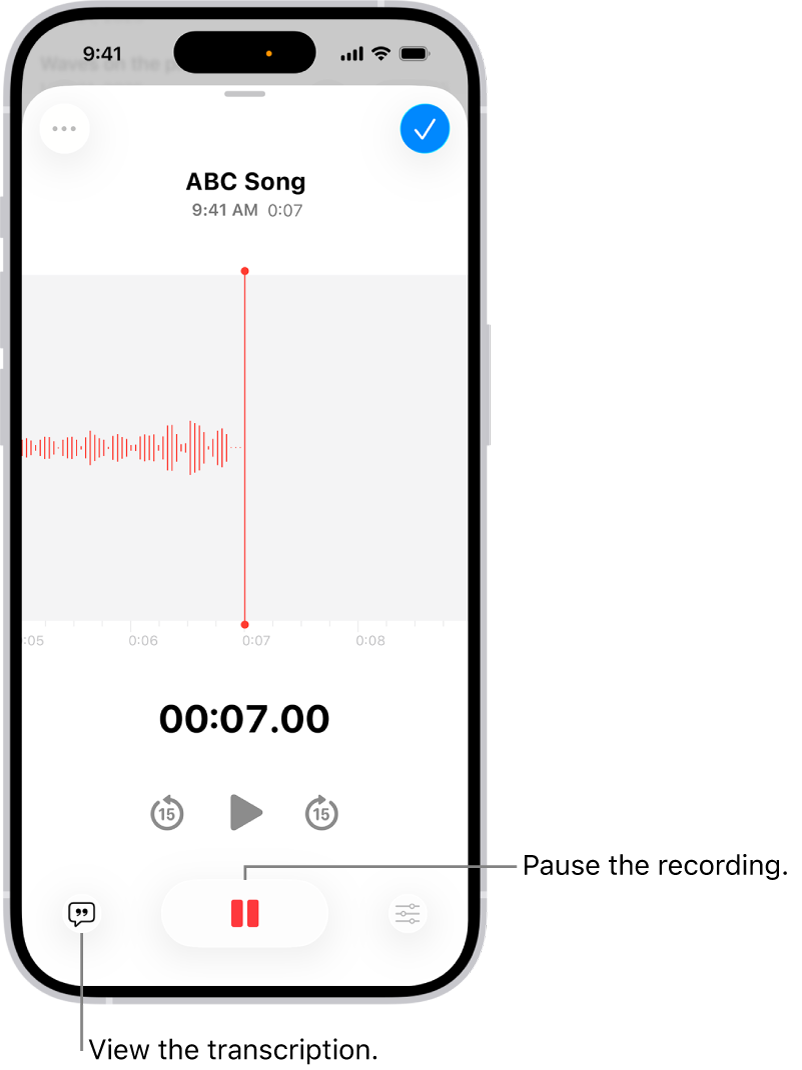
A Voice Memos recording, showing a waveform of the recording that’s in progress, along with a time indicator and a button to pause the recording.

Make a basic recording

  1. Start the Voice Memos app (in the Utilities folder) on your iPhone.

    Note: To make it easier to find and open the Voice Memos app, you can move it from the Utilities folder to the Home Screen.

  2. Tap the Record button to begin recording.

    To adjust the recording level, move the microphone closer to or farther from what you’re recording.

  3. Tap the Stop button to stop recording.

    Your recording is saved with the name New Recording or the name of your location, if Location Services is turned on in Settings > Privacy & Security. To change the name, tap the recording, then tap the name and type a new one.

Note: For your privacy, when you use Voice Memos to make recordings, an orange dot appears to indicate your microphone is in use.

Filter out background sounds

Your recording can include or exclude background sounds.

  1. Start the Voice Memos app (in the Utilities folder) on your iPhone.
  2. Open Control Center.
  3. Tap Voice Memos at the top of Control Center.
  4. To filter out background sounds in your recording, select Voice Isolation.
  5. To include the background sounds, select Wide Spectrum.

Note: Wide Spectrum isn’t available on all iPhone models.

Record stereo, mono, or Spatial Audio

How the recording sounds when it’s played depends on the recording mode you select.

  1. Start the Settings app on your iPhone.
  2. Tap Apps and tap Voice Memos.
  3. Tap Recording Mode, then choose one of the following:
    • Mono: Audio playback is the same in both ears.
    • Stereo: Separates audio playback between the left and right ears.
    • Spatial Audio: Audio playback is immersive—it seems to play from all directions.

Note: Spatial Audio isn’t available on all iPhone models.

With Stereo or Spatial Audio selected, Voice Memos uses multiple microphones on your iPhone and records with right and left audio channels. Listen through headphones, and you’ll hear different sounds from different microphones, though the waveform display still looks the same.

Use the advanced recording features

To make a recording in parts, pause and resume as you record.

  1. Start the Voice Memos app (in the Utilities folder) on your iPhone.
  2. Tap the Record button to begin a recording.

    To adjust the recording level, move the microphone closer to or farther away from what you’re recording.

    To see more details while you’re recording, swipe up from the top of the waveform.

  3. Tap the Pause button to stop recording; tap Resume to continue.
  4. To review your recording, tap the Play button.

    To change where playback begins, drag the waveform left or right across the playhead before you tap the Play button.

  5. To save the recording, tap Done.

    Your recording is saved with the name New Recording or the name of your location, if Location Services is turned on in Settings > Privacy & Security. To change the name, tap the recording, tap the name, then type a new name.

Mute the start and stop tones

To mute the start and stop tones, turn on Silent mode.

Open Control Center, then tap the Silent Mode Off button to turn on Silent mode.

Use another app while recording

During a recording, you can use another app if it doesn’t play audio on your iPhone.

  1. Start the Voice Memos app (in the Utilities folder) on your iPhone.
  2. Tap the Record button to begin recording.
  3. While you’re recording, go to the Home Screen. Then open another app.

Voice Memos stops recording if the other app starts playing audio.

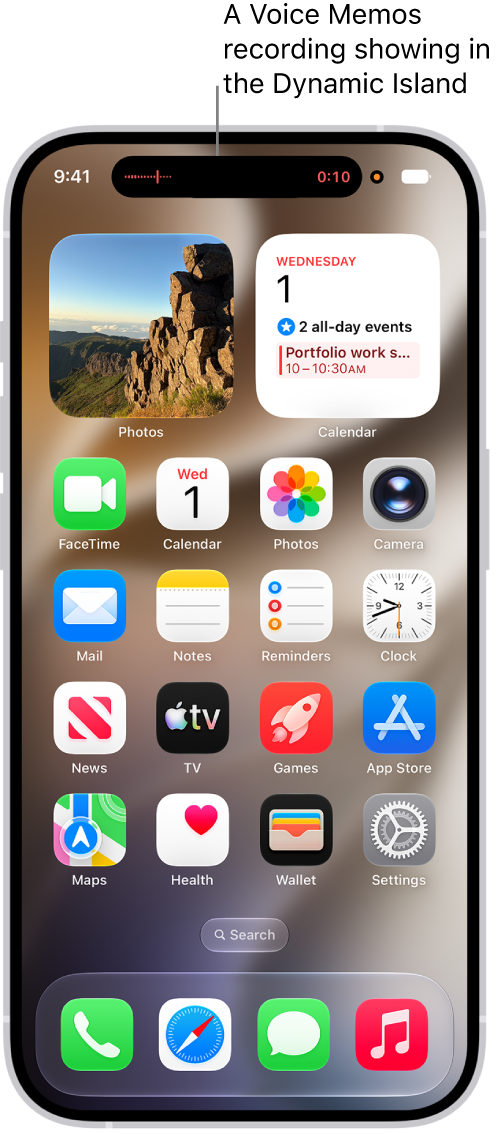
On supported models, you can see your recording in progress in the Dynamic Island on the Home Screen and in other apps. Tap the Dynamic Island to expand it, or navigate back to Voice Memos.

The iPhone Home Screen, showing a Voice Memos recording in the Dynamic Island.

When you turn on Voice Memos in iCloud settings or iCloud preferences, iCloud saves your recording. It then appears automatically on your Mac, iPad, and iPhone where you’re signed in to the same Apple Account.

Supported iPhones record in Spatial Audio automatically when you use the built-in microphone. Earlier iPhone models record in Mono instead, unless you turn on Stereo Recording in Settings, and you can also record in Stereo with an external stereo microphone or audio interface that works with iPhone. Accessories with the Apple “Made for iPhone” or “Works with iPhone” logo are the ones to look for.

You can delete the password you use to sign in to a website or app on your iPhone. You just find the account for the password you want to delete in the Passwords app and delete it. That doesn’t remove your password from the website or app where you created it, though.

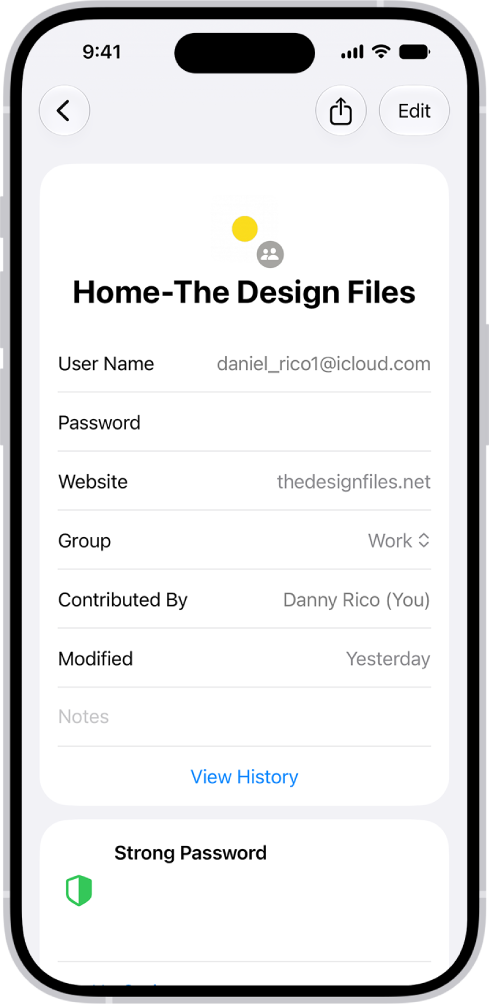
A list of all accounts with passwords that are stored in the Passwords app.

  1. Open the Passwords app on your iPhone.
  2. Tap All, then tap the account for the password you want to delete.
  3. Tap Edit.
  4. Tap Delete and then tap Delete Password to confirm.

Note: The website or app where you created the password still has it.

There are special features you and your family can use to share purchases, stay connected, and protect your data. If you have children, you can also set up parental controls to manage how your children use their Apple devices.

With Family Sharing, everyone uses their own device and Apple Account. You can also share locations with Find My, set up emergency contacts, and start a family photo library. Family members and other trusted people can be recovery contacts, too, just in case.

Set up Family Sharing

Family members can share eligible purchases and subscriptions with each other. Each person keeps their own device and Apple Account, while iCloud storage, subscriptions (to services like Apple Arcade and Apple Music), and other content get shared.

To get started, go to the Settings app tap your name, then tap Family.
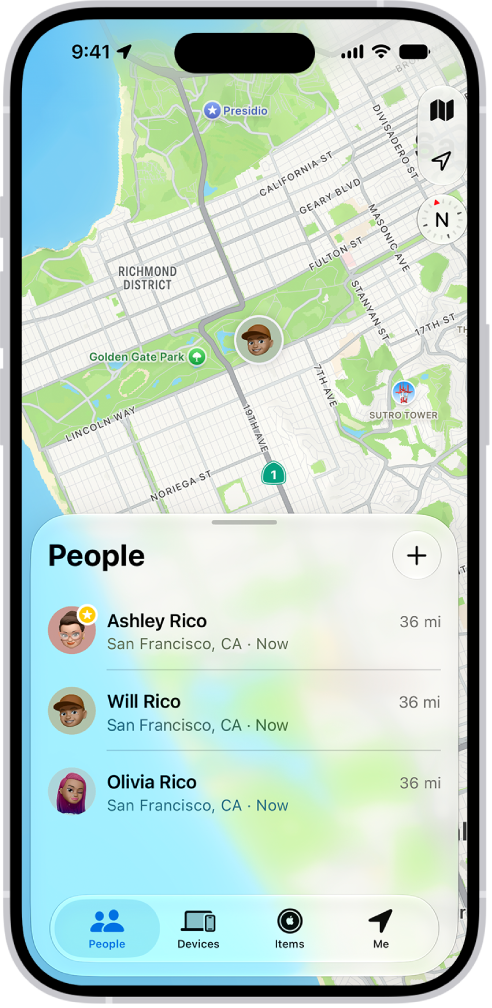
The Find My screen showing the People list and their locations on a map.

Share locations with Find My

When you and your family share locations, you can all help each other find missing devices in the Find My app. You can share the location of AirTags, too, if you use them to track important items like backpacks or house keys.

To set up location sharing, go to the Settings app , tap your name, tap Family, then tap Location Sharing. Turn on sharing for your family members. After you share your location with family members, they can also see the location of your devices in Find My.
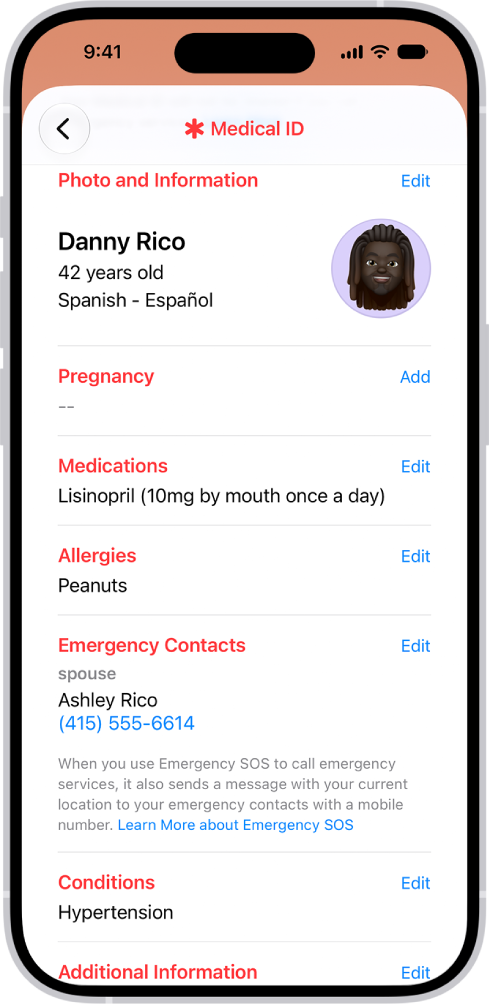
The Sharing screen in the Health app.

Set up emergency contacts

Once an emergency call ends, your iPhone can automatically send your emergency contacts a text message with your current location. And if your location changes, they get updated location information.

Emergency contacts are saved in your Medical ID. To set up a Medical ID, open the Health app , tap your account, tap Medical ID, then tap Get Started.
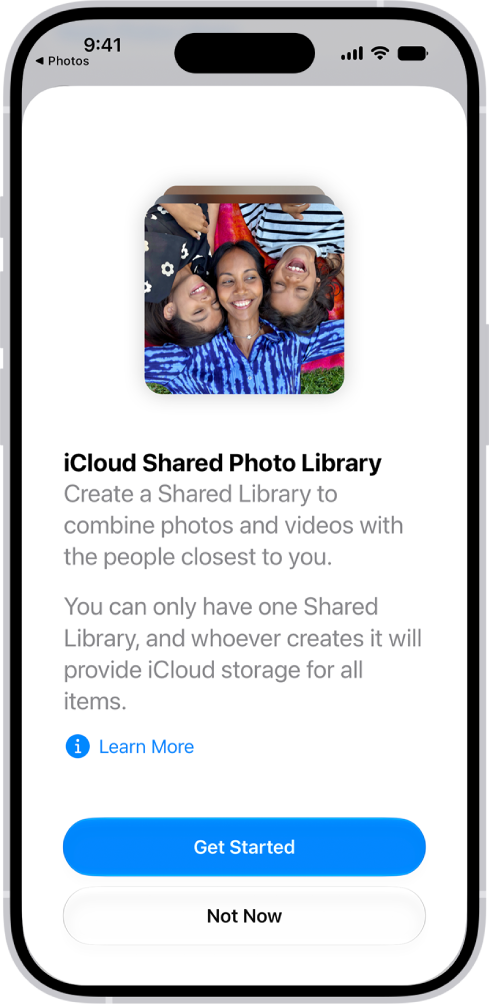
Creating a Shared Library in the Photos app.

Start a family photo library

With iCloud Shared Photo Library, you and up to five other family members can share photos and videos. Everyone can add, edit, and caption photos, and the shared photos show up in each person’s memories, featured photos, and Photos widget.

To get started, go to the Settings app , tap your name, then tap iCloud. Tap Photos, turn on Sync this iPhone, then tap Shared Library.
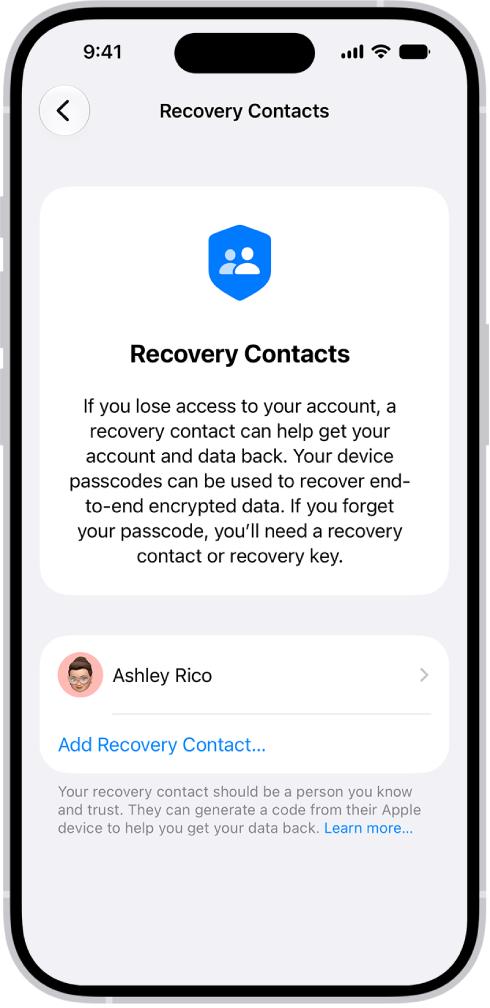
The Add Recovery Contact screen showing suggested contacts to select as a recovery contact, and the option to choose someone else.

Just in case

Family members and other trusted people can be your recovery contacts, helping you get back into your account if you ever get locked out. And you can choose someone as a legacy contact who can access the data stored in your account if you die.

To add these contacts, go to the Settings app , tap your name, tap Sign-In & Security, then tap Recovery Contacts or Legacy Contact.

For more on sharing with your family, start with these guides:

Not all features are available in all countries or regions, according to Apple.

Tags: iCloud, iPhone