Got a tip for us?

iCloud

When you subscribe to iCloud+, you can use Hide My Email to keep your personal email address private. It generates unique, random email addresses that forward to your personal email account, so you don’t have to share your real address when you fill out forms, sign up for newsletters, or send email.

You can create a new address, deactivate one so it stops forwarding emails to you, choose which personal email address it forwards to, and copy a forwarding address to use elsewhere. You can also generate addresses in Safari and Mail wherever an email address is required.

You can create and manage Hide My Email addresses in Settings. Go to Settings > [your name] > iCloud > Hide My Email, then do any of the following:

  • Create a Hide My Email address: Tap Create New Address, then follow the onscreen instructions.
  • Deactivate a Hide My Email address: Tap an address (below Create New Address), then tap Deactivate Email Address. After you deactivate the address, it no longer forwards emails to you.
  • Change which personal email address to forward to: Tap Forward To, then choose an email address. Options consist of addresses that are available with your Apple Account.
  • Copy a forwarding address to use elsewhere: Tap an address (below Create New Address), touch and hold the Hide My Email section, then tap Copy. To immediately use that address elsewhere, touch and hold in a text field, then tap Paste.

You can also generate Hide My Email addresses in Safari and Mail wherever email addresses are required. In supporting apps, you can also generate a Hide My Email address when an email address is required by tapping the email address field, then tapping Hide My Email above the keyboard.

See also

Tags: iCloud, Mail

Use iCloud Keychain to keep your website and app passwords and passkeys, credit card information, Wi-Fi network information, and other account information up to date across all your approved devices and Mac computers. It’s secured with 256-bit AES encryption during storage and transmission, and its data can’t be read by Apple.

iCloud Keychain can also keep your Mail, Contacts, Calendar, and Messages accounts up to date on your iPhone, iPad, and Mac. When you add a device, you approve it on one of your others.

Set up iCloud Keychain

Skipped iCloud Keychain when you first set up your iPad? You can still set it up now.

  1. Start the Settings app on your iPad.
  2. Tap your name, then tap iCloud.
  3. Tap See All (next to Saved to iCloud) and tap Passwords & Keychain.
  4. Turn on Sync this iPad. Follow the onscreen instructions.

Set up iCloud Keychain on an additional device

Turning on iCloud Keychain on an additional device sends a notification to your other devices using iCloud Keychain, asking you to approve the additional device.

After you approve the additional device on one of your other devices, your iCloud Keychain automatically begins updating on it.

If you don’t have access to your other devices, you can still approve iCloud Keychain by following the onscreen instructions to use your iCloud Security Code.

Recover your iCloud Keychain if all your devices are lost or stolen

iCloud Keychain syncs across devices to provide convenience and redundancy in case you lose a single device. If all your devices are lost and you’ve added a recovery contact to your Apple Account, your contact can help you recover your iCloud Keychain. Go to Settings > [your name] > Sign-In & Security, tap Recovery Contacts, then tap Learn More.

You can also recover your iCloud Keychain through iCloud Keychain escrow, which is also protected against brute-force attacks. According to Apple, iCloud Keychain escrows a user’s keychain data with Apple without allowing Apple to read the passwords and other data it contains. Your keychain is encrypted using a strong passcode, and the escrow service provides a copy of the keychain only if a strict set of conditions is met.

Recovering your keychain through iCloud Keychain escrow starts with authenticating with your Apple Account on a new device and responding to an SMS sent to a trusted phone number. After that, you must enter the device passcode. iOS, iPadOS, and macOS give you only 10 attempts to authenticate, and after several failed attempts, the record locks. To be granted more attempts, you must contact Apple Support on the Apple Support website.

You can restore content, settings, and apps from a backup to a new or newly erased iPad. You can restore from an iCloud backup or a computer backup, and if you’ve already set up your iPad, you need to erase all of its content first. If your backup is encrypted, you’ll need its password, too.

Important: To restore your iPad, you must have a backup to restore from. See Back up iPad.

Restore iPad from an iCloud backup

  1. Turn on your iPad.

    The Hello screen should appear. If you already set up your device, you need to erase all of its content before you can use these steps to restore from your backup.

  2. Do one of the following:

    • Tap Set Up Manually, tap Restore from iCloud Backup, then follow the onscreen instructions.
    • If you have another iPad, iPhone, or iPod touch with iOS 11, iPadOS 13, or later, you can use Quick Start to automatically set up your new device. Bring the two devices close together, then follow the onscreen instructions to securely copy many of your settings, preferences, and iCloud Keychain. You can then restore the rest of your data and content to your new device from your iCloud backup.

      Or, if both devices have iOS 12.4, iPadOS 13, or later, you can transfer all your data wirelessly from your previous device to your new one. Keep your devices near each other and plugged into power until the migration process is complete.

You’re asked for your Apple Account. If you’ve forgotten your Apple Account, go to the Recover your Apple Account website.

Restore iPad from a computer backup

  1. Using USB, connect a new or newly erased iPad to the computer containing your backup.
  2. Do one of the following:
    • On a Mac (macOS 10.15 or later): In the Finder sidebar, select your iPad, click Trust, and click Restore from this backup.
    • On a Mac (macOS 10.14 or earlier) or a Windows device: Open the iTunes app, click the button resembling an iPad near the top left of the iTunes window, click Summary, and then click Restore Backup.
  3. Choose your backup from the list and click Continue.

If your backup is encrypted, you need to enter the password before you restore your files and settings.

Tags: iCloud, iPadOS

You can back up iPad using iCloud or your computer. iCloud backups store information and settings on your iPad that don’t regularly sync to iCloud, including things like device settings, Home Screen layout, and app organization.

iCloud automatically backs up your iPad daily when it’s connected to power, locked, and connected to Wi-Fi. You can also save a backup of your iPad on your Mac or Windows device, and encrypt your backup data to protect it with a password.

Quick tip: When you replace your iPad, use its backup to transfer your information to the new device. Check out our guide, Restore all content to iPad from a backup, for the steps.

Back up iPad using iCloud

iCloud backups cover the information and settings on your device that don’t sync to iCloud regularly, like device settings, Home Screen layout, and app organization.

  1. Start the Settings app on your iPad.
  2. Tap [your name] and tap iCloud. Tap iCloud Backup.
  3. Turn on Back Up This iPad.

    iCloud automatically backs up your iPad daily when iPad is connected to power, locked, and connected to Wi-Fi.

    Note: On Wi-Fi + Cellular models that support 5G, your carrier may give you the option to back up iPad using your cellular network. Go to Settings > [your name] > iCloud > iCloud Backup, then turn Backup Over Cellular on or off.

  4. To perform a manual backup, tap Back Up Now.

View available iCloud storage

  1. Start the Settings app on your iPad.
  2. Tap [your name], then tap iCloud.

    The amount of iCloud storage used and the amount of iCloud storage available appear at the top of the screen.

Manage iCloud storage

Details about iCloud backups are available to view, including the next backup size, the last backup, and the apps included in the backup.

  1. Start the Settings app on your iPad.
  2. Tap [your name], then tap iCloud.
  3. Tap iCloud Backup and then tap your iPad (This iPad).
  4. To reduce the size of a backup, turn off the apps you don’t want to back up anymore; the apps’ existing backup data will also be deleted from iCloud.

Back up iPad using your Mac

You can save a backup of your iPad on your Mac.

  1. Connect iPad and your computer with a cable.
  2. In the Finder sidebar on your Mac, select your iPad.

    To use the Finder to back up iPad, macOS 10.15 or later is required. With earlier versions of macOS, use iTunes to back up iPad.

  3. At the top of the Finder window, click General.
  4. Select Back up all of the data on your iPad to this Mac.
  5. To encrypt your backup data and protect it with a password, select Encrypt local backup.
  6. Click Back Up Now.

Note: You can connect iPad to your computer wirelessly, too. Read our guide, Transfer files between your iPad and other devices.

Back up iPad using your Windows device

  1. Connect iPad and your computer with a cable.
  2. In the iTunes app on your Windows device, click the iPad button near the top left of the iTunes window.
  3. Click Summary.
  4. Click Back Up Now (below Backups).
  5. To encrypt your backups, select “Encrypt local backup,” type a password and click Set Password.

To see the backups stored on your computer, choose Edit > Preferences, then click Devices. Encrypted backups have a lock icon in the list of backups.

Note: Prefer to connect iPad to your computer wirelessly? See our article, Transfer files between your iPad and other devices.

Tags: iCloud, iPadOS

When you set up a text replacement on iPad, you can enter long or complicated text by tapping just a few keys, like shorthand for your most frequently used words and phrases.

One shorthand for “On my way” is already set up for you, but you can add your own. You can also stop a word or phrase from being replaced, and create replacements for word and input pairs on certain Chinese or Japanese keyboards.

Create a text replacement

  1. While in a text field, do one of the following:
    • With an onscreen keyboard: Touch and hold the Emoji button or the Switch Keyboard key, tap Keyboard Settings, and tap Text Replacement.
    • With an external keyboard: Open Settings, tap General, tap Keyboard, and then tap Text Replacement.
  2. Tap the Add button at the top right.
  3. Type a phrase in the Phrase field and the text shortcut you want to use for it in the Shortcut field.

Don’t want to replace a word or phrase you use?

  1. Open the Settings app on your iPad.
  2. Tap General, tap Keyboard, and tap Text Replacement.
  3. Tap the Add button at the top right and enter your word or phrase in the Phrase field, but leave the Shortcut field blank.

Create a text replacement for word and input pairs

Certain Chinese or Japanese keyboards let you create a text replacement for word and input pairs, which gets added to your personal dictionary. After that, when you type the text shortcut for a word or input on a supported keyboard, the paired word or input replaces the shortcut.

Shortcuts work for these languages and input methods:

  • Simplified Chinese: Pinyin
  • Traditional Chinese: Pinyin and Zhuyin
  • Japanese: Romaji and Kana

To add these keyboards, see Add or remove a keyboard for another language.

Sync your personal dictionary across devices

iCloud keeps your personal dictionary up to date on your other devices.

  1. Open the Settings app on your iPad.
  2. Tap your name, then tap iCloud.
  3. Tap See All and tap iCloud Drive. Then turn on Sync this iPad.

Reset your personal dictionary

  1. Open the Settings app on your iPad.
  2. Tap General, then tap Transfer or Reset iPad.
  3. Tap Reset and tap Reset Keyboard Dictionary.
  4. Enter your passcode, then tap Reset.

    All custom words and shortcuts are deleted, and the keyboard dictionary returns to its default state.

See also

After you set up iCloud Drive, you can share individual files and folders with friends and colleagues. When you change a shared file or folder, others see your changes automatically, and if you let people edit, their changes show up for you, too.

You can share a file or folder so only the people you choose can open it, or anyone with the link. And you can let them make changes, or restrict them to viewing only.

These are important characteristics of files and folders shared in iCloud Drive:

  • If you collaborate on a folder, all items added to that folder by you or other participants are automatically shared.
  • The link to a shared file includes its name. If the name or content is confidential, be sure to ask recipients not to forward the link to anyone else.
  • If you move a shared file to another folder or location, the link no longer works, and people lose access to the item.
  • Depending on the app, users might need to reopen a file or tap the original link to see the latest changes.

Share or collaborate on a file or folder

You can invite others to view or collaborate on the contents of a file or folder you own in iCloud Drive.

A file or folder can be shared so it opens only for people you choose, or for anyone with the link.

The contents of a file or folder can be open to changes, or you can restrict access so they’re view-only.

  1. Go to the Files app on your iPad.
  2. Go to a location and then touch and hold the file or folder you want to share.
  3. Tap the Share button, tap the menu under the item’s title, and tap Share a Link.
  4. To change who can access the file or folder and whether they can edit or just view and download, tap People you choose can edit and then do any of the following:

    • Only allow people you invite or approve to access the file or folder: Tap People you choose.

      Note: When you select “People you choose,” you can turn on Access Requests, which lets other people with the link ask you to approve their access.

    • Allow anyone with the link to access the file or folder: Tap Anyone with the link.
  5. Under New Participants Can, choose whether participants can edit or view and download only.
  6. Choose how you want to send your invitation.

Send a copy of a file or folder

  1. Start the Files app on your iPad.
  2. Go to a location and then touch and hold the file or folder you want to share.
  3. Tap the Share button and tap the menu under the item’s title. Then tap Send a Copy.
  4. Choose how you want to send your copy.

Invite more people to collaborate on a folder or file

If its access is set to “People you choose,” you can share a folder or file you’ve already shared with more people.

  1. Start the Files app on your iPad.
  2. Tap Shared at the top of the screen.
  3. Touch and hold the folder or file you want to share.
  4. Tap Manage Shared Folder or Manage Shared File.
  5. Tap Add Participant and choose a method for sending the link.
  6. Enter any other requested information. Send or post the invitation.

Share a folder or file with more people using a link

With access to a shared folder or file set to “Anyone with the link,” anyone who has the link can share it with others.

  1. Start the Files app on your iPad.
  2. Tap Shared at the top of the screen.
  3. Touch and hold the folder or file you want to share.
  4. Tap Manage Shared Folder or Manage Shared File. Then tap Copy Link.
  5. Choose a method for sending the link, enter any other requested information, and send or post the invitation.

Change access and permission settings for everyone

You can change the access of a shared folder or file you own at any time, and the change affects everyone you’ve shared the link with.

  1. Start the Files app on your iPad.
  2. Touch and hold the folder or file whose permissions you want to change.
  3. Tap Manage Shared Folder or Manage Shared File, then tap Sharing Options.
  4. Change either or both of the options.
    • Access option: When you change the access option from Anyone with the link to People you choose, the original link no longer works for anyone, and only people who receive a new invitation from you can open the folder or file.
    • Permission option: When you change the permission option, everyone who has the file open when you change the permission sees an alert. New settings take effect when the alert is dismissed.

Change access and permission settings for one person

For a shared folder or file you own with access set to “People you choose,” one person’s permission can change without affecting others’ permissions, and you can also remove the person’s access.

  1. Start the Files app on your iPad.
  2. Touch and hold the folder or file whose permissions you want to change.
  3. Tap Manage Shared Folder or Manage Shared File.
  4. Tap the person’s name, then select an option.

Stop sharing a folder or file

If you’re the owner of a shared folder or file, you can stop sharing it.

  1. Start the Files app on your iPad.
  2. Open the location of the folder or file you want to stop sharing.
  3. Touch and hold the folder or file. Tap Manage Shared Folder or Manage Shared File.
  4. Tap Stop Sharing.

When you stop sharing a file, anyone who has it open sees an alert. Dismissing the alert closes the item, removes the file from the person’s iCloud Drive, and stops the link from working. If you later share the item again with access set to “Anyone with the link,” the original link works. With “People you choose,” the original link works again, but only for the people you reinvite to share the item.

See also

Tags: Files, iCloud

You can access iCloud Drive and store files, create folders, and share documents with friends and family. Your content is on all your devices signed in to the same Apple Account, including a Mac, where iCloud Drive is in the Finder.

iCloud Drive is built into the Files app, and you can also use it on Windows devices with iCloud for Windows, or online at iCloud.com. Storage limits depend on your iCloud storage plan. You can also pick the apps that can store and edit content there.

Turn on iCloud Drive

  1. Open Settings, tap [your name], and then tap iCloud.
  2. Tap Drive, then turn on Sync this iPad.

Browse iCloud Drive

  1. Open the Files app on your iPad.
  2. Tap the Sidebar button at the top of the screen.
  3. Tap iCloud Drive below Locations.

    If you don’t see Locations, tap the Sidebar button again. If you don’t see iCloud Drive below Locations, tap Locations.

  4. To open a folder, tap it.

    See Modify files, folders, and view downloads.

Choose which apps use iCloud Drive

You decide which apps can store and edit content on iCloud Drive.

  1. Open Settings, tap [your name], and then tap iCloud.
  2. Tap See All next to Saved to iCloud.
  3. Turn on each app you want saved to iCloud, and turn off each one you don’t want saved.

See also

Tags: Files, iCloud

Visual Voicemail shows you a list of your voicemail messages in the Phone app, so you can choose which ones to play and delete without listening to them all. When you store your voicemail messages in iCloud, they sync across your devices, and a badge on the Voicemail icon shows the number of unheard messages.

Setting up Voicemail starts with a voicemail password and your greeting, either Default or Custom.

Live Voicemail lets you see a real-time transcription as someone is leaving you a message. You can even pick up the call as they’re leaving their voicemail.

Note: Voicemail, Visual Voicemail, and Live Voicemail are available from select carriers in select countries or regions.

Set up Voicemail

The first time you tap Voicemail, you’re asked to create a voicemail password and record your voicemail greeting.

  1. Open the Phone app on your iPad.
  2. Tap Voicemail, then tap Set Up Now.
  3. Create a voicemail password.
  4. Choose a greeting—Default or Custom; if you choose Custom, you can record a new greeting.

Turn on Live Voicemail

As someone is leaving you a message, Live Voicemail automatically shows you a real-time transcription. You can even pick up the call while they’re still leaving their voicemail.

To turn on Live Voicemail, do the following:

  1. Open the Settings app on your iPad.
  2. Tap Apps, then tap Phone.
  3. Tap Live Voicemail and turn on Live Voicemail.

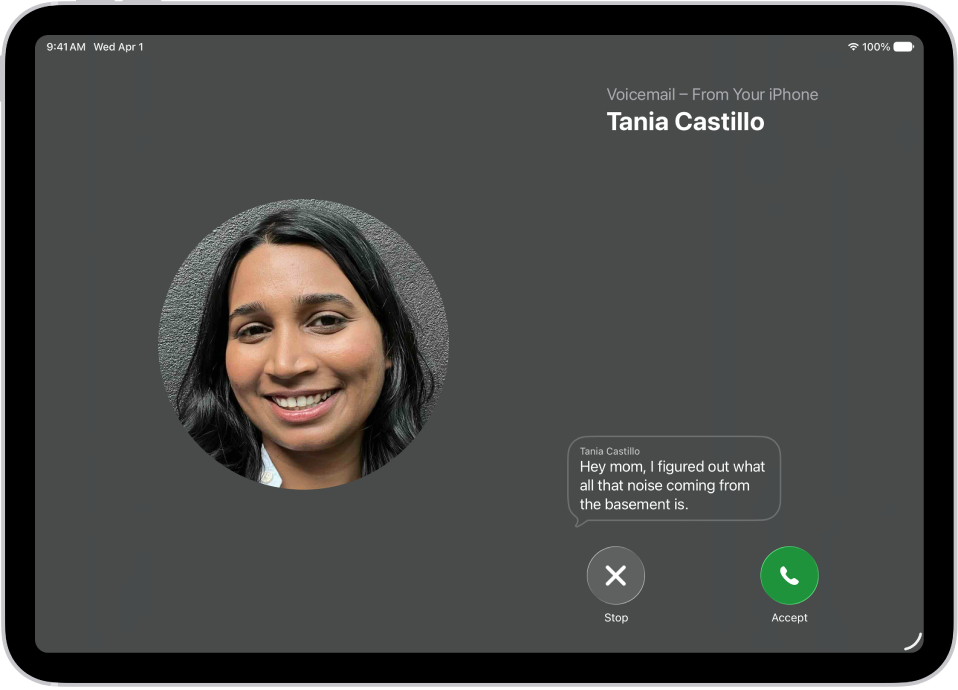
    When Live Voicemail is on and a caller is sent to voicemail, your iPad displays a transcription of the caller’s voicemail as they speak. (Calling and data rates may apply.) The caller won’t be able to hear you and you won’t be able to hear them unless you choose to answer the call. To stop the incoming voicemail without answering or blocking the call, tap Stop.

    If your iPad is turned off or is out of your carrier network’s range, the call is sent to carrier voicemail, if available.

    If you have Silence Unknown Callers turned on, unknown numbers go directly to Live Voicemail without ringing you first. Calls identified as spam by your carrier don’t go through Live Voicemail and are instead instantly declined.

Note: Live Voicemail isn’t available in all countries, regions, or languages.

A call screen showing a Live Voicemail from a contact. Below the transcribed text are Stop and Accept buttons for the call.

Store Voicemail in iCloud

You’re able to store and sync your Live Voicemail and Carrier Voicemail in iCloud.

  1. Open the Settings app on your iPad.
  2. Tap your name, then tap iCloud.
  3. Tap See All next to Saved to iCloud and then turn on Phone & FaceTime.

See also

Tags: iCloud, Phone

To keep your contact information up to date across all your devices where you’re signed in to your Apple Account, you can use iCloud. With iCloud, your contacts stay up to date automatically. You can also sync the information between iPad and your Mac or Windows device instead.

  1. Open Settings, tap [your name], and then tap iCloud.
  2. Tap See All next to Saved to iCloud and turn on Contacts.

Or, sync the information between iPad and your Mac or Windows device, and it’ll stay up to date across iPad and your computer. Read our guide, Transfer files between your iPad and other devices.

You won’t see options for syncing your contacts with your computer if you use iCloud for Contacts, since they stay up to date automatically.

See also

In the Contacts app, you can add multiple accounts—such as iCloud, Microsoft Exchange, Google, and Yahoo. You can choose a default account, set up LDAP or CardDAV accounts, show or hide accounts, and delete accounts.

Third-party apps can add contacts, too, though those contacts are managed by the app and can’t be edited in Contacts. For accounts that don’t support Push, you can set a Fetch schedule instead.

Here’s how to add or remove accounts in Contacts on iPad.

Add your iCloud contacts

  1. Start the Settings app on your iPad.
  2. Tap [your name], then tap iCloud.
  3. Tap See All next to Saved to iCloud and turn on Contacts.

Add your contacts from other accounts

You can manage contacts from other accounts, like Yahoo, Microsoft Exchange, and Google, right in the Contacts app.

  1. Start the Settings app on your iPad.
  2. Tap Apps, then tap Contacts.
  3. Tap Contacts Accounts and tap Add Account.
  4. Choose an account, sign in to it, then turn on Contacts.

Note: For an account without Push notification support, a Fetch schedule keeps your contacts from that account updated. Go to Settings > Apps > Contacts and tap Contacts Accounts, then tap Fetch New Data, and choose a schedule under Fetch. If you choose Automatically, your iPad downloads new data while it’s charging and connected to Wi-Fi.

Add contacts from contacts provider apps

If you allow it, third-party apps can add contacts to the Contacts app. The third-party app manages those contacts, and they can’t be edited in the Contacts app.

  1. Start the Settings app on your iPad.
  2. Tap Apps, then tap Contacts.
  3. Tap Providers, then turn on the option for an app.

Choose your default account

You can select a default account where new contacts are automatically added.

  1. Start the Settings app on your iPad.
  2. Tap Apps, then tap Contacts.
  3. Tap Default Account and tap the account you want to make your default.

Set up an LDAP or CardDAV account to access business or school directories

  1. Start the Settings app on your iPad.
  2. Tap Apps, then tap Contacts.
  3. Tap Contacts Accounts and tap Add Account.
  4. Tap Add Other Account and then tap Add LDAP Account or CardDAV Account.
  5. Enter the account information.

Remove a contact account

Remove an account, and its contacts leave your iPad. They’re still in your internet account (for example, iCloud.com or Google) and on any other devices you’d already set up.

  • Turn off iCloud contacts: Go to Settings > [your name] > iCloud. Tap See All next to Saved to iCloud, then turn off Contacts.

    You can choose to keep or delete the previously synced iCloud contacts on your iPad.

  • Temporarily stop using an account: Go to Settings > Apps > Contacts > Contacts Accounts, tap the account, then turn off Contacts.

    To view the contacts in that account on your iPad again, turn on Contacts.

  • Delete an account: Go to Settings > Apps > Contacts > Contacts Accounts, tap the account, then tap Delete Account.

    If you don’t see Sign Out or Delete Account, your account may be managed by your organization. See an administrator for removal instructions.

See also