Got a tip for us?

iCloud

In the Reminders app, you can use multiple accounts—such as iCloud, enterprise-managed iCloud, Microsoft Exchange, and Yahoo—and keep all your to-do lists in one place. Your reminders stay up to date on all your devices that use the same accounts.

They appear on your iPhone, iPad, Apple Watch, and Mac when you’re signed in to the same Apple Account. Reminders from iOS 12 or earlier may need an update in iCloud before you get features like attachments and flags.

Note: Other accounts are missing some features. For all the Reminders features described in this guide, use updated reminders in iCloud.

Keep your reminders up to date on all your devices with iCloud

  1. Start the Settings app on your iPad.
  2. Tap your name.
  3. Tap iCloud, tap See All, and turn on Reminders.

Reminders you store in iCloud, along with any changes you make to them, show up on your iPhone, iPad, Apple Watch, and Mac when they’re signed in to the same Apple Account.

Update your reminders stored in iCloud

Coming from Reminders on iOS 12 or earlier? To use features like attachments, flags, list colors and icons, and more, you may need to update your reminders stored in iCloud.

  1. Start the Settings app on your iPad.
  2. Tap your name.
  3. Tap iCloud, tap See All, and make sure Reminders is turned on.
  4. Start the Reminders app.
  5. On the Welcome to Reminders screen, choose one of the following options:
    • Update Now: Begin the update process.
    • Update Later: A blue Update button appears above your lists; tap it when you’re ready to update your reminders.

Note: Updated reminders aren’t backward compatible. The Reminders app in earlier versions of iOS and macOS can’t use them.

Add other accounts

The Reminders app can handle your to-do lists in other accounts, too, like Yahoo and Microsoft Exchange.

  1. Start the Settings app on your iPad.
  2. Tap Apps and tap Reminders.
  3. Tap Reminders Accounts and tap Add Account.
  4. Do one of the following:
    • Choose an account provider, then enter your account information.
    • If your account provider isn’t listed, tap Other, tap Add CalDAV Account, enter your account information, then turn on Reminders for that account.

Remove an account

Remove or delete an account, and its reminders no longer appear on your iPad. You’ll still find them in your internet account (for example, Microsoft Exchange or iCloud.com) and on any other devices you’d already set up.

  1. Start the Settings app on your iPad.
  2. Tap Apps and tap Reminders.
  3. Tap Reminders Accounts. Then tap the account you want to remove.
  4. Do one of the following:

    • Stop using Reminders on the account: Turn off Reminders.

      You can continue to use the account for other services, such as Calendar.

    • Stop using all services on the account: Tap Sign Out (for an iCloud account) or Delete Account (for other accounts).

      If you don’t see Sign Out or Delete Account, your account may be managed by your organization. See an administrator for removal instructions.

See also

You can customize the notifications that let you know about upcoming calendar events, invitations, and more. You can also make sure your events and other calendar information are kept up to date on all your devices.

You can choose whether notifications appear for specific occasions, like upcoming events, and turn on customized notifications for specific calendars. iCloud keeps your calendar current on all your devices. If you don’t want to use iCloud for your calendar, you’ll sync your calendar information between your iPad and your computer instead.

Customize Calendar notifications

  1. Open the Settings app on your iPad.
  2. Tap Notifications and tap Calendar.
  3. Turn on Allow Notifications.
  4. Choose how and where you want the notifications to appear—for example, on the Lock Screen, in Notification Center, as banners at the top of the screen, with an alert sound, and so on.

Turn on customized notifications for specific calendar events

After customizing Calendar notifications, you choose the specific occasions they appear for, like upcoming events or invitee responses.

  1. Open the Settings app on your iPad.
  2. Tap Notifications and tap Calendar.
  3. Tap Customize Notifications, turn the specific customized notifications on or off.

Keep your calendar up to date across your devices

When you’re signed in to the same Apple Account on every device, iCloud can keep your calendar information up to date on each.

  1. Open the Settings app on your iPad.
  2. Tap your name, then tap iCloud.
  3. Tap See All next to Saved to iCloud.
  4. Tap iCloud Calendar and turn on Use on this iPad.

You don’t have to use iCloud for your calendar. Instead, you can sync calendar information between your iPad and your computer. Check out our guide, Transfer files between your iPad and other devices.

See also

iPad has an easy setup process to help you get going when you first turn on your device. Whether you’re just getting started or want to make sure you have the basics set up, you’re in the right place.

When you begin, you can wirelessly transfer many of your apps, settings, and content to your new iPad. You can also connect to Wi-Fi, set up cellular service, and sign in to your Apple Account to access Apple services such as the App Store, Apple Music, FaceTime, and iCloud.

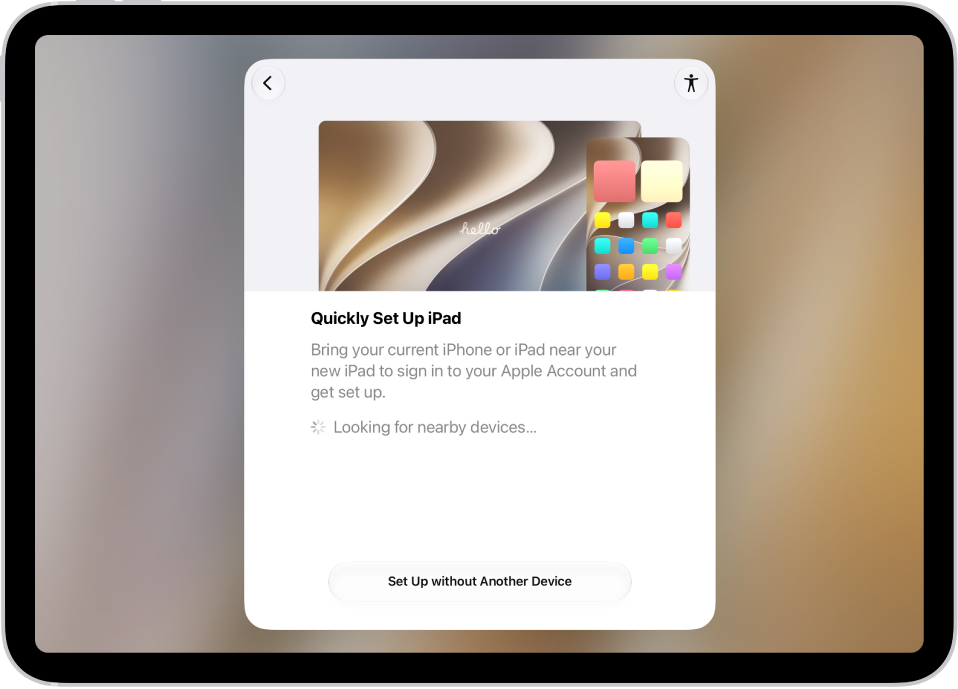
The Quick Start screen, with options to set up your iPad by bringing it close to another iPhone or iPad, or setting it up without another device.

Transfer your apps and info onto your new iPad

When you first turn on your new iPad and begin the setup process, many of your apps, settings, and content can transfer wirelessly from your previous iPad straight to this iPad. Just bring the two devices close together and follow the onscreen instructions.

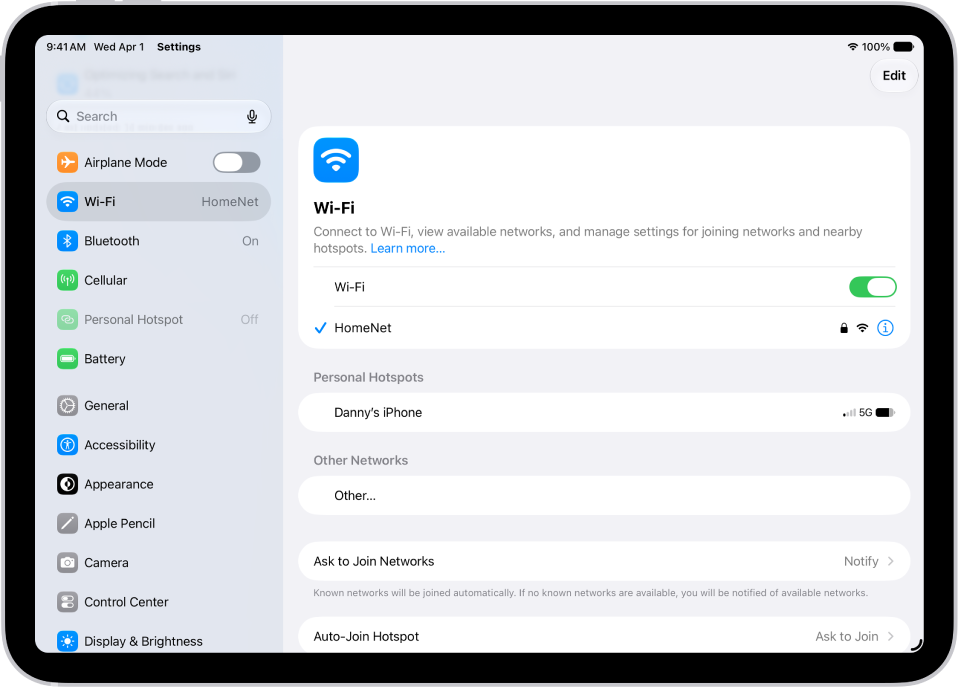
The Settings screen showing available Wi-Fi networks.

Connect to Wi-Fi and set up cellular service

To connect your iPad to your home Wi-Fi network, go to the Settings app, tap Wi-Fi, turn on Wi-Fi, then choose your network. iPad automatically connects to your Wi-Fi network whenever you’re home.

To use an eSIM to connect your iPad with Wi-Fi + Cellular to your cellular network, go to the Settings app, then tap Cellular Data. Or on supported iPad models, install a nano-SIM provided by your carrier.

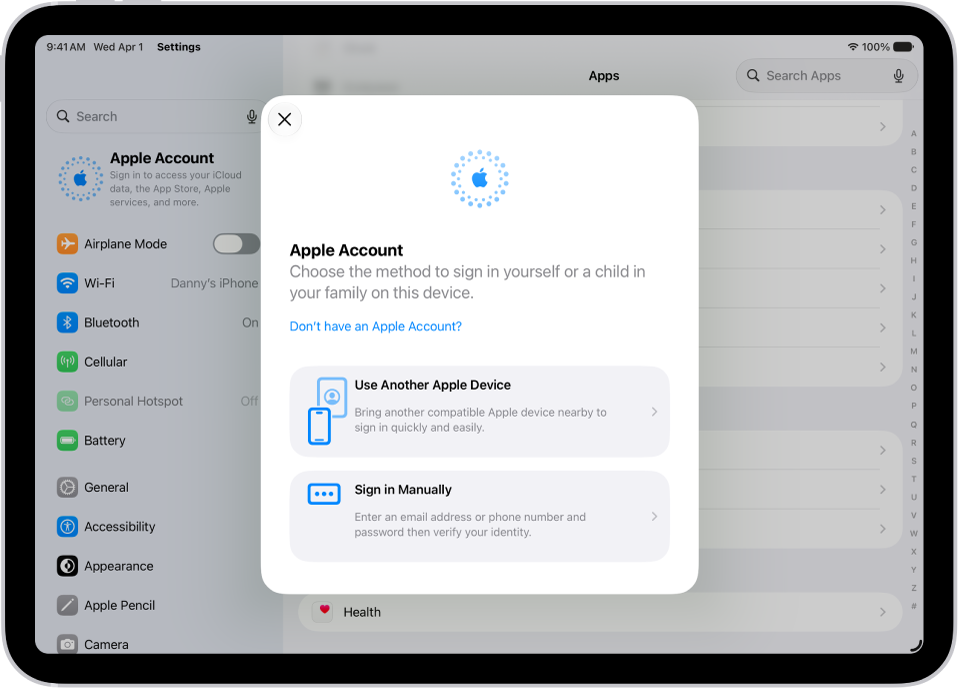
The Settings app, with the Apple Account sign-in dialog in the middle of the screen.

Sign in to your Apple Account

Your Apple Account gives you access to Apple services like iCloud, FaceTime, iMessage, the App Store, the iTunes Store, Apple Books, Apple Music, and more.

To sign in to your Apple Account, go to the Settings app, then tap Apple Account.

With a signed-in iPhone running iOS 17 or later or another iPad running iPadOS 17 or later, you can simply bring your iPad near your other device. If not, you’ll sign in manually.

To verify that you’re signed in, go to the Settings app, then tap your name. Your Apple Account appears below your name.

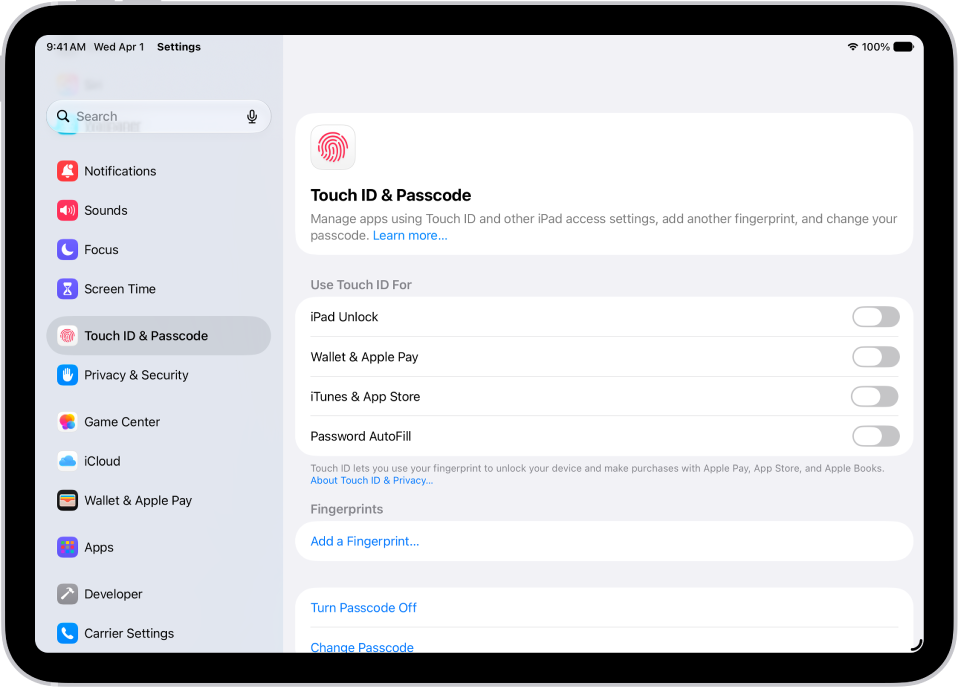
A screen showing settings for Touch ID & Passcode, with options to add a fingerprint and turn passcode on.

Set up Face ID or Touch ID

Face ID, which uses face recognition, or Touch ID, which uses your fingerprint, lets you securely unlock your iPad, make purchases, and sign in to many apps. Face ID and Touch ID data never leaves your device, for your security, and it isn’t saved anywhere else.

Do one of the following, based on your iPad model:

  • Set up Face ID: Go to the Settings app, tap Face ID & Passcode, tap Set up Face ID, then follow the onscreen instructions.
  • Set up Touch ID: Go to the Settings app, tap Touch ID & Passcode, tap Add a Fingerprint, then follow the onscreen instructions.

A screen showing settings for the Find My app, with options to turn on notifications.

Turn on Find My iPad

Turning on Find My iPad means you can locate your iPad if it’s ever lost or stolen.

Go to the Settings app, tap your name, tap Find My, tap Find My iPad, then turn on Find My iPad.

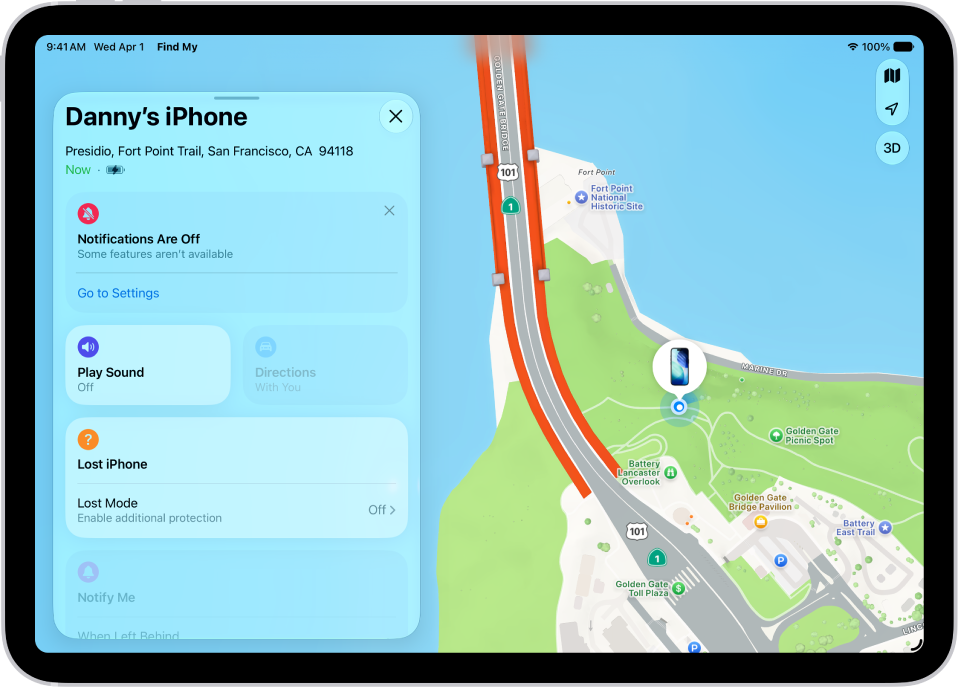
To be notified when you leave your iPad behind, go to the Find My app, tap the name of your iPad, then tap When Left Behind. You can also see the location of your devices on the Find Devices website.

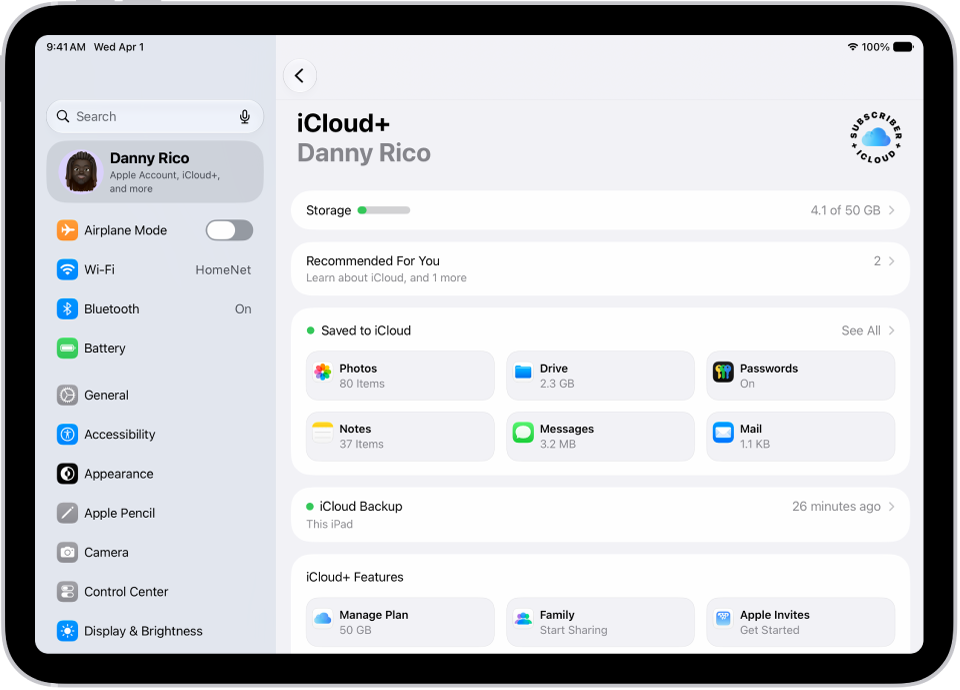
The iCloud settings screen showing the iCloud storage meter and a list of apps and features, including Photos, iCloud Drive, and iCloud Mail that can be used with iCloud.

Store your data in iCloud

Your photos, videos, and more remain secure in iCloud if your iPad is ever replaced, lost, damaged, or stolen, since iCloud keeps your important info safe and synced across your devices.

To turn on or change the features you want to use with iCloud, go to the Settings app, tap your name, then tap iCloud.

For more help getting set up, see these guides:

The availability of features, Apple says, may vary depending on your iPad model and country or region.

Tags: iCloud, Setup

iCloud securely stores your photos, videos, documents, backups, and more—and keeps them updated across all your devices—automatically. With iCloud, you can also share photos, calendars, notes, folders, and files with friends and family.

iCloud provides you with an email account and 5 GB of free storage for your data, and for more storage and additional features, like Apple Invites, Private Relay, or Hide My Email, you can subscribe to iCloud+. You choose the apps and features you’d like to sync with iCloud, too.

Note: Some iCloud features have minimum system requirements. The availability of iCloud and its features varies by country or region.

Set up iCloud

  1. Start the Settings app on your iPad.
  2. Tap your name.

    If you don’t see your name, tap Apple Account, then sign in to your Apple Account.

  3. Tap iCloud, tap See All, and turn on the apps and features you want to sync with iCloud.

    For example, turn on iCloud Drive to make your files in iCloud Drive available to your other devices.

    The iCloud settings screen showing the storage meter and a list of features—including Photos, iCloud Drive, and iCloud Backup—that can be used with iCloud.

Use iCloud with apps on iPad

You can also store the following information in iCloud, where it stays up to date across your iPad and other Apple devices:

  • iCloud Backup

    iCloud can keep your iPad backed up automatically.

    Back up iPad

  • Photos

    Store your full-resolution photo library in iCloud and keep it in sync across all your devices. You can also share photos and videos with shared albums or an iCloud Shared Photo Library.

  • iCloud Drive

    Keep your files in iCloud Drive, access them from any device, and share folders and documents with others.

    Set up iCloud Drive

  • Messages

    Keep your conversations up to date and available across all your devices.

    Set up Messages

  • Mail

    Get an iCloud email address and access iCloud Mail across all your Apple devices.

  • Passwords

    Sync your passwords and passkeys securely across all your devices with iCloud Keychain.

    Use passwords

  • Find My

    Locate a missing device and share locations with friends and family.

    Locate a missing device

  • And more…

    iCloud also keeps apps like Contacts, Calendars, Notes, and Reminders in sync, along with data from compatible third-party apps and games.

If you subscribe to iCloud+, you get access to Apple Invites, HomeKit Secure Video support, iCloud Private Relay, Hide My Email, and more, along with additional storage.

You can get to your iCloud data on iPad, too, along with Apple Vision Pro, Mac, Windows devices, Apple TV 4K, Apple Watch, and iCloud.com.

See also

Tag: iCloud

There are multiple ways to transfer photos, videos, and other files between your iPad and other devices like an iPhone, Mac, or Windows device. You can transfer files wirelessly with features like AirDrop or apps like Mail and Messages, or connect your iPad to a computer or an external storage device with a cable, and then transfer or sync files.

You can also use iCloud to store your files, photos, videos, and more, and keep everything up to date on all your devices where you’re signed in to the same Apple Account. Transfers work only for files from iPad apps that support file sharing, though.

Important: Transferring, sharing, or syncing may be restricted for some types of data, such as files saved in an app’s proprietary format, files saved in older software versions, and files protected by copyrights.

Transfer files from your iPad wirelessly

AirDrop is a quick way to share a photo, file, or other item on your iPad with a nearby Apple device. See our article, Use AirDrop on iPad to send items to nearby Apple devices.

Sending a file as an attachment in the Mail or Messages app is another way to transfer files from your iPad to another device.

Transfer files by connecting iPad with a cable

To transfer files to an external storage device, a file server, or your computer, connect your iPad to your Mac or Windows device with a cable. When you transfer files to your Mac or Windows device, the model and operating system of your computer determine whether you use the Finder, Apple Devices, or iTunes.

Note: You can transfer files only from iPad apps that support file sharing.

  • Transfer files with your Mac (macOS 10.15 or later): Use the Finder.
  • Transfer files to your Windows device (Windows 10 or later): Use Apple Devices for Windows.
  • Transfer files to your Mac (macOS 10.14 or earlier) or Windows device (Windows 7 or earlier): Use iTunes.
  • Transfer files to a storage device, a file server, or a service like Box or DropBox: See Transfer files from iPad to a storage device, a server, or the cloud.

Sync your iPad with other devices

Supported content, like movies, music, TV shows, and more, can also sync when you connect your iPad to your Mac or Windows device. Add a movie to your iPad, for example, and after a sync, it appears on your computer too.

Syncing files with your Mac or Windows device also happens through the Finder, Apple Devices, or iTunes, depending on your computer’s model and operating system.

  • Sync content with your Mac (macOS 10.15 or later): Use the Finder.
  • Sync content with your Windows device (Windows 10 or later): Use Apple Devices for Windows.
  • Sync content with your Mac (macOS 10.14 or earlier) or Windows device (Windows 7 or earlier): Use iTunes.

Automatically keep your files in sync with iCloud

Storing your files, photos, videos, and more in iCloud keeps them synced and accessible on all your devices, as well as on supported web browsers. Change a file on any device signed in to your Apple Account, and the change appears on every other device signed in to the same Apple Account.

Important: OS X 10.10 (or later) or Windows 7 (or later) are required. You must be signed in to the same Apple Account on both your iPad and your computer, as well as any supported web browsers you might be using.

See also

Tags: Files, iCloud

When you subscribe to iCloud+, you can add up to five custom email domains and create email addresses for those domains on your iPad. You can then send and receive mail in Mail on your iPhone, iPad, and Mac, on iCloud.com, and in an email app on a Windows device.

You can add a domain you already own or buy a new one, and import your existing email messages. You need a primary iCloud Mail address first, though.

Note: Sign in to the same Apple Account on each device. Any device where you’re not signed in to your Apple Account, or where the Mail feature is off, won’t show your custom email domains and mail.

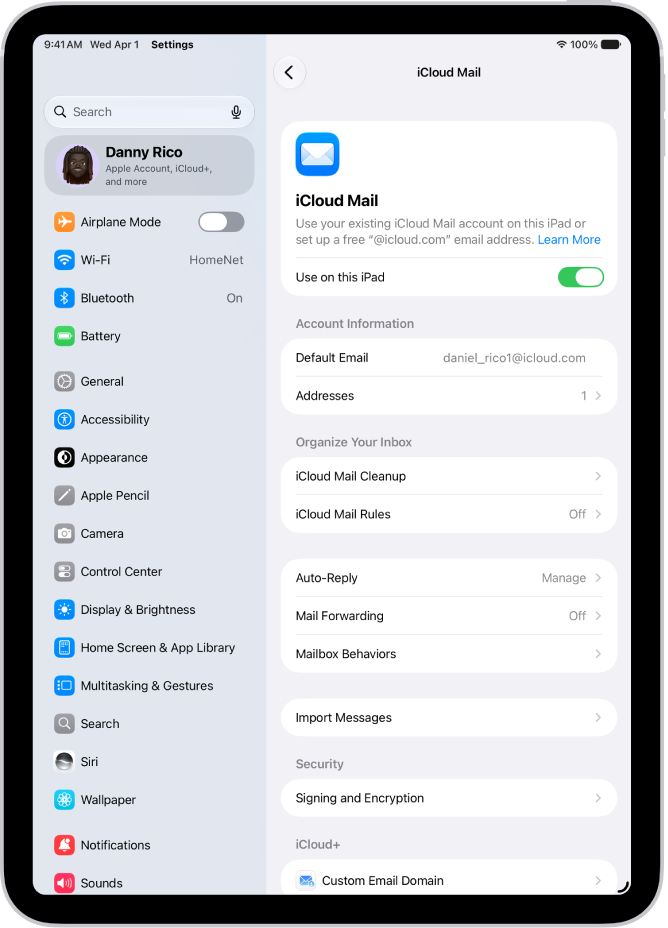
The Settings app, open to the iCloud Mail screen. Custom Email Domain is at the bottom of the menu.

Add a custom email domain to iCloud Mail

If you already own a custom email domain, you can bring it to iCloud Mail, or you can buy a new one.

Note: Adding a custom email domain on iPad won’t work until you have a primary iCloud Mail address.

  1. Open Settings, tap [your name], tap iCloud and tap Mail (under Saved to iCloud). Then make sure Use on this iPad is turned on.
  2. Tap Custom Email Domain. Tap one of the following:

    • Buy a Domain: Choose this option if you don’t yet have a custom domain. After you purchase it, you can create custom email addresses.
    • Use a Domain You Own: Choose this option if you already have a domain, and you want to use it with iCloud Mail. You can configure email addresses you already have at that domain, and create more.
  3. Follow the onscreen instructions.

    If you’re adding a domain you already own, some registrars require you to change DNS records to set up your domain.

Import existing email messages

When you or a member of your Family Sharing group has set up a custom email domain for iCloud Mail, iCloud.com can import existing email messages from your previous email provider, though that’s not available for all email providers.

Create and delete email addresses

After you add a custom domain name, it’s easy to create and delete email addresses for that domain.

  1. Open Settings, tap [your name], tap iCloud and tap Mail (under Saved to iCloud). Then make sure Use on this iPad is turned on.
  2. Tap Custom Email Domain. Then tap the domain you want to make changes to.
  3. Tap Manage Email Addresses, then do one of the following:
    • Add a new email address: Tap Create Email Address, enter the new address, and tap Continue.
    • Delete an email address: Swipe left on an email address, tap Delete, and tap Remove.
    • Add People: Tap to invite someone to your custom email domain.

Remove a custom email domain

If you no longer want to use a custom email domain, your iPad can remove it. When you remove a custom email domain, iCloud Mail can’t send or receive email for any addresses at that domain.

  1. Open Settings, tap [your name], tap iCloud and tap Mail (under Saved to iCloud). Then make sure Use on this iPad is turned on.
  2. Tap Custom Email Domain. Then tap Edit next to Your Domains.
  3. Tap the Delete button and tap Delete.
  4. If you’re moving your domain to a new provider, make sure to do the following:
    • Go to your domain registrar to update the domain records to your new email provider and remove iCloud-related records.
    • Set up any email addresses you want to continue using with your new provider.

Note: If you remove a custom email domain, your primary @icloud.com address can still send and receive email.

Allow all incoming messages to your domain

If you use your iCloud email address as a catch-all address, you receive all messages sent to your custom email domain, even when the exact address they were sent to hasn’t been created yet.

  1. Open Settings, tap [your name], tap iCloud, and then tap Mail (under Saved to iCloud).
  2. Tap Custom Email Domain and tap your custom domain.
  3. Turn on Allow All Incoming Messages.

If the domain owner allows all incoming messages, any messages that aren’t sent to an active email address go to the domain owner’s inbox. If this setting isn’t turned on, those messages are returned to the sender.

Note: Messages sent to deleted email addresses automatically go back to the sender.

See also

Tags: iCloud, Mail

You can use Private Browsing Mode, view the Privacy Report, and adjust settings in the Safari app to keep your browsing activities private and help protect yourself from malicious websites.

Tabs you open in Private Browsing don’t appear in History on iPad or in the tab list on your other devices, even if you’re signed in to the same Apple Account. And if you have a passcode set, Private Browsing locks when it’s not in use.

Here’s how to browse the web privately in Safari on iPad.

Visit sites privately

Tabs you open with Private Browsing stay out of History on iPad and off the tab list on your other devices. Those tabs aren’t shared with your other Apple devices, even when you’re signed in to the same Apple Account.

With a passcode set on your iPad, Private Browsing locks whenever it’s not in use, but not always immediately.

  1. Open the Safari app on your iPad.
  2. Tap the Show Sidebar button, then tap Private.

    If you don’t see Private, tap the Back button at the top of the sidebar.

  3. Follow the directions onscreen to unlock Private Browsing.

    To exit Private Browsing, tap the Show Sidebar button, then tap a Tab Group. The websites you have open in Private Browsing stay open, and Private Browsing locks.

To allow Private Browsing to be locked, go to Settings > Apps > Safari, then turn on Require Passcode to Unlock Private Browsing, Require Face ID to Unlock Private Browsing (supported models), or Require Touch ID to Unlock Private Browsing (supported models).

Note: Any Safari extensions you have installed that have access to browsing data are automatically turned off in Private Browsing. To turn on an extension in Private Browsing, see Change Safari extension settings.

Choose a search engine for Private Browsing

  1. Open the Settings app on your iPad.
  2. Tap Apps, then tap Safari.
  3. Turn off Also Use in Private Browsing.
  4. Tap Private Search Engine, then choose a search engine.

View the Privacy Report

Safari helps stop trackers from following you across websites and seeing your IP address. To see a summary of the trackers Intelligent Tracking Prevention has encountered and prevented on the webpage you’re currently visiting, check the Privacy Report. In Safari settings, you can also make adjustments that keep your browsing private from other people who use the same device and help protect you from malicious websites.

  1. Open the Safari app on your iPad.
  2. Tap the Page Menu button and tap Privacy & Security.
  3. Tap Privacy Report.

Use iCloud Private Relay to browse the web with more privacy

When you subscribe to iCloud+, you can use iCloud Private Relay to help prevent websites and network providers from creating a detailed profile about you. When iCloud Private Relay is turned on, the traffic leaving your iPad is encrypted and sent through two separate internet relays. This prevents websites from seeing your IP address and exact location while it prevents network providers from collecting your browsing activity in Safari. See Protect your web browsing with iCloud Private Relay.

See Protect your web browsing with iCloud Private Relay to learn how to:

  • Turn iCloud Private Relay completely on or off for your iPad.
  • Turn iCloud Private Relay on or off for a specific Wi-Fi or cellular network.
  • Turn iCloud Private Relay off temporarily.
  • Set the specificity of your IP address location.

Note: iCloud Private Relay isn’t available in all countries or regions.

Temporarily allow a website to see your IP address

Some websites rely on IP filtering, monitoring, or rate-limiting and might need your IP address to be visible. For that website only, you can turn off iCloud Private Relay temporarily.

  1. Open the Safari app on your iPad.
  2. Go to the website.
  3. Tap the Page Menu button on the left side of the search field and tap Privacy & Security.
  4. Tap Show IP Address (if available).

    Your IP address remains visible to that website until you leave the website or close its Safari tab. iCloud Private Relay remains on for other websites.

To turn off or pause iCloud Private Relay for all websites, see Protect your web browsing with iCloud Private Relay.

Control privacy and security settings for Safari

  1. Open the Settings app on your iPad.
  2. Tap Apps, then tap Safari.
  3. Turn any of the following on or off:
    • Prevent Cross-Site Tracking: Safari limits third-party cookies and data by default. Turn this option off to allow cross-site tracking.
    • Hide IP address: Safari automatically protects your IP address from known trackers. For eligible iCloud+ subscribers, your IP address is protected from trackers and websites as you browse in Safari. If this option is off, your IP address isn’t hidden.
    • Fraudulent Website Warning: Safari displays a warning if you’re visiting a suspected phishing website. Turn this option off if you don’t want to be warned about fraudulent websites. (Not available in all countries or regions.)
    • Camera: Choose whether Safari websites can use your camera without asking you first. Tap Camera and choose Ask, Deny, or Allow.
    • Microphone: Choose whether Safari websites can use your microphone without asking you first. Tap Microphone, then choose Ask, Deny, or Allow.
    • Location: Choose whether Safari websites can use your location without asking you first. Tap Location and then choose Ask, Deny, or Allow.

To set exceptions for a specific website, open the website in the Safari app, tap the Page Menu button, tap Website Settings, then tap the setting you want to change below Website Settings For.

See also

Tags: iCloud, Safari

When you subscribe to iCloud+, Hide My Email lets you send and receive email messages that forward to your real email account, to keep your real email address private. You can also generate unique email addresses on demand in the Mail app.

You can send a message with Hide My Email to one recipient at a time, and replies forward to your real email address. When you get a message at one of your unique addresses, you can reply using the same address, too.

Send an email with Hide My Email

  1. Go to the Mail app on your iPad.
  2. Tap the Compose button.
  3. Add a recipient and subject for your message.

    Note: You can only send a message using Hide My Email to one recipient at a time.

  4. Tap the From field, tap it again, and tap Hide My Email. A new, unique email address appears in the From field.

Quick tip: If someone replies to a message you sent with Hide My Email, the reply goes to your real email address. To set a Forward To address, read our guide, Create and manage Hide My Email in Settings.

Reply to an email using Hide My Email

When you receive an email message to one of your unique, random addresses, you can reply using the same address. This allows you to continue the conversation and keep your real email address private. To reply, do the following:

  1. Start the Mail app on your iPad.
  2. Tap the message. Tap the Reply button above the message.
  3. Type your response.

    You can tap the From field to view the email address the recipient sees.

Manage the addresses generated by Hide My Email

You can create, deactivate, reactivate, and manage random addresses with Hide My Email. See our article, Create and manage Hide My Email in Settings.

See also

Tags: iCloud, Mail

iCloud+ gives you everything iCloud offers plus premium features including Apple Invites, iCloud Private Relay, Hide My Email, HomeKit Secure Video support, and all the storage you need for your photos, files, and more. You can subscribe to iCloud+ or to Apple One, which includes iCloud+ and other Apple services.

Plans range from 50 GB to 12 TB of storage, and you can upgrade, change, or cancel your subscription at any time.

Here’s how to subscribe to iCloud+ on iPad.

Note: Some iCloud+ features have minimum system requirements. The availability of iCloud+ and its features varies by country or region.

What’s included with iCloud+

Subscribe to iCloud+, and you can do the following on iPad:

  • Get 50 GB, 200 GB, 2 TB, 6 TB, or 12 TB (depending on your plan) of storage for photos, files, backups, and more.
  • Create and share custom invitations for your events.
  • Create unique, random email addresses that forward to your personal inbox with Hide My Email. See Use Hide My Email in Safari and Use Hide My Email in Mail.
  • Browse the web in an even more secure and private way with iCloud Private Relay. See Protect your web browsing.
  • Set up home security cameras with HomeKit Secure Video so you can view your footage from anywhere while keeping it private and secure. See Set up security cameras.
  • Use a custom email domain to personalize iCloud Mail. See Set up a custom email domain.

Upgrade, change, or cancel your iCloud+ subscription

  1. Open the Settings app on your iPad.
  2. Tap your name, then tap iCloud.
  3. Tap Storage and tap Manage Plan. Follow the onscreen instructions.

Note: Cancel your iCloud+ subscription, and you’ll lose access to the additional iCloud storage and iCloud+ features.

Share iCloud+

Family Sharing lets you share iCloud+ with up to five other family members, and once they accept your invitation, they get instant access to the additional storage and features.

Note: Sharing iCloud+ with a family group ends when you cancel the subscription or leave the family group, and also if you turn off or leave Family Sharing. For more, see our article, Add a member to a Family Sharing group.

See also

Tag: iCloud

When you subscribe to iCloud+, you can use iCloud Private Relay to help prevent websites and network providers from creating a detailed profile about you.

With it on, the traffic leaving your iPad is encrypted and sent through two separate internet relays, so websites can’t see your IP address and exact location, and network providers can’t collect your browsing activity in Safari. You need to turn it on on each device where you want to use it, and you can also turn it off temporarily, since it turns back on automatically within 24 hours.

Note: iCloud Private Relay isn’t available in all countries or regions.

Turn iCloud Private Relay on

Go to Settings > [your name] > iCloud > Private Relay, then tap Private Relay.

Note: You need to turn on iCloud Private Relay on each device where you want to use it.

Turn iCloud Private Relay off

  1. Open Settings, tap [your name], tap iCloud, tap Private Relay, and tap Private Relay.
  2. Do one of the following:

    • Turn off iCloud Private Relay temporarily: Tap Turn Off Until Tomorrow.

      Within 24 hours, iCloud Private Relay will turn back on automatically. If you want it to resume sooner, follow the instructions for turning it on at any time.

    • Turn off iCloud Private Relay completely: Tap Turn Off Private Relay.

For information about turning off iCloud Private Relay temporarily for a specific website, see Temporarily allow a website to see your IP address.

Turn iCloud Private Relay on or off for a Wi-Fi network

  1. Open Settings and then tap Wi-Fi.
  2. Tap the Actions Available button. Turn Limit IP Address Tracking on or off.

iCloud Private Relay gets turned off for a Wi-Fi network across all your devices signed in to the same Apple Account when you turn off Limit IP Address Tracking for that network on your iPad.

Turn iCloud Private Relay on or off for a cellular network (Wi-Fi + Cellular models)

  1. Open Settings, tap Cellular Data, and do one of the following:
    • If your iPad has a single plan: Tap Cellular Data Options.
    • If your iPad has multiple plans: Select a plan (below Cellular Plans).
  2. Turn Limit IP Address Tracking on or off.

The network setting is specific to a physical SIM or eSIM in your iPad (eSIM not available in all countries or regions). See Manage your cellular data service.

Set the specificity of your IP address location

Go to Settings > [your name] > iCloud > Private Relay > IP Address Location, then choose one of the following:

  • Maintain General Location (for example, to see local content in Safari)
  • Use Country and Time Zone (to make your location more obscure)

iCloud Private Relay is not available in all countries or regions, Apple says.

See also

Tag: iCloud