Got a tip for us?

iCloud

You can access your books and audiobooks in the Books app on your other Apple devices such as your iPhone, Mac, or Apple Vision Pro. You can also sync your reading position, highlights, notes, library collections, and more.

To keep everything updated, you sign in to the same Apple Account on each device. Purchases made on your other devices can download automatically, too, and your Home, Library, and collections can sync with iCloud Drive.

Note: Apple Books isn’t available in all countries or regions.

Access your books on your other devices

Sign in to the same Apple Account on every device, and then do the following so your Books content and information stays updated across your other Apple devices:

  • Automatically download purchases made on other devices: Go to Settings > Apps > Books, then turn on Purchases from Other Devices.
  • Sync reading position, bookmarks, notes, and highlights: Go to Settings > [your name] > iCloud, tap See All next to Saved to iCloud, then turn on Books.
  • Sync Home, Library, and collections: Go to Settings > Apps > Books, then below Syncing, turn on Home and iCloud Drive.

Access your books on your Mac

Do one of the following to see your books, audiobooks, and PDFs on your Mac:

  • macOS 15 or later: Choose Apple menu > System Settings, click your name at the top of the sidebar, then click iCloud. Click iCloud Drive, click Apps Syncing to iCloud Drive, then turn on Books.
  • macOS 13–14.5: Choose Apple menu > System Settings, click your name at the top of the sidebar, then click iCloud. Click iCloud Drive, click Apps syncing to iCloud Drive, then select Books. Click Back, then click Done.
  • macOS 10.15–12.5: Choose Apple menu > System Preferences, then click Apple ID. Click iCloud in the sidebar, then select iCloud Drive. Click Options, then select Books.
  • macOS 10.14 or earlier: Choose Apple menu > System Preferences, then click iCloud. Select iCloud Drive, click Options, then select Books.

Your collections, bookmarks, notes, and highlights can show up on your Mac, too: Open Books, then do one of the following:

  • macOS 13 or later: Choose Books > Settings, click General, then select “Collections, bookmarks, and highlights.”
  • macOS 12.5 or earlier: Choose Books > Preferences, click General, then select “Collections, bookmarks, and highlights.”

See also
You can view the tabs that are open on your other Apple devices and keep tabs and Tab Groups updated across them. You must be signed in to iCloud with the same Apple Account on all your devices to manage Safari tabs on those devices.

You can even close a tab on another Apple device. To see tabs open on your Mac, too, Safari needs to be on in iCloud on your Mac, with two-factor authentication.

View tabs that are open on your other Apple devices

  1. Go to the Safari app on your iPad.
  2. Tap the Show Sidebar button, then tap iCloud Tabs.

    To close a tab on another Apple device, touch and hold the link, then choose Close.

Keep tabs and Tab Groups updated across your devices

  1. Open the Settings app on your iPad.
  2. Tap your name, then tap iCloud.
  3. Tap See All and then make sure Safari is turned on.

Note: Seeing tabs open on your Mac, too, requires Safari turned on in iCloud settings on your Mac, the same Apple Account on both, and two-factor authentication.

See also

Tags: iCloud, Safari

AirDrop lets you securely share passwords and passkeys for website and app accounts with someone using an iPhone, iPad, or Mac. Compared to sharing other types of information, though, AirDrop has more stringent requirements for passwords and passkeys. iCloud Keychain must be set up, and you each need to be in the other’s contacts.

Note: Want to show someone a Wi-Fi network password you saved? See our article, Find a Wi-Fi password.

Check the AirDrop requirements

Sharing passwords and passkeys with AirDrop comes with more stringent requirements than sharing other types of information.

  • iCloud Keychain must be set up on your iPad.
  • The person you’re sharing with must be in your contacts list in the Contacts app, and they must be listed with the email address they use for iCloud.
  • You must be in the other person’s contacts list in the Contacts app, and you must be listed with the email address you use for iCloud.

Send a password or passkey

Someone on iPad or iPhone needs to open Control Center and allow AirDrop to receive items before you can share with them. On a Mac, they need to allow themselves to be discovered in AirDrop in the Finder.

  1. Go to the Passwords app on your iPad.
  2. Tap All. Tap the account you want to share.
  3. Tap the Share button, then tap Share with AirDrop.
  4. Tap the device or picture of the person you want to send the password or passkey to.

Receive a password or passkey

  1. If you haven’t already done so, allow AirDrop to receive items.
  2. When you receive a request to accept a password or passkey from someone else, tap Accept.

Your iPad saves the password or passkey, so you can view its information and let iPad automatically fill it in on the account’s sign-in screen. It’s saved to your iCloud Keychain too, so it works on other devices signed in to your Apple Account.

See also

You can customize the settings for the Freeform app.

You can change access and permissions for boards and folders you share, change a board’s background, and align items more easily. A list of participants shows who has access to a board or folder, and you can grant individuals access, permissions, or even co-ownership. You can also use a dark canvas for a board.

Here’s how to change your Freeform settings on iPad.

Change access and permissions for boards and folders

You can change access and permissions for individuals or for everyone after you start sharing or collaborating on boards and folders.

  1. Open the Freeform app on your iPad.
  2. While viewing All Boards or the folder list, touch and hold the shared board or folder and then tap Manage Shared Board (or Folder).

    A list of participants appears, showing who has access to the board or folder.

  3. Do any of the following:

    • Grant individuals access, permissions, or co-ownership: Tap a participant’s name and then adjust their settings.
    • If you own the board, change access or permissions for all: Tap Sharing Options and then adjust settings for everyone.
    • Invite others with a link: Tap Sharing Options and tap Anyone with the Link, tap the Back button. Then tap Copy Link.
      • Note: Anyone can copy the link to send to others, but if you select People You Choose, then only those invited to open the board can use the link. If you don’t want to review individual requests to view or edit the board or folder, turn off Access Requests.

Quick tip: You can manage any board while you’re working on it: Tap the Collaborate button, then tap Manage Shared Board.

Change a board’s background

If Dark Mode is on, a board can have a dark canvas with controls to match. And to see more easily whether items line up, you can show a grid of gray dots on your board.

  1. Open the Freeform app on your iPad.
  2. Open a board, or tap the New Board button to start a new one.
  3. Tap the More button and then do any of the following:
    • Use a dark canvas: Tap Show with Dark Background. If you don’t see it, make sure you turned on Dark Mode.
    • Use another color in the background: Freeform boards have a black or white background. To define a workspace within your board that has a different background color, add a large rectangle of any color and then send it to the back and lock it. See Position items on a Freeform board.
    • Add or remove the dot grid background in full-screen view: Tap the View Options button in the lower-right corner.
    • Add or remove the dot grid background in smaller windows: Tap the More button and tap View Options. Then tap Hide Grid or Show Grid. See Work with multiple windows at once.

Align items more easily

You can make edges and points align to the nearest dot on the grid as you resize or move an item. You can also use alignment guides to help you place items more precisely. When guides are on, they appear as you drag an item on a board and it aligns with another item.

  1. Open the Settings app on your iPad.
  2. Tap Apps, then tap Freeform.
  3. Turn on Snap to Grid, or turn on or off any of the following:
    • Center Guides: These appear when the midpoints of items align.
    • Edge Guides: These appear when the edges of items align.
    • Spacing Guides: These appear when three or more items are equally spaced in a line.

You can also access these settings when you’re working in a board. Tap the More button, tap Alignment Settings, then tap Snap to Grid or turn on the guides you want to use. Or turn them off if you don’t want them appearing as you move items near one another on the board.

Get math hints

You can choose how you want your iPad to respond to the math problems you enter.

  1. Open the Settings app on your iPad.
  2. Tap Apps, then tap Freeform.
  3. Tap Math Results, then select one of the following:
    • If you want problems to be solved automatically: Choose Insert Results. (The answer appears in writing that matches your own.)
    • If you want suggestions to appear: Choose Suggest Results. (A Solve button appears that, when tapped, adds the answer in writing that matches your own.)
    • If you don’t want to see math results: Choose Off.

You can also access these settings when you’re working in a board. Tap the More button, then tap Math Results.

Store your Freeform boards in iCloud

  1. Open the Settings app on your iPad.
  2. Tap your name, then tap iCloud.
  3. Tap See All, then turn on Freeform.

Sort your boards or folders

  1. Open the Freeform app on your iPad.
  2. Tap the Grid View button or the List View button to switch between grid and list view.
  3. Tap the More button and then do any of the following:
    • List boards alphabetically (instead of by most recently updated): Tap Sort by Name.
    • Change how boards and subfolders are listed: Choose Sort by Date, Name, Kind, or Shared By. To switch to descending order, tap the Sort Order button next to the sort name.
    • Categorize boards by how long ago they were last opened: Tap Sort by Date, then tap Use Groups.
    • Categorize boards by board owner: While viewing Shared, tap Use Groups.

Change Freeform privacy and analytics settings

Apple collects a variety of data, some of which is associated with your Apple Account. You can limit the use of certain analytics data or reset your identifier specifically used by apps in Apple Creator Studio.

  1. Open the Settings app on your iPad.
  2. Tap Apps, then tap Freeform.
  3. Turn on or off either of the following:
    • Share Analytics Data
    • Reset Identifier

If you use iCloud Passwords & Keychain, turning off analytics or resetting your identifier affects your devices with iCloud Passwords & Keychain turned on.

See also

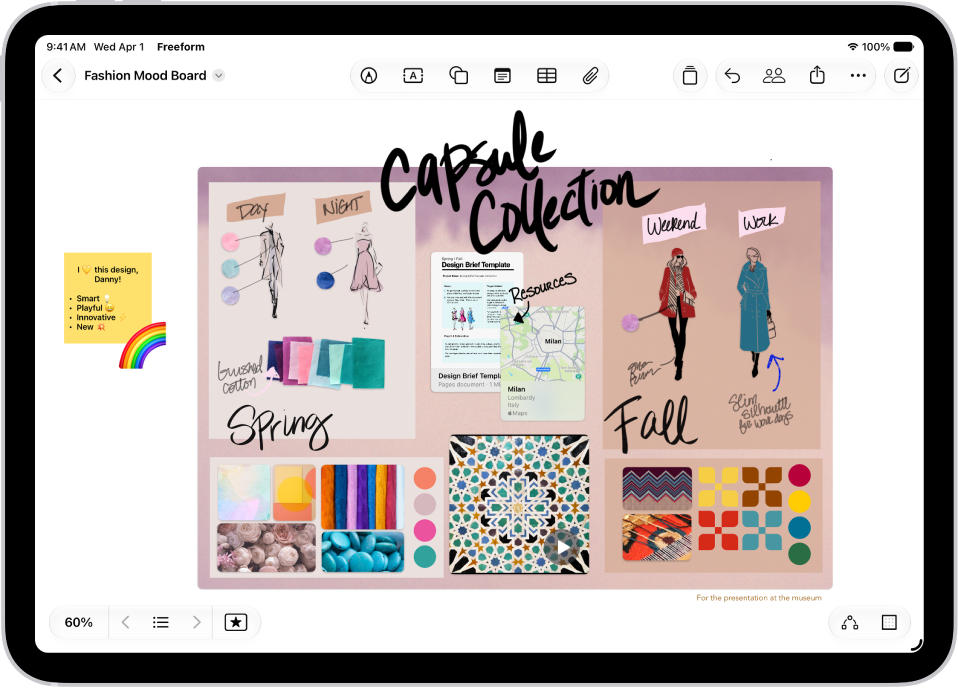
The Freeform app gives you a boundless canvas for creativity. You can bring photos, drawings, links, and files together on an online whiteboard, invite others to work with you in real time, and brainstorm, sketch ideas, or take notes by yourself or with a group.

You can put just about any kind of file in a board without worrying about layouts or page sizes, and add sticky notes to brainstorm or provide feedback. Boards you store in iCloud are on your iPhone or Mac, too, so you can keep working there.

An iPad with the Freeform app open. The board includes handwriting, text, drawings, shapes, photos, videos, sticky notes, links, and other files.

Gather ideas freely

You can put just about any kind of file in a Freeform board without worrying about layouts or page sizes. To create a board, tap the New Board button, then tap the Insert button or another option at the top of the screen to start adding your ideas.

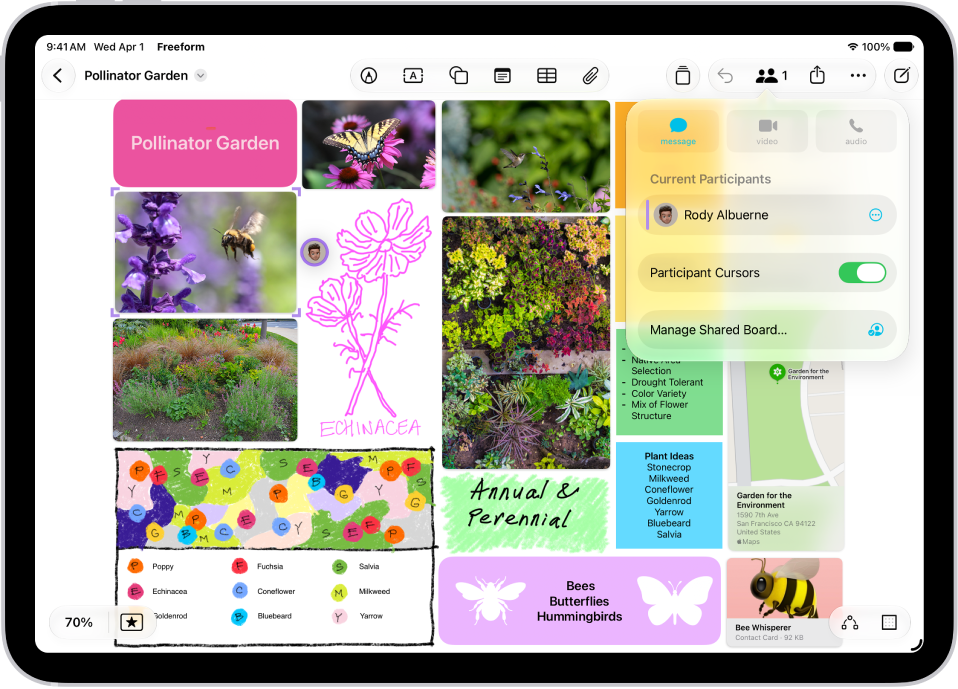
A Freeform board with two other participants whose selections are marked with color tick marks.

Collaborate with others

Tap the Share Board button to invite people to start working together in real time on a board. To conduct a brainstorming session or provide feedback, add a sticky note—tap the Add Sticky Note button.

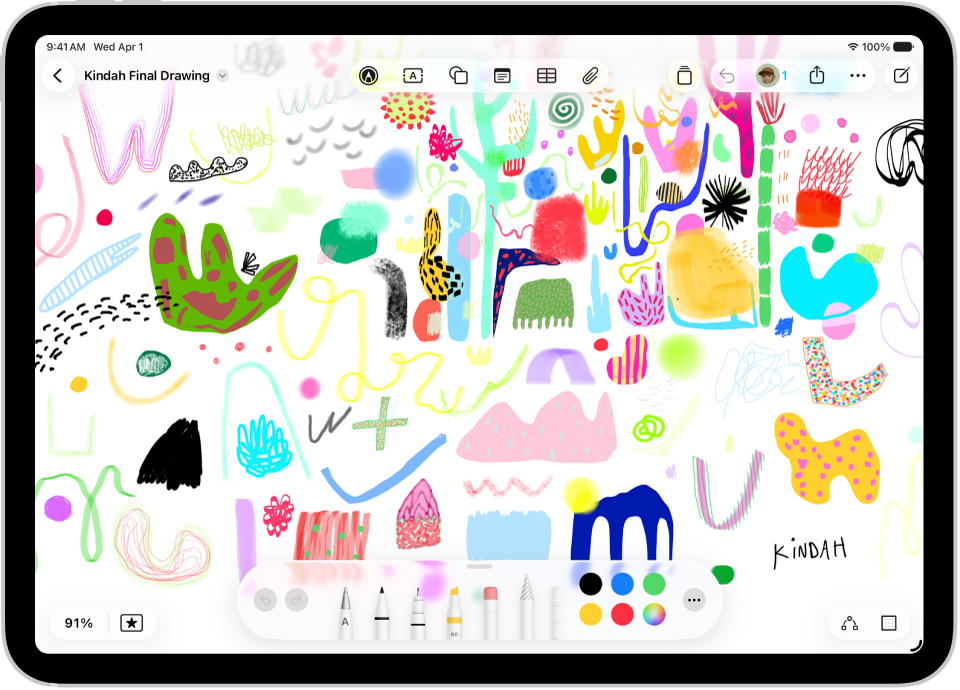
An iPad with a Freeform board that includes handwriting and drawings.

Get creative with the drawing tools

Tap the Drawing and Handwriting Tools button (or just use your Apple Pencil) to start drawing. Tap a tool to adjust the line’s thickness, transparency, color, and more. Pinch to zoom in and out as you work.

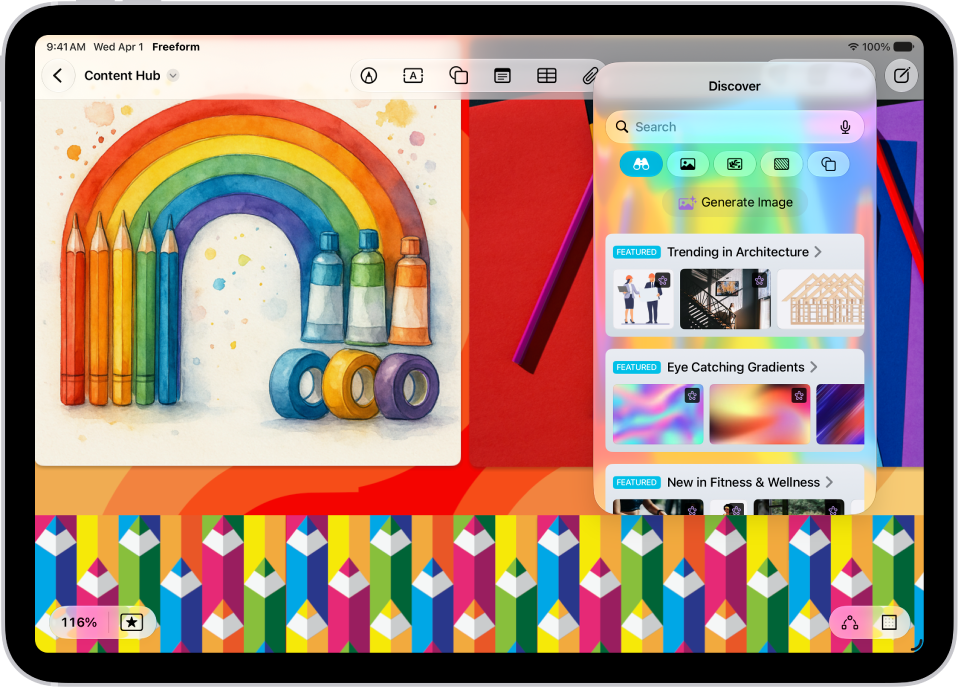
An iPad with the Freeform app open to the Content Hub in Apple Creator Studio. Premium and generated images are placed on the board.

Everything you need in one place

An Apple Creator Studio subscription unlocks a rich library of premium content, along with AI-powered features like automatic cropping and photorealistic image generation.

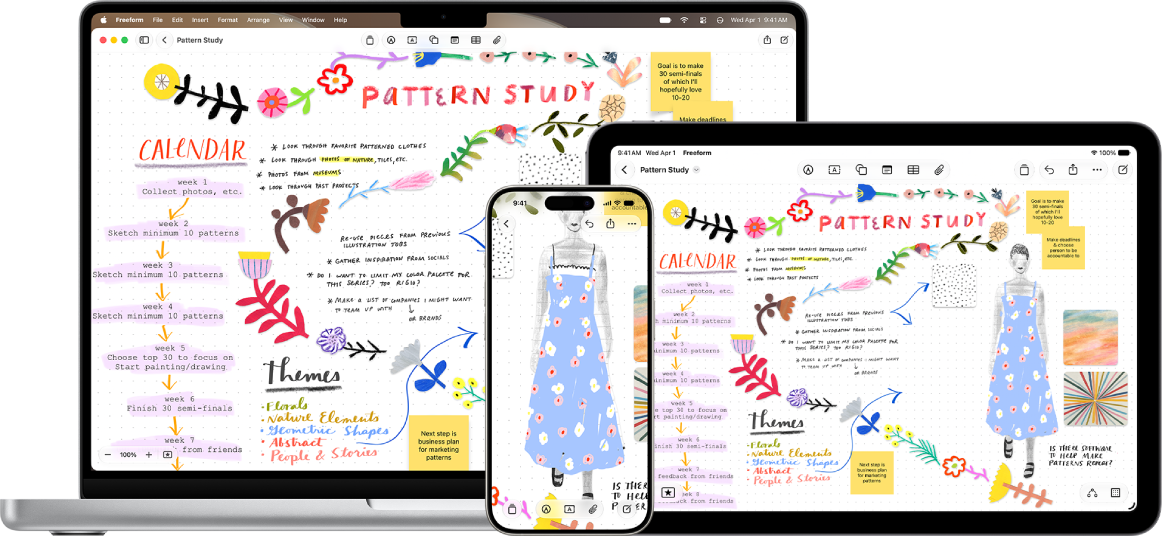
A Mac, iPad, and iPhone with the same Freeform board open.

Start on your iPad, keep working on your iPhone or Mac

The Freeform boards you store in iCloud—and any changes you make to them—stay up to date on all your Apple devices when you’re signed in to the same Apple Account. To use iCloud with Freeform, go to the Settings app, then tap your name. Tap iCloud, tap See All (in the Saved to iCloud section), then turn on Freeform.

There’s plenty more you can do with Freeform, and these guides are a good place to start:

In the Notes app, you can send a copy of a note to a friend. You can also share a link to invite people to collaborate in real time on a note or on a folder of notes in iCloud, and everyone will see the latest changes.

You can set who can access what you share, but you can’t collaborate on a locked note. You can also view activity in a shared note.

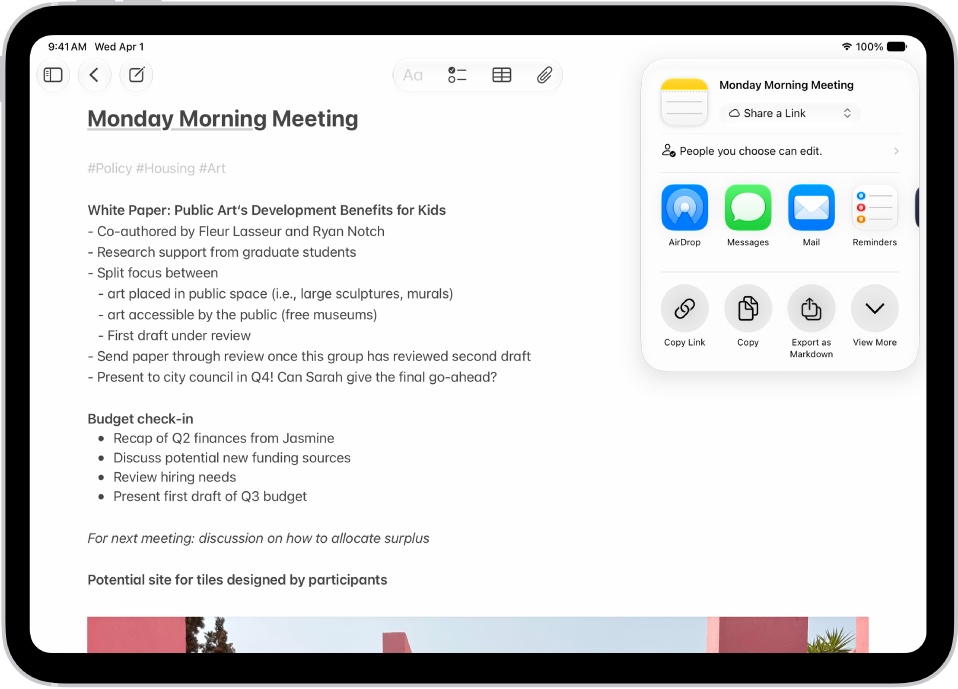
A note with an overlay showing sharing options.

Share a copy of a note

  1. Open the Notes app on your iPad.
  2. Open the note you want to share.
  3. Tap the Share button, tap the menu under the note title, and tap Send Copy.
  4. Choose how to send your note.

Collaborate on a note or folder of notes using iCloud

Sharing a link in iCloud to a note or a folder of notes is how you collaborate with others. You decide who can access what you share and set editing permissions, and all participants see changes in real time. Participants also need to be signed in to their Apple Account and have Notes turned on in iCloud settings.

Note: Collaborating isn’t possible on a locked note or a folder with locked notes.

  1. Open the Notes app on your iPad.
  2. Do one of the following:

    • Collaborate on a note: Open the note you want to share, tap the Share button, tap the menu under the note title, and then tap Share a Link.
    • Collaborate on a folder: Open the folder you want to share. Then tap the Share button.
  3. To change the access and permissions, tap Only invited people can edit and then set any of the following:

    • Who can access: Choose People you choose or Anyone with the link. With People you choose, you can turn on Access Requests.

      Note: Requesting access to a note sends an email to the address associated with the owner’s Apple Account.

    • Permissions: Choose Edit or View and Download Only.

Quick tip: When you send the invitation in Messages, you get activity updates in the Messages conversation whenever someone makes changes in the shared note. Tap the updates, and you’ll go to the shared note.

View activity in a note

An orange dot to the left of a note title in the notes list means the note’s changed since you last looked at it.

  1. Open the Notes app on your iPad.
  2. Open the note and then swipe right on the note or swipe up on the Activity card to see who made changes and when.
  3. To adjust how the activity is shown, tap the Collaborate button. Choose any of the following:
    • Show Updates: Shows changes made since you last opened the note.
    • Show All Activity: Shows all activity in the note.
    • Show Highlights: Shows names, dates, and changes made by each participant.

Quick tip: Type an @ sign followed by a participant’s name to mention them and notify them of important updates.

View activity in a folder

  1. Open the Notes app on your iPad.
  2. Touch and hold the folder. Then tap Show Folder Activity.

Change sharing settings

  1. Open the Notes app on your iPad.
  2. The owner of a shared note or folder can change the sharing settings by doing one of the following:

    • Manage a shared note: Tap the Collaborate button, then tap Manage Shared Note.
    • Manage a shared folder: Tap the Folder Actions button. Then tap Manage Shared Folder.
  3. Do any of the following:

    • Remove participants or cancel invitations: Tap the participant you want to remove, then tap Remove Participant or Cancel Invitation.
    • Change access and permission settings: To change the settings for one person, tap their name. To change the settings for all participants, tap Sharing Options.

      Making a participant a Co-Owner allows them to manage participants and permissions for everyone except the owner.

    • Stop sharing: When you choose this option, the shared note or folder is deleted from the devices of the other participants.

See also

Tags: iCloud, Notes

In the Photos app, you can make stickers from the subjects in your photos and animated stickers from the subjects in your Live Photos. Then use your stickers to decorate messages, photos, notes, and more.

Your stickers appear in the stickers menu, which you can open from the onscreen keyboard or the Markup tools. You can delete a sticker you no longer want, too.

Here’s how to make stickers from your photos on iPad.

Turn a photo or Live Photo into a sticker

You can turn a photo’s main subject into a sticker.

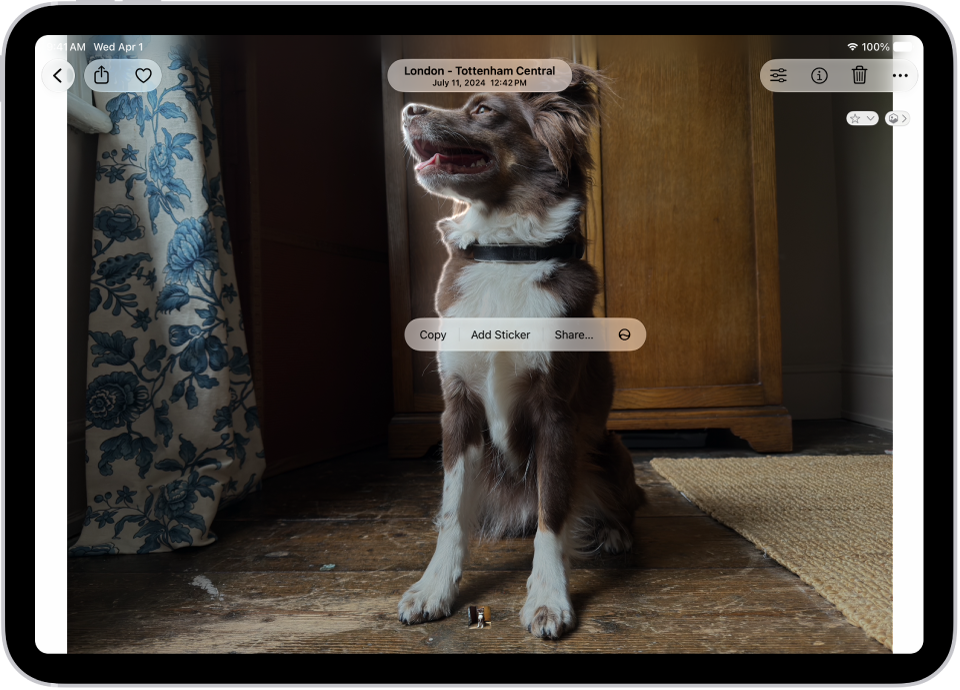
The Photos app is open to a photo of a dog. The dog is selected, and the option Add Sticker is available in the menu above.

  1. Start the Photos app on your iPad.
  2. Tap a photo to open it in full screen.
  3. Touch and hold the subject and then let go.
  4. Tap Add Sticker.

    The sticker appears in your stickers menu, which you can access when you use the iPad onscreen keyboard or Markup tools.

  5. Tap Add Effect to apply a visual effect such as Outline, or Comic, or turn the Live Photo animation on or off.

Quick tip: Stickers you’ve created can decorate a photo, too. See our guide, Edit photos and videos.

Delete a sticker

  1. Start the Photos app on your iPad.
  2. Open a photo and then tap the Edit button.
  3. Tap the Markup button, then tap the Add button.
  4. Tap Add Sticker, touch and hold the sticker you want to delete, and tap Remove.

Stickers sync with iCloud, so you’ll have them on each iPhone, iPad, Mac, and Apple Vision Pro device that’s signed in to the same Apple Account.

See also

Tags: iCloud, Photos

In the Reminders app, use iCloud to share to-do lists. You can collaborate and assign tasks to other people who also use iCloud.

People who accept the invitation can add and edit items, and you can assign a task to anyone on the list, including yourself. If you send the invitation in Messages, you’ll get activity updates in that conversation. You can turn notifications on or off for a shared list, too.

Note: With updated reminders, all Reminders features described in this guide are available, though some features aren’t available when using other accounts.

Collaborate on a list using iCloud

Lists can be shared with people who use iCloud so you can collaborate. Anyone who accepts the invitation can add and edit items and mark items as completed, and all the participants see everyone’s changes. To collaborate, everyone needs to be signed in to their Apple Account and have Reminders turned on in iCloud settings.

  1. Start the Reminders app on your iPad.
  2. View the list you want to share. Then tap the Share button.

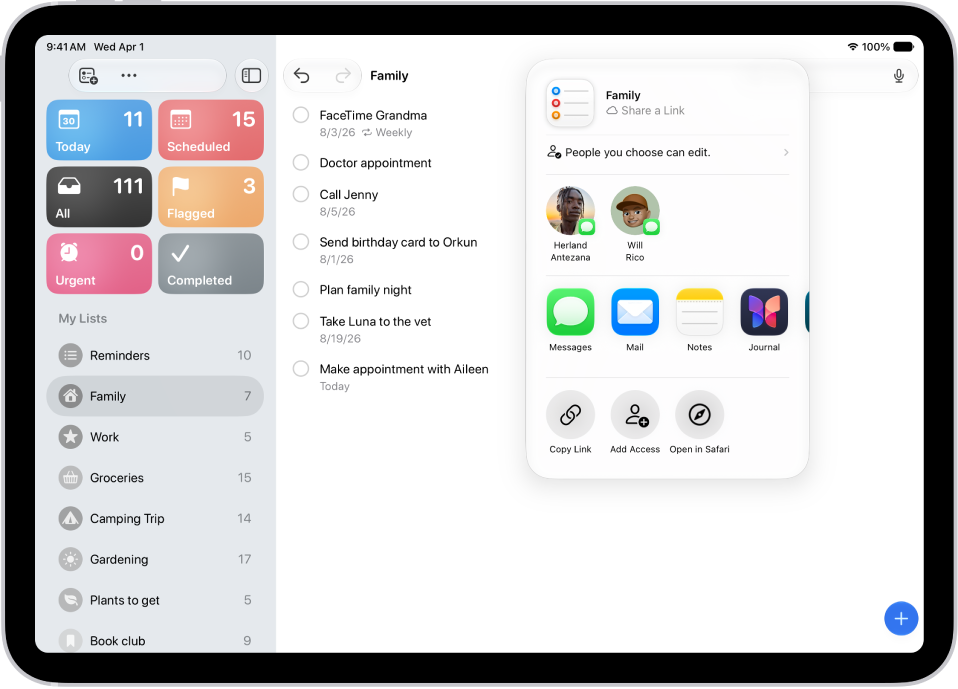
    A Reminders screen showing a list with options for sharing on the right.

  3. By default, participants on the list can invite other people. To restrict sharing, tap People you invite can add others and then turn off Allow others to invite.
  4. Choose how to send your invitation (for example, using Messages or Mail).

    If you send the invitation in Messages, you get activity updates in the Messages conversation when someone makes changes in the shared list. Tap the updates to go to the shared list.

Assign reminders in a shared list

You can assign a task to any person on the list, including yourself.

  1. Start the Reminders app on your iPad.
  2. In the shared list, create or edit a reminder, then do either of the following:
    • Type @ followed by the person’s name or choose a person from the menu above the keyboard.
    • Tap the Person button, then choose a person.

Quick tip: You can quickly see all reminders assigned to you if you use the Assigned to Me Smart List.

Turn notifications on or off for a shared list

  1. Start the Reminders app on your iPad.
  2. In the shared list, tap the Collaborate button and tap Manage Shared List.
  3. Below Notify When, turn on or off any of the following:
    • Adding Items: Receive an alert when someone adds an item to the list.
    • Completing Items: Receive an alert when someone completes an item on the list.

See also

You can recover text messages you deleted on your iPad for up to 30 days. You just choose the conversations you want to restore from Recently Deleted in the Messages app, and if you use Messages in iCloud, they’re recovered on all your devices where it’s on.

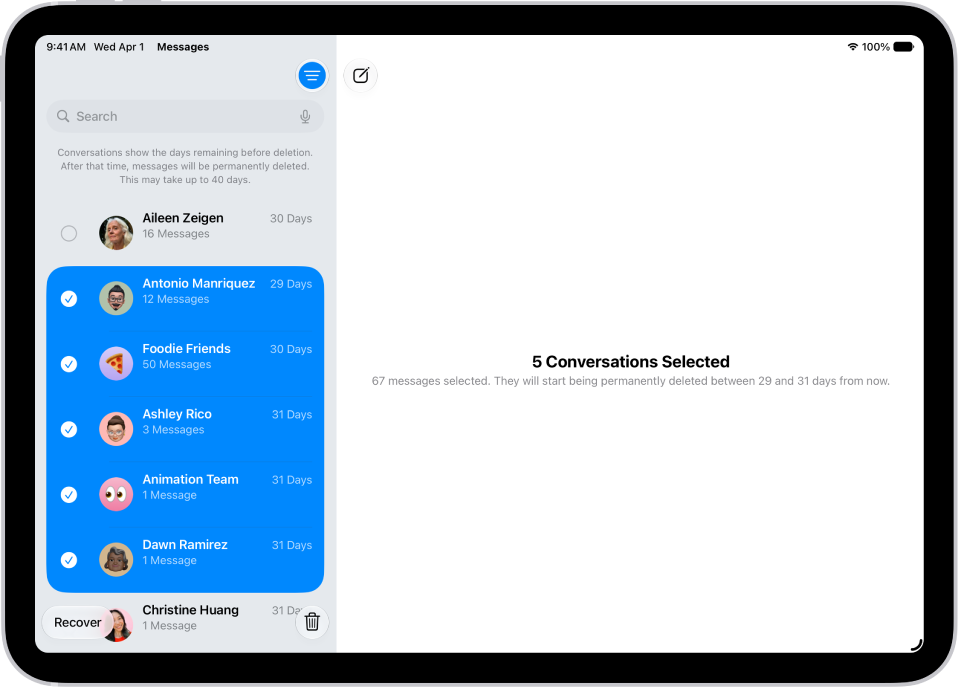
Recovering several recently deleted messages.

  1. Go to the Messages app on your iPad.
  2. Tap the Filter button at the top of the conversation list. Then tap Recently Deleted.
  3. Select the conversations whose messages you want to restore and tap Recover.
  4. Tap Recover Messages.

If you use Messages in iCloud, recovering a conversation or message on your iPad recovers it on every device where Messages in iCloud is on.

Note: Deleting and recovering messages only affects the iPad you’re using and other Apple devices signed in to the same Apple Account. And you can’t recover messages, attachments, and conversations for anyone else.

Future messages from a blocked contact aren’t automatically deleted if you’ve blocked someone in a conversation with non-iMessage, deleted the conversation, and then recovered it.

If you remove a message from a conversation using Undo Send, it’s permanently deleted. Audio messages that expire before being saved aren’t recoverable, either.

See also

Before you start texting, turn on iMessage, and you can sync your messages across all your Apple devices with Messages in iCloud and share your name and photo. There are two different ways to send text messages in the Messages app:

  • Using iMessage with others who also use iMessage. Your iMessage texts appear in blue bubbles.
  • With SMS, MMS, and RCS messages forwarded from your iPhone. Your SMS, MMS, and RCS messages appear in green bubbles. (RCS messages aren’t supported by all carriers or in all countries or regions.)

Turn on iMessage

  1. Start the Settings app on your iPad.
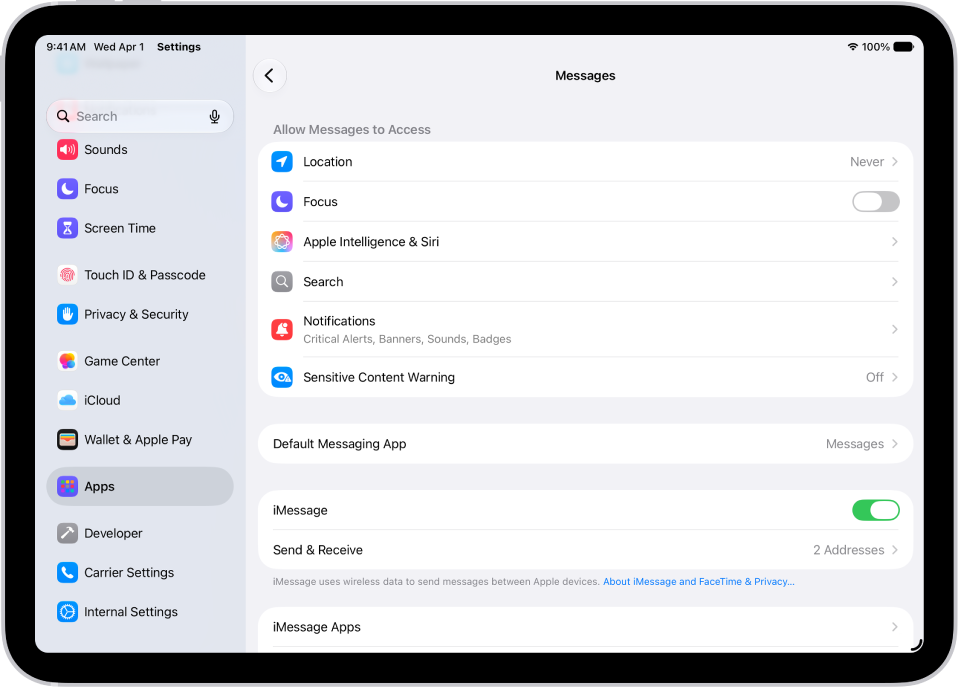
  2. Tap Apps, then tap Messages.
  3. Turn on iMessage.
  4. To select which of your phone numbers and email addresses you want to use with iMessage, tap Send & Receive and choose from the available options below You can receive iMessages to and reply from.

Learn more about iMessage.

The Messages settings pane with iMessage turned on.

Sync messages on all your Apple devices

Turning on Messages in iCloud saves the messages you send and receive on your iPad in iCloud. On another device signed in to the same Apple Account, turn on Messages in iCloud, and your conversations show up there too. Your entire messages history, including messages sent or received with SMS, MMS, RCS, or iMessage, stays current across those devices, even when you set up a new device.

  1. Make sure that your iPad is turned on and connected to a Wi-Fi network, and that you sign in to the same Apple Account on each device.
  2. Start the Settings app on your iPad.
  3. Tap your name and tap iCloud. Tap Messages.

    If Messages doesn’t appear, tap See All in the Saved to iCloud section.

  4. Turn on Use on this iPad (if it’s not already turned on).

If you have an iPhone, you can set it up so the SMS, MMS, or RCS messages you send or receive also appear on your iPad.

With Messages in iCloud on, messages or attachments you delete from iPad also disappear from your other Apple devices that have Messages in iCloud turned on and run iPadOS 13, iOS 11.4, watchOS 1, macOS 10.13.5, visionOS 1, or later.

Note: Messages in iCloud draws on your iCloud storage. See our guide, Sign in and manage your Apple Account.

Share your name and photo

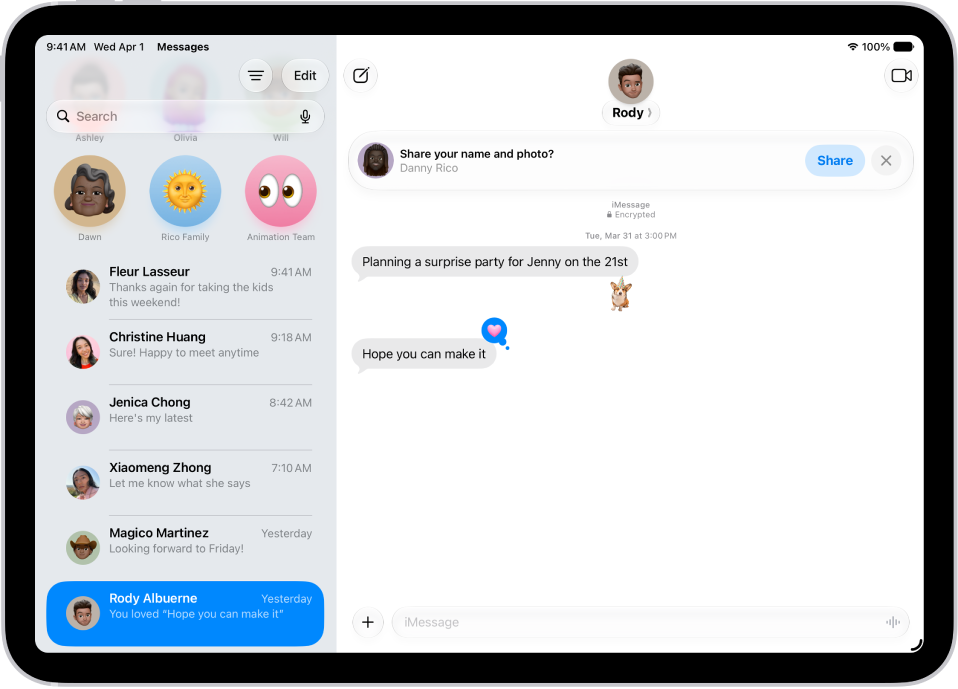
In Messages, you can share your name and photo** with others. You decide whether to share it whenever you send or receive a message from someone new.

A conversation in Messages. A notification appears at the top asking whether the user’s name and photo should be shared with the other person in the conversation.

  1. Start the Messages app on your iPad.
  2. Do one of the following:
    • At the top of the conversation list, tap Edit, then tap Set Up Name & Photo.
    • Swipe up to the top of the conversation list, then tap Share Your Name & Photo.
  3. Choose how you want to be represented, scroll down, and then turn on Name and Photo Sharing.
  4. Tap Share Automatically and then choose one of the following:
    • Contacts Only: Anyone who is a saved contact receives the option of using the name and image you chose when they communicate with you.
    • Always Ask: You decide to share your name and photo as you communicate with each contact.
  5. Tap the Done button to save your changes.

To change these settings after you set them up, tap Edit, then tap Name & Photo.

Note: If you message recipients who use non-Apple devices, your name and photo may not appear as expected.

**Availability varies by region.

See also