Got a tip for us?

iCloud

iCloud securely stores your photos, videos, documents, backups, and more, and keeps them updated across all your devices automatically. With iCloud, you can also share photos, calendars, notes, folders, and files with friends and family.

iCloud provides you with an email account and 5 GB of free storage for your data. You can set up iCloud and use it with apps on iPhone.

Here’s how to use iCloud on iPhone.

Note: Some iCloud features have minimum system requirements. The availability of iCloud and its features varies by country or region.

Set up iCloud

  1. Open the Settings app on your iPhone.
  2. Tap your name.

    If you don’t see your name, tap Apple Account, then sign in to your Apple Account.

  3. Tap iCloud, tap See All, and turn on the apps and features you want to sync with iCloud.

For example, turn on iCloud Drive to make your files in iCloud Drive available to your other devices.

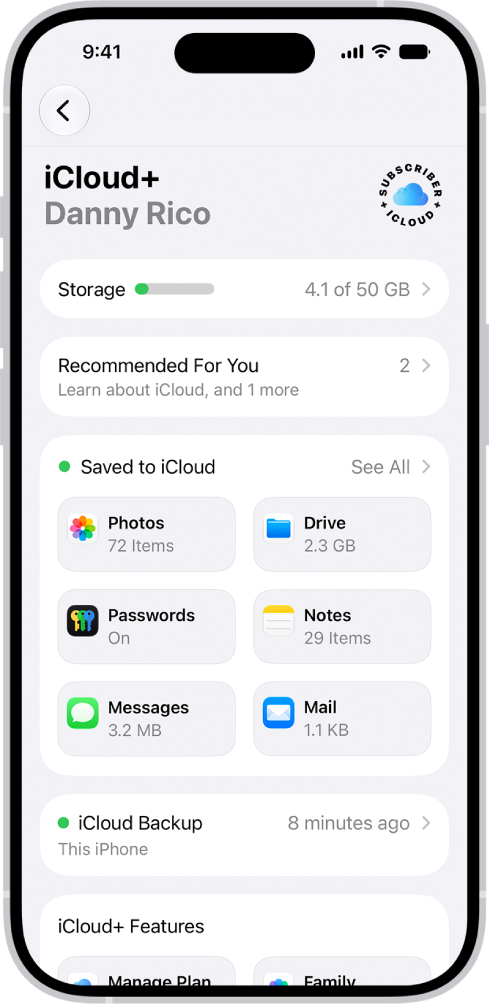
The iCloud settings screen showing the iCloud storage meter and a list of features—including Photos, iCloud Drive, and iCloud Backup—that can be used with iCloud.

Use iCloud with apps on iPhone

iCloud can also store the following information and keep it up to date across your iPhone and other Apple devices:

  • iCloud Backup

    iCloud can keep your iPhone backed up automatically.

    Back up iPhone

  • Photos

    Store your full-resolution photo library in iCloud and keep it in sync across all your devices. You can also share photos and videos with shared albums or an iCloud Shared Photo Library.

  • iCloud Drive

    Keep your files in iCloud Drive, access them from any device, and share folders and documents with others.

    Set up iCloud Drive

  • Messages

    Keep your conversations up to date and available across all your devices.

    Set up Messages

  • Mail

    Get an iCloud email address and access iCloud Mail across all your Apple devices.

    Set up iCloud Mail on all your devices

  • Passwords

    Sync your passwords and passkeys securely across all your devices with iCloud Keychain.

    Use passwords

  • Find My

    Locate a missing device and share locations with friends and family.

    Locate a missing device

  • And more…

    iCloud also keeps apps like Contacts, Calendars, Notes, and Reminders in sync, along with data from compatible third-party apps and games.

You can subscribe to iCloud+ to get additional storage and access to Hide My Email, iCloud Private Relay, Apple Invites, HomeKit Secure Video support, and more.

Your iCloud data is also accessible on Mac, iPad, Apple Watch, Apple TV 4K, Apple Vision Pro, Windows devices, and iCloud.com.

Tag: iCloud

You can customize the settings for the Freeform app.

You can change access and permissions for boards and folders you share, change a board’s background, and align items more easily. A list of participants shows who has access to a board or folder, and you can grant individuals access, permissions, or even co-ownership. You can also use a dark canvas for a board.

Here’s how to change your Freeform settings on iPhone.

Change access and permissions for boards and folders

Once you start sharing or collaborating on boards and folders, you can change access and permissions for everyone or for individuals.

  1. Open the Freeform app on your iPhone.
  2. While viewing All Boards or the folder list, touch and hold the shared board or folder and then tap Manage Shared Board (or Folder).

    A list of participants appears, showing who has access to the board or folder.

  3. Do any of the following:

    • Grant individuals access, permissions, or co-ownership: Tap a participant’s name and then adjust their settings.
    • If you own the board, change access or permissions for all: Tap Sharing Options and then adjust settings for everyone.
    • Invite others with a link: Tap Sharing Options and tap Anyone with the Link, tap the Share button. Then tap Copy Link.

Note: Anyone can copy the link and send it to others. If you select “People You Choose,” though, the link only works for those invited to open the board.

Turn off Access Requests if you’d rather not review individual requests to view or edit the board or folder.

Change a board’s background

With Dark Mode turned on, a board can get a dark canvas and controls to match. A grid of gray dots on your board is another option, making it easier to see whether items line up.

  1. Open the Freeform app on your iPhone.
  2. Open a board, or tap the New Board button to start a new one.
  3. Tap the More button and then do any of the following:
    • Use a dark canvas: Tap Show with Dark Background. If you don’t see it, make sure you turned on Dark Mode.
    • Use another color in the background: Freeform boards have a black or white background. To define a workspace within your board that has a different background color, add a large rectangle of any color. Send it to the back and lock it.
    • Add the dot grid background: Tap View Options and then tap Show Grid.
    • Remove the dot grid background: Tap View Options, then tap Hide Grid.

Align items more easily

You can make edges and points align to the nearest dot on the grid as you resize or move an item. You can also use alignment guides to help you place items more precisely. When guides are on, they appear as you drag an item on a board and it aligns with another item.

  1. Open the Settings app on your iPhone.
  2. Tap Apps, then tap Freeform.

Turn on Snap to Grid, or turn on or off any of the following:

  • Center Guides: These appear when the midpoints of items align.
  • Edge Guides: These appear when the edges of items align.
  • Spacing Guides: These appear when three or more items are equally spaced in a line.

You can also access these settings when you’re working in a board. Tap the More button, tap Alignment Settings, then tap Snap to Grid or turn on the guides you want to use. Or turn them off if you don’t want them appearing as you move items near one another on the board.

Get math hints

It’s up to you how your iPhone responds to the math problems you enter.

  1. Open the Settings app on your iPhone.
  2. Tap Apps, then tap Freeform.

Tap Math Results, then select one of the following:

  • If you want problems to be solved automatically: Choose Insert Results. (The answer appears in writing that matches your own.)
  • If you want suggestions to appear: Choose Suggest Results. (A Solve button appears that, when tapped, adds the answer in writing that matches your own.)
  • If you don’t want to see math results: Choose Off.

You can also access these settings when you’re working in a board. Tap the More button, then tap Math Results.

Store your Freeform boards in iCloud

  1. Open the Settings app on your iPhone.
  2. Tap your name, then tap iCloud.
  3. Tap See All, then turn on Freeform.

Sort your boards or folders

  1. Open the Freeform app on your iPhone.
  2. While viewing boards in a category (such as Favorites) or a folder, tap the More button and then do any of the following:
    • View more boards at the same time (with smaller thumbnails): Tap List.
    • Change how boards and subfolders are listed: Choose Sort by Date, Name, Kind, or Shared By. To switch to descending order, tap the Sort Order button next to the sort name.
    • Categorize boards by how long ago they were last opened: Tap Sort by Date, then tap Use Groups.
    • Categorize boards by board owner: While viewing Shared, tap Use Groups.

Change Freeform privacy and analytics settings

Apple collects a variety of data, some of which is associated with your Apple Account. You can limit the use of certain analytics data or reset your identifier specifically used by apps in Apple Creator Studio.

  1. Open the Settings app on your iPhone.
  2. Tap Apps, then tap Freeform.

Turn on or off either of the following:

  • Share Analytics Data
  • Reset Identifier

If you use iCloud Passwords & Keychain, turning off analytics or resetting your identifier affects your devices with iCloud Passwords & Keychain turned on.


In the Journal app, there are a number of ways you can protect your journal entries. You can lock your journal, you can sync your journal entries with iCloud, and you can include your journal entries in your iPhone backup if you encrypt your iPhone backup and store it locally on your computer or external storage device.

With iCloud, your entries and your changes show up on every iPhone, iPad, and Mac signed in to your Apple Account with Journal turned on.

Keep your entries in sync across your devices with iCloud

Your entries appear on your iPhone, iPad, and Mac, along with any changes you make to them. Each device needs Journal turned on in iCloud settings and the same Apple Account signed in.

  1. Open the Settings app on your iPhone.
  2. Tap your name, then tap iCloud.
  3. Tap See All next to Saved to iCloud, then turn on Journal.

How do I back up my journal entries?

Your entries are only included in a backup of your iPhone if your iPhone backup is encrypted and stored locally on your computer or an external storage device. That gives you a copy of your entries to use if your iPhone is ever replaced, lost, or damaged. In Settings, you can check that your entries sync to iCloud, but journal entries aren’t included in iCloud backups.

Lock your journal

To keep your journal private, make it so only you can access it, using Face ID, Touch ID, or your passcode.

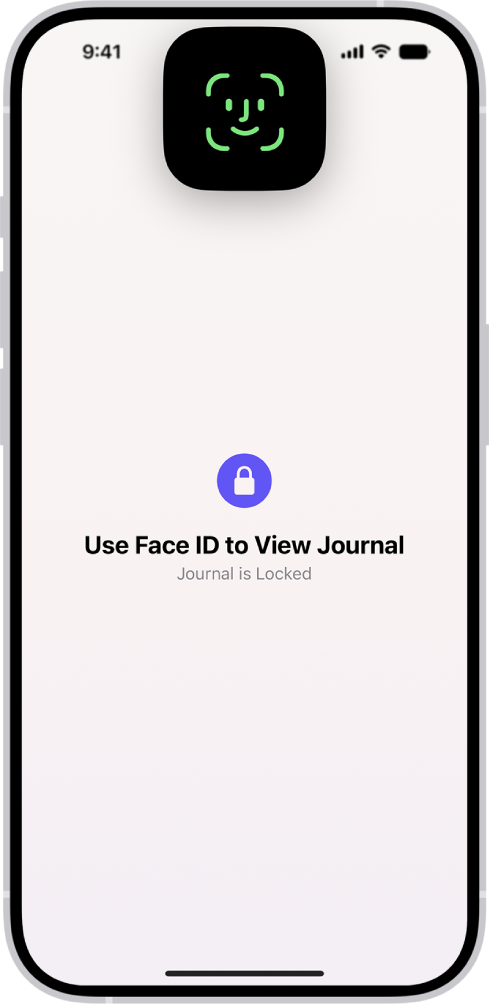
A screen in the Journal app that prompts you to use Face ID to unlock your journal.

You can lock your journal from either of these places:

  • In the Journal app: Above the Insights summary, tap the More button, then tap Lock Journal.
  • In the Settings app: Go to Settings > Apps > Journal, then tap Lock Journal.

In the Calendar app, you can share an iCloud calendar with other iCloud users. When you share a calendar, others can see it, and you can let them add or change events. You can also share a read-only version that anyone can view but not change.

The people you invite receive an invitation to join, and your contacts need an email address to be invited. You can change a person’s access later.

Create an iCloud calendar

  1. Open the Calendar app on your iPad.
  2. Tap the Calendars button at the top left.
  3. Tap Add Calendar.
  4. Tap Add Calendar, enter a name for the new calendar, and tap the Done button.

    If iCloud isn’t your default calendar, tap Accounts, then tap iCloud. See Change your Calendar settings.

Share an iCloud calendar

When you share a calendar in iCloud with one or more people, each of them gets an invitation to join the calendar.

  1. Open the Calendar app on your iPad.
  2. Tap the Calendars button at the top left.
  3. Tap the Info button next to the iCloud calendar you want to share.
  4. Tap Add Person and enter a name or email address, or tap the Add button to browse your contacts.

    Note: Your contacts must have an email address to share an iCloud calendar. See Add and use contact information.

  5. Tap the Done button.

Change a person’s access to a shared calendar

For anyone you’ve invited to share your calendar, you can turn their ability to edit it on or off, or stop sharing with that person altogether.

  1. Open the Calendar app on your iPad.
  2. Tap the Calendars button, tap the Info button next to the shared calendar, and then tap the person.
  3. Do any of the following:
    • Turn Allow Editing on or off.
    • Tap Delete.

Turn off notifications for shared calendars

You get notified whenever someone modifies a calendar you’re sharing, though you can turn off notifications for shared calendars if you’d rather not receive them.

  1. Open the Settings app on your iPad.
  2. Tap Notifications and tap Calendar.
  3. Tap Customize Notifications, then turn off Shared Calendar Changes.

Share a read-only calendar with anyone

  1. Open the Calendar app on your iPad.
  2. Tap the Calendars button and tap the Info button next to the iCloud calendar you want to share.
  3. Turn on Public Calendar. Then tap Share Link to copy or send the URL for your calendar.
  4. Choose a method for sending the URL—Message, Mail, and so on.

The URL lets anyone you send it to subscribe to the calendar in a compatible app, such as Calendar for macOS.

Delete a calendar

  1. Open the Calendar app on your iPad.
  2. Tap the Calendars button at the top left.
  3. Tap the Info button next to the iCloud calendar you want to delete.
  4. Tap Delete Calendar at the bottom of the list.

See also

In the Notes app, you can use multiple accounts—such as iCloud, enterprise-managed iCloud, Microsoft Exchange, Google, and Yahoo—and keep all your notes in one place. Your notes stay up to date on all your devices that use the same accounts.

You can also have an On My iPad account for notes you keep only on this device. Notes in your iCloud account, along with your changes, show up on every iPhone, iPad, and Mac signed in to your Apple Account.

Note: With iCloud and the On My iPad account, you get all the Notes features described in this guide, but some aren’t available with other accounts.

Keep your notes up to date on all your devices with iCloud

When you’re signed in to your Apple Account on your iPhone, iPad, and Mac, your iCloud notes appear on each, along with any changes you make to them.

  1. Open the Settings app on your iPad.
  2. Tap your name, then tap iCloud.
  3. Tap See All (next to Saved to iCloud). Then turn on Notes.

Add other accounts

The Notes app can also manage notes you keep in other accounts, like Microsoft Exchange, Yahoo, and Google.

  1. Open the Settings app on your iPad.
  2. Tap Apps, then tap Notes.
  3. Tap Notes Accounts and tap Add Account.
  4. Do one of the following:
    • Choose an account provider, then enter your account information.
    • If your account provider isn’t listed, tap Add Other Account, enter your email account information, then turn on Notes for that account.

Set up an On My iPad account

Notes in this account stay only on your iPad, but your iPad backups to iCloud include them.

  1. Open the Settings app on your iPad.
  2. Tap Apps, then tap Notes.
  3. Turn on On My iPad Account.

Remove an account

After you remove or delete an account, its notes won’t appear on your iPad anymore, but they remain in your internet account (for example, Google or iCloud.com) and on any other devices you’d already set up.

  1. Open the Settings app on your iPad.
  2. Tap Apps, then tap Notes.
  3. Tap Notes Accounts and tap the account you want to remove.
  4. Do one of the following:

    • Stop using Notes on the account: Turn off Notes.

      For an iCloud account, tap iCloud. Tap See All (next to Saved to iCloud), then turn off Notes.

      Note: You can continue to use the account for other services, such as Mail.

    • Stop using all services on the account: Tap Sign Out (for an iCloud account) or Delete Account (for other accounts).

      If you don’t see Sign Out or Delete Account, your account may be managed by your organization. See an administrator for removal instructions.

See also

Tags: iCloud, Notes

You can keep adding to an iCloud Shared Photo Library after you set up or join one in the Photos app. Anything you move there leaves your personal library and becomes visible to all participants. Here are the ways to add more photos and videos:

  • Manually move photos from your personal library
  • Save photos and videos you take directly to the shared library from Camera
  • Share photos you take when other members of the shared library are nearby
  • Share photos and videos you take at home

Note: iCloud Shared Photo Library works on iOS 16.1, iPadOS 16.1, macOS 13, or later. Earlier versions of the software can’t show photos and videos added to a shared library.

Manually add photos and videos to an iCloud Shared Photo Library

Individual photos and videos from your personal library can go into the iCloud Shared Photo Library.

  1. Start the Photos app on your iPad.
  2. Tap the photo or video you want to add. Or to add multiple photos and videos at the same time, tap Select. Tap the thumbnails you want to add.
  3. Tap the More button. Then tap Move to Shared Library.

After content is moved to the shared library, it’s no longer in your personal library and is visible to all of the shared library participants. To move content from the shared library back to your personal library, follow the steps above, but tap Move to Personal Library instead of Move to Shared Library.

Add photos and videos to an iCloud Shared Photo Library directly from Camera

After you set up or join an iCloud Shared Photo Library, when you open Camera, a Shared Library button appears on the side of the screen to let you switch between saving photos and videos to your personal library and saving them to the shared library. By default, Camera saves to your personal library. To switch, tap the Personal Library button to save to the shared library; tap the Shared Library button to switch back to your personal library.

To turn the feature on or off after you complete the setup process, go to Settings > Apps > Photos > Shared Library > Sharing from Camera, then turn Sharing from Camera on or off.

Add photos and videos to an iCloud Shared Photo Library when participants are nearby

While you set up or join an iCloud Shared Photo Library, there’s an option to automatically add photos you take when you’re near other people in the shared library.

To allow iPad to detect when participants of your shared library are nearby, participants need to be signed in to their Apple Account on their device and have Bluetooth® turned on in Settings > Bluetooth.

To turn the feature on or off after you complete the setup process, do the following:

  1. Start the Photos app on your iPad.
  2. Tap Collections. Tap your account in the top-right corner.
  3. Tap Shared Library, then tap Sharing from Camera.
  4. Tap Share Automatically.

Automatically add photos and videos taken at home to an iCloud Shared Photo Library

You can also have photos and videos you take at home added to the shared library automatically, an option you choose when you set up or join an iCloud Shared Photo Library.

To turn the feature on or off after you complete the setup process, do the following:

  1. Start the Photos app on your iPad.
  2. Tap Collections. Tap your account in the top-right corner.
  3. Tap Shared Library, then tap Sharing from Camera.
  4. Turn Share When At Home on or off.

Turn iCloud Shared Photo Library sharing suggestions on or off

Sharing suggestions recommends photos you might want to add to your iCloud Shared Photo Library, such as photos you took when participants of the shared library were nearby, or photos of people you indicated interest in during the setup process. iPad sends a notification to review sharing suggestions. To turn suggestions on or off, follow these steps:

  1. Start the Photos app on your iPad.
  2. Tap Collections. Tap your account in the top-right corner.
  3. Tap Shared Library, then turn Shared Library Suggestions on or off.

If you want to get sharing suggestions for additional people, tap Add People, tap a person, then tap Add. The person doesn’t have to be a member of the shared library.

See also

Tags: iCloud, Photos

After you set up or join an iCloud Shared Photo Library, you can share photos and videos with friends and family in the Photos app. You and up to five other participants can add photos and videos to the library, and any edits, comments, or other adjustments made to them are seen by everyone in real time. Content in a shared library is also added to everyone’s memories, featured photos, and the Photos widget.

Photos and videos in the shared library are kept separate from your personal library, and you can switch between viewing the shared library, your personal library, or both. You can also move shared content to your personal library.

Switch between viewing your iCloud Shared Photo Library and personal library

  1. Open the Photos app on your iPad.
  2. Tap the Sort and Filter button and select the following:
    • View your Photos content and iCloud Shared Photo Library content: Tap Both Libraries.
    • View only your personal Photos content: Tap Personal Library.
    • View only iCloud Shared Photo Library content: Tap Shared Library.

If you’re viewing both your personal and shared library, a badge in the top-right corner of the thumbnail marks content that’s part of the shared library.

Make edits and changes to content in an iCloud Shared Photo Library

Any of the following changes you make to photos and videos in an iCloud Shared Photo Library show up for all participants:

  • Edits; see Edit photos and videos on iPad.
  • Favorites, captions, keywords, or date and time adjustments; See photo and video information on iPad.
  • Deleted content; see Delete or hide a photo or video.

    Note: You receive notifications if content you added to the shared library is deleted. To turn off notifications, tap your account in the top-right corner of the screen in Photos, tap Shared Library, then turn off Deletion Notifications. If content you added is deleted, you can move it from Recently Deleted back to your personal library within 30 days.

Move shared content from an iCloud Shared Photo Library to your personal library

A badge in the top-right corner also marks photos stored in your shared library. Photos and videos you contributed to the shared library can be moved back to your personal library.

  1. Open the Photos app on your iPad.
  2. Open a photo or video in your shared library.
  3. Tap the More button at the top of the screen. Tap Move to Personal Library.

Add storage space to your iCloud Shared Photo Library

The content in an iCloud Shared Photo Library is available to every participant, while the iCloud storage used to store it counts against the library organizer’s storage space.

If the shared library content exceeds the organizer’s available storage space, the organizer can upgrade to iCloud+ or add additional storage to their existing iCloud+ subscription. See Subscribe to iCloud+.

See also

Tags: iCloud, Photos

With the iCloud Shared Photo Library feature, you can set up or join a shared library to share photos and videos with up to five friends or family members. You and those close to you can collaborate on the photo collection and enjoy more complete memories, all in one place. You can belong to one shared library at a time.

When you join, the photos and videos you contribute move from your personal library to the shared library, where all members can view, edit, and delete them. They appear in Photos alongside your personal content, and a filter lets you switch between your personal and shared libraries. Before you begin, iCloud Photos needs to be on, though you don’t need Family Sharing.

Note: To use iCloud Shared Photo Library, you need iOS 16.1, iPadOS 16.1, macOS 13, or later. On devices with earlier software versions, photos and videos added to a shared library won’t be available.

Before you begin

You need iCloud Photos turned on before you set up or join an iCloud Shared Photo Library.

Go to Settings > [your name] > iCloud > Photos, then make sure Sync this iPad is on.

Note: You can set up a shared library without Family Sharing turned on.

Set up an iCloud Shared Photo Library

The organizer is the person who sets up an iCloud Shared Photo Library.

  1. Start the Photos app on your iPad.
  2. Tap Collections. Tap your account in the top-right corner.
  3. Tap Shared Library and then follow the instructions onscreen to add participants and move photos and videos into the shared library.

    Note: Photos and videos you add to the shared library don’t appear in your personal library; see Switch between viewing your iCloud Shared Photo Library and personal library.

    You can preview the photos and videos you add to the shared library and make changes before you invite participants using Messages or a web link.

Join an iCloud Shared Photo Library

To join an iCloud Shared Photo Library, tap the invitation sent from the organizer, tap Get Started, then follow the onscreen instructions. During setup, you can add photos and videos to the shared library the same way as the organizer (see Set up an iCloud Shared Photo Library).

Once you join a shared library, there are several ways to add photos and videos to it, and you can access the same content within it as the organizer and other participants. See our guide, Add content to an iCloud Shared Photo Library.

Add participants to an iCloud Shared Photo Library

The organizer, who sets up the iCloud Shared Photo Library, can add new participants to the shared library.

  1. Start the Photos app on your iPad.
  2. Tap Collections. Tap your account in the top-right corner.
  3. Tap Manage, then tap Add Participants.

    Note: A shared library can include up to six participants including the organizer; you can belong to one shared library at a time.

Delete or leave an iCloud Shared Photo Library

The organizer of an iCloud Shared Photo Library can delete it, while everyone else can leave the shared library.

  1. Start the Photos app on your iPad.
  2. Tap Collections. Tap your account in the top-right corner.
  3. Tap Manage, then tap one of the following:
    • Delete Shared Library: When a shared library is deleted, participants who have been members of the shared library for more than 7 days can copy everything from the shared library into their own libraries. Participants who have been members for less than 7 days can copy only the content they contributed.
    • Leave Shared Library: When you leave a shared library, you can copy everything from the shared library into your own library, or just the content you contributed.

Everything added to a shared library counts toward the library organizer’s iCloud storage space. Read our article, Add storage space to your iCloud Shared Photo Library.

See also

Tags: iCloud, Photos

All photos and videos you take with your iPad camera are saved in the Photos app. With iCloud Photos turned on, all new photos and videos are automatically uploaded and available in Photos on all your devices that are set up with iCloud Photos (with iOS 8.1, iPadOS 13, or later).

You can share and print your photos, too, or send them with AirDrop, and iCloud Photos can even help save space on your iPad.

Note: If Location Services is turned on in Settings > Privacy & Security > Location Services, photos and videos are tagged with location data that can be used by apps and photo-sharing websites. See Control the location information you share.

View your photos

  1. Open Camera on your iPad.
  2. Tap the thumbnail image below the Shutter button.
  3. Swipe right to see the photos you’ve taken recently.

    Tap the screen to show or hide the controls.

  4. Tap All Photos to see all your photos and videos saved in Photos.

Share and print your photos

  1. While viewing a photo on your iPad, tap the Share button.
  2. To share your photo, select an option such as AirDrop, Mail, or Messages.
  3. To print your photo, swipe up to select Print from the list of actions.

To share with nearby devices, see our guide, Use AirDrop on iPad to send items to nearby Apple devices.

Upload photos and keep them up to date across devices

Use iCloud Photos to upload photos and videos from your iPad to iCloud and access them on other devices where you’re signed in to the same Apple Account. iCloud Photos is useful if you want to keep your photos up to date across multiple devices or save space on your iPad. To turn on iCloud Photos, go to Settings > Apps > Photos, then turn on iCloud Photos.

See also

Tags: iCloud, Photos

When you sign in with your Apple Account, your health and fitness information in the Health app is stored in iCloud automatically. It’s encrypted while it travels between iCloud and your device, and while it’s stored in iCloud.

Whether or not you use iCloud, you can also back up your Health data by encrypting a computer backup, as described in Back up iPad. For your Health data to sync across devices, they need to be signed in to the same Apple Account, connected to the internet, and updated to the latest OS version. You can stop storing your data in iCloud at any time.

Note: For Health app data to sync across devices, check that they’re signed in to the same Apple Account and connected to the internet, and that they’re updated to the latest OS version.

Manage your Health data in iCloud

You can make sure your Health data stays synced across all of your devices. And if you’d rather stop storing your data, you can do that at any time.

  1. Open the Settings app on your iPad.
  2. Tap your name, then tap iCloud.
  3. Tap Show All, tap Health, and then turn Sync with iPad on or off.

See also

Tags: Health, iCloud